
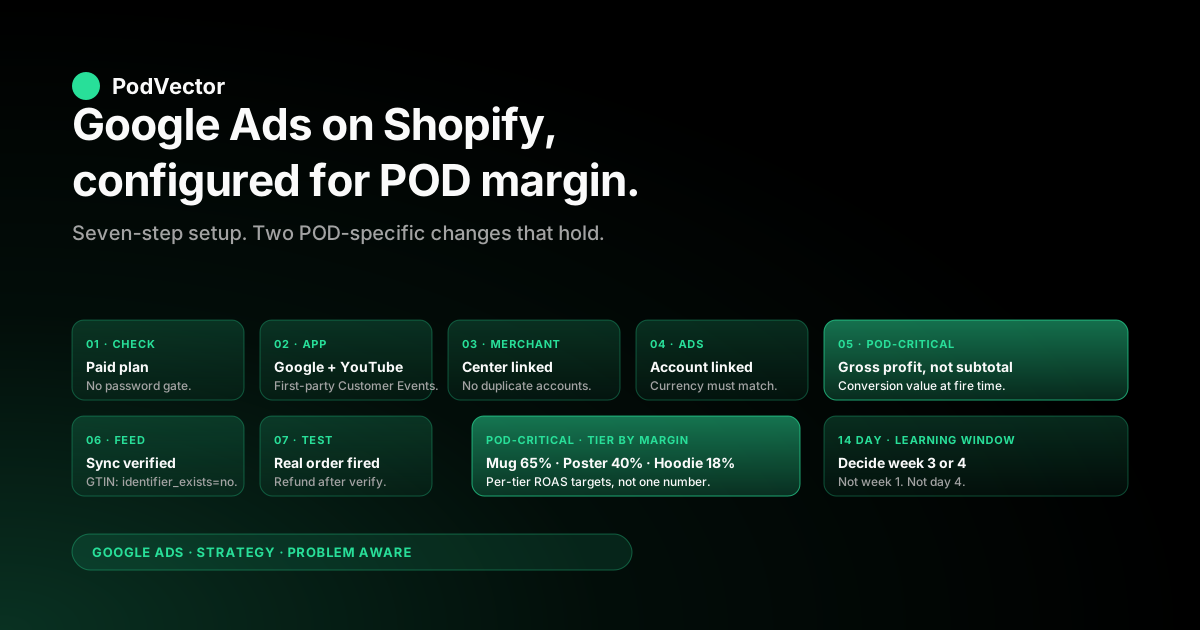
Quick Answer: The standard playbook for running Google Ads on a Shopify store — install the Google & YouTube app, link Merchant Center, run a Performance Max campaign, budget $20–30/day, watch ROAS for 14 days — is a fine starting point and we walk it below. The piece almost no one writes is what changes when the Shopify catalog you are bidding on is a print-on-demand catalog.
POD stores carry margin spread of 20–50 percentage points across SKUs from the same Printify or Printful supplier, return rates of 4–8% versus the 2–3% ecommerce baseline, and a feed where most apparel SKUs do not have GTINs. Smart Bidding does not know any of that unless you tell it. This guide walks the seven-step setup the way it should run for a POD Shopify store, the campaign-type decision that actually matters, the feed work that gets POD products to clear Merchant Center, the budget math at $14 mug versus $35 hoodie scale, and the five mistakes we see most often when a POD operator switches Google Ads on for the first time.
Why Google Ads for a Shopify POD store is structurally different
Most "Google Ads for Shopify" guides — including the genuinely good ones from Shopify's own blog, AdRoll, and independent PPC operators — assume an ecommerce store with one supplier, consistent margins across SKUs, GTINs on every product, and a return rate that rounds to noise. A Shopify POD store has none of those things, and the Google Ads engine cannot tell the difference unless the operator tells it.
Three structural facts shape the playbook for POD specifically:
- Margin spread inside one Performance Max campaign is often 20–50 percentage points. A $14 ceramic mug from Printify hits 60–70% gross margin. A $35 unisex hoodie from the same Printify catalog sits at 16–22%. A $22 wall poster from Printful is somewhere in the middle. If you tell Smart Bidding the conversion value is the order subtotal, it scales toward whichever SKUs have the highest subtotal — the hoodies — regardless of contribution margin. The store grows revenue and shrinks profit, and the operator wonders why ad spend went up but the bank balance did not.
- Apparel return rates are 4–8% in our customer cohort versus the 2–3% ecommerce baseline. If those refunds never get posted back as Google Ads conversion adjustments — and on most POD stores they do not — Smart Bidding overbids for whichever audiences and SKUs return at the highest rates because it never sees the value reverse. This pattern compounds over 30–60 days into a meaningful waste line.
- POD apparel SKUs do not have GTINs. Printify and Printful do not assign UPCs or EANs because the products are made to order. Google Merchant Center requires a GTIN for most apparel categories and lets it slide for others, with the result that a POD feed clears Merchant Center for some SKUs and gets disapproved for others, often in confusing patterns. The fix is feed-level, not product-level.
None of that means Google Ads is wrong for a POD store. It usually is the right channel — Search and Performance Max are excellent at capturing demand for products people already want — but the configuration that "works" for a single-margin dropshipping store is misconfigured for a POD catalog.
The rest of this piece walks the configuration that holds. For the broader strategic frame on Google Ads for POD, our complete Google Ads playbook for POD sellers ties together strategy, ad types, attribution, and tooling. The cluster hub is the Google Ads strategy cluster and the topic hub is at Google Ads for POD.
The setup, in the order it should happen
The Shopify-side setup for Google Ads is seven steps. Done in this order it takes 60–90 minutes for a store that is otherwise live. Done out of order it takes a week of debugging because the conversion action will be created twice, the feed will sync before the right products are flagged published-to-online-store, and the first campaign will get launched before tracking is verified.
- Confirm Shopify is on a paid plan and the storefront is publicly accessible. Trial stores cannot serve Google Ads traffic because the password gate blocks the landing page. Verify by opening your store URL in an incognito window — if it asks for a password, fix that first.
- Install the Google & YouTube app from the Shopify App Store. Settings → Apps → "Google & YouTube". This is the only first-party integration that handles Customer Events and the Web Pixels API correctly after the Checkout Extensibility migration, which means it is the only setup that does not silently break when Shopify rolls out a checkout update.
- Connect or create your Google Merchant Center account. The app walks the auto-creation flow for stores that do not already have one. If you already have a Merchant Center account from a prior setup, claim it and link to the Shopify-connected account rather than creating a duplicate. Two Merchant Center accounts on the same store domain creates a verification conflict that takes Google support 5–10 days to resolve.
- Connect or create your Google Ads account. Same flow as Merchant Center; same warning about duplicates. Make sure the billing currency you set in Google Ads matches your Shopify store's payout currency. A mismatch creates the multi-currency drift covered in our Shopify Google Ads tracking issues piece.
- Configure conversion tracking. The app sets up the Purchase conversion action automatically. Two settings the auto-config gets wrong for POD: change Count from "Every" to "One per click" (otherwise repeat buyers inflate retargeting ROAS — see our Shopify Google Ads conversion strategy piece for the full conversion-action setup), and plan to replace order-subtotal with gross-profit-per-order on the conversion event itself, covered in our Set Up Google Ads conversions on Shopify piece.
- Verify the feed is syncing to Merchant Center. Shopify Admin → Sales Channels → Google & YouTube → Products. The status column shows "Approved", "Pending", "Disapproved", or "Not synced". The first sync runs within 24 hours of connection; full feed coverage takes 3–7 days because Merchant Center batches the initial crawl. Any disapprovals at this stage are usually GTIN issues for apparel — fix in the next section.
- Verify the conversion tag with a real test order. Place an order in an incognito window with your own card, refund it from Shopify Admin once you confirm the conversion landed in Google Ads. Tools → Conversions → Purchase action → Status should read "Recording conversions" within 4–8 hours. If it does not, run Google's Tag Assistant on the Order Status page and check Customer Events in Shopify Admin.
For a fuller side-by-side of the integration paths and how the Shopify app, GTM, and server-side options compare, see the broader Google Ads + Shopify integration guide for POD in the Integrations cluster.
Picking your first campaign type
The Google & YouTube app pushes Performance Max as the default first campaign, and for most POD stores that recommendation is right — but with two POD-specific caveats.
Performance Max for POD: when it works. Performance Max is the right answer when (a) your catalog has at least 30 SKUs, (b) you can hit $20–30/day of spend per campaign, and (c) you have at least four weeks of historical conversion data so the algorithm has signal to learn from. PMax serves your products across Search, Shopping, YouTube, Discover, Display, Gmail, and Maps, and the algorithm picks placement allocation.
The good case is high reach for less hand-tuning. The failure case is opaque attribution that masks which placement actually drove the sale.
Standard Shopping for POD: when it is the better first campaign. If your store is brand new — under 30 conversions in the trailing 60 days — start with Standard Shopping rather than Performance Max. Standard Shopping is more transparent (you see exactly which queries triggered which products), it learns faster on small data, and you keep control over negative keywords. The right migration path is Standard Shopping for the first 60–90 days, then graduate to Performance Max once you have a meaningful conversion baseline.
Search campaigns for POD: usually a third campaign, not a first. Branded Search (people searching for your store name) is worth running once your store is producing organic brand traffic, because branded searches convert at 8–15x non-branded rates and the CPC is low. Non-branded Search for POD apparel is hard to make work because the keyword landscape is dominated by Amazon, Etsy, Redbubble, and direct-to-consumer brands with much larger budgets — Performance Max delivers Search inventory more efficiently for stores at this scale.
For a deeper comparison of the campaign types specifically for a POD catalog, see our complete guide to Google ad types for POD sellers, which walks each ad type's POD-specific tradeoffs and the Shopify Performance Max campaigns explained piece for the PMax-specific deep dive.
Budget for a POD store, not a generic ecommerce store
The standard advice — "$20–30/day minimum for meaningful results, expect 7–14 days for the algorithm to learn" — is correct as a floor but understates what you actually need for a POD catalog with margin spread. Three numbers matter more than the daily budget itself.
Conversions-per-week target: 30 minimum, 50 ideal. Smart Bidding optimization needs at least 30 conversions in a 7-day window across the campaign for the algorithm to find a stable bid pattern. Below that threshold the campaign sits in perpetual learning mode, bidding inefficiently.
For a POD store with a $30 average order value, that is roughly $900–1,500 per week of revenue. If your daily budget produces fewer than 4–5 conversions per day on average, raise the budget or consolidate campaigns until each campaign clears the threshold.
Profit ROAS target, not revenue ROAS target. The standard "3–4x ROAS" target ecommerce playbooks quote is revenue ROAS — revenue divided by ad spend. For a POD store with a 35% blended gross margin (post-supplier-cost, pre-fulfillment), 3x revenue ROAS produces 1.05x profit ROAS, which means the campaign is breakeven.
The target should be set in profit ROAS terms — usually 1.5–2.0x profit ROAS for an acquisition campaign, lower if you have strong repeat-buyer LTV. Translating: that means a revenue ROAS target of 4.5–6x for a 35%-margin POD store, depending on the campaign's role in your funnel.
Per-SKU acquisition cost ceiling. The largest budget mistake POD operators make is letting one bad SKU eat half the budget. A campaign with 100 products will see 5–10 of them get the bulk of the spend.
If those happen to be your low-margin hoodies and not your high-margin mugs, the campaign reads as profitable in the dashboard and unprofitable in the bank account. Set a per-SKU acquisition cost ceiling — for a $35 hoodie at 18% margin, that is $6.30. Above that ceiling the SKU is unprofitable per-unit before any return adjustment.
Walking the budget math against a real POD profit-margin distribution is exactly what Victor answers — feed your Shopify, Printify, Printful, and Google Ads accounts in, ask "which campaigns hit profit ROAS over 1.5x last week" and get the answer in seconds rather than building it manually in a spreadsheet. The same patterns we see across our customer cohort are summarized in best practices for Shopify Google Ads (compared).
Product feed for POD: titles, descriptions, GTINs, images
The Shopify-to-Merchant-Center feed is automatic via the Google & YouTube app, which is good for ease of setup and bad for catalog optimization because it just sends whatever Shopify has. Four feed-level decisions move POD performance disproportionately.
Product titles: front-load the search term, not the brand. Shopify product titles often read like "MyBrand — Cozy Cabin Vibes Sweatshirt". Google's title-matching algorithm front-loads the first 70 characters; the brand name is the least useful 8 of those characters for ranking on a non-branded query.
A POD-optimized title reads "Cozy Cabin Vibes Crewneck Sweatshirt — Unisex Cotton Blend, Black/Heather/Forest". Same product, dramatically more click-through on a search like "cabin sweatshirt unisex". Edit titles in the Shopify product page; they sync to Merchant Center within 24 hours.
Descriptions: include material, fit, care, and a sentence about who the product is for. Performance Max uses description text for both placement targeting and audience signal extraction. A bare-minimum description — "100% cotton sweatshirt" — leaves the algorithm matching on title alone.
A description with material, fit, care instructions, and a one-sentence "for the person who" line meaningfully expands the ad placements your products surface in. Two paragraphs is enough. Do not stuff keywords; the algorithm penalizes that now.
GTIN policy: identifier_exists = false on apparel SKUs. Printify and Printful do not provide GTINs on most apparel because made-to-order products are not assigned manufacturer barcodes. Merchant Center disapproves apparel SKUs that omit GTIN unless you explicitly mark identifier_exists = false on the feed entry.
The Google & YouTube app handles this on a per-product basis if you tag the product correctly in Shopify Admin → Product → Custom data → "google: identifier_exists" = "no". Bulk-tag your apparel collection at setup; the disapprovals clear within 24–48 hours of the next feed sync.
Images: lifestyle as the primary, mockup as the secondary. Printify and Printful generate clean white-background mockups by default. Those mockups are perfect as the secondary product image but underperform as the primary because Shopping ads are visual-first and a lifestyle photo (the product on a person, in a kitchen, on a desk) consistently outclicks a flat mockup at roughly 1.5x in our customer cohort. Use Shopify's image-reorder feature to move a lifestyle shot to position 1; the primary image is what shows in the Shopping ad placement.
For more on Merchant Center setup and the recurring failure modes for POD feeds, see Shopify Google Merchant Center strategy and the symmetric Google Merchant Center Shopify strategy piece.
The first 14 days: what to monitor
The first two weeks of any new campaign are diagnostic, not performance-graded. Smart Bidding's learning window is 14 days for Performance Max and roughly 7 days for Standard Shopping; bidding decisions before the window closes are the algorithm's exploration cost, not its steady-state pattern. Three things to watch and three things to ignore.
Watch:
- Conversion volume by day. Plot daily conversions over day 1 through day 14 and look for the curve to be flat or rising by day 10. A flat-or-falling curve at day 10 means the campaign is starved (raise budget) or mistargeted (audit search terms).
- Search terms report (Standard Shopping only) or Insights tab (Performance Max). The actual queries triggering your ads tell you what intent the algorithm matched on. A POD apparel campaign that surfaces on "cheap t-shirt" needs negative keywords; a campaign surfacing on "unique cabin sweatshirt" is on intent.
- Conversion value vs. cost daily. Compute revenue ROAS daily, not by-campaign average. The daily distribution tells you whether the campaign is consistent or whether one big-AOV order is masking a string of unprofitable days.
Ignore (during the first 14 days):
- Per-keyword or per-product performance. Sample size is too small to draw conclusions; turning off underperforming SKUs in week 1 starves the algorithm before it has a chance to find the winners.
- Demographic or geo splits. Same reason — the breakdowns are noise until you have weeks of data per segment.
- Day-of-week patterns. Two days of "good" and two days of "bad" inside one week is normal noise. Wait at least 3 weeks before reading day-of-week trend.
By the end of day 14, the campaign tells you whether it is worth scaling, worth restructuring, or worth shutting down. Most operators decide too early — usually around day 4 — and never get a clean read.
Optimization, on a real POD catalog
Once the campaign clears the 14-day learning window, the optimization work splits into two streams: feed work and bidding work. The feed work compounds; the bidding work is mostly recovery from common mistakes.
Feed-side optimizations (compound returns):
- Tier your catalog by margin. Use Shopify product tags to group SKUs by gross margin tier (e.g., "tier-a-65-margin", "tier-b-35-margin", "tier-c-18-margin"). Then build separate Performance Max asset groups or Standard Shopping product groups by tier and set ROAS targets per tier. Smart Bidding optimizes within each group against the right target rather than averaging across margins.
- Promote high-margin SKUs in the feed. Add a custom_label_0 field marking your top-margin products. Use that label as the basis for a bid multiplier or a high-priority product group. The mug catalog should consistently outbid the hoodie catalog because the unit economics support it.
- Negative keyword sweep monthly. Even Performance Max benefits from account-level negative keywords. Pull the search terms report monthly, mark anything that is consistently off-intent (free, cheap, used, wholesale, replica), and add as account negatives. POD apparel has a recurring set of off-intent queries — "free t-shirt design template", "cheap mugs in bulk" — that will cost you money every month if you do not periodically purge.
Bidding-side optimizations (recovery from common configuration mistakes):
- Switch from Maximize Conversions to Target ROAS once you have 50+ conversions. Maximize Conversions is the right default for the first 30–60 days; Target ROAS gives you finer control once you have stable signal. Set the tROAS at your computed profit-ROAS target, not the dashboard revenue ROAS.
- Send gross profit as the conversion value, not order subtotal. This is the single highest-leverage change for a POD store. Server-side GTM via a Shopify app like Elevar handles it natively with Printify/Printful integrations; a custom server-side script reading Shopify webhooks and posting via the Google Ads API works for stores that prefer not to add a vendor. The full setup is in our Set Up Google Ads conversions on Shopify piece.
- Post refund adjustments. Apparel return rates of 4–8% are real. Post refunds back as Google Ads conversion adjustments via the Conversions → Adjustments tab. Same Shopify-app or custom-job options as the gross-profit work above; same vendor integrations cover both. The 4–8 percentage points come off your reported ROAS but Smart Bidding gets honest signal in return.
For the comparison of which Shopify apps handle these optimizations versus which require custom work, see Shopify Google Ads apps strategy.
The five most expensive POD-specific mistakes
The same five mistakes show up in account audits often enough to be worth flagging explicitly. Each one is fixable in under an hour; collectively they typically reclaim 20–35% of waste in our customer cohort.
- Sending order subtotal as conversion value. Smart Bidding scales whichever SKUs have the highest subtotal — typically the lowest-margin large-format apparel. Replace with gross-profit-per-order on the conversion event. Highest-leverage single change for a POD store.
- Conversion count rule set to "Every" instead of "One per click". Repeat buyers within the 30-day attribution window get double-counted, inflating retargeting ROAS by 15–25%. Tools → Conversions → Purchase action → Edit settings → Count → "One per click". Two-minute fix.
- Refunds never posted as conversion adjustments. The 4–8% POD return rate just sits in the Smart Bidding training data as if those orders were good. Conversions → Adjustments tab will be empty if this is in play. Fix via Elevar/Littledata or a custom job.
- Performance Max launched on day 1 with under 30 historical conversions. The campaign sits in perpetual learning, bidding inefficiently, and the operator turns it off at week 3 concluding "PMax doesn't work for POD". The fix is to start with Standard Shopping for 60–90 days, then graduate.
- Mug catalog and hoodie catalog in the same asset group with the same ROAS target. The hoodie wins the budget on subtotal, the operator wins less profit on output. Tier the catalog by margin and set per-tier targets.
When Google Ads will not work for your POD store
Three patterns where the playbook above will not save the campaign, and the channel mix should shift elsewhere.
Catalog of under 10 SKUs with no breakout product. Performance Max needs at least 20–30 SKUs to find a working bid pattern; below that threshold there is not enough surface area for the algorithm to optimize across. If your store has 5 designs across 2 product types, Google Ads is probably not the right first channel — Meta or organic content build the catalog first, Google Ads when the catalog is large enough to support it.
Hyper-niche designs with no baseline search demand. Google Ads (Search and Shopping especially) is a demand-capture channel. If your designs target a niche where the search volume is functionally zero — say, very specific subcultural references — there is no demand to capture. Meta and TikTok are demand-creation channels and are the right first move for those catalogs.
Average order value below $20 with under 25% gross margin. The unit economics on a $15 product at 22% margin (=$3.30 contribution before ads) cannot support meaningful CPCs. The math says the channel does not work at this AOV/margin combo regardless of campaign craft; either reposition the catalog upmarket or run channels with lower per-conversion cost.
For diagnosis on whether your POD catalog fits the Google Ads channel profile, the Google Ads for Shopify strategy piece walks the channel-fit assessment and the Shopify Google Ads strategy piece covers the symmetric Shopify-side decisions.
FAQs
How much should I budget for Google Ads on a Shopify POD store?
$20–30/day is the floor for the algorithm to clear the 30-conversions-per-week learning threshold; for a POD store with $30 AOV that is roughly $900–1,500/week of revenue at a 3x revenue ROAS. The more useful framing is per-SKU acquisition cost ceiling: for a $35 hoodie at 18% gross margin, the ceiling is $6.30 per acquisition before the SKU is unprofitable per-unit. Set the campaign daily budget against the conversion threshold and the per-SKU ceiling against your profit-margin distribution.
Performance Max or Standard Shopping for my new Shopify POD store?
Standard Shopping for the first 60–90 days if you have under 30 historical conversions, then graduate to Performance Max once you have a meaningful conversion baseline. Standard Shopping is more transparent (you see exactly which queries trigger which products), it learns faster on small data, and you keep negative-keyword control. Performance Max is the right answer for established stores with at least 30 SKUs, $20–30/day of spend, and four weeks of historical conversion data.
Why are my Google Ads conversions not matching my Shopify orders?
They will never match exactly — different attribution windows, different attribution models (Google Ads DDA vs. Shopify last-click), and modeled conversions counted only on the Google Ads side create a structural 5–15% gap. Above 20% with enhanced conversions enabled means something else is wrong (usually Checkout Extensibility migration breaking the legacy tag, ad blocker dropoff, or GDPR consent stripping conversions silently). The full diagnostic is in our Shopify Google Ads tracking issues piece.
Do I need a separate Google Merchant Center account for my POD store?
No — the Google & YouTube app creates and links one for you on first connection. If you already have a Merchant Center account from a prior setup, claim the existing account rather than creating a duplicate. Two Merchant Center accounts on the same store domain creates a verification conflict that takes Google support 5–10 days to resolve and blocks all Shopping ads in the meantime.
How do I handle the GTIN problem for Printify or Printful apparel?
Mark identifier_exists = false on apparel SKUs that do not have GTINs. In Shopify Admin → Product → Custom data → add the metafield "google: identifier_exists" with value "no".
Bulk-tag your apparel collection in one pass at setup. Disapprovals clear within 24–48 hours of the next feed sync. Mugs, posters, and most home-goods categories do not require GTINs at all and clear without this fix.
How long until I see results from Google Ads on my Shopify POD store?
14 days is the Smart Bidding learning window — performance before day 14 is exploration cost, not steady-state. Most stores see meaningful conversions by day 7 and a stable performance pattern by day 21.
The decision point on whether to scale, restructure, or shut down a campaign is week 3 or week 4, not week 1. Operators who turn campaigns off in week 1 because "the ROAS is bad" almost always quit before the algorithm has had time to find the winners.
Should I use the Google & YouTube app or set up Google Ads tracking via GTM?
The Google & YouTube app for stores under $5K/month in spend — it handles Customer Events, enhanced conversions, and the Checkout Extensibility migration automatically. Above $5K/month, server-side GTM (or a Shopify app like Elevar that wraps server-side GTM) becomes worth the setup cost because it is the lowest-friction path to running profit-as-value enrichment and refund adjustments without writing custom backend code. Most operators we work with start on the Google & YouTube app and migrate to server-side GTM when monthly spend crosses $5K.
Why is my Google Ads ROAS good but my actual profit bad?
You are sending order subtotal as conversion value rather than gross profit per order. Smart Bidding scales whichever SKUs have the highest subtotal — for a POD catalog with margin spread, that is typically the low-margin large-format apparel.
Replace the conversion value at the event level with gross profit (selling price minus supplier cost minus payment processing minus shipping if bundled). Plan for a 14-day Smart Bidding relearning window after the switch. Full setup walkthrough in our Set Up Google Ads conversions on Shopify piece.
Can I run Google Ads on a Shopify trial store?
No — trial stores have a password gate on the storefront that blocks Google Ads landing pages. You need at least the Basic Shopify plan with the password protection removed before Google Ads will serve traffic to the site. Google Ads will accept the campaign and start spending; clicks will land on a password page and bounce, and the campaign will look like it is "not converting" when the issue is the storefront, not the campaign.
Setup is the easy part. Reading the campaign cleanly is where decisions get made.
Once your Google Ads + Shopify integration is configured for POD specifically — gross profit on the conversion event, refund adjustments flowing, catalog tiered by margin, per-SKU acquisition ceilings set, the right campaign type for your conversion volume — the question every Monday morning is which campaigns made money on profit ROAS net of returns. Victor connects Shopify, Printify, Printful, and Google Ads into one live data warehouse view and answers that in seconds. No spreadsheet, no Looker build, no Sunday-night reconciliation. Victor answers your questions and acts on them — with your approval.
Try Victor free