
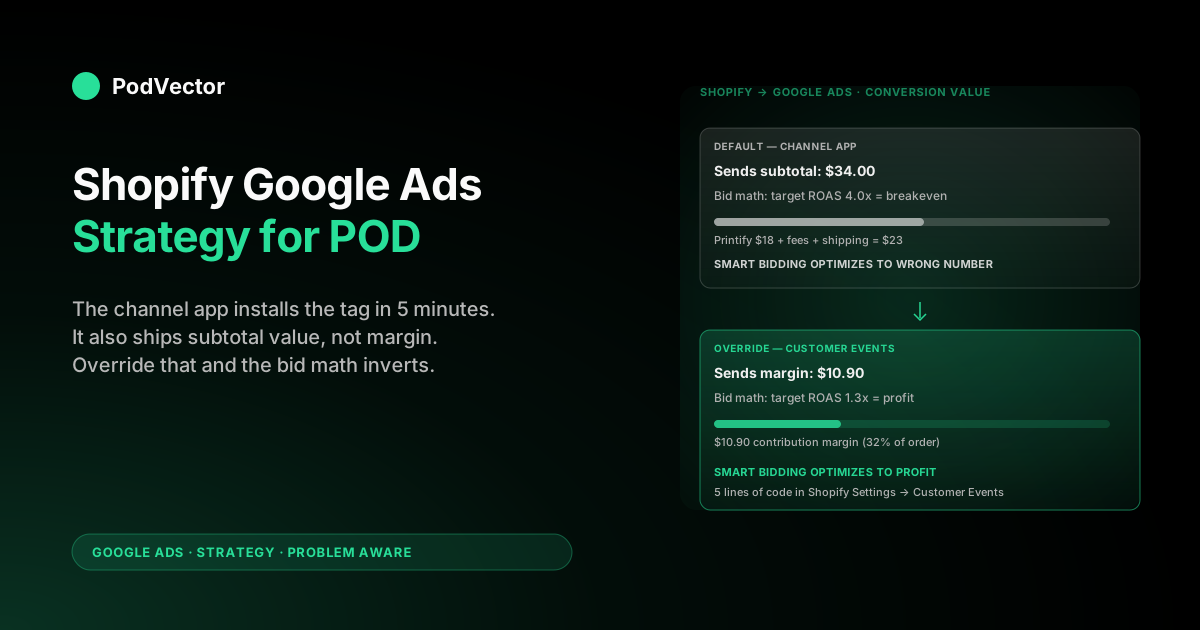
Quick Answer: Shopify makes Google Ads easier to start and harder to read. The Google & YouTube channel app installs the conversion tag in two clicks and pushes a product feed to Merchant Center automatically — but every value Google receives is order subtotal, not contribution margin after Printify or Printful supplier cost.
For a typical $34 POD hoodie that means Google sees $34 of "value" against $10–12 of real margin, and Smart Bidding optimizes to the wrong number. The Shopify-specific strategy that works for POD: keep the channel app for the integration, then override the conversion value with margin-based reporting, curate which variants ship to the feed, set Merchant Center shipping rates that match Printify's real cost, and set target ROAS against the margin number rather than Shopify's reported revenue.
Why a Shopify-on-Google Ads strategy looks different for POD
Most published Shopify Google Ads guides — Adwisely's setup walkthrough, Shopify's own budget guide, the agency posts that rank for "Shopify Google Ads strategy" — describe the same flow. Install the Google & YouTube channel app from the Shopify app store, link an existing Google Ads account, watch Merchant Center auto-create from your Shopify product catalog, run Standard Shopping or Performance Max against subtotal-based conversion value, scale toward a 4x ROAS target.
The flow works. The numbers don't, for print-on-demand.
The mismatch is specific. A general Shopify store carrying inventory you bought wholesale runs 55–70% gross margin, so a 4x reported ROAS leaves real profit after ad cost.
A POD Shopify store running Printify or Printful fulfillment runs 28–35% contribution margin once supplier base price, blank, print fee, payment processing, and shipping subsidy are subtracted — and Shopify sends Google Ads the order subtotal, not the margin. The Shopify-specific moves below all push Google Ads to bid against the number that actually pays your bills.
If you came here from the broader strategy view, the cluster pillar at the complete Google Ads playbook for print-on-demand sellers covers the campaign architecture; this article zooms in on what changes when the storefront is Shopify specifically. For the ecommerce-generic version of the same logic, see Google Ads for ecommerce strategy for print-on-demand.
The Shopify Google Ads stack: what each piece does
Five components carry traffic and data between Shopify and Google Ads. Knowing which one owns which job is the difference between a clean integration and a broken one you can't debug:
| Component | Job | POD-specific watch-out |
|---|---|---|
| Google & YouTube Sales Channel (Shopify app) | OAuth bridge to Merchant Center + Ads, installs the Google tag in checkout | Conversion value defaults to order subtotal — wrong unit for POD bidding |
| Google Merchant Center | Hosts the product feed Google reads for Shopping ads | Auto-imports every variant; POD products explode to 60–120 variants per design |
| Google Ads | Campaign engine, bidding, reporting | Reports against whatever value you ship it — garbage-in if Shopify sends subtotal |
| Shopify Customer Events / Web Pixel | Custom pixel layer where you can override the default tag | The right place to inject margin-based conversion value |
| Shopify Markets | Multi-currency, multi-region settings | Splits feeds by country; mis-configured sends $-priced products to UK Merchant Center |
The channel app is the front door, but it's also where most POD stores stop. The app's setup wizard never asks "what value should Shopify send Google?" — it assumes order subtotal is right because for owned-inventory ecommerce it usually is. For POD, the channel app gets you to a working tag in five minutes, and then you have to override the value layer through the Web Pixel API or the conversion-tracking work in the complete guide to Google Ads + Shopify integration for POD.
Setting up Google Ads on Shopify the right way
The five-minute happy path versus the right path for POD diverge after step three. Here's the sequence that prevents two months of cleanup later:
- Install the Google & YouTube sales channel from the Shopify app store. Authorize with the Google account that already owns (or will own) your Merchant Center and Google Ads. If you're starting from zero, create the Google Ads account through the channel flow — the API permissions are pre-scoped correctly.
- Let Merchant Center auto-import the catalog on first sync. Don't curate yet — let it run, see what flags. Most POD stores see 12–40% disapproval on the first sync (image quality, missing GTIN, color attribute, shipping rate). The disapprovals are diagnostic; they tell you which feed fields need fixing in Shopify.
- Set Merchant Center shipping rates manually. The channel app will try to import your Shopify shipping settings. For POD, the imported rates are usually wrong because Shopify shipping is configured for the customer-facing experience (free over $X, flat $5, etc.) while Merchant Center wants the carrier-rate equivalent for the listing. Set a flat-rate fallback in Merchant Center directly — about $5.50 for domestic apparel from Printify, $7.50 from Printful, $9 if you're shipping internationally with no subsidy. Wrong shipping rates cause Shopping ads to disapprove or, worse, run with mis-set delivery promises that drag your account quality.
- Configure conversion tracking before launching anything. The channel app installs the Google Ads tag automatically and ships order subtotal as the value. For a POD store this is the most important thing to override before spending a dollar. Either edit the Customer Events code to send a margin-based value (subtotal minus an estimated supplier cost) or accept that you'll need to import offline conversion adjustments later. Without one of those, every bid optimization downstream is fitting to the wrong number. Shopify Google Ads conversion tracking setup walks through both options.
- Verify enhanced conversions. Shopify's channel app sends hashed customer email and phone automatically, but only if the merchant has accepted Google's data-sharing settings inside the Shopify channel app interface (one toggle, easy to miss). Lifts attributed conversions 8–14% in apparel categories where iOS ITP eats a meaningful share of last-click attribution.
- Launch a $5/day brand-defense Search campaign first — not Performance Max. Brand campaigns produce clean, fast conversion data that PMax and Smart Bidding learn from later. POD stores that flip on PMax with no first-party conversion data on day one routinely watch the algorithm bid view-through Display credit for two weeks before spending makes sense.
If you need the keystroke-by-keystroke walkthrough rather than the strategic outline, see connect Google Ads to Shopify: setup guide for POD sellers.
Shopify product feed for Google: POD failure modes
The Shopify-to-Merchant-Center feed sync is one of the cleanest e-commerce integrations Google offers. For POD it's also where most accounts quietly bleed money or get suspended. Five POD-specific failure modes:
- Variant explosion. A single Printify hoodie product becomes 60–120 variants once you cross sizes (S–3XL), colors (8–14), and gender cut. Shopify ships every variant to Merchant Center. Merchant Center accepts it, but Shopping ads only ever serve one variant per query, and the feed file size starts hitting the 5,000-variant sync ceiling fast. Curate via Shopify's "available_for_sale" + the channel app's product visibility toggle: ship only the bestseller size and the top three colors per design. Smaller feed, same impressions, faster Merchant Center diagnostics.
- Free returns attribute. Printify accepts returns only for misprints, damages, and packing errors — not buyer's-remorse returns the way a traditional retailer does. If you flag
free returnsin the Shopify product or via the channel app and a Google reviewer verifies you don't honor it, Merchant Center suspends the account. Leave the attribute off, write your real Printify-aligned return policy on the product page, and document the policy URL in Merchant Center settings. - Image quality. Printify mockups output 2000×2000 images, easily clearing Google's 800×800 minimum. The trap is that mockups all look like mockups — perfectly straight, no shadows, no model — and CTR on lifestyle images runs 1.4–2.1x mockup-only images in apparel. The Shopify-specific fix: bulk-replace your product images with AI-rendered model shots (Botika, Zmo.ai cost $30–60 per design and re-shoot in 24 hours), which you can ship to Shopify's media library and immediately re-sync to Merchant Center via the channel app.
- GTIN missing. Printify products don't carry barcodes. Shopify lets you leave the Barcode field blank; Merchant Center used to flag this as a high-priority warning and sometimes throttle Shopping impressions for the SKU. Recent policy change: for POD apparel without a manufacturer GTIN, mark the product as
identifier_exists: nothrough a Merchant Center supplemental feed or via the channel app's product edit, which clears the warning without forcing a fake barcode. - Color attribute mismatch. Shopify's variant naming ("Forest Heather," "Vintage Black") rarely matches Google's Color taxonomy ("Green," "Black"). Merchant Center accepts the descriptive names but matches color filters and Shopping queries against the standard taxonomy. Use Shopify's metafield API or a feed-rule app to map variant colors to standard names — your Shopping impression share for color-modified queries lifts 15–30%.
For the deeper feed-engineering walkthrough including title structure, custom labels by margin tier, and Performance Max product groupings, see Google Shopping Ads Shopify strategy for print-on-demand.
Conversion tracking on Shopify: where the value gets wrong
Shopify's Google & YouTube channel app installs the Google Ads conversion tag inside the checkout funnel automatically. The tag fires correctly. The problem is the value it ships. Five POD-specific tracking issues that distort every bid decision until they're fixed:
- Subtotal vs. margin. The default conversion value is
checkout.subtotal_price— the order subtotal before shipping and tax. For owned-inventory ecommerce, that's directionally right. For POD, it overstates the bidding signal by 200–300%. Override via Customer Events: replace the value with subtotal minus an estimated per-line supplier cost (look up the Printify base from a metafield), or send the subtotal value live and import margin-adjusted offline conversions nightly via the Google Ads API. - Variant SKUs collapsing to parent. Shopify's default Google Ads pixel reports the parent product ID, not the variant SKU. If your $24 t-shirt and $36 hoodie are separate Shopify products it works fine; if they're variants of one product (which is the Printify default for size/color combinations), every variant reports the parent's price. Edit the Customer Events code to send
line_item.variant_idandline_item.priceper line, summed correctly into the conversion value. - Refunds not fed back. Google Ads gets the conversion when the order completes. It never hears about the Printify-driven refund or the size exchange that resolves to a refund. POD apparel runs 2–6% refunds, biased toward higher-AOV designs, which means PMax and Smart Bidding overweight the SKUs with the worst real return rate unless you import offline conversion adjustments via the Shopify Webhooks → Cloud Function → Google Ads API path. Shopify Google Ads tracking issues covers the API setup.
- Discount code value drift. Shopify's default subtotal is the post-discount value (after a 20% code applies). Google Ads bids against that lower value. If your campaign mix runs a high mix of discount-driven traffic, target ROAS shifts month to month even when real performance is flat. Either send the pre-discount value with a separate
discount_amountfield or accept the drift and recalibrate target ROAS quarterly. - Headless / Hydrogen storefronts. If you've moved off the standard Shopify storefront onto Hydrogen or a custom React frontend, the channel app's automatic tag injection doesn't reach the new storefront. You have to install the Google Ads tag through the Shopify Customer Events (server-side) hook or via Google Tag Manager on the Hydrogen build directly. The Shopify community thread is full of accounts that switched to Hydrogen and saw conversion tracking go quiet for three weeks before noticing.
For the conversion-tracking checklist by setup type, see Shopify Google Ads conversion tracking setup. For the full integrations cluster, the hub at /articles/google-ads/integrations is the index.
Campaign mix from a Shopify store
The campaign mix question — Search vs. Shopping vs. Performance Max — has the same answer for Shopify POD as for ecommerce generally, with two Shopify-specific implementation notes. The mix that works:
- Day 1 — Brand Search. Exact match on your store name and any niche-brand terms ("[YourStore] hoodie"). $5–10/day budget cap. These clicks convert at 8–14% from Shopify storefronts and competitors will bid on your name. Shopify's Google & YouTube channel app does not surface Search campaign creation — you build this manually in Google Ads.
- Day 1 — Standard Shopping. Once Merchant Center is approved, launch a Standard Shopping campaign with manual CPC ($0.30–0.50 across all products). Standard Shopping is the workhorse channel for POD — it lets you see exactly which SKU and query combinations convert before you hand the keys to PMax.
- Day 14 — Category Search. Phrase match on commercial-intent terms with your product category: "vintage hiking shirt," "funny dad joke t-shirt." Day-one negatives: "free," "template," "svg," "png," "mockup," "blank," "wholesale."
- Day 30+ — Performance Max. Once you have 30+ Purchases tracked with margin-based value, layer in PMax with the top-margin SKUs only via custom-label exclusions. Restrict PMax to the SKU set that has positive contribution margin; use Standard Shopping to keep coverage on lower-margin designs without PMax bidding aggressively against them.
- Skip until justified — Smart Display, App Campaigns, basic Demand Gen. Display's view-through credit inflates POD ROAS without revenue, App campaigns are irrelevant (POD has no app), and Demand Gen requires a creative library most stores don't have until month four.
The Shopify-specific implementation note: when you connect the Google Ads account through the channel app, Shopify auto-creates a "Smart Shopping" or "Performance Max" campaign on your behalf in some account configurations. Pause that one immediately.
The auto-created campaign has the default subtotal-based conversion value and the default broad targeting, which is the exact configuration that loses POD stores money. Build your own campaigns from scratch with the conversion value override in place.
For the Shopify Performance Max walkthrough specifically — including the asset-group structure that works for POD apparel — see integrate Google Shopping ads with Shopify store strategy for print-on-demand.
Bidding against true margin, not Shopify's reported revenue
Shopify's biggest contribution to a Google Ads strategy that loses money for POD is sending order subtotal to Google as conversion value. The algebra is the same as the ecommerce-generic version, but the Shopify implementation is what changes:
Target ROAS formula: what reported ROAS does Google need to hit for the account to be profitable?
Target ROAS = AOV ÷ (Contribution Margin per Order × (1 − target net margin))For a $34 Shopify hoodie with $10.90 contribution margin (Printify base $18, payment $1.30, shipping subsidy $3, platform allocation $0.80) and a 15% net target:
Target ROAS = 34 ÷ (10.90 × 0.85) = 3.67xThat's the breakeven-plus-margin floor when Google sees subtotal value. Set target ROAS at 3.9x–4.2x to give the bidder headroom. Compare to the "good ROAS for ecommerce is 4x" benchmark every Shopify Google Ads guide cites: for this POD example, 4x is barely sustainable, not good.
The Shopify-specific fix: send margin-based value through the Web Pixel API. Two implementation paths inside Shopify:
- Customer Events (client-side). Edit the Web Pixel code in Shopify Settings → Customer Events. For each line item, look up the supplier cost (Printify base price stored in a metafield, e.g.,
custom.printify_base), subtract it from the line price, sum across line items, and send that asconversion_valueinstead ofcheckout.subtotal_price. Five lines of code, one-time setup. - Offline conversion adjustments (server-side). Send the subtotal value live, then nightly run a Cloud Function that pulls real Printify costs via API, computes per-order margin, and uploads margin-adjusted offline conversions to Google Ads via the API. More precise (uses actual Printify cost, not metafield estimate) but more infrastructure.
Either path inverts the bid math. With margin-based value flowing into Google Ads, the same physical campaign performance now reports a 1.15x ROAS for breakeven, and your target ROAS bid setting becomes:
Target ROAS (margin-based) = 1 ÷ (1 − target net margin) = 1 ÷ 0.85 ≈ 1.18xSet target ROAS at 1.3–1.5x against margin-based value, and Smart Bidding optimizes the only number that matters: profit. Every conversion value Google ingests is now an honest signal, and the bidder spends harder on customers and SKUs with higher real margin. The PMax bid algorithm — which is the loudest profit-killer in default Shopify integrations — now works for you instead of against you.
Shopify Markets, multi-currency, and feed splits
Shopify Markets makes it easy to sell internationally and easy to break Google Ads attribution for POD stores that ship from US-based Printify but want to advertise in Canada, the UK, or Australia. Three Markets-specific issues:
- Per-country Merchant Center accounts. Google Merchant Center separates feeds by target country. A Shopify store with Markets enabled for US, CA, and UK should have three Merchant Center country targets configured (within one MC account). The Shopify channel app handles this automatically if you've fully configured Markets first; if you enabled Markets after the channel app sync, you need to manually re-sync per market.
- Currency conversion for conversion value. A UK customer who pays £28 generates a £28 subtotal in Shopify, which the channel app converts to USD via the day's exchange rate when sending to Google Ads. For Performance Max bidding across mixed-currency traffic, the currency conversion lag (24h) introduces noise in target ROAS calculations. Shopify Plus accounts can configure per-currency conversion accounts in Google Ads to remove the lag; on regular Shopify, accept the noise and re-evaluate target ROAS monthly.
- Shipping rates per market. Printify shipping costs are different for US vs. international. Set per-country shipping rates in Merchant Center accordingly — $5.50 domestic, $9 to Canada, $14 to UK/Europe. Default Shopify shipping configurations rarely match Printify's real cost across markets, and mis-set rates cause Merchant Center to surface incorrect delivery times in Shopping listings, which Google penalizes.
The pragmatic position for a POD store on Shopify Markets: don't enable advertising into a market until you've validated the unit economics for that market. Shipping subsidy is the largest variable cost in POD, and a $5.50 cost difference shipping to the UK can flip a campaign from profitable to underwater on the same SKU.
Apps to install (and which to skip)
The Shopify app store is full of "Google Ads optimization" apps. Most of them are wrappers around the same Google Ads API that you can use directly. The shortlist that earns its keep for POD sellers:
| App | What it does | POD verdict |
|---|---|---|
| Google & YouTube | Official channel app — feed sync, tag install, Merchant Center bridge | Required. Free. |
| Adwisely | Automated Performance Max + remarketing campaign templates | Useful for stores with no in-house ads operator; templates are decent. Skip if you're hands-on. |
| Triple Whale / Northbeam | Cross-channel attribution, blended ROAS | Worth it once monthly ad spend exceeds ~$10K. Below that, the Shopify+Google Ads native reports are enough. |
| Feed for Google Shopping (Simprosys, etc.) | Feed-rule engine — title overrides, color mapping, custom labels | Worth it. Saves the manual feed-engineering work the native channel app can't do. |
| "Google Ads conversion tracking" apps | Custom pixel installation | Skip. The Customer Events flow does this natively. |
| "Google Ads automation" apps that promise auto-bidding | Yet-another bid management layer | Skip. Google's Smart Bidding already does this; layered automation degrades signal. |
The category to be most skeptical of is "AI-powered Google Ads optimization" apps that promise to manage campaigns. Most of them apply generic ecommerce playbooks to your account, which is the exact problem this article exists to solve for POD. If a tool can't speak about Printify supplier cost, contribution margin, or refund-adjusted profit, it's not adapted to POD economics.
A 60-day Shopify Google Ads ramp for POD
Compressed timeline if you're starting fresh on Shopify with Google Ads or restarting a stalled account:
- Week 1: Install Google & YouTube channel app, let Merchant Center auto-import, fix top-priority feed disapprovals (image quality, GTIN, color attributes). Set Merchant Center shipping rates manually to match Printify's real cost.
- Week 2: Override conversion value via Customer Events to send margin-based value. Verify the new value firing through Google Tag Assistant. Launch brand-defense Search campaign at $5/day. Pause any Shopify-auto-created Performance Max campaigns.
- Week 3: Launch Standard Shopping campaign with manual CPC ($0.30–0.50) on top 30–50 SKUs. Curate variants in Merchant Center to bestseller size and top three colors per design.
- Week 4: Add category Search campaign with phrase-match keyword groups and the day-one POD negative-keyword list applied.
- Weeks 5–6: Optimize. Pause negative-ROI ad groups and SKUs. Adjust Shopping bids per Custom Label margin tier. Target: 30+ conversions logged with margin-based value.
- Week 7: Switch Standard Shopping to Maximize Conversion Value with target ROAS at 1.3–1.5x against margin. Layer in PMax restricted to top-margin SKUs only.
- Week 8: First refund-adjusted profit read. Compare reported ROAS to actual profit per campaign, identify gap (typically 15–30%), and either tighten target ROAS or import offline conversion adjustments to close the gap.
- Weeks 9–10: Scale daily budgets in 15–20% increments while ROAS holds. Consider Demand Gen if your asset library is stocked with lifestyle imagery.
The cluster has more focused walkthroughs for each phase: Shopify Google Ads conversion tracking setup for week 2, Google Shopping Ads Shopify strategy for week 3, and the Strategy hub itself at /articles/google-ads/strategy for the rest of the cluster as it fills in. For the topic-wide view, the Google Ads hub at /articles/google-ads indexes every cluster.
FAQs
Is Google Ads worth it for a Shopify print-on-demand store?
Yes, with the same caveat that applies to any paid channel for POD: only if you measure against margin, not subtotal. The math in the bidding section shows why. Shopify POD stores running Google Ads against subtotal ROAS targets typically lose money for the first 60–120 days while the channel app's default tracking convinces them they're profitable. The same campaigns measured against margin-based value with refund feedback wired in are profitable inside 30–45 days for stores with reasonable creative and product-market fit.
Does the Shopify Google & YouTube channel app install Google Ads conversion tracking automatically?
Yes — the tag fires correctly on checkout completion. The problem isn't the tag, it's the value the tag sends.
By default it sends order subtotal, which for POD over-reports the bidding signal by 200–300% versus actual contribution margin. Use Shopify's Customer Events (Settings → Customer Events) to override the value with a margin-based number, or import offline conversion adjustments nightly. Both paths are documented in the cluster's integration walkthroughs.
Should I run Performance Max from day one on a Shopify POD store?
No. PMax needs ~30 conversions in 30 days to bid intelligently, and a fresh account with no first-party conversion data sees PMax bid view-through Display credit on cheap inventory, returning a phantom 6x ROAS while real incremental revenue is flat. Run brand-defense Search and Standard Shopping for 30–45 days first, build the conversion data with margin-based value, then layer in PMax with custom-label SKU restrictions to limit it to your top-margin products.
Can I run Google Shopping Ads with a Shopify store on Printify or Printful?
Yes. The community-thread confusion comes from older Google policies around drop-shipping that prohibited misrepresentation.
As long as you're shipping the product within the timeframe shown on the product page, run accurate ad copy, set Merchant Center shipping rates that match Printify's real cost, and meet Google's free-returns / shipping-policy requirements, POD is allowed on Shopping. The accounts that get suspended typically misrepresent shipping times or claim free returns they don't honor — that's a self-inflicted policy issue, not a POD ban.
What's a good ROAS for a Shopify POD store on Google Ads?
Reported ROAS depends entirely on what conversion value you send Google. Against subtotal (Shopify channel-app default): 4–5x is profitable for POD apparel.
Against margin-based conversion value: 1.3–1.5x reported is profitable, because Google now sees margin not revenue. The "good ROAS" question only has an answer once you specify the value definition. Most accounts that ask are looking at Shopify's default subtotal ROAS, in which case 4x is the floor and 6x+ is the goal.
How much should I budget for Google Ads as a new Shopify POD store?
$30–80/day is the sweet spot to start. Below $30/day, Smart Bidding doesn't get enough signal; above $80/day at the start, you'll burn too much before you have conversion data to optimize against. Once you have 30+ conversions logged with margin-based value (typically week 4–6), scale the daily budget by 15–20% per week as long as target ROAS holds.
Do I need Shopify Plus for serious Google Ads work?
No. Standard Shopify supports everything in this article — Customer Events, the Google & YouTube channel app, metafields for storing supplier cost, and the Google Ads API for offline conversion adjustments. Shopify Plus adds per-currency conversion accounts and slightly cleaner Markets configuration, useful at scale, but the bottleneck for most POD stores is conversion-value override and feed engineering, both of which work identically on standard Shopify.
How does PodVector AI help with Shopify Google Ads for POD?
PodVector AI connects your Shopify, Printify, and Google Ads data through a live data warehouse and runs Victor — an AI employee that answers profit-after-COGS questions about your campaigns in plain English. Today: "which Google Ads campaigns profited last week after Printify cost and refunds?" gets a sourced answer in seconds, sourced from the same data-warehouse views that power your dashboards.
Victor also flags losing campaigns, drafts bid adjustments, surfaces SKU-level margin issues. The piece the standard Shopify Google Ads stack misses — true profit per campaign, refund-adjusted, supplier-cost-aware — is the piece Victor is built to answer.
Ask Victor which of your Shopify Google Ads campaigns are actually profitable
Connect your Shopify, Printify, and Google Ads data once. Victor reads your a live unified warehouse and answers "which campaigns profited last week after Printify cost and refunds?" in plain English — sourced from the same data that powers your dashboards.
Try Victor free