
Quick Answer: Setting up Google Ads conversions on Shopify is two distinct decisions, not one task. The mechanical part — install the Google & YouTube channel, accept the four auto-created conversion actions (Purchase, Begin checkout, Add to cart, Page view), enable enhanced conversions — takes 30 minutes.
The strategic part — which conversion is primary, what value you send with it, how you handle Printify and Printful supplier costs, and how you bridge refunds back to Smart Bidding — is where POD margin lives. Most setup tutorials stop at the mechanical part. This guide covers both, in the order that matters for profit.
Strategy first: what conversions actually do for your bidding
A "conversion" inside Google Ads is not a sale. It's a training signal you give Smart Bidding so the algorithm knows what success looks like.
Every conversion you fire teaches Google's model to find more users who look like the ones who fired it. Every conversion you fail to fire — refunds, offline orders, post-iOS-restriction purchases — is a hole in the model's understanding of your business.
That framing matters because most POD operators inherit a conversion strategy from a tutorial or a freelancer rather than designing one. The tutorial install is fine for collecting data. It's wrong for steering eight or thirty thousand dollars a month of ad spend toward profitable orders, because the default value the tutorial sends is order subtotal — and order subtotal is not what you bank.
The strategic decisions that actually move ROAS are downstream of the install:
- Which conversion action is primary? Smart Bidding optimises against primary conversions. Pick the wrong one and the algorithm chases the wrong outcome for months.
- What value do you send? Subtotal, gross revenue, gross profit, or contribution margin? Each one trains a different bidding model with different blind spots.
- How do you handle refunds and chargebacks? If you don't send negative conversion adjustments, Smart Bidding optimises toward refunded orders the same as fulfilled ones.
- Where do enhanced conversions and Customer Match fit? They're not bolt-ons; they're the recovery layer for the 20–35% of POD pixel data lost to iOS, ad blockers, and incognito sessions.
This guide walks the install in the second half. The first half is the strategy that decides what the install should do. If you're going to spend 30 minutes setting conversions up, spending 10 minutes on the strategy first changes what those 30 minutes are worth.
For the broader pillar covering campaign types, budgets, and bidding strategies for POD, start at the complete Google Ads playbook for POD sellers and come back here when you're ready to wire the measurement layer.
Why the default conversion strategy underperforms for POD
The default Shopify + Google Ads conversion flow was designed for a retailer with three properties: predictable per-SKU margin, low refund rates, and a customer base that mostly converts on the same device they clicked the ad on. POD operators have none of those properties, but the default conversion settings ship as if they do.
Specifically:
- Margin variance Smart Bidding can't see. A $32 t-shirt order from a Printify Choice supplier with $14 contribution margin sends Google Ads the same conversion value as a $32 t-shirt order from a premium supplier with $5 contribution margin. The algorithm has no way to prefer the higher-margin SKU. Over weeks it shifts spend toward whichever variants convert most reliably, which is rarely your highest-margin ones.
- Refunds invisible to the bidding model. Apparel POD averages 2–6% refund rates; mug, frame, and seasonal categories run higher. Without negative conversion adjustments wired in, every refunded order keeps reinforcing the audience and creative that produced it.
- Pixel data loss concentrated in your buyer demographics. Younger, niche-driven POD audiences — band merch, gaming, anime, alt-fashion — have 25–35% pixel-stripping rates from iOS Mail Privacy Protection, ad blockers, and ITP. Without enhanced conversions, the conversion data Smart Bidding sees actively underweights your highest-value customer segments.
- Cross-device conversion gaps. POD shoppers commonly tap an ad on Instagram (mobile), screenshot it, and complete the purchase later on desktop. The default in-browser pixel misses this entirely. Enhanced conversions plus Customer Match recover most of it.
None of these are bugs in the integration. They're defaults built for a different business model. Designing the conversion strategy with these in mind takes the install from "data is flowing" to "data is useful." We covered the install mechanics in detail in the Shopify Google Ads conversion tracking setup guide; this guide focuses on the strategic layer that sits on top.
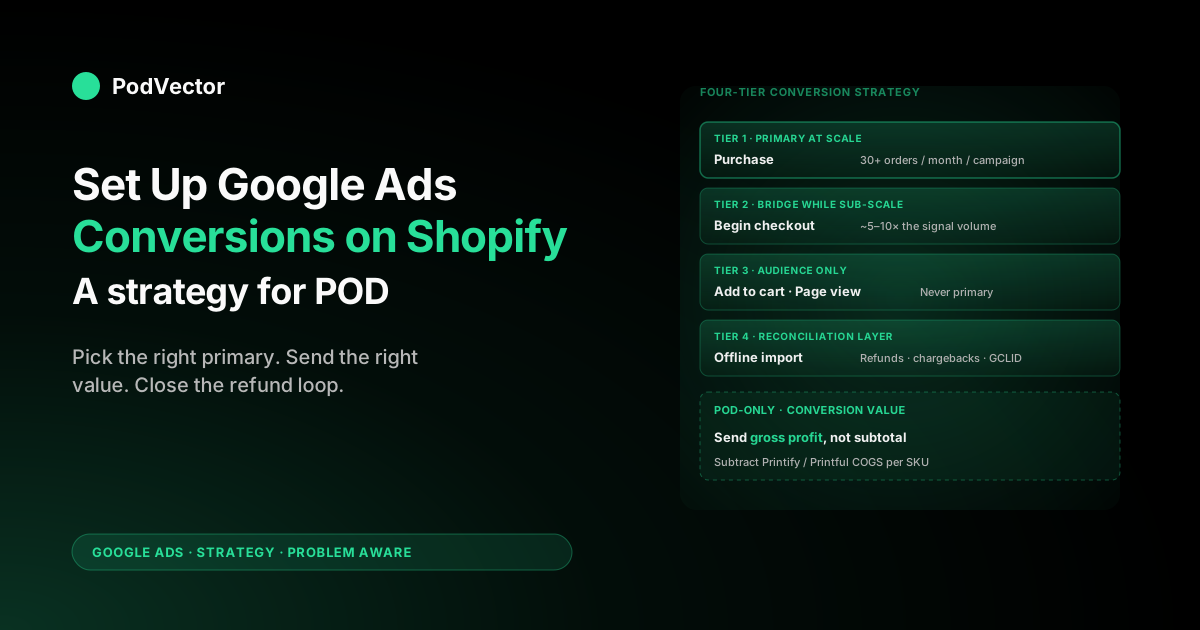
The four-tier conversion strategy for POD stores
Whether you're at $5K/month in ad spend or $50K, the same four-tier conversion architecture holds up. What changes is which tier you optimise against, not the structure itself.
Tier 1 — Purchase (primary at scale). The order-confirmation event with a profit-aware value attached. This is the conversion Smart Bidding learns from once you're past 30 purchases per month per campaign. Below that volume, the model doesn't have enough signal and you should run on a tier-2 micro-conversion as primary instead.
Tier 2 — Begin checkout (primary while sub-scale; secondary at scale). Fires on the first checkout step. POD stores below 30 monthly conversions per campaign should run Begin checkout as the primary signal so Smart Bidding has roughly 5–10× the volume to learn against. Promote Purchase to primary once monthly purchase volume crosses 30 and ride Begin checkout as a secondary signal afterward.
Tier 3 — Add to cart and Page view (audience-building only). These exist to feed Customer Match and remarketing audiences, not to bid against. Leave them as secondary; never set them primary or Smart Bidding will start optimising for cart-fillers who don't buy.
Tier 4 — Offline / CRM-imported conversions (reconciliation layer). This is the layer most POD stores skip and shouldn't. Importing actual fulfilled-and-paid orders from Shopify back into Google Ads via the Offline Conversion Import API closes the loop on refunds, chargebacks, and orders the pixel missed. It's how you tell Smart Bidding "this conversion was real and worth $X" or "this conversion was refunded, deduct the value."
Picking which tier to run as primary is the single biggest ROAS decision in your conversion strategy. We unpack that decision in the primary conversion section; the install steps follow first.
The install: Google & YouTube channel in 30 minutes
Three install paths exist: the official Google & YouTube channel app (recommended for 95% of stores), manual Google Tag Manager install (for stores with existing GTM containers or server-side tagging needs), and third-party conversion-tracking apps (skip unless you have a specific reason). This guide covers the channel-app path; the manual path is documented at the Shopify Google Ads tracking setup guide.
Prerequisites (two minutes):
- A Google Ads account with billing configured. An empty account is fine; a campaign isn't required for the link.
- A Google account with owner or admin access on that Google Ads account. MCC operator access alone won't complete the OAuth handshake.
- Customer Data Terms accepted in Google Ads → Admin → Account access → Account settings. Without this, enhanced conversions and Customer Match show greyed out post-install.
- No legacy Google Ads pixel in
theme.liquid. Search the file forgoogleAdsPixel,conversion_id,AW-, orgtag('event', 'conversion')and remove anything that matches before installing the channel. Two pixels firing on the same page produces double-counted conversions for 7–14 days before you'll notice.
Step 1: Install the channel. Shopify admin → click the green plus next to "Sales channels" → search "Google & YouTube" → Add channel. Skip third-party apps with similar names.
Step 2: Connect Google account. Channel admin → Connect Google account → OAuth pop-up. Use the brand Workspace account that owns Google Ads. Avoid personal Gmail accounts — they walk out the door if a founder or contractor leaves.
Step 3: Link Google Ads. Inside the wizard → "Conversion measurement" or "Set up Google Ads" (the wording shifts every few quarters; the function is identical) → pick your Google Ads account. Cross-reference the 10-digit customer ID against the one at the top of your Google Ads UI before confirming. Picking the wrong account means uninstalling the channel and starting over.
Step 4: Accept the four auto-created conversion actions. Once linked, Shopify creates Purchase, Begin checkout, Add to cart, and Page view inside Google Ads. Only Purchase is set as primary by default. Whether to keep that default depends on your monthly purchase volume — covered next.
That completes the install. The pixel is firing, the four conversion actions exist, and conversions will start showing in Google Ads within 24 hours of your next ad-driven order. The strategic decisions that follow are what determine whether the data is steering Smart Bidding toward profit or against it.
Choosing your primary conversion (purchase volume matters)
The primary conversion action is the signal Smart Bidding optimises against. Picking the wrong one wastes weeks of learning. The choice is mostly determined by your campaign's monthly purchase volume.
If you have 30+ purchases per month per campaign: keep Purchase as primary. Smart Bidding has enough volume to learn against actual sales and you don't need to lean on softer signals.
If you have 10–30 purchases per month per campaign: run a co-primary setup with Purchase and Begin checkout both flagged as primary. This roughly triples the signal volume Smart Bidding sees, at the cost of some optimisation toward checkout-abandoners. The cost is usually worth it; below 30 purchases the alternative is the algorithm running on too-thin data and producing wide CPA swings month-over-month.
If you have under 10 purchases per month per campaign: demote Purchase to secondary, promote Begin checkout to primary alone. Yes, this means optimising against checkout-abandoners.
The reasoning: with under 10 monthly purchases per campaign Smart Bidding's confidence interval on what works is so wide that bidding against it produces noise, not optimisation. Begin checkout typically runs at 4–8× purchase volume, which crosses Smart Bidding's learning threshold. Plan to flip back to Purchase-primary as soon as monthly purchase volume crosses 30.
One pattern worth flagging: at the campaign level, you can set conversion-action overrides that differ from the account default. A new Performance Max campaign with no conversion history can run on Begin checkout while your established Search campaigns continue running on Purchase. This is preferable to changing your account default repeatedly.
For more on matching conversion strategy to campaign type — Search vs Performance Max vs Shopping — see the complete guide to Google Ad types for POD and the dedicated Shopify Performance Max strategy guide.
Conversion value strategy: subtotal, gross profit, contribution margin
This is the single highest-leverage decision in the entire setup, and the one almost every tutorial gets wrong. The conversion value you send tells Smart Bidding what each order is worth. Get this right and the algorithm steers spend toward profitable orders. Get it wrong and the algorithm steers spend toward whichever variant converts cheapest, regardless of margin.
You have four options, in increasing order of accuracy:
Option 1 — Order total (Shopify default). Sends gross order value including shipping and tax. Worst option for POD. You can't refund tax to Smart Bidding, and shipping isn't margin. The algorithm thinks orders are 15–25% more valuable than they are.
Option 2 — Subtotal (Google & YouTube channel default). Sends order subtotal excluding shipping and tax. Better than total but still treats every $30 t-shirt order as worth $30, which masks supplier-cost variance. Use this only as a placeholder while you wire up option 3 or 4.
Option 3 — Gross profit (subtotal minus COGS). Sends order subtotal minus your cost of goods sold per SKU. Requires per-product COGS data fed into the conversion event, usually via a metafield in Shopify and a custom Liquid snippet on the order-confirmation page.
This is where most POD operators should land. The algorithm now optimises toward orders that actually make money rather than orders that just happen.
Option 4 — Contribution margin (gross profit minus per-order variable costs). Sends gross profit minus per-order shipping subsidies, payment processor fees, and any per-order variable cost you carry. Most accurate, hardest to maintain. Worth implementing once you're past $20K/month in ad spend; before that, the maintenance overhead beats the marginal accuracy gain.
How to actually implement option 3 on Shopify: add a metafield called cogs to each product (or each variant for SKUs where supplier cost differs by colour or size — a common Printify case where a small heather-grey tee costs differently than a 3XL black tee). At the order-confirmation page, sum line_item.cogs * line_item.quantity across the order, subtract from checkout.subtotal_price, and pass that as the conversion value. The Liquid is twenty lines; the per-product metafield maintenance is the real cost.
POD operators using Printify and Printful both: maintain the metafield from your single source of truth (your accounting export, your product spreadsheet, or your live data warehouse) rather than from each provider's UI separately. Otherwise the COGS value drifts every time a supplier reprices.
This is the layer where Victor — PodVector AI's AI employee — earns its keep. Victor sits on top of a live data warehouse joining Shopify orders to Printify and Printful supplier costs in real time, so questions like "which campaigns generated negative-margin orders this week?" return an answer instead of a spreadsheet rebuild. Conversion value strategy is what tells Smart Bidding what to chase; Victor is what tells you whether Smart Bidding's chase is actually working.
Enhanced conversions: not optional anymore
Enhanced conversions take the customer email Shopify already collects at checkout, hash it client-side, and pass it to Google Ads alongside the conversion event. Google then matches the hashed email against signed-in Google users and recovers conversions the cookie-based pixel missed — typically 15–30% additional attributed conversions for POD stores serving younger demographics.
Two years ago this was a margin-improvement nice-to-have. In 2026 it's the difference between Smart Bidding seeing your data and Smart Bidding flying half-blind. Specifically:
- iOS 17+ and Safari ITP strip the Google Ads cookie within hours of the click on most ad-driven traffic. Enhanced conversions recover most of these via the email match.
- Brave, Firefox strict mode, and uBlock Origin strip the pixel entirely. Enhanced conversions recover these too, since they fire server-side from Shopify.
- Cross-device flows (mobile click, desktop checkout) are recovered when the user is signed into the same Google account on both devices.
How to enable: Google Ads → Goals → Conversions → click your Purchase conversion → Settings → Enhanced conversions → Turn on → pick "Google tag" or "Google Tag Manager" depending on your install path. The Google & YouTube channel sets this up automatically as long as you accepted Customer Data Terms in the prerequisites step.
One gotcha: enhanced conversions need 14 days of data before Google's match rate stabilises. Don't conclude it's broken on day three because the match rate looks low. The Google Ads UI shows a "diagnostic" view at Goals → Conversions → Diagnostics — wait two weeks after enabling before judging match quality.
Refunds and chargebacks: closing the negative-conversion loop
If you're not sending refund data back to Google Ads, Smart Bidding doesn't know about your refunds and is actively optimising toward audiences and creatives that produce them. For a POD store with 4% refund rate this isn't a major issue. For one with 8% refund rate concentrated in specific SKUs (mug breakage, large-size apparel returns), it's a measurable margin leak.
The mechanism is conversion value adjustments via Google Ads' Offline Conversion API. When Shopify processes a refund, you send a conversion adjustment to Google Ads keyed off the original GCLID (Google Click ID) for that order, with a negative value matching the refunded amount.
Three implementation paths, in order of complexity:
- Manual CSV upload (under 50 refunds/month). Export refunded orders weekly, format as a CSV with GCLID and refund value, upload via Google Ads → Goals → Uploads. Crude but works.
- Zapier or Make.com (50–500 refunds/month). Trigger on Shopify "Refund created" webhook, look up the order's GCLID from order metadata, post a conversion adjustment to Google Ads. Around two hours to set up.
- Server-side via your data warehouse (500+ refunds/month or you already have a warehouse). Refunds land in a warehouse from your Shopify connector, a scheduled job batches them and posts to the Google Ads API nightly. Half a day to build; near-zero ongoing maintenance.
For the GCLID to be available at refund time, it has to be captured at order time. The Google & YouTube channel does this automatically by writing the GCLID to a Shopify order note attribute. Manual installs need an extra cookie_to_order_attribute snippet — see Stape's guide referenced below for the exact code.
Matching your conversion strategy to a Smart Bidding mode
Conversion strategy and bidding strategy are two halves of the same decision. The conversion data you send shapes which Smart Bidding modes will work for you.
Maximize Conversions: bids to get as many conversions as possible within your budget. Works on conversion count alone, ignores conversion value. Use this when you're sending conversion value as subtotal (option 2 above) and don't trust the value layer yet — the algorithm is strictly chasing volume so the value noise doesn't hurt.
Maximize Conversion Value: bids to maximise total conversion value within your budget. This is where the value-layer work pays off. If you're sending gross profit (option 3), this mode steers spend toward orders that actually contribute margin rather than orders that merely happen.
Target ROAS (tROAS): bids to hit a specific return-on-ad-spend ratio. Useful only after 60 days of stable conversion-value data.
POD operators should target ROAS based on profit, not revenue — a 4× revenue ROAS target with 30% margin is a 1.2× profit ROAS, which often means losing money on ads. With gross-profit conversion values, a 1.5× tROAS means you're netting 50% over ad spend on the orders the algorithm finds.
Target CPA (tCPA): bids to hit a specific cost-per-acquisition. Less interesting for POD because per-order CPA is meaningful only if average order value is roughly constant.
POD AOVs swing 2–3× across SKUs, so a $15 CPA target is a great deal on a $60 hoodie order and an unprofitable one on a $20 single-mug order. Use Maximize Conversion Value or tROAS instead.
The pattern: any bidding mode that uses conversion value is only as good as the value you send. Spend the time on the value strategy first; the bidding mode choice flows from it.
Monthly review: the four numbers that tell you it's working
A conversion strategy you don't review is a conversion strategy that drifts. Once a month, fifteen minutes, four numbers. If any one is wrong, that's where the work is.
- Pixel-fire to Shopify-order ratio. Conversions reported in Google Ads ÷ orders reported in Shopify, attributed to Google Ads sources. Should sit between 0.85 and 1.05 with enhanced conversions on. Below 0.85 means the pixel is missing fires (check enhanced conversions match rate, check for theme updates that broke the pixel install). Above 1.05 means double-counting (check for legacy pixels that got reintroduced, check for duplicate conversion actions).
- Conversion-value to gross-profit ratio. Total conversion value reported in Google Ads ÷ total gross profit on those orders from Shopify. If you're sending gross profit (option 3), this should sit at 0.95–1.05. If it's drifting, your COGS metafields are stale — usually because a Printify supplier repriced and you didn't update.
- Refund-adjusted conversion value. Conversion value after refund adjustments ÷ conversion value before adjustments. Should sit roughly 1 minus your refund rate (so 0.96 for a 4% refund rate). If your raw conversion value matches your adjusted value, you're not sending refunds back.
- Enhanced-conversion match rate. Visible at Google Ads → Goals → Diagnostics. Healthy POD stores see 60–80% match rates after the 14-day stabilisation. Below 50% suggests the email isn't being passed correctly (check the Google & YouTube channel hasn't been re-OAuthed and dropped consent).
None of these reviews require a tool. They require fifteen minutes and the discipline to look. If the four numbers stay healthy, your bidding model has accurate data and Smart Bidding's job is straightforward. If they drift, no amount of bidding-strategy tweaking compensates for misinformed data.
FAQs
How long until conversions start showing in Google Ads after install?
The first conversion fires on the next ad-driven order, but Google Ads takes 24–48 hours to display it in reports. Enhanced conversions take 14 days for match rates to stabilise. Don't make bidding-strategy changes during the first two weeks.
Should I use the Google & YouTube channel or set up Google Tag Manager?
Use the channel app unless you have a specific reason not to — typically because you already maintain a GTM container for other tags or you need server-side conversion sending for the gross-profit value layer. The channel app is simpler to maintain and handles enhanced conversions automatically. The manual install is documented in our Shopify Google Ads conversion tracking setup guide.
Why does Google Ads show fewer conversions than my Shopify Google Ads attribution?
Two attribution models, two different numbers. Google Ads uses last-click within its own attribution window.
Shopify uses its own first-party tracking which sees orders Google Ads' pixel may have missed. Healthy variance is 5–15%; gaps wider than 20% usually mean enhanced conversions aren't enabled or are seeing low match rates. The fix is a Google Ads diagnostic check, not a bidding-strategy change.
Can I track add-to-cart and checkout-started events for POD as primary conversions?
Add-to-cart should never be primary — it optimises toward cart-fillers who don't buy. Begin checkout can be primary if your monthly purchase volume per campaign is below 30 and Smart Bidding doesn't have enough purchase signal to learn from. Promote Purchase to primary as soon as monthly purchase volume crosses 30.
Do I need separate conversion actions for different POD product categories?
Usually not. Smart Bidding can already segment by SKU through Performance Max product groups and Shopping campaign attributes. Multiple Purchase conversion actions create attribution overlap and confuse reporting. The exception is if you sell physical and digital POD (apparel and downloadable patterns, for example) — then two separate Purchase actions with different conversion values may be appropriate.
How do I send Printify and Printful supplier costs into Google Ads conversion values?
Add a cogs metafield to each Shopify product (or variant where supplier cost varies by size or colour). On the order-confirmation page, sum line_item.cogs * line_item.quantity, subtract from subtotal, and pass that as the value parameter on the conversion event. Maintain the metafield from your single source of truth — accounting export, product spreadsheet, or live data warehouse — rather than from Printify and Printful UIs separately, or your COGS data drifts every supplier reprice.
What happens to my conversion data if I switch Shopify themes?
The Google & YouTube channel pixel survives theme changes because it injects via Shopify's pixel manager rather than via theme code. Manual installs in theme.liquid die with the theme — when migrating themes, re-paste the pixel snippet on the new theme before publishing. This is a frequent source of "my conversions stopped firing" tickets.
Get a margin-aware view of your Google Ads spend
Setting up conversions correctly is the foundation. Acting on them is the next problem. Victor sits on top of a live data warehouse joining your Shopify orders to Printify and Printful supplier costs in real time, so "which campaigns are unprofitable this week?" returns an answer instead of a Sunday-night spreadsheet rebuild.
Try Victor freeFurther reading: Shopify's official Google Ads conversion tracking guide covers the broader setup. The Google Ads strategy cluster covers bidding and campaign design across our POD stack. The Google Ads topic hub indexes everything we've published on Google Ads for POD.