
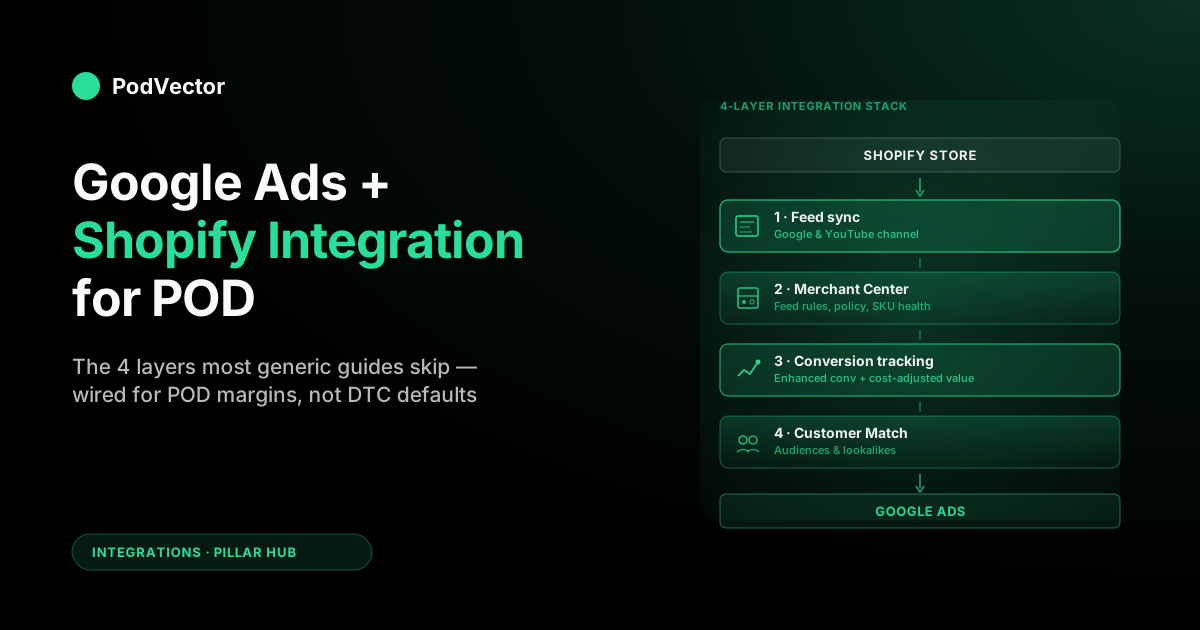
Quick Answer: To integrate Google Ads with a Shopify print-on-demand store, install the Google & YouTube channel for feed sync, configure Merchant Center with POD-aware feed rules, enable Enhanced Conversions (ideally with server-side tagging), and connect Customer Match for retargeting. Four layers — the ten-minute app install is only the first.
The step most POD sellers miss: the default integration sends Google your sale price as conversion value, which is roughly double your actual profit once Printify or Printful supplier cost, shipping, and refunds are netted out. Smart Bidding then optimizes toward revenue, not profit.
This guide walks every layer, the POD-specific configuration generic guides skip, and how to send cost-of-goods signals so Google bids toward money you actually keep.
Why POD changes the Shopify-Google integration playbook
Every generic "how to connect Shopify to Google Ads" article is written for a DTC brand with fixed cost of goods, a warehouse, stable variant counts, and professional product photography. Print-on-demand stores break every one of those assumptions.
Your cost of goods varies by product, supplier tier, print method, and sometimes destination. Your "warehouse" is Printify's or Printful's fulfillment network, which has its own shipping calculator, its own policy constraints, and its own refund behavior.
Your variant count on a single hoodie can be 120 SKUs once you multiply colors, sizes, and print sides. Your images are mockups generated from print files, not product photos — which matters to Merchant Center in ways most generic integration guides never mention.
These differences cascade through every integration decision. The default Shopify-Google connection treats your store like any other.
It pushes every variant to Merchant Center as an independent product. It sends the gross sale price as your conversion value.
It skips Enhanced Conversions on checkout unless you flip a setting. It syncs refunds with Shopify's standard definition, which doesn't account for Printify's distinct refund mechanics when a production defect is flagged. Each of these defaults works fine for a DTC brand and bleeds POD accounts in ways that are invisible until you reconcile Google's reported ROAS against your actual bank deposits.
The goal of this guide is to get the integration correct the first time. Not just "connected" — configured with POD-specific feed rules, cost-aware conversion values, and a measurement layer that still agrees with your Shopify P&L after Printify or Printful supplier cost is netted out. The difference between the default setup and the correct one is frequently the difference between a store that scales to $50K MRR and one that plateaus at $8K because Smart Bidding is optimizing toward the wrong number.
The 4 layers of a complete integration
Think of Shopify-to-Google Ads as four distinct integration layers, each with its own configuration surface, its own failure modes, and its own POD-specific requirements. Installing the Google & YouTube Shopify channel is Layer 1 of four — it starts the integration but does not finish it.
- Layer 1 — Feed sync. The Google & YouTube Shopify channel pipes your product catalog into Google Merchant Center, which then feeds Shopping and Performance Max campaigns. Without this layer, you have no Shopping inventory in Google Ads.
- Layer 2 — Merchant Center configuration. The feed arrives in Merchant Center raw; Merchant Center then decides which products are eligible, enforces policy (trademarks, mockup images, shipping attributes), and exposes the feed to Google Ads. Most POD-specific issues live in this layer.
- Layer 3 — Conversion tracking. Purchases, add-to-carts, begin-checkouts, and in some setups view-content events must fire back to Google Ads with accurate conversion values. Enhanced Conversions, server-side tagging, and the Shopify Google tag all belong here. This is the layer where POD stores hemorrhage attribution after iOS 17, and where cost-of-goods signals must be wired in.
- Layer 4 — Customer data & audiences. Customer Match lists, purchase-segmented audiences, and lifetime-value uploads feed bidding signals to Performance Max and remarketing campaigns. This layer is the last one most POD sellers install, frequently a year after the others.
The rest of this guide walks each layer in order, because the failures compound. A broken Layer 1 makes Layer 2 impossible. A misconfigured Layer 2 sends garbage data to Layer 3's bidding algorithms. A blind Layer 3 makes Layer 4 statistically useless. Skipping any one of them is how an integration ends up "connected" but non-functional.
Layer 1: The Google & YouTube Shopify channel
The Google & YouTube channel is a free Shopify sales-channel app that handles three jobs: it creates or links your Google Merchant Center account, it pushes your product catalog to Merchant Center with a daily sync, and it installs the Google tag on your storefront for conversion tracking. For 90% of POD stores, this is the correct starting point — it's faster, cleaner, and better-maintained than a manual Merchant Center feed or a third-party feed tool at your current scale.
Installation in ~10 minutes
From Shopify admin, the sequence is:
- Navigate to Sales channels → Add apps → search "Google & YouTube" and install
- Sign in with the Google account that owns (or will own) your Merchant Center and Google Ads accounts
- Confirm store details — business address, phone number, and tax identity must match Shopify and Merchant Center exactly, or Merchant Center will hold your feed in review for days
- Select which products to sync — you can start with "all published products" and filter later with a collection, or build a sync collection from day one (recommended for POD, see below)
- Choose shipping settings — either import from Shopify (recommended for most POD stores) or set flat rates directly in Merchant Center
- Confirm tax settings — for US sellers, import from Shopify; for international, verify each destination is configured correctly
- Accept Merchant Center and Shopping Ads policies and submit for review
What the channel actually does and doesn't do
The channel handles the parts of integration that would otherwise take a developer:
- Creates and links Merchant Center to Google Ads (if not already linked)
- Installs the Google tag on storefront pages with base page view, add-to-cart, and purchase events
- Pushes product data via Shopify's product API daily, with on-demand refresh when you edit a product
- Imports Shopify's tax and shipping configuration into Merchant Center
- Creates audience segments (website visitors, past purchasers) accessible in Google Ads
What the channel doesn't do, and what you still need to configure yourself:
- Enhanced Conversions (must be enabled in Google Ads, see Layer 3)
- Server-side tagging — the channel uses client-side tracking only
- Cost-of-goods conversion value — the channel sends Shopify's sale price, not your net margin (see the cost-of-goods section for how to fix this)
- Product feed customization (title optimization, description rewriting, mockup image swaps — all done in Merchant Center or supplemental feeds)
- Variant-level exclusions (thin-margin color/size combos, for example — needs supplemental feed)
- Customer Match list syncing (Layer 4)
Shopify sync collection: the single best POD-specific setup tip
Most POD stores list designs as soon as they're uploaded, then discover which ones sell. Sync everything to Merchant Center from day one and Google Ads ends up promoting 200 products, most of which nobody wants.
Build a Shopify "Google Sync" collection with manual curation rules instead — only products with at least 30 days of published history, positive unit economics, and no active copyright complaints. Point the channel at that collection. Your Shopping and PMax campaigns will run on a tighter, more profitable SKU set, and Merchant Center's policy scanners will have fewer targets.
Layer 2: Merchant Center product feed for POD
The feed arriving in Merchant Center from the Shopify channel is a raw dump of your product catalog. Merchant Center then enforces a long list of attribute requirements and policies before approving each SKU for Shopping. For DTC brands, the defaults mostly work. For POD stores, four specific attribute areas need deliberate configuration.
Product titles
Shopify pushes your product title directly as Merchant Center's title attribute. For POD, that title is often written for your storefront audience — short, design-focused, sometimes cheeky.
Google's Shopping algorithm wants a title that reads like a product-listing keyword phrase: product type + brand/design attribute + material + gender/audience + color + size where relevant. A title like "Mountain Sunrise Hoodie" should become "Men's Graphic Hoodie — Mountain Sunrise Design, Heavyweight Cotton Blend" for Merchant Center purposes.
The cleanest way to handle this in 2026: use a supplemental feed in Merchant Center that overrides titles for your synced products, or use a feed-customization rule. Both let you keep storefront titles short while sending optimized titles to Google. Don't rewrite titles in Shopify itself — you'll hurt on-site conversion to save a few Shopping impressions.
Product images (the mockup problem)
POD mockup services generate images that look identical across variants — same t-shirt, same model pose, same background, different design. Merchant Center's image-quality scanners sometimes flag near-duplicate images across a merchant's catalog, especially when every product uses the same base mockup template from Printify or Placeit. Three mitigation patterns:
- Vary mockup backgrounds deliberately. Don't use the same flat-lay mockup for every design; mix in lifestyle mockups, product-only shots, and different poses across your catalog.
- Use Printify or Printful's premium mockups selectively. The default free mockup set is what every POD store uses; premium mockups reduce catalog similarity scores.
- Keep image URLs stable. Shopify regenerates CDN URLs when you edit product images; Merchant Center re-scans on URL change and can briefly suspend products. Avoid casual mockup swaps once a product is live in Shopping.
Shipping and tax attributes
Shipping is where Printify and Printful integrations most commonly break Merchant Center feeds. Printify's per-provider shipping rates don't always flow cleanly through Shopify's shipping configuration, and if your Shopify checkout calculates different shipping than what Merchant Center has on file, your feed will flag "price mismatch at checkout" errors that suspend listings. Three remedies in order of simplicity:
- Use flat-rate shipping in Shopify for your main markets instead of Printify-calculated rates. The simpler the math, the smaller the surface area for mismatches.
- Configure shipping directly in Merchant Center (not imported from Shopify) when you have a small number of destination countries and want tighter control.
- Use a feed tool like DataFeedWatch or Channable if your shipping is genuinely variable and you need rule-based overrides. Reserved for stores above $30K MRR where the tool's cost is justifiable.
Trademark and policy scans
Merchant Center's trademark scanner is aggressive and catches POD stores more often than DTC brands because POD catalogs frequently cover niches that touch pop-culture references, sports teams, or brand-adjacent designs. When a SKU is flagged:
- Don't try to re-submit without changes — repeated re-submissions of flagged SKUs can escalate to account-level scrutiny
- Remove or edit the flagged design in Shopify first, let the feed re-sync, then re-submit the product for review
- Keep a documented internal list of design niches that have triggered flags so you don't reintroduce the same design under a different title
For a deeper treatment of the upstream constraints driving these feed decisions, see our complete guide to Printify integrations and the complete guide to Printful integrations — both cover how each supplier's product data shapes what lands in your feed.
Layer 3: Conversion tracking & Enhanced Conversions
Conversion tracking is the layer that decides whether Google Ads knows which clicks turned into revenue. Between Safari's Intelligent Tracking Prevention, iOS privacy features, ad blockers, and the ongoing decline of third-party cookies, accurate conversion tracking in 2026 requires at least two of three ingredients: Enhanced Conversions, server-side tagging, and first-party customer data.
The default: Shopify's Google tag
When you install the Google & YouTube channel, Shopify writes a Google tag into your storefront theme that fires four standard events: page_view, view_item, add_to_cart, and purchase. The purchase event sends the Shopify order total as conversion value. This works and is a legitimate default — but it's client-side only, which means it loses attribution to:
- iOS users with Private Relay enabled (a growing share, above 20% of Safari users in 2026)
- Users with browser extensions blocking third-party analytics
- Checkout completions where the user closes the tab before the post-purchase script fires
- Cross-device purchase journeys where the click happened on mobile and the purchase on desktop
Enhanced Conversions (mandatory for POD in 2026)
Enhanced Conversions hash the customer's email, phone, and name from checkout and send those hashes to Google, which matches them against Google-account signed-in users to recover attribution. The effect for POD is typically a 10–25% lift in reported conversions, sometimes higher, with no privacy downside (hashing is one-way and Google-compliant).
Setup has changed since 2025. Shopify retired Additional Scripts on the Order Status page in August 2025, so any older guide telling you to paste thank-you-page CSS selectors or checkout scripts is describing a method that no longer works.
The current path has two halves. In Shopify, the Google & YouTube channel passes hashed checkout data automatically — no code required. In Google Ads, go to Tools → Conversions → your purchase conversion action → Settings → turn on Enhanced Conversions for web with "Google tag" as the method.
If you run custom tracking outside the channel, implement it as a Customer Events custom pixel (Shopify Settings → Customer events) — that's the sandboxed replacement for the old script boxes. After enabling, the Google Ads diagnostics panel should show "Recording Enhanced Conversions" within 24–48 hours; if it doesn't, the pixel isn't receiving checkout data — fix the pixel or move to a server-side implementation.
Consent Mode v2 (required if you sell into Europe)
Since March 2024, Google requires Consent Mode v2 signals for EEA and UK traffic — without them, Google Ads drops audience and conversion data for those visitors. If you sell into Europe, this isn't optional plumbing; it's the difference between having EU conversion data and not.
On Shopify the fix is configuration, not code: enable a consent banner via Shopify's Customer Privacy settings (or a consent app like Pandectes or Consentmo), and the Google & YouTube channel forwards the consent state to Google automatically. US-only sellers can skip this until they expand.
Server-side tagging (strongly recommended above $10K MRR)
Server-side tagging moves conversion event collection from the browser to your own server-side GTM container (usually on Cloud Run at $3–$8/month). The browser sends events to your domain; your domain forwards them to Google. This bypasses ITP, ad blockers, and browser-level privacy tools, and it gives you a clean place to enrich events with data the browser doesn't have — like cost of goods, which we'll get to next.
Server-side setup takes an afternoon once you've done it before, a weekend the first time. Shopify's checkout extensibility (for Plus stores) makes this cleaner, but it's workable on standard Shopify too using a theme-injected GTM web container forwarding to a server container. For most POD stores between $10K and $50K MRR, the ROI on server-side tagging is measurable: 15–30% better conversion attribution, which directly improves Smart Bidding's learning.
What to send as conversion value — and what not to
The default Shopify-to-Google purchase event sends the order total. For a Printify hoodie that sold for $40 with $18 supplier cost, $5.50 shipping, and $1.20 in Shopify/Printify platform fees, the conversion value Google sees is $40, and the true contribution to your business is about $15.30. Smart Bidding, told to maximize conversion value, will bid aggressively to acquire $40 orders — including orders where your actual profit is $5 or negative.
The fix is sending profit or at least cost-adjusted revenue as conversion value. How to do it is the next section, because it deserves its own treatment.
Layer 4: Customer Match & audience sync
Customer Match lists are uploaded or synced customer data — email, phone, address hashes — that Google Ads can match to signed-in Google users and target in Search, YouTube, Gmail, and Performance Max. For POD stores, Customer Match powers three campaign patterns: retargeting past buyers with new designs, building lookalike audiences from high-LTV buyers, and excluding existing customers from acquisition campaigns to keep CPA clean.
Shopify-to-Customer-Match options
As of 2026, three ways to connect Customer Match:
- Direct Shopify integration inside Google Ads Data Manager. Google Ads → Tools → Data manager → Connected products → Shopify → Authorize. This creates a live audience that updates as Shopify customers change — no manual uploads. Coverage depends on customer consent, but it's the cleanest default for Shopify POD stores.
- Zapier bridge from Shopify to Customer Match. Useful if you want event-based list sync (e.g., "add to VIP list when customer hits $200 lifetime spend") that the direct integration doesn't support. Costs Zapier's paid-tier pricing for volume.
- Manual CSV upload. Suitable for one-time lookalike seeds or periodic batch work. Customer Match policy requires the list to come from customers who consented to marketing communications and meet size thresholds (typically 1,000+ matched users for targeting to activate).
POD-specific audience strategy
Three lists most POD stores should build early, regardless of MRR:
- All past purchasers (exclude from acquisition). Prevents you from paying acquisition CPMs to people who already bought. Meaningful at any scale.
- Repeat purchasers (target for new designs). Small percentage of your list, disproportionate share of LTV. Upload this separately, target it with new-drop campaigns at higher bids.
- High-AOV buyers (lookalike seed). Customers with above-median order value become a lookalike audience that Smart Bidding and PMax will weight heavily.
For context on how customer value compounds in POD specifically, see how to grow average order value in print-on-demand — most POD stores under-invest in AOV, which then limits the Customer Match leverage available.
GA4 and the rest of Google's native stack
The four layers above are the integration that makes money. Google's native stack around Google Ads — Google Analytics 4, Tag Manager, Search Console — is the integration that tells you why it's making (or losing) money. Most roundups of Google Ads integrations lead with these; for POD they're supporting cast, but two are worth wiring in early.
Linking Google Analytics 4
GA4 links to Google Ads bidirectionally: GA4 → Admin → Product links → Google Ads links. Once linked, your Google Ads campaigns appear in GA4's acquisition reports with post-click behavior — bounce, add-to-cart rate, pages per session — that Google Ads alone can't show you.
One rule keeps this clean: use GA4 for behavior, not for conversion counting. Shopify's Google & YouTube channel already sends purchases to Google Ads directly. Importing GA4's purchase event as a second conversion action double-counts orders and confuses Smart Bidding. If you see two purchase conversion actions in Google Ads, set the GA4-imported one to "Secondary" (observation only).
GA4's practical POD payoff: comparing post-click engagement across campaigns. A PMax asset group with cheap clicks and a 90% bounce rate is buying traffic, not customers — and only GA4 shows you that split.
Google Tag Manager and Search Console
Google Tag Manager (GTM — a free container that manages all your tracking tags in one place) is optional at the start; the Shopify channel's built-in Google tag covers the basics. GTM becomes worth installing when you add server-side tagging (Layer 3) or need custom events beyond what the channel fires.
Search Console linking is a two-minute job that pays off later: it shows which organic queries you already rank for, so you stop bidding on branded and already-won terms. Link it from Google Ads → Tools → Linked accounts.
For the rest of the integration cluster — pixel setup, Merchant Center deep-dives, audience syncing — browse the full Google Ads integrations hub for POD sellers.
Sending cost-of-goods so Google bids toward profit
This is the section that almost no generic Shopify-Google integration guide covers, and it's the single highest-leverage configuration a POD seller can make. The goal: make Google's conversion value match your actual contribution margin, not your gross sale price, so Smart Bidding optimizes toward profitable orders instead of high-revenue-low-margin ones.
Three levels of precision, pick one
You don't need a perfect system immediately. Pick the precision level that matches your current infrastructure:
- Blended margin multiplier (fastest, 80% of the value). Your store's average contribution margin across all SKUs is, say, 38%. Configure the purchase conversion value as
order_total × 0.38either in Shopify's checkout script or in your server-side GTM container. Smart Bidding will now optimize toward the order-profit approximation instead of revenue. Most POD stores implement this in an afternoon and get 15–30% profit improvement on the same ad spend. - SKU-level cost table (middle precision, 95% of the value). Maintain a table of supplier cost per SKU (Printify hoodie: $18, Printful tee: $11, poster: $7, etc.) either in a Shopify metafield, a Google Sheet synced via API, or your own database. At purchase time, line-item cost is subtracted from revenue and the net is sent as conversion value. Requires engineering effort but dramatically improves signal quality for mixed-product stores.
- Live profit calculation (full precision). Net supplier cost, shipping, platform fees, and expected refund rate per SKU at order time. Victor, PodVector AI's AI employee, keeps this number current by looking at your Shopify, Printify, Printful, and Google Ads data together — the same per-SKU margin picture he uses to propose repricing and discount moves you approve before they run. Most POD sellers stop at level 2; the jump to level 3 matters most when ad spend is above $15K/month and Smart Bidding's sensitivity to noisy value signals becomes a real constraint.
Where to implement the cost-adjustment
The cleanest place to adjust conversion value in 2026 is server-side GTM. The event arrives from Shopify with order total and line items; a server-side transform looks up supplier cost per SKU from your cost table, computes net conversion value, and forwards the adjusted event to Google Ads. Client-side adjustment is possible but fragile — you'd be editing Shopify's checkout or thank-you-page scripts, which can break on theme updates.
If your store doesn't yet run server-side tagging, the simplest bridge is a Customer Events custom pixel that computes a margin-adjusted value and fires it in place of the raw order total. (Older guides suggest Script Tags or thank-you-page scripts — both were retired with Shopify's checkout changes; Customer Events is the supported surface now.) This is lower quality than server-side (still subject to client-side attribution loss) but recovers most of the bidding value.
Why this matters for Performance Max specifically
PMax's bidding is particularly sensitive to conversion value signals because the algorithm has less manual override than standard Shopping — you can't turn off asset group segments, can't negative-keyword campaign-wide, and can't directly rank SKUs. What you can do is change what value PMax sees. Feed it margin-adjusted conversion values and it will quietly start preferring high-margin products over high-revenue low-margin ones, which is the closest thing to a "margin bidder" the platform natively supports in 2026.
For the tactical follow-up on what to do once cost-adjusted values are flowing, see the complete Google Ads playbook for POD sellers and the complete guide to Google Ads ROAS and attribution for POD.
POD-specific integration gotchas
Problems that DTC brands never hit, and that most generic integration documentation doesn't cover:
Variant count overwhelming Merchant Center
A single Printify t-shirt design with 12 colors × 6 sizes is 72 variants. A store with 30 designs is 2,160 variants.
Merchant Center allows this, but the feed-processing latency grows and individual-variant disapprovals become hard to triage. Two practical responses: submit only a subset of variants per product using a Shopify collection filter, or roll variants up into parent products in Shopify so only the primary SKU feeds to Merchant Center. PMax treats both approaches reasonably — the goal is to keep the feed under a manageable count for policy troubleshooting.
Shipping-cost drift between Printify/Printful and Shopify checkout
Covered briefly above — worth expanding. Printify's shipping calculator uses origin-print-provider geography to compute cost; Shopify's checkout pulls that in real-time via the Printify app.
Merchant Center's cached shipping table updates on a lag. When a customer clicks a Shopping ad, lands on checkout, and sees a shipping cost different from what Merchant Center showed on the ad card, Google's policy scanner flags the listing.
The flag cascade can suspend the entire product group within 72 hours. The only durable fix is pricing predictability — flat rates or built-in shipping for your major markets, leaving Printify/Printful-calculated shipping as a fallback for long-tail destinations.
Refund mechanics differing from Shopify defaults
When Printify refunds a customer for a production defect, the refund flows through Shopify and back to the customer — but Shopify's refund event doesn't always propagate to Google Ads with the original transaction ID, which means Google records the original conversion and keeps optimizing against it. The effect is Smart Bidding learning from orders that never shipped or were fully refunded, slowly drifting toward products and customer segments with higher defect rates.
Manual reconciliation once a month — matching your Google Ads reported revenue against actual shipped-and-kept orders from Shopify — is the minimum hygiene. Above $20K MRR, automating this reconciliation into your measurement layer is worth real investment.
Design iterations invalidating listing history
POD stores iterate on design files far more often than DTC brands iterate on products. When you update a mockup image, Shopify regenerates the CDN URL, Merchant Center treats the item as modified, and any algorithmic performance history tied to the product can partially reset. Batch mockup updates into one deliberate refresh per product per quarter rather than ad-hoc edits; your PMax and Shopping history will be more stable.
Campaign-readiness checklist
Before you run a single dollar of Google Ads spend after integration, every box below should be checked. Running campaigns on top of a half-finished integration is how POD stores accidentally spend $3,000 learning nothing.
- Google & YouTube Shopify channel installed, synced, and showing all intended products as "Active" in Merchant Center
- Merchant Center account verified, store claimed, no active policy warnings on product listings
- Google Ads and Merchant Center are linked (Tools → Linked accounts confirms "Linked")
- Purchase conversion action exists in Google Ads and shows "Recording conversions" in diagnostics (run a test order if unclear)
- Enhanced Conversions enabled and diagnostics show "Receiving data"
- Conversion value reflects margin or cost-adjusted revenue, not gross sale price — verify by placing a $40 test order and confirming Google Ads shows the expected post-COGS value, not $40
- At least one Customer Match list connected (past purchasers at minimum)
- Shipping and tax configured consistently between Shopify and Merchant Center
- Product feed includes titles optimized for Shopping search (not storefront copy)
- A documented weekly cadence for feed error review in Merchant Center Diagnostics
If more than two boxes are unchecked, fix the integration before running paid campaigns. No amount of campaign-level optimization compensates for broken integration plumbing.
Common failure modes and fixes
"Merchant Center is reviewing my account" for more than 5 days
Usually caused by store-detail inconsistencies — Shopify says one business address, Merchant Center sees another; Shopify uses a phone number that isn't present on the storefront contact page. Audit the three contact surfaces (Shopify settings, Merchant Center business details, public storefront contact page) for exact match, then request re-review.
Products appearing as "Active" in Merchant Center but not showing in Shopping searches
Likely a feed-quality issue Google treats as a soft flag — low-quality titles, generic descriptions, or mismatched categories. Run the Merchant Center opportunities report and implement the suggested title and GTIN improvements. For POD products without GTINs, set identifier_exists to FALSE explicitly; leaving it blank can trigger soft suppression.
Conversion tracking showing far fewer conversions than Shopify reports
The standard diagnostic sequence: confirm Enhanced Conversions is live, confirm Shopify's Google tag is firing on the thank-you page (use the Tag Assistant browser extension on a test order), check that the conversion action has the right counting method (one per click, for most POD stores). If all three are correct and the gap is above 20%, server-side tagging is the remaining fix.
PMax bidding toward products that lose money
The signature symptom of un-cost-adjusted conversion values. Verify what value PMax is actually receiving (run a test order, inspect the conversion in Google Ads), then rewire the purchase event to send margin-adjusted values. See the cost-of-goods section above for implementation levels.
Customer Match audience size reported as "Below matchable threshold"
Your customer list is below the ~1,000 matched-user threshold Google requires for targeting activation. Options: wait and let the list grow as your store does, combine multiple lists into one segment, or seed with a lookalike source if you have access to a larger verified list (typically a partner brand's opted-in audience).
Ongoing maintenance cadence
Integration isn't a one-time setup — it drifts. A realistic cadence for POD stores above $5K MRR:
- Weekly (15 min): Merchant Center diagnostics review — flag new disapprovals, review any policy warnings, audit the "Active" SKU count against expectations
- Biweekly (30 min): Conversion tracking audit — compare Shopify reported orders to Google Ads conversions for the prior two weeks, investigate any gap above 15%
- Monthly (60 min): Feed-quality review — check 10 random SKUs for title optimization, image quality, and accurate attributes; update Customer Match lists for new segments
- Quarterly (2 hours): Full integration reconciliation — verify Enhanced Conversions match rate, server-side tag health, cost-of-goods signal accuracy, and refund propagation
At $30K+ MRR, this cadence usually outgrows a solo operator's attention and becomes a delegated responsibility — either to a specialist freelancer or to internal ops. See our complete buyer's guide to Google Ads services for POD for the service-tier decision framework.
FAQs
Do I need the Google & YouTube Shopify channel, or can I go direct to Merchant Center?
For 90% of POD stores in 2026, the Shopify channel is the correct choice — it handles feed sync, tag installation, and audience creation automatically. Direct Merchant Center setup (uploading a feed file manually or via Content API) is appropriate only when you have complex feed rules the channel can't accommodate, typically above $50K MRR with a dedicated operator or agency. Start with the channel; migrate only when a specific limitation forces the change.
Does the Shopify Google channel cost money?
The Shopify Google & YouTube channel itself is free to install and use. You pay only for Google Ads spend and for Shopify's own subscription.
If you choose to run Google Shopping campaigns (which most POD sellers should), that's separate ad spend, billed by Google. Server-side tagging via Google Tag Manager runs on your infrastructure and typically costs $3–$8/month for a small-scale Cloud Run deployment.
Can I run Google Ads for Shopify without Merchant Center?
Yes, but you lose Shopping and most Performance Max capabilities — which is most of what makes Google Ads work for POD. You can run pure Search and Display campaigns without Merchant Center; you cannot run Shopping, Smart Shopping, or PMax with retail-centric goals.
For POD specifically, Shopping and PMax are the primary revenue channels, so Merchant Center integration is effectively required. See our complete guide to Google ad types for POD sellers for which campaign types fit which part of the POD funnel.
How do I know my Google Ads + Shopify integration is actually working?
Four-test diagnostic sequence: (1) place a $1 test order through a Shopping ad click and verify the purchase appears in Google Ads within 24 hours with the expected conversion value; (2) confirm Enhanced Conversions diagnostics show "Receiving data" not "Needs attention"; (3) compare Shopify's last 30-day order count to Google Ads' conversion count — gap should be under 15% with Enhanced Conversions enabled; (4) verify at least one Customer Match list shows "Active" in Audience Manager. If any test fails, don't trust the integration yet.
Will enabling Enhanced Conversions leak my customer data?
No. Enhanced Conversions sends SHA-256 hashes of email, phone, and name — not the raw values. Google matches hashes against its own hashed directory of signed-in users, finds the overlap, and attributes conversions.
You never send, and Google never stores, plaintext customer identifiers from Enhanced Conversions specifically. The mechanism is GDPR-compatible when your privacy policy discloses conversion measurement, which nearly all Shopify stores' default policies already do.
What happens if I disconnect or uninstall the Google & YouTube channel?
Your Merchant Center account and Google Ads account remain — they're separate Google properties. What breaks: the daily product-feed sync stops (Merchant Center feed goes stale within a day, products start getting disapproved), the Shopify-installed Google tag stops firing, and Shopify-synced audiences freeze.
Any currently-running Google Ads campaigns will keep running on stale feed data until disapprovals accumulate enough to pause them. If you're moving to a different feed tool (DataFeedWatch, Channable, Feedonomics), cutover should overlap the two feeds for at least a week to avoid outage.
How long does the initial Merchant Center review take?
Typical 2–5 business days for a clean Shopify POD store. First-time merchants with generic product descriptions, store details that don't match Shopify, or policy-sensitive design niches (anything touching trademarks, health claims, or restricted categories) can see 7–14 days or a full rejection. The single biggest accelerator is matching store contact details exactly across Shopify and Merchant Center, and having a public return/shipping policy page that Google can crawl from your storefront.
Do I need a separate integration for Meta Ads if I already have Google Ads connected?
Yes. Meta's Shopify integration (the Facebook & Instagram channel) is a parallel track with its own feed sync, conversion tracking, and customer audiences.
Many of the POD-specific considerations from this guide (cost-of-goods signals, variant count, mockup imagery) apply to Meta integration with different mechanics. See our upcoming complete guide to Meta Ads + Shopify integration for POD for the equivalent treatment on that channel.
Should I send gross revenue or net profit as conversion value?
Net profit, or at least margin-adjusted revenue, for any POD store where Smart Bidding is the primary optimization lever. Gross revenue is the default and the default is wrong for POD — Smart Bidding told to maximize value on gross revenue will happily spend into high-revenue low-margin products, including products where true contribution is negative. Use a blended-margin multiplier as a starting point (sale × your blended margin %); graduate to SKU-level cost tables when the volume and product-mix variance justify the work.
What's the role of Google's AI in the integration after 2026?
Google's campaign AI — PMax, Smart Bidding, responsive search ads — takes care of bidding and ad-surface allocation automatically, which means the leverage in 2026 has shifted from tactical bid management to signal quality. What you feed Google (conversion values, audience segments, feed accuracy) matters more than ever; what buttons you click inside campaigns matters less.
The operator job is to make sure the inputs are right. That's also why measurement after-the-fact matters: Google's AI will optimize against whatever value you send, including wrong values, with increasing confidence.
Victor, PodVector AI's AI employee for POD, looks at your Shopify, Printify, Printful, and Google Ads data together, catches when what Google reports diverges from what your business actually made, and proposes the fix — a repricing, a discount change, a spend reallocation — for your approval before anything runs. For the broader landscape of agents like this, see our complete guide to AI tools for POD sellers, and for everything Google Ads beyond integration, the Google Ads for POD topic hub.
Hand the plumbing watch to an employee, not another dashboard
Every POD seller with a "connected" Google Ads account assumes the conversion values flowing in are correct. Most aren't — the default Shopify channel sends gross revenue, not net profit, which slowly retrains Smart Bidding toward the wrong customers.
Victor, PodVector AI's AI employee, looks at your Shopify, Printify, Printful, and Google Ads data together, catches when the numbers Google receives stop matching what your business actually keeps, and proposes the fix — a repricing, a discount, a spend shift — that runs only after you approve it. And put Victor on the plumbing before you spend another dollar optimizing campaigns.
Try Victor free