
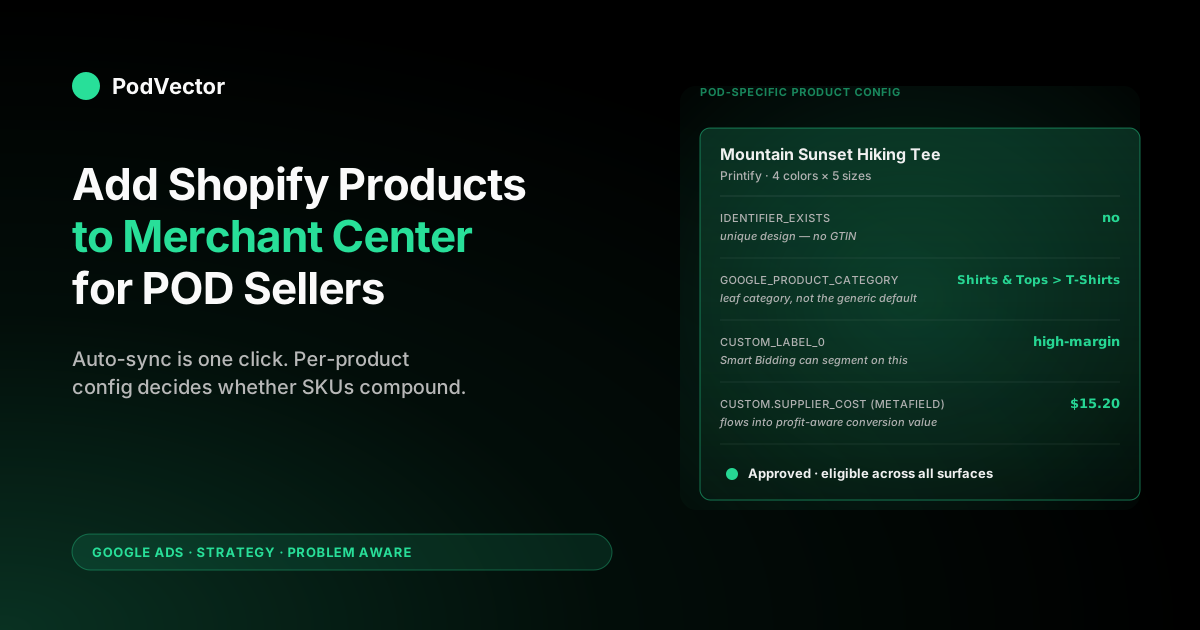
Quick Answer: Adding Shopify products to Google Merchant Center is mechanically a one-click sync via the Google & YouTube channel app, but the per-product configuration that determines whether each SKU gets approved, served, and profitably bid on is decided at the Shopify product level — before the sync runs. For a POD store on Printify or Printful, four levers move the needle: setting identifier_exists to false (or no) for unique designs so Google stops looking for GTINs that don't exist (per Google's own identifier_exists spec, custom goods like custom T-shirts explicitly qualify), populating a per-variant supplier_cost metafield so contribution margin can be computed downstream, assigning meaningful custom labels (custom_label_0 through custom_label_4 are the only product attributes Smart Bidding can segment on without rebuilding campaign structure), and refining each product's Google Product Category away from the lazy "Apparel & Accessories" default that Printify imports leave behind. This guide walks the per-product addition lifecycle for POD — from Shopify product page to a Merchant Center "Approved" status that actually serves profitable Shopping impressions.
What "adding products" actually does (and where things go wrong)
Most published walkthroughs — Shopify Help on syncing products, DataFeedWatch's Shopify-to-GMC how-to, and Store Growers' connection guide — describe the same automatic-sync surface: install the Google & YouTube channel app, link Merchant Center, and every product in your Online Store sales channel is pushed to GMC, refreshed automatically. That's accurate as far as it goes, and it's where the published guides stop. For a POD store, the gap between "products pushed to GMC" and "products approved, eligible, and serving impressions that produce profitable orders" is where most operators lose two to three weeks of impression footprint.
Three things actually happen when a Shopify product gets added to Merchant Center:
- Feed transmission. The Google & YouTube channel app reads each product's title, description, image, price, availability, and a handful of attribute fields (brand, GTIN, MPN, Google Product Category, condition, custom labels), packages them into a feed entry, and submits to Merchant Center.
- Crawl and verification. Google fetches the product landing page on your Shopify storefront, compares the live page against the feed (price match, availability match, image accessibility, structured data, policy pages), and decides whether to approve, warn, or disapprove the SKU. This step takes 24–72 hours.
- Eligibility classification. Approved SKUs get classified for which surfaces they're eligible to serve on — Shopping ads, free listings, YouTube Shopping, Performance Max product groups. POD-specific catalogs frequently get approved for the broad surface but excluded from Performance Max retail-vertical optimization for reasons that are nowhere documented in Shopify or DataFeedWatch's guides.
The configuration you set on each Shopify product directly determines outcomes at all three steps. Get the per-product setup right and the sync becomes a one-time decision that scales.
Get it wrong and you're firefighting individual SKU disapprovals every week. The companion piece on Printify t-shirt cost and profit breakdown is useful context for setting the margin-tier custom labels this guide configures; understanding your actual per-SKU contribution margin before the feed goes live is what separates spend-aware campaigns from spray-and-pray ones.
Prerequisites: the Shopify-side setup that has to be right first
Before any product gets added cleanly, the store-level configuration has to be in place. Each missing prerequisite manifests as a class of disapprovals later that look mysterious until you trace them back here.
- Google & YouTube channel app installed and linked to a Merchant Center account on a brand-domain Google account.
- Tax and shipping fully configured in Shopify Settings → Taxes and Settings → Shipping. Merchant Center inherits both during sync; missing rules trigger feed disapprovals on the SKUs sold into the un-configured regions.
- Privacy policy, refund policy, terms of service, and contact page all live and linked in the storefront footer. Missing pages produce account-level (not product-level) disapprovals that block every SKU.
- Brand-name attribute set at the store level (Shopify → Settings → Store details → Store name doubles as the default brand, but you can override at the product level if you sell under multiple brands).
- Product images that meet GMC requirements: at least 100×100 pixels for non-apparel, at least 250×250 for apparel, no overlay text, no watermarks, no promotional graphics. Printify's auto-generated mockups generally pass; Printful's tend to pass; user-uploaded "lifestyle" photos with text overlays do not.
- Per-variant supplier cost populated, ideally as a metafield exposed via the Storefront API (e.g.,
custom.supplier_cost). This isn't required for GMC approval but is required for the profit-aware conversion value override that turns the link from cost into compounding ROI. More on this in the section below.
If any of these are missing, fix at the store level before working through individual products. Understanding your actual cost structure first makes the margin-tier labeling in this guide actionable — the Printify sweatshirt cost and profit breakdown is a good benchmark reference before populating custom_label_0 margin tiers for your hoodie SKUs.
The per-product configuration checklist for POD
Apply this checklist to every product before it syncs to Merchant Center, and to every existing product as a one-time backfill if the catalog was added before the link was clean. The order is the order to fill the fields in on the Shopify product edit page.
Title (60–150 characters, descriptive not clever)
POD designers often title products by the design name — "Wanderlust Mountain Sunset," "Mama Bear Floral." Those titles get clicks from existing fans but are invisible to Google Shopping queries that don't include the design name. Format titles as [Product type] + [Design descriptor] + [Style/audience signal] + [Material if relevant]: "Mountain Sunset Hiking T-Shirt for Outdoor Enthusiasts (Soft Cotton)" instead of "Wanderlust Mountain Sunset." The first version surfaces on "hiking t-shirt" queries; the second surfaces only on brand-name searches that already know about you.
Description (500+ characters, distinct from product page copy)
Don't paste the same copy your product page uses. The description is read by Google's matching algorithm independently of the page copy and gets compared against search query intent.
Use the description to enumerate use cases, audiences, materials, and gift occasions — vocabulary that matches search queries beyond the product name. POD imports from Printify or Printful default to terse, generic descriptions that hurt match quality; replacing them with 200–400 words of on-target copy is one of the highest-leverage SKU-level optimizations available.
Brand
Set to your store brand name. For POD specifically, do not set the brand to "Printify," "Printful," or "Gelato" — those are your suppliers, not your brand to consumers. Google penalizes feeds that submit supplier names as brand attributes (it reads as a fulfillment leak that confuses shopping intent). As Store Growers notes, for products you manufacture yourself, use your store name as the brand.
Google Product Category
The single most-misconfigured field on POD imports. Default Printify and Printful imports map every apparel SKU to "Apparel & Accessories" — Google's most generic category.
Refine each product to the specific leaf category: "Apparel & Accessories > Clothing > Shirts & Tops > T-Shirts" for shirts, "Apparel & Accessories > Clothing > Outerwear > Hoodies & Sweatshirts" for hoodies, "Home & Garden > Kitchen & Dining > Tableware > Drinkware > Coffee & Tea Cups" for mugs. The leaf category determines which Shopping query verticals your SKU competes in. Generic-category SKUs compete with everyone; leaf-category SKUs compete only with directly substitutable products.
Identifier exists
For unique POD designs that don't have a manufacturer GTIN, set this to false (or equivalently no) — see the dedicated section below. Google's identifier_exists spec explicitly lists "custom goods or one-of-a-kind products, like custom T-shirts" as products that qualify for this value. For SKUs that do have GTINs (some Printful products on stock blanks include the blank's GTIN), submit the GTIN and set identifier_exists to true. Mixing the two correctly is the difference between a clean catalog and a feed full of "missing identifier" warnings.
Custom labels (custom_label_0 through custom_label_4)
The only product attributes Smart Bidding can segment on without rebuilding campaign structure. Use these to encode margin tier, supplier, design family, seasonality, and bestseller status. Detailed schema in the custom labels section below.
Variant strategy
For apparel, submit per-variant SKUs (color × size combinations as separate feed entries). Color and size meaningfully affect demand, and Google ranks variant-level SKUs against variant-level queries ("blue large hiking t-shirt"). For mugs, hats, and accessories where variants don't drive distinct search demand, parent-product submission keeps the feed cleaner.
Bulk add vs. individual add: when each is right
Two paths exist for adding products to Merchant Center via Shopify:
Automatic bulk sync (the default). The Google & YouTube channel app pushes every product on the Online Store sales channel automatically. Use this for the initial catalog upload after the link is clean and the per-product configuration is right. It's the operating-mode default — you set up products on Shopify, they appear in Merchant Center 24–72 hours later.
Selective sync via product visibility. Toggle individual products' Online Store sales channel availability to control what syncs. Use this for: low-margin SKUs you don't want to spend ad budget on, low-quality designs that drag down catalog quality scores, region-restricted designs that can't legally sell everywhere your store ships. The control is binary — visible on the storefront and synced to GMC, or hidden from both.
For surgical control (e.g., visible on storefront but excluded from GMC), use Shopify Customer Events or a metafield-driven feed rule rather than fighting the channel app. This is also the right moment to think about your checkout conversion baseline — a well-configured feed that drives clicks to a poorly converting product page wastes every impression. The ecommerce checkout conversion rate optimization guide covers the Shopify-side improvements that protect the ROI of your GMC traffic.
"Identifier exists: false" — the POD setting the SERP misses
None of the SERP top results cover this in meaningful depth. It's the single setting that most reduces feed warning noise for POD catalogs.
Google's product feed schema expects every commercial product to carry at least one of: GTIN (Global Trade Item Number — barcode), MPN (Manufacturer Part Number) plus brand, or brand alone for branded products without external identifiers. Unique POD designs printed on a blank don't have a GTIN that's specific to the design — the GTIN, if it exists, identifies the blank shirt only. Submitting the blank's GTIN against a unique design is technically incorrect and produces "GTIN doesn't match product data" warnings inconsistently across crawls.
The correct configuration: per Google's official spec, set identifier_exists to false (accepted values are yes/true and no/false; the value must be submitted in English), leave GTIN and MPN empty, and submit only your store brand as the brand attribute. Google interprets this as "this is a unique product manufactured by the brand, no external identifier exists" — which is exactly what a print-on-demand design is. Note: as DataFeedWatch explains, by default the identifier_exists attribute is set to true in every feed, so if you never set it explicitly, Google is silently expecting a GTIN from every one of your POD designs.
Two ways to apply it:
- Per-product in the Google & YouTube channel app's product edit panel. Slow but visible. Use for catalogs under 100 SKUs.
- Bulk via Shopify metafield. Add a metafield
google.identifier_existswith valuefalseto a product collection (or all products), and configure the channel app feed rules to map that metafield to the GMCidentifier_existsattribute. Use for catalogs above 100 SKUs.
Important caveat: DataFeedWatch warns that setting identifier_exists = false for a product that Google's systems believe does have a GTIN can get that product banned from Shopping. If you ever sell a stock blank without a custom design (e.g., reselling a manufacturer's branded apparel as-is), set identifier_exists to true and submit the GTIN for those specific SKUs. Most POD operators don't have this case; if you do, segregate the two product types via a metafield-driven feed rule.
Custom labels: the only POD-relevant signal Smart Bidding can read
Smart Bidding inside Performance Max and standard Shopping campaigns can segment performance by a small list of feed attributes: brand, condition, product type, Google Product Category, item ID, and custom_label_0 through custom_label_4. Of those, the five custom labels are the only ones the operator controls without rebuilding the campaign structure. They're how you encode "scale this segment, pause that segment" intelligence into a feed Smart Bidding can act on.
A POD-tuned custom label schema:
- custom_label_0 — Margin tier:
high,mid,low(thresholds set against your own catalog's contribution margin distribution). Used for tROAS targeting that aligns ad spend with profit, not revenue. - custom_label_1 — Supplier:
printify,printful,gelato,multiple. Used to segment performance by supplier so you can detect supplier-specific delivery-time issues that hurt repeat purchase. - custom_label_2 — Design family:
vintage,minimalist,typography,illustration,anime. Used to scale design directions that work and pause those that don't. - custom_label_3 — Seasonality:
evergreen,q4,summer,spring,holiday-specific. Used to ramp seasonal SKUs ahead of demand without manual campaign restructuring. - custom_label_4 — Performance tier:
bestseller,proven,testing,archive. Used for budget allocation across the catalog lifecycle.
Apply these via Shopify metafields (e.g., custom.gmc_label_margin_tier) and configure the Google & YouTube channel app to map metafields to the corresponding custom_label attribute. The mapping is a one-time setup; the per-product values then become an editable property of each product's metafield, and the feed re-syncs automatically when values change.
Margin tier is the highest-leverage of the five for POD. It depends on the supplier-cost metafield being populated, which is the next section. To understand why margin discipline at the SKU level matters at campaign scale, the guide on how to get contribution margin is worth reading before you set your tier thresholds.
Per-variant supplier cost: the input to profit-aware optimization
The single field that connects the entire margin-aware optimization stack. The premise: Google Ads doesn't know what your Printify or Printful supplier cost is. Without that input, the conversion value Google Ads receives at order time is the order subtotal — which over-allocates spend toward your highest-priced (and often lowest-margin) all-overs, oversized hoodies, and premium product lines.
Implementation is a Shopify metafield, exposed at the variant level:
- Create a metafield definition: namespace
custom, keysupplier_cost, typeMoneyornumber_decimal, attached to theProduct variantresource. - Populate the metafield value via Printify's order webhook (the supplier cost is in the line item payload), Printful's order API, or a manual import for catalogs already in Shopify. For ongoing sync, a webhook listener that reads supplier cost on each new product import is the cleanest pattern.
- Expose the metafield via Storefront API (Shopify Admin → Settings → Custom data → Variants → your metafield → "Storefront access: read") so Customer Events pixels can read it at conversion time.
- In the Google & YouTube channel app's conversion event configuration (or a Shopify Customer Events custom pixel), iterate over
order.lineItems, sum each line item's variant supplier cost, subtract fromorder.subtotalPrice, and pass the result as the Google Ads conversion value.
The full implementation including JavaScript snippets is at set up Google Ads conversions on Shopify strategy for print-on-demand and Shopify Google Ads conversion strategy for print-on-demand.
The core distortion without this override: Google Ads receives the full order revenue as the conversion value. Smart Bidding then optimizes toward revenue, not margin — so it scales your highest-priced SKUs regardless of whether those SKUs have the best or worst contribution margin. A premium hoodie with a high blank cost can report strong ROAS on revenue while losing money on every order after supplier cost. With the profit-aware override in place, the conversion value Google Ads sees reflects actual contribution, and Smart Bidding scales accordingly. The contribution margin guide covers the math behind this in detail.
After the sync: approval, disapproval, and what each status means
Within 24–72 hours of a product hitting Merchant Center, it lands in one of five statuses. Read each as a different signal.
- Approved — eligible to serve on Shopping ads and free listings. The goal state. Keep catalog approval rate high; a large share of disapproved SKUs drags down overall Shopping campaign performance regardless of bid strategy.
- Approved (limited) — eligible for Shopping ads but excluded from Performance Max retail-vertical optimization, free listings, or specific country marketplaces. Usually a missing or partially-configured attribute (Google Product Category too generic, missing color/size for apparel, missing GTIN where it actually applies). Fix the attribute and re-sync.
- Pending — Google hasn't finished crawling the landing page yet. Wait 24–48 hours. If pending status persists past 72 hours, check that the landing page returns HTTP 200 to Googlebot (not blocked by robots.txt or geo-blocking).
- Disapproved — actively blocked from serving. The disapproval reason in Merchant Center diagnostics tells you what to fix. The most common POD-specific reasons: missing privacy policy (account-level), image with overlay text (per-SKU), price mismatch between feed and landing page (caused by Shopify's currency-conversion app inserting different prices for different visitor regions), and "promotional content in image" (caused by Printify's holiday-themed mockup auto-generation around Q4). Note from DataFeedWatch: setting
identifier_exists = falsefor a product Google believes has a known GTIN is also a disapproval trigger — check diagnostics if you see this after a bulk metafield update. - Excluded — administratively excluded by you (via product visibility toggle or feed rule), not by Google.
Run Merchant Center → Diagnostics weekly during the first 30 days after adding a new design batch. After that, monthly is enough — disapprovals on stable catalogs cluster around platform-wide policy updates rather than individual SKU drift. The detailed troubleshooting matrix is at Shopify Google Merchant Center strategy for print-on-demand.
Adding new designs: a repeatable launch cadence
Every new POD design that gets added to Shopify after the initial sync is a small instance of the same problem: get the per-product configuration right before the sync runs, then verify approval and eligibility before allocating ad spend. A repeatable cadence:
Day 0 (design upload to Shopify). Apply the per-product checklist before saving the product. Title format, 200+ word description, brand set, Google Product Category to leaf category, identifier_exists set to false, custom labels populated (margin tier and supplier are the bare minimum), supplier cost metafield populated. Save.
Day 1 (sync confirmation). Confirm the product appears in Merchant Center → All products. Status will be Pending; that's expected.
Day 2–3 (approval check). Status should move to Approved or Approved (limited). If Disapproved, fix per the diagnostic message and re-sync.
Day 4 (campaign integration). Add the new SKU to its Performance Max asset group or Shopping product group. If using all-products group with custom_label-based listing groups, no manual addition needed — the new SKU joins automatically based on its custom labels.
Day 7 (early performance check). Pull Merchant Center → Performance for the new SKU. Impression volume should be non-zero. Zero impressions after 7 days indicates either insufficient bid (raise tCPA or tROAS target on the relevant listing group) or insufficient catalog depth in the queried category (more SKUs in the same Google Product Category typically lift impression share).
Day 30 (margin reconciliation). Compute the new SKU's true blended ROAS — Google Ads spend allocated to this SKU divided by the SKU's contribution margin (revenue minus supplier cost). Compare to the Google Ads reported ROAS. If they diverge meaningfully, the conversion value override isn't deployed correctly for this SKU's variants. See the contribution margin guide for the reconciliation methodology.
Run the cadence for the first 90 days of any new SKU's life. After day 90, the SKU joins the steady-state catalog and only needs the monthly diagnostic review. Ad fatigue is the other compounding risk for designs that have been running in Shopping for several months — the guide on how to avoid ad fatigue covers the rotation and refresh patterns that keep proven designs productive. The companion piece on operating cadence is at Shopify Google Ads strategy for print-on-demand.
FAQs
Do I need to manually add each Shopify product to Google Merchant Center, or does it sync automatically?
Once the Google & YouTube channel app is installed and Merchant Center is linked, every product on your Online Store sales channel syncs automatically. The work isn't in pushing products to GMC — it's in configuring each product correctly on Shopify so the auto-sync produces an Approved (not Disapproved or Approved-limited) status. This guide's per-product checklist is exactly that pre-sync configuration.
How long does it take for a new Shopify product to appear in Google Merchant Center?
The feed pushes within minutes; Merchant Center's crawl and approval takes 24–72 hours. Plan for a 3-day delay between adding a design to Shopify and being able to launch a campaign that includes it. For Q4 holiday launches and other time-sensitive drops, add the design to Shopify 5–7 days before the campaign is meant to start.
Why are my POD products showing "missing identifier" warnings in Merchant Center?
Because Google's default expectation is that every commercial product has a GTIN, MPN, or brand attribute. As DataFeedWatch explains, the identifier_exists attribute defaults to true in every feed — so if you never set it explicitly, Google is silently expecting a GTIN from every one of your POD designs. Unique POD designs printed on blanks don't have a design-specific GTIN, so the warning is technically correct but the fix isn't to add a fake GTIN — it's to set identifier_exists to false (or no) at the product level, which tells Google "no external identifier exists for this product" and clears the warning class.
Should I submit my Printify or Printful products at the parent level or per-variant?
For apparel, per-variant. Color and size meaningfully drive search demand, and Google ranks variant-level SKUs against variant-level queries ("white medium hiking t-shirt").
For mugs, hats, and accessories with variants that don't drive search demand differentiation, parent-level submission keeps the feed cleaner. The default behavior of the Google & YouTube channel app is per-variant; override only when justified.
Can I exclude specific products from syncing to Merchant Center without unpublishing them from my Shopify storefront?
The default channel app sync is binary — visible on storefront and synced to GMC, or hidden from both. For surgical control (visible on storefront but excluded from GMC), implement a metafield-driven exclusion.
Add a metafield custom.exclude_from_gmc with boolean value, configure a feed rule that filters out products where the metafield is true. Common exclusion candidates: low-margin SKUs not worth advertising, region-restricted designs, low-quality test designs.
What's the difference between "Approved" and "Approved (limited)" in Merchant Center?
Approved means the SKU is eligible across all surfaces (Shopping ads, free listings, Performance Max retail vertical, country marketplaces you've enabled). Approved (limited) means the SKU is eligible for some but not all surfaces — usually the missing surface is Performance Max retail-vertical optimization or specific country marketplaces, due to a missing attribute (Google Product Category too generic, missing color/size for apparel categories that require them, missing energy-efficiency labels for products that require them outside POD). Fix the attribute, wait for re-crawl, status moves to Approved.
Do I need a Google Merchant Center account separate from Google Ads to add Shopify products?
Yes — Google Merchant Center and Google Ads are separate products that get linked together. Merchant Center holds the product catalog (the feed); Google Ads runs the campaigns that bid on the catalog.
The Google & YouTube channel app links both behind the scenes, but they remain separate accounts at Google. Manually creating both at merchants.google.com and ads.google.com on a brand-domain Google account, then connecting via the channel app's "connect existing account" path, is the safer setup than letting the app create accounts on whichever Google login you happen to be signed in with.
How do I add the supplier_cost field to all my existing POD products at once?
Three options. The cleanest is a one-time CSV export from Shopify Admin → Products → Export, manual addition of a supplier_cost column populated from your Printify or Printful order history (use the per-variant supplier cost from any past order's line item payload), and re-import via Matrixify or Shopify's bulk metafield update tool.
Alternatively, query Printify's Catalog API for current supplier costs across your design library and write a one-time backfill script. For ongoing new designs, hook into Shopify's product-create webhook to populate the metafield from the supplier's API at creation time.
What is the correct value for identifier_exists — "true/false" or "yes/no"?
Both are accepted. Google's official spec lists four supported values: yes, true, no, and false — all must be submitted in English. For POD custom designs, use false or no; for stock blanks with real GTINs, use true or yes. The values are functionally identical within each pair; consistency within your feed is what matters.
Add Shopify products to Merchant Center with profit measurement built in from day one
Adding products to Google Merchant Center is the easy part — what's hard is knowing whether each SKU is profitable after Printify or Printful supplier cost, not just whether it has a green "Approved" badge. PodVector is AI business intelligence for print-on-demand sellers on Shopify. Victor, the AI employee inside PodVector, reads your live Shopify, Google Ads, Printify, and Printful data, proposes actions — like repricing a product to hit a target margin or organizing your catalog into collections — and executes them on Shopify with your approval. He answers "which SKUs should I scale and which should I pause?" using your actual order-level contribution margin, not your channel app's last-week snapshot. And run your Merchant Center catalog the way POD operators with margin discipline actually do it.
Try Victor free