
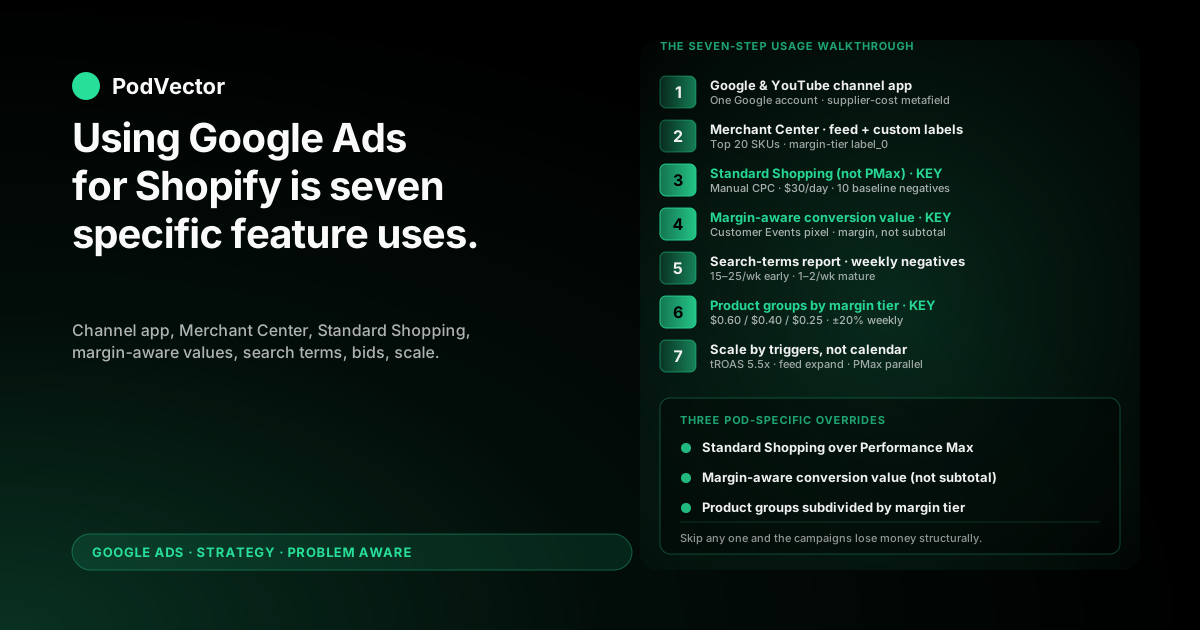
Quick Answer: Using Google Ads for Shopify well is seven concrete uses of the platform's features in the right order: use the Google & YouTube channel app for the integration, use Merchant Center for the feed and product taxonomy, use Standard Shopping (not Performance Max) for your first campaign, use a margin-aware conversion value, use the search-terms report weekly to negate noise, use product groups with custom labels to bid by margin tier, and use the scaling triggers — not the calendar — to graduate to Smart Bidding. The general guides cover the integration well; the gap that breaks most print-on-demand stores is the conversion-value layer and the weekly hygiene loop. This guide walks all seven steps with the POD-specific overrides at each one.
What "using Google Ads for Shopify" actually involves
The published step-by-step guides for Google Ads on Shopify — Shopify's own campaign-setup walkthrough, Praella's six-step setup guide, and AdRoll's 14 ways to boost Google Ads performance for Shopify — agree on the high-level shape of what to use: install the Google & YouTube channel app, link Merchant Center, build a Performance Max campaign, set up conversion tracking, and optimize. They're correct on what to use; they're underspecified on how to use it for a print-on-demand store running ~30% contribution margin against Printify or Printful supplier costs.
Specifically, three things fall out of the general guides that decide whether Google Ads makes or loses money for POD on Shopify: which campaign type to start with (Standard Shopping vs Performance Max), what to fire as the conversion value (margin vs subtotal), and how to organize product groups so bidding amplifies the margin pattern instead of averaging over it. This guide is built around those three decisions, embedded inside a seven-step usage walkthrough that follows the order an operator actually touches the platform.
The wider strategic frame for the topic — including when Google Ads fits into a POD store's marketing mix at all — is in the complete Google Ads playbook for POD sellers. The four-phase weekly loop that runs after launch is covered in the operational how-to-do-Google-Ads-on-Shopify guide. This article is the "how to use the features themselves" layer.
The campaign types you can use on Shopify (and which to start with)
Google Ads exposes seven campaign types from the Shopify-connected account. Knowing which to use — and especially which to not use first — matters more than the click-by-click setup of any single one.
- Standard Shopping — product-grid ads on Google Search and the Shopping tab, matched to queries by product attributes. Granular controls (negative keywords, product-group bids, search-terms report). Best starting choice for POD.
- Performance Max (PMax) — Google's all-network campaign that combines Shopping, Search, Display, Discovery, YouTube, and Gmail under one Smart Bidding strategy. Powerful, opaque, hard to debug. Usable as a graduation target, not a starting point.
- Search — text ads on Google search results matched to keywords you specify. Use a small Search campaign for brand defense from day one (your brand name + close variants, $5–$10/day).
- Display — image and responsive ads across the Google Display Network. For POD, this is mostly a remarketing tool — cold Display rarely converts profitably for low-AOV apparel and accessories.
- YouTube (Video) — skippable in-stream and bumper ads. Useful at scale once a brand has compounding direct-sales volume; not a starting choice for cash-constrained POD stores.
- Discovery / Demand Gen — visually-rich ads on Google Discover, YouTube home feed, and Gmail. Similar profile to Display: better as a layer on top of an established account than a starting move.
- App — irrelevant for Shopify storefronts (these promote app installs, not product purchases).
The general guides default to recommending Performance Max because it's the easiest to launch (Google's wizard does most of the work) and Google's reps push it heavily in onboarding calls. For owned-inventory ecommerce with consistent margins, that recommendation is defensible.
For POD operators on Shopify with margins that vary 2–3x across products, starting with PMax produces a specific failure mode: the algorithm concentrates spend on whichever SKUs convert first, which for varying-margin catalogs is usually the wrong tier — and you can't see it happening because PMax doesn't expose product-level reporting. The Shopify Performance Max deep-dive covers when PMax becomes the right choice (after Standard Shopping has produced 30+ margin-aware conversions and you have the data to anchor PMax's optimization). The remaining six steps in this guide assume you're starting with Standard Shopping and a small brand Search campaign — the right combination for POD.
Step 1: Use the Google & YouTube Shopify channel app
The Google & YouTube channel app is published by Google LLC (not a third-party developer) and lives in the Shopify App Store free of charge. It does three jobs: it syncs your Shopify product catalog to Merchant Center as a structured product feed, it installs the conversion tracking pixel into your storefront, and it offers a campaign-creation wizard. Use the first two; ignore the third.
From Shopify admin, open Sales channels → Add channel → Google & YouTube → Add channel. Click Connect Google account and sign in with the Google account you'll use for everything Google-related (Merchant Center, Google Ads, eventually Search Console). One Google account for the whole stack is the cleanest setup; multi-account is the most common source of "why is Merchant Center showing my Ads conversions as zero" support tickets six months in.
The channel app handles four prerequisites automatically that older guides used to walk through manually: it verifies your store domain with Merchant Center via a meta tag injected into theme.liquid, it creates a Merchant Center account if one doesn't exist, it uploads an initial product feed, and it pulls your shipping and tax settings from Shopify into Merchant Center. For a default Shopify theme, this all just works. Heavily customized themes that strip default head injections may need manual HTML-tag verification — the Merchant Center for Shopify strategy guide covers the verification edge cases.
Two channel-app settings POD operators should change from defaults: turn off auto-create a Performance Max campaign (Google nudges hard for this; you'll build the campaign manually in step 3), and turn on sync supplier cost into a Shopify metafield if your POD app exposes it (Printify and Printful both have one-line settings that write supplier cost into cost.supplier_cost on each product). The metafield is the input for the margin-aware conversion value in step 4 — flip it before bulk-importing your catalog or you'll backfill it manually later.
Step 2: Use Merchant Center for the feed (not just verification)
Most setup guides treat Merchant Center as a one-time verification step. It's actually the platform's product taxonomy layer — the place where "what you sell" gets organized into the categories, attributes, and labels Google's algorithms use to match queries and bid. POD operators who treat Merchant Center as plumbing skip the highest-leverage configuration in the entire stack.
Three things to use Merchant Center for, beyond just having an account that exists:
- Feed restriction. The channel app syncs your entire Shopify catalog by default. A modest POD store with 50 designs across 3 product types, 5 colors, and 5 sizes is 3,750 variants. That's too many for Smart Bidding to train against; PMax concentrates on whichever 5–8% convert first and ignores the rest. Restrict the synced feed to your top 20 SKUs by trailing-90-day Shopify revenue (or top 20 by gut instinct plus product-page traffic if you're below 90 days of history). Use the Inventory filter in the Standard Shopping campaign settings to enforce this at the campaign level too.
- Custom labels for margin tiers. Merchant Center supports five custom-label fields per product (
custom_label_0throughcustom_label_4). Usecustom_label_0to tag each product with its margin tier —"high_margin"for products with $10+ per-unit margin,"mid_margin"for $6–10,"low_margin"for under $6. You'll use this label in step 6 to bid differently per tier. The label can be set from a Shopify metafield via Merchant Center feed rules; the Shopify Merchant Center strategy guide walks the feed-rule configuration end-to-end. - Product category accuracy. Google's product taxonomy has ~6,500 categories. The channel app guesses at categorization but usually picks the highest-level option (e.g., "Apparel & Accessories" instead of "Apparel & Accessories > Clothing > Shirts & Tops > T-Shirts"). The deeper you set the category, the better Google's algorithm matches queries and the higher your impression share on relevant searches. Set Google product category manually for your top 20 SKUs.
Merchant Center will also flag policy issues — disapproved products, shipping mismatches, prohibited claims — that, left unaddressed, suspend the account. POD-specific gotcha: the channel app sometimes pulls an inflated "free 30-day returns" return policy from Shopify defaults that doesn't match Printify or Printful's actual replacement-only policy.
Merchant Center's policy team verifies returns within 60–90 days and suspends accounts where the website policy doesn't match what's on Merchant Center. Keep the return policy aligned with what you actually offer; the Google Ads Shopify integration guide covers the most common policy traps for POD stores.
Step 3: Use Standard Shopping for your first campaign
In Google Ads, click Campaigns → New campaign → Sales objective → Shopping → Standard Shopping. Standard Shopping is the option below Performance Max in the Shopping campaign-type chooser — Google places PMax above and recommends it on the same screen. Standard is what you want for the first 30 days; the case for it is in the campaign-types section above.
The settings to use:
- Merchant Center account: the account connected via the channel app in step 1.
- Country of sale: your primary market (US for most POD sellers).
- Inventory filter: All products (the feed itself is already restricted to your top 20 SKUs from step 2).
- Bidding: Manual CPC, max CPC $0.50. Resist Enhanced CPC and Smart Bidding (Maximize Conversion Value, Target ROAS, Maximize Clicks) for the first two weeks. Smart Bidding needs 30+ conversions in 30 days to exit learning phase, and any Smart Bidding strategy you turn on with less data will perform worse than Manual CPC for the first three weeks of training.
- Daily budget: $20–$30. Less and conversion volume stays below the Smart Bidding threshold indefinitely; more and you waste budget on training experiments.
- Networks: Search Network only (uncheck Search Partners and YouTube — they dilute signal in early-account stages).
- Campaign-level negative keywords: free, tutorial, diy, template, svg, png, wholesale, bulk, knockoff, amazon. POD ads attract bargain-hunters and template-seekers who never convert; this baseline list cuts 15–25% of wasted spend immediately.
Add a second campaign immediately — Campaigns → New campaign → Sales objective → Search → Manual CPC at $1.00 max bid — with a single keyword in phrase match (your brand name) and a $5–$10/day budget. Brand Search converts at 8–18% (vs 1–3% for cold Shopping traffic) because the searcher already knows you exist.
Brand defense ads ensure you appear above competitors who might bid on your name. It's the cheapest legitimate ROAS in any POD ad account.
Click Publish on both. Brand Search starts serving within an hour; Standard Shopping after Merchant Center approves the products (24–48 hours, longer if any feed rules trip warnings).
Step 4: Use a margin-aware conversion value
This is the step nearly every general guide skips, and the one that decides whether the campaigns from step 3 make or lose money over time.
The default conversion tracking installed by the channel app reports each order's subtotal as the conversion value. For owned-inventory ecommerce that's fine; for POD where margin varies from $4 (mug) to $14 (hoodie) on a $25 average order, subtotal-based bidding actively over-spends on low-margin orders and under-spends on high-margin ones. A 4.2x ROAS on subtotal is a 1.3x ROAS on margin for a 30%-margin store — not enough to cover ad spend plus fees plus operating costs.
The fix is to override the conversion value to fire margin (revenue minus supplier cost) instead of subtotal. On Shopify, this is done via a Customer Events custom pixel — Shopify admin → Settings → Customer events → Add custom pixel. The pixel subscribes to checkout_completed, reads each line item's price and the supplier-cost metafield (populated from step 1), calculates per-line margin as (price - supplier_cost) × quantity, sums to a margin total, and re-fires the Google Ads conversion event with that margin total as the value. Disable the default channel-app conversion event so they don't double-fire.
The full implementation, including copy-pasteable JavaScript and the steps to disable the default event without losing the impression-tracking pixel, is in the Shopify Google Ads conversion override guide. The shortcut version, if you don't want to wire up per-product margin: hardcode a margin percentage (e.g., value = subtotal × 0.30).
This works as a starting point and produces materially better optimization than subtotal-based bidding, but averages over signal you could be using to bid differently per product. For an operator with 200+ SKUs, the per-product version is worth the setup time; for fewer than 50 SKUs with similar product types, flat-percentage estimated margin is a reasonable shortcut.
Also enable Enhanced Conversions in Google Ads → Tools → Conversions → your conversion action → Settings. Enhanced Conversions hashes first-party data (email, name, address) collected at checkout and matches it back to ad clicks, recovering 20–30% of conversions that would otherwise be lost to cookie-blocking and cross-device sessions. The channel app sets this up automatically once toggled.
Step 5: Use the search-terms report every week
The search-terms report lives at Campaigns → [your Standard Shopping campaign] → Insights → Search terms. It shows the actual queries that triggered your ads — which is different from the keywords you're targeting (Shopping campaigns match by product attributes, so search terms can be wildly off-topic).
Every Monday, sort by spend descending and scan the top 20–30 queries. Anything obviously unqualified — "free [niche] svg," "wholesale [your category]," "[competitor brand name]," "[generic product] template," "[meme] cricut file" — gets added as a negative keyword at the campaign or ad-group level. POD's long tail of free-template and DIY-graphic searchers is enormous in design-heavy niches; adding 15–25 negatives a week for the first 4–6 weeks is normal. The rate drops to 5–10 a week after, and 1–2 a week once the campaign matures.
This is the single highest-leverage decision in POD Google Ads. A campaign with a clean search-terms report and a campaign with a messy one can have identical setup, identical products, identical budget, and the first one is profitable while the second isn't. Skipping the weekly review for two weeks costs roughly 20–30% of the next month's spend going to never-converters.
One pattern to watch for in POD specifically: queries that include the design subject but not a product type ("[breed] dog," "[sports team] logo," "[meme phrase]"). Searchers using these queries are usually looking for free graphics, not printed products. Add the bare design-subject queries as negatives unless you've confirmed they convert; let the queries with explicit product type ("[breed] dog t-shirt," "[sports team] hoodie") stay live. The Shopify Google Ads tracking strategy guide covers the search-terms instrumentation in more detail, including how to spot patterns by design type rather than reviewing queries one-by-one.
Step 6: Use product groups with margin-tier custom labels
Inside the Standard Shopping campaign, navigate to Products → Product groups. By default, the campaign has one product group called "All products" with a single max CPC bid applied to your entire feed. That's a flat bidding strategy on a non-flat catalog — the campaign overpays for clicks on low-margin SKUs and underpays for high-margin ones.
Click the + subdivide icon next to "All products" and subdivide by Custom label 0 (the margin-tier label set in step 2). This creates three groups: high_margin, mid_margin, and low_margin.
Set max CPC bids of $0.60, $0.40, and $0.25 respectively. The campaign now bids more aggressively where the margin per click justifies it and pulls back where it doesn't — a control PMax doesn't expose at all.
Every Monday, after the search-terms review, look at the trailing-14-day numbers per product group: spend, conversion value (which is now margin, not revenue, because of step 4), and conversions. Any product group where conversion value is less than 1.3x spend is bleeding; reduce the max CPC bid by 20% or, if it's been bleeding for two consecutive weeks, exclude the group entirely. Any product group where conversion value exceeds 2.5x spend with at least three conversions has room to grow; raise the max CPC bid by 20% to capture more impressions.
This bid-adjustment loop is what compounds a 4x ROAS POD account into a 7x ROAS one over months. Without margin-tier custom labels, you'd be making the bid decision on flat product data and missing the systematic pattern (high-margin products will tolerate higher CPCs). With them, you see the pattern weekly. The Shopify Google Ads best-practices comparison covers the bid-adjustment framework in more depth, including how to handle products with high spend but zero conversions (usually a feed-quality issue, not a bidding issue).
Step 7: Use scaling triggers, not the calendar
The temptation to use Google Ads more aggressively before the data justifies it is the most expensive temptation in POD ads. Doubling daily budget on a campaign with weak signal doesn't double conversions — it doubles the cost of bad bidding decisions. Scaling decisions should be triggered by three specific conditions, all true at once:
- 30+ conversions on margin-aware values in the trailing 30 days. Below 30, Smart Bidding can't exit learning phase. Above 30, the algorithm has enough signal to start optimizing.
- Profit-after-spend positive over a trailing two-week window. Calculate it weekly:
profit_after_spend = conversion_value (margin) - spend. If positive and trending up, scale. If marginally positive, one more cycle of negatives-and-bids tightening usually compounds it. - Wasted-spend percentage under 15%. Open the search-terms report, sum spend on queries you've now negated, divide by total spend. If it's still over 15%, more weekly negatives before scaling.
When all three are true, scaling has three moves taken sequentially over 4–6 weeks (not all at once):
Move one: switch bidding to Maximize Conversion Value with target ROAS 5.5x. The 5.5x target is calibrated for POD: it implies 1/5.5 = 18% of margin going to ad spend, leaving room for everything else (Shopify fees, payment processing, returns, brand investment). Don't accept Google's auto-suggested target — it's based on revenue ROAS, not margin ROAS, and will be 30–40% too low for POD.
Move two: expand the curated feed. Add another 20 SKUs to Merchant Center (top 20 by trailing-30-day Shopify revenue from products not currently in the feed). Watch which generate impressions and conversions; the ones that perform stay, the ones that don't after 14 days come back out. The feed grows from 20 to 50 to 100 SKUs over a quarter, not all at once.
Move three: launch a parallel Performance Max campaign at $20/day. Once Standard Shopping is producing clean signal on margin-aware values, PMax can pile on top — it inherits learning from the Merchant Center feed and the conversion data. Run both campaigns in parallel for two weeks; if PMax's profit-after-spend matches or beats Standard Shopping's, gradually shift budget toward PMax.
Scaling does not mean doubling a single campaign's daily budget overnight. Smart Bidding interprets a sudden budget jump as a signal to bid more aggressively, which restarts the learning phase and produces 2–3 weeks of worse performance before steady state returns. Budget changes above 25% in a week trigger this; stay under that threshold.
Five Google Ads features POD operators use wrong
The seven steps above are the right uses. Five misuses show up repeatedly across POD operators and quietly drain budget for months before anyone notices:
- Using Smart Bidding too early. Switching from Manual CPC to Maximize Conversion Value before the campaign has 30 margin-aware conversions in the trailing 30 days produces 2–4 weeks of worse performance while the algorithm flails for signal. Manual CPC is not a temporary crutch — it's the right starting strategy for new campaigns, and the graduation to Smart Bidding is data-triggered, not calendar-triggered.
- Using Performance Max as the first campaign. PMax is opaque (you can't see which products converted), concentrates spend on whichever SKUs convert first (which for varying-margin POD catalogs is usually the wrong tier), and resists granular controls. It's a useful graduation, not a starting choice.
- Using subtotal-based conversion values. The default channel-app conversion event fires order subtotal. For POD's varying margins, subtotal optimization actively prefers low-margin orders. The override in step 4 fixes this; everything downstream depends on it firing correctly.
- Using "All products" as the only product group. Flat bidding on a non-flat margin distribution averages over the highest-leverage signal in the entire account. The custom-label subdivision in step 6 is a 10-minute setup that compounds into 30–40% better margin ROAS over a quarter.
- Using Google's reported ROAS without converting it to profit-after-spend. A 4.2x ROAS reported by Google Ads on revenue is a 1.3x ROAS on margin for a 30%-margin POD store. The weekly profit-after-spend reconciliation (margin minus ad spend) is the only number that answers "did paid acquisition produce money this week."
The pattern across all five is the same: each one comes from optimizing at the wrong layer (revenue instead of margin, conversions instead of profit, the platform's defaults instead of POD-aware overrides). Using Google Ads well for Shopify, in the POD context, is the practice of repeatedly choosing the right layer.
The infrastructure is the table stakes; the layered discipline is what compounds. The full Google Ads topic hub indexes deeper coverage of each step, and the Google Ad types guide for POD covers when each campaign type fits into the layered approach.
FAQs
How long does it take to start using Google Ads for Shopify properly?
Steps 1–4 (channel app, Merchant Center, first campaign, conversion-value override) take 4–6 hours one-time, spread across two days because Merchant Center's product approval takes 24–48 hours. Steps 5–6 (search-terms review, product-group bid adjustments) are 30 minutes per week, ongoing.
Step 7 (scaling) is decision-based and takes 15–30 minutes per scaling move when the conditions are true. Total annual time investment for a single-store POD operator using Google Ads competently: ~30 hours over the first quarter, then ~25 hours per year ongoing.
Can I use Google Ads for Shopify without Merchant Center?
For Search campaigns (text ads), yes — you only need Google Ads. For Shopping campaigns (the product-grid ads that drive most POD revenue from Google), no — Merchant Center is required because that's where the product feed lives. Performance Max can theoretically run without a Merchant Center feed, but for a POD store with product images and prices, the Shopping inventory is what makes the campaign work; running PMax without it gives Google nothing to feed into the auction beyond text ads.
Should I use Performance Max if I'm just starting?
Not for the first 30 days, even though Google's onboarding pushes for it. PMax is opaque and concentrates spend automatically, which for varying-margin POD catalogs is the wrong shape until you have margin-aware conversion values and 30+ conversions of training data.
Standard Shopping for 30 days, then PMax as a parallel campaign on top once the conditions in step 7 are met. The full graduation criteria are in the Shopify Performance Max guide.
What's the minimum daily budget to use Google Ads for Shopify usefully?
$30/day total ($20 Standard Shopping + $10 brand Search) is the practical floor for POD. Below that, conversion volume stays below the 30-conversions-in-30-days threshold for Smart Bidding to exit learning phase, and the campaign can't graduate to value-based bidding.
Below $15/day, Standard Shopping itself struggles to generate enough impressions for the auction system to calibrate. If $30/day is too aggressive for your stage's cash flow, run brand Search alone at $5–$10/day until direct-sales volume justifies adding Shopping.
How do I use Google Ads with the Shopify free trial?
You can install the Google & YouTube channel app and connect Merchant Center on a Shopify free trial, but you can't actually run ads — Merchant Center requires a verified domain that's accepting checkouts, which means you need a paid Shopify plan with a custom domain. Use the trial period to install the channel app, configure the supplier-cost metafield, and stage the conversion-value override; flip ad spending on once you're on a paid plan and Merchant Center has approved your products.
How is using Google Ads for Shopify different from using it for a non-Shopify ecommerce site?
The integration plumbing is the main difference: the Google & YouTube channel app handles feed sync, conversion pixel installation, and shipping/tax pull from Shopify automatically — work you'd do manually on a custom-stack site. Customer Events is the Shopify-specific mechanism for the conversion-value margin override; on a custom site, you'd write directly to gtag. Everything else — campaign types, bidding strategies, search-terms hygiene, product-group bid adjustments, scaling criteria — is platform-independent. The Google Ads for Shopify strategy guide covers the platform-specific layer in more detail.
How do I use Google Ads for Shopify without spending money on a learning phase?
You can't fully avoid the learning phase — every new campaign has one — but you can shorten it. Three moves: start with Manual CPC instead of Smart Bidding (Manual is "learned" instantly, Smart Bidding takes 30 conversions to stabilize), restrict the feed to your top 20 SKUs (concentrates spend on products with the strongest signal), and use a tight initial keyword negative list (the baseline list in step 3 cuts 15–25% of wasted spend on day one). The total wasted spend on a properly-scoped Standard Shopping campaign over its first 30 days is usually 10–18% of total spend; on a default PMax setup, it's 30–45%.
Use the data — without rebuilding it every Monday
The seven-step usage pattern above is the right way to use Google Ads for Shopify. The hard part isn't knowing what to do — it's having the data assembled in one place every Monday so you can actually see which search terms to negate, which product groups to bid up or down, and whether profit-after-spend is trending positive. Most POD operators end up rebuilding that view manually each week across Google Ads, Shopify, and Printify or Printful exports. Victor is the AI employee that connects all three sources on live data and answers questions like "which Shopping product groups produced positive profit-after-spend last week, and which should I pause?" in plain English — no dashboards, no spreadsheets.
Try Victor free