
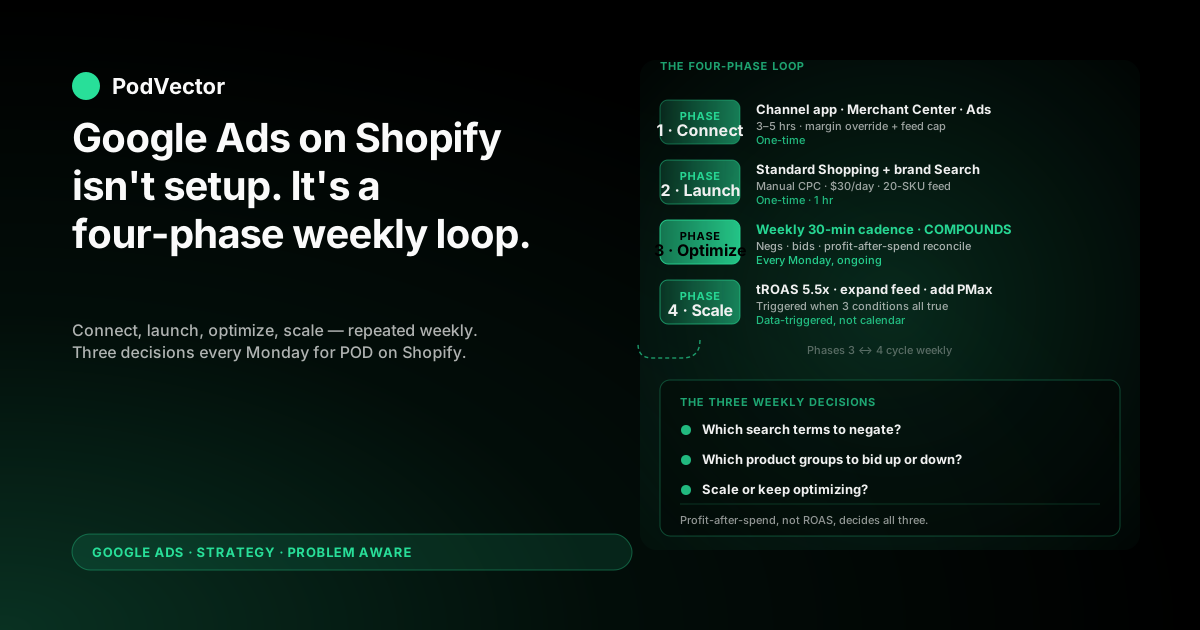
Quick Answer: Doing Google Ads on Shopify is four phases run as a repeating loop, not a one-time setup: connect Shopify to Google Ads correctly, launch a tightly-scoped first campaign, optimize on a weekly cadence, then scale only when the unit economics support it. Most general guides stop at the first phase.
For a print-on-demand store running ~30% contribution margin against Printify or Printful supplier costs, the work that decides whether ads make or lose money happens in phases two through four — specifically, in three weekly decisions: which search terms to negate, which product groups to bid up or down, and whether profit-after-spend is trending positive. This guide walks the full four-phase loop end-to-end with the POD-specific overrides at each step.
What "doing Google Ads on Shopify" actually means
The published step-by-step guides for Google Ads on Shopify — Shopify's own campaign-setup walkthrough, Meetanshi's five-step setup guide, and JoinBrands' 20-step run-Google-Ads guide — are all front-loaded on installation: install the Google & YouTube channel app, link Merchant Center, configure conversion tracking, build a Performance Max campaign, click Launch. Shopify's guide ends roughly there.
Meetanshi's adds a short optimization tips section. JoinBrands' goes deeper into optimization but treats it as a checklist rather than an ongoing practice.
That framing produces a specific failure mode for POD operators. The setup runs cleanly.
Ads start serving within 24–48 hours. Spend climbs predictably for two weeks.
And then the operator looks at month-one numbers, sees 4.2x ROAS reported by Google Ads, calculates actual profit-after-spend, and realizes the campaign lost $400 across the month. The setup wasn't wrong. The follow-through was missing.
"Doing Google Ads on Shopify" is four phases, not one:
- Connect — install the channel app, link Merchant Center and Google Ads, configure conversion tracking with margin awareness. One-time, 3–5 hours.
- Launch — build a tightly-scoped starting campaign on a curated feed, with Manual CPC and a brand-defense Search campaign alongside it. One-time, ~1 hour.
- Optimize — weekly negative-keyword adds, product-group bid adjustments, and conversion-data refinement. Ongoing, 30–45 minutes per week.
- Scale — graduate bidding strategies, expand the feed, add Search and remarketing campaigns when the unit economics justify it. Triggered by data, not by calendar.
The pillar guide for the topic — the complete Google Ads playbook for POD sellers — covers the strategic frame. This guide walks the operational sequence. The connection details (steps 1–7 of the click-by-click setup) live in the Google Ads on Shopify setup walkthrough; this guide assumes you're either about to do that or have already done it, and focuses on what comes after.
Phase 1: Connect (the one-time setup)
The connection phase is the only part the general guides cover well, because it's the only part that's the same for owned-inventory ecommerce and POD. The differences start in phase two. But two POD-specific overrides belong in phase one or they'll silently break everything downstream.
The four prerequisites that have to be true before you connect
A Shopify store with at least 20 published products, a return policy that matches Printify or Printful's actual replacement-only policy (not "free 30-day returns" — that gets accounts suspended within 60–90 days when Merchant Center's policy team verifies), tax and shipping configured correctly in Shopify settings, and a supplier-cost metafield populated on every product (namespace cost, key supplier_cost, type money). Skip any of the four and the connection will run, but the data flowing through it will be wrong.
The supplier-cost metafield matters most. It's the input for the margin-aware conversion-value override that makes Google Ads' bidding optimize on profit instead of revenue.
Without it, the override either falls back to subtotal (you've fixed nothing) or fires zero (Smart Bidding optimizes against nothing). Most POD apps support a one-line setting that writes supplier cost into a Shopify metafield automatically during import — flip that toggle before bulk-importing your catalog.
The connection itself: channel app, Merchant Center, Google Ads
From Shopify admin, install the Google & YouTube channel app (published by Google LLC, not a third-party developer). Connect it to a fresh Google account that you'll use for everything Google-related — Merchant Center, Google Ads, eventually Search Console.
Single-account makes permissions and reporting cleaner. The channel app handles three jobs from this one Google account: feed sync, conversion tracking, and an optional campaign-creation wizard. Use the first two; ignore the third.
Create Merchant Center via the channel app's Connect Google account flow. Verification happens automatically when the channel app writes a meta tag into your theme.liquid.
Heavily customized themes that strip default head injections may need manual HTML-tag verification. The full Merchant Center setup, including verification edge cases and the feed-rule configuration, is in the Google Merchant Center for Shopify strategy guide.
Create Google Ads at ads.google.com with the same Google account. Switch immediately to Expert Mode — Smart Mode hides the controls you'll need.
Skip the initial campaign-creation wizard; you'll build the campaign manually in phase two. Add billing, note the 10-digit Customer ID, return to Shopify, and link the channel app to your Google Ads account. The MCC-versus-direct-account scenario is covered in the Google Ads to Shopify linking guide if you've previously run Ads under a different login.
The two POD-specific overrides that go in phase one
Override one: conversion value fires margin, not subtotal. The default tracking installed by the channel app reports each order's subtotal as the conversion value.
For owned-inventory ecommerce that's fine; for POD where margin varies from $4 (mug) to $14 (hoodie) on a $25 average order, subtotal-based bidding actively over-spends on low-margin orders and under-spends on high-margin ones. Add a Customer Events custom pixel in Shopify admin → Settings → Customer events that subscribes to checkout_completed, reads each line item's price and the supplier-cost metafield, calculates per-line margin as (price - supplier_cost) × quantity, sums to a margin total, and re-fires the Google Ads conversion event with that margin total as the value.
Disable the default channel-app conversion event so they don't double-fire. The full implementation with copy-pasteable JavaScript is in the Shopify Google Ads conversion override guide.
Override two: feed restriction. The channel app syncs your entire Shopify catalog to Merchant Center by default.
A modest POD store with 50 designs across 3 product types, 5 colors, and 5 sizes is 3,750 variants. That's too many for Smart Bidding to train against; PMax concentrates on whichever 5–8% convert first and ignores the rest.
Restrict the synced feed to your top 20 SKUs by trailing-90-day Shopify revenue (or top 20 by gut instinct plus product-page traffic if you're below 90 days of history). Add a custom label in Merchant Center feed rules that maps each product to its margin tier — custom_label_0 = "high_margin" for $10+ margin, "mid_margin" for $6–10, "low_margin" for under $6. You'll use that label in phase two to bid differently per tier.
These two overrides are the entire reason POD operators on the standard setup path lose money in their first quarter of Google Ads. The connection phase looks like 90 minutes of clicking; the two overrides take another 60 minutes. Skipping them produces a configuration that will work mechanically and lose money structurally.
Phase 2: Launch the first campaign with the right scope
Every general guide recommends Performance Max as the starting campaign on Shopify. That's a defensible call for owned-inventory ecommerce with consistent margins; it's the wrong call for POD beginners. PMax is opaque (you can't see which products converted at which cost), concentrates spend automatically on whichever SKUs convert first (which for varying-margin POD catalogs is usually the wrong tier), and resists negative-keyword controls (you can request brand exclusions but not the granular keyword-level negatives that prune POD's long tail of unqualified searches).
The right starting scope for POD on Shopify is two campaigns:
Campaign one: Standard Shopping on the curated 20-SKU feed
In Google Ads, click Campaigns → New campaign → Sales objective → Shopping → Standard Shopping (the option below Performance Max in the Shopping campaign-type chooser — Google nudges you toward PMax repeatedly; Standard is what you want). Configure:
- Merchant Center account: the account you connected in phase one.
- Country of sale: your primary market (US for most POD sellers).
- Inventory filter: All products (the feed is already curated to 20 from phase one).
- Bidding: Manual CPC, max CPC $0.50. Resist Enhanced CPC and Smart Bidding for the first two weeks — you need clean signal before letting the algorithm experiment.
- Daily budget: $20–$30. Less and Smart Bidding never exits learning phase (which requires 30 conversions in 30 days); more and you waste budget on training experiments.
- Negative keywords: at campaign level, add free, tutorial, diy, template, svg, png, wholesale, bulk, knockoff, amazon. POD ads attract bargain-hunters and template-seekers who never convert; this baseline list cuts 15–25% of wasted spend immediately.
Once the campaign is created, set up product groups by your custom margin label: three groups for high_margin, mid_margin, and low_margin with max CPC bids of $0.60, $0.40, and $0.25 respectively. This gives the campaign permission to compete harder for clicks on profitable products and pull back on thin ones — a control PMax doesn't expose.
Campaign two: brand defense Search
Add a second campaign — Campaigns → New campaign → Sales objective → Search → Manual CPC at $1.00 max bid. Single keyword in phrase match: your brand name.
Daily budget $5–$10. Brand Search converts at 8–18% (vs 1–3% for cold Shopping traffic) because the searcher is already typing your name; they're either repeat customers, social-referral arrivals, or competitor-shopping researchers comparing you against alternatives.
Brand defense ads ensure that when those searches happen, you appear above competitors who might otherwise bid on your name. It's the cheapest legitimate ROAS in any POD ad account, and every POD store on Shopify should run it from day one.
Click Publish on both. Brand Search starts serving within an hour; Standard Shopping after Merchant Center approves the products (24–48 hours, longer if any feed rules trip warnings).
Phase two is now done. The deeper rationale for choosing Standard Shopping over Performance Max for the first 30 days is in the Performance Max for Shopify deep-dive, including the criteria for graduating to PMax later.
Phase 3: Optimize on a weekly cadence
The optimization phase is where most POD operators either make Google Ads work or quietly let it burn budget. The work isn't hard; it's just easy to skip when the dashboard shows a nice ROAS number. Three weekly tasks, none of them taking more than 15 minutes:
Task one: search terms review (the biggest weekly lever)
Open the Standard Shopping campaign, click Insights → Search terms. This shows the actual queries that triggered your ads, which is different from the keywords you're targeting (Shopping campaigns are matched by product attributes, so search terms can be wildly off-topic).
Sort by spend descending. Anything in the top 20 that obviously shouldn't be running — "free [niche] svg," "wholesale [your category]," "[competitor brand name]," "[generic product] template" — gets added as a negative keyword at the campaign or ad-group level.
For POD specifically, the long tail of unqualified searches is enormous. Designs in popular niches (e.g., dog breeds, sports teams, trending memes) attract searchers looking for free downloadable graphics far more than buyers looking for printed products.
Adding 15–25 negatives a week for the first 4–6 weeks is normal; the rate drops to 5–10 a week after, and to 1–2 a week once the campaign matures. Stop weekly negatives only when the search-terms report is showing mostly buying-intent queries.
Task two: product-group bid adjustments
In the Standard Shopping campaign, navigate to Product groups. Sort by spend descending.
For each group, look at three numbers: spend, conversion value (which is now margin, not revenue, because of the override in phase one), and conversions. The math is simple: any product group where conversion value is less than 1.3x spend over the trailing 14 days is bleeding; reduce the max CPC bid by 20% or, if it's been bleeding for two consecutive weeks, exclude the group entirely. Any product group where conversion value exceeds 2.5x spend with at least three conversions has room to grow; raise the max CPC bid by 20% to capture more impressions.
This is where the margin-tier custom labels from phase one earn their keep. Without them, you'd be making bid decisions on flat product-level data and missing the systematic pattern (high-margin products will tolerate higher CPCs). With them, you see the pattern weekly and adjust accordingly. The Shopify Google Ads best-practices comparison covers the bid-adjustment framework in more detail, including how to handle products with high spend but zero conversions (usually a feed-quality issue, not a bidding issue).
Task three: profit-after-spend reconciliation
The conversion value Google Ads reports is now margin (because of phase one's override). But Google Ads doesn't subtract its own ad spend from that margin to give you profit-after-spend — you have to do that yourself, weekly.
Open Google Ads' overview, note the trailing 7-day spend and conversion value. Calculate profit_after_spend = conversion_value - spend. That's the actual answer to "did paid acquisition produce money this week."
If profit-after-spend is positive and trending up, scale (phase four). If it's positive but flat, hold the current configuration.
If it's negative, the optimization tasks above (negatives + bid adjustments) usually pull it positive within 2–3 weeks. If it's been negative for three consecutive weeks despite weekly optimization, the issue isn't the campaign — it's upstream of bidding (product-market fit, landing page conversion rate, pricing). More spend won't fix it; pause and address the upstream problem first. The Shopify Google Ads tracking strategy guide covers how to instrument the upstream metrics so you can tell the difference.
Phase 4: Scale only when unit economics support it
The temptation to scale before the data justifies it is the most expensive temptation in POD Google Ads. Doubling daily budget on a campaign with weak signal doesn't double conversions — it doubles the cost of bad bidding decisions. Scaling decisions should be triggered by three specific conditions, all true at once:
- 30+ conversions on margin-aware values in the trailing 30 days. Below 30, Smart Bidding can't exit learning phase, and any Smart Bidding strategy you switch to will perform worse than Manual CPC. Above 30, the algorithm has enough signal to start optimizing.
- Profit-after-spend positive over a trailing two-week window. Even better if the trend is accelerating. If it's marginally positive (under $50/week), one more cycle of negatives-and-bids tightening usually compounds it.
- Wasted-spend percentage under 15%. Open the search-terms report, sum spend on queries you've now negated, divide by total spend. If it's still over 15%, more weekly negatives before scaling.
When all three conditions are true, scaling has three moves, taken sequentially over 4–6 weeks:
Move one: switch bidding to Maximize Conversion Value with target ROAS 5.5x. The 5.5x target is calibrated for POD: it implies 1/5.5 = 18% of margin going to ad spend, which leaves room for everything else (Shopify fees, payment processing, returns, brand investment). Don't accept Google's auto-suggested target — it's based on revenue ROAS, not margin ROAS, and will be 30–40% too low for POD.
Watch performance for two weeks. If conversions hold and profit-after-spend stays positive, the campaign has graduated to Smart Bidding successfully.
Move two: expand the curated feed. Add another 20 SKUs (top 20 by trailing-30-day Shopify revenue from the products not currently in the feed). Watch which of them generate impressions and conversions; the ones that perform get to stay, the ones that don't after 14 days come back out. The feed grows from 20 to 50 to 100 SKUs over a quarter, not all at once.
Move three: launch a parallel Performance Max campaign at $20/day. Once Standard Shopping is producing clean signal on margin-aware values, PMax can pile on top — it inherits learning from the Merchant Center feed and the conversion data. Run both campaigns in parallel for two weeks; if PMax's profit-after-spend matches or beats Standard Shopping's, gradually shift budget toward PMax.
The parallel-run protects you from PMax's learning-phase reset surprise. The full graduation criteria are in the Shopify Performance Max guide.
What scaling does not mean: doubling a single campaign's daily budget overnight. Smart Bidding interprets a sudden budget jump as a signal to bid more aggressively, which restarts the learning phase and produces 2–3 weeks of worse performance before steady state returns. Budget changes above 25% in a week trigger this; stay under that threshold.
The weekly rhythm: what to actually do every Monday
The four-phase loop above is what to do; the weekly rhythm is when to do it. After connection (phase one) and launch (phase two), Google Ads on Shopify becomes a 30-minute Monday-morning routine that compounds over months. The full Monday template:
- 5 minutes — open the previous week's numbers. Spend, conversion value (now margin), conversions, search-terms-report wasted-spend percentage, profit-after-spend. Write the four numbers in a notebook or a single Google Sheet row. The compounding value comes from looking at trends, not absolutes — week-over-week change matters more than the level.
- 10 minutes — search-terms review. Sort by spend, scan top 20, add negatives for unqualified queries. Most weeks this is 5–15 negatives; some weeks it's 25+. Stop only when nothing in the top 20 is obviously wrong.
- 10 minutes — product-group bids. Look at trailing-14-day conversion-value-to-spend ratios. Drop bids 20% on under-1.3x groups; raise bids 20% on over-2.5x groups with 3+ conversions; exclude groups bleeding for two consecutive weeks.
- 5 minutes — decide whether the conditions for scaling are true. If yes, take exactly one scaling move (not all three at once). If no, hold configuration and continue weekly optimization.
30 minutes a week, 50 weeks a year, is 25 hours of optimization work — which compounds into the difference between a Google Ads program that loses money for six months and one that's profitably scaled by month four. The general guides recommend optimization but don't operationalize it as a weekly habit; this is the operationalization that makes the difference.
Where most operators slip: the weekly review takes 30 minutes when the data is well-instrumented and 3+ hours when it's scattered across Google Ads, Shopify Profit, and a Printify or Printful exports tab. The instrumentation matters as much as the optimization. The Google Ads strategy hub covers the full instrumentation stack across topics; for the Shopify-specific tracking layer, the tracking strategy guide walks the recommended setup.
The three decisions Google Ads on Shopify keeps asking you
Strip everything else away and "doing Google Ads on Shopify" is three repeated decisions, week after week. The campaign-builder UI, the Merchant Center feed, the conversion tracking, the bidding strategies — they're all infrastructure. The operator's actual job is the three decisions:
Decision one: which search terms should I negate this week? The single highest-leverage decision in POD Google Ads. A campaign with a clean search-terms report and a campaign with a messy one can have the same setup, the same products, the same budget, and the first one is profitable while the second one isn't. Search-terms hygiene is the difference between Google Ads' algorithmic optimization having signal and noise to work against.
Decision two: which product groups should I bid up, bid down, or exclude this week? POD's varying margin makes this decision more consequential than for owned-inventory ecommerce. Without margin-tier custom labels, you're making the decision on flat product data and missing the systematic pattern.
With them, you see the pattern and adjust the campaign's bidding to amplify it. Over months, this is what separates a 4x ROAS POD account from a 7x ROAS one.
Decision three: am I ready to scale, or should I keep optimizing? The scale-or-optimize choice is the one most operators get wrong, in the direction of scaling too early. The three conditions above (30+ conversions on margin-aware values, two weeks positive profit-after-spend, wasted spend under 15%) are calibrated for POD specifically. Scaling before all three are true is the most expensive mistake; scaling after all three are true and the trend is accelerating is what compounds the account from $30/day to $300/day over a year.
Failure patterns that quietly drain POD ad budgets
Across hundreds of POD operators running Google Ads on Shopify, five failure patterns show up repeatedly. None of them break the account immediately — they all degrade signal quietly until the operator looks at month-three numbers and realizes the campaigns never had a chance.
- Trusting Google Ads' reported ROAS without converting it to profit. A 4.2x ROAS on revenue is a 1.3x ROAS on margin for a 30%-margin POD store, which is not enough to cover ad spend plus operating costs. The conversion-value override in phase one fixes this at the data layer; the weekly profit-after-spend reconciliation in phase three keeps it visible operationally. Skip either, and you'll be optimistic by 3x.
- Letting Performance Max run from day one. PMax concentrates spend automatically on whichever SKUs convert first; for varying-margin POD catalogs that concentration is on the wrong tier as often as not. Standard Shopping for the first 30 days produces controllable signal; PMax becomes a reasonable graduation after, not a starting choice.
- Skipping weekly search-terms review. POD's long tail of free-template and DIY-graphic searchers doesn't go away on its own. Two weeks without a negative-keyword refresh and 20–30% of spend is going to never-converters; six weeks and the account's wasted-spend percentage is the dominant cost driver, regardless of how good the rest of the configuration is.
- Scaling on conversion volume rather than profit-after-spend. "Conversions are up week-over-week, time to scale" is the trap. Conversions can rise while profit falls if the new conversions are on lower-margin products or at higher CPCs. Scale on profit-after-spend trend; treat conversion volume as a leading indicator, not a target.
- Not running brand defense Search. Competitors bid on your brand name; brand-shopping searchers see them above you; you lose 5–15% of branded conversions to the competitor's account. Brand Search at $5–$10/day is the cheapest insurance in the entire account and the easiest decision in this guide.
The pattern across all five is the same: each one comes from optimizing at the wrong layer (revenue instead of margin, conversions instead of profit, setup instead of weekly hygiene). Doing Google Ads on Shopify well, for POD specifically, is the practice of repeatedly optimizing at the layer that actually produces money.
The infrastructure is the table stakes; the layered discipline is what compounds. The full Google Ads topic hub indexes deeper coverage of each pattern, and the Google Ad types guide for POD covers when each campaign type fits into the layered approach.
FAQs
How long does it take to "do Google Ads on Shopify" properly?
Phase one (connect) is 3–5 hours one-time. Phase two (launch) is 30–60 minutes one-time.
Phase three (optimize) is 30 minutes per week, ongoing. Phase four (scale) is decision-based — when the conditions are true, each scaling move is 15–30 minutes. Total annual time investment for a single-store POD operator running Google Ads competently: ~30 hours over the first quarter, then ~25 hours per year ongoing.
Why not just trust Performance Max and let Google's algorithm do the work?
Performance Max optimizes against whatever conversion value you feed it. For POD operators using the default channel-app conversion tracking (which fires order subtotal, not margin), PMax will efficiently scale revenue while losing money.
The algorithm isn't doing the wrong thing — it's optimizing for what you told it to optimize. Once you've configured margin-aware conversion values and proven the unit economics with Standard Shopping, PMax becomes a useful scaling tool. Before then, it's a black box pointed at the wrong target.
Can I skip the supplier-cost metafield and just use estimated margin?
Technically yes — you can set a flat percentage in the Customer Events override (e.g., subtotal × 0.30 = estimated margin) instead of reading per-product supplier costs. This works as a starting point and produces materially better optimization than subtotal-based bidding.
The downside is that POD margins vary 2–3x across products, so a flat percentage averages over signal you could be using to bid differently per product. For an operator with 200+ SKUs, the per-product supplier-cost metafield is worth the setup time. For an operator with 20 SKUs and consistent product types, flat-percentage estimated margin is a reasonable shortcut that captures most of the gain.
What's the minimum daily budget to do Google Ads on Shopify usefully?
$30/day total ($20 Standard Shopping + $10 brand Search) is the practical floor for POD on Shopify. Below that, conversion volume stays below the 30-conversions-in-30-days threshold for Smart Bidding to exit learning phase, and the campaign can't graduate to value-based bidding.
Below $15/day, Standard Shopping itself struggles to generate enough impressions for the auction system to calibrate. If $30/day is too aggressive for the cash-flow constraints of your stage, run brand Search alone at $5–$10/day until your direct-sales volume justifies adding Shopping.
How do I know when Google Ads is working vs when I should pause?
Three weeks of negative profit-after-spend despite weekly optimization is the pause signal. The cause is almost never "more optimization needed" at that point — it's an upstream issue (conversion rate on the landing page below 1.5%, average order value too low for the product mix, supplier cost too high relative to selling price). Pause Google Ads, fix the upstream issue, then relaunch with the same configuration once unit economics support it. Don't try to outrun an upstream problem with more ad spend; it gets more expensive, not better.
Should I run Google Ads alongside Facebook/Meta ads, or focus on one platform?
Focus on one until it's profitable, then layer the second. Google Ads on Shopify and Meta Ads on Shopify are different attention markets — Google captures intent (people searching), Meta captures interruption (people scrolling).
For POD specifically, Google's intent traffic typically converts at higher unit economics than Meta's interruption traffic, which makes Google a better starting choice for cash-constrained operators. Add Meta after Google's hitting consistent profit-after-spend — usually month four to six.
How is "doing Google Ads on Shopify" different from "doing Google Ads on a non-Shopify ecommerce site"?
The platform-specific differences are concentrated in two places: the Shopify Google & YouTube channel app handles a lot of the integration plumbing that you'd build manually on a custom-stack site (feed sync, conversion pixel installation, automatic shipping/tax pull from Shopify settings), and Customer Events is the Shopify-specific mechanism for the conversion-value margin override. Everything else — campaign types, bidding strategies, search-terms hygiene, product-group bid adjustments, scaling criteria — is platform-independent. The four-phase loop applies regardless. The Google Ads for Shopify strategy guide covers the platform-specific layer in more detail.
What if I've already been running Performance Max for months on revenue-based conversion values?
You have two paths. Path one (clean reset): pause the existing PMax campaign, install the margin-aware conversion value override, launch fresh Standard Shopping on a curated 20-SKU feed, run the four-phase loop from phase two.
Resets the bidding learning phase but produces clean signal. Path two (in-place migration): leave PMax running, install the margin override so it starts firing margin instead of subtotal, watch performance for 14 days. PMax will recalibrate its bidding against the new conversion values, which usually produces 2–3 weeks of worse-looking ROAS before steady state at the correct optimization target.
Path one is cleaner; path two preserves any historical learning. For accounts under $50/day, path one is usually the right call.
Make the three weekly decisions in 5 minutes, not 5 hours
The four-phase loop above is the right framework. The hard part isn't knowing what to optimize — it's having the data assembled in one place every Monday so you can actually see which search terms to negate, which product groups to bid up or down, and whether profit-after-spend is trending positive. Most POD operators end up rebuilding that view manually each week across Google Ads, Shopify, and Printify or Printful exports. Victor is the AI employee that connects all three sources on live data and answers questions like "which Shopping product groups produced positive profit-after-spend last week, and which should I pause?" in plain English — no dashboards, no spreadsheets.
Try Victor free