
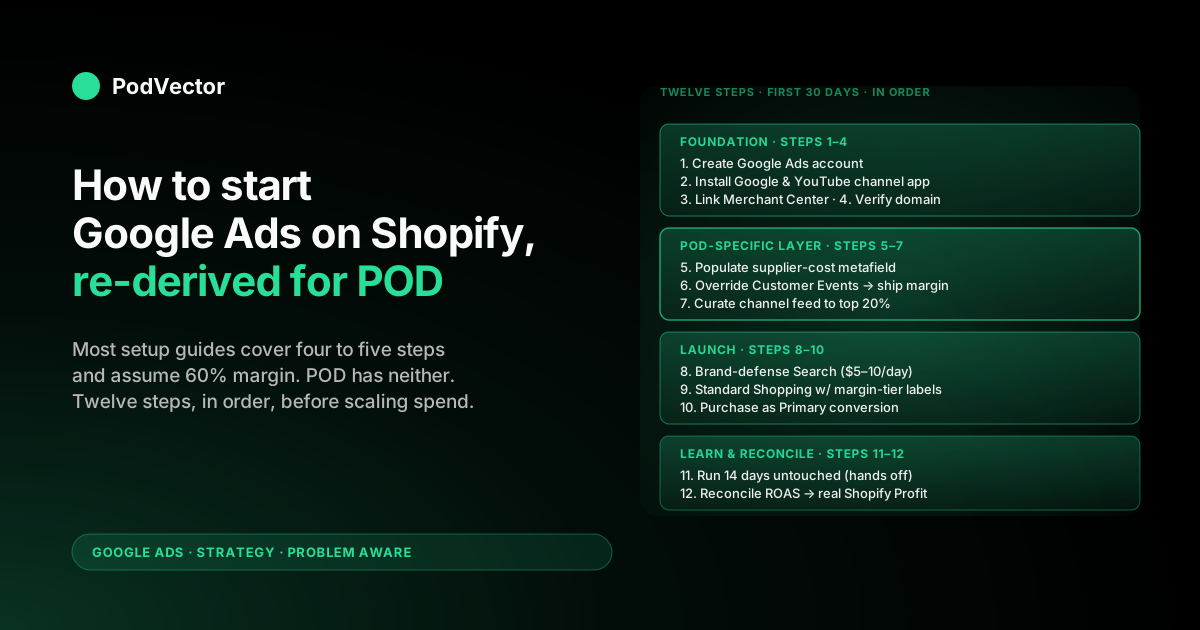
Quick Answer: Starting Google Ads for a Shopify store is twelve steps, in order: create the Google Ads account, install the Google & YouTube channel app, link Merchant Center, verify and claim the domain, populate the supplier-cost metafield on every product, override the Customer Events conversion value to ship margin (not subtotal), curate the Google sales channel feed to top sellers, launch a $5–10/day brand-defense Search campaign, launch a Standard Shopping campaign with margin-tier custom labels, set conversion tracking to optimize on Purchase value, run for 14 days untouched, then reconcile reported ROAS against real Shopify Profit before scaling spend. The default install path the Shopify blog walks you through is correct in steps 1–4 and incomplete after that for print-on-demand sellers — POD's 28–35% margin against Printify or Printful supplier cost makes the standard 4x ROAS target equal to breakeven, not profit. Steps 5–12 are the POD-specific layer most setup guides skip.
What changes when the store is print-on-demand
Most "how to start Google Ads for Shopify" guides treat the store as a generic ecommerce business — 50–60% gross margin, owned inventory, a curated catalog of a few hundred SKUs, low return rates. The setup steps those guides walk through (install the channel app, sync the feed, launch Performance Max at a 4x Target ROAS) are correct for that store. They quietly fail for print-on-demand.
Print-on-demand inverts three assumptions. First, margin: 28–35% blended against Printify or Printful supplier cost on apparel, not 60%.
A 4x ROAS on subtotal is roughly 1.3x on real margin — breakeven before refunds and processing fees. Second, catalog: a 200-design POD store ships 1,600–3,000 variants to Merchant Center if no one curates, which dilutes every Smart Bidding signal. Third, refunds: 2–6% concentrated on higher-AOV designs, and Google Ads can't see them unless you wire an offline conversion adjustment loop.
The twelve steps below are the standard Shopify-blog setup flow with four POD-specific steps inserted in the right places: supplier-cost metafield (step 5), Customer Events override (step 6), feed curation (step 7), and Profit reconciliation (step 12). Skip those four and the account looks healthy in Google Ads while the bank account flatlines.
Run them in order and the standard Smart Bidding playbook actually produces profit. For the broader strategic frame across the cluster, The Complete Google Ads Playbook for Print-on-Demand Sellers is the pillar; the full Google Ads Strategy cluster indexes every related guide; and the broader Google Ads topic hub covers ad types, integrations, and attribution articles that complement this launch sequence. This guide stays focused on the first 30 days.
Step 1. Create the Google Ads account (5 minutes)
Go to ads.google.com and click Start Now. Sign in with the Google account you want to own the ad account — typically a dedicated business Gmail rather than a personal one, so access is portable when you hire a freelancer or change roles.
Skip the "Smart Mode" guided campaign creation Google pushes during sign-up; it locks the account into a stripped-down interface that hides most of the controls you'll need from step 8 onward. After clicking through Smart Mode, find the small "Switch to Expert Mode" link in the campaign creation flow — you can also reach it from the gear icon under Setup > Preferences once the account exists.
Add billing once the account is in Expert Mode. Manual payment is the safer default during launch; the threshold-billing option charges your card whenever spend hits a rolling threshold and can produce surprise charges if a campaign goes hot overnight. Leave the campaign field blank for now — you'll create the first real campaign in step 8 after the foundation is laid.
Step 2. Install the Google & YouTube channel app (5 minutes)
From the Shopify admin, search the App Store for "Google & YouTube" (the official channel app, published by Google). Install it.
The app handles the round-trip plumbing: it creates or links a Google Merchant Center account, syncs your product catalog, ships the Google Ads conversion pixel through Customer Events, and routes Customer Match audience uploads. For sub-1,000-SKU POD stores — which is most operators — this app is the right answer. The custom Merchant Center direct-feed path is only worth the engineering effort at extreme catalog scale or with niche feed-segmentation needs the channel app can't express. The Complete Guide to Google Ads + Shopify Integration for POD walks through both options if you're at the boundary.
During the installation flow, the app prompts you to authorize Google access to product data and Shopify Customer Events. Approve both. You'll also be asked to pick which products sync — leave the default ("All products") for now; you'll switch to "Selected products" in step 7 once you've identified the curated top sellers.
Step 3. Link or create Google Merchant Center (10 minutes)
The channel app will detect whether the Google account already has a Merchant Center and either link it or walk you through creating one. Either path is fine. The decisions worth making explicitly:
- Tax and shipping: set them at the Merchant Center level using your real Shopify checkout configuration. The default "Shopify auto-syncs" toggle works for US-only stores; multi-region operators should explicitly mirror the same shipping rules in Merchant Center to avoid disapprovals.
- Returns policy: POD apparel typically excludes personalized items from free returns. If your Shopify policy says "no returns on customized products," reflect that in Merchant Center — claiming free returns when the policy excludes most of the catalog produces account suspensions.
- GTIN and brand: Printify and Printful blanks rarely have GTINs, and your designs aren't a registered brand for Merchant Center purposes. Set GTIN to null (don't fabricate one — that's a Merchant Center policy violation) and use your storefront name in the brand field.
Once linked, the channel app pushes the first product feed to Merchant Center. Initial review takes 24–72 hours. Disapprovals at this stage are usually fixable: missing image, GTIN issue, mismatched price between Shopify and the synced feed.
Step 4. Verify and claim the Shopify domain (5 minutes)
Merchant Center needs to confirm you own the domain you're advertising. The channel app handles verification automatically by injecting a meta tag through the Shopify theme.
Confirm in Merchant Center under Tools > Business information > About your business > Website that both "Verified" and "Claimed" show green checkmarks. Verified means Google trusts you control the site; Claimed means this Merchant Center is the one authorized to advertise it. Both are required before any campaign can serve.
If verification fails (rare with the channel app, common with custom themes), the fallback is uploading an HTML file to your Shopify Files section and pointing Merchant Center at the URL, or adding a TXT record to your DNS provider. The channel app's auto-injected tag wins for almost every store.
Step 5. Populate the supplier-cost metafield on every product (30 minutes)
This is the first POD-specific step and the foundation everything from step 6 onward depends on. Create a custom metafield definition in Shopify under Settings > Custom data > Products. Namespace: custom. Key: supplier_cost. Type: Money or Decimal. This field stores the Printify or Printful supplier cost for each product variant — the wholesale figure that determines real margin.
Populate it on every published product. For a small catalog you can do this by hand from the product editor.
For 100+ products, use the bulk editor or write a Shopify Admin API script that pulls the supplier cost from your Printify or Printful order history and writes it back into the metafield. Either path takes longer than the 30-minute estimate suggests if your catalog is large; the work is one-time and pays back on every Smart Bidding decision the account makes from step 6 forward. Shopify Google Ads conversion strategy for print-on-demand details the metafield structure and the bulk-population script.
Two failure modes to avoid. First, leaving the field empty on new products you add later — the override math in step 6 reads zero margin and corrupts Smart Bidding's training data faster than no override at all.
Build a checklist: every new product gets the supplier cost populated before it goes live. Second, treating the metafield as set-and-forget.
Printify and Printful adjust supplier costs occasionally; if your metafield is stale, the conversion-value override is reporting margin against last quarter's cost basis. Refresh quarterly at minimum.
Step 6. Override Customer Events to ship margin-corrected value (30 minutes)
If you do one POD-specific thing in your first 30 days, do this. Default Shopify Customer Events fires the Google Ads Purchase event with value set to the order subtotal. For a $42 hoodie order, Google receives $42 and Smart Bidding treats that as 100% margin.
The real margin after Printify's $14 supplier cost, $5.50 shipping, and $1.40 payment processing is closer to $21.10 — half of what Google thinks it is. Smart Bidding optimizes against the wrong number and bids accordingly.
The fix is a small custom Customer Events pixel that reads each line item's custom.supplier_cost metafield, subtracts it from the line item's price, sums to a margin number, and ships that as the Google Ads value field instead of subtotal. Five lines of pixel JavaScript inside Shopify's Customer Events editor (Settings > Customer events > Add custom pixel). The exact snippet, including the metafield query and the GCLID-capture you'll need for step 12's reconciliation, is documented in Shopify Google Ads tracking strategy for print-on-demand.
Critical sequencing: ship this override before launching any Smart Bidding strategy. Smart Bidding's first 30 conversions train against whatever value signal arrives during the learning period.
If the override goes live after 30 conversions of subtotal-valued data, Smart Bidding's calibration is anchored to the wrong unit and the only fix is flushing conversion history and restarting the learning period. Most accounts where "Smart Bidding doesn't work" are accounts where this calibration step was skipped or sequenced wrong.
Step 7. Curate the Google sales channel feed to top sellers (15 minutes)
In the Google & YouTube channel app, switch the sync mode from "All products" to "Selected products." Selection criteria: top-20% of your designs by trailing-90-day Shopify revenue, plus any designs you're seasonally pushing. For a brand-new store with no sales history, push your top 20–40 designs ranked by your own confidence and refresh the selection 30 days in once real revenue data exists.
The reason this matters: a 200-design POD store with three colors and four sizes per design ships 2,400 variants to Merchant Center on the default "All products" setting. PMax and Smart Bidding spread their attention thin across that catalog and never accumulate enough conversion data on any single product to optimize confidently.
Curating to top sellers concentrates Smart Bidding's signal where conversion math actually works. The Smart Bidding lift from a leaner feed shows up within two weeks. Shopify Google Merchant Center strategy for print-on-demand covers the curation cadence and the exact "top 20%" definition.
While you're in the channel app, also set custom labels. custom_label_0 for margin tier (high / medium / low based on the supplier-cost metafield from step 5). custom_label_1 for product category (apparel / mug / poster / accessory). custom_label_2 for design family if you group designs by collection. These labels become bid segmentation handles in step 9.
Step 8. Launch a $5–10/day brand-defense Search campaign (20 minutes)
The first campaign you launch is a tiny brand-defense Search campaign that bids on your store name, brand variants, and any common misspellings. Cost is low — competitors aren't typically bidding hard on your brand — and conversion rate is high because the searcher already knows you. Three benefits: cheapest conversions in the account, seeds clean Smart Bidding history before the bigger campaigns spin up, and blocks competitors who might bid on your brand to siphon traffic.
Setup: Campaign type Search, goal "Sales," conversion-only network (uncheck Display partners and Search partners until you have data). Single ad group, exact-match keywords on your brand name and 3–5 variants.
Two responsive Search ads with headlines that include your brand and your top product category, descriptions that emphasize official store and free shipping if applicable. Bidding: Maximize Conversions for the first 30 conversions, then switch to Target CPA at 30–50% of your average order value.
Daily budget $5–10. Final URL: your storefront homepage or a curated collection page if you have one.
This campaign should never be paused. It's the floor of the account — it builds conversion history, defends your brand SERP, and produces a baseline cost-per-conversion number that calibrates every other ROAS target you'll set later.
Step 9. Launch a Standard Shopping campaign with margin-tier custom labels (30 minutes)
The second campaign is a Standard Shopping campaign — not Performance Max, despite Google's heavy push toward PMax during onboarding. Standard Shopping gives you SKU-level diagnostic data PMax hides, which is exactly what you need in the first 30–60 days to learn which designs actually convert at margin. Once you have 60+ days of Standard Shopping data, you can layer PMax on top of it; running PMax from day one black-boxes the diagnostic period and makes scaling decisions guesswork.
Setup: Campaign type Shopping, Standard (not Performance Max), inventory filter set to your curated feed from step 7. Bid strategy: Maximize Conversion Value, no target ROAS yet — Smart Bidding needs 30 conversions of unconstrained learning before a target ROAS makes sense.
Daily budget $20–30. Product groups: split by custom_label_0 (margin tier) so you can see High / Medium / Low margin tiers reporting separately from day one. Bid the High margin tier 1.5x the Medium and 2x the Low — POD's margin range varies enough across product types (mugs vs. hoodies vs. all-over-print) that flat bids systematically over-spend on low-margin SKUs.
After 30 conversions per product group, switch from Maximize Conversion Value to Target ROAS at 1.5x of margin (which is roughly 4.5x of subtotal in the old unit). The reported ROAS number will look unfamiliar because it's now in the right unit — that's the point. Shopify Performance Max campaigns explained for print-on-demand covers when and how to add PMax on top of this Standard Shopping foundation.
Step 10. Configure Purchase as the primary conversion (10 minutes)
Go to Goals > Conversions in the Google Ads admin. The channel app installs Purchase as a conversion automatically; you need to confirm it's marked as Primary (the conversion Smart Bidding optimizes against) and that no other conversion is also Primary. Common mistake: Add to Cart and View Item events get marked Primary alongside Purchase, which dilutes Smart Bidding's optimization toward shallow funnel signals.
Set the Purchase conversion's value field to "Use a different value for each conversion," which respects the dynamic value the override pixel from step 6 ships. Attribution model: Data-driven for accounts that meet the conversion-volume threshold (~300 conversions/month), Last Click as the fallback. Conversion window: 30 days click, 1 day view.
Optional but worth it: create a secondary conversion called "Purchase — Subtotal Reference" that fires the same Purchase event with the original subtotal as value. This gives you both the margin-corrected number Smart Bidding optimizes against and the subtotal number you'll use for the reconciliation in step 12, without either polluting the other.
Step 11. Run for 14 days without touching anything
The single hardest step. Smart Bidding's learning period spans roughly 7–14 days; making structural changes (budget shifts above ±20%, bid strategy switches, conversion changes, audience additions) during that window resets the learning clock. Most accounts that "don't work" are accounts where the operator made five changes in the first week trying to fix what looked like under-performance.
What's allowed during the 14-day window: monitoring, taking notes, reading the search-terms report for negative keyword candidates (added at the end of the window, not mid-week), creating bookmarks of metrics for the post-window review. What's not allowed: pausing campaigns that look slow, raising or lowering bids, adding new ad groups, switching bid strategies. If a campaign is genuinely broken (zero impressions for 48 hours, disapproval, billing issue), fix the underlying issue but don't restructure.
At day 14, take stock. Brand-defense Search should have 5–15 conversions at a low CPA.
Standard Shopping should have 10–40 conversions across the High and Medium margin tiers, with the Low margin tier converting less reliably (which is the diagnostic — Low margin SKUs often shouldn't be in Shopping at all). Total spend should be roughly $400–600 across both campaigns.
If those numbers landed, you're ready for step 12. If they didn't, the diagnostic is usually feed quality (step 7) or value signal (step 6), not the campaign settings.
Step 12. Reconcile reported ROAS against real Shopify Profit, then scale
Reported ROAS in Google Ads is a calibrated lie even after the override pixel and the curated feed do their work. Three structural sources of divergence the standard playbook never addresses:
Fixed costs Google never sees. Shopify subscription, app stack monthly fees, payment processing percentage, returns shipping when you cover it. None of these appear in Google Ads reporting; they appear on the Shopify side and only when reconciled.
Refunds. POD apparel sees 2–6% refund rates concentrated on higher-AOV designs. Google Ads doesn't see refunds unless an offline conversion adjustment is wired (see Shopify Google Ads tracking issues strategy for print-on-demand for the webhook implementation). Until that pipeline is live, reported ROAS over-credits refunded GCLIDs and Smart Bidding over-bids on the design lines with the worst real return rates.
Supplier-cost drift. Printify and Printful occasionally adjust supplier costs on specific products. If your metafield from step 5 is stale, the override pixel from step 6 is reporting margin against the wrong cost basis. Last month's margin reality is not this month's.
The weekly reconciliation that catches all three: pull Google Ads spend by campaign, Shopify orders by GCLID, Printify or Printful supplier cost by SKU, and refund events by order. Calculate true profit per campaign and per design tier.
Compare to reported ROAS. The disagreement is the diagnostic.
Climbing reported ROAS with flat real profit means Smart Bidding is finding cheap conversions on the wrong margin tier. Declining reported ROAS with steady profit usually means a refund spike on a specific design family. Stable both means the account is healthy and you can scale daily budget by 20% per week.
Most POD operators run this reconciliation in a spreadsheet and burn 4–6 hours weekly pulling it together. The PodVector AI dashboard joins Google Ads spend, Shopify orders, Printify or Printful supplier cost, and refund events live in a warehouse so the reconciliation is the default view, not a Sunday-night exercise.
Victor — the AI employee layer on top of that join — answers questions like "which campaigns should I scale and which should I pause based on real profit, not reported ROAS?" in plain English. Victor answers your questions and acts (pause underperforming PMax asset groups, lift bids on margin-tier-A SKUs scaling profitably) once the operator approves a level of autonomy. The math stays under your control; Victor does the joining and the surfacing.
Eight mistakes that derail the first 30 days
- Launching Performance Max in step 9 instead of Standard Shopping. PMax black-boxes the SKU-level diagnostic data you need in the first 60 days. Standard Shopping first, PMax layered on later.
- Skipping the supplier-cost metafield. Without step 5 populated, the override pixel in step 6 reports zero margin and Smart Bidding optimizes against garbage from conversion one. Every downstream lever depends on this field.
- Shipping the override pixel after Smart Bidding has already learned on subtotal. The first 30 conversions calibrate the bidding strategy permanently. Override first, launch second.
- Leaving sync mode on "All products." 2,400-variant feeds dilute every Smart Bidding signal. Curate to top sellers in step 7 before launching Standard Shopping.
- Setting Add to Cart or View Item as a Primary conversion. Smart Bidding optimizes toward shallow signals and the Purchase conversion gets de-weighted. Only Purchase should be Primary.
- Making structural changes during the 14-day learning window. Budget swings, bid strategy switches, conversion changes — all reset the learning clock. Hands off until day 14.
- Reading reported ROAS without the Shopify Profit reconciliation. Reported ROAS over-credits in three structural ways. Without step 12, you scale spend on a campaign that's actually losing money.
- Treating step 5 as one-time work. Supplier costs drift and new products ship without the metafield populated. Build a checklist; refresh quarterly. The override math depends on it staying fresh.
FAQs
How much budget do I need to start Google Ads on Shopify for a POD store?
The starting daily budget split across the two launch campaigns is $25–40/day — $5–10 on brand-defense Search (step 8), $20–30 on Standard Shopping (step 9). For a 14-day learning window before scaling, that's roughly $350–560 total. Below $20/day across both campaigns, Smart Bidding doesn't accumulate enough conversion data to leave the learning period, and the account stays in an unstable state where reported metrics jump around for cosmetic reasons. Above $50/day at launch, you spend more than you need to during the diagnostic period; budget can scale freely after step 12 confirms the account is profitable on real margin. Google Ads for Shopify strategy for print-on-demand covers budget scaling cadence in more depth.
Can I skip Standard Shopping and launch Performance Max directly?
You can, and Google's onboarding actively pushes you toward it. The cost is losing the 60-day SKU-level diagnostic period that tells you which designs convert at margin and which don't.
PMax is a black box — it reports campaign-level results and asset-group-level results, but not the per-SKU conversion data that determines your curation decisions in step 7. POD operators who launch PMax first usually scale spend for 60 days, find that reported ROAS holds at 4x against subtotal, and only realize at quarter-end that real margin profit is flat or negative. Standard Shopping for the first 60 days, then PMax on top, gives you both the diagnostic and the scale lever. How to Set Up Google Ads for Shopify covers the broader campaign-mix decision.
What if my Shopify store is brand new and has no sales history yet?
Skip the "top 20% by revenue" filter in step 7 and instead select the 20–40 designs you have the highest conviction in (best mockups, clearest niche fit, designs friends or early customers have said yes to). Run Standard Shopping with Maximize Conversion Value at the lower end of the budget range ($15/day).
Don't add Target ROAS until you have 30 conversions; for a brand-new store that's typically 30–60 days. The biggest mistake new POD stores make is launching with the entire catalog and a tight ROAS target — Smart Bidding can't optimize against zero historical data, so it spends conservatively, gets few conversions, and the account looks dead. Loose constraints early, then tighten as data accumulates.
How do I link Google Analytics 4 to Google Ads during this setup?
Inside Google Ads, navigate to Tools > Data manager > Google Analytics. Select your GA4 property and link it.
Once linked, you can import GA4 conversions into Google Ads (do not duplicate the Purchase conversion — pick one source as the source of truth, typically the Customer Events Purchase that the channel app already installed) and use GA4 audiences as targeting and signal sources. Most POD operators use GA4 for cart-abandoner and engaged-user audiences uploaded as PMax audience signals once they reach step beyond 12. Link Google Ads to Shopify strategy for print-on-demand covers the linking flow in detail.
How long until I should expect to see profitable scaling?
Days 1–14: learning period, hands off, $25–40/day, expect break-even at best. Days 15–30: post-learning optimization, switch bid strategies to Target ROAS at 1.5x of margin, add negative keywords from search terms, expect first month at or near break-even on real Shopify Profit.
Days 31–60: scaling phase, 20%/week budget increases on profitable margin tiers, layer Performance Max on top of Standard Shopping, expect first quarter to land at 1.2–1.4x real ROAS on margin (8–15% net after Shopify and processing fixed costs). POD operators expecting 3–4x real ROAS in the first 30 days are reading owned-inventory benchmarks; the math is fundamentally different. The Shopify blog's Google Ads campaign setup guide is a useful reference for the platform-default flow this guide adapts for POD.
Do I need to pause my Smart Bidding when I update the supplier-cost metafield?
No, but you should batch metafield updates rather than scattering them across days. The override pixel reads the metafield value at order time, so a quarterly bulk update produces a one-day shift in the conversion-value distribution Smart Bidding sees.
If the supplier costs changed materially (more than ±15% on average), Smart Bidding may briefly enter a recalibration period that looks like 2–4 days of erratic ROAS. Lower the daily budget by 20% during that window if you want to be cautious.
For small drift (under ±5%), Smart Bidding absorbs the change without visible impact. Refresh quarterly, batch the changes, watch the next week.
See which Google Ads campaigns are actually profitable for your Shopify POD store
The reconciliation work in step 12 — joining Google Ads spend, Shopify orders, Printify or Printful supplier cost, and refund events into one margin-corrected view — is what PodVector AI does live in a warehouse so you don't have to maintain the spreadsheet. Victor answers "which campaigns should I scale and which should I pause based on real profit?" from the joined data in plain English.
Try Victor free