
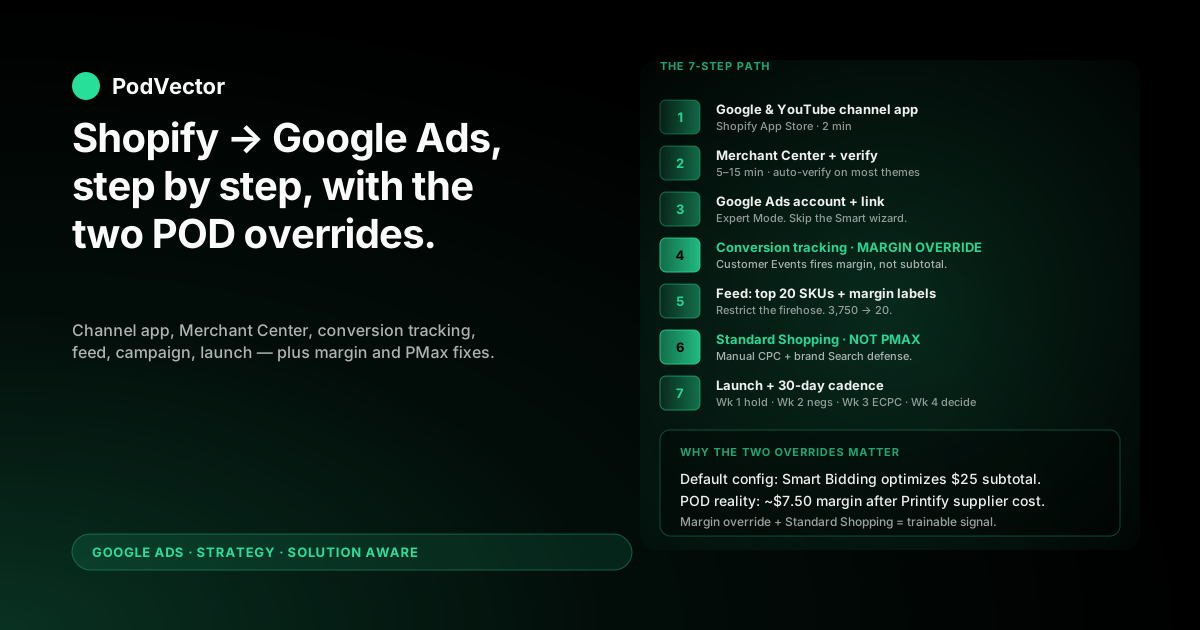
Quick Answer: Setting up Google Ads for Shopify takes seven steps: install the Google & YouTube channel app, create a Merchant Center account, link Google Ads, configure conversion tracking, optimize the product feed, build a starting campaign, and launch with a 30-day measurement plan. The standard Shopify setup guides walk you through all seven, but they were written for owned-inventory stores at 60% gross margin — applied to a Printify or Printful catalog at 30% contribution margin, two of those steps will quietly burn your budget. This guide walks the same setup path, then flags the two POD-specific overrides (margin-aware conversion value, Standard Shopping instead of Performance Max for the first 30 days) that the general guides skip.
Why POD changes the standard setup path
The published step-by-step guides for connecting Shopify to Google Ads — Shopify's own blog walkthrough, Scube Marketing's Shopping Ads guide, and BidBat's beginner guide — all describe the same seven-step path: install the channel app, create Merchant Center, link Google Ads, configure conversion tracking, set up the product feed, build a Performance Max campaign, launch. None of those guides is wrong. They're written for the typical Shopify reader: an owned-inventory store with 50–65% gross margin, a SKU count in the dozens, and a single warehouse shipping orders.
Print-on-demand operators face three realities those guides don't account for, and two of the seven steps need a POD-specific override.
Reality one: the order subtotal isn't your money. When a customer buys a $25 t-shirt from your Shopify store, Shopify reports $25 in revenue. Google Ads' default conversion tracking, set up via the channel app, also reports $25 as the conversion value.
But Printify or Printful charges you ~$11 to make and ship that shirt, payment processing takes ~$1, and Shopify's plan and apps eat another ~$0.50. Your actual contribution margin is around $7.50, not $25. If Smart Bidding optimizes on the $25 number, it will happily bid $4 to win clicks worth $7.50 in margin and call it a 6x ROAS — a number that looks great in the Google Ads UI and produces zero profit in your bank account.
Reality two: variant explosion breaks the default feed. A modest POD catalog of 50 designs across 3 product types, 5 colors, and 5 sizes is 3,750 variants. The Shopify Google & YouTube channel app syncs all of them by default.
Performance Max, the recommended starting campaign in every general guide, then trains its bidding algorithm on those 3,750 SKUs — and concentrates spend on whichever 5–8% convert first, before the other 92% have been tested. For an owned-inventory store with 50 SKUs, PMax's concentration is a feature. For a POD store with 3,750 variants, it's a budget allocation problem disguised as automation.
Reality three: no real inventory signal. Smart Bidding strategies use stock levels, sell-through velocity, and seasonality as inputs. POD has effectively infinite inventory and zero baseline velocity — every variant is "in stock" and "selling zero" until you advertise it. Bidding strategies that depend on inventory signal have less to optimize against on POD, which makes their first-month decisions noisier than the general guides suggest.
The seven-step setup below is the same path Shopify, Scube, and BidBat describe — installing the channel app, linking accounts, configuring conversion tracking, building a campaign. Steps 4 and 6 contain the two POD-specific overrides. Everything else is identical to the general guides; the goal is to publish the same setup that works for owned-inventory ecommerce, with two small changes that keep it from quietly losing money against a 30% margin.
Prerequisites: four things to settle before you connect anything
The most common failure mode for a POD Google Ads setup isn't the connection steps — it's launching campaigns before the data underneath them is correct. Spending $500 on a misconfigured account is fixable; spending $500 training Smart Bidding on the wrong conversion signal locks in three months of bad optimization decisions. Settle these four before you install the channel app.
- A funded Shopify store with at least 20 published products. Google Merchant Center will reject a feed with zero approved products, and Shopping campaigns can't generate Smart Bidding signal from a 5-product catalog. If you're below 20, finish your Printify or Printful import first. The supplier-cost metafield mentioned below should be populated during this import — most POD apps support a one-line modification to write supplier cost into a Shopify metafield automatically.
- A return policy that matches reality. POD suppliers don't accept change-of-mind returns; they replace defective items only, usually within 30 days of delivery. Merchant Center will eventually verify whatever return policy you publish, and accounts that declared "free 30-day returns" because Google rewards it with placement preference get suspended within 60–90 days when the policy team checks. Document defective-replacement-only with a 30-day window, post it at
/policies/refund-policyin your Shopify admin, and link Merchant Center to it. - A supplier-cost metafield on every product. Add a metafield in Shopify admin → Settings → Custom data → Products: namespace
cost, keysupplier_cost, typemoney. Populate it during Printify or Printful import (the apps' settings expose a "write supplier cost to metafield" toggle). This metafield is the input for the conversion-value override in step 4 — without it, the override either falls back to subtotal (you've fixed nothing) or fires zero (Smart Bidding optimizes against nothing). - Tax and shipping configured in Shopify settings. Merchant Center pulls tax and shipping from Shopify when the channel app is connected. If those are wrong in Shopify (e.g., flat $0 shipping when you actually charge $4.99), Merchant Center will flag a feed mismatch, the campaign will be approved with warnings, and product visibility drops by 30–50% on affected SKUs. Get Shopify's settings right first; the channel app trusts them.
Total time for the four prerequisites: 60–90 minutes if the supplier-cost metafield is automated through your POD app, 3–4 hours if you're populating cost manually for a 200-SKU catalog. The temptation to skip step 3 ("I'll add the metafield later, just want to see ads run first") is the biggest budget-killer for POD beginners. The first 30 days of Smart Bidding training set the optimization direction for the next quarter, and a campaign that trained on revenue can't be cleanly retrained on margin without a learning-phase reset.
Step 1: Install the Google & YouTube channel app
From your Shopify admin, click Apps and sales channels in the left navigation, then Shopify App Store. Search for "Google & YouTube" — the official one is published by Google LLC, not by a third-party developer. Click Add app, then Add sales channel. Shopify will install the app under Sales channels → Google & YouTube.
The channel app is the canonical bridge between Shopify, Merchant Center, and Google Ads. It handles three jobs: feed sync (your Shopify products → Merchant Center), conversion tracking (Shopify checkout events → Google Ads), and campaign creation shortcuts (a "Get started" wizard that builds a starter Performance Max campaign).
The first two jobs are what you want; the third one is the trap. Use the app for sync and tracking; build the actual campaign manually in step 6.
Time: 2 minutes. Common gotcha: Shopify will prompt you to "complete setup" via a banner after install — that wizard pushes you straight into a Performance Max campaign. Click into the channel app, but don't click the campaign-creation banner yet. We'll do that in step 6 with the right configuration.
Step 2: Create and verify Google Merchant Center
Merchant Center is where your product feed lives. Google Ads pulls Shopping ad inventory from it, so this account has to exist and be verified before any Shopping campaign can run.
From the Google & YouTube channel app's home screen, click Connect Google account. Use the same Google account you'll use for Google Ads — having one Google account for Merchant Center, Google Ads, and Search Console keeps permissions and reporting straightforward. Sign in, accept the OAuth permissions Shopify requests, then choose Create a new Merchant Center account (unless you already have one, in which case select the existing account from the dropdown).
Merchant Center will ask for:
- Business name and country. Use your Shopify store's legal business name and country of operation.
- Website URL. Your Shopify store URL (the
.myshopify.comURL or your custom domain — both work, but the custom domain is cleaner). - Time zone and currency. Match Shopify's settings exactly. Mismatches cause feed errors weeks later that are hard to trace.
Verification happens automatically when you connect via the channel app — Shopify writes a meta tag into your store's theme.liquid that Merchant Center checks. If you've customized your theme heavily and removed default Shopify head injections, verification can fail; in that case Merchant Center will offer the manual HTML-tag method, which you paste into theme.liquid between the <head> tags and re-verify.
The Google Merchant Center for Shopify strategy guide covers the verification edge cases (themes that strip head tags, custom-domain DNS lag) in detail. For most POD stores on standard Shopify themes, automatic verification just works.
Time: 5–15 minutes including verification wait. Common gotcha: Merchant Center will refuse to approve products if your shipping policy URL returns 404 or your tax setup is incomplete. The product feed will sync, but every item will show as "Disapproved" until you fix the policy pages — which is why prerequisite 2 (return policy) and prerequisite 4 (tax/shipping in Shopify) need to be settled before this step, not after.
Step 3: Create and link your Google Ads account
If you don't already have a Google Ads account, create one at ads.google.com using the same Google account you used for Merchant Center. Google's onboarding will try to push you straight into the "Smart Mode" campaign builder. Click the small "Switch to Expert Mode" link at the bottom — Smart Mode hides the controls you'll need, including bidding strategy selection and product-group structure.
Once in Expert Mode:
- Click Skip campaign creation at the top of the new campaign wizard. You'll build the actual campaign in step 6 once tracking is configured.
- Add billing information at Tools → Billing → Summary. Google Ads requires a payment method before any campaign can serve, even one in draft.
- Note your Google Ads Customer ID (the 10-digit number at the top right of the Google Ads UI, formatted XXX-XXX-XXXX). You'll paste this into Shopify in the next sub-step.
To link Google Ads to Shopify, return to Shopify admin → Sales channels → Google & YouTube → Overview. In the "Advertise your products" panel, click Get started.
Shopify will ask which Google Ads account to connect; select the account you just created (or paste the Customer ID), then accept the permission scope. The link is bidirectional: Shopify can write conversion events into Google Ads, and Google Ads can read your Merchant Center feed for Shopping campaigns.
Time: 10–20 minutes including billing setup. Common gotcha: if you've previously run Google Ads under a different Google account, you may have a Manager Account (MCC) hierarchy. Don't link Shopify to the MCC — link to the underlying client account that will own the campaigns. The Google Ads ↔ Shopify linking deep-dive covers the MCC scenarios.
Step 4: Configure conversion tracking (with the margin override)
This is the most important step in the entire setup, and it's the one general guides skip. The default conversion tracking the channel app installs sends Shopify's order subtotal to Google Ads as the conversion value.
For owned-inventory ecommerce that's fine — subtotal is a reasonable proxy for margin when margin is consistent across products. For POD, where margin varies from $4 (mug) to $14 (hoodie) on a $25 average order, subtotal-based bidding actively over-spends on low-margin orders and under-spends on high-margin ones.
The fix has two parts: install the default tracking the channel app provides, then override the conversion value to fire margin instead of subtotal.
4a. Install default conversion tracking
From the Google & YouTube channel app's home screen, click Configure conversion tracking. Shopify will install the Google Ads conversion pixel automatically — it fires on the order completion page (/checkouts/.../thank_you) and reports the order's subtotal, transaction ID, and currency to Google Ads.
Verify the install: in Google Ads, go to Tools → Conversions. You should see a conversion action named "Shopify - Purchase" or similar.
Click into it, set its Category to "Purchase" (the default), and set it as the Primary conversion action. Any other conversion actions (begin checkout, add to cart, page view) installed by other Shopify apps should be marked Secondary — Smart Bidding will optimize toward whatever you mark Primary, and "Add to cart" is the wrong target because cart adds don't pay supplier costs.
4b. Override the conversion value to fire margin, not subtotal
Go to Shopify admin → Settings → Customer events. Click Add custom pixel, name it "Google Ads margin override" or similar, and paste a JavaScript handler that subscribes to the checkout_completed event, reads each line item's price and the supplier-cost metafield (the one you populated in prerequisite 3), calculates per-line margin as (price - supplier_cost) × quantity, sums to a margin total, and re-fires the Google Ads conversion event with that margin total as the value.
The pseudocode looks like this:
analytics.subscribe("checkout_completed", (event) => {
  const margin = event.data.checkout.lineItems.reduce((sum, item) => {
    const supplierCost = item.variant.product.metafields?.cost?.supplier_cost?.value || 0;
    return sum + ((item.variant.price.amount - supplierCost) * item.quantity);
  }, 0);
  gtag('event', 'conversion', {
    'send_to': 'AW-XXXXXXXXX/XXXXXXXXXX',
    'value': margin,
    'currency': event.data.checkout.currencyCode,
    'transaction_id': event.data.checkout.order.id
  });
});
Replace AW-XXXXXXXXX/XXXXXXXXXX with your conversion ID and label (find them in Google Ads → Tools → Conversions → click your conversion → Tag setup). Save the custom pixel. Then disable the default channel-app conversion event, or both will fire and you'll double-count.
Test by placing a real test order through your store using a credit card, then confirm in Google Ads → Tools → Conversions → your conversion → "Recent conversions" that the value reported matches your margin (e.g., $7.50), not the order subtotal ($25). The full walkthrough with copy-pasteable JavaScript and the Customer Events implementation is in the Shopify Google Ads conversion override guide.
Time: 30–45 minutes including a test order. Why it matters: every Smart Bidding decision Google Ads makes for the next year of your account uses the conversion value as its primary signal. Train it on margin and it scales profit; train it on subtotal and it scales revenue, regardless of whether the revenue covers supplier cost.
Step 5: Optimize the product feed for POD
The Google & YouTube channel app syncs your entire Shopify product catalog to Merchant Center by default. For a POD store with 50 designs and 3,750 variants, that produces a feed bigger than the campaign can effectively bid against. The fix is a deliberate feed restriction plus three product-data optimizations that POD catalogs almost always need.
5a. Restrict the synced feed
In the channel app → Marketing → Manage products, you can include or exclude products from the Merchant Center sync. For your starting campaign, restrict the feed to your top 20 SKUs by trailing-90-day Shopify revenue. (If you have less than 90 days of sales history, use top 20 by gut instinct plus product-page traffic.) Add or remove SKUs as data justifies — but the principle is the same: feed Standard Shopping a curated set, not a 3,750-variant firehose.
This is the single biggest lever for POD beginners. The general ecommerce guides don't mention it because owned-inventory stores typically have 50–200 SKUs total — already a manageable feed size. POD stores have 50–200 designs that explode into 3,750–15,000 variants, which is where the feed restriction earns its keep.
5b. Optimize product titles for search
Shopify product titles are written for your storefront ("Sunset Mountains Tee"). Google Shopping titles need to match search intent ("Mountain Sunset Graphic T-Shirt for Men - Cotton Crewneck").
Edit the titles of your top 20 SKUs to follow the format Brand + Product Type + Key Attributes + Material. Merchant Center pulls from Shopify's product title field directly; if you don't want to change the storefront title, use a feed rule in Merchant Center to override the title field for the Google Shopping feed only.
5c. Custom labels for margin-tier segmentation
In Merchant Center → Products → Feeds → your Shopify feed → Feed rules, add a custom label that maps each product to its margin tier (e.g., custom_label_0 = "high_margin" for products with $10+ margin, "mid_margin" for $6–10, "low_margin" for under $6). You'll use this label in step 6 to bid differently on tiers — an essential POD-specific control the general guides don't set up because owned-inventory margin doesn't vary that much.
Time: 30–60 minutes. Outcome: a feed of 20 well-titled, margin-labeled products instead of 3,750 raw variants, which is the difference between a campaign Smart Bidding can train on and one that bleeds.
Step 6: Build your first campaign (Standard Shopping, not PMax)
Every general guide in the SERP recommends Performance Max as the starting campaign. For POD beginners, that's the wrong call for the first 30 days.
PMax concentrates spend automatically on whichever SKUs convert first — for a 50-SKU owned-inventory catalog with consistent margin, that concentration is helpful. For a 20-SKU POD curated feed where margin varies 3x across products, PMax will pile budget on the wrong tier before you know it. Standard Shopping is product-group controllable, so you can see exactly which SKUs converted at which cost and intervene per-product.
In Google Ads, click Campaigns → New campaign → Sales objective → Shopping → Standard Shopping (the option below Performance Max in the Shopping campaign-type chooser). Configure:
- Merchant Center account: select the account you connected in step 2.
- Country of sale: match your primary market (US for most POD).
- Inventory filter: "All products" (you've already curated to 20 in step 5a).
- Bidding: Manual CPC, max CPC $0.50. Resist Enhanced CPC and Smart Bidding for the first two weeks.
- Daily budget: $20–$30 for the first month. Less than that won't generate enough conversion data; more than that wastes budget while the account learns.
- Negative keywords: add "free," "tutorial," "diy," "template," "svg," "png," "wholesale," "bulk," "knockoff," "amazon" at campaign level. POD ads attract bargain-hunters and template-seekers who never convert; these negatives cut 15–25% of wasted spend immediately. The Shopify Google Ads best-practices comparison has the extended negative-keyword list.
Once the campaign is created, set up product groups by your custom margin label (the one you added in step 5c): create three product groups for high_margin, mid_margin, and low_margin, and set max CPC bids of $0.60, $0.40, and $0.25 respectively. This gives the campaign permission to compete harder for clicks on profitable products and pull back on thin ones.
Add a second campaign for brand defense: Search → Sales objective → Manual CPC at $1.00 max bid, keywords your brand name in phrase match, daily budget $5–$10. Brand Search converts at 8–18% (vs 1–3% for cold Shopping traffic) and defends against competitors bidding on your name. It's the cheapest legitimate ROAS in the account; every POD store should run it from day one.
Time: 30–45 minutes. Common gotcha: the Google Ads campaign wizard will surface "Switch to Performance Max" prompts repeatedly. Decline them until you have 30+ conversions on margin-aware values. The Performance Max for Shopify deep-dive covers when (and how) to graduate to PMax — the answer is "after Standard Shopping has produced clean signal," not "on day one."
Step 7: Launch, monitor, and the first 30 days
Click Publish on both campaigns. Within an hour, ads will start serving — brand Search nearly immediately, Standard Shopping after Merchant Center approves the products (usually 24–48 hours, longer if any feed rules trip warnings).
The first 30 days have a specific cadence:
- Days 1–7: don't touch anything. Spend will be uneven, ROAS will look bad, and you'll be tempted to pause and restructure. Don't. Standard Shopping needs ~7 days of impressions before the auction system has calibrated, and any pause-and-relaunch resets that calibration.
- Days 8–14: add negatives, not bids. Open Search terms in your Shopping campaign (Insights → Search terms) and add anything obviously wrong as a negative keyword. POD attracts a long tail of "free [your design] svg," "make your own [niche] shirt," "wholesale [niche]" queries that you'll spot here. Don't change bids yet; add negatives.
- Days 15–21: switch to Enhanced CPC. If conversion volume looks healthy (5+ conversions in week two on margin-aware values), switch the Shopping campaign's bidding from Manual CPC to Enhanced CPC. Google can now adjust your bids ±30% based on conversion likelihood — limited Smart Bidding influence, contained downside.
- Days 22–30: the graduation decision. If the campaign has produced 20+ conversions on margin-aware values and is profitable (negative profit-after-spend over the period is fine if it's small and the trend is improving), switch bidding to Maximize Conversion Value with target ROAS 5.5x. If conversion volume is below 20 or profit-after-spend is deeply negative, stay on Enhanced CPC for another two weeks.
Track three numbers in your weekly review: spend, conversion value reported by Google Ads (this is now margin, not revenue, because of step 4b), and profit-after-spend (margin minus spend). The third number is the actual answer to "did paid acquisition produce money this week." If it's positive, scale. If it's negative for three weeks running, the issue is upstream of bidding (product-market fit, landing page, pricing) and more spend won't fix it.
Time: 30 minutes per week ongoing. The most useful version of this is "is the trend improving even when the absolute number is bad?" — week one negative $40, week two negative $20, week three breakeven, week four positive $30 is a successful first month. Week one negative $40 every week for four weeks is a signal to pause and reassess.
Setup mistakes that quietly kill POD ad accounts
Five setup-stage mistakes account for most "I followed the guide and lost money" outcomes for POD operators. None of them break the account immediately; they all degrade signal quietly until the operator looks at month-three numbers and realizes the campaigns never had a chance.
- Skipping the conversion-value override. The single most expensive omission. Smart Bidding trained on subtotal will never produce profit at POD margins, regardless of how much you optimize keyword negatives or bid strategy.
- Letting all 3,750 variants sync to Merchant Center. Standard Shopping with 3,750 variants in the feed never trains; PMax concentrates badly. Restrict to top 20 SKUs at launch, expand deliberately.
- Starting with Performance Max. PMax is opaque and concentrates fast. After 30 days of Standard Shopping data on margin-aware values, PMax becomes a reasonable graduation; on day one it's a coin flip with your budget.
- Declared return policy that doesn't match supplier reality. Free returns sounds great, gets placement preference, and triggers Merchant Center suspension within 60–90 days when their policy team verifies. Match Printify's or Printful's actual replacement-only policy.
- Adding "Add to cart" as a primary conversion action. Smart Bidding will then optimize toward cart adds, which don't pay supplier costs. Purchase is the only conversion action that should be marked Primary; everything else is Secondary or off.
The further-reading Google Ads strategy hub indexes deeper coverage of each mistake. The pattern across all five is the same: the general Shopify+Google Ads setup guide produces a configuration that works for owned-inventory ecommerce, and POD's structural differences (margin, variant explosion, no-real-inventory signal, supplier policy reality) need small overrides at exactly the points where the general guide is least specific.
FAQs
How long does the full Shopify-to-Google-Ads setup take?
Three to five hours of focused work for a POD store, including the prerequisites. The four prerequisites are 60–90 minutes (3–4 hours if you're populating supplier costs manually for an existing 200-SKU catalog).
The seven-step setup itself is about 2.5 hours of clicking, plus a 24–48 hour wait for Merchant Center product approval before Shopping ads start serving. Brand Search ads start serving within an hour.
Do I need a Google Ads account before installing the channel app?
No. The Google & YouTube channel app will offer to create a Google Ads account for you during step 3, using the Google account you connected for Merchant Center. If you already have an Ads account on a different Google login, you can either create a fresh one for Shopify or use Manager Account (MCC) linking — but for a single store, one Google account for everything is simplest.
Why not start with Performance Max like Shopify recommends?
Because Performance Max trains its bidding algorithm on whichever SKUs convert first, and for a POD catalog with 3,750 variants and varying margin, that concentration happens on the wrong tier. Standard Shopping is product-group controllable, so you can see and intervene per-product for the first 30 days. After 30 days of clean Standard Shopping data on margin-aware conversion values, switching to Performance Max is a reasonable graduation; before then, PMax is concentrating spend with too little signal.
How much should I budget for the first month?
$30/day total ($10 brand Search + $20 Standard Shopping) is a reasonable POD beginner floor. Below that, Smart Bidding never exits learning phase (which requires 30 conversions in 30 days) and the algorithm makes worse decisions, not better ones.
Above $60/day in month one wastes budget on Smart Bidding's training experiments. The first 25–30% of month-one spend will produce nothing — that's the cost of training the auction system, not a sign anything is broken.
What if my Merchant Center products get disapproved?
Most disapprovals trace to four causes: missing GTIN (use Merchant Center's "no GTIN" identifier override for POD products, since Printify and Printful items don't have manufacturer GTINs), shipping or tax mismatch with Shopify's settings, return policy URL returning 404, or product titles flagged as misleading. Fix the underlying cause in Shopify or in Merchant Center's feed rules; resubmission usually approves within 24 hours.
Can I run Google Ads on Shopify without the Google & YouTube channel app?
Technically yes — you can install conversion tracking via gtag.js in theme.liquid and create the Merchant Center feed manually via XML. In practice, the channel app handles dozens of small reliability details (feed re-sync on inventory changes, automatic shipping pull from Shopify settings, fallback conversion firing when Customer Events scripts fail) that DIY setups miss. Use the channel app for sync and tracking; override the conversion value via Customer Events as described in step 4b.
Should I run Search campaigns in addition to Shopping?
Yes for brand-defense Search (described in step 6 — your brand name as a phrase-match keyword at $5–$10/day). Skip non-brand Search for the first 30 days; non-brand keyword research and ad copywriting for POD is a separate skill worth learning after Shopping is profitable. Once Shopping is profitable, non-brand Search on category and design-style keywords is the natural next layer.
How do I know when to graduate to Performance Max?
Three conditions: 30+ conversions in your Standard Shopping campaign with margin-aware conversion values, profit-after-spend positive over a trailing two-week window, and the negative-keyword list refined enough that wasted spend is under 15% of total. When all three are true, run a PMax campaign in parallel with a separate $20/day budget for two weeks before pausing Standard Shopping — the parallel run protects you from PMax's first-week reset surprise.
Spot the campaigns to scale before they show up in Google's UI
The setup above gets the right data flowing. Reading that data — which campaigns are scaling profitably this week, which are quietly bleeding, which are about to tip from one to the other — is where most POD operators lose hours per week to spreadsheets. Victor is the AI employee that connects your Shopify Profit, Google Ads, and supplier cost data in one place and answers questions like "which Shopping product groups produced positive profit-after-spend last week, and which should I pause?" — in plain English, off live data, no dashboards required.
Try Victor free