
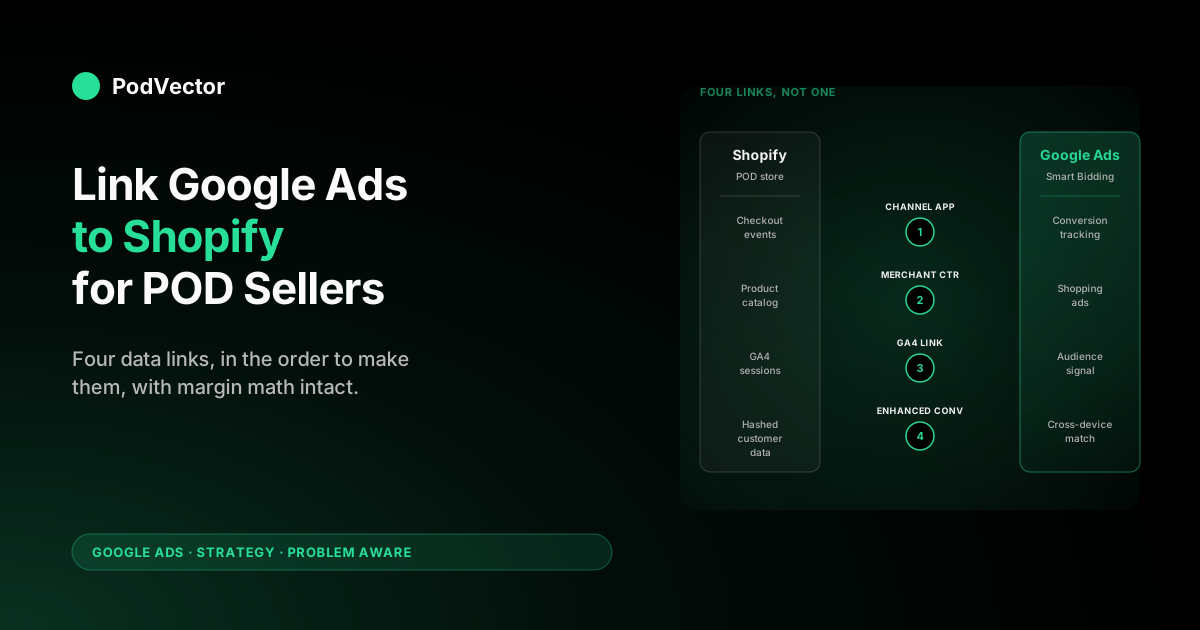
Quick Answer: "Linking Google Ads to Shopify" isn't one connection — it's four, and each one carries a different signal. (1) The Shopify Google & YouTube channel app, which links checkout events to your Google Ads conversion. (2) The Shopify-to-Merchant-Center product feed, which links your catalog to Shopping ads. (3) The GA4 ↔ Google Ads link, which links audience and engagement signal to Smart Bidding. (4) The Enhanced Conversions link, which sends hashed customer data to recover what iOS 17 and ad blockers cost you. POD stores fail when they install the channel app, see "Connected" in the dashboard, and assume the job is done. The real strategy is linking each of the four with intention, in the right order, and auditing them weekly so the gap between Google-reported revenue and Shopify-confirmed revenue stays under 15%.
Why "linking Google Ads to Shopify" is four links, not one
Every guide that opens with "install the Google & YouTube app and you're connected" is technically correct and strategically wrong. The app is one link. It carries one type of signal — a checkout event ping — and the moment you start running Shopping ads, scaling Performance Max, or trying to figure out why Google reports 4x ROAS while your bank account disagrees, you discover the other three links you didn't know you needed.
The four links between Shopify and Google Ads, mapped to what each one actually moves:
- Channel app link: moves checkout-completed events from Shopify to Google Ads as conversions. Lets Smart Bidding know an order happened.
- Merchant Center feed link: moves your product catalog (titles, prices, images, GTINs, inventory) from Shopify to Merchant Center, which is what makes Shopping ads possible at all.
- GA4 ↔ Google Ads link: moves engagement signal — sessions, time on site, page views, audience segments — into Google Ads so Smart Bidding optimizes on more than just the binary "did they buy."
- Enhanced Conversions link: moves hashed customer data (email, address) at checkout to Google so it can match conversions across devices, browsers, and the privacy-restricted environments where the cookie-based link fails.
The reason this matters specifically for POD is that each link has a different failure mode, and POD operators get bitten by all four. The channel app over-attributes by reporting view-through conversions Shopify never confirmed.
The Merchant Center feed bloats with variant explosion until 70% of items are ineligible for ads. GA4 quietly links the wrong property, sending engagement signal from your dev store.
Enhanced Conversions stays off because nobody told you to flip the switch, and you lose 12–25% of attribution in the post-iOS-17 era. Each one looks fine in isolation. Together, they explain why your reported ROAS and your actual profit don't match.
The strategic frame: linking Google Ads to Shopify is a data-pipeline decision, not a setup wizard. The five sections below walk through each link in turn, then cover the order, the verification routine, and the POD-specific cost data that Google Ads doesn't see by default.
If you want the broader Google Ads operating model that all of this feeds, the complete Google Ads playbook for POD sellers is the pillar this article supports. For the deeper integration setup walkthrough, see the complete guide to Google Ads + Shopify integration for POD.
Prerequisites: the accounts and access you need before linking anything
Skipping this section is the most common reason linking fails halfway through and you spend an hour debugging. The four accounts and one piece of access required:
- Shopify store, owner-level access. Staff accounts with insufficient permissions can install the Google & YouTube app but can't grant it the API scopes needed for the conversion-tracking pixel to fire on the thank-you page. If you're not the owner, get the owner to do this part or grant temporary owner-level access.
- Google Ads account, individual (not MCC). The Shopify channel app links to a single Google Ads account by Customer ID (the 10-digit number in the top right of Google Ads). Manager accounts (MCC) can't be linked directly — you have to link the underlying account, then optionally add it back into the MCC. POD sellers using an agency MCC: ask the agency for the underlying CID, link that, then re-add to the MCC.
- Google Merchant Center account, claimed and verified. Verify the Shopify domain inside Merchant Center before launching the channel app — the auto-verify path through the channel app works most of the time, but if it fails, you're stuck in a 24-hour DNS-propagation loop. Run the manual TXT-record verification first and you skip the wait.
- GA4 property, with the Shopify domain configured as a data stream. If you're still on Universal Analytics, you're past the deadline — UA stopped collecting data on July 1, 2024. Create a fresh GA4 property, install the Shopify GA4 channel or a manual gtag, and confirm at least seven days of data are flowing before you link to Google Ads. Linking an empty GA4 property gives you nothing to optimize on.
- A Shopify theme that supports the post-purchase additional scripts page (Shopify Plus) or whose order-status page accepts custom scripts (most Shopify plans). Enhanced Conversions and server-side conversion tracking both need a place to fire on the order-confirmation page. Some headless setups break this assumption; flag it before you start.
Time budget for the prerequisite phase: 30–60 minutes if everything is in your control, longer if you need to chase down agency access or migrate from UA. Don't proceed to linking until all five are confirmed — half-completed links are harder to debug than missing ones.
Link 1: The Google & YouTube channel app (the conversion spine)
This is the foundation. Every other link assumes this one is in place and working. The setup is well-documented; the strategic decisions made during setup are not.
The five steps, with the decisions called out:
- Install the Google & YouTube channel app from the Shopify App Store. Free, official, maintained by Google. Don't use a third-party "Google Ads connector" that asks for the same permissions — they almost always sit on top of this same app and add a layer of failure modes.
- Connect your Google account. Use the same Google account that owns Google Ads, Merchant Center, and GA4. Mixing accounts here is the single most common reason linking partially fails and you can't tell why. If your team uses shared Google Workspace accounts, pick one — usually a marketing@ alias — and stick to it for every Google product.
- Pick "Google Ads" in the channel app's services list. The app supports Merchant Center, Google Ads, and YouTube as separate sub-links inside the same connection. Toggle each on individually. Toggling Merchant Center on prematurely (before your products are ready) sends an unfinished feed and triggers disapprovals.
- Set the conversion event. The default is "Purchase," tracked on the order-status page. POD stores should keep this default — don't switch to "Add to Cart" or "Begin Checkout" as primary conversions. Smart Bidding will optimize toward whatever you tell it is the conversion, and optimizing toward Add to Cart on a POD store with low cart-to-purchase rates burns budget faster than any other misconfiguration.
- Confirm the conversion is firing. Place a test order using the Shopify "Bogus" payment gateway, wait 4–6 hours, then check Google Ads → Tools → Conversions. The test order should appear with a value matching the test order amount. If it doesn't, the link is half-working and you need to debug before moving on.
The decision most POD operators get wrong here is the conversion value setting. The channel app defaults to passing the order subtotal as the conversion value.
For Shopify stores that charge tax inclusive (most EU stores), this strips the tax out and Smart Bidding sees a smaller conversion value than the actual transaction. For US stores charging tax exclusive, it's correct. Check the value passed in your first test order against what the customer paid; if there's a gap, change the channel app's value-passing setting to "Total" rather than "Subtotal" so Smart Bidding optimizes against the full order amount.
For the conversion-tracking detail layer specifically, see connect Google Ads to Shopify: setup guide for POD sellers.
Link 2: Shopify → Merchant Center (the product feed)
The Merchant Center link is technically the same channel app, but the data it carries is completely different — and the failure modes are completely different too. The channel app pushes your Shopify product catalog into Merchant Center, where Google reviews each item, approves or disapproves it, and makes the approved items eligible for Shopping ads.
The five strategic decisions during this link:
- Choose which products sync. Channel app default is "all active products." For POD stores with thousands of design variants, this is wrong. Use Shopify product tags or collections to gate the feed: tag your top-tier designs "feed-eligible" and configure the channel app to sync only that tag. A curated feed of 200 well-tagged products outperforms a bulk feed of 6,000 every time.
- Set the country of sale and primary language. Each combination is a separate Merchant Center account in Google's eyes. POD stores selling US + Canada + Australia need three feeds, three approval cycles, and three sets of policy reviews. Start with one country, get it approved and converting, then expand.
- Configure the GTIN policy. POD products from Printify and Printful sometimes ship without manufacturer GTINs. Without a GTIN, Google ranks the listing lower and disapproves it for some product categories. The channel app exposes a "GTIN exemption" toggle; use it for designs without GTINs, but don't use it as the default — exempted listings convert at lower rates than GTIN-tagged ones.
- Set up shipping in Merchant Center. The most common cause of "Account suspended" emails on a new POD store is mismatched shipping cost between Shopify and Merchant Center. Merchant Center wants to know exact shipping cost per region, and Shopify's "calculated at checkout" doesn't translate cleanly. Configure shipping in Merchant Center to match the most common shipping rate Shopify charges, and review the variance weekly.
- Verify the feed. After the first sync, open Merchant Center → Products → Diagnostics. POD stores routinely have 200–800 disapprovals on the first sync, mostly due to policy issues (image quality, missing attributes) or feed errors (truncated descriptions, invalid prices). Fix or exclude every item in "Disapproved" before you launch any Shopping campaign.
The strategic point most POD operators miss: the Merchant Center feed is a product-marketing decision, not a sync decision. What you put in the feed is what Google promotes.
Curate ruthlessly — your bestsellers, your highest-margin SKUs, your designs with strong product-page conversion rates. Everything else is noise that drags the feed's average and sends weak signal to Smart Bidding.
For the deep dive on Merchant Center setup specifically, see connect Google Merchant Center to Shopify: setup guide for POD sellers and Shopify Google Merchant Center strategy for print-on-demand.
Link 3: GA4 ↔ Google Ads (the audience and engagement signal)
This link is the one most POD stores skip because nothing in the Google Ads dashboard demands it. Skipping it costs you Smart Bidding's most valuable input layer — engagement signal — and it's the difference between "Smart Bidding works passably" and "Smart Bidding works well."
What linking GA4 to Google Ads actually enables, in concrete terms:
- Conversion import from GA4 to Google Ads. If you set up purchase conversions in GA4 (which you should), you can import them as conversions into Google Ads. This is a backup conversion source — when the channel app's pixel-based tracking misses a conversion, GA4's gtag-based tracking often catches it, and the import recovers the conversion.
- Audience sharing. Audiences you build in GA4 (cart abandoners, high-LTV visitors, repeat browsers) become available in Google Ads for remarketing and audience targeting. Without the link, you can't target them.
- Cross-platform attribution. GA4's data-driven attribution model gives Smart Bidding richer signal about which clicks contributed to a conversion, not just the last-click. Smart Bidding optimizes on this if the link is in place; without the link, it falls back to a simpler model.
- Engagement signal. Smart Bidding considers session duration, page count, and depth-of-engagement when bidding — but only if it has access to that data via the GA4 link. Without the link, all it sees is "click happened, conversion happened or didn't."
The setup is straightforward but has one specific gotcha. Linking is done from inside Google Ads (Tools → Linked accounts → Google Analytics 4) and from inside GA4 (Admin → Product Links → Google Ads links).
You have to do it from both sides for the full bidirectional data flow. Doing it from one side enables some signal but not all of it. Do both.
After linking, three settings to verify:
- "Auto-tagging" enabled in Google Ads. This appends a gclid parameter to ad clicks so GA4 can attribute sessions to the right campaign. Without auto-tagging, every Google Ads click shows up as "(direct)/(none)" in GA4 and the link is useless.
- "Personalized advertising" enabled in GA4. Without it, GA4 won't share audience data with Google Ads. Admin → Data Settings → Data Collection → toggle on.
- Conversion events in GA4 marked as conversions. By default, GA4 has only some events flagged as conversions. Make sure "purchase" is flagged, plus any micro-conversions you want to optimize against.
Link 4: Enhanced Conversions (closing the iOS 17 gap)
This is the link that separates POD stores running Google Ads in 2026 from POD stores running them in 2022. Enhanced Conversions is the mechanism Google built specifically to recover the conversions that iOS 17, Safari ITP, ad blockers, and third-party cookie deprecation knocked out of the conversion-tracking pipeline.
How it works: at checkout, your Shopify store hashes the customer's email address (and optionally their billing address) using SHA-256 and sends the hash to Google along with the conversion event. Google holds hashed versions of the email addresses people gave to Google when signed in. When the hashes match, Google attributes the conversion to a click that happened earlier — even if the third-party cookie that would have made the connection has long since been blocked or expired.
The recovery rate Enhanced Conversions delivers for typical Shopify POD stores: 12–25% additional conversions reported, depending on how iOS- and Safari-heavy the audience is. POD audiences tend to skew mobile and casual-browser, which means iOS Safari is over-represented, which means Enhanced Conversions recovers more for POD than for B2B SaaS or other desktop-heavy verticals.
The two-part setup:
- Enable Enhanced Conversions in Google Ads. Tools → Conversions → click your Purchase conversion → "Turn on Enhanced Conversions for web." Choose "Google Tag" as the implementation method.
- Pass customer data from Shopify. The Shopify Google & YouTube channel app, in its 2025+ versions, supports Enhanced Conversions natively — turn it on in the channel app's settings, accept the data-sharing terms, and Shopify automatically sends the hashed email and address with each purchase event. Older versions of the app didn't have this; if you installed before mid-2024, update the app first.
The verification step that confirms it's working: after enabling, place a test order with a real-looking email (one of your own works fine), wait 24 hours, then check Google Ads → Conversions → click your Purchase conversion → look for the "Enhanced Conversions" status indicator. It should say "Recording" with a recent timestamp. If it says "Not recording" or "No data," the customer data isn't flowing — debug before assuming the link is healthy.
For the configuration walkthrough, see set up Google Ads Enhanced Conversions on Shopify: setup guide for POD sellers.
The order to link them — and why it matters
Most POD stores trying to link Google Ads to Shopify do everything in parallel: install the channel app, click "yes to everything," and assume the links resolve themselves. They mostly don't. The order below avoids the dependency loops where linking one thing fails because another isn't yet ready.
| Order | Link | Why this position | Time |
|---|---|---|---|
| 1 | Prerequisites (accounts, access) | Nothing else works without these | 30–60 min |
| 2 | GA4 install + 7-day data accumulation | Linking GA4 to Google Ads needs data already flowing | 15 min + 7 days |
| 3 | Channel app: Google Ads conversion tracking | Foundation; every campaign needs this | 20 min |
| 4 | Channel app: Merchant Center feed | Needs conversion tracking to interpret feed performance | 1–2 hours setup, 24h Google review |
| 5 | Enhanced Conversions on Google Ads + Shopify | Needs the channel app's purchase conversion already firing | 20 min |
| 6 | GA4 ↔ Google Ads link, both sides | Needs both products with data, plus Auto-tagging on | 15 min |
The 7-day data wait at step 2 is the most-skipped step and the one that bites POD operators hardest. Linking an empty GA4 property to Google Ads gives Smart Bidding nothing to optimize on for the first week, and that's a week of suboptimal bidding you can't get back. If you're starting from zero, install GA4 first, run organic traffic through the site for a week (social posts, email list, anything), then come back to the rest of the link sequence.
The weekly verification routine that catches link drift
Linking Google Ads to Shopify isn't a one-time setup — it's an ongoing data pipeline that breaks in subtle ways. Shopify pushes a checkout-flow update and the channel app's conversion event silently stops firing on the new thank-you page.
Google rolls out a Merchant Center policy change and 40% of your feed suddenly goes "Limited performance." A theme update breaks Enhanced Conversions' access to the customer email field. The Google account you used for the link gets suspended for an unrelated reason and the whole pipeline goes dark.
The five-check Monday morning routine that catches link drift before it costs you a week of spend:
- Compare Google Ads-reported revenue to Shopify-reported revenue for the last 7 days. Pull Google Ads → Conversions → "Conv. value (current)" filtered to the last 7 days. Pull Shopify → Analytics → Sales by source filtered to "Google" for the last 7 days. The two numbers should be within 15% of each other. If the gap is bigger, one of the links is broken or drifting.
- Check the channel app status in Shopify. Online Store → Channel apps → Google & YouTube → status. "Connected" with green indicators for Google Ads and Merchant Center is the minimum. Anything yellow or red is a link partially failing — fix before doing anything else.
- Check Merchant Center diagnostics. Products → Diagnostics. Disapprovals and "Limited performance" warnings accumulate week-over-week. Anything new in those buckets is invisible to Shopping ads and needs fixing or removing.
- Check Enhanced Conversions status. Google Ads → Tools → Conversions → click Purchase conversion → Enhanced Conversions section. "Recording" with a recent timestamp is healthy. "Not recording for X days" means the customer data link broke.
- Check GA4 ↔ Google Ads link status. Google Ads → Tools → Linked accounts → Google Analytics 4. The link should show as active with a recent data sync. If GA4 shows zero Google Ads sessions for the period when the campaigns ran, Auto-tagging is off or the link broke.
The whole routine takes about 15 minutes once you've done it a few times. It's the single highest-leverage piece of operational discipline in Google Ads management for POD — and the one most operators skip because nothing in the dashboard reminds you to do it.
For the broader weekly review framework that this verification step plugs into, see Google Ads for Shopify strategy for print-on-demand.
POD-specific linking: where Printify cost data fits
Here's the link Google Ads doesn't natively support, and the one that matters most for POD profitability: the link between your ad spend and your Printify (or Printful) base cost. Google Ads optimizes on revenue, not profit. Smart Bidding's tROAS treats every dollar of revenue identically, whether the underlying order was a $34 hoodie with $9 contribution margin or a $34 mug bundle with $2 contribution margin.
The four standard links above don't move Printify cost into Google Ads, and Google Ads has no built-in concept of cost-of-goods. This is where POD stores end up with the painful disconnect between reported ROAS and actual profit.
The three options POD operators use to close this gap, ranked by sophistication:
- Conversion value adjustment. Override the conversion value passed to Google Ads from "order revenue" to "estimated contribution margin." If your average POD order is 27% margin, set the channel app to pass 27% of the order subtotal as the conversion value. Smart Bidding now optimizes against margin instead of revenue. Crude but works for stores where margin is roughly consistent across SKUs.
- Per-SKU conversion value rules. Use Google Ads' conversion value rules (Tools → Conversions → Value rules) to apply different value adjustments based on the product purchased. A hoodie order gets 30% of revenue passed; a mug gets 15%. Requires you to know your per-SKU margin, which means you need Printify cost data per product, which most operators don't have in a queryable format.
- External profit reconciliation. Pull Google Ads spend, Shopify orders, and Printify cost into a single view (a warehouse, a spreadsheet, or a tool that does this for you), compute per-campaign contribution margin, and feed the answer back into your bid decisions manually rather than trying to make Google Ads optimize on profit directly. This is what every serious POD operator eventually does because options 1 and 2 break down at the margins.
The right answer for most POD stores is some combination: option 1 inside Google Ads to keep Smart Bidding directionally correct, plus option 3 in a weekly review to catch what option 1 misses. Option 2 sits in the middle and isn't worth the configuration overhead for most operators.
For the broader cluster context, the Google Ads strategy cluster hub indexes every related strategy article, and the Google Ads topic hub covers the full topic. For the cost-tracking layer specifically, the costs and charges hub covers the POD cost economics that determine which campaigns are actually profitable.
Linking mistakes that quietly break POD margin math
Each of the patterns below looks harmless when you set it up. Each one bleeds money over a quarter once it compounds against POD's already-thin margins.
- Installing the channel app and assuming the link is complete. "Connected" in the channel app dashboard means the API connection works. It doesn't mean conversions are firing, the feed is approved, Enhanced Conversions is on, or GA4 is linked. The single biggest cause of "we're running ads but the data is weird" — at least three of the four links are partial.
- Linking the agency's MCC instead of the underlying account. The channel app rejects MCCs. POD stores using an agency end up with the agency's CID on file but the conversion tracking pointing at a different account, and nobody notices for months.
- Skipping Enhanced Conversions because "iOS 17 doesn't affect us much." POD audiences are mobile-heavy and casual-browser-heavy, which means iOS Safari is over-represented, which means iOS 17 affects POD more than the average ecommerce vertical. The 12–25% recovery from Enhanced Conversions is real money on a POD margin profile.
- Linking GA4 from one side only. Linking from Google Ads → GA4 enables conversion import. Linking from GA4 → Google Ads enables audience sharing. You need both. Doing one and not the other is the version of "linked" that looks fine in the dashboard and is half-broken in practice.
- Letting the Merchant Center feed include every variant. Variant explosion → image-similarity penalties → impression suppression on your best products. The link is the bottleneck; the feed curation is the strategy. A 200-product feed of bestsellers outperforms a 6,000-product unfiltered feed every single time.
- Optimizing on Google-reported revenue without reconciling against Shopify. Even with all four links healthy, Google over-reports revenue by 15–35% on Shopify stores due to attribution windows and view-through conversions. Reconcile weekly or your tROAS targets are aimed at phantom numbers.
- Not re-checking links after a Shopify theme update. Theme updates change the structure of the order-status page, which is where the channel app's conversion pixel fires. A theme update can silently break conversion tracking, and you won't notice until your campaigns regress.
- Letting one link's failure cascade. If the channel app's Merchant Center feed breaks, the channel app may auto-pause your Shopping campaigns. Most operators don't notice the pause until next week's review. Set up a daily Slack/email digest of campaign status from Google Ads scripts so any pause notifies you within hours, not days.
FAQs
Do I really need all four links, or can I just install the Shopify Google & YouTube channel app?
The channel app handles two of the four (Google Ads conversion tracking and the Merchant Center feed) — but not Enhanced Conversions out of the box on older versions, and not the GA4 link at all. Stores running ads at any meaningful budget ($30/day+) should have all four. Below that budget, the channel app alone gets you started, but you're leaving 15–35% of attribution on the table and Smart Bidding has less signal to optimize on.
Can I link Google Ads to Shopify without Google Merchant Center?
Yes — for Search and Display campaigns. Merchant Center is required only for Shopping ads and Performance Max campaigns that include Shopping inventory.
If you're running text-only Search ads, you can skip the Merchant Center link entirely. But for POD, where Shopping ads are usually the most efficient channel because of the visual product nature, skipping Merchant Center skips most of the upside.
How long does it take to fully link Google Ads to Shopify for a new POD store?
About 4 hours of active work spread over 7–10 days, mostly because of the GA4 data-accumulation wait and the 24-hour Merchant Center feed review. The active work breaks down as: 30–60 min prerequisites, 20 min channel app setup, 1–2 hours Merchant Center configuration and feed audit, 20 min Enhanced Conversions, 15 min GA4 link, 15–30 min verification and test orders. Don't try to do it all in one day — the data dependencies and review queues won't let you.
What happens if I link the wrong Google Ads account?
Conversions fire into the wrong account, you can't see them in the account you're using to run campaigns, and Smart Bidding has no data to optimize on. To fix: disconnect the channel app, switch Google accounts, reconnect, and confirm the right Customer ID is showing. The conversions that fired into the wrong account during the misconfigured period are lost — they don't get retroactively moved.
Why does my Merchant Center feed have 600 disapproved products on day one?
Almost always one of: missing GTINs (most common for POD), image quality below Google's threshold (mockups with low resolution), prices that don't match the landing page, or descriptions that violate policy (most often Etsy-style "buyer beware" disclaimers Google reads as policy violations). Open Diagnostics, group disapprovals by reason, and fix in batches — fixing one item at a time on a 600-disapproval feed will take you a week. Almost all of them resolve to feed-rule changes that batch-fix dozens at once.
Should I link to my Google Ads account before or after I run my first campaign?
Before. Running a campaign without conversion tracking in place means the first 1–14 days of clicks have no conversion data attached, and Smart Bidding starts from a worse place than it would have if the link was in place from click one. Even if your first campaign is just $5/day Branded Search to test, link Google Ads to Shopify first, then launch.
Can I link Google Ads to Shopify if I'm using a headless setup or custom checkout?
The standard channel app assumes the Shopify checkout. Headless setups using Hydrogen, Next.js storefronts, or third-party checkouts often break the channel app's conversion pixel because the pixel relies on the standard order-status page existing.
Headless POD stores almost always need to implement Google Ads conversion tracking manually via gtag or GTM rather than relying on the channel app. The trade-off: more flexibility, more configuration overhead, more places for the link to break.
What's the single highest-impact link if I can only do one this week?
The Google & YouTube channel app with conversion tracking enabled. It's the foundation; without it, none of the other links produce useful data. If you can do two: add Enhanced Conversions next, because the iOS 17 attribution gap is the largest single source of unprofitable POD ad spend in 2026.
Stop guessing whether your linked Google Ads is actually profitable
Once all four links between Google Ads and Shopify are healthy, the real question starts: which campaigns are profitable after Printify cost? Google Ads doesn't see your supplier margin, and reconciling Shopify orders to Printify base cost to Google Ads spend by hand is the part most POD operators give up on. Victor is the AI employee that does that reconciliation in seconds. Connect Shopify, Printify, and Google Ads, ask "which campaigns are losing money after supplier cost?" and get a real answer with the underlying numbers attached. — no credit card, connects in five minutes.
Try Victor freeFurther reading: Hulkapps' comprehensive guide to linking Google Ads to Shopify for additional setup context, and Stape's guide to Shopify conversion tracking for server-side implementation specifics.