
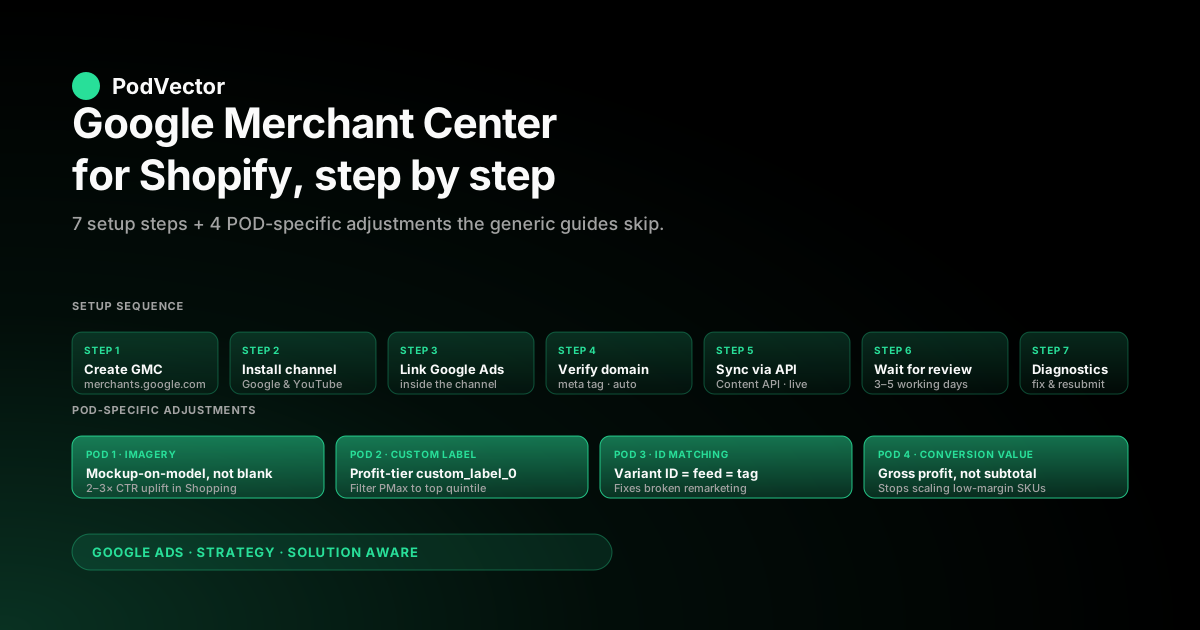
Quick Answer: Setting up Google Merchant Center for Shopify takes seven steps: create a GMC account at merchants.google.com, install the Google & YouTube channel from the Shopify App Store, link your GMC and Google Ads accounts inside the channel, verify and claim your domain, let the channel auto-sync your product feed via the Content API, wait three to five working days for Google's first review, then resolve any disapproved items in the Diagnostics tab. The standard setup works the same for any Shopify store.
What changes for print-on-demand: the default Printify or Printful blank-on-white product image loses every Shopping auction, the auto-synced feed has no profit-tier custom labels so PMax can't filter to your high-margin SKUs, and the conversion value sent back to Google Ads defaults to subtotal — which silently teaches Smart Bidding to scale the wrong product mix on any catalog with margin variance. This guide walks through the seven setup steps, then four POD-specific adjustments to make the feed actually convert.
What Google Merchant Center does for a Shopify store
Google Merchant Center is the product-data layer between your Shopify store and any Google surface that shows products: Shopping ads, Performance Max, Demand Gen carousels, the free Shopping tab, the YouTube product shelf, and Google Lens results. It is not where you build ads — that's Google Ads — and it is not where you list inventory for sale — that's Shopify.
Merchant Center is the feed: the structured snapshot of every product you sell, with title, description, price, image URL, availability, GTIN, brand, and a long tail of optional attributes. Whenever Google needs to render your product on a result, it pulls from Merchant Center. Whenever Google reviews whether your product is eligible to appear at all, it checks Merchant Center against its policy rules.
For a print-on-demand store, the leverage of getting Merchant Center right is higher than for a fixed-margin DTC brand, because POD competes in a more visual, more crowded auction. Three structural facts shape the setup.
First, the Shopping carousel is a visual auction — the click-through rate of one product image against another decides which SKU gets shown more, and POD's default supplier images (Printify and Printful blanks on white) lose against any competitor running mockup-on-model imagery. Second, POD margin variance across SKUs (sticker at 70%, hoodie at 18%) means the feed needs to carry profit-tier metadata so Performance Max can be filtered to high-margin SKUs only.
Third, the conversion value sent back to Google Ads — which Merchant Center technically doesn't control but which sits next to it in the same setup workflow — defaults to subtotal, which actively misleads Smart Bidding for any POD catalog. The seven setup steps below are the same for any Shopify store; the four POD adjustments after are what make the setup actually work.
Before you start: the four prerequisites
Confirm these before opening Merchant Center, because each one will block the workflow at a different point if missing.
- A live Shopify store on a custom domain. Google won't approve a feed pointing at a
myshopify.comsubdomain — the products will sync but every item lands in "Not approved" with a domain-mismatch error. Connect your custom domain in Shopify Settings → Domains first. - A Google account you'll use long-term. The Google account you sign up with becomes the owner of the Merchant Center account. Use a brand-owned account (info@yourstore.com via Google Workspace), not a personal Gmail, because handing off ownership later is friction you don't need.
- A Google Ads account. Strictly speaking, you can set up Merchant Center without Google Ads — products will show in the free Shopping tab. But you almost certainly want Shopping ads, so create the Google Ads account first and link it during the Merchant Center setup rather than going back to do it later. The setup walkthrough is in our set up Google Ads conversions on Shopify piece.
- Compliant return, shipping, and contact-info pages on your Shopify store. Google's policy review checks that your store has a visible return policy, shipping policy, and contact info before approving the feed. Missing any of the three is the most common reason a brand-new feed lands in disapproval. Add the standard Shopify policy pages (Settings → Policies) before submitting for review.
Step 1: Create your Google Merchant Center account
Open merchants.google.com and click "Sign in." Pick the brand-owned Google account from the prerequisites. The first-run wizard asks for business name, country, time zone, and which platform you sell on — pick "Shopify" from the dropdown.
Google asks where customers complete checkout: select "On my own website" for a standard Shopify store. The setup wizard finishes by asking which Google services you want to enable; toggle on Shopping ads, free product listings, and (if you sell internationally) the cross-border ones. Don't worry about getting these exactly right — they're toggles you can change later in Tools & Settings → Programs.
You now have a Merchant Center account with no products in it. The account ID (a 9- to 12-digit number visible top-right of the dashboard) is what you'll plug into Shopify in the next step. Copy it somewhere — Shopify won't auto-detect it in every flow.
Step 2: Install the Google & YouTube channel in Shopify
In your Shopify admin, click Settings → Apps and sales channels → Shopify App Store. Search "Google & YouTube" and install the channel published by Shopify (not third-party apps with similar names — Google Shopping Feed by Simprosys, Multiple Google Shopping Feeds by WoolyTech, etc., are different products). The channel adds a "Google & YouTube" item to your sales-channel sidebar.
Open the channel and walk through its setup wizard. It asks you to sign in to Google with the same account you used for Merchant Center, then to pick the Merchant Center account from a dropdown — your account ID from Step 1 should appear.
Confirm. The channel now has a live Content API connection to your Merchant Center account, which means every product you publish to the Google channel in Shopify will sync into Merchant Center over the API, and every product update (price change, inventory change, image change) will sync within 15 minutes to a few hours. This is the path most stores should use; the alternatives (manual feed upload, SFTP, Google Sheets) exist but the Content API path is faster, more accurate, and doesn't require you to re-export when products change.
One note that catches POD operators: the Google & YouTube channel will offer to launch a Performance Max campaign for you during setup. Decline it.
PMax is the right campaign type for a POD store eventually, but launching it on day one with no conversion data, no curated feed, and no audience signal will burn $30–$60 a day for two weeks before the bidding stabilizes. Set up the feed first, watch product approvals settle, then launch PMax intentionally with a curated feed (covered below in POD adjustment 2). The full playbook for that PMax setup is in our Shopify Performance Max campaigns explained piece.
Step 3: Link Google Ads inside the channel
Inside the Google & YouTube channel, find the Google Ads section and click "Link Google Ads account." Sign in with the same Google account, pick your Google Ads account ID, and confirm. This link is what lets Google Ads pull products from Merchant Center for Shopping campaigns and PMax — without it, your campaigns will have no inventory to advertise.
If you don't have a Google Ads account yet, create one at ads.google.com using the same Google account, skip the "Smart Campaign" wizard (click "Switch to Expert Mode" at the bottom), and create the account without launching a campaign. You only need the account to exist; you'll set up campaigns later. The full Google Ads + Shopify integration walkthrough lives in our complete guide to Google Ads + Shopify integration for POD.
Step 4: Verify and claim your store domain
Merchant Center requires you to verify ownership of the domain that hosts your store. The Google & YouTube channel handles most of this automatically: it adds a meta tag to your Shopify theme's homepage, Google reads it, verification passes. If the auto-verification fails (most often because a custom theme strips meta tags from <head>), the manual fix is to add the verification meta tag yourself in Shopify admin → Online Store → Themes → Edit code → theme.liquid, in the <head> block.
"Claiming" the domain is a separate but related step that locks the domain to your Merchant Center account so no other account can submit a feed for it. The channel does this automatically too. If you previously had a Merchant Center account that claimed this domain, you may need to release the claim in the old account first.
Step 5: Let the Content API auto-sync your product feed
Once the channel is connected and the domain is verified, syncing the product feed is mostly hands-off. Inside the channel, go to the Products section and click "Manage availability." Pick which Shopify products you want to publish to Google: usually all of them, but you can exclude specific products or collections.
Click Save. The channel begins syncing products over the Content API; the first sync takes anywhere from 15 minutes for a small catalog to a few hours for 800+ POD designs.
The Content API maps Shopify product fields to Google's required attributes automatically. Title, description, price, image URL, availability, and product ID transfer with no configuration.
GTIN, brand, and condition need a small amount of attention because Shopify doesn't always have these populated by default — for POD, brand should be your store brand, condition should be "new," and GTIN can be left blank for custom-designed products (Google accepts blank GTINs for products without a real GTIN, like custom POD apparel and personalized items, as long as the identifier_exists attribute is set to "no"). Set these defaults in the channel settings rather than per-product.
The auto-synced feed is correct, but it's only the floor. The four POD-specific adjustments below are where the real conversion-rate work happens. The deeper treatment of feed structure for POD is in our Google Merchant Center for Shopify strategy piece.
Step 6: Wait for the first Google review (3–5 working days)
Google's first review of a brand-new feed takes three to five working days. During that window, every product sits in "Pending" status.
Don't panic, don't resubmit, don't keep reloading. The review is automated for the most part but includes a manual policy review for new advertisers, which is the part that takes the time. Use the wait to:
- Add the four POD adjustments below to your feed configuration so they're live when the products approve
- Set up a baseline Standard Shopping campaign in Google Ads, paused, ready to enable the moment the products approve
- Verify that the Shopify policy pages (return, shipping, contact) are in place and visible from the storefront footer
- Add Google Customer Reviews to your Shopify checkout so review collection starts on day one — the rating extension takes 100 reviews over 12 months to unlock and you want the count growing from launch
Step 7: Resolve disapprovals in the Diagnostics tab
After the first review, some products will be approved, some pending, some disapproved. Open Merchant Center → Products → Diagnostics. Each disapproval comes with an error code and a description. The most common ones for a fresh POD store:
- Image too small. Google requires images at least 100×100 pixels (250×250 for apparel). Printify and Printful mockup images are usually 1000×1000 or larger so this is rare on supplier images, but custom-uploaded thumbnails sometimes trip it.
- Promotional overlay on image. Google bans text overlays on product images ("50% OFF", "FREE SHIPPING", brand watermarks). If your designer added a watermark to the mockup, the image will disapprove. Re-export without the overlay.
- Mismatched price between feed and landing page. The price in the feed must match what the customer sees on the product page within a small tolerance. POD prices that change with supplier-cost adjustments (Printify's quarterly base-cost updates, for example) need a feed refresh when they shift.
- Missing or invalid GTIN. Set
identifier_existsto "no" for custom POD products and the GTIN error goes away. - Insufficient information about the seller. The catch-all for missing return-policy or contact pages on the storefront. Add the policy pages and re-request review.
- Item disapproved due to policy violation (apparel category). POD apparel sometimes triggers automated copyright or trademark flags on designs that reference celebrities, sports teams, or media properties. Pull those designs from the Google channel — Merchant Center isn't the place to litigate the design's licensing.
Fix the underlying issue, then click "Request review" on the disapproved product. The next review cycle is shorter — usually 24–48 hours rather than 3–5 days. If you have many disapprovals, fix the most common error type first; Google's review batch will pick up the rest in the same cycle.
POD adjustment 1: Replace blank-on-white with mockup-on-model imagery
The default Printify or Printful product image is the blank product on a white background, sometimes with the design composited onto the blank. This image loses every Shopping auction it enters against any competitor running a real mockup-on-model image — a t-shirt photographed on a person walking a dog, a hoodie on someone in a coffee shop, a poster framed and hung on a wall.
The CTR difference between the two image types is typically 2–3x, and because Shopping uses CTR as its primary ranking input, the higher-CTR image gets more impressions, more clicks, more learning signal, and lower CPC over a 30-day window. The image is doing 50–80% of the click decision; the title and description copy are doing the rest combined.
The path to mockup-on-model imagery, in rough order of cost and effort:
- Printify and Printful's own mockup generators. Both platforms ship a small library of model-mockup templates per product line. Use these by default — they're free, they're already at the right resolution, and they look natural enough to compete in Shopping.
- Placeit or Smartmockups. Subscription tools with much larger libraries of model and lifestyle mockups. The mockup quality is higher and the variety is larger. Cost is $15–$30 per month flat.
- AI mockup generators. Tools like DesignerMa or Mockey.ai generate model mockups from a flat design plus a model description. The output quality is uneven but improving fast, and the unit cost is near zero per image.
- Real product photography. Order one of each top-50 design, photograph them on a model in lifestyle context. Highest quality, highest cost. Worth doing for the SKUs that already perform — this is post-data, not pre-launch.
Whichever path you pick, set the resulting image as the product's primary image in Shopify (not the secondary or third image), because the Content API sends the primary image to Merchant Center as the main feed image. The deeper image-strategy treatment is in our Google Shopping ads for ecommerce piece.
POD adjustment 2: Add a profit-tier custom label
Custom labels in Merchant Center are five free-text attributes (custom_label_0 through custom_label_4) that don't affect approval but let Google Ads campaigns filter inventory. The auto-synced Shopify feed leaves these blank. For POD, the highest-leverage custom label is custom_label_0 = profit_tier_1 / profit_tier_2 / profit_tier_3, where the tier is calculated from the SKU's average gross profit per order over the last 30–60 days.
The tier calculation is the work — the labeling is trivial once you have the data. Gross profit per order = unit price minus supplier cost (Printify or Printful production cost plus shipping) minus payment processing fee (~2.9% + $0.30 for Shopify Payments).
Tier the catalog by quintile or quartile of gross profit per order; tag the top quintile as profit_tier_1, next as 2, and so on. Send the labels into Merchant Center via a supplemental feed (covered in the supplemental feeds section below) or by writing the value to a Shopify metafield that the Google channel maps to custom_label_0.
Once the labels are live, the leverage is in Google Ads. Create a Performance Max campaign whose feed filter is custom_label_0 = profit_tier_1 only.
PMax now allocates its learning budget to the top quintile of the catalog by margin, not the full catalog. Conversion volume on the same SKUs concentrates, learning happens faster, target ROAS converges in 2–3 weeks instead of 6–8.
The same custom label can drive Demand Gen carousels and Customer Match RLSA bid modifiers. None of the SERP guides for setting up Merchant Center mention this lever, because none of them assume a catalog with margin variance — for POD it is the single most important feed customization.
POD adjustment 3: Match Shopify product IDs to Printify/Printful supplier SKUs
This adjustment isn't strictly inside Merchant Center, but it's the one that breaks more POD ad accounts than any other single setup mistake. The Google & YouTube channel sends Shopify's product ID and variant ID to Merchant Center as id and item_group_id.
Google Ads conversion tracking, when fired by the same channel's tag, sends Shopify's variant ID as the id on the purchase event. So far so good — the IDs match, dynamic remarketing works, value-based bidding has the right per-product signal.
The break happens when the operator integrates a different conversion tracking setup — a Google Tag Manager container with a manual purchase tag, an Elevar setup, a Stape server-side tag, anything other than the channel's auto-tag — and that setup sends a different ID. Sometimes it sends the SKU, sometimes the Printify product ID, sometimes the Shopify product ID instead of the variant ID. The result: dynamic remarketing creative shows wrong products or no products, value-based bidding misattributes conversion value to wrong SKUs, and the operator concludes "Shopping ads don't work for POD" when the real problem is upstream in the tag.
The fix is to standardize on one ID convention across the feed and the conversion tag. The path of least resistance: let the Google & YouTube channel manage both the feed and the conversion tag, so they automatically use the same Shopify variant ID.
If you need a custom conversion-tracking setup (because you're using server-side tagging or have multiple ad platforms reading the same purchase event), make sure the variant ID is what gets sent — not the SKU, not the product ID, not Printify's internal SKU. The full conversion-tracking audit walkthrough is in our Google Ads tracking ID for Shopify piece.
POD adjustment 4: Send gross profit (not subtotal) as conversion value
This is the single most consequential adjustment for any POD store running value-based Smart Bidding (Maximize Conversion Value, Target ROAS, Target CPA-with-value). The default Shopify–Google Ads integration, including the Google & YouTube channel's auto-tag, sends order subtotal as the conversion value on every purchase.
For a fixed-margin DTC brand selling at a known 60% margin on every SKU, subtotal is a fine proxy for profit. For POD, with sticker margins at 70% and hoodie margins at 18%, subtotal is actively misleading: Smart Bidding optimizing against subtotal-as-value will scale the highest-revenue SKUs, which are usually the highest-priced ones, which for POD often means the lowest-margin ones (hoodies and sweatshirts). The campaign looks profitable on the dashboard (high conversion value, healthy ROAS) but actually loses money once supplier costs are subtracted.
The fix is to compute gross profit per order at conversion time and send that as the conversion value instead. Gross profit = subtotal minus supplier cost (sum of Printify or Printful production cost across the order's line items) minus payment processing fee.
The supplier cost lookup needs the SKU-to-supplier-cost mapping, which lives in Printify/Printful and changes when those platforms update their base costs. The implementation paths:
- Manual: maintain a static profit ratio. Compute account-wide average gross profit ratio (~30% for many POD stores), multiply subtotal by 0.30 in the conversion tag. Crude but better than subtotal. Breaks when product mix shifts.
- Per-SKU lookup table in Shopify metafields. Maintain a metafield on each variant containing its current supplier cost. The conversion tag reads the metafield, computes per-line-item profit, sums, sends. Accurate but requires metafield maintenance whenever supplier costs change.
- Server-side computation from a live cost source. A server-side tag (Stape, Elevar, or self-hosted) joins the order against a live Printify/Printful cost feed at conversion time and sends the computed gross profit. Most accurate, most engineering-heavy.
Whichever path you pick, the result is the same: Smart Bidding now optimizes for what actually keeps the store alive. The product mix it scales is the high-margin one; the broad keywords it bids on are the ones that produce profitable conversions, not just any conversions. The full setup walkthrough is in our Shopify Google Ads conversion strategy piece.
Bonus: Supplemental feeds for hours-not-days updates
Updates to the primary feed (the auto-synced Content API feed) trigger a re-review by Google that can take up to 5 days for material changes. For most updates this is fine.
For changes you want live within hours — overriding a title for a specific SKU, adding the profit-tier custom label, fixing a disapproved item's description — supplemental feeds are the workaround. A supplemental feed is a smaller, secondary feed (usually a Google Sheet) that overrides specific attributes on specific SKUs. Updates to a supplemental feed propagate within hours, not days, because Google treats the supplemental feed as already-reviewed metadata layered on top of the primary feed.
Setup: in Merchant Center, Products → Feeds → Supplemental feed → Add. Pick "Google Sheets" as the source.
Google generates a template sheet with columns for product ID and the attributes you want to override. Add rows for the SKUs you're modifying. Google reads the sheet on the schedule you set (every 6, 12, or 24 hours), applies the overrides, and the live feed reflects the change at the next read.
For POD, the highest-leverage uses of supplemental feeds are: (1) bulk-loading the profit-tier custom label without rebuilding the primary feed, (2) overriding titles on top-performing SKUs with keyword-optimized variants without changing the Shopify product page, and (3) tagging seasonal collection SKUs for time-windowed PMax campaigns.
Bonus: Multi-country feed setup
If you ship to multiple countries, Merchant Center wants a separate primary feed per country (so prices, availability, and shipping show correctly). Inside the Google & YouTube channel, the Markets section lets you enable additional countries.
Each enabled country gets its own auto-synced feed using the country's currency, language, and shipping settings from your Shopify Markets configuration. The same physical product appears as separate listings per country, with country-specific pricing if you've set up Shopify currency markups.
For a POD store, this is most useful when you have meaningful price differences across markets — for example, US prices in USD with Printify's US fulfillment, EU prices in EUR with European fulfillment factoring in VAT, UK prices in GBP. Without country-specific feeds, Google falls back to converting the US-feed price to local currency, which usually undersells your product after VAT and shipping in the destination market. The setup pays back the configuration time on the first month of EU or UK conversions.
FAQs
How long does it take to set up Google Merchant Center for Shopify?
The setup itself takes 30–60 minutes if you have all four prerequisites (custom domain, Google account, Google Ads account, compliant policy pages) ready. Google's first review of the synced feed takes 3–5 working days during which products sit in "Pending." Resolving disapproved items adds another 1–3 days per fix cycle.
Realistically, plan for the feed to be ad-ready 5–10 days after you start the setup. The four POD adjustments (mockup imagery, profit-tier labels, ID matching, gross-profit conversion value) add another 2–5 days of work depending on how much of it you do yourself.
Do I need Google Ads to use Google Merchant Center with Shopify?
No. Merchant Center alone enables free product listings on the Google Shopping tab and on Google Search results that show product carousels. You can run Merchant Center without ever spending a dollar on ads.
That said, the free placements are below the paid Shopping carousel and pull a fraction of the click volume, so most stores set up Merchant Center to enable Shopping ads even if they're starting with a small budget. The full ads-vs-free analysis is in our Google Ads strategy for ecommerce piece.
What's the difference between the Google & YouTube channel and a third-party Shopify Google feed app?
The Google & YouTube channel is published by Shopify, free, and uses Google's Content API for syncing. Third-party apps (Simprosys Google Shopping Feed, Multiple Google Shopping Feeds by WoolyTech, Feed for Google Shopping by Mulwi) offer more granular feed customization — per-SKU title overrides without supplemental feeds, custom attribute mappings, automatic GTIN lookups, multi-feed management for large catalogs.
For a POD store under 500 SKUs, the native channel is sufficient. For 500+ SKUs with frequent design churn, a third-party app's title-template editor and bulk-edit interface saves enough time to justify the $20–$50/month cost. The channel and a third-party app can coexist — the third-party app sends a more curated feed while the channel handles conversion tracking — but most stores pick one or the other.
Why are all my products stuck in "Pending"?
Three to five working days is normal for the first review of a brand-new feed. After that, Pending usually means one of three things: (1) the policy review on a new advertiser account is taking longer than usual (no action needed, wait), (2) Google is re-reviewing a recently-changed feed (no action, wait), or (3) the product changed in a way that triggered re-review and is sitting at the back of the queue (no action, wait, but if it's been more than 7 days, open a Merchant Center support ticket). Resubmitting the same product repeatedly does not speed up review — it actually pushes the product to the back of the queue.
How do I track which campaigns are profitable after Merchant Center is live?
Once Merchant Center is feeding Shopping campaigns, the profit question becomes: of the campaigns I'm running, which ones are producing gross-profit-positive conversions after Printify or Printful supplier cost, payment processing, and refunds? Google Ads' Conversion Value column shows what you sent it, which is meaningful only if you sent gross profit (per POD adjustment 4). For a true profit view across Shopify, Printify, Printful, Google Ads, and Meta, most operators reconcile in a Sunday-morning spreadsheet — Victor connects all five into one live data warehouse view and answers "which campaigns should I scale, which should I pause?" without the spreadsheet step.
Do I need a separate Merchant Center account for each Shopify store I run?
If the stores have different domains, yes — Merchant Center allows one domain per account, so two Shopify stores on different domains need two Merchant Center accounts. If you run multiple stores under the same parent organization, set up a Merchant Center Manager account (MCA) at the top level and create sub-accounts for each store; this gives you single-sign-on across all of them and simplifies billing for paid Shopping ads. The MCA setup is in Merchant Center → Settings → Accounts.
What happens if I delete the Google & YouTube channel from Shopify?
Removing the channel disconnects the Content API sync but does not delete the products from Merchant Center — the existing feed snapshot remains until you delete it manually or until Google ages it out (usually 30 days without sync). Re-installing the channel re-establishes the sync and refreshes the feed.
The bigger concern is the conversion tag: if the channel is the source of your conversion tag, deleting the channel breaks tracking until you replace it with a manual tag. Don't delete the channel without a plan for the tag.
How does this setup compare to setting up a Google Merchant Center feed without Shopify?
The non-Shopify path requires manually maintaining a feed file (CSV, TSV, XML) and uploading it to Merchant Center via web upload, SFTP, or Google Sheets. The Content API path Shopify gives you for free is the same path Google's enterprise customers pay for via professional integrations — automated, real-time, no manual upload.
If you're running on Shopify, the Google & YouTube channel is the right answer for 95% of cases. If you're running on a non-Shopify platform that doesn't have a native Content API integration, the next-best option is a third-party feed manager like DataFeedWatch or Channable that provides the API connection.
The broader topic-level overview is in the Google Ads for POD topic hub; the strategy cluster lives at the Google Ads strategy cluster hub. For Google's own setup documentation, see the official Get started with Merchant Center guide.
Once Merchant Center is live, the question becomes: which Shopping campaigns are actually profitable?
The seven setup steps and four POD adjustments above get the feed approved and the right value flowing into Smart Bidding. The harder question — of the campaigns now drawing from that feed, which ones make profit ROAS net of Printify or Printful supplier cost, processing fees, and refunds? — is the one most POD operators answer in a Sunday-morning spreadsheet. Victor connects Shopify, Printify, Printful, Google Ads, and Meta into one live data warehouse view and answers "which campaigns should I scale, which should I pause?" in seconds.
Try Victor free