
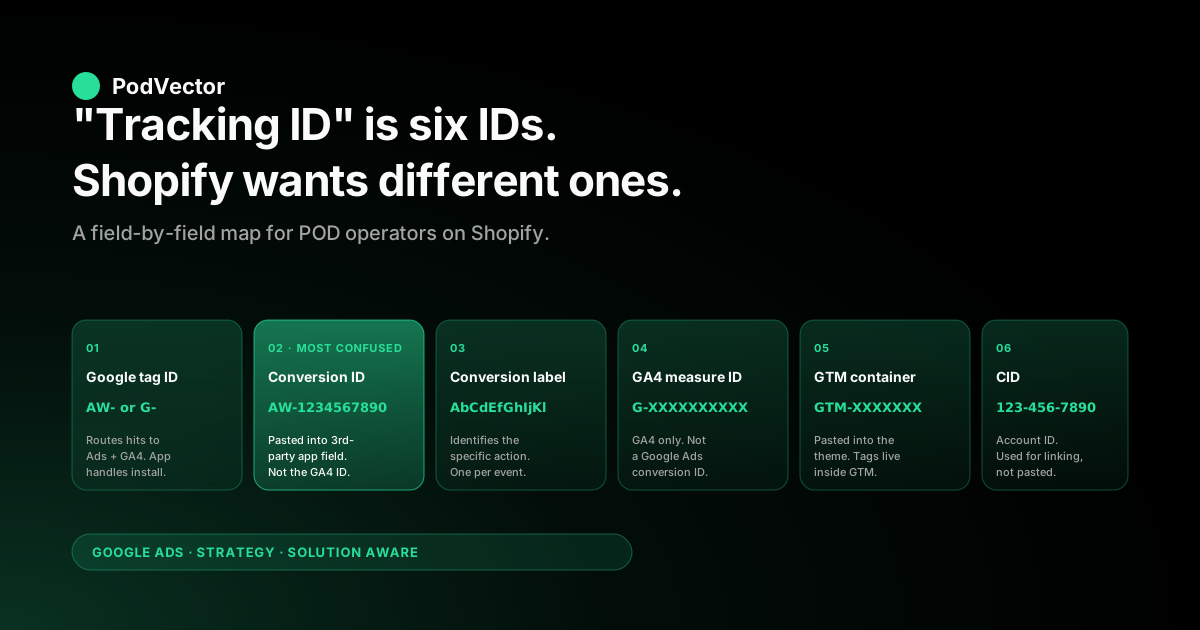
Quick Answer: "Google Ads tracking ID" is not one string — it is a family of six identifiers, and Shopify references different ones in different places. Most setup failures on print-on-demand stores are not a missing ID; they are the wrong ID pasted into the right field. This piece names every ID you will encounter (Google tag, Google Ads conversion ID, conversion label, GA4 measurement ID, GTM container, MCC/CID), shows the Shopify field that wants each one, walks the multi-store and multi-account cases POD sellers hit constantly, and gives a five-minute audit you can run today to confirm Smart Bidding is reading the conversion you think it is.
The six IDs in the "Google Ads tracking ID" family
Search "Google Ads tracking ID Shopify" and you get back walkthroughs that use the phrase as if it points at one thing. Shopify's own help docs, Shopify's blog on Google Ads conversion tracking, and Google's Shopify Google tag setup page each use "tracking ID" or "tag ID" loosely.
The reality is that the Shopify–Google Ads integration touches at least six distinct identifiers, and which one Shopify is asking for depends on which screen you are on. The first hour of most POD tracking debugging is spent learning which ID is which.
Here is the full set, in the order you typically encounter them when wiring a print-on-demand store from scratch.
- Google tag ID — starts with
AW-orG-. The single tag that loads on every page and routes hits to the right downstream Google product.AW-prefix means it was created from a Google Ads conversion action;G-prefix means it was created from a GA4 property. One tag can be linked to multiple destinations once installed. - Google Ads conversion ID — the numeric portion after
AW-. Eight to ten digits. Identifies the Google Ads account that the conversion belongs to. You will see it referenced as the "Conversion ID" inside the conversion event snippet that Shopify-side tracking apps generate. - Conversion label — an opaque short string (typically 10–14 characters, mixed case and underscores) that identifies a specific conversion action within that account. The full conversion identifier is
AW-CONVERSION_ID/CONVERSION_LABEL. Purchase, Add to Cart, Begin Checkout, and View Item each have their own label under the same conversion ID. - GA4 measurement ID — starts with
G-followed by ten alphanumeric characters. Identifies a GA4 data stream, not a Google Ads account. Shopify's Google & YouTube app stores this separately from the Google Ads side and uses it for analytics, not bidding. - GTM container ID — starts with
GTM-followed by seven characters. Identifies a Google Tag Manager container. If you are running tracking through GTM (web container or server container), this is the ID Shopify embeds in the theme. The Google Ads tags then live inside the container; the container ID itself is not a Google Ads ID. - Customer ID (CID) — also called the Google Ads account ID. Ten digits, displayed in the top-right corner of every Google Ads screen as
123-456-7890. Identifies your Google Ads account itself. Required when linking accounts (Merchant Center, Analytics, MCC) but not directly used in any Shopify tracking field.
Six IDs, two prefixes (AW-, G-) plus one container prefix (GTM-) and a hyphenated CID. The ones a Shopify operator pastes into a UI field are the Google tag ID, the conversion label, the GA4 measurement ID, and the GTM container ID.
The conversion ID and CID are usually displayed but not pasted. The naming overlap — Google tag ID vs. conversion ID vs. GA4 measurement ID, all three sometimes called "tracking ID" in third-party docs — is where most setup errors begin.
Where Shopify asks for each ID
Shopify exposes Google Ads tracking through three layers, and each asks for a different subset of the IDs above. Knowing which layer is asking for which ID is half the integration work.
Layer 1: the Google & YouTube app. Once installed and connected, this app handles the Google tag ID for you — you do not paste it. You pick a Google Ads account from a dropdown (which is the CID lookup), the app provisions or links the conversion actions automatically (which generates the conversion labels for you), and it injects the Google tag with both AW- and G- destinations as appropriate.
The only ID you ever see is the CID at the moment you confirm which account to link. For most POD stores under $5K/month spend this is the right path because it removes ID-mismatch as a failure mode entirely.
Layer 2: a third-party tracking app (AdTrack, Elevar, Nabu, Littledata, etc.). These ask you to paste the Google Ads conversion ID and conversion label per conversion action — Purchase, Add to Cart, Begin Checkout, View Item — into named fields in their settings UI. If you have a server-side relay enabled, they may also ask for the GA4 measurement ID and the GTM container ID. The risk surface here is meaningful: pasting the GA4 measurement ID into the conversion ID field is a common error, the app silently fires events to GA4 instead of Google Ads, and Smart Bidding sees zero conversions while your Google & YouTube app says everything is fine.
Layer 3: GTM injected directly into the Shopify theme. This bypasses both the Google & YouTube app and any third-party tracking app. You paste the GTM container ID into the theme.liquid (or via Shopify's checkout extension layer for the order status page), then the conversion IDs and labels live inside GTM tags rather than in Shopify's UI.
The Shopify side has only one ID — GTM-XXXXXXX — and everything else is in GTM. Most POD stores running over $20K/month land here or on a server-side variant. Stape's setup guide walks the GTM-on-Shopify mechanics in detail.
The three layers are not exclusive. The most common production state for a $5K–$20K POD store is the Google & YouTube app handling the basic Purchase event, plus a third-party tracking app or server-side GTM handling profit-as-value enrichment, refund adjustments, and enhanced conversions.
In that hybrid setup, the same conversion ID appears in two places (the app and the third-party tool) and the labels for the same conversion action must match exactly between them. A label typo means duplicate conversions in Google Ads — once from the app, once from the third-party tool — and inflated ROAS readings until you notice.
AW- vs. G-: the most common Shopify mismatch
The single most frequent ID error we see on POD store audits: a Shopify operator pastes a G- measurement ID into a field that wants the Google tag ID and assumes Google Ads is now tracking. It is not.
The G- ID is GA4 only. Conversion data routed through it goes to a GA4 property where it sits doing nothing useful for paid optimization unless you then explicitly import the GA4 conversion into Google Ads, which most stores do not.
The confusion has a structural cause. When you create a new Google Ads account in 2026, the setup wizard offers to install a "Google tag" — and the Google tag it installs has a G- prefix if the GA4 property was created first or an AW- prefix if the Google Ads conversion action was created first.
Either prefix works as the universal Google tag (both can route to both destinations once linked). But the Shopify integration UI in third-party apps frequently labels its first field "Google Ads Tracking ID" and shows an example like AW-1234567890.
An operator who has only ever seen a G- tag in their Google account assumes the field wants the GA4 measurement ID and pastes that. The app accepts it (the format is similar enough), fires events to it, and the Google Ads conversion column shows zero forever.
Three checks to confirm you have the right ID in the right place:
- Open the Google Ads UI directly. Tools → Conversions → click into the Purchase action → Tag setup → Use an existing Google tag → "Tag ID". This is the Google tag ID Google Ads expects to see paired with this conversion action. The prefix tells you which type. If it shows
AW-, you must paste anAW-tag ID into the Shopify-side field. If it showsG-, the Google tag is shared with GA4 and either prefix works as long as you also have the conversion linked. - Confirm the conversion label is paired correctly. Same screen, "Tag ID" + "Conversion label" together form
AW-CONVERSION_ID/CONVERSION_LABEL. The label is what tells Google Ads which specific conversion action this hit represents. A correct ID with the wrong label fires into the wrong action — your Add to Cart conversions show up as Purchases, and Smart Bidding learns the wrong thing. - Run a real test order from a Google Ads click. Click your own ad (or a test ad with a budget cap), complete a purchase, and 24 hours later check the order timeline in Google Ads under the conversion action's recent conversions. The conversion should appear with the correct value. If it does not, no ID configuration is correct yet regardless of what the form fields say.
For the symmetric configuration on the Google Ads side — once your Shopify-side IDs are right — see our Google Ads tracking strategy for Shopify POD piece, which walks the seven Google Ads-side primitives that act on the conversion events your IDs route correctly.
Multi-store POD: one Google Ads account or many
Print-on-demand sellers run multi-store far more often than fixed-catalog ecommerce. A primary general apparel store, a niche-specific store for the Christmas seasonal push, a store testing a new design line in a different country — three Shopify stores is a normal portfolio. The tracking-ID question this raises: one Google Ads account spanning all three (one CID, one set of conversion IDs and labels) or a separate Google Ads account per store (three CIDs, three sets)?
The right answer depends on whether the stores share customers and whether Smart Bidding has enough conversion volume to optimize at the per-store level.
One Google Ads account, multiple stores works when the stores serve overlapping audiences and total monthly spend is under ~$15K. You create separate conversion actions per store within the same account (Purchase_Store1, Purchase_Store2, Purchase_Store3 with distinct conversion labels under the same conversion ID) and run separate campaigns per store.
Smart Bidding pools learning across the account but optimizes each campaign against its own conversion action. Customer Match audiences and Performance Max asset groups can target across stores. This is the simpler structure to administer and the right default for most POD portfolios.
Separate Google Ads accounts per store becomes the right call when one store's audience meaningfully differs (a US-only store and an EU-only store; a 65+ demographic store and an 18–34 demographic store), when total spend is high enough that account-level Smart Bidding learning is the bottleneck rather than per-campaign learning, or when stores are owned by different legal entities. In this structure each store has its own CID, its own conversion IDs, its own conversion labels.
Shopify's Google & YouTube app supports one Google Ads account per store, which fits this structure cleanly. The cost is administrative overhead — you maintain three Google Tag Manager configurations, three sets of enhanced-conversions diagnostics, three Customer Match jobs.
The hybrid we see most often: one MCC (manager account) holding multiple Google Ads accounts, each Ads account paired one-to-one with a Shopify store, with the MCC providing roll-up reporting. This requires understanding the relationship between the MCC's CID, each child account's CID, and which CID Shopify needs.
MCC, CID, and the agency handoff
An MCC (My Client Center, also called manager account) is a Google Ads account that contains other Google Ads accounts. It has its own CID, displayed in the same top-right format as any other account.
MCCs are the standard way agencies, in-house teams managing multiple brands, and POD sellers running multi-store portfolios organize Google Ads access. The MCC does not run campaigns itself; it provides cross-account permissions, billing consolidation, and reporting.
The Shopify integration question that comes up: which CID does Shopify want — the MCC or the child account? The answer is always the child account.
The Google & YouTube app's account-picker dropdown lists Google Ads accounts by their child CIDs; the MCC is not selectable as a destination because conversions cannot be tracked at the MCC level. They flow to a child account and are then visible in the MCC's roll-up reporting.
Two failure modes here:
- Selecting the wrong child account in the dropdown. If your MCC has six child accounts (three live POD stores, two paused dev accounts, one historical account from a prior agency), the dropdown shows all six. Selecting the wrong child account routes conversions there. The store appears to be tracking conversions correctly, but they are arriving at an account with no live campaigns, so Smart Bidding for the active campaigns sees nothing. Spend rises, ROAS reports as zero, and the diagnosis takes a week if you do not know to check the destination CID.
- Agency handoff with stale tag IDs. An agency is fired, a new agency is hired, the new agency creates a new Google Ads account under their own MCC, and the Shopify-side tag IDs still point at the old agency's account. The old agency's Smart Bidding sees the conversions and the new agency's campaigns see nothing. Always re-audit the Shopify-side tag IDs after any Google Ads account ownership change. Google's Shopify tag setup docs describe the re-link path; the practical version is "re-run the Google & YouTube app's connect flow against the new account and confirm the new conversion IDs and labels everywhere they are referenced."
For a side-by-side on which Shopify-side tracking app handles MCC-aware setup most cleanly, see our Shopify Google Ads apps strategy piece, which compares the multi-store and MCC support across the major options.
A five-minute Shopify-side ID audit
Run these five checks inside Shopify (and one inside Google Ads). Each takes about a minute. Failing any of them tells you which ID is wrong before you write any code.
- Google & YouTube app: connected account. Apps → Google & YouTube → Settings → Google Ads. The displayed account name and CID should match the Google Ads account where you actually run campaigns. If it shows a stale account or a paused account, disconnect and reconnect.
- Google & YouTube app: conversion measurement. Same screen, Conversion measurement section. Should show "Active" with at least one conversion action listed (Purchase). If it shows "Pending" for more than 48 hours after a successful order, the conversion label was never linked. Re-run the connect flow.
- Third-party tracking app (if installed): conversion ID format. Apps → your tracking app → Google Ads settings. Confirm the conversion ID field starts with
AW-followed by 8–10 digits, notG-followed by ten characters. AG-value here means the field is wrong and conversions are not flowing to Google Ads. - Third-party tracking app: label per action. Same screen, Purchase / Add to Cart / Begin Checkout / View Item rows. Each should have a distinct conversion label. Identical labels across multiple actions means the same conversion is being recorded as different events — Smart Bidding will optimize against duplicate signal.
- Theme.liquid (if running GTM directly): GTM container ID. Online Store → Themes → Edit code → layout/theme.liquid. Search for
GTM-. Should appear once near the opening<head>tag. Multiple GTM containers loaded on the same page means tags fire twice and conversions are doubled. - Google Ads side: recent conversion count. Tools → Conversions → Purchase action → recent count for the last 24 hours. Should approximately match the Shopify orders attributable to a Google Ads click in the same window. A large mismatch means an ID further upstream is broken.
The five-minute version surfaces ID errors that compound for weeks if not caught. The reason most stores never run it: until ROAS misreads cause a meaningful budget decision, the bad IDs are invisible. The cost of one bad budget decision pays for the audit a hundred times over.
What the right ID still does not fix for POD
Getting every ID in the right field is the floor for accurate Google Ads tracking on Shopify, not the ceiling. Three POD-specific issues persist regardless of how clean your IDs are.
Conversion value defaults to subtotal. The Google & YouTube app and most third-party tracking apps default to sending Shopify's order subtotal as the conversion value. For a fixed-margin catalog this is fine.
For a POD store with a mug at 65% margin and a hoodie at 18% margin in the same catalog, telling Smart Bidding both orders are worth their subtotal tells it to scale the lower-margin SKU. The fix — replacing subtotal with gross profit on the conversion event — is a Shopify-side enrichment that no ID change addresses. The mechanics live in our Shopify Google Ads conversion strategy piece.
Refunds are not posted back. POD apparel return rates run 4–8% in our customer cohort. Without conversion adjustments posting refund events back to Google Ads against the original gclid, Smart Bidding learns from inflated values and bids harder for SKUs and audiences with the highest return rates. The conversion-adjustments endpoint takes the same conversion ID and label as the original event but is not exposed in any Shopify UI; it requires a server-side relay or a tracking app with native refund support.
Enhanced conversions match rate goes unmonitored. Enhanced conversions ships hashed first-party identifiers (email, phone) so Google Ads can match conversions back to users when third-party cookies are blocked. The toggle is in the Google & YouTube app's settings; the diagnostics live in Google Ads.
A match rate below 60% means the hashed-identifier payload is incomplete — the IDs are correct, but the data being keyed on them is missing fields. We see stores with perfectly configured IDs and 25% match rates because their checkout customization stripped customer email before the tag fired.
Each of these is its own configuration job downstream of getting the IDs right. For the full Google Ads-side configuration that consumes correctly-keyed events, see our Google Ads tracking strategy piece.
For the broader Google Ads strategy frame these tracking choices serve, the complete Google Ads playbook for POD sets the context. The Google Ads strategy cluster hub indexes the related operator pieces; the Google Ads for POD topic hub ties tracking back to ad types, integrations, and ROAS analysis. For the integration-side install walkthrough, the complete guide to Google Ads + Shopify integration for POD covers the end-to-end mechanics.
FAQs
What does a Google Ads tracking ID look like for a Shopify store?
It depends which "tracking ID" you mean. The Google tag ID looks like AW-1234567890 or G-XXXXXXXXXX.
The Google Ads conversion ID is the numeric part after AW- — eight to ten digits. The conversion label is a 10–14 character mixed-case string with underscores.
The full conversion identifier combines them as AW-1234567890/AbCdEfGhIjKl. Shopify's Google & YouTube app handles all of these for you once the Google Ads account is connected; third-party tracking apps require you to paste at least the conversion ID and label per action.
Where do I find my Google Ads tracking ID for a Shopify integration?
Open Google Ads → Tools → Conversions → click into the conversion action you are setting up → Tag setup → Use an existing Google tag (or "Use Google Tag Manager"). Google Ads displays both the Tag ID (the Google tag, prefixed AW- or G-) and the Conversion label for that specific action.
Both are needed for any third-party Shopify tracking app. The Google & YouTube app does not require you to copy them — it pulls them via the API once you connect the account.
Do I need a different tracking ID per Shopify store if I run multiple stores?
Not necessarily. Run all stores under one Google Ads account with separate conversion actions per store (each with its own conversion label) when total spend is under $15K/month and audiences overlap.
Switch to one Google Ads account per store (each with its own CID and conversion IDs) when stores serve meaningfully different audiences or when total spend is high enough that per-account Smart Bidding learning is the bottleneck. Use a Google Ads MCC to provide cross-account reporting and consolidated billing in either structure.
Why is my Shopify Google Ads conversion tracking showing zero conversions?
Most often: the wrong ID is in the conversion-ID field. Specifically, a GA4 measurement ID (prefixed G-) was pasted where a Google Ads conversion ID (prefixed AW-) was expected.
The events are firing — to GA4. Confirm the field starts with AW- followed by 8–10 digits.
The other common cause is a stale account selection in the Google & YouTube app, where conversions are routing to a paused or dev Google Ads account instead of the one running active campaigns. Run the five-step audit in the section above before changing any code.
What is the difference between Google Ads tracking ID and GA4 measurement ID on Shopify?
The Google Ads tracking ID (most precisely: the Google Ads conversion ID, formatted AW-1234567890) identifies a Google Ads account and is paired with a conversion label to identify a specific conversion action. The GA4 measurement ID (G-XXXXXXXXXX) identifies a GA4 data stream for analytics.
They are stored in different fields in Shopify's Google & YouTube app and used for different purposes — Google Ads conversion data feeds Smart Bidding, GA4 data feeds the GA4 reports. Some Google tags carry both prefixes once the Google Ads account is linked to the GA4 property, but the underlying IDs are distinct.
Can the same Google tag ID send data to both Google Ads and GA4 from Shopify?
Yes. A Google tag (the universal tag installed on the page) can route to multiple Google destinations — Google Ads, GA4, Floodlight, Campaign Manager — once those destinations are linked in the Google tag's configuration.
On a Shopify store with the Google & YouTube app connected to both a Google Ads account and a GA4 property, the single tag fires once per page and routes the hit to both destinations. You do not need a second tag installation. Confirm both destinations are linked under the tag's settings in the Google tag UI.
Where in Shopify do I paste the Google Ads conversion ID and label?
If you are using the Google & YouTube app, you do not paste them — the app handles the linkage automatically once you connect the Google Ads account. If you are using a third-party tracking app (AdTrack, Elevar, Nabu, Littledata), the app's settings UI has named fields for "Conversion ID" and "Conversion Label" per conversion action (Purchase, Add to Cart, Begin Checkout, View Item). If you are running GTM directly via theme.liquid, the conversion ID and label live inside Google Ads conversion tags within GTM, and only the GTM container ID is pasted into Shopify itself.
How do I verify my Google Ads tracking ID is working on a Shopify checkout?
Three checks. First, place a real test order from a Google Ads click — clicking your own ad with a small budget cap, completing checkout — then 24 hours later look for the conversion in Google Ads under Tools → Conversions → Purchase action → recent conversions.
Second, Tools → Conversions → click the action → Diagnostics, which shows whether the tag is firing and whether enhanced conversions are matching. Third, install the Google Tag Assistant browser extension and trigger a test order; it will show every Google tag firing on each page including the conversion event with the correct ID and label visible in the trace.
The right tracking ID is the floor. Reading the data is the actual work.
Once your Shopify-side Google Ads tracking IDs are correct — right account, right conversion ID, right label per action — the next question every week is which campaigns are actually making profit ROAS, net of returns and supplier cost. Victor connects Shopify, Printify, Printful, Google Ads, and Meta into one live data warehouse view and answers that in seconds. No spreadsheet, no manual reconciliation, no Sunday-morning ROAS audit.
Try Victor free