
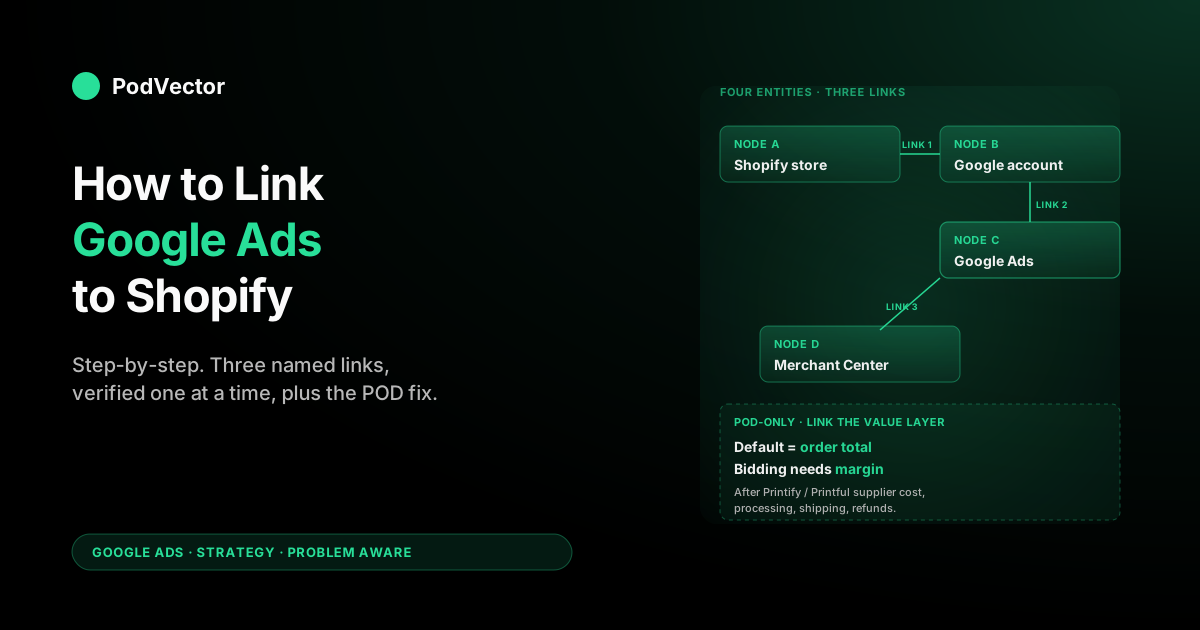
Quick Answer: Linking Google Ads to Shopify in 2026 means establishing three named account links — Shopify ↔ Google account, Google account ↔ Google Ads, and (separately) Google Ads ↔ Merchant Center — all routed through the Google & YouTube channel app inside Shopify admin. Hands-on time is 20–30 minutes once your prerequisites are met. The real work isn't clicking through the wizard; it's making sure you link with a Google account that owns the Google Ads account (not a manager-only login), with Customer Data Terms accepted in advance, and with the conversion-value layer fixed for print-on-demand margins before Smart Bidding learns the wrong signal. This guide walks each link individually so you can audit, unlink, or relink any layer without rebuilding the rest.
What "linking" actually means (and why it's not the same as "connecting")
"Link Google Ads to Shopify" gets used interchangeably with "connect Google Ads to Shopify," but the two phrases mean slightly different things in Google's own documentation, and the distinction matters when you're trying to debug a setup that's half-working.
Connecting usually refers to the whole integration: account access, conversion pixel, product feed, and the ongoing data flow between Shopify, Google Ads, and Merchant Center. Linking is the narrower term Google uses inside its admin UI for the specific permission grant that ties two accounts together — the moment when one platform is authorised to read or write to the other.
If you're setting up a Shopify store from scratch and want the full integration, you want to the complete Google Ads playbook for print-on-demand sellers for context, and the practical end-to-end walkthrough is how to set up Google Ads for Shopify step-by-step. This article focuses on the account-linking layer specifically: the three named permission grants, how to verify each one, what breaks each one, and how to unlink and relink without burning your conversion history. If you've already got things half-working and just need to figure out which link is broken, this is the right page.
The account graph: four entities, three links
Before you click anything, draw the graph. Four entities exist in this setup, and three named links sit between them:
- Shopify store. Your storefront, products, and customer events.
- Google account. The Gmail or Google Workspace identity you'll authenticate with — the bridge between Shopify and the Google ecosystem.
- Google Ads account. The 10-digit customer ID where campaigns, conversion actions, and audiences live.
- Google Merchant Center account. Where your product feed sits and where Shopping or Performance Max ads pull product data from.
The three links are:
- Link 1: Shopify ↔ Google account. Established when you install the Google & YouTube channel app and complete the OAuth flow. This is what gives Shopify permission to write conversion-action definitions and feed data into Google's systems on your behalf.
- Link 2: Google account ↔ Google Ads. Established by the access role on your Google Ads account. The Google account you used in Link 1 has to own (or have admin-level access to) the Google Ads account. Manager (MCC) access alone isn't enough.
- Link 3: Google Ads ↔ Merchant Center. A separate, distinct link inside Google's product-linking admin (Tools → Linked accounts → Google Merchant Center). This one is the most commonly missed because the channel app can complete it for you, but only if Link 1 and Link 2 are clean first.
Most "I followed the wizard but Performance Max won't run" tickets trace to Link 3 being silently incomplete because Link 2 used an underprivileged Google account. Knowing which of the three is broken is the difference between a 90-second fix and a two-day support ticket.
Prerequisites: the five conditions that gate every link
Five things need to be true before you start. Skipping any of them produces errors halfway through that look like Shopify or Google Ads bugs but are state problems on your account:
- A Shopify store on a paid plan, with products published to the Online Store sales channel. Trial stores can install the channel app, but Merchant Center won't approve any products until billing is active. Products in draft status or only on a custom sales channel don't make it into the feed.
- An existing Google Ads account, with at least one Customer Data Term accepted. Admin → Account access → Account settings → Customer data terms. Without this accepted, Link 1 will succeed but enhanced conversions and Customer Match come up greyed out and you'll have to come back to redo half the wizard.
- A Google account that owns the Google Ads account (not just MCC manager access). The OAuth handshake that sets up Link 1 grants Shopify permission to act on whatever Google Ads accounts the signed-in user has admin or owner access to. Manager-level cross-account access doesn't propagate to Shopify.
- No legacy "Google" app still installed in Shopify. The retired legacy app and the current Google & YouTube channel app are different. If both are installed, the OAuth callback in Link 1 sometimes binds to the wrong app and your conversions silently fire from the older pixel. Uninstall the legacy app first if you see two "Google" entries in your Shopify sales-channel sidebar.
- Browser settings that allow third-party-cookie postMessage callbacks during the OAuth flow. Safari, Brave, and Firefox with hardened privacy settings will quietly close the OAuth pop-up without completing the handshake. Use Chrome (or Firefox with default settings) for the duration of setup. The link persists across browsers once established, so this is one-time pain.
Two minutes of checking these saves an hour of debugging. POD operators in particular tend to run their Google Ads accounts off whichever Gmail address was lying around when they first opened the account; if that's a personal Gmail or one the founder no longer has 2FA on, fix that first. Moving the Google Ads account ownership to a Workspace-managed brand account before you link is dramatically less painful than discovering halfway through the year that the linked Google account no longer authenticates.
Link 1: Shopify ↔ Google account
From Shopify admin, click the green plus next to "Sales channels" in the left sidebar, search "Google & YouTube," click Add channel, and accept the permissions. Installation takes about thirty seconds. The channel appears under Sales channels in the sidebar and the channel admin page opens to the setup wizard.
Inside the channel admin, click "Connect a Google account." An OAuth pop-up opens. Pick the Google account that owns your Google Ads account (and ideally also has access to Merchant Center, but that's not strictly required at this step). Grant the permissions Shopify requests — read profile, manage Google Ads conversion tracking, manage Merchant Center, read YouTube channel.
The wizard advances automatically once the OAuth callback completes. If the pop-up closes without returning to the wizard, the cause is almost always cookie or pop-up blocking — switch to Chrome or Firefox with default settings and retry. The handshake either works in 5 seconds or fails silently; there's no in-between state.
Don't skip thinking about which Google account you use here. If you pick a personal Gmail, you've coupled your store's ad account to one human.
If that human leaves the company or changes their Gmail password without rotating Shopify's saved permissions, the link breaks at the worst possible moment. The right answer for any serious POD store is a Google Workspace account scoped to the brand — ops@yourbrand.com, not jane.smith.1995@gmail.com.
Link 2: Google account ↔ Google Ads
Link 2 is technically established before Link 1 — the Google account you authenticated with already has whatever access it has to Google Ads. But it's worth verifying explicitly, because most "the wizard finished but my conversions aren't tracking" tickets are caused by Link 2 being weaker than the operator assumed.
Open ads.google.com in a separate tab, signed in with the same Google account you used in Link 1. In the top-right account menu, you should see your Google Ads customer ID listed under "Your accounts." Click into the account, then go to Admin → Account access. Confirm the Google account you linked has either "Admin" or "Standard" access — not "Read only" and not "Email only." If it's listed under "Manager accounts" rather than direct user access, that's MCC-level access and won't propagate fully through the channel-app link.
If your access role is wrong, the fix is to grant your Google account Admin access to the Google Ads account from a different Google account that already has Admin access. The new permission propagates to the Shopify channel app within about five minutes; you don't need to redo Link 1.
One operational nuance: the channel app's link is to the Google account, not the Google Ads account directly. If you later remove the Google account's access to Google Ads (because the human left, for example), the channel-app link breaks at the next sync — even though the Shopify side still says "Connected." This is the single most common cause of conversions silently dying after a personnel change. Quarterly access audits inside Google Ads → Admin → Account access catch this before it becomes an outage.
Link 3: Google Ads ↔ Merchant Center
Link 3 is what makes Shopping ads and Performance Max possible. It's also the link the channel-app wizard tries to do for you automatically, which works if Links 1 and 2 are clean and quietly fails to "Pending" if they aren't.
Inside the Google & YouTube channel admin, find "Reach customers across Google" or "Feed your products to Google" (the wording has changed three times across 2025; the function is identical). Shopify either creates a new Merchant Center account for you or links to an existing one.
The default is "create new" — that's the right answer for most stores. Pre-existing Merchant Center accounts created outside Shopify often have stale website claims or unverified domain ownership that block the link, and starting fresh inside the wizard is faster than untangling them.
To verify Link 3 from the Google side, open merchants.google.com, sign in with the same Google account, and confirm: (a) your Merchant Center account exists, (b) the website matches your Shopify domain, and (c) under Tools → Linked accounts → Google Ads, your Google Ads customer ID appears with status "Linked." If the customer ID is "Pending" or missing, click "Link account" inside Merchant Center, enter your Google Ads customer ID, and approve the request from the Google Ads side (Tools → Linked accounts → Google Merchant Center → approve).
This is the link that makes Smart Shopping and Performance Max see your product catalog. Without it, Search ads and Display ads still run, but anything that needs feed data sits idle. The cluster pillar that ties this together is the complete guide to Google Ads + Shopify integration for POD; for the Merchant Center setup specifically, see Shopify to Google Merchant Center strategy for print-on-demand and Google Merchant Center Shopify strategy.
How to verify each link is actually live
Three checks, one per link. Run all three any time something looks off — a broken link is almost never something the channel-app status page admits to.
Verify Link 1 (Shopify ↔ Google account)
Inside Shopify admin → Google & YouTube channel → Settings → "Google account." The connected account email should be visible and labelled "Active." If it says "Reauthorisation required," click reconnect and re-run the OAuth flow with the same Google account. The link itself is still valid; the OAuth refresh token expired, which happens roughly once a year by default.
Verify Link 2 (Google account ↔ Google Ads)
In Google Ads → Admin → Account access. Confirm your Google account is present with Admin or Standard access. If it isn't, Link 1 didn't break — Link 2 did, silently, when someone modified Google Ads access permissions. Fix the access role and the channel-app sync recovers within minutes.
Verify Link 3 (Google Ads ↔ Merchant Center)
Two-sided check. From Merchant Center → Tools → Linked accounts → Google Ads, your customer ID should appear with "Linked" status.
From Google Ads → Tools → Linked accounts → Google Merchant Center, your Merchant Center ID should appear with "Linked" status. If only one side shows linked, the link is half-completed — usually because the approval was sent but never accepted on the other side. Clicking approve resolves it.
Linking multiple Shopify stores or multiple Google Ads accounts
POD operators commonly run two or three Shopify stores — a flagship brand, a niche-specific store, sometimes a regional or language-specific store. The linking model accommodates this but with constraints worth knowing about upfront.
Each Shopify store gets its own Google & YouTube channel-app installation, and therefore its own independent Link 1. You can link multiple Shopify stores to the same Google Ads account if you want consolidated bidding across all stores, or to separate Google Ads accounts if you want bid budgets siloed per store. There's no "switch Google Ads account" button inside an installed channel app — you have to uninstall the channel and reinstall to change which Google Ads account it's linked to.
Customer Match audiences blend across stores that share a Google Ads account. That's useful if your stores are intentionally part of one brand portfolio (the lookalike modelling improves with more data) and problematic if your stores are meant to target different customer profiles (you'll see audiences cross-pollinate in ways that hurt creative performance). Decide upfront which model you want and stick with it; reorganising later means undoing and redoing channel-app installations across multiple stores.
If you're operating at scale across many ad accounts, an MCC (Manager) account at the top of your Google Ads hierarchy is the right architecture. The channel-app links happen at the individual ad-account level, not the MCC level, but the MCC gives you cross-account reporting, billing consolidation, and centralised user management. For more on the strategic structure, see the complete Google Ads playbook for print-on-demand sellers and Google Ads strategy for ecommerce.
How to unlink and relink without losing conversion history
Sometimes you need to unlink — moving the Google Ads account to a new owner, switching the linked Google account from a personal Gmail to a Workspace identity, or migrating between Shopify stores. The goal in any unlink is to preserve as much conversion history as possible because Smart Bidding's effectiveness scales with how much historical conversion data the algorithm has seen.
To unlink Link 1 cleanly: Shopify admin → Google & YouTube channel → Settings → Disconnect Google account. This breaks Link 1 but leaves the Google Ads conversion actions and Merchant Center feed intact on Google's side. You can immediately reconnect with a different Google account and the existing conversion actions remain attached to your Google Ads account — the historical data isn't lost, only the live pixel binding is.
To unlink Link 3 cleanly: from either Google Ads or Merchant Center, go to Linked accounts and click "Unlink." Conversion data already attributed to Google Ads campaigns stays with the campaigns. Product feed data sits in Merchant Center until it expires (30 days for unmodified products) but stops syncing.
What you can't preserve through any unlink: the Customer Match audiences. Those rebuild from Shopify's customer list on the next sync, but the lookalike-modelling lift takes 7–14 days to recover. Plan unlinks for low-spend periods if you have flexibility.
One scenario worth flagging because it's the most painful unlink in practice: changing the underlying Google account that owns the Google Ads account itself (not just the linked account, but the root owner). That's a Google Ads admin action, not a channel-app action, and it requires careful sequencing — granting the new account Admin access first, waiting 24 hours, then demoting the old account. Doing it in the wrong order can lock you out of your own Google Ads account.
The POD step: link the value layer, not just the accounts
Three account links connect the plumbing. They don't connect the signal. Print-on-demand operators routinely finish the linking flow, see all three links green, and then watch Smart Bidding underperform for two months before realising why.
The default conversion-value setup, once Link 1 is established, ships order total to Google Ads as the conversion value. Order total is what the customer paid you. It is not what you kept after Printify or Printful's blank cost, the print fee, the shipping you absorbed, the Shopify processing cut, and any returns or reprints.
A $52 Printify hoodie clears about $19 in contribution margin. A $24 mug clears about $11.
A $74 all-over-print sweatshirt clears about $22, regardless of its higher list price, because the substrate cost scales with it. Smart Bidding, fed order totals, sees those three outcomes as $52, $24, and $74 — and reasonably concludes it should bid more aggressively on whichever ad groups produce the highest aggregate revenue.
On a POD catalog, that's systematically the highest-list-price products, which are systematically the worst-margin products. Two months in, your POD store is spending more on ads than ever and earning less profit per dollar of spend than when you started.
Three layers of fix exist:
- Layer A — blended margin rule (the 80% solution). A Google Ads conversion-value rule that multiplies all conversions by your blended margin ratio. If your average contribution margin across the catalog is 38%, applying a 0.38 value rule to the Purchase conversion gets Smart Bidding into the right neighbourhood. Coarse but effective; takes 10 minutes to set up.
- Layer B — per-line-item value modification (the 95% solution). A Customer Events pixel customisation that reads each line item's actual SKU-level supplier cost from a Shopify metafield (populated by your Printify or Printful order webhook) and ships revenue minus supplier cost as the conversion value. Takes a developer afternoon to implement; pays back almost immediately.
- Layer C — post-hoc adjustments (the 99% solution). Conversion adjustments via the Google Ads API after Printify or Printful invoices reconcile, with the actual contribution margin including refunds, returns, and reprints. Highest accuracy, requires a small data pipeline.
For more on conversion setup specifically, see set up Google Ads conversions on Shopify for POD and Shopify Google Ads conversion strategy. For tracking diagnostics specifically — the 24–72 hour window where you can see whether the value layer is actually working — Shopify Google Ads tracking strategy walks through the verification flow.
Six things that break first, ranked by frequency
1. OAuth pop-up closes without completing Link 1
Cookie or pop-up blocking. Switch to Chrome or Firefox with default settings. If still failing, your Google account has a 2FA challenge waiting on a different device — finish it there, then retry.
2. "Your Google account does not have access to a Google Ads account"
Link 2 problem — the Google account you used in Link 1 has only manager (MCC) access, not direct admin access. Sign in to a Google account with Admin or Standard access on the underlying Google Ads account and retry Link 1.
3. Merchant Center disapproves 30%+ of products
Link 3 succeeded but the feed didn't pass review. Almost always one of four POD-specific issues: GTIN missing (set identifier_exists to no via metafield), low image quality (mockups need 800×800 px minimum on neutral background), trademark concerns (rename or pull the SKU; there's no override), or duplicate variant images (generate distinct mockups per colour). Fix at the data source and re-sync; Google re-reviews automatically every 24 hours.
4. Channel app shows "Connected" but no conversions show in Google Ads after 72 hours
Three causes ranked by likelihood. First, you've had no Google Ads-attributed clicks yet — confirm campaigns are actually running and have spend.
Second, your store is on a multi-domain checkout setup and the conversion tag is firing on the storefront domain but not the checkout domain — fix with cross-domain measurement in your gtag config. Third, a developer has customised your Customer Events pixel and broken the conversion event binding — diagnose with Google Tag Assistant on a real $1 test order.
5. Conversion value fires as "1.00" or "0.00" on every order
The value field in your Customer Events pixel isn't reading the right Liquid variable. Should be {{ checkout.totalPrice.amount }} in modern Customer Events syntax.
The default channel-app pixel handles this correctly out of the box, so a "$1 on every order" symptom usually means a previous customisation broke the binding. Restore the channel-app default if you don't need the customisation.
6. Performance Max won't start despite all three links showing green
Two causes. First, your Merchant Center account is linked but your products haven't finished initial review (24–72 hours after first feed sync) — Performance Max needs at least one approved product to launch a campaign.
Second, your Google Ads account doesn't have a payment method on file even though existing campaigns are running — Performance Max requires a verified payment method specifically. Fix the underlying issue, then retry the campaign launch; you don't need to redo any of the links.
FAQs
What's the difference between linking and connecting Google Ads to Shopify?
Linking refers specifically to the permission grants that tie accounts together — Shopify ↔ Google account, Google account ↔ Google Ads, Google Ads ↔ Merchant Center. Connecting is the broader integration that includes the conversion pixel, product feed, and ongoing data flow on top of those links. In day-to-day usage the terms are interchangeable, but if you're debugging a half-working setup the distinction matters: a broken link is fixed in account admin, a broken connection might also need pixel or feed work.
Do I need to link Merchant Center if I'm only running Search ads?
No. Search ads and Display ads work with just Link 1 and Link 2. Link 3 (Google Ads ↔ Merchant Center) is required for Shopping ads and Performance Max. Most POD operators run Performance Max in 2026, so most stores end up doing all three links anyway.
Can I link the same Google Ads account to multiple Shopify stores?
Yes. Each Shopify store installs its own Google & YouTube channel app and creates its own Link 1, but you can point all of them at the same underlying Google Ads account.
Customer Match audiences blend across stores. Performance Max bidding tends to favour whichever store has the highest AOV, which is fine if your stores are intentionally tiered and problematic if they're meant to be parallel niches.
What happens to my conversion history if I unlink and relink?
The Google Ads conversion actions and historical conversion data stay attached to your Google Ads account regardless of whether the Shopify channel app is linked. Customer Match audiences rebuild from Shopify's customer list on the next sync after relinking, with about a 7–14 day lookalike-modelling recovery. The pixel itself stops firing during the unlinked window — any clicks you got while unlinked won't have conversions attributed.
Do I need Google Tag Manager to link Google Ads to Shopify?
No. The Google & YouTube channel app installs the gtag library and the conversion event automatically; no GTM container is required. GTM is preferable only if you already maintain a container for other pixels (Meta, TikTok, Pinterest) and want one place to manage them. For most POD stores, the channel app handles the job.
How do I verify my links are still working without making test purchases?
Three diagnostics, no test order required. Shopify admin → Google & YouTube channel → Settings shows the Google account status (Active or Reauthorisation required).
Google Ads → Admin → Account access shows whether your Google account still has the right access level. Merchant Center → Tools → Linked accounts shows whether the Google Ads link is "Linked" or has dropped to "Pending." All three should be green; any yellow or pending state means at least one link has degraded.
What if I'm using the older "Google" Shopify app instead of the Google & YouTube channel?
The legacy "Google" app was retired in 2023 and consolidated into the Google & YouTube channel. If you still have it installed, uninstall it and install the channel app fresh — running both can cause OAuth callbacks to bind to the wrong app and conversions to fire from a stale pixel. The migration takes about 30 minutes and any existing Google Ads conversion actions on Google's side are preserved.
Where does Google document the official linking process?
The Google-side reference for the channel app is Google Ads Help: Set up your Google tag (Shopify), and the product-linking docs for Merchant Center ↔ Google Ads are at Google Ads Help: Product Linking — Link Shopify to Google Ads. Both pages stay current with UI changes; this guide adds the POD-specific layer that Google's documentation reasonably doesn't cover.
What's the right reading order after this article?
If you came in for the linking mechanics specifically, you've got what you need. The next-most-important read is the value-layer fix: set up Google Ads conversions on Shopify for POD walks the conversion-value rule and the per-line-item pixel customisation.
The architectural pillar tying strategy and integration together is the complete Google Ads playbook for print-on-demand sellers; the cluster hub Google Ads Strategy indexes the rest of the strategy articles. For broader topic coverage including ad types and integrations, see the Google Ads topic hub.
Linking is the floor. Profit is the ceiling.
Three green links mean Google Ads can talk to Shopify. They don't mean your campaigns are profitable. The hard question — which campaigns, ad groups, or product groups are actually making money after Printify or Printful supplier cost, Shopify processing, shipping you absorbed, and refunds — sits one layer below what Smart Bidding can see by default. Victor connects your live Google Ads, Shopify, and Printify or Printful data into a single a warehouse and answers questions like "which campaigns should I scale this week, and which should I pause?" in plain English, from real profit numbers. Victor answers your questions and acts on your behalf inside the ad accounts — with your approval.
Try Victor free