
Quick Answer: The default Shopify + Google Shopping Ads workflow — install the Google & YouTube app, click "auto-sync everything," and let Performance Max bid against tROAS — works for brands with their own warehouse and 50%+ gross margin. It does not work for print-on-demand.
Shopify's variant model fans every Printify or Printful design out into 20–60 SKUs, the Google & YouTube app pushes them all into the feed by default, GTINs don't exist on POD blanks so the feed throws warnings Google penalises, and Performance Max optimises against revenue Google can see (gross sales) instead of contribution after supplier cost (the only number that matters). The strategy that actually compounds: a curated feed that excludes loser variants, a Shopify metafield strategy that injects supplier cost back into the campaign, a Standard Shopping campaign for control while you learn, and a Performance Max campaign only after your conversion data has earned it.
Why Shopify POD breaks the default Google Shopping setup
Most Google Shopping Ads guides for Shopify assume one persona: a brand that ships its own inventory from its own fulfilment centre, has 30–80 SKUs, and earns 50–70% gross margin per unit. The whole platform — the Google & YouTube app's automation, Performance Max's bidding logic, the Merchant Center quality score model — is tuned for that operator. Print-on-demand violates every assumption.
Three structural mismatches make the default workflow dangerous for POD:
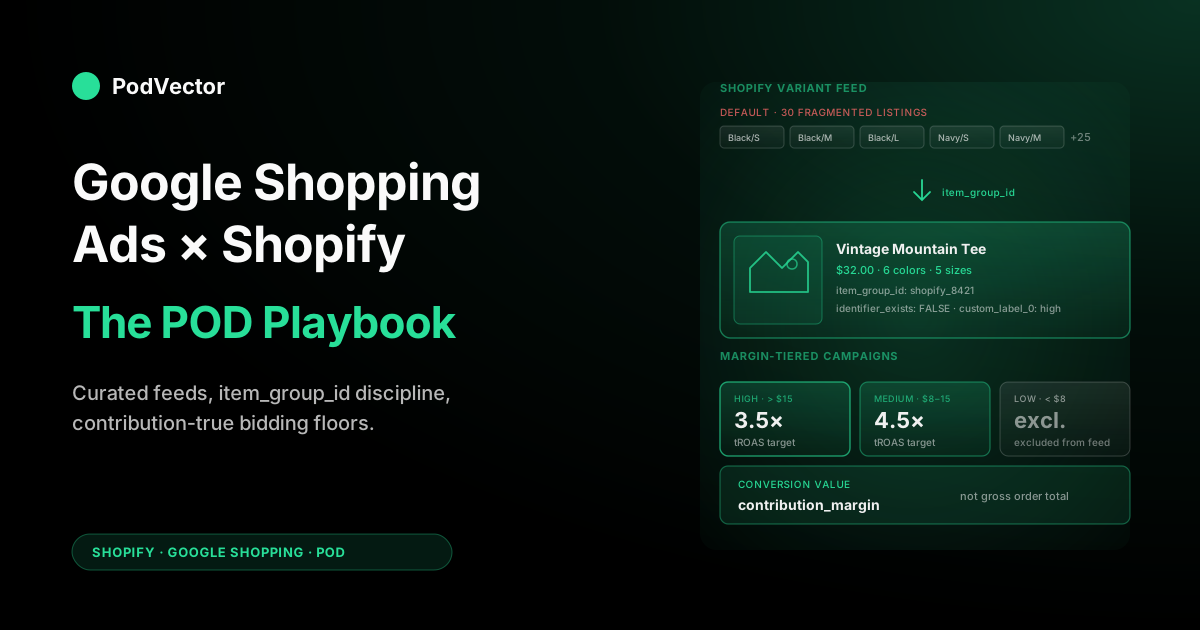
- Variant explosion. A single Printify hoodie design is one product on Shopify, but it has six colors and five sizes — 30 SKUs in the variant grid. The Google & YouTube app, configured for default sync, pushes all 30 to Merchant Center. Most won't sell. The few that do are buried under 25 zombie listings dragging your feed quality down.
- No GTINs. Printify and Printful blanks don't carry retail GTINs. Gildan does, technically, but the supplier-side fulfilment SKU isn't a consumer-grade barcode. Merchant Center's algorithms now flag GTIN-less apparel listings as lower trust, which compresses impression share unless you handle the field correctly.
- Reported revenue is gross, not contribution. When a $32 Printify shirt sells, Shopify reports $32 in revenue and Google reports a conversion worth $32. But Printify charged you $14 for the blank and print, $5.50 for shipping, and $1.40 in payment processing. Your real contribution is $11.10 — and that's the number you need to feed into bidding decisions, but neither Shopify nor Google does it for you.
The strategic takeaway: every Shopify-specific tutorial you'll read is correct in mechanics and wrong in economics for a POD seller. This article walks through both layers — the Shopify-Merchant Center plumbing as it actually exists in 2026, and the POD-specific overlays that keep you profitable while you scale. For the platform-agnostic version of this argument (the same POD economics, applied to ecommerce broadly), see our Google Shopping Ads for ecommerce strategy for print-on-demand guide; it's the sibling to this one in the Google Ads topic hub.
How the Shopify ↔ Merchant Center ↔ Google Ads stack actually works
Three accounts, three systems, one feed flowing between them. Most operators muddle the layers and end up unable to debug when impressions die.
Shopify holds your products and variants. Each variant has a price, an inventory state, a Shopify product ID, and (for POD stores) is linked back to a Printify or Printful catalog item that holds the supplier cost. Shopify is the source of truth for what you sell; Merchant Center never sees Printify's cost.
Google Merchant Center is the catalog Google ranks. It receives a feed of products from Shopify (via the Google & YouTube app or a third-party connector), runs each item through quality, policy, and content review, and assigns each one a status: Approved, Approved with warnings, Disapproved, or Pending.
Only Approved items can serve in Shopping Ads. Merchant Center is also where Google calculates feed-level quality signals that influence your auction performance even before Google Ads opens its mouth.
Google Ads is the bidding and reporting layer. Campaigns reference Merchant Center products and decide which queries to compete on, how much to bid, what creative to assemble (in Performance Max's case), and how to report performance back. Google Ads never queries Shopify directly — everything it knows about your products came through Merchant Center.
The data flow most operators don't visualise:
- Shopify pushes product data to Merchant Center on a schedule (typically every 30 minutes via the Google app).
- Merchant Center scans the feed continuously; status changes ripple into Google Ads within an hour.
- Google Ads serves ads based on the current Merchant Center state; click and conversion data flow back to Google Ads.
- Conversions tagged to specific products in Google Ads tell Performance Max which SKUs deserve more spend; this is closed-loop on revenue, but blind to your supplier cost.
Once you can see the loop, the optimisation question reframes from "how do I make Google Ads spend better" to "what data am I letting flow through this loop, and what should I be filtering or enriching at each step."
Installing the Google & YouTube app the right way for POD
The Google & YouTube app on Shopify is free, official, and the path of least resistance — but its defaults are wrong for POD. Three settings to change before you let it sync anything:
1. Don't enable "Sync all products." The default is to push every published Shopify product into Merchant Center.
For a POD store launching with 200 designs across 5 product types, that's 6,000–12,000 SKUs flooding the feed before you have any conversion data. You'll burn through Merchant Center's review queue, get half of them flagged for missing GTINs or low-quality images, and start with a tanked account-level quality score.
Instead, use Shopify's collection logic to sync only a curated set — typically your 20–40 best-mocking-up designs to start. You can add more later as data accrues.
2. Verify the product type taxonomy. Shopify's "Product type" field maps to Google's product category taxonomy, but Printify and Printful blanks often import with vague types like "T-Shirt" or no type at all.
Set "Apparel & Accessories > Clothing > Shirts & Tops > T-Shirts" explicitly via Shopify's bulk editor before sync. The taxonomy isn't optional; Google uses it as a hard filter for which queries your products are eligible to match.
3. Configure tax and shipping. The app pulls from Shopify's settings, but most POD stores have shipping configured for "Calculated at checkout" — which Merchant Center treats as missing data.
Set up a shipping table in Merchant Center directly with realistic flat rates (Printify charges $5.50 for a domestic tee; quote that as your shipping cost in Merchant Center, not zero). Misreporting shipping is the most common reason Shopify POD stores get suspended on Merchant Center within their first week.
If you've already installed the app on defaults and want to back out, don't disable it — that severs the connection and forces you to start the Merchant Center review process from scratch. Instead, use the app's "Manage" section to deselect collections and let the feed shrink naturally over the next sync cycle. This complete guide to Google Ads + Shopify integration for POD walks through the exact reset playbook, and Google's official Shopify integration documentation is worth reading once for the canonical setup steps.
Feed curation: the single most valuable hour of work
Once the app is installed and pushing products, your feed is full of items you should not be paying to advertise. The single highest-leverage hour of work in a POD Shopping campaign is curating what's in the feed before Google ever sees it.
The decision tree for each product:
- Has it sold organically in the last 60 days? If yes, include in feed.
- Does it have at least three distinct mockup angles in the product gallery? If no, exclude or fix the gallery first. Google penalises catalogs where the primary image is identical to dozens of other Printify stores'.
- Is the gross margin (price minus Printify cost minus shipping minus 3% processing) above $10? If no, exclude. With sub-$10 contribution per unit, no realistic Google Shopping CPA leaves you profitable; you need either a higher price or a different blank.
- Is it a duplicate of another design with a tiny variation? If yes, pick one, exclude the rest. Duplicate listings cannibalise each other's impression share and confuse Performance Max's optimisation signals.
Implementation on Shopify: use a tag like shopping-feed on products that pass the curation tree, then in the Google & YouTube app set the sync rule to "Only products tagged shopping-feed." This gives you one place — Shopify's bulk editor — to add and remove products from the campaign without ever touching Google. New designs default to off-feed; you opt them in once they've earned organic conversion data.
Why this matters more on Shopify than other platforms: Shopify's tag system + the Google app's collection sync rules give you the cleanest feed-control UX of any ecommerce stack. Most POD operators never use it because the default sync is one click and the curation work is invisible. The operators outranking you in Shopping results are quietly running 80-SKU feeds while their stores carry 800 products — that's not coincidence.
The GTIN problem on Printify and Printful blanks
Google's apparel quality model has, since 2024, treated GTIN as a strong trust signal. Apparel listings without a GTIN can still serve, but they get materially less impression share at equivalent bids — usually 20–40% less, by reasonable estimates from operator-side studies.
The catch for POD: the Gildan, Bella+Canvas, AS Colour, and other blanks Printify and Printful offer do have manufacturer GTINs, but those barcodes identify the wholesale blank, not your branded-and-printed retail product. Submitting them is technically incorrect and Google's review will sometimes flag the mismatch (the GTIN's registered brand name is "Gildan," your store's brand is "YourStoreName"; they don't match).
The pragmatic stack:
- Set the
identifier_existsattribute to FALSE for all POD apparel. This is Google's official escape hatch for products without consumer GTINs — you're explicitly telling Merchant Center the product is custom or branded enough that no industry GTIN applies. Shopify's Google app exposes this as a metafield calledgoogle.identifier_existson each product. - Strengthen every other attribute to compensate. Brand should be your store name (not "Gildan"). Product description should be 800+ words of unique copy, not the Printify default. The first product image should be a unique lifestyle render, not the bare mockup every other Printify store is pushing.
- If you have your own custom blanks (some operators run their own neck label and tag programs through Printify Pop-Up or DTG2Go), apply for a GS1 prefix and assign your own GTINs. This is overkill for stores under $10K monthly revenue; for stores at $50K+ it pays back inside a quarter.
The wrong move is leaving the field blank without setting identifier_exists=FALSE. Merchant Center will flag those listings with a warning, and warnings compound — three warnings on a feed of 200 listings drops your account quality measurably even though no individual listing is suspended.
Variant titles, color attributes, and the duplicate listing trap
Shopify's variant model causes a structural problem with Google Shopping that doesn't exist on other platforms. Each variant becomes a separate listing in Merchant Center, with its own product ID, title, and image. By default, Shopify constructs the listing title as [Product Name] - [Variant Color] / [Variant Size]. So one design ends up as:
- Vintage Mountain Tee - Black / S
- Vintage Mountain Tee - Black / M
- Vintage Mountain Tee - Black / L
- Vintage Mountain Tee - Navy / S
- ...and 26 more.
From Google's perspective these are 30 different products competing for the same query. Their click-through rates will be diluted across 30 listings, none of them building up enough conversion volume to graduate to Performance Max's smart bidding. Worse, Google's duplicate-content quality model can suppress all 30 if it judges them too similar.
The fix is a feed transformation rule. In the Google & YouTube app, you can override the default title template. Instead of including size in the title, drop it; instead of color in the title, send color via the dedicated color attribute and let Google handle variant grouping. Set:
- title:
{{product.title}} {{product.product_type}}("Vintage Mountain Tee Unisex T-Shirt") - color:
{{variant.option1}}("Black") - size:
{{variant.option2}}("Medium") - item_group_id:
{{product.id}}(groups all variants under one parent product so Google rolls them up correctly)
The item_group_id field is the critical one and the most commonly missed. Without it, Google treats every variant as an independent product.
With it, Google groups the 30 variants under one logical listing and concentrates click and conversion data accordingly. Conversion data concentration is what eventually unlocks meaningful Performance Max bidding — without item_group_id, you can run for six months and never accumulate enough data to graduate.
Standard Shopping vs Performance Max for a Shopify POD store
Google has been pushing all merchants toward Performance Max since 2022. For most ecommerce brands it's the right default. For a Shopify POD store in the first 90 days of running ads, Standard Shopping is almost always the better starting point.
Standard Shopping campaigns give you transparent control: you bid manually or with Target ROAS, you can see search query data, you can negative out queries that pull poor-fit traffic, and you can structure campaigns by margin tier or product type. The downside is that you're managing the optimisation work Performance Max would automate, which takes operator time you might not have.
Performance Max campaigns automate bidding and creative across Search, Display, YouTube, Gmail, Discover, and Maps. They optimise toward conversion value (revenue Google can see, which is your gross sales) using machine learning across signals you don't control.
They scale beautifully — once they have enough data. Without enough data, Performance Max is unstable and expensive: it'll burn budget on wrong-fit placements while it figures out what your customers look like.
The data threshold most operators cite is 30 conversions per month per campaign minimum, ideally 50+. A new Shopify POD store running its first $30/day Shopping campaign will hit 30 conversions in month two if everything goes well. That's the moment to graduate the proven SKUs to Performance Max — not before.
A pragmatic three-stage progression:
- Stage 1 (Days 1–30): Standard Shopping with Manual CPC bidding, $20–40/day budget, all curated feed products in one campaign. Goal is data collection, not profit. Expect to lose 30–50% of spend; your job is to identify which 5–10 SKUs convert.
- Stage 2 (Days 31–90): Standard Shopping with Target ROAS bidding, segmented by margin tier (high-margin and low-margin in separate campaigns with different tROAS targets). Add winning queries as exact-match keywords in a separate Search campaign. This is when ROAS becomes meaningful.
- Stage 3 (Days 91+): Performance Max for the proven 10–20 SKUs that have hit 30+ conversions individually. Keep Standard Shopping running in parallel for the long tail. Don't migrate everything to PMax — the long tail is where new winners emerge, and PMax suppresses learning for low-volume SKUs.
Reasonable defaults for the impatient: if you're tempted to start with Performance Max because it's what every guide recommends, run the curated-feed approach with a very small daily budget ($15–20/day) and accept that the first 60 days are a discovery cost. The complete guide to Google ad types for POD sellers walks through the full ad-type decision tree, including when Display, YouTube, and Demand Gen come into play, and the broader Ad Types cluster covers Meta and other paid surfaces — including the Meta ad types guide — for operators running multi-channel.
Bidding strategy when Shopify revenue is not your true revenue
The single most expensive mistake Shopify POD operators make on Google Shopping is using Target ROAS bidding against Shopify's reported revenue without supplier cost adjustment. Here's the math.
Suppose your store sells a Printify hoodie for $42. Printify charges $18 for the blank and print. Shipping is $5.50. Payment processing on Shopify is roughly 3% + $0.30, or about $1.56. Your contribution per sale is $16.94.
You set Target ROAS to 4.0 in Google Ads — a level that sounds aggressive. Google translates this to: "spend up to $1 in ads for every $4 in conversion value." Conversion value reported back from Shopify is the gross order total, $42. So Google will spend up to $10.50 in ads to acquire that order, and your contribution after ads is $6.44.
Now suppose Performance Max optimises down to 3.5× ROAS — still a healthy-looking number on the dashboard. Google spends $12 to acquire the same $42 order.
Contribution drops to $4.94. Drop to 3.0× and you're at $2.94.
At 2.5× you're at $0.14. At 2.0× you're losing money — but Google's dashboard shows a 2× ROAS, which most guides describe as "below target" rather than "fatal."
The bidding floor that actually keeps you profitable, expressed as ROAS, is (Sale Price ÷ Contribution) × Target Profit Multiple. For this hoodie:
- To break even on contribution: 42 ÷ 16.94 = 2.48× ROAS minimum. Below this, you're paying Google to lose money.
- For 30% net margin on contribution: 2.48 ÷ 0.7 = 3.54× ROAS.
- For 50% net margin: 2.48 ÷ 0.5 = 4.96× ROAS.
So when a generic Shopify guide says "set Target ROAS to 4.0 and forget it," that's coincidentally close to a 30% margin floor for this specific hoodie — but it's wildly wrong for a $24 mug with $9 supplier cost (where the floor is 2.7× minimum) or for a $58 sweatshirt with $26 supplier cost (where the floor is 3.0× minimum). Bidding the same Target ROAS across all SKUs guarantees you're either underbidding on some and missing volume, or overbidding on others and losing money.
The fix is segmenting campaigns by margin tier. The next two sections cover how to actually feed supplier cost into that decision.
Using Shopify metafields to feed supplier cost into bidding
Shopify supports custom metafields on products and variants — typed, structured data fields you define yourself. They're underused on most POD stores because the storefront UX doesn't surface them. For Google Shopping bidding, they're essential.
The setup:
- Create three product-level metafields:
custom.supplier_cost(number_decimal): the Printify or Printful cost for the lowest-cost variantcustom.shipping_cost(number_decimal): typical domestic shippingcustom.contribution_margin(number_decimal): calculated as price − supplier_cost − shipping − processing
- Use Shopify Flow or a metafields app to populate these from Printify's API on every product update. The Printify-Shopify connector exposes blank cost, but doesn't write it to metafields by default.
- Use the contribution_margin field as a custom label in the Google & YouTube app. Map it to
custom_label_0with bucketing rules: "high" if margin > $15, "medium" if $8–15, "low" if < $8.
Once custom_label_0 arrives in Merchant Center, you can split your Standard Shopping campaign by inventory filter: one campaign or ad group targeting custom_label_0 = "high", another targeting medium, and (if you bother to advertise low-margin SKUs at all) a third for low. Each gets its own Target ROAS appropriate to that margin band.
This is the single most leveraged data plumbing decision a Shopify POD store will make on the ad side. It takes 2–3 hours to set up and pays back inside the first month by stopping the worst over-bidding losses on thin-margin inventory.
Most store owners know about margin segmentation but never do it, because pulling Printify costs into Shopify, figuring out profit per variant, and mapping it into Merchant Center is fiddly. Victor can handle this for you if you connect Printify and Shopify. He pulls in your supplier costs automatically, so he can tell you the true profit on any product the moment you ask. But you don't need Victor to do this — you need the discipline to do it once, properly, with metafields.
Conversion tracking: the Shopify default isn't enough
The Google & YouTube app installs Google Ads conversion tracking automatically when you connect a Google Ads account. For most stores this is fine. For POD stores doing real money on Shopping, the default tracking has two limitations worth fixing.
Limitation 1: Conversion value defaults to gross order total. When a customer checks out, Shopify fires the conversion event with the gross order total as the value. Google's tROAS algorithm optimises against that number.
As established in the bidding section, that means Google is optimising against revenue, not contribution. Fixing this requires modifying the Shopify checkout's conversion script to pass contribution_margin as the conversion value instead of order_total. This is a custom theme change (or a Shopify Plus pixel configuration on Plus stores) — not a one-click app setting.
Limitation 2: No enhanced conversions. Google's enhanced conversions feature passes hashed customer email and phone to Google at conversion time, allowing them to match conversions to logged-in Google accounts and recover attribution otherwise lost to iOS privacy restrictions. Enabling this on Shopify requires either a Shopify Plus pixel or a custom Liquid edit to the checkout success page.
The lift is typically 5–15% more attributed conversions, which compounds because Google bids more aggressively for campaigns showing strong conversion volume. The Google Ads + Shopify integration guide covers the exact pixel setup.
If you're not on Shopify Plus, the Google & YouTube app technically supports enhanced conversions but only on a subset of themes. Verify in Google Ads > Tools > Conversions > Enhanced conversions whether the integration is "Active" rather than "Inactive." Most stores assume it's working because the app is installed; most are wrong.
Measuring what Google can't see
Google Ads will tell you ad spend, clicks, impressions, conversions, and conversion value. It will not tell you contribution per click, contribution per conversion, true CPA after supplier cost, or break-even ROAS by SKU. Those are the numbers you need to make any non-trivial budget decision, and the work to get them is not optional.
The minimum measurement stack for a Shopify POD store running Google Shopping:
- Daily: ad spend by campaign, total revenue (gross), total contribution (after Printify costs), contribution-based ROAS, contribution-based CPA. Track these in a spreadsheet, a dashboard, or let Victor pull your Google Ads and Shopify numbers together and show you the picture.
- Weekly: per-SKU contribution-based ROAS. Sort descending. Top decile gets bid increases; bottom decile gets paused or excluded from feed.
- Monthly: cohort-level lifetime value. New customers acquired via Google Shopping have different repeat-purchase profiles than email or organic; if you're bidding for first-purchase only, you'll under-spend on high-LTV cohorts and over-spend on one-and-done buyers.
The honest assessment of why most POD stores never reach this measurement maturity: it's six to twelve hours of analyst-grade work per week, and most one-or-two-person POD operations don't have it. The realistic path is either (a) a half-day weekly discipline running through queries in Sheets, (b) a connected analytics product, or (c) letting Victor take it off your plate — he already pulls together your Google Ads, Shopify and Printify numbers and shows you the real profit picture. That's what Victor at PodVector AI does for you.
Common Shopify-specific mistakes
Recurring mistakes from operator audits, ranked by how often we see them and how much they cost:
Mistake 1: Default sync of all products. Cost: opportunity cost of impressions wasted on listings that won't convert, plus account-level quality drag. Fix: tag-based feed curation as described above.
Mistake 2: Generic title format with size and color in the title string. Cost: 30 fragmented listings instead of one consolidated parent. Fix: title transformation rule + item_group_id setup.
Mistake 3: Conversion value = gross order total. Cost: bid algorithm optimising against a number that doesn't reflect your actual unit economics. Fix: theme-level conversion script modification to pass contribution.
Mistake 4: Same Target ROAS for all products. Cost: simultaneously over-bidding on thin-margin SKUs and under-bidding on high-margin SKUs. Fix: custom_label segmentation by margin tier.
Mistake 5: Migrating to Performance Max before earning enough conversion data. Cost: 30–60 days of unstable spend before PMax stabilises, often on wrong-fit placements. Fix: Standard Shopping until you've cleared 30 conversions/month per campaign.
Mistake 6: Ignoring shipping cost in Merchant Center. Cost: account suspension. Fix: configure shipping rates in Merchant Center directly, matching what Shopify charges at checkout.
Mistake 7: Not setting identifier_exists=FALSE on POD apparel. Cost: silent quality penalty on listings missing GTIN. Fix: bulk-set the metafield via the Google app or a metafields editor.
Mistake 8: Trusting Shopify's reported "Online Store Conversion Rate" as if it includes Google Ads. Cost: misallocation between channels. Fix: cross-reference Google Ads' own conversion reporting against Shopify; they will diverge by 10–25%, and Google is usually closer to truth for Shopping-attributed orders.
FAQs
Do I need a separate Google Ads account from Shopify, or does the Google & YouTube app create one?
The app creates a Google Ads account if you don't have one and links it to Merchant Center automatically. You can also link an existing Google Ads account during the app's setup flow — recommended if you've previously run Search ads, since you'll keep your conversion history. The accounts are separate; the app just brokers the connection between Shopify, Merchant Center, and Google Ads.
How long before I see meaningful results from Google Shopping on Shopify?
Days 1–7: ads start serving, traffic ramps. Days 7–14: first conversions accrue.
Days 14–30: enough data to identify which SKUs convert. Days 30–60: you can move from manual CPC to Target ROAS and see profitable scaling.
Days 60–90: Performance Max becomes viable for proven SKUs. Anyone telling you to expect a profitable first week is selling something — Google Shopping rewards data, and you don't have data on day one.
What's a realistic ROAS for a POD store on Google Shopping?
For low-margin POD products (mugs, basic tees with $5–8 contribution), break-even is typically 3.5–5× and profitable is 5×+. For mid-margin products (premium tees, hoodies with $12–18 contribution), break-even is 2.5–3× and profitable is 4×+.
For high-margin products (wall art, posters, all-over-print apparel with $20+ contribution), break-even can be as low as 2× and profitable starts at 3×. The right framing is always contribution-based, never gross.
Should I use the Google & YouTube app or a third-party connector like Adwisely?
The Google & YouTube app is free, official, and handles the basics well. Third-party connectors charge a monthly fee and offer extras like automated bid management, smarter feed transformations, and split-testing tools.
For stores under $20K monthly revenue, the official app is sufficient — your bottleneck will be operator time and feed strategy, not tooling. Above $20K monthly, a third-party tool can save you 5–10 hours of analyst time per week and start to pay for itself.
Can I run Google Shopping on Shopify if I'm dropshipping from Printify but shipping internationally?
Yes, but each target country needs its own Merchant Center feed (or one feed with multi-country targeting set up correctly), shipping configuration matching what Printify charges in that destination, and tax handling appropriate to the destination's VAT or sales tax rules. The Google & YouTube app supports multi-country setups but defaults to your primary market only. For most POD stores starting out, focusing on a single high-volume market (US for most) for the first 90 days is the right move.
How does Performance Max know which products are POD vs. inventory I hold myself?
It doesn't, and it doesn't need to. Performance Max optimises against conversion value reported back from your store.
The fact that fulfilment runs through Printify is invisible to it. What matters is whether the conversion value you're reporting reflects your actual contribution.
If it does (because you've configured contribution-as-conversion-value as covered above), Performance Max bids appropriately. If it doesn't, Performance Max optimises against gross revenue and over-bids on thin-margin SKUs.
Is it worth running Google Shopping if I'm already running Meta ads profitably?
Almost always, yes. Meta and Google Shopping serve different intent levels: Meta is interruption-based discovery (you appear in someone's feed who wasn't shopping), Google Shopping is intent-based capture (someone is actively searching for what you sell).
The customer profiles overlap less than you'd expect, and the channels frequently lift each other — Meta builds awareness, Google captures the search. Start small ($30–50/day) on Shopping while keeping Meta running unchanged.
Why does my Merchant Center keep showing "Approved with warnings" on items that look fine?
Common causes on Shopify POD stores: missing GTIN without identifier_exists=FALSE set; image URL not HTTPS; shipping cost mismatch between Shopify and Merchant Center; product description containing prohibited language (medical claims, exaggerated guarantees); product title over 150 characters. The warnings page lists the specific issue — it's worth fixing every warning, even though the listing technically still serves, because warning density affects account-level quality.
Stop guessing which Shopping campaigns are actually profitable
Victor connects to Shopify, Google Ads, and Printify in a few clicks and reports your true contribution-based ROAS by campaign, ad group, and SKU. Today: ask in plain English which products to scale, pause, or exclude. Tomorrow: Victor pauses the losers itself. And see your real Shopping economics inside an hour.
Try Victor free