
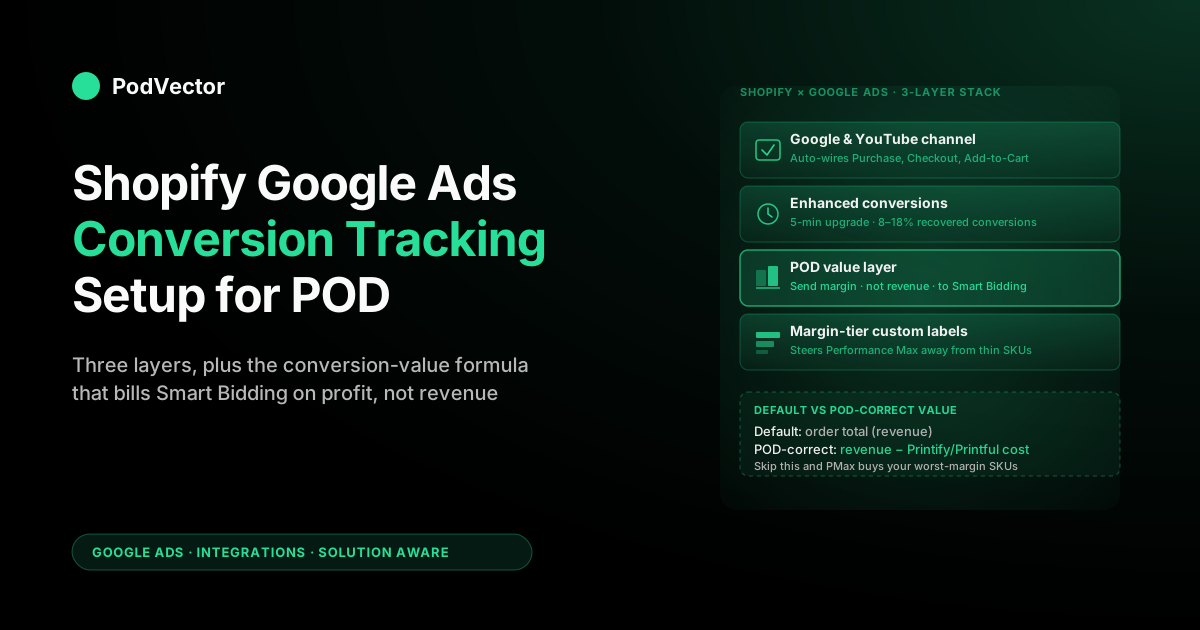
Quick Answer: Set up Shopify Google Ads conversion tracking by installing the free Google & YouTube channel app, linking your Google Ads account, and accepting the conversion actions it auto-creates — Purchase (primary) plus Add to Cart and Begin Checkout (secondary). Then enable enhanced conversions in the channel's settings. Total time: about ten minutes.
That default covers the wiring for most stores, but it sends Shopify's order total as the conversion value — not what you keep after Printify or Printful's supplier cut. This guide walks the full setup (channel app, manual Customer Events pixel, server-side, consent mode) plus the POD-specific value layer that makes Google optimize on contribution margin instead of revenue.
What Shopify Google Ads conversion tracking actually does
Conversion tracking is the feedback loop that tells Google Ads which clicks turned into the outcomes you care about — purchases, add-to-carts, started checkouts — so its bidding algorithm can spend more on the patterns that produce them and less on the ones that don't. On Shopify specifically, this loop runs through Shopify's Customer Events sandbox (a Shopify-managed iframe that fires pixels with lifecycle awareness) and then into Google Ads, where the events are matched back to ad clicks through the GCLID parameter and, with enhanced conversions enabled, hashed customer identifiers.
For a print-on-demand store, the conversion-tracking loop is the single highest-leverage system you'll set up, because every dollar of Google Ads spend is being optimized against whatever signal you send. Send revenue and Google will optimize for the highest-revenue SKUs — which on POD are systematically the worst-margin products (oversized hoodies, all-over-print sublimation, premium substrates).
Send contribution margin instead and Google optimizes for products you actually keep money from. The mechanical setup is the same either way; the value-configuration step is where most POD operators silently lose 15–35% of their potential ROAS.
If you're new to the broader Shopify + Google Ads stack, our complete guide to Google Ads + Shopify integration for POD covers the end-to-end architecture; this guide zooms in on the conversion-tracking sub-system specifically. If you want just the bare wiring with none of the profit layer, the shorter walkthrough on adding Google Ads conversion tracking to Shopify gets you live faster.
Prerequisites before you start
Before touching any setup, confirm three things. First, you have admin access to both your Shopify store and the Google Ads account you'll connect — not just "manager" access on Google Ads, but full admin rights, because the channel app's OAuth handshake creates conversion actions account-wide.
Second, your Shopify store is on a paid plan with checkout enabled (the dev/trial plans don't fire production-grade Customer Events). Third, you have a Google Merchant Center account, ideally already linked to Google Ads — Shopify conversion tracking technically works without Merchant Center, but Performance Max and Shopping campaigns require it, and you almost certainly want both running for POD.
One under-discussed prerequisite for POD specifically: have a clear, written list of your supplier cost per SKU before you start. The Printify or Printful base price plus print fees plus shipping for each variant. You'll need these numbers for the conversion-value step later, and trying to reconstruct them mid-setup is what causes operators to silently default to revenue-based tracking and never come back to fix it.
Method 1: Google & YouTube channel (recommended for POD)
The Google & YouTube channel app is Shopify's first-party integration, free, maintained by Shopify in collaboration with Google, and the right default for any POD store under roughly $200K MRR. Setup takes about ten minutes if you have your accounts ready.
Step 1: Install the channel app
From your Shopify admin, go to Sales channels → add channel → search "Google & YouTube" → install. The app installs as a sales channel, which means it appears in the same place as your Online Store, POS, and Shop channels in the left sidebar.
Step 2: Connect Google Ads
Inside the channel, click Get started, then Connect under the Google Ads section. You'll be redirected through Google's OAuth consent flow.
Sign in with the Google account that has admin rights on the target Google Ads account, grant permissions, and select which Ads account to link if you have multiple. The channel will then show "Connected" with the account ID displayed.
Step 3: Confirm the conversion actions Shopify created
Shopify automatically requests the creation of three conversion actions in your Google Ads account: Purchase, Begin Checkout, and Add to Cart. Per Google's own documentation for the channel, only Purchase is suggested as a primary action; the other two import as secondary. To verify, go to Google Ads → Goals → Conversions → Summary — all three should appear within 30 minutes of the channel link, with source "Shopify."
Why the primary/secondary split matters: the primary action is the only event Google's bidding algorithm optimizes against. Begin Checkout and Add to Cart exist for visibility and diagnostics.
Leave it that way for almost all POD stores; primary conversions should be the bottom-of-funnel event you make money on. Promoting Add to Cart to primary is a common rookie mistake that lets Google chase add-to-carts that never convert.
Step 4: Confirm Shopify Customer Events is firing the Google tag
Go to Settings → Customer events in Shopify admin. You should see a new pixel listed: "Google & YouTube" with status Connected.
The channel manages this pixel — you don't paste any code yourself. The pixel listens for Customer Events (product viewed, cart added to, checkout started, checkout completed) and forwards them to Google Ads with the conversion ID and label that match the conversion actions Google Ads created in Step 3.
What this default setup gets right and gets wrong for POD
Right: the wiring is correct, the conversion actions are properly categorized, the Purchase event includes a transaction ID for de-duplication, and a Google-supplied currency tag fires automatically. Wrong, specifically for POD: the conversion value sent on the Purchase event is the order total — i.e., what the customer paid you, before Printify or Printful takes their supplier cut. We'll fix that in the POD layer section below.
Method 2: Manual setup with Customer Events
The manual setup exists for stores that can't or won't use the channel app — typically because they're already invested in a custom GTM container, want fine-grained control over the event payload, or are running a non-standard checkout that the channel pixel doesn't handle correctly. For POD operators on standard Shopify checkout (which is the vast majority), the manual setup adds work without adding meaningful value over Method 1. Read this section if you have a reason; otherwise skip it, or see our companion guide to conversion tracking for Google Ads on Shopify for a second walkthrough of the same decision.
Step 1: Create a conversion action in Google Ads
Go to Goals → Conversions → New conversion action → Website. Enter your store domain.
Skip the "Scan website" option — for Shopify stores it usually returns no actions. Click "Add a conversion action manually" and configure: Goal = Purchase, Conversion name = Shopify Purchase (manual), Value = "Use different values for each conversion" (this is what lets us send real values per order), Count = One (one conversion per ad click — critical for POD because you don't want a multi-quantity cart inflating conversion count).
After saving, Google shows you a Conversion ID (AW-NNNNNNN) and a Conversion Label (a short alphanumeric string). Copy both — you'll paste them into the Customer Events pixel.
Step 2: Create a custom pixel in Shopify Customer Events
Settings → Customer events → Add custom pixel → name it "Google Ads (manual)." In the code editor, paste a JavaScript subscription to the checkout_completed event that loads gtag.js with your Conversion ID and then fires the conversion event with the label, the order total, the order ID as transaction_id, and the currency. Shopify's documentation has the exact subscription pattern; the key parameters to pass through are checkout.totalPrice.amount, checkout.totalPrice.currencyCode, and checkout.token as the transaction ID. Save and toggle the pixel to "Connected."
Step 3: Add the same pattern for secondary events
Repeat the conversion-action creation in Google Ads for Begin Checkout and Add to Cart (categorize them appropriately and leave them as secondary). In the same custom pixel, subscribe to checkout_started and product_added_to_cart events and fire the matching gtag conversion calls. Use unique conversion labels per event so Google can attribute correctly.
Building this yourself takes about 60 lines of code from start to finish, and it's fragile. If Shopify changes anything behind the scenes, your tracking can quietly stop working and you won't even know. The channel app keeps working through those changes for you.
Method 3: GTM server-side (when you actually need it)
Server-side tracking is the layer most agencies oversell to POD stores that don't need it. The honest test: do you actually need server-side GTM?
You need it if (a) you're processing more than roughly $50K/month in Google Ads spend, (b) you've hit measurable iOS conversion attribution loss in your reports, (c) you're running cross-domain customer journeys that browser cookies can't preserve, or (d) you have explicit consent-management requirements (UK/EU GDPR with strict consent gates) that the client-side pixel can't satisfy. For most POD operators between $5K and $50K monthly ad spend on a single Shopify domain, Shopify's own Customer Events server-side option (no separate GTM container needed) covers the same ground.
If you're inside one of those four buckets, the architecture is: Shopify Customer Events fires events to a server-GTM container hosted on your own subdomain (gtm.yourdomain.com), which then forwards enriched events to Google Ads via the Google Ads API. Stape and Addingwell are the two managed-hosting services most POD operators end up using; the DIY path on Google Cloud Run is technically possible but rarely worth the engineering hours. Budget $35–$120/month for the hosted container and $1,500–$4,500 one-time for setup if you're paying a vendor.
The reason this section exists in a setup guide is that getting Method 3 wrong creates worse data than not having it. If you're going to run server-side tracking, run it deliberately, with measurement-based justification, not because an agency mentioned it sounds important.
Enhanced conversions: the 5-minute upgrade everyone skips
Enhanced conversions improve attribution accuracy by sending hashed customer data (email, name, address) along with each conversion event. Google matches the hashes against its own logged-in user database, recovering conversions that the standard pixel loses to cookie blocking, cross-device journeys, and iOS Mail privacy.
For Shopify stores using the Google & YouTube channel, this is now a toggle inside the channel itself: open the app's Settings tab in Shopify admin and switch on enhanced conversions (you can also enable it during initial setup, or from the conversion action's Diagnostics tab in Google Ads). Shopify's channel handles the customer data hashing and forwarding automatically once you've enabled it.
For manual-setup stores, you'll need to add the customer data parameters to your gtag conversion call — checkout.email, checkout.shippingAddress.firstName, etc. — Google's gtag.js handles the hashing client-side before the data leaves the browser, so this is privacy-safe by construction.
Typical recovered conversions for a POD store after enabling enhanced: 8–18% lift on reported Purchase conversions inside 30 days, with a corresponding correction to reported ROAS. This is the single highest-ROI configuration change you can make to your tracking, takes five minutes, and roughly half of POD operators we've talked to never get around to it. Skip the rest of this guide before skipping this step.
Consent mode: the EEA/UK requirement that quietly drops conversions
Since March 2024, Google requires consent mode v2 for any store advertising to visitors in the European Economic Area or the UK. Without it, Google discards ad-personalization signals from those visitors — remarketing lists stop filling and reported conversions from those regions sag.
On Shopify the fix is configuration, not code. Go to Settings → Customer privacy, set up a region-targeted cookie banner (Shopify's built-in banner or a consent app like Pandectes or Consentmo), and the Google & YouTube channel passes each visitor's consent state to Google in consent-mode format automatically.
Two operator notes. If you only sell to the US, you don't need a banner for Google's sake — the requirement is region-triggered. If you do run one, expect a reported-conversion dip from EEA/UK visitors who decline; Google backfills part of that with modeled conversions once your account has enough volume.
The POD layer: fixing conversion value for variable supplier costs
This is the section that exists in no other Shopify Google Ads tracking guide and the section that determines whether your tracking actually serves POD economics. By default, every method above sends the order total as the conversion value. For a POD store, the order total is a misleading number — Printify or Printful takes a variable cut depending on which products were in the order, and your real economic outcome is the contribution margin (revenue minus supplier cost minus shipping minus payment processing), not the gross sale.
The mechanical fix has three layers, in increasing order of complexity and accuracy.
Layer A: Conversion value rules (the 80% solution)
Inside Google Ads, conversion value rules let you adjust the reported conversion value at attribution time. For a POD store with a stable supplier-cost ratio (say, every order on average has a 42% supplier cost as a percentage of revenue), you can set a value rule that multiplies all conversion values by 0.58 — effectively reporting contribution margin instead of revenue.
Bidding then optimizes against the corrected number. Setup: Google Ads → Tools → Conversions → Value rules → New rule → "All conversions" → Adjust value by 58%. Document the rule and revisit it quarterly as your product mix shifts.
This is the right starting point for most POD stores under 500 SKUs and gets you 80% of the way to optimizing on real margin. The downside: it averages across product mix, so promotional periods that skew the mix toward thin-margin SKUs will report inflated margin during the lag.
Layer B: Per-line-item value modification (the 95% solution)
For more accuracy, override the conversion value at fire time using the actual order line items. In a custom Customer Events pixel (this requires the manual approach in Method 2 or modifying a Stape server-side setup in Method 3 — the channel app's pixel is not editable), iterate through checkout.lineItems and compute true contribution margin per line: (price - supplier_cost - line_shipping - line_processing) * quantity. Sum across the order, send that sum as the gtag value parameter instead of checkout.totalPrice.amount.
The hard part is matching every product to its real supplier cost. For small catalogs, under about 200 variants, store owners try to store these costs in Shopify and have their tracking code look them up each time. Above that size, it gets messy fast and slows things down. Victor already pulls your Printify and Printful costs for every product before you even make a sale, so you don't have to build any lookup system to know your true costs.
Layer C: Conversion adjustments after the fact
If you missed Layer B at fire time, you can still correct conversion values after the order has been placed using the Google Ads conversion adjustment API. This sends an "adjust" call referencing the original order ID and the corrected value.
This is handy for fixing old numbers when supplier prices change or your records need cleaning up. Most store owners skip this because it takes real technical work to set up on your own. Victor already has your order data synced, so he can send these corrections to Google Ads for you with your approval.
Whichever layer you implement, the goal is the same: the bidding algorithm needs to optimize against profit, not revenue, or it will systematically push spend toward your worst SKUs. This is the same dynamic our Google Ads agency comparison identifies as the single biggest reason generalist agencies underperform on POD accounts.
Custom labels: feeding margin back into Performance Max
Conversion value tracking handles bid optimization. The companion piece is product feed segmentation, which determines what Google's optimizer is allowed to spend on in the first place. Performance Max and Shopping campaigns optimize at the product-group level, and the most useful grouping dimension for POD is contribution-margin tier — high-margin SKUs (typically embroidered apparel, posters, mugs) belong in different asset groups than thin-margin SKUs (oversized hoodies, all-over-print sublimation).
The mechanism is custom labels in your Merchant Center feed. The Google & YouTube channel populates the standard product fields from Shopify automatically but doesn't ship custom labels — you supply them.
The cleanest pattern: in Shopify, set a metafield called margin_tier on each product (values: tier_1_high, tier_2_mid, tier_3_thin), then map that metafield to custom_label_0 in the Google channel's feed configuration. In Google Ads, build asset groups for Performance Max that filter by custom_label_0 == tier_1_high or whichever tier you want to push spend toward.
This converts the Performance Max black box into a system you actually steer. Without custom labels, PMax pushes spend toward whatever SKUs have the most clicks-to-conversion velocity, which on a POD catalog reliably correlates with the cheapest-list-price products — i.e., the worst-margin ones. With margin-tier labels, you can cap spend on tier 3 and let tier 1 absorb the saved budget.
Verifying it works (the only three checks that matter)
Most setup guides list eight verification steps. Three of them actually matter for POD:
Check 1: Place a real test order with a real card
Use Shopify's "Bogus Gateway" only as a smoke test — it doesn't reliably trigger all of Shopify's order tracking. The actual verification is a real card transaction (you can refund yourself afterwards) on the live store, after which you should see (a) the order in Shopify admin, (b) the corresponding Purchase conversion in Google Ads → Conversions → Diagnostics within 3 hours, and (c) the conversion value matching what you expect after your value adjustments are applied.
Check 2: Run Google Tag Assistant against a real ad click
Install the Tag Assistant Chrome extension. From your Google Ads account, click one of your live ads (or use Ad Preview → click through).
Tag Assistant should show: Google Tag fired on the destination page, Conversion Tag fired on the thank-you page after a test purchase, conversion ID and label matching what's in Google Ads. If it doesn't, you have a tag-firing problem before you have a value problem.
One caveat that trips people up: Shopify runs checkout pixels inside a sandboxed iframe, so Tag Assistant and GTM preview often can't see checkout-stage events even when they're firing correctly. If storefront tags fire but checkout events look missing, trust the Google Ads Diagnostics tab over the browser extension.
Check 3: Reconcile conversion value vs your real contribution margin weekly for the first month
Pull a week of orders from Shopify, compute true contribution margin from Printify/Printful supplier exports, and compare against the conversion value Google Ads reported for the same orders. If the gap is more than 5%, your value adjustment is mis-calibrated.
This is the single check that distinguishes "tracking is set up" from "tracking is correct," and it's the one that takes the most ongoing discipline. The good news: once you've automated the supplier-cost-to-Shopify-metafield sync, the reconciliation runs as a weekly diff query rather than a manual export.
Troubleshooting the four POD-specific failure modes
Failure 1: Conversion count looks right, conversion value is wrong
This is almost always a value-rule misconfiguration or a stale supplier-cost mapping. If you're using value rules and they're applying account-wide instead of per-conversion-action, every event (including Add to Cart) is being adjusted, which double-discounts. Scope the rule to the Shopify Purchase conversion action specifically.
Failure 2: Reported conversions in Google Ads are way lower than orders in Shopify
Three causes in order of likelihood: enhanced conversions not enabled (8–18% loss), GCLID not being preserved through your checkout (rare on Shopify standard checkout, common on apps that rewrite URLs), or the Customer Events pixel set to "Permission required" with no consent banner that ever grants permission. Check enhanced conversions first.
Failure 3: Performance Max is spending heavily on a single SKU you know is unprofitable
Either your conversion value is being sent as revenue (PMax sees the SKU as high-revenue and rewards it) or you have no custom labels and PMax has no signal that the SKU is in your thin-margin tier. Fix in this order: enable margin-tier custom labels, add the SKU to a tier 3 asset group, set lower target ROAS for tier 3, exclude entirely if it's chronically loss-making.
Failure 4: Conversion lag is making everything look bad week-over-week
Google Ads attributes conversions to the click date, not the conversion date. For POD with relatively short consideration cycles (1–7 days typically), 30-day attribution windows mean recent weeks always look worse than they ultimately will. Our explainer on how Google Ads attribution works for POD sellers unpacks the windows and models behind this.
The fix is process, not configuration: report on weeks that are at least 14 days old and use real-time reports only directionally. The same dynamic applies to campaign-level performance assessment generally.
FAQs
Do I need both the Google & YouTube channel and a manual GTM setup?
No. Pick one. The channel app handles standard Shopify checkout; manual GTM only adds value when you have specific custom requirements the channel can't meet. Running both creates double-counting and is one of the most common diagnostic finds in POD account audits.
Will conversion tracking work on Shopify Plus differently than on standard Shopify?
The Google & YouTube channel works identically across plans. Shopify Plus adds checkout extensibility (pre-Checkout Extensibility, "checkout.liquid" customizations) that can interact with conversion tracking, but for the standard Customer Events sandbox the behavior is the same.
How long until conversion data starts appearing in Google Ads after I set this up?
Roughly 24–72 hours for the first conversion to be reported, longer if you're testing on a low-traffic store. For statistically meaningful campaign performance signal, expect 7–14 days. The "conversions are firing correctly" check (Tag Assistant + a test order) gives you the real-time confidence; the "campaigns are optimizing" outcome takes a couple of weeks.
Does enhanced conversions hurt customer privacy?
The customer email and name are SHA-256 hashed in the browser before they leave the page. Google receives the hash, not the underlying data, and uses the hash for one purpose (matching against logged-in Google accounts that opted into the matching). This is the same hashing standard used by Meta CAPI and the major server-side conversion APIs and is generally considered GDPR-compliant when paired with appropriate consent management.
What's the difference between a primary and secondary conversion action and which should Add to Cart be?
Primary conversion actions feed Google's bidding algorithm — Smart Bidding optimizes against them. Secondary actions are for visibility only. Almost every POD store should have only Purchase as primary; promoting Add to Cart to primary trains the algorithm to optimize for cart adds that may never convert, which is a cost trap.
Can I track conversion value in profit instead of revenue out of the box?
Not out of the box, no. Default conversion value is order total. Profit-based reporting requires either a value rule (Layer A above), a per-line-item modification at fire time (Layer B), or post-hoc conversion adjustments via the Ads API (Layer C). Layer A is enough for most operators and takes 10 minutes to configure.
Does this setup also handle Performance Max and Shopping campaigns or only Search?
It handles all three. The conversion actions you create in Google Ads are global to the account and feed into all campaign types. Performance Max specifically benefits the most from accurate value tracking because its optimization is more aggressive and less interpretable than Search, so a mis-configured value sends it sideways faster.
Should I also import my Shopify customer list into Google Ads (Customer Match)?
Yes, once tracking is stable. Customer Match uploads your hashed customer emails to Google Ads as a first-party audience you can target, exclude, or use for lookalike-style expansion — increasingly valuable as third-party cookies fade. For POD, the highest-leverage use is excluding recent purchasers from prospecting campaigns so you stop paying to re-acquire customers who just bought.
What's the right cluster of articles to read after this one?
If you've completed setup and are now looking at how to interpret what the conversion data is telling you about ad performance, the natural next read is the Google Ads Integrations cluster hub for adjacent setup topics, plus the broader Google Ads topic hub for strategy, ROAS, and ad-type guides. The complete Google Ads + Shopify integration guide is the architectural pillar above this setup tutorial. For attribution specifically, see how Google Ads attribution interacts with email and organic channels, and for an alternate angle on the setup itself, the Google Ads conversion tracking on Shopify setup guide.
Where is the official documentation for this setup?
Google's help page on conversion tracking with the Google & YouTube app on Shopify is the authoritative reference for the channel-app behavior and is worth reading once for vocabulary alignment. It does not cover any of the POD-specific value layer above, which is why operators following only the official docs end up with revenue-based bidding and the corresponding margin leak.
Tracking tells Google what to optimize. Victor does the optimizing — with your approval.
Once conversions are firing, someone still has to act on them. Pause the campaigns bleeding margin. Shift budget to the SKUs that keep money after Printify and Printful costs. Keep value rules and feed labels current as supplier prices move.
Victor is an AI employee that connects to your Shopify, supplier, and Google Ads accounts, proposes each of those moves with the numbers behind it, and executes only after you approve.
Try Victor free