
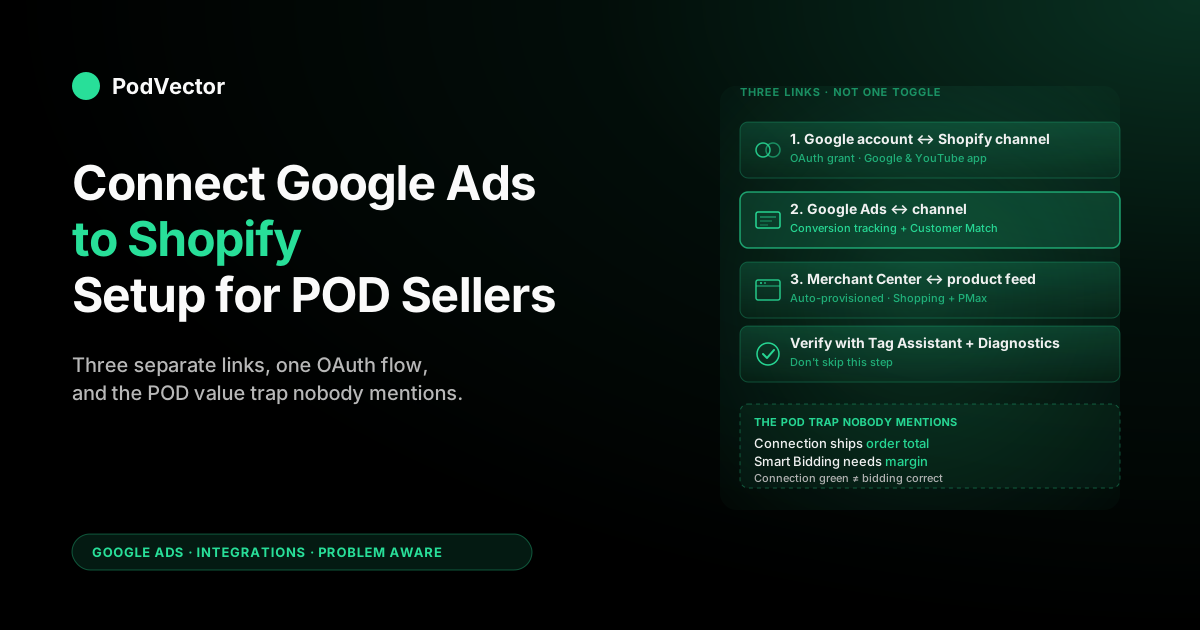
Quick Answer: "Connecting Google Ads to Shopify" is actually three separate links you have to make, and most setup guides blur them together. You're linking (1) a Google account to the Shopify Google & YouTube channel for app-level OAuth, (2) a Google Ads account to that channel for conversion tracking and Customer Match, and (3) a Google Merchant Center feed for Shopping campaigns.
The standard 2026 path takes 15–25 minutes through Sales channels → Google & YouTube → Connect Google Account → link Google Ads → auto-create Merchant Center. POD-specific reality: once it's live, the conversion value Shopify ships to Google Ads is order total, not contribution margin after Printify or Printful supplier costs — so a setup that's "working" by Shopify's standards still feeds Smart Bidding the wrong number until you address the value layer separately. This guide covers the connection itself, the verification, and the POD trap nobody else mentions.
What "connecting" actually means (three links, not one)
The phrase "connect Google Ads to Shopify" hides a small ambiguity that derails maybe a third of POD operators on their first attempt. There is no single "Google Ads ↔ Shopify" toggle. Behind the marketing language are three separate connections, each created in a different screen, each authorising different data flows, each with its own failure modes:
- The Google account ↔ Shopify channel link. An OAuth grant where Shopify's Google & YouTube channel app gets permission to read your Google profile and write to Google's advertising APIs on your behalf. This is the foundation; everything else builds on it.
- The Google Ads account ↔ Shopify channel link. A second authorisation telling Shopify which Google Ads account (you may have several) to push conversion-tracking tags into and read campaign metrics from. Without this, Smart Bidding has no purchase signal from your store.
- The Google Merchant Center ↔ Shopify product feed. A daily-or-faster product feed sync that pushes your Shopify catalog to Merchant Center so it can show up in Google Shopping and Performance Max. Merchant Center is auto-provisioned by the channel app on first connect, but the feed sync has its own status indicator.
Most POD operators only need all three when running Shopping or Performance Max campaigns. If you're running Search-only Google Ads campaigns to a Shopify landing page, you need links (1) and (2) but not (3).
If you've inherited a setup where Shopping campaigns "stopped working overnight," it's almost always a quietly broken link (3) — Merchant Center feed disapproved, account suspended, or sync error — while links (1) and (2) still report green. We come back to that in the troubleshooting section.
This guide walks all three connections in the standard order, then covers the POD-specific layer above the connection itself. If you're already past the connection stage and the question is what to track, jump to what to track once the connection is live. If your connection is "working" but Smart Bidding is making strange decisions, the answer is almost certainly in the POD value trap section.
Prerequisites before you start
Six things should be true before you open Shopify admin to start the flow. Skipping any of them will produce errors mid-way through the OAuth handshake that look like Shopify problems but are actually Google account-state problems:
- A Shopify store on a paid plan. The Google & YouTube channel app installs on Basic and above. Trial stores can install it but conversion tracking won't validate until billing is active.
- Admin permission on the Shopify store. Staff accounts with Sales channel permissions can install the channel app but cannot complete the Google account link — the OAuth callback requires admin to write the persisted credentials.
- A Google account that owns (not just manages) a Google Ads account. If you're a freelancer or agency operator with manager-level access via MCC to your client's Google Ads, you'll need either the client's account-owner login or a delegated admin role on the underlying Google Ads account, not just MCC.
- Customer Data Terms accepted in Google Ads. Admin → Account access → Account settings → Customer data terms. Skipping this means conversion tracking installs but enhanced conversions and Customer Match will be greyed out, which forces a return trip later.
- Privacy policy that mentions advertising-data sharing. Most Shopify default privacy policies cover this. Verify yours has language like "we may share data with advertising partners for measurement purposes" — without it, EU/UK/CA traffic has compliance ambiguity.
- Products published to the Online Store sales channel. Google Merchant Center won't accept a feed of unpublished or draft products. If your catalog is still in staging, the feed will be empty and Merchant Center will throw a "no products" warning even though the connection is technically established.
One under-discussed POD prerequisite: confirm your supplier-side setup is finalised before you connect Google Ads. Specifically, that your Printify or Printful product templates have correct production cost values populated. The reason matters in the POD trap section, but the short version is that if you connect Google Ads first and finalise costs second, you'll spend a week training Smart Bidding against a value signal you're about to change.
Step 1: Install the Google & YouTube channel
From Shopify admin, click the green plus icon next to "Sales channels" in the left sidebar → search "Google & YouTube" → Add channel → Add sales channel → accept the permissions prompt. The app is free, owned by Google (not a third-party developer), and is the supported integration path. Avoid third-party "Google Ads" apps in the Shopify App Store unless you have a specific reason — most are wrappers around the same official APIs with a markup, and a few introduce additional pixel layers that conflict with the channel-app pixel and create double-counting.
Installation takes about thirty seconds. When it completes, the channel appears in the left sidebar under Sales channels and the channel admin page opens to a setup wizard.
The wizard is what walks you through Steps 2 through 4. It's worth completing the wizard end-to-end on first install rather than partial-completing and coming back later — the channel state machine is unforgiving about partial progress, and operators who close the tab halfway through often end up with a half-linked account that requires uninstalling the channel and reinstalling to recover.
Step 2: Connect your Google account
Inside the channel admin page, the first wizard step is "Connect a Google account." Click Connect → OAuth pop-up → choose the Google account that owns your Google Ads or sign in if it's not on the device. Grant the permissions Shopify requests (read profile, manage Google Ads conversion tracking, manage Merchant Center, read YouTube channel). Then return to Shopify; the wizard advances automatically once the OAuth callback completes.
If the OAuth pop-up closes without returning to the wizard, the most common cause is browser pop-up or third-party cookie blocking. Safari and Brave with default settings block the postMessage callback that completes the handshake; Chrome and Firefox with default settings allow it.
If you're on Safari/Brave, either disable the pop-up blocker for shopify.com for the duration of setup, or do this step in Chrome and switch back afterwards. The connection persists across browsers once established.
One subtle gotcha: the Google account you connect here becomes the default identity Shopify uses for all subsequent Google product connections (Ads, Merchant Center, Analytics if you also run that). Choose carefully. Connecting your personal Gmail when you'll later want the team's shared @company.com account means uninstalling and reconnecting later, which forces re-verification of the Merchant Center feed and a fresh 24–72-hour Customer Match warm-up window.
Step 3: Link the Google Ads account
The wizard's next step is "Conversion measurement" or "Set up Google Ads" depending on which version of the channel UI Shopify has rolled out to your store (the wording has changed three times in 2025 alone; the function is identical). Inside that step, you'll see a section labelled "Your Google Ads account" with a Connect button.
Click Connect → the channel queries Google for all Google Ads accounts your connected Google account has access to → pick the right one. If you have multiple Google Ads accounts (separate dev/prod, separate brands, an MCC across clients), make sure you pick the customer ID matching the campaigns you want this Shopify store's conversions to flow into. The dropdown shows account names but if you've named them poorly, cross-reference the customer ID (the 10-digit number) against the one shown at the top of your Google Ads UI before confirming.
Once you confirm the link, Shopify creates four conversion actions inside Google Ads automatically: Purchase, Begin Checkout, Add to Cart, and Page View. Purchase is set as the primary action and the default for Smart Bidding optimisation; the rest are recorded as secondary actions.
Customer Match is also turned on automatically — it imports your Shopify customer list (hashed) into Google Ads as an audience for retargeting and lookalike modelling. There's an "Allow Customer Match" toggle if you need it off for compliance reasons; for most U.S.-based POD stores, leave it on.
The four-conversion-action default is fine for the connection itself but it isn't tuned for POD economics. Two adjustments worth making once the link is established (covered in detail in our Shopify Google Ads conversion tracking setup guide): switch the Purchase conversion's "count" setting to "every" rather than "one" if your POD catalog has repeat customers (it does), and verify the conversion value field is mapped to {{purchase_total}} rather than left at a fixed default — a surprising number of channel-app installations land with conversion value at $1.00 because of a Liquid binding error, and Smart Bidding spends two weeks optimising against zero meaningful signal before anyone notices.
Step 4: Provision Google Merchant Center
If you'll run Shopping or Performance Max campaigns (most POD stores will, eventually), the channel wizard's next step is the Merchant Center setup. The channel auto-creates a Google Merchant Center account associated with your connected Google account and links it to your Shopify store domain.
You don't go to merchants.google.com to create the account — Shopify handles the create-and-link in one operation. If you already have a Merchant Center account on a different Google login, the channel offers to either link to the existing account (if your connected Google account has admin access there) or create a new one.
Once Merchant Center is provisioned, the channel begins syncing your product catalog. The first sync takes 1–24 hours depending on catalog size — POD stores with 50–500 SKUs typically see initial sync complete in under two hours; stores with 5,000+ designs across multiple product templates can take a full day. Sync status shows on the channel's Overview tab as "X products synced, Y errors, Z disapproved."
The "disapproved" count is where POD stores usually hit their first real friction. Common POD-specific disapproval reasons in 2026:
- Image quality. Merchant Center wants 800x800 minimum; many older Printify product templates use 600x600 mockups that fail the check. Fix in your Printify product publish settings, then trigger a manual feed re-sync from the channel.
- Pricing inconsistency. If your variant prices don't match between the Shopify product page and Merchant Center (most often because of a manual override on a sale price that's outside the Shopify Compare-at-price flow), Merchant Center disapproves the entire variant set.
- Trademark and IP. POD designs invoking sports teams, celebrities, or trademarked phrases will be disapproved on the IP-violation rule. The disapprovals are SKU-level; the rest of your catalog is unaffected.
- "Editorial issue." Merchant Center's catch-all category for "we can't tell exactly what's wrong but something looks off." Usually resolves in 24 hours after a re-sync. Persistent editorial issues require opening a Merchant Center support case.
The connection itself is established whether or not the feed has approved products. Disapprovals don't block conversion tracking on Search campaigns. They only block Shopping/Performance Max from showing those specific SKUs.
Step 5: Verify the conversion pixel is firing
Connections established, the question becomes whether the Purchase conversion is actually firing. This is the step most often skipped, and it's the one that most often catches a silently broken setup before two weeks of bidding waste accumulate.
Three checks, in order of escalating effort:
Check A: Shopify channel diagnostics
Inside the Google & YouTube channel admin → Settings → Conversion tracking. The status should show "Connected: receiving data" within 24 hours of your first real (non-test) order placed via Google Ads click. If it still shows "Connected: not receiving data" after 48 hours and you've had Google Ads clicks that converted, escalate to Check B.
Check B: Google Tag Assistant on a real order
Install the Google Tag Assistant Chrome extension. Place a small live test order through your store. Use a $1 product and refund yourself afterward. A fake credit card number won't work here — the order has to actually show as "paid" for Shopify to send the full conversion data to Google.
On the order-confirmation page, open Tag Assistant. You should see: a Google Tag firing, a Google Ads Conversion event with the conversion ID matching your Google Ads account, conversion value populated, and (if you've also enabled enhanced conversions) a green indicator showing user_data attached. Any of those missing means the pixel is firing partially and you're missing data Smart Bidding needs.
Check C: Google Ads Diagnostics tab
Goals → Conversions → click into your Shopify Purchase conversion action → Diagnostics tab. After 72 hours of data, you should see "Receiving conversions" with no flagged warnings. The most common warnings on a fresh POD setup: "Tag firing on multiple domains" (your test environment is also pixeling, fix by restricting the conversion tag to your production domain), "Inconsistent value" (you have variant prices flowing through that round to non-currency-aligned values, usually from currency-conversion rounding), or "Low volume" (you simply haven't had enough conversions for the Diagnostics to make claims, which is fine for a brand-new setup).
Alternative: connecting via Google Ads Data Manager
The reverse path — starting from Google Ads and reaching out to Shopify — also exists, and Google has been promoting it more aggressively in 2026 as Data Manager matures. Inside Google Ads → Tools → Data Manager → Connected products tab → scroll to "Featured products" → click Search all → find Shopify → Details → Link Shopify. This kicks off the same OAuth and channel-installation flow as the Shopify-first path but managed from the Google Ads side.
The functional difference between the two paths is small. The Data Manager path is slightly faster for operators who already live in Google Ads day-to-day and find Shopify's channel UI slow to navigate.
One thing changed under the hood in 2026 regardless of which path you pick: conversions now import server-to-server through Data Manager, not just through the browser pixel. When you complete the link, Google's docs describe your Shopify conversions as "automatically imported to your Google Ads account via Data Manager" — a server-side feed that runs alongside the on-page tag and de-duplicates events so a single purchase isn't counted twice. The practical upside for POD operators: conversions still register when a buyer blocks cookies, uses Safari/Brave with tracking prevention on, or bounces between devices, which on a typical POD audience recovers a meaningful slice of conversions the browser pixel alone would have dropped. The catch worth knowing: at launch the server-side path only carries the Checkout completed (Purchase) event — Add to Cart and Begin Checkout still rely on the browser tag — so don't assume every funnel-stage action benefits from the server-side resilience.
The Shopify-first path gives you better visibility into Merchant Center status during setup. Both end at the same persistent state. Pick whichever matches the tab you have open.
Where the two paths diverge meaningfully: Data Manager assumes you already have Customer Data Terms accepted, the Google account chosen, and admin permission on the Google Ads account. The Shopify-first path is more guided for first-time setup. If this is your first Google Ads + Shopify connection ever, prefer Shopify-first; if it's your fifth, Data Manager is faster.
The POD value trap (read this even if everything is green)
This is the section that exists in no other "Connect Google Ads to Shopify" guide and the reason this article is written for POD specifically. Once the connection is live and conversions are firing, the data flowing into Google Ads consists of: a Purchase event, attributed to a click, with a value field set to the order total. That last word is where POD economics break the standard setup.
Order total is what the customer paid you. It is not what you kept.
A $52 hoodie sold through Printify clears roughly $19 of contribution margin after Printify's blank cost, the print fee, the shipping you absorb, and Shopify's payment processing. A $24 mug clears roughly $11.
A $74 all-over-print sweatshirt that looked great in your bestsellers report clears about $22 because the substrate cost is what it is. Smart Bidding, fed order totals as the conversion value, sees the $52, $24, and $74 outcomes and optimises spend toward whichever ad groups produce the highest aggregate revenue.
On a POD catalog, that systematically pushes spend toward the highest-list-price products, which are systematically the worst-margin products. The connection is "working." Your bidding is being trained on the wrong number.
The fix lives in the value layer, not the connection layer:
- Layer A (the 80% solution). A Google Ads conversion-value rule that multiplies all conversions by your average margin ratio. If your blended contribution margin across the catalog is 38%, a value rule of 0.38 applied to the Purchase conversion gets Smart Bidding into roughly the right neighbourhood. Coarse but effective.
- Layer B (the 95% solution). This method adjusts the value for each item in the order. It pulls the real supplier cost for every product straight from your Printify or Printful account, then sends your profit — not your full sale price — as the conversion value. It takes more setup, but it's much more accurate.
- Layer C (the 99% solution). Post-hoc conversion adjustments via the Google Ads API, where after each Printify/Printful invoice reconciles, your warehouse pushes a corrected conversion value to Google Ads with the actual contribution margin including refunds, returns, and reprints. This is the picture closest to the truth, the one Smart Bidding on a Target ROAS strategy actually deserves.
The full implementation of all three layers is covered in our Shopify Google Ads conversion tracking setup guide. The point of mentioning it here is that the connection setup you just completed is necessary but not sufficient. A POD store running with the default channel-app value mapping is, in our experience advising clients, leaving 15–35% of effective ad spend on the table compared to one that has even Layer A in place.
What to track once the connection is live
The standard four conversion actions Shopify creates (Purchase, Begin Checkout, Add to Cart, Page View) are the metric floor. For a POD store, the metrics that actually predict outcome require pulling threads from three systems — Google Ads campaign data, Shopify order data, and your Printify/Printful supplier dashboard. Specifically:
- True ROAS by campaign, after supplier cost. Reported ROAS is revenue divided by ad spend. True ROAS is contribution margin (revenue minus supplier cost minus shipping minus processing) divided by ad spend. The two diverge by 50–150% on a POD catalog. Tracking true ROAS requires joining Google Ads campaign attribution against Shopify order line items against Printify/Printful per-SKU costs, which doesn't happen by default in any of the three dashboards.
- Customer acquisition cost net of repeat-purchase value. CAC by campaign as Google Ads reports it is ad spend divided by new-customer conversions. Net CAC after the second-order revenue from those same customers (which arrives 30–90 days later) is the number that matters for whether a campaign is sustainable. Most POD stores under-spend on campaigns whose surface CAC looks bad but whose net-of-LTV CAC is excellent.
- SKU-level Performance Max behaviour. Performance Max is a black box by design. Asking "which products is Performance Max actually pushing budget toward" is a legitimate question with no native answer in the Google Ads UI. The Performance Max Insights report is the closest thing and it's deliberately aggregated. Operators who spend $5K+/month on Performance Max benefit substantially from a layer that joins PMax product-listing impressions against Shopify variant-level revenue and Printify SKU-level cost.
- Cross-channel attribution overlap. If you run Google Ads alongside Meta or TikTok, both platforms claim credit for any conversion either touched, and the sum of platform-reported revenue often exceeds your actual Shopify revenue by 30–60%. Reconciling that overlap requires a cross-channel attribution view that doesn't live in any single platform's UI.
For solo POD operators, building the data infrastructure to answer those questions in-house is unrealistic. For the next year of operating a POD store profitably on Google Ads, the meaningful split isn't between operators with good and bad campaign settings — it's between operators with end-to-end profit visibility and operators flying on platform-reported metrics that aren't accurate to begin with.
Troubleshooting the six common failures
Failure 1: OAuth pop-up closes without returning to the wizard
Almost always third-party-cookie blocking in Safari or Brave. Switch to Chrome or Firefox for the duration of the connect flow, complete the OAuth, then switch back. If it still fails on Chrome, your Google account has 2FA prompts on a different device that aren't completing — finish the 2FA challenge on whichever device has the prompt, then retry.
Failure 2: "Your Google account does not have access to a Google Ads account"
You're signed in to a Google account that has either no Google Ads account or only manager (MCC) access to one. Sign in to the Google account that owns the Google Ads account (or get owner access if you don't have it yet), then retry the link.
Failure 3: Conversion tracking shows "Connected: not receiving data" after 72 hours
Three causes ranked by likelihood. First, you've had no Google Ads-attributed conversions yet (zero ad spend, zero clicks, or all clicks bounced) — confirm in Google Ads → Campaigns that you actually have spend and click volume.
Second, your store is on a multi-domain setup (e.g., separate domain for checkout) and the conversion tag isn't firing on the production domain — fix by setting cross-domain measurement in your gtag config. Third, an aggressive Customer Events pixel customisation by a developer is suppressing the channel-installed pixel — diagnose with Tag Assistant.
Failure 4: Merchant Center shows "Account suspended"
Different from "products disapproved" — account suspension blocks all Shopping/PMax delivery. Common causes: misrepresentation policy (your product page lacks return policy, terms of service, or contact info), or a pattern of trademark-violating designs that triggered a manual review.
Read the suspension reason carefully, fix the underlying issue, request reinstatement through Merchant Center support. Average reinstatement timeline: 5–10 business days for first-time suspensions, longer for repeat.
Failure 5: Conversion value is firing as "1.00" on every order
The value field in your Customer Events pixel isn't reading the correct Liquid variable. Should be {{ checkout.totalPrice.amount }} in modern Customer Events syntax or {{ purchase_total }} in legacy script-tag syntax.
The default channel-app pixel does this correctly out of the box, so a "$1.00 on every order" symptom usually means a previous developer customised the pixel and broke the binding. Restore from the channel-app default if you don't need the customisation, or fix the variable reference if you do.
Failure 6: Smart Bidding makes increasingly weird decisions after 2–4 weeks of "successful" connection
This is the symptom of the POD value trap: connection is correct, conversion data is flowing, but Smart Bidding is optimising against a value signal that doesn't reflect actual margin, so it's training itself toward worse and worse SKU mixes by your real economics. Solution lives in the value layer, not the connection layer. Read the value-trap section above and pick at least Layer A from the conversion-tracking guide.
FAQs
Do I need a Google Ads account before I start, or does Shopify create one?
You need an existing Google Ads account that you own. Shopify's channel app links to it; it doesn't create one for you. You can create a Google Ads account in about three minutes at ads.google.com if you don't have one, then return to Shopify to link it.
How long does the full connection take?
Steps 1–3 take 5–10 minutes for a first-time setup. Step 4 (Merchant Center provisioning and initial feed sync) takes another 1–24 hours of waiting for sync to complete.
Step 5 (verification) takes 24–72 hours of waiting for diagnostic data. Total wall-clock from "I want to do this" to "I've verified it's working" is usually 2–3 days, of which only 15–25 minutes is hands-on time.
Will connecting Google Ads to Shopify conflict with my existing Meta or TikTok pixel?
No. Each platform's conversion pixel runs independently. They don't fight each other. The cross-platform issue isn't pixel conflict; it's attribution overlap (multiple platforms claiming credit for the same conversion), and that's a measurement question rather than a setup question. The connection itself is safe to add alongside any other ad-platform integration.
Can I use the connection if I'm running Google Ads to a non-Shopify landing page?
Partly. The connection's conversion-tracking layer fires on Shopify pages — it doesn't track conversions that happen on a different platform.
If you're running Google Ads to a Webflow or WordPress landing page that links to Shopify checkout, the conversion will fire when the user reaches the Shopify thank-you page, but you'll lose any landing-page-stage events. For a Shopify-only funnel, the channel app is fine; for cross-platform funnels, you need additional pixel work.
Do I have to use the Google & YouTube channel app, or can I install the pixel manually?
You can do it manually via Customer Events or Google Tag Manager — the pixel is just JavaScript and you can paste it where you want. The channel app handles four things automatically that you'd otherwise wire by hand: the conversion-action provisioning in Google Ads, the Merchant Center feed, the Customer Match audience sync, and the consent-mode integration.
For a POD store under roughly $200K MRR, the channel app is the right default. For a $500K+ MRR store with engineering bandwidth and specific tracking customisations, the manual path provides more control.
What happens if I disconnect later?
Disconnecting via Shopify admin removes the OAuth grant and stops new conversion data from flowing into Google Ads. Historical conversion data already in Google Ads is preserved.
The Merchant Center feed stops syncing and will eventually show as inactive (typically after 7 days of no successful sync). Customer Match audiences stop receiving new customers but existing audiences persist for ~540 days per Google's retention policy. Reconnecting is straightforward — same flow as initial setup — but you'll re-trigger Merchant Center re-verification and a fresh Customer Match warm-up window.
Should I run Search and Performance Max simultaneously, or one at a time?
Strategy question rather than connection question. The connection supports both. Most POD operators eventually run both, with Search optimised for branded and bottom-funnel queries and Performance Max handling generic discovery. The architectural question of which to start with is covered in our broader Google Ads playbook for POD sellers.
Where does Google document this connection officially?
The Shopify-side documentation is at the Shopify Help Center's "Set up the Google & YouTube channel" page (note Shopify moved this page under /marketplaces/ in 2026 — older bookmarks 404). The Google-side documentation is the Google Ads Help "Shopify" connection page, with the tag-specific detail at "Shopify: Set up your Google tag." All three are kept current and are the source of truth for any UI text changes that out-date third-party guides like this one.
What's the right cluster of articles to read after this one?
Once the connection is live, the next-most-important read is the value-layer fix — start with our Shopify Google Ads conversion tracking setup guide, then the deeper enhanced conversion setup guide for first-party data recovery. The architectural pillar that ties this whole cluster together is the complete guide to Google Ads + Shopify integration for POD, and the Google Ads Integrations cluster hub indexes the rest of the wiring articles. For broader strategy beyond this cluster, the Google Ads topic hub covers ad types, ROAS, and campaign architecture.
The connection is the starting line, not the finish line.
A working Google Ads ↔ Shopify connection means data is flowing. Whether that data is the right data — order total versus contribution margin, gross versus net of supplier cost, single-platform versus cross-channel reconciled — is a separate question Smart Bidding can't answer for you. Victor is an AI employee that works across your live Google Ads, Shopify, and Printify/Printful accounts: ask it "what's my true ROAS by campaign after supplier cost?" or "which Performance Max product groups are over-spending relative to actual margin?" in plain English, and it doesn't just answer — it acts. Pause the margin-losing ad group, push a corrected conversion value, adjust the Target ROAS — Victor does the work in the ad accounts, with your approval on every change.
Try Victor free