
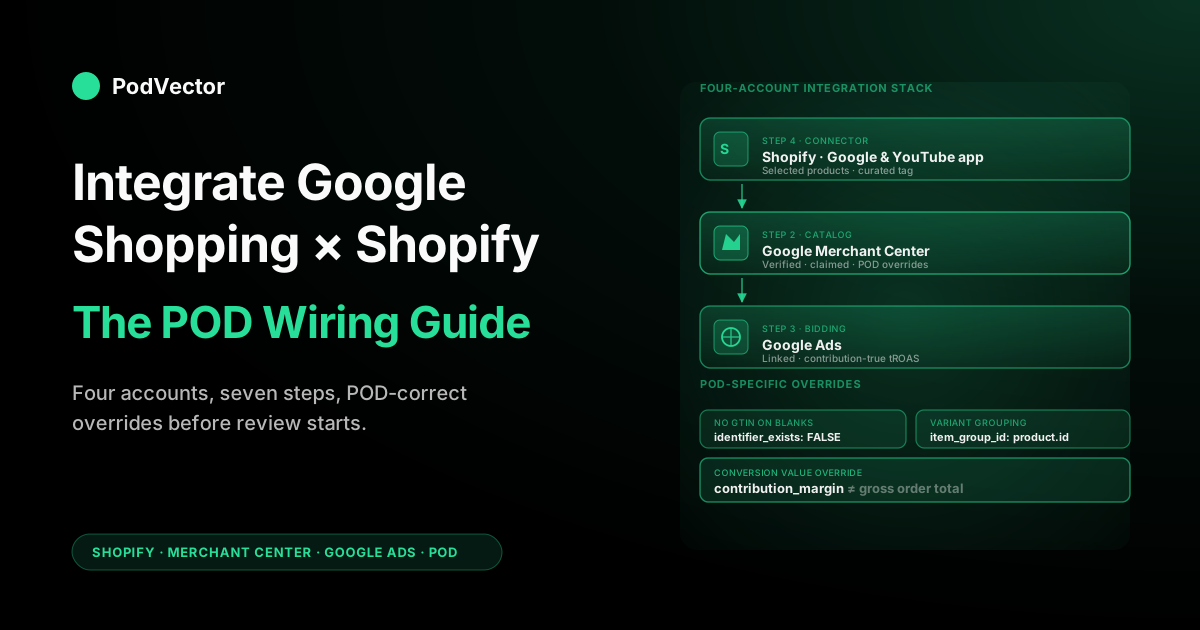
Quick Answer: To integrate Google Shopping Ads with a Shopify store, you connect four accounts — a Google account, Google Merchant Center (now Merchant Center Next), Google Ads, and the free Shopify Google & YouTube app — then sync your product feed and switch on conversion tracking. Most setup guides walk you through the clicks in 10 minutes and drop you straight into a Performance Max campaign, but leave you with a feed that doesn't reflect your actual unit economics. For a print-on-demand store the integration mechanics are identical, but the configuration choices around variant handling, GTINs, shipping rates, supplier cost, and conversion value all need POD-specific overrides before you spend a dollar. This guide walks the connection step by step, then layers the POD overlays — what to set during integration, what to fix immediately after, and what to verify before you let Performance Max spend.
The four-account integration stack and what each does
Every Shopify + Google Shopping integration has the same architecture, even though the setup wizard hides most of it. Four accounts coordinate to put your products in front of Google searchers, and understanding which one owns which job will save you hours of debugging when something goes wrong.
Google account is the identity that owns everything else. It's a personal Gmail or a Google Workspace user. Most operators start with a personal Gmail and regret it later when an agency or a contractor needs access; if you can, create a dedicated business Google account before anything else.
Google Merchant Center is the product catalog. It receives a feed of products from Shopify, runs each one through Google's policy and quality checks, and assigns each item a status: Approved, Approved with warnings, Disapproved, or Pending.
Only Approved items can serve as Shopping Ads. Merchant Center is also the surface where you handle shipping rates, tax settings, country targeting, and any feed-level rules.
Google Ads is the bidding and reporting layer. It references Merchant Center products inside campaigns, decides which queries to compete on, runs the auctions, and reports clicks, conversions, and conversion value back. Google Ads never queries Shopify directly — every product fact it knows came through Merchant Center.
Shopify Google & YouTube app is the connector. It authenticates with the Google account, brokers the Shopify-to-Merchant-Center feed, can install Google Ads conversion tracking on your storefront, and exposes a handful of feed override options inside Shopify admin. It's free and official, and it is the path of least resistance — but its defaults are wrong for POD, which is why most of the work in the rest of this guide happens during or right after this step.
The data flow most operators don't visualise: Shopify pushes product data to Merchant Center on a schedule (typically every 30 minutes via the app), Merchant Center scans the feed continuously and ripples status changes into Google Ads within an hour, and Google Ads serves ads based on the current Merchant Center state. Click and conversion data flow back through Google Ads' tag, not back through Shopify. Once you can see the loop, you can debug a lot faster — when impressions drop, the question is "which layer changed," not "what's wrong."
One direction rule saves a lot of confusion: for product data, Shopify is the source of truth and its values overwrite Merchant Center on every sync. If a title or price is wrong in Merchant Center, you fix it in Shopify, not in Merchant Center. The exceptions are the settings Shopify doesn't push per product — shipping and tax services, which you configure inside Merchant Center and which then persist. Knowing which side owns each field is the difference between a five-minute fix and an afternoon of edits that get overwritten on the next sync.
Pre-integration prerequisites for a Shopify POD store
Before you click anything in the Shopify app store, get five things in place. Most operators skip them and pay for it inside the first week of integration.
- A custom domain. Merchant Center will not approve a feed pointing at a
myshopify.comURL. If you're still on the Shopify default subdomain, buy a domain and migrate first. The same applies to subdomains on shared services. - Working policy pages. Shipping policy, return policy, terms, and contact pages all need to exist, be reachable from your storefront footer, and contain enough content to satisfy Google's content review. The default Shopify auto-generated policies pass review — the policies new stores never write don't.
- Realistic shipping configuration in Shopify. Most POD stores set shipping to "Calculated at checkout" because Printify or Printful invoice the actual rate. Merchant Center treats "Calculated at checkout" as missing data. You'll need a flat-rate fallback in Shopify (or, better, in Merchant Center directly) that approximates Printify's domestic shipping (around $5.50 for most apparel as of 2026).
- HTTPS everywhere. All product images must serve over HTTPS. Shopify handles this by default, but if you've imported product galleries with hardcoded HTTP URLs (sometimes happens with Printify imports for older products), Merchant Center will silently disapprove those listings.
- A funded Google Ads account or a credit card ready. Merchant Center is free; Google Ads requires billing to be set up before you can run campaigns. Most setup wizards block at this step if billing isn't ready.
If any of these are missing, fix them first. Integration time is not the time to discover that Stripe hasn't approved your store or that your privacy policy is still placeholder text — Merchant Center's review will catch it and the rejection note rarely names the actual problem.
Step 1: The Google account that owns everything
Pick a single Google account that will own all four systems: Merchant Center, Google Ads, Google Search Console (you'll need it later for site verification), and Google Analytics if you use it. Make this a Workspace account on your store's domain if at all possible (ads@yourstore.com is better than yourname@gmail.com) because it survives team changes and is easier to share without exposing personal email.
Inside that account, you'll log into merchants.google.com and ads.google.com in separate tabs over the next steps. Don't switch Google identities mid-integration — half-completed account links across two identities are messy to clean up.
If you intend to give an agency, partner, or contractor access later, plan it now: Merchant Center supports multiple users with role-based permissions; Google Ads supports linked manager accounts (MCC). Both are easier to set up cleanly at the start than to retrofit after you've granted personal-Gmail ownership of a $5K/month spend.
Step 2: Create Google Merchant Center (with POD overrides)
From the same Google account, sign up for Merchant Center — now branded Merchant Center Next, with a consolidated layout that folds the old separate feed and settings menus into one navigation. The setup flow asks for business info, country, time zone, and how you intend to send product data. Choose Shopify when prompted; this enables the simplified Shopify connection path.
The fields that matter for POD, with their POD-correct values:
- Business name: your store's brand, exactly as it appears on your storefront. Mismatch with the storefront is a common rejection reason.
- Website: your custom domain, with HTTPS. Merchant Center will trigger a verification challenge here that's easiest to satisfy with a meta tag added through Shopify's theme editor.
- Tax: for US sellers, configure tax settings if you collect sales tax in any state. Most POD stores under the relevant nexus thresholds skip this initially. Merchant Center accepts "I don't collect tax" as a valid configuration for the US — but get this wrong in the EU or UK and your account is suspended within days.
- Shipping: the section most operators rush. Set up at least one shipping service per country you sell to, with realistic flat rates. For US POD stores, configure a shipping service with the rates Printify charges (around $5.50 for the first apparel item, less for additional items). If your storefront uses "Calculated at checkout," override Merchant Center's value with a fixed rate; the feed will sync the override and Google will accept it.
Don't connect Shopify to Merchant Center yet. Get the account set up, the policies linked, the shipping configured, and the verification meta tag in your storefront's <head> first. This sequencing matters because once the Shopify app starts pushing products, the review queue starts running — you want it running against a Merchant Center that's already configured correctly, not a half-finished one.
Step 3: Create or link the Google Ads account
Two paths: create a new Google Ads account if you've never run ads, or link an existing one if you have. Both are valid.
If you're new: sign up at ads.google.com with the same Google account. Skip the "Smart campaigns" onboarding flow — switch to "Expert mode" before completing any of the wizard steps. Smart campaigns are a different campaign type and can't run Shopping Ads. Add billing information; the account is now ready to receive Merchant Center linkage.
If you already run Google Ads (Search, Display, or YouTube campaigns under the same account or a different one): keep using your existing account, because conversion history and historical audience data carry value you don't want to abandon. You'll link Merchant Center to that account in the next steps. If your existing Google Ads account lives under a different identity, transfer ownership to your store's primary Google account first; this is faster than running cross-account links.
The Google Ads ↔ Merchant Center link is initiated from Merchant Center: Settings → Linked accounts → Google Ads → Link. This sends a request to the Google Ads account, which has to accept it. Both sides need to be logged in as users with sufficient permissions for the link to complete.
For full strategy context across the broader Google Ads stack — what to spend, which campaign types, which audiences — the complete Google Ads playbook for print-on-demand sellers is the cluster pillar; this article assumes you've read it or will. The guide to Google ad types for POD covers when Search, Display, and YouTube enter the mix beyond Shopping.
Step 4: Install the Google & YouTube app on Shopify
From Shopify admin → Sales channels → click the + next to Sales channels → search for Google & YouTube → Add channel. The app installs as a sales channel inside Shopify, not as a regular app, which has implications for how it accesses your products.
The first-run wizard will ask you to:
- Connect a Google account. Sign in with the account that owns Merchant Center.
- Link or create a Merchant Center account. Choose "Use an existing account" and pick the one you set up in Step 2. Don't let the wizard create a new Merchant Center for you — it'll create a separate account and you'll have two to manage.
- Select products to sync. The default is "All products." For POD, switch this to "Selected products" and use a Shopify collection or tag filter. Start with 20–40 of your best designs across two product types (e.g., a curated tee collection and a curated hoodie collection). You can broaden this later.
- Configure shipping and tax. The wizard pulls these from your Shopify settings. If your Shopify shipping is "Calculated at checkout," the wizard may show a warning. Override with the values you set in Merchant Center directly during Step 2; those take precedence.
- Install conversion tracking. Toggle this on if prompted. The app installs Google Ads' global site tag, which fires conversion events when checkout completes. Note: the default conversion value is gross order total, which is wrong for POD; we fix this in Step 7.
The reason the "Selected products" override matters more than any other choice during integration: a POD store launching with 200 designs across 5 product types has 6,000–12,000 SKUs in the variant grid. Default sync pushes them all into Merchant Center on day one.
Most won't sell. Many will get flagged for missing GTIN, low-quality images, or duplicate-title issues.
You'll start with a tanked account quality score and a review queue choking on listings that should never have been there. The Google Shopping Ads Shopify strategy guide covers the curated-feed philosophy in depth — read that before you commit to a sync rule.
Step 5: Verify ownership, claim, and trigger initial sync
After the Shopify app finishes its wizard, the integration is technically wired but Merchant Center still needs two things before it'll start serving: verification (you proving you own the website) and claiming (you asserting that this Merchant Center account is the canonical one for that domain).
Verification options Merchant Center accepts:
- Meta tag in storefront <head>. Easiest for Shopify — paste the tag into theme.liquid or via the theme editor's "Edit code" path. Most reliable.
- HTML file upload. Shopify doesn't expose a file-system root, so this option doesn't work cleanly. Skip.
- Google Analytics or Tag Manager. Works if you have one of these properties already linked to the same Google account.
- DNS TXT record. Works but requires DNS access at your domain registrar and propagation time.
Use the meta tag method unless you have a strong reason otherwise. The Google & YouTube app sometimes auto-completes verification through its OAuth flow; check Merchant Center → Settings → Business information → Website to confirm the verification badge has appeared. If it hasn't, paste the meta tag manually.
Once verified and claimed, the initial sync runs. Expect 30 minutes to several hours before the feed populates fully, depending on catalog size. Don't panic if items show "Pending" for the first day; the review queue is real, not instant.
Step 6: Configure feed overrides for POD before approval
This is the most leveraged hour of work in the integration, and 80% of operators skip it. Every Shopify-default product attribute that flows into Merchant Center has a POD-correct override, and getting them right at integration time costs five minutes per attribute. Getting them wrong and fixing them later costs days, because Merchant Center's review queue runs against the broken values first.
The overrides that matter most:
- identifier_exists = FALSE for all POD apparel. Submit this via the Google & YouTube app's bulk metafield editor or by setting
google.identifier_existsto FALSE on each product. Without this, Merchant Center flags missing GTIN as a quality warning on every apparel listing — and warning density compounds at the account level. - Brand set to your store's name, not "Gildan" or "Bella+Canvas" or the Printify default. Merchant Center quality models reward consistent brand-storefront-product alignment.
- Product type mapped to Google's category taxonomy explicitly. Use Shopify's Google taxonomy mapping field; for tees, "Apparel & Accessories > Clothing > Shirts & Tops > T-Shirts" is the right path. Vague or missing types are the second most common cause of disapproval.
- Title format overridden to remove size and color from the title string. Default Shopify title format produces 30 fragmented listings per design; the right format is
{{product.title}} {{product.product_type}}with size and color sent as dedicated attributes. - item_group_id set to the Shopify product ID. This is the field that groups variants into one logical listing in Merchant Center; without it, a 30-variant design appears as 30 competing listings, which both fragments your conversion data and triggers Google's duplicate-content quality model.
- Shipping cost set to a realistic flat rate, not zero and not "Calculated at checkout." Misreporting shipping is the #1 cause of Merchant Center suspension on POD stores in the first week.
The Google & YouTube app exposes these as bulk feed rules under "Manage feed" or via individual metafield overrides per product. Setting them as feed rules (apply once, persist for new products) is more durable than setting them per product. The Google Shopping Ads for ecommerce strategy guide for POD walks through the broader feed strategy across platforms; the Shopify-specific transformation rules above are the implementation layer.
Step 7: Wire conversion tracking — and fix what it gets wrong
The Google & YouTube app installs Google Ads' conversion tracking automatically when you connect a Google Ads account during the wizard. For most stores this is fine. For POD stores running real money on Shopping, the default tracking has two limitations that need fixing immediately.
Limitation 1: Conversion value defaults to gross order total. When a customer checks out, Shopify fires the conversion event with the gross order total as the value. Google's Target ROAS algorithm optimises against that number.
For a $42 Printify hoodie with $14 supplier cost, $5.50 shipping, and $1.40 processing — your real contribution per sale is $21.10, but Google sees $42. If you bid a 4× tROAS expecting healthy margins, Google will spend up to $10.50 in ads to acquire that order, leaving you $10.60 in contribution after ads. That's fine until tROAS slips to 3× and you're spending $14 to net $7.10 — a number that looks profitable on Google's dashboard but is below your unit-economic floor.
The fix: modify the Shopify checkout's conversion script to pass contribution_margin as the conversion value instead of order_total. On Shopify Plus, this is a Web Pixel App configuration.
On non-Plus stores, it's a custom Liquid edit in checkout.liquid (legacy themes) or an additional script tag in the additional Google scripts field. The data plumbing required to compute contribution_margin per order — pulling Printify cost into Shopify variants, calculating contribution dynamically — is non-trivial; many operators implement a static "blended contribution rate" (like 50% of order total) as a first pass.
Limitation 2: No enhanced conversions. Google's enhanced conversions feature passes hashed customer email and phone to Google at conversion time, allowing them to match conversions to logged-in Google accounts and recover attribution otherwise lost to iOS privacy restrictions. Enabling this on Shopify is a Plus pixel config or a Liquid edit on lower plans. The lift is typically 5–15% more attributed conversions, which compounds because Google bids more aggressively on campaigns with strong conversion volume.
Verify both fixes in Google Ads → Tools & Settings → Conversions. The conversion action should show recent activity, the enhanced conversions row should show "Active," and the conversion value reported back should match the contribution figure you calculate in Shopify orders, not the gross. The dedicated complete guide to Google Ads + Shopify integration for POD covers conversion tracking setup in more depth, including the Liquid snippets and Plus pixel configurations.
Common integration failures and the actual fixes
Recurring patterns from operator audits, ranked by frequency:
Failure 1: "Account suspended due to misrepresentation." Cause: shipping cost in Merchant Center doesn't match what Shopify charges at checkout, OR product description contains language that triggers misleading-claims policy ("guaranteed weight loss," "miracle," etc.), OR your storefront's policy pages are missing or unreachable. Fix: align shipping rates first, scrub product descriptions for prohibited language, verify all policy pages return HTTP 200 from a fresh browser. Submit appeal in Merchant Center after fixing — appeals usually resolve in 3–7 days.
Failure 2: "Items disapproved for missing GTIN." Cause: identifier_exists not set to FALSE on POD apparel. Fix: bulk-set the metafield via the Google & YouTube app's product editor or via Shopify's bulk editor on the google.identifier_exists metafield. Items typically reapprove within 24 hours of next feed sync.
Failure 3: Feed shows 5,000 items when you only have 200 designs. Cause: default variant explosion + default "All products" sync. Fix: switch sync rule to a curated tag (e.g., shopping-feed), set item_group_id to product ID, override title format to remove size/color. Feed will shrink on next sync (usually within 1 hour).
Failure 4: Conversions reporting in Google Ads but not in Shopify (or vice versa). Cause: tag double-firing or one side has an event filter the other doesn't. Fix: install the Google Tag Assistant Chrome extension, walk through a test purchase, verify exactly one Google Ads conversion event fires at order completion. Compare Shopify order count vs. Google Ads conversion count over a 7-day window — they should be within 5–10% of each other (some attribution loss is normal).
Failure 5: "Merchant Center claim conflict — another account claims this domain." Cause: a previous owner, partner, or agency claimed your domain in Merchant Center first. Fix: contact the prior claimant and have them release the domain, or submit a domain-claim dispute via Merchant Center's support form. Resolution typically takes 5–10 business days.
Failure 6: Currency mismatch between Shopify and Merchant Center. Cause: storefront set to one currency, Merchant Center set to another. Fix: align currencies in Shopify Markets (or Shopify Payments) and Merchant Center → Settings → Business information. The feed will reject items whose currency doesn't match the target country's expected currency.
Failure 7: HTTPS warnings on product images. Cause: imported product galleries with HTTP URLs, or third-party CDN serving images over HTTP. Fix: re-upload images via Shopify's media manager (Shopify auto-converts to HTTPS), or update the CDN configuration. Affected listings disapprove silently — check the Disapproved tab in Merchant Center, not the warnings.
What the integration buys you — and what stays your job
Worth being honest about: the four-system integration handles plumbing, not strategy. Once it's wired correctly, you have:
- Products in Merchant Center with policy and quality status visible per item.
- Feed updates running on a 30-minute cadence from Shopify.
- Conversion tracking firing on order completion (with the value caveat above).
- Eligibility to run Shopping campaigns and Performance Max in Google Ads.
What the integration does not give you:
- Profitable ROAS targets per SKU. The integration reports gross conversion value; turning that into contribution requires the Step 7 fix and ongoing supplier-cost data plumbing.
- Feed curation by margin tier. Custom labels need to be populated from contribution metafields, which require Shopify Flow or a manual script.
- Insight into which queries deserve more spend. Standard Shopping shows search query data; Performance Max obscures it. Operator analysis is required either way.
- Cross-channel attribution. When Meta and Google both touch a customer, both will claim the conversion. You'll need a separate analytics layer to deduplicate.
- Cohort lifetime value. Shopify reports first-purchase revenue; LTV requires repeat-purchase data over 60–90 days. Bidding decisions made on first-purchase ROAS alone systematically under-spend on high-LTV cohorts.
The integration buys you the right to compete. The work that compounds — the contribution-aware reporting, the SKU-level decisions, the channel-level deduplication — sits on top, and most POD stores under-resource it.
Victor is built for this. He pulls your Google Ads, Shopify, and Printify numbers together, so you can see the true profit behind each ad campaign and each product. With your approval, he can even adjust your Google Ads bids and budgets to protect that profit. For now, many store owners do this work by hand in spreadsheets; Victor saves you that time.
Keeping the integration healthy after launch
The integration is not "set and forget." Five maintenance habits separate operators whose integrations decay from those whose compound:
- Weekly Merchant Center disapprovals review. Check Merchant Center → Products → Disapproved. New designs added to Shopify will sometimes hit policy or quality flags; catching them within a week prevents account-level damage.
- Monthly feed audit. Pull a sample of 20 items from Merchant Center and verify title, price, image, GTIN/identifier_exists, and shipping match what the storefront shows. Drift is real — Shopify changes that don't trigger a sync, or feed rules that don't apply to new products, create silent mismatches.
- Quarterly conversion tracking verification. Run a $1 test purchase, watch Google Ads' real-time conversion view, confirm value matches contribution and not gross. Theme updates can break custom conversion scripts; you don't want to discover that three months in.
- App update vigilance. The Google & YouTube app pushes its own updates that can change default behavior (we've seen feed rules silently reset after major version bumps). Read the changelog when prompted.
- Account access hygiene. When a contractor or agency leaves, remove their access from Merchant Center, Google Ads, and the Shopify app. Orphaned access is the most common security finding in store audits.
None of these is hard. They take collectively about an hour a month. Skipping them is the most predictable cause of "we used to be profitable on Shopping and now we're not" stories that show up in operator forums.
Multi-region and multi-store integration
Two scenarios most POD stores eventually hit:
Multi-region (one Shopify store, multiple target countries). Shopify Markets handles the storefront side. On the Google side, you can either run one Merchant Center with multi-country target settings (simpler, less granular) or one Merchant Center per country (more work, more control).
The cleanest setup for stores under $50K monthly revenue is one Merchant Center with multi-country targets and country-specific shipping configurations. Above that, one per country starts to pay back through better feed-quality isolation per region.
Multi-store (multiple Shopify stores under one operator). Each store needs its own Merchant Center account, but they can all roll up under one Google Ads manager account (MCC). This gives you a unified billing, shared conversion data via cross-account audiences, and cleaner reporting. Set up the MCC before linking individual Google Ads accounts; retrofitting is possible but messy.
For both scenarios, the integration steps in this guide repeat per store, but the manager-account / Markets layer above them is what unlocks operating efficiency. The guide to Google ad types for POD covers how Search, Display, and YouTube fit alongside Shopping in a multi-account setup; the complete Google Ads playbook for print-on-demand sellers ties the whole stack together.
FAQs
Do I need a Google Ads account before I install the Shopify Google & YouTube app?
No. The app's wizard will create a Google Ads account during setup if you don't have one. But if you already run Google Ads, link the existing account during the wizard rather than creating a new one — you'll keep your conversion history and audience data. Creating a fresh account when one already exists is a common mistake that costs months of conversion-history value.
How long does the full integration take from zero to first ad serving?
Mechanical setup is 1–2 hours if you have prerequisites in place. Merchant Center review can take 24–72 hours for a clean feed; longer if you trigger a manual review.
First impression typically lands within an hour of an Approved item entering an active campaign. Realistic end-to-end: same day if everything goes right, 3–5 days if you hit a verification or policy review.
Can I integrate Google Shopping with a Shopify store that's still on a myshopify.com URL?
No. Merchant Center requires a custom domain. Buy and connect a domain first; the integration won't approve a feed pointing at a Shopify subdomain.
Why is my Merchant Center showing items "Pending" for over a week?
Either the initial review queue is backed up (uncommon but happens, especially after large catalog uploads), or the items have a structural issue that's preventing review completion (image fetch failures, title length over the limit, currency mismatch). Check the item-level diagnostic in Merchant Center → Products → All products → click an item → Issues.
If I run Google Shopping on Shopify and also TikTok Shop, do I need separate integrations?
Yes. TikTok Shop is a separate sales channel with its own product feed and pixel. The Google integration covers Google Ads only; the TikTok integration covers TikTok ads. They can coexist on Shopify but don't share configuration.
What if I'm running a Printify store but not on Shopify — does any of this apply?
Most of the strategic content does (the integration architecture, the POD-specific feed overrides, the conversion-value fix). The mechanical steps differ.
The Google & YouTube app is Shopify-specific; on WooCommerce, Wix, or BigCommerce you'd use platform-specific Merchant Center connectors with similar but not identical configuration surfaces. The supplier-cost-into-conversion-value problem is universal across POD.
Do I need Google Analytics 4 set up before I integrate Google Shopping?
Not strictly required, but recommended. GA4 isn't part of the conversion path — Google Ads' own tag handles conversion tracking.
But GA4 gives you a second source of truth on traffic, on-site behavior, and post-click engagement that's invaluable for diagnosing why a campaign with healthy click-through is failing to convert. Wire it before launch, not after.
Should I start with Standard Shopping or Performance Max?
The Shopify Google & YouTube app now drops you straight into a Performance Max campaign — it's Google's default and the path the wizard pushes. Performance Max serves across Search, Shopping, YouTube, Display, Gmail, Discover, and Maps from one campaign, but it hides search-query data and needs volume to optimise; Google's own guidance points to roughly 50 conversions in the trailing 30 days before its bidding stabilises. If you're launching a new POD store with no conversion history, a Standard Shopping campaign gives you query-level visibility and manual control while you learn what actually converts, then you graduate to Performance Max once you have the data — and the contribution-value fix from Step 7 — in place. The complete Google Ads playbook for print-on-demand sellers covers the campaign-type decision in depth.
How do I tell if my integration is "working" beyond just seeing impressions?
Three checks: (1) Merchant Center → Products → All products shows your curated set as Approved, with no warnings density above 5%; (2) Google Ads → Conversions shows recent conversions firing with values that match contribution, not gross order total; (3) a sample test purchase appears in both Shopify orders and Google Ads conversions within 30 minutes, with matching customer, order ID, and value. If all three pass, the integration is healthy. If any fail, you have a specific layer to debug.
Get the integration profitable, not just connected
The wiring is the easy part. The hard part is knowing whether your Shopping campaigns are actually profitable after Printify supplier costs, shipping, and processing — and which SKUs and campaigns to scale or pause. Victor connects to Shopify, Google Ads, and Printify in a few clicks and reports your true contribution-based ROAS by campaign, ad group, and SKU. And see your real Shopping economics inside an hour.
Try Victor free