
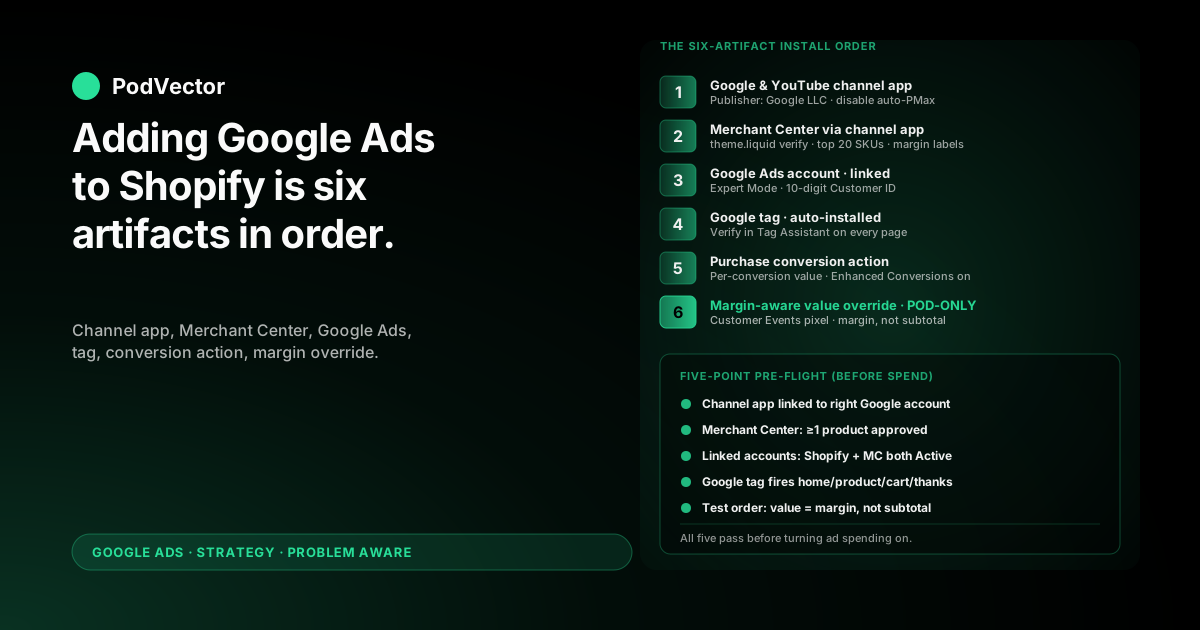
Quick Answer: Adding Google Ads to a Shopify store is six concrete artifacts dropped in the right order: the Google & YouTube channel app in Shopify admin, a Merchant Center account fed by that app, a Google Ads account linked to the same Google login, the Google tag installed via the channel app, a conversion action created in Google Ads and tied back to Shopify checkout events, and — if you sell print-on-demand — a margin-aware conversion-value override that fires actual profit instead of order subtotal. Most setup guides cover the first five and stop. For POD on ~30% contribution margin against Printify or Printful supplier costs, the sixth step is what decides whether the campaign you launch next week makes money or quietly bleeds it. This guide walks all six adds in order, with the verification check after each one.
What "adding Google Ads to Shopify" actually adds
The phrase covers more ground than it looks like at first glance. "Adding Google Ads to Shopify" isn't a single integration — it's a stack of six artifacts that have to land in a specific order across two control surfaces (Shopify admin and the Google Ads / Merchant Center / Google tag interfaces). Skip one or do them out of sequence and the next ones don't have what they need: a Merchant Center account without a verified Shopify domain can't approve products; a Google Ads account without a Google tag can't track conversions; a conversion action without the margin override fires a number that misleads Smart Bidding for months.
The general guides — Shopify's own campaign-setup walkthrough, Shopify's Google & YouTube help docs, and Google's Set up your Google tag for Shopify — describe the same five-artifact stack: install the channel app, set up Merchant Center, link Google Ads, install the Google tag, configure conversion events. They're correct, and for owned-inventory ecommerce that stack is enough. For print-on-demand on Shopify, there's a sixth artifact that has to land before any meaningful spend turns on, and it's the one that decides whether the campaign produces profit or revenue.
The strategic frame for the topic — when to add Google Ads at all, how it fits with Meta and TikTok ads — is in the complete Google Ads playbook for POD sellers. The full integration deep-dive lives in the Google Ads + Shopify integration guide for POD. This article is the click-by-click "what to add and in what order" layer that the other two reference.
Prerequisites: what to have ready before you start adding
Five things have to be true before the add sequence runs cleanly. Skipping any of the five doesn't block the install — the buttons still click — but the data flowing through the integration is wrong from day one and the only fix is to undo the install and redo it.
- A paid Shopify plan with a custom domain. Merchant Center will not approve products on a Shopify free trial or on the default
.myshopify.comdomain. Trial stores can install the channel app and stage the configuration, but ad spending can't legitimately turn on until the store is paid and on its own domain. - At least 20 published products. Below 20, Smart Bidding won't reach the conversion volume it needs to optimize, and Merchant Center's product taxonomy can't cluster meaningfully. POD operators with fewer products should add Google Ads only after the catalog reaches the threshold.
- A return policy that matches Printify or Printful's actual replacement-only policy. The default Shopify "30-day free returns" copy is the most common Merchant Center suspension cause for POD stores — the policy team verifies returns within 60–90 days and suspends accounts where the website doesn't match what was declared. Edit the policy to reflect the supplier's actual terms before connecting Merchant Center.
- Tax and shipping configured correctly in Shopify. Merchant Center pulls these from Shopify automatically through the channel app. If shipping is "calculated at checkout" with no rates configured, Merchant Center can't quote shipping in product ads and disapproves them.
- Supplier cost populated as a Shopify metafield on every product. Namespace
cost, keysupplier_cost, typemoney. Both Printify and Printful expose a one-click setting that writes this metafield on import. Flip it before bulk-importing your catalog. Without it, the step-6 margin override either falls back to subtotal or fires zero — both worse than the default.
Three of the five (return policy, supplier-cost metafield, paid plan) are POD-specific. The general setup guides skip them because they're not required for owned-inventory ecommerce. Verify all five before starting. The full prerequisite checklist with exact Shopify settings paths is in the Merchant Center for Shopify strategy guide.
Step 1: Add the Google & YouTube channel app to Shopify
From Shopify admin, click Settings → Apps and sales channels → Shopify App Store. Search for "Google & YouTube" and confirm the publisher is Google LLC (the Shopify App Store has third-party imitations; only the Google-published version is correct). Click Add app → Add sales channel. The app is free.
Once installed, the channel appears under Sales channels → Google & YouTube in the Shopify admin sidebar. Open it and click Connect Google account.
Sign in with the Google account you'll use for everything Google-related — Merchant Center, Google Ads, eventually Google Search Console. Single-account is the cleanest setup; using one Google account for the channel app and a different one for Google Ads creates linkage problems six months in that are tedious to untangle. If you don't have a dedicated Google account for the business yet, create one before this step.
The channel app does three jobs once connected: it syncs your Shopify product catalog to Merchant Center as a structured product feed, it injects the Google tag into your storefront's theme.liquid at the next page render, and it offers a campaign-creation wizard. Use the first two; ignore the third — you'll build campaigns manually in a later step.
One channel-app setting POD operators should change immediately: open Google & YouTube → Manage and disable any toggle labeled Auto-create a Performance Max campaign. Google's onboarding nudges hard for this.
PMax is opaque (no product-level reporting) and concentrates spend on whichever SKUs convert first, which for varying-margin POD catalogs is usually the wrong tier. Build Standard Shopping manually after the rest of the install is done. The case for Standard over PMax is in the how-to-use Google Ads for Shopify guide.
Step 2: Add a Merchant Center account through the channel app
The channel app creates the Merchant Center account for you. Inside the channel app, click Get started next to Set up Merchant Center. The app verifies your Shopify domain by injecting a meta tag into theme.liquid, creates the Merchant Center account if one doesn't exist, uploads an initial product feed pulled from your Shopify catalog, and pulls shipping and tax settings from Shopify into Merchant Center.
For a default Shopify theme, all four steps complete automatically within 60 seconds. Heavily customized themes that strip default head injections may need manual HTML-tag verification — Merchant Center will surface the tag string and ask you to add it to theme.liquid directly. The full verification edge cases (subdomains, password-protected stores, dual-domain setups) are in the Merchant Center for Shopify strategy guide.
After the auto-setup runs, two manual configurations are worth doing immediately rather than later — both decide how Google's algorithm will treat your products downstream:
- Restrict the synced feed to your top 20 SKUs. By default, the channel app syncs your entire catalog. A modest POD store with 50 designs across 3 product types, 5 colors, and 5 sizes is 3,750 variants. That's too many for Merchant Center to approve quickly and too many for Smart Bidding to train against. Use the Inventory filter in the channel app's settings to restrict the feed to your top 20 by trailing-90-day Shopify revenue (or top 20 by gut-instinct plus product-page traffic if you're below 90 days of history).
- Add custom labels for margin tiers. Merchant Center supports five custom-label fields (
custom_label_0throughcustom_label_4). Usecustom_label_0to tag each product with its margin tier —"high_margin"for products with $10+ per-unit margin,"mid_margin"for $6–$10,"low_margin"for under $6. The label can be set from a Shopify metafield via Merchant Center feed rules. You'll use this label inside Google Ads (step 5+) to bid differently per tier.
Merchant Center will surface policy issues — disapproved products, shipping mismatches, prohibited claims — within 24–48 hours of the first sync. Open Merchant Center → Products → Diagnostics and resolve any issues before moving on. Disapprovals don't go away on their own; they accumulate until they suspend the account.
Step 3: Add (and link) your Google Ads account
Open ads.google.com in a new tab and sign in with the same Google account you used for the channel app. Click New Google Ads account.
Google will push you toward a guided "create your first campaign" wizard inside Smart Mode — skip this. Click Switch to Expert Mode at the top of the screen (or Skip campaign creation if Smart Mode is forcing the wizard). Smart Mode hides the controls you'll need for everything that follows.
Add billing under Tools → Billing → Settings. Note the 10-digit Customer ID at the top right of the Google Ads dashboard — you'll need it when linking the channel app.
Return to Shopify admin → Sales channels → Google & YouTube → Settings → Google Ads. Click Connect and paste the 10-digit Customer ID.
Approve the linkage request that appears in Google Ads (Tools → Linked accounts → Shopify → Pending requests). The link enables three flows: Merchant Center products become available as Shopping ads inventory, Shopify checkout events flow into Google Ads as conversion data, and audience lists from Shopify customers become available for remarketing.
If you've previously run Google Ads under a different login or have an MCC (My Client Center) account, the linkage is the same but the Customer ID is the sub-account's ID, not the MCC's. The MCC scenario is covered in the Google Ads Shopify strategy guide if you've already run Ads under a different setup.
Step 4: Add the Google tag and verify it's firing
The Google tag is the JavaScript snippet that collects events from your storefront and sends them to Google Ads, Merchant Center, and Google Analytics. The channel app installs it automatically into theme.liquid when you link Google Ads in step 3. You don't need to copy-paste anything manually — but you do need to verify it's actually firing, because the channel app sometimes installs the tag and the tag still fails to load (browser extensions, content security policy headers on customized themes, an aggressive cookie consent banner that blocks scripts pre-consent).
To verify: install the Google Tag Assistant Companion Chrome extension. Open your storefront in a fresh incognito window with the extension active.
Click Tag Assistant icon → Add domain → Connect. Browse: home page, a product page, add-to-cart, checkout. Tag Assistant should show the Google tag firing on every page with the AW-prefixed Conversion ID matching the one in your Google Ads account (Google Ads → Tools → Conversions → your conversion action → Tag setup).
If Tag Assistant shows the tag firing but with a mismatched ID, the channel app linked to a different Google Ads account than the one you're now in. Re-check the linkage in step 3 and re-paste the Customer ID.
If the tag isn't firing at all, the issue is almost always one of two things: a third-party cookie consent banner blocking the tag pre-consent (configure the banner to allow Google tag pre-consent or use Google Consent Mode), or a customized theme that strips default head injections. The verification edge cases are covered in the Shopify Google Ads tracking strategy guide.
Step 5: Add the purchase conversion action
The Google tag from step 4 collects events; a conversion action tells Google Ads which event to optimize against. The channel app creates a default Purchase conversion action when you link Google Ads, but it's worth opening it and verifying the configuration directly because the defaults are wrong for POD on three settings.
Open Google Ads → Tools → Conversions. Click into the conversion action labeled Purchase (or Shopify Purchase, depending on channel-app version). Verify and set:
- Category:
Purchase(default — leave as-is). - Value: switch from "Don't use a value" to "Use different values for each conversion". The default for some channel-app versions is no value — which makes Smart Bidding flatten every order to a single weight regardless of cart size. With per-conversion value, the next two settings start mattering.
- Count:
One(every purchase is counted once, even if the customer reloads the thank-you page). - Click-through conversion window: 30 days (default — leave as-is for POD; lower if you have very short consideration cycles).
- Attribution model:
Data-drivenif available,Last clickas a fallback. AvoidLinearandTime decayfor low-volume accounts; they distort small samples. - Include in "Conversions":
Yes(Smart Bidding only optimizes against actions in this column). - Enhanced Conversions: enable. Enhanced Conversions hashes first-party checkout data (email, name, address) and matches it back to ad clicks, recovering 20–30% of conversions that would otherwise be lost to cookie-blocking and cross-device sessions. The channel app sets up the data flow automatically once toggled.
Save. Return to Shopify admin and place a test order using a test payment gateway or a real card you'll refund.
Within 1–3 hours, the conversion should appear in Google Ads → Tools → Conversions → your conversion action → All conversions. If it doesn't, the most common cause is the Google tag not firing on the thank-you page (verify in Tag Assistant from step 4) or the conversion event not subscribing to checkout_completed (open the channel app's conversion event configuration and re-save it to refresh).
Step 6: Add the margin-aware conversion-value override (POD-only)
This is the step every general guide skips because it's POD-specific. It's also the step that decides whether the campaigns you launch next month make money or quietly bleed it.
The default conversion event from step 5 fires each order's subtotal as the value. For owned-inventory ecommerce running 50–60% gross margin, that's fine.
For POD on Shopify where margin varies from $4 (mug) to $14 (hoodie) on a $25 average order, subtotal-based bidding actively over-spends on low-margin orders and under-spends on high-margin ones. Smart Bidding will report a clean 4.2x ROAS on subtotal that is a 1.3x ROAS on actual margin — not enough to cover ad spend plus Shopify fees plus payment processing.
The fix: override the conversion value to fire margin (revenue minus supplier cost) instead of subtotal. On Shopify this is done with a Customer Events custom pixel. From Shopify admin:
- Open Settings → Customer events.
- Click Add custom pixel. Name it
Google Ads margin override. - In the code editor, subscribe to
checkout_completed. Inside the handler, iterate the event's line items, read each item's price and thecost.supplier_costmetafield (populated in prerequisites), calculate(price - supplier_cost) × quantityper line, sum to a margin total, and re-fire the Google Ads conversion event with that margin total as thevalue. - Open Google & YouTube channel app → Settings → Conversion tracking and disable the default purchase event so the two events don't double-fire. Both pixels still install impression tracking; only the conversion-value firing is replaced.
- Place a test order and verify the conversion that lands in Google Ads shows the margin amount (e.g., $8.40 on a $25 order with $16.60 of supplier costs across the cart) rather than the subtotal.
The full implementation, including copy-pasteable JavaScript, the exact metafield read syntax, and the troubleshooting steps for the most common failure modes (zero-value firings, double-firings, the metafield read returning null on a multi-currency store), is in the Shopify Google Ads conversion strategy guide.
The shortcut version, if the per-product margin pixel is more setup than you have time for: hardcode a margin percentage as the value override (value = subtotal × 0.30). This is materially better than subtotal-based bidding for POD and works as a starting point — but it averages over signal you could be using to bid differently per product, so it leaves money on the table over a quarter.
For an operator with 200+ SKUs across multiple product types (mugs, t-shirts, hoodies), the per-line-item version is worth the setup time. Below 50 SKUs of similar product types, flat-percentage estimated margin is a defensible shortcut.
Verify everything you added is live before spending a dollar
Before turning ad spending on, run a five-point pre-flight that catches the most common installation failures. Each takes under five minutes; combined they save a month of bad data.
- Channel app linked to the right Google account. Shopify admin → Sales channels → Google & YouTube → header email matches your business Google account, not your personal one.
- Merchant Center has approved at least one product. merchants.google.com → Products → Diagnostics → "Approved" count is > 0. If it's still zero after 48 hours, work the Diagnostics tab disapprovals one-by-one before moving on.
- Google Ads → Linked accounts shows Shopify and Merchant Center both as Active. Tools → Linked accounts → both rows say "Active" (not "Pending" or "Cancelled").
- Google tag fires on home, product, cart, and thank-you pages. Verified in Tag Assistant from step 4.
- Test order shows up in Google Ads conversions with the margin value, not subtotal. Place a test order with a coupon-discounted real card you'll refund, wait 1–3 hours, then check Tools → Conversions → your conversion action → All conversions. The value should match the margin calculation, not the order subtotal.
If all five pass, the integration is complete. The next step is launching the first campaign — covered in the how-to-do Google Ads on Shopify operational guide. Don't skip the verification steps to save time; an unverified install that produces wrong conversion data costs more than a week of delayed launch.
Six errors to recognize and fix while adding
The errors below are the ones that keep recurring in POD setup support tickets. Recognize each one as you hit it and you'll get through the install in a single session instead of three.
- "Domain claim failed" in Merchant Center. The channel app couldn't write the verification meta tag into
theme.liquid— usually because the theme has a custom<head>block that strips dynamic content. Manual fix: copy the verification meta tag from Merchant Center → Settings → Business information → Website, paste it intotheme.liquiddirectly inside the<head>block, save, then click Verify in Merchant Center. - "Misrepresentation" suspension within 60–90 days. Almost always a return-policy mismatch — the website says "30-day free returns" while Merchant Center has Printify's actual replacement-only policy, or vice versa. Edit both sides to match the supplier's policy, then submit a re-review. Ban-evasion attempts (creating a new Merchant Center on a different domain) result in permanent network bans. Fix the policy, don't run from it.
- Conversion firing but value is zero. The custom pixel from step 6 is reading the supplier-cost metafield as
null. Open Shopify admin → Products → any product → Metafields → check thatcost.supplier_costexists and has a value. If it doesn't, the POD app didn't import it — toggle the metafield-import setting in the POD app and bulk re-sync the catalog. - Two conversions per order in Google Ads. Both the channel app's default conversion event and your custom pixel are firing. Disable the channel app's default in step 6's last sub-step. Don't disable the impression-tracking part of the channel-app pixel — only the conversion-event firing.
- Performance Max campaign auto-created against your wishes. The channel app has a setting that defaults to on; you toggled it off in step 1, but if a PMax campaign appears in Google Ads anyway, pause it (Campaigns → check the box → Edit → Pause). PMax inherits the conversion-value override automatically once it's in place, so the campaign isn't actively harmful — but you want to launch your own Standard Shopping campaign first, with control over the inventory filter and bidding strategy.
- Tag Assistant shows the tag firing with the wrong Conversion ID. The channel app is linked to a different Google Ads account than the one you're checking. Either the wrong Google account was used during install, or the Customer ID was pasted incorrectly during step 3. Re-link the channel app from Shopify admin → Sales channels → Google & YouTube → Settings → Google Ads → Disconnect, then reconnect with the right account.
The pattern across all six is that the install is brittle in predictable places: the verification meta tag, the policy match, the metafield read, the double-fire, the auto-PMax, the account linkage. Each has a specific symptom and a specific fix. The full troubleshooting decision tree is in the Google Ads + Shopify integration guide for POD, which catalogs every error code and the corresponding fix.
FAQs
How long does it take to add Google Ads to Shopify end-to-end?
Steps 1–3 (channel app, Merchant Center, Google Ads link) take ~45 minutes if prerequisites are in place. Step 4 (Google tag) is automatic but verification adds ~15 minutes.
Step 5 (conversion action) is ~20 minutes. Step 6 (margin override) is 1–2 hours including the test-order verification.
Total active time: 3–4 hours, spread across two days because Merchant Center product approval takes 24–48 hours after the first feed sync. Operators with the prerequisites already met (paid plan, return policy, supplier-cost metafield) finish in a single afternoon.
Can I add Google Ads to Shopify without using the Google & YouTube channel app?
Technically yes — you can paste the Google tag into theme.liquid manually and connect Merchant Center via the Google website. In practice, this approach skips the automated feed sync, the Shopify Customer Events integration, and the conversion-pixel installation. Manual setup is correct for very heavily customized stores where the channel app's defaults don't fit, but for 95% of POD stores, the channel app is the path that produces the cleanest integration with the fewest moving parts. The Google Ads + Shopify integration guide covers when manual setup is the better choice.
Do I have to add Merchant Center, or can I run Google Ads on Shopify without it?
For Search campaigns (text ads only), you only need Google Ads — Merchant Center isn't required. For Shopping campaigns (the product-grid ads that drive most POD revenue from Google), Merchant Center is required because that's where the product feed lives. Performance Max can technically run without a Merchant Center feed, but for a POD store with product images and prices, the Shopping inventory is what makes the campaign work; PMax without Merchant Center reduces to a low-quality text-only campaign.
What's the difference between adding Google Ads, Google Analytics, and Google Merchant Center to Shopify?
Three separate Google products, all installable through the same Google & YouTube channel app. Google Ads is the paid-traffic platform; Merchant Center is the product feed and policy layer that Shopping ads depend on; Google Analytics (GA4) is the on-site analytics platform.
The channel app handles Google Ads and Merchant Center together; GA4 is a separate setup using a G-prefixed tag instead of the AW-prefixed tag used by Google Ads. Both tags can coexist on the same Shopify store, and both can be installed by the channel app simultaneously.
How much does it cost to add Google Ads to Shopify?
The integration itself costs nothing — the Google & YouTube channel app is free, Merchant Center is free, Google Ads accounts are free to create. The cost is the ad spending you turn on once everything's added.
Realistic floor for POD is $30/day total ($20 Standard Shopping + $10 brand Search) to generate enough conversion volume for Smart Bidding to optimize. Below $15/day, Standard Shopping struggles to generate enough impressions for the auction system to calibrate. The full budget framing is in the Google Ads topic hub.
Can I add Google Ads to a Shopify free trial?
You can install the channel app, stage the Merchant Center configuration, configure the supplier-cost metafield, and even create a Google Ads account — but you can't actually run ads. Merchant Center requires a verified domain that's accepting checkouts, which means a paid Shopify plan with a custom domain. The trial period is well-spent on staging steps 1, 4, and 6 so that ad spending can flip on within hours of upgrading to a paid plan rather than days.
How is adding Google Ads different for POD on Shopify versus owned-inventory ecommerce?
Steps 1–5 are identical. Step 6 (the margin-aware conversion-value override) is the POD-specific difference. Owned-inventory stores running 50–60% gross margin can defensibly skip step 6 because the variance is small and ROAS-on-revenue tracks ROAS-on-margin closely.
POD on Shopify running ~30% margin against Printify or Printful supplier costs cannot — the variance is wide enough that subtotal-based bidding will systematically over-spend on low-margin orders. The margin override turns Google Ads' optimization from a revenue chase into a profit chase. The full Google Ads strategy cluster indexes deeper coverage of every step.
Add the missing layer Google Ads doesn't show you
Following all six steps gets the integration into Shopify cleanly. The harder problem starts after launch: every Monday, you'll need to know which campaigns produced positive profit-after-spend last week, which search terms to negate, which product groups to bid up or down — and that view requires connecting Google Ads spend back to Shopify revenue and Printify or Printful supplier costs every single time. Most POD operators end up rebuilding that view manually each week. Victor is the AI employee that connects all three sources on live data and answers questions like "which Shopping product groups produced positive profit-after-spend last week, and which should I pause?" in plain English — no dashboards, no spreadsheets, just answers.
Try Victor free