
Quick Answer: Linking Shopify to Google Ads is a four-account handshake — Shopify, Google Ads, Google Merchant Center, and Google Analytics 4 — that takes about an hour mechanically and another two hours of decisions before you touch the UI. The mechanical link uses the Google & YouTube sales channel app to authenticate Shopify with your Google account, then hands the product feed to Merchant Center and the conversion tag to Google Ads.
The decisions that determine whether the link compounds for a POD store — which account owns what, what conversion value Google receives (subtotal vs. profit after Printify or Printful supplier cost), and whether you let the channel app create accounts for you — are made before any clicking happens. This guide walks the link sequence in the right order, calls out the three POD-specific traps the generic guides miss, and gives you a 14-day verification checklist so you know the link is actually working rather than just looking like it is.
What "linking" actually means (it's four links, not one)
Most published walkthroughs — Shopify's own Google & YouTube channel guide, Shopify's conversion tracking blog post, and Playhouse Digital's conversion tracking deep dive — collapse the entire process into one verb: "link Shopify to Google Ads." That framing hides the structural reality, which is that you are linking four systems through Shopify as the front door:
- Shopify ↔ Google Merchant Center — your product catalog gets pushed to GMC as a data feed, refreshed automatically.
- Shopify ↔ Google Ads — a conversion tag fires on Purchase events and reports back to Google Ads' conversion tracking.
- Google Merchant Center ↔ Google Ads — the GMC product feed becomes available as Shopping inventory inside Google Ads.
- Shopify ↔ Google Analytics 4 — a parallel tag fires for GA4 measurement, which Google Ads then uses for attribution and audience signals.
The Google & YouTube channel app does all four handshakes in one onboarding flow, which is why the link looks like a single action. It's not.
Each handshake has its own configuration surface, its own failure modes, and its own implications for how Google's machine learning sees your store. For a POD seller, the GMC ↔ Google Ads link controls Shopping ad eligibility for unique designs (where GTIN/MPN don't apply), and the Shopify ↔ Google Ads conversion tag link controls whether Smart Bidding optimizes toward subtotal (the default) or toward profit-after-supplier-cost (the override that separates accounts that compound from accounts that leak).
The pillar piece on the complete Google Ads playbook for print-on-demand sellers covers the broader why; this guide stays narrow on the link mechanics with POD nuance baked in.
Three decisions to make before you touch the channel app
The Google & YouTube channel app's onboarding wizard is fast, friendly, and irreversible in places that matter. Make these three decisions before opening it.
Decision 1: Whose Google account owns the Google Ads and Merchant Center accounts
The channel app will offer to "create" Google Ads and Google Merchant Center accounts for you, on whichever Google login you're signed in with. If that login is your personal Gmail or a contractor's Gmail, you've just bound your Google Ads account to a personal-credential lifecycle — when that person leaves, your ad account access is held hostage to a manual ownership-transfer process that takes weeks.
The right move is a brand-domain Google Workspace account (e.g., ads@yourbrand.com) created and owned by the business, which then gets shared with operators and contractors via permissioned access. Set this up before the channel app onboarding so the accounts are created on the right login from day one.
Decision 2: Manually create Google Ads + Merchant Center, or let the channel app create them
The channel app's "create new account" path is convenient but creates accounts with default settings you can't fully audit. Specifically: Google Ads account-level conversion tracking gets enabled with Shopify's default conversion event (subtotal-as-value, last-click attribution, 30-day window), and the Merchant Center account inherits a default tax/shipping configuration tied to your Shopify store's shipping zones.
For most operators, manually creating both accounts at ads.google.com and merchants.google.com first, then linking them via the channel app's "connect existing account" path, is the safer default. You see what you're agreeing to.
Decision 3: Subtotal or profit as the conversion value
The single most consequential decision. Default Shopify integrations send order.subtotalPrice (order subtotal before tax and shipping) as the conversion value to Google Ads.
Smart Bidding then uses that number to compute campaign ROAS and optimize accordingly. For owned-inventory ecommerce at 50–60% gross margin, sending subtotal is fine — Google Ads optimizing toward subtotal still optimizes toward profitable customers. For POD at 28–35% contribution margin after Printify or Printful supplier cost, optimizing toward subtotal systematically over-allocates spend toward your highest-priced SKUs (often the lowest-margin all-overs and oversized hoodies) and under-allocates toward your highest-margin SKUs (often mid-priced t-shirts and mugs).
Decide now whether your link will pass subtotal (default) or profit-after-supplier-cost (override). You can always change the conversion value later, but every two weeks Smart Bidding spends training on the wrong signal is two weeks of capital pointed at the wrong SKUs. The implementation walkthrough lives at set up Google Ads conversions on Shopify strategy for print-on-demand, and the dedicated piece on conversion configuration is at Shopify Google Ads conversion strategy for print-on-demand.
Prerequisites: the accounts and settings that must be ready
Confirm all of the following before starting the link sequence. Each missing item is a 30-minute detour mid-onboarding.
- Shopify store on a paid plan with at least one product published to your Online Store sales channel (not just the Shopify POS). Draft products and unpublished products won't sync to Merchant Center.
- Brand-domain Google account with admin access (see Decision 1 above).
- Tax settings configured in Shopify Settings → Taxes for every region you ship to. Merchant Center inherits Shopify's tax configuration during the link, and missing tax rules trigger feed disapprovals.
- Shipping zones and rates configured in Shopify Settings → Shipping and delivery. Same inheritance pattern as taxes.
- A verified business address in Shopify Settings → General. Merchant Center will challenge ambiguous addresses with manual phone verification.
- Per-variant supplier cost populated on each product, ideally as a metafield (e.g.,
custom.supplier_cost). This is the input to the profit-aware conversion value override; without it, the override degrades to a static-margin guess. Detailed handling at Google Ads Shopify strategy for print-on-demand. - Privacy policy, refund policy, terms of service, and contact page all live and linked in your Shopify footer. Merchant Center silently disapproves accounts missing any of the four.
- SSL active on your Shopify domain (default for shopify.com subdomains; verify on custom domains via
https://yourbrand.com).
If any of these are missing, fix before linking. Mid-onboarding fixes have a habit of leaving the link in a half-completed state where Shopify thinks the link succeeded but Google Ads or Merchant Center silently rejected something.
The link sequence, in the order that prevents rework
The order matters. Following the sequence below avoids the two most common failure modes (account ownership chaos, conversion event firing twice).
Step 1: Create Google Ads and Merchant Center on your brand-domain account
Sign in to your brand-domain Google account at a clean browser session (incognito helps avoid login confusion). Visit ads.google.com, click "Start now," and complete the manual account creation — skip the "Smart campaign" wizard, choose Expert mode.
Then visit merchants.google.com and create a Merchant Center account with the same brand-domain Google account. Verify your website domain (HTML file upload is fastest for Shopify; place the file via Theme → Files).
Step 2: Install the Google & YouTube channel app in Shopify
In Shopify Admin, click Sales channels → Add sales channel → search "Google & YouTube" → install. Sign in with the same brand-domain Google account from Step 1. When prompted to create or connect Google Ads and Merchant Center accounts, choose connect existing account for both — pointing at the accounts you just created in Step 1.
Step 3: Configure the Merchant Center product feed
Inside the channel app, configure feed settings. For POD-specific catalogs:
- Identifier exists: Set to
nofor unique designs that have no GTIN, MPN, or brand. Submit only your store brand as the brand attribute. - Variant strategy: For apparel, submit per-variant SKUs only when color and size meaningfully differentiate demand (most cases). For mugs, hats, and accessories where variants don't drive distinct search demand, parent-product submission keeps the feed cleaner.
- Product category: Map each Shopify product to the closest Google Product Category. Generic POD imports from Printify or Printful default to "Apparel & Accessories" — refine this manually for shirts vs. hoodies vs. accessories so Google routes Shopping queries correctly.
- Custom labels: Use
custom_label_0throughcustom_label_4to mark margin tier (high/mid/low), supplier (Printify/Printful/Gelato), and design family (anime/vintage/minimalist). Smart Bidding can't see metafields, but it can see custom labels.
Save and submit. Wait 24–72 hours for Merchant Center crawl and approval.
Step 4: Link Merchant Center to Google Ads
Inside Merchant Center, go to Settings → Linked accounts → Google Ads → Link account. Enter your Google Ads customer ID (the 10-digit number in the top right of your Google Ads UI) and approve the link request from inside Google Ads (Tools → Linked accounts → Google Merchant Center → Approve).
The link unlocks Shopping inventory inside Google Ads. Without this link, Shopping campaigns will show "no products available" even though Merchant Center says everything is approved.
Step 5: Install the Google site tag and conversion tag
The channel app installs a default Google site tag (gtag.js) and a Purchase event conversion tag automatically. Verify the install:
- Open your store's checkout in incognito mode with Google Tag Assistant Companion installed.
- Place a test order ($0.50 product or use Shopify's Bogus Gateway for $0 orders if you don't want a real charge).
- Confirm Tag Assistant shows the Google Ads conversion event firing exactly once, with the expected conversion value.
If the event fires twice (a common failure when an old Shopify Customer Events tag and the new channel app tag both run), pause one. If the conversion value comes through as the wrong number — usually $0 from a tag misconfiguration or the order subtotal when you wanted profit — fix at the conversion-tag layer per the conversion setup walkthrough.
Step 6: Link Google Analytics 4
If you don't already have GA4, create a GA4 property at analytics.google.com on the same brand-domain Google account, install the GA4 measurement ID via Shopify's Online Store → Preferences → Google Analytics field, then link GA4 to Google Ads via Google Ads → Tools → Linked accounts → Google Analytics 4. The GA4 link gives Google Ads access to engaged-session and audience-signal data that improves Smart Bidding even when you're not explicitly using GA4 conversions.
Conversion tag: where the link's value is won or lost
The link is technically complete after Step 6. Whether it produces compounding value depends almost entirely on what the conversion tag is sending. This is the section the SERP top three either skip or treat as a footnote.
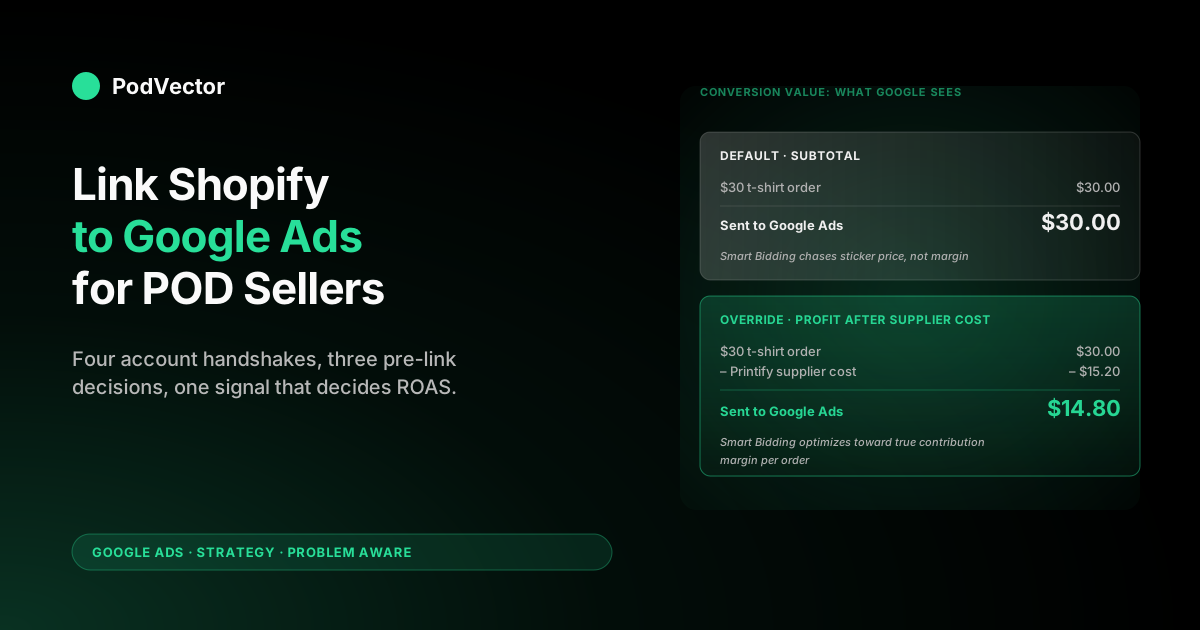
The default conversion event installed by the Google & YouTube channel app fires on Shopify's checkout_completed event with the value set to order.subtotalPrice. For a $30 t-shirt sold via Printify Premium ($15.20 supplier cost), the default sends $30 to Google Ads as the conversion value.
True profit after supplier cost, before Shopify fees and shipping markup, is closer to $14.80. If your campaign spent $5 on the click that generated this order, Google Ads' reported ROAS is 6.0x ($30 ÷ $5).
Your true contribution-margin ROAS is 2.96x ($14.80 ÷ $5). Both numbers are real; only one of them tells Smart Bidding what to optimize toward.
Two implementation paths for the profit-aware conversion value override:
- Static margin override (crude but functional): If your POD catalog is roughly uniform in margin (e.g., everything sits between 45% and 55% gross margin), set the conversion value calculation to
order.subtotalPrice * 0.5. Configure via Shopify Customer Events custom pixel, or by editing the channel app's tag template if your plan supports it. Crude because it ignores per-SKU variation, but better than the default by a wide margin. - Dynamic per-line-item supplier cost lookup (the right answer): Inside a Customer Events custom pixel, iterate over
order.lineItems, look up each line item'ssupplier_costmetafield, sum the supplier costs, subtract fromorder.subtotalPrice, and pass the result as the conversion value. This requires server-side or pixel-side metafield access (Customer Events pixels can read line item metafields if they're exposed via Storefront API), and it's where serious POD accounts find a structural advantage over generically-configured competitors.
For the full implementation including the JavaScript snippets and metafield exposure setup, see set up Google Ads conversions on Shopify strategy for print-on-demand and the integration architecture overview at the complete guide to Google Ads + Shopify integration for POD.
14-day verification checklist: is the link actually working?
The link can look connected from inside the Shopify channel app and still be silently broken. Run this checklist on day 1, day 7, and day 14 after the link.
Day 1 (within hours of linking)
- Channel app status: Shopify Admin → Apps → Google & YouTube → all four account links (Google Ads, Merchant Center, GA4, Google Account) show as connected.
- Merchant Center diagnostics: Sign in to Merchant Center → Diagnostics → no critical issues. Warnings about missing GTINs are expected for unique POD designs.
- Google Ads conversion configuration: Tools → Conversions → the conversion action created by the channel app exists, status "Receiving conversions" or "No recent conversions" (the latter is fine on day 1).
- Test purchase confirmation: Place a test order and confirm Tag Assistant logs both the gtag.js page load and the Google Ads conversion event with the expected value.
Day 7 (after Merchant Center crawl is complete)
- Merchant Center approval rate: ≥80% of submitted SKUs show as Approved. Below that threshold, the catalog is structurally rejecting and Shopping campaigns will underperform regardless of bid strategy.
- Google Ads → Tools → Conversions → All conversions column: At least one real conversion has fired (assuming non-zero ad traffic). If you have traffic but zero conversions, the tag is broken.
- Conversion value sanity check: Pick three real orders from the past 7 days. For each, compute what the profit-aware (or subtotal, depending on your override) conversion value should be, and confirm the Google Ads conversion column shows that number. If subtotal numbers appear when profit numbers were expected, the override didn't deploy correctly.
Day 14 (after enough conversion volume to detect drift)
- Conversion volume reconciliation: Total conversions in Google Ads ≈ total Shopify orders attributable to Google Ads source within ±15%. Larger gaps indicate either double-firing (Google Ads count higher) or missed conversions (Shopify count higher).
- Shopping inventory eligibility: In Google Ads → Campaigns → your Shopping campaign → Products tab, total eligible products ≥ 80% of submitted catalog. Lower means Merchant Center disapprovals are restricting impressions.
- Search terms report visibility: For Search campaigns, the Search terms report shows actual queries triggering your ads. Empty Search terms reports usually mean the campaign hasn't accumulated enough impressions to populate; recheck on day 21.
Common link failures and what they mean
- "Account not found" when linking Merchant Center to Google Ads — almost always a customer ID typo or the two accounts are on different Google logins. Confirm both accounts open under the same brand-domain login in incognito.
- Merchant Center showing 100% disapproval after 48 hours — most often a missing privacy/refund/terms-of-service page. Check the four required policy pages exist and are linked from the Shopify footer.
- Conversion tag firing but reporting $0 value — the tag template is reading the wrong order field. Confirm the channel app's conversion event template references
order.totalPriceororder.subtotalPricerather than a custom field that doesn't exist. - Conversion tag firing twice per order — a second tag (often an older Customer Events pixel from a previous integration attempt) is also firing. Disable the older tag in Shopify Admin → Settings → Customer events.
- Shopping ads showing zero impressions despite approved products — the Merchant Center ↔ Google Ads link wasn't approved on the Google Ads side. Check Google Ads → Tools → Linked accounts → Google Merchant Center → status should be "Linked" not "Pending."
- GA4 events not appearing in Google Ads audience signals — the GA4-to-Google-Ads link wasn't approved or GA4 hasn't yet identified the Google Ads account as a marketing source. Recheck after 48 hours.
Detailed troubleshooting per failure mode is at Shopify Google Ads tracking issues strategy for print-on-demand.
After the link: what changes about how you operate
The link itself produces nothing. What changes after the link is your operating cadence. Three things shift.
1. Daily check-ins move from Shopify-only to a three-tab habit. Shopify orders dashboard, Google Ads campaign overview, Merchant Center diagnostics — one minute each, every weekday morning during the first 30 days.
The single most common cause of POD Google Ads underperformance is undetected feed degradation, where Merchant Center silently disapproves a chunk of the catalog after a Printify product import update changed identifiers. Caught on day 1, it's a 10-minute fix; caught on day 21, it's three weeks of impression footprint shrinkage you can't recover.
2. Profit reporting becomes the source of truth, not Google Ads' ROAS column. If you implemented the profit-aware conversion value override, Google Ads' ROAS column and your true blended profit will track each other closely.
If you didn't, expect Google Ads' reported ROAS to read 30–50% higher than your true net contribution per ad dollar. Either way, build the habit of looking at both numbers weekly. Read the companion piece on Shopify Google Ads strategy for print-on-demand for the optimization rhythm.
3. New SKU launches get a Google Ads launch checklist. Adding a new POD design to Shopify after the link is live means: confirm the product publishes to Online Store, confirm the supplier cost metafield populates, wait for Merchant Center to crawl and approve, optionally add to a Performance Max asset group or Shopping product group. Without that checklist, new SKUs sit invisible to Google Ads for weeks.
FAQs
Do I need a Google Ads account before I link Shopify to Google Ads?
You can let the Google & YouTube channel app create one for you, but the better path is to manually create both Google Ads and Google Merchant Center accounts on a brand-domain Google login first, then point the channel app at the existing accounts. Manual creation gives you visibility into account-level defaults (conversion attribution model, tax settings, ownership) that the auto-create path obscures.
How long does linking Shopify to Google Ads take?
Mechanical linking takes 30–60 minutes if you have prerequisites in place. Merchant Center then needs 24–72 hours to crawl and approve products before Shopping campaigns can serve. Plan for a 3–4 day window between starting the link and being able to launch a campaign with full inventory eligibility.
Can I link Shopify to multiple Google Ads accounts?
Yes, but the channel app only supports one direct link per Shopify store. For multi-account setups (e.g., separate Google Ads accounts per region), use Google Ads Manager (MCC) to organize the accounts under a single management hierarchy, and link Shopify to the sub-account that owns the Shopify-driven conversion tracking.
What's the difference between linking Shopify to Google Ads and connecting via Zapier or a third-party app?
The Google & YouTube channel app is a first-party integration that handles product feed, conversion tag, and account linking natively. Zapier and most third-party connectors handle one slice (typically conversion tracking or audience syncing) and assume the channel app handles the rest. For POD, the first-party channel app is the load-bearing link; third-party tools layer on top of it for specific automations (e.g., audience customer-match upload from order data).
Will linking Shopify to Google Ads slow down my store?
The Google site tag and conversion tag add roughly 30–60 KB of JavaScript to your storefront — measurable on Lighthouse but functionally invisible on modern devices. The bigger performance question is how many other tags are loading. Audit Shopify Admin → Settings → Customer events and remove any duplicated or unused pixels left over from previous integrations.
Does linking Shopify to Google Ads work if I'm using Printify, Printful, or Gelato?
Yes — the link is at the Shopify level, not the supplier level, and all three POD suppliers behave as standard Shopify products to the Google & YouTube channel app. The supplier-specific work happens upstream: ensure your import process from Printify/Printful/Gelato populates a per-variant supplier_cost metafield so the profit-aware conversion value override has clean inputs. Without that, the link works but the optimization signal is degraded.
What happens to my Google Ads account if I uninstall the Google & YouTube channel app?
Uninstalling the channel app removes the Shopify-side connection but leaves the Google Ads account, Merchant Center account, and the campaign data intact in Google. The conversion tag stops firing (since the app's tag injection is removed), so future orders won't report to Google Ads.
The product feed stops refreshing, and Merchant Center will eventually disapprove products as their data goes stale (typically within 30 days). To preserve campaign continuity through a channel app re-install, use Shopify's "deactivate and keep data" option rather than full uninstall.
Link Shopify to Google Ads with profit measurement built in from day one
The hardest part of linking Shopify to Google Ads isn't the four account handshakes — it's knowing whether the conversion value Google Ads receives reflects your real, after-Printify-or-Printful-supplier-cost margin. PodVector AI connects directly to your Shopify, Google Ads, and POD supplier accounts, computes per-order profit in real time, and gives you a single dashboard for blended ROAS that doesn't lie. Victor, the AI employee inside PodVector AI, answers "is this campaign actually profitable after supplier cost, or just looking profitable in Google Ads?" in plain English using your live data — not last quarter's snapshot. And link Shopify to Google Ads the way POD operators with margin discipline actually run it.
Try Victor free