
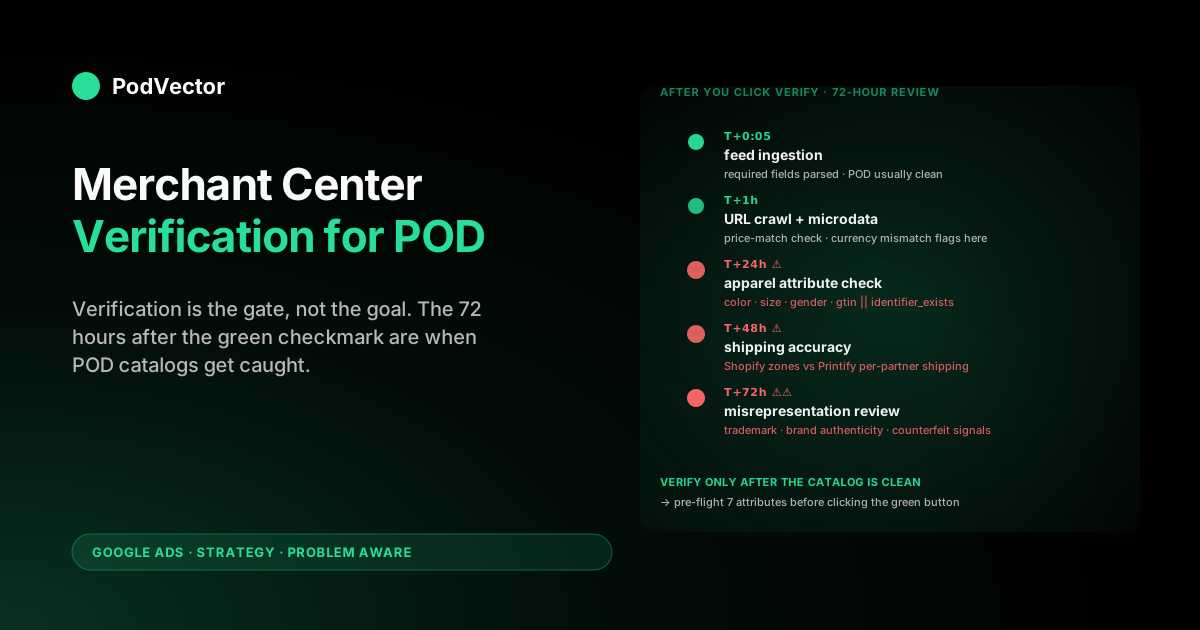
Quick Answer: Verification proves you control the domain; claiming binds the verified domain to your Merchant Center account. Both have to succeed before a single Shopify product can run on Shopping ads or appear in Free Listings.
For Shopify POD stores the right method is the HTML meta tag — automatic platform verification is unreliable on Shopify, email verification disqualifies you the moment the domain registrant email doesn't match, and Tag Manager / Analytics methods break when themes update. The strategic point most setup guides miss: verification is the gate, not the goal. The hour after you verify is when Merchant Center starts reviewing your products against apparel policy, where POD designs typically fail on misrepresentation, brand authenticity, and shipping accuracy long before any keyword strategy matters. Treat verification as the moment the policy clock starts and prepare the catalog accordingly.
Why verification is the strategic chokepoint, not a checkbox
Most Shopify POD sellers treat Merchant Center verification as a five-minute task. Paste a meta tag into theme.liquid, click the verify button, watch the green checkmark appear, move on.
The popular setup walkthroughs reinforce that framing — KeyCommerce's five-step guide covers the click path in 1,200 words and seven screenshots, and Google's own support article reads like reference documentation. Both are correct as far as they go. Both stop at the moment of the green checkmark.
The strategic point is that the green checkmark starts a clock POD sellers don't notice they've started. The instant the domain is verified and claimed, Merchant Center begins the initial review of every product the channel app pushes.
That review checks shipping cost accuracy, brand authenticity, design content for trademark and copyright, image quality against apparel guidelines, and price-to-checkout match — all of the policy surfaces where POD products fail at higher rates than owned-inventory ecommerce. A verification on Tuesday afternoon can produce a full-account suspension by Friday morning if the catalog wasn't prepared for the review.
The verification itself doesn't fail. The catalog underneath it does.
POD inverts the math because the stack itself manufactures the policy mismatches. Printify and Printful supply products with no GTIN, no MPN, supplier-set vendor names, partner-region-dependent shipping costs, and design content that the seller may never have hand-reviewed.
Shopify's Vendor field carries the supplier name. Shopify's shipping zones reflect storefront-configured rates rather than the per-supplier reality.
The channel app pushes all of it as-is. Verification opens the gate to Merchant Center's review engine, and the review engine sees a feed full of POD-shaped policy gaps.
Choosing the right verification method matters less than choosing whether to verify before or after the catalog is in policy shape. For POD, the answer is almost always after.
This article is about both halves: the right method to use (HTML meta tag, with caveats) and the right sequence to verify in (after the policy-sensitive attributes are clean, not before).
The five verification methods, ranked for Shopify POD
Merchant Center supports five verification methods. They're not interchangeable for Shopify, and they're definitely not interchangeable for Shopify POD. Each one trades reliability for setup time, and the failure modes diverge sharply.
| Method | Setup time | Failure modes on Shopify POD | Verdict |
|---|---|---|---|
| 1. HTML meta tag (theme.liquid) | 5–10 minutes | Tag stripped on theme update if pasted in the wrong block; tag duplicated if also pasted via a Shopify app | Recommended for POD. Most reliable; survives if pasted just under the opening <head> tag. |
| 2. HTML file upload | 10–15 minutes | Shopify doesn't expose the root directory; requires uploading via Files and configuring a redirect, which most stores get wrong | Avoid. Shopify-hostile by design. |
| 3. Email verification | 2 minutes if eligible | Eligibility requires the domain registrant email match the Google account; most POD sellers register the domain under one email and run Merchant Center under another | Use only if the email match exists. Don't register a new domain to enable this. |
| 4. Google Tag Manager | 15–30 minutes | Requires GTM container already installed and the user has Manage rights; breaks if the GTM container is updated and the verification tag is overwritten | Acceptable if GTM is already running on the store. Don't install GTM solely to verify. |
| 5. Google Analytics | 10–15 minutes | Requires GA4 property already on Shopify and the verifying user has Edit rights on the property; breaks if GA4 is reinstalled or migrated | Acceptable if GA4 is the analytics of record. Avoid if running Shopify's native analytics only. |
| 6. Automatic platform verification | 30 seconds, when it works | Shopify's connection to Merchant Center via the Google & YouTube channel is supposed to handle this automatically, but it fails for non-myshopify primary domains, custom checkout subdomains, and stores that previously had a different Merchant Center account | Try first; expect to fall back to method 1. |
The pattern: method 1 (HTML meta tag) is the only method that doesn't depend on a second system being correctly configured. Email verification depends on registrant email match.
GTM and GA4 depend on those tools already being installed and the verifying user having the right permissions. Automatic platform verification depends on Shopify and Google's connection cooperating, which it usually does but not always. The HTML meta tag depends only on the seller pasting one line of code into theme.liquid, which is a manageable risk.
For Shopify POD specifically, the HTML meta tag also has a recovery path the others don't: if the verification breaks (tag stripped, theme replaced), the fix is pasting the tag back into the new theme. The other methods each have a separate failure recovery — restoring GTM permissions, reauthorizing GA4, getting a domain-registrant email change through the registrar. The simplest method is the most resilient.
The HTML meta tag method, step by step
The HTML meta tag method takes about ten minutes once the meta tag is in hand. It's a five-step sequence that crosses Merchant Center, the Shopify theme editor, and back to Merchant Center.
Step 1: Open Merchant Center → Tools → Business Information → Website. Enter the storefront URL. Use the canonical primary domain (e.g., https://yourstore.com) — not the myshopify.com staging URL, not the www subdomain unless that's the canonical, not the checkout subdomain.
The URL entered here is the URL Merchant Center will eventually verify, claim, and approve products against. Wrong URL here is a 30-day cleanup later.
Step 2: Choose "HTML tag" as the verification method. Merchant Center generates a meta tag that looks like <meta name="google-site-verification" content="abc123def456...">. Copy the entire tag exactly — the verification engine matches the content string character-for-character against what's served in the page source.
Step 3: Open the Shopify admin → Online Store → Themes → Actions → Edit Code on the active theme. Find theme.liquid in the Layout folder. Locate the opening <head> tag.
Paste the verification tag immediately after the opening <head> tag — before any other meta tags, before any Shopify-injected content, before any third-party scripts. This placement matters because Shopify's theme renderer can reorder some meta tags during build, and putting the verification tag first reduces the chance of the verification engine missing it.
Step 4: Save the theme. Open the storefront URL in an incognito window.
View page source. Confirm the verification meta tag appears in the rendered HTML. If the tag isn't visible in the rendered source, the verification will fail no matter how many times the verify button is clicked.
Common reasons the tag doesn't render: pasted into a Liquid comment block, pasted inside a conditional that excludes the storefront, pasted into a section file instead of theme.liquid, theme has a custom layout file that overrides theme.liquid. Fix the placement before clicking verify in Merchant Center.
Step 5: Return to Merchant Center → click "Verify URL". Verification typically completes within seconds for the HTML meta tag method. If it fails, Merchant Center returns a generic error message and the user is left guessing what went wrong. The next section's troubleshooting list covers the failure modes; ninety percent of HTML meta tag verification failures are placement errors fixable in step 4.
Once verification succeeds, the same Business Information → Website screen offers a "Claim website" button. Click it.
Verification proves control; claim binds the verified domain to your Merchant Center account specifically. Both are required for products to run on Shopping or Free Listings. Skipping the claim step is a common oversight — verification looks complete, but products stay disapproved with a "URL claim required" status until the second click is made.
Verify vs claim: the distinction that decides access
Google's documentation uses "verify" and "claim" almost interchangeably, and both Shopify-side guides treat them as a single action. They're not the same thing, and the distinction decides what your Merchant Center account can do.
Verification proves that you control the domain. It's a one-time check — the meta tag exists in the page source, therefore you have the ability to add code to the website, therefore you control it.
Verification is associated with the Google account performing the verification, not with the Merchant Center account. Multiple Google accounts can verify the same domain.
Claim binds the verified domain to a specific Merchant Center account. Only one Merchant Center account can claim a given domain at a time.
The claim grants the Merchant Center account exclusive rights to push products from that domain into Shopping and Free Listings. If a different Merchant Center account previously claimed the same domain — common when a previous agency, contractor, or the seller themselves opened a different Merchant Center account — the claim will conflict, and the new account either has to take over the claim (if it has verifying access) or have the previous account release it.
The practical sequence for a Shopify POD store:
- Verify domain (HTML meta tag method) — proves control.
- Claim domain — binds to current Merchant Center account.
- Check claim status under Tools → Business Information → Website. The status should read "Verified and claimed". If it reads "Verified, claim required" or "Claim conflict", the next steps differ.
The "claim conflict" case is the one that surprises sellers. It usually traces to a previous Merchant Center account — sometimes opened years ago, sometimes opened by a former agency, sometimes opened by the seller and forgotten.
The new Merchant Center account can take over the claim if the user account has verifying access on both sides. If not, the resolution path is the URL Claim Dispute form, which Google takes one to seven business days to process. Plan around that timeline if there's any chance of an old Merchant Center account in the way.
What Merchant Center starts doing the moment you verify
The instant verification and claim both succeed, Merchant Center starts running the initial review of every product the channel app has pushed. The review is automated, runs in stages, and surfaces issues as products move through. The stages, roughly in the order they fire:
- Feed ingestion check (within minutes). Merchant Center confirms it can read the channel app's feed, parse the items, match required fields. Fails on missing required fields like
id,title,link,image_link,availability,price,condition. Shopify's channel app rarely fails this stage because these are the fields Shopify natively populates. - URL crawlability check (within hours). Merchant Center crawls each product URL and confirms it returns a 200 with the product page content visible. Fails on storefronts hidden behind a password, redirect chains that lose the canonical URL, or geo-blocked storefronts. Shopify rarely fails this stage either.
- Microdata comparison (within hours). Merchant Center compares the price and availability declared in the feed against the price and availability rendered in the product page's structured data (or visible HTML). A mismatch greater than a few percent flags the product as "Mismatched price" or "Mismatched availability". Shopify POD stores fail this stage when the channel app pushes one currency and the storefront renders another, or when discount apps modify price client-side without updating the product structured data.
- Apparel attribute check (within 24 hours). For products in apparel categories, Merchant Center requires
color,size,age_group,gender, and one ofgtinoridentifier_exists: false. Shopify's channel app does not populate these by default for POD products. Most POD stores fail this stage on first review with 60-80% disapprovals. - Shipping accuracy check (within 48-72 hours). Merchant Center compares the shipping cost declared in the feed (from Shopify zones) against the shipping cost a test buyer sees on Shopify checkout. A divergence greater than a few percent triggers the "inaccurate shipping cost" warning, which escalates to account-level suspension if not fixed within a grace period.
- Policy review on a sample of products (24-72 hours). Merchant Center's policy engine reviews product images and titles for trademark, copyright, counterfeit, restricted product, and authenticity signals. POD designs that reference pop culture, sports teams, song lyrics, or celebrity likenesses often trigger this review. A flagged product disapproves; multiple flagged products in a sample can trigger account-level suspension under "Misrepresentation" or "Counterfeit".
The aggregate is that within 72 hours of verification, Merchant Center has a complete picture of every policy-relevant attribute on every product. Catalogs that aren't in policy shape get caught in stages 4, 5, and 6.
The disapprovals are addressable. The account-level suspensions take longer to recover from — often two to four weeks of back-and-forth with Merchant Center support — and during the recovery window, Shopping ads stop running entirely.
Verification on Tuesday, ads paused on Friday, recovery on the following month. The cost is the spend that doesn't run during the suspension.
The right response is to verify only after the catalog is in shape. If the seller is on day one, there's a temptation to verify immediately and start running ads. Resisting that temptation by 14 days — long enough to populate apparel attributes, fix shipping accuracy, and audit designs against trademark — is the difference between a clean review and a recovery cycle.
POD-specific risks that surface after verification
Three risks dominate post-verification suspension on Shopify POD accounts. None of them are unique to POD, but all three are amplified by the POD stack.
1. Shipping cost mismatches. Shopify's shipping zones are configured per storefront.
Printify and Printful charge per-product shipping that varies by which partner fulfills. A black mug fulfilled out of Printify's Latvia partner ships differently than the same mug fulfilled out of the Texas partner under Printify Express.
Merchant Center sees the storefront's declared shipping zones, the customer sees the per-supplier shipping at checkout, and the gap triggers "inaccurate shipping cost" warnings within 48 hours. The fix is either a flat shipping rate that comfortably covers the worst-case supplier (eats margin on best-case orders) or per-supplier shipping overrides via supplemental feed. The supplemental feed approach is covered in detail in the Shopify to Merchant Center connection strategy article.
2. Misrepresentation via design content. Merchant Center's policy engine reviews design imagery for intellectual-property risk.
A POD store with thirty designs covering NBA team colors, song lyrics, or character likenesses is reviewing under a sample-based audit, and any one of those designs flagged on policy can take the entire account down under "Misrepresentation" or "Counterfeit". The fix is a pre-verification audit of the design library against trademark and copyright sensitivities, plus a flagged-design list maintained as a Shopify metafield or tag, plus catalog splitting across MCA sub-accounts so a flagged design on one account doesn't suspend the whole storefront. The MCA splitting approach is detailed in the Shopify Google Merchant Center strategy article.
3. Brand authenticity warnings from supplier vendor names. Shopify's Vendor field defaults to whatever was set when the product was created.
Many POD sync apps populate Vendor with "Printify" or "Printful" because that's the supplier name. Merchant Center reads Vendor as brand, which means the Shopping ad displays "Brand: Printify" alongside the storefront's name.
The mismatch trips Merchant Center's authenticity heuristics — products marketed under one brand but listed under another. Fix is a one-time sweep through Shopify products to set Vendor to the storefront brand, or a global brand override via supplemental feed. The companion Google Merchant Center Shopify strategy article covers the supplemental-feed override approach in more depth.
The pattern: verification opens the gate, and the catalog walks through it. POD-shaped catalogs need pre-verification grooming on shipping accuracy, design IP, and brand naming. None of those grooming steps are described in the standard verification walkthroughs because the standard walkthroughs aren't written for POD.
Verification troubleshooting playbook
Verification fails for a small number of recurring reasons. The Merchant Center error message is unhelpful — it almost always reads "Verification failed. Please check your tag and try again." The actual cause is usually one of these:
- Tag pasted in the wrong place. Look at the rendered page source (View Source in incognito) and confirm the tag appears between
<head>and</head>. If it's in the body, in a comment, or missing entirely, the placement is wrong. The fix is editingtheme.liquidand pasting the tag immediately after the opening<head>. - Wrong domain entered in Merchant Center. The storefront URL must match exactly.
yourstore.comandwww.yourstore.comandhttps://yourstore.comare not the same to Merchant Center's verifier. Match the canonical primary domain that Shopify resolves to. - Theme caching. Shopify's CDN can cache the previous version of
theme.liquidfor several minutes. After saving the theme, wait two to three minutes and refresh the storefront in incognito before clicking verify. - Multiple verification tags conflicting. Some Shopify apps (analytics, tag managers, marketing apps) inject their own google-site-verification tags. If two tags exist with different content strings, the Merchant Center verifier picks one and may not pick yours. The fix is removing the conflicting tag or moving the Merchant Center tag to the very top of the head section.
- Storefront protected by password. If the Shopify store is in development with the storefront password enabled, Merchant Center's crawler cannot reach the page. Disable the password before verifying. (Crawl access is also a separate Merchant Center policy — products won't approve until the store is publicly reachable.)
- HTTPS redirect chain. If
http://yourstore.comredirects tohttps://yourstore.comvia a chain of more than two hops (e.g., http → https → www → final), Merchant Center's crawler can lose the verification tag. Configure Shopify so the redirect from non-canonical URLs goes directly to the canonical URL in one hop. - Claim conflict. Verification succeeds but claim fails with "This domain is claimed by another account." See the verify-vs-claim section above for the resolution path.
If verification fails three times with the meta tag method despite the placement being correct, switch to method 4 (Google Tag Manager) if GTM is already installed, or method 5 (Google Analytics) if GA4 is. The fallback methods don't fail for placement reasons. They fail for permission reasons, which are usually faster to diagnose.
A pre-verification checklist for POD sellers
The checklist below converts the policy concerns above into a sequence to run before clicking the verify button. The sequence assumes a Shopify POD store between 200 and 5,000 variants on Printify or Printful.
| # | Action | Why before verification |
|---|---|---|
| 1 | Sweep Shopify Vendor field on every product to set to the storefront brand (not "Printify" / "Printful") | Brand authenticity check fires within 24 hours of verification; supplier names trip the authenticity heuristic |
| 2 | Populate color, size, material, age_group, gender metafields on every apparel product | Apparel attribute check fires within 24 hours; missing attributes disapprove products in bulk |
| 3 | Audit design library against trademark, copyright, and counterfeit sensitivities; flag risky designs as draft or hidden in Shopify | Misrepresentation check is sample-based and account-level; one flagged design can suspend the whole storefront |
| 4 | Confirm shipping zones in Shopify match the worst-case supplier shipping (or set a flat rate that covers worst case) | Shipping accuracy check fires within 48-72 hours; mismatch escalates to account suspension |
| 5 | Set the canonical primary domain in Shopify (Settings → Domains) and confirm it's the URL you'll enter in Merchant Center | Wrong domain at verification means a 30-day reverification cycle if discovered after products start running |
| 6 | Disable storefront password if the store is still in development | Merchant Center cannot crawl password-protected storefronts; verification or product approval will fail |
| 7 | Confirm no previous Merchant Center account claimed the domain (search account history; check former agencies) | Claim conflicts add 1-7 business days to the dispute resolution path |
| 8 | Install the Google & YouTube channel app and let it sync products to a draft state in Merchant Center before verifying | Lets the seller see what the catalog looks like to Google before the policy clock starts |
| 9 | Verify domain (HTML meta tag method) | The actual verification step; runs in minutes once steps 1-8 are clean |
| 10 | Claim domain immediately after verification | Without the claim, products stay disapproved with "URL claim required" even though verification succeeded |
Steps 1-7 are the pre-flight. Steps 8-10 are the verification itself.
Most setup guides describe only steps 9 and 10 because they're written from a "click here, click there" perspective. POD sellers who follow only the documented click path verify on day one and watch the policy clock catch up to a catalog that wasn't ready for the audit.
The next layer after verification is the connection architecture — how the channel app, Shopify metafields, and a supplemental feed combine to keep apparel attributes complete and segmentation labels current. That's the subject of the Shopify-to-Merchant-Center connection strategy article.
The campaign-side strategy that runs on top of a clean feed sits in the Google Merchant Center Shopify strategy article, the broader complete Google Ads playbook for POD sellers, and the Shopify Google Merchant Center strategy article for inverse-keyword framing. The Google Ads strategy hub indexes the cluster, the complete Google Ads + Shopify integration guide covers the cross-cluster integration framing, and the Google Ads topic page indexes the broader Google Ads work.
FAQs
Does Shopify automatically verify my domain in Merchant Center?
Sometimes. The Google & YouTube channel app on Shopify supports automatic platform verification, which works when the storefront's primary domain is straightforward and Shopify and Google's connection cooperates.
It fails for stores with custom checkout subdomains, stores where a previous Merchant Center account claimed the domain, and stores with non-standard primary domain configurations. Treat automatic verification as a try-first option and expect to fall back to the HTML meta tag method.
Where exactly do I paste the verification meta tag in Shopify?
In theme.liquid under Layout, immediately after the opening <head> tag and before any other meta tags, before any Shopify-injected content, before any third-party scripts. Path: Shopify admin → Online Store → Themes → Actions → Edit Code → Layout → theme.liquid. Save, wait two minutes for cache, then verify in Merchant Center.
Why does my verification keep failing even though the meta tag is in the theme?
The most common cause is the tag being pasted in the wrong block — inside a Liquid comment, inside a conditional that excludes the storefront, or in a section file instead of theme.liquid. View page source in incognito on the live storefront and confirm the tag appears in the rendered HTML.
If it doesn't render, the placement is the problem. Other common causes: theme caching (wait 2-3 minutes), multiple conflicting verification tags from other apps, storefront protected by password, redirect chain longer than two hops.
What's the difference between verifying and claiming?
Verification proves you control the domain (one-time check, multiple Google accounts can verify the same domain). Claim binds the verified domain to your specific Merchant Center account exclusively.
Both are required for products to run on Shopping or Free Listings. Skipping the claim step is a common oversight — verification looks complete but products stay disapproved with "URL claim required" until the claim button is clicked.
What happens if a previous Merchant Center account claimed my domain?
The new account's claim attempt returns a "claim conflict" error. Resolution depends on whether you have access to the previous account: if yes, log in and release the claim, then claim from the new account.
If no, file a URL Claim Dispute with Google through the Merchant Center Help center. Google's review takes 1-7 business days. Plan around that timeline before verifying if there's any chance an old Merchant Center account is still in the way.
How long after verification can I start running Shopping ads?
Technically within minutes — products approve as fast as they pass the policy review stages. Practically, the first 24-72 hours after verification is when Merchant Center runs the deepest checks (apparel attributes, shipping accuracy, sample-based policy review), and POD catalogs that weren't pre-verification audited often hit disapprovals or suspensions during that window.
The right pacing is: verify, wait 72 hours to let the policy review settle, fix any disapprovals or warnings, then start campaigns. Pushing campaigns live before the review settles risks burning budget on products that get disapproved mid-campaign.
Can I verify multiple Shopify stores under one Merchant Center account?
Yes — Merchant Center supports multiple verified domains under a single account, and Multi-Client Account (MCA) structures allow sub-accounts per store. For POD sellers running multiple storefronts (e.g., a primary store and a niche-specific store), the MCA structure is recommended because suspensions on one sub-account don't take down the others. The MCA setup approach is covered in detail in the Google Merchant Center Shopify strategy article.
Want verification to lead into a profitable Shopping account, not a suspension?
Verification is the gate; the seventy-two hours after it determine whether Shopping ads run profitably or stall in disapprovals. Victor watches the Merchant Center diagnostics, Shopify orders, and supplier costs in one warehouse-backed view and answers questions like "which policy issues are blocking the most revenue right now" or "did the apparel attribute fix move my approval rate" in plain English. The verification gets you in the door; Victor tells you what's working once you're inside.
Try Victor free