
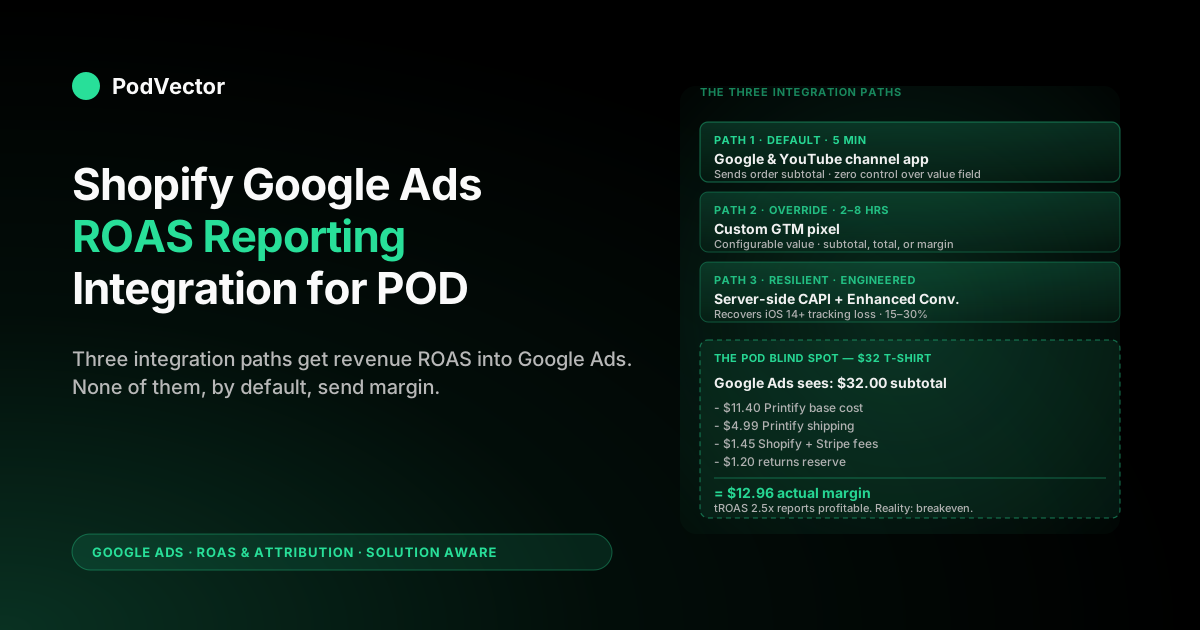
Quick Answer: A Shopify–Google Ads ROAS reporting integration is the plumbing that sends Shopify order data — purchase events and conversion values — into Google Ads so the ROAS column in your campaigns reflects actual revenue. The default path is Google's Shopify channel app (the & Google & YouTube app), which auto-installs the conversion tag and pushes order subtotal as the conversion value.
Two override paths exist: a custom GTM-based pixel for stores that want control over the value field, and a server-side Conversions API / Enhanced Conversions setup for accounts dealing with iOS 14+ tracking loss. All three produce a working ROAS number in the Google Ads UI. None of them, by default, send margin — they send subtotal. For a print-on-demand store, that distinction is the difference between a ROAS report Smart Bidding can profitably optimize against and one that confidently reports profitable on sales that lose money after Printify or Printful base cost.
What a Shopify Google Ads ROAS reporting integration actually does
The phrase "Shopify Google Ads ROAS reporting integration" sounds like a single product, and most sellers buy it that way. It isn't. It's a stack of three things that all have to work for the ROAS column in Google Ads to mean what you think it means.
The first piece is the conversion event. When a buyer completes checkout on your Shopify store, something has to fire a Google Ads conversion tag with the right transaction details.
The second piece is the conversion value — what dollar number gets sent into Google Ads as the revenue from that purchase. The third piece is the identity matching — how Google ties the conversion back to the ad click that started the path, especially under iOS 14+ tracking restrictions and ITP cookie expiry.
ROAS in Google Ads is computed at report time as conversion value divided by ad spend. If any of those three pieces is wrong, the ROAS number is wrong.
For a typical print-on-demand store running Performance Max plus Search, all three pieces have moving parts that can break independently: a missing purchase event because Shopify's checkout flow updated, a wrong conversion value because the tag is sending order total including refunds, an unmatched click because Enhanced Conversions wasn't enabled. The integration is what holds those three pieces together. The cluster pillar at the complete guide to Google Ads ROAS and attribution for POD covers how the report itself is computed; this article zooms in on the integration plumbing that produces the inputs.
The three integration paths you'll choose between
Three real paths exist, and most POD stores eventually run a combination of two. They differ in setup effort, in how much control you have over what gets sent, and in how robust the integration is to iOS tracking changes.
- Path 1 — Google & YouTube channel app. Shopify's official integration, installed from the Shopify App Store. Connects your Google Ads account, auto-injects the Google site tag and conversion tag at checkout, and pushes order data automatically. Lowest effort, least control.
- Path 2 — Custom pixel via Google Tag Manager. Install GTM on your Shopify theme and the checkout extensibility layer, then deploy the Google Ads conversion tag through GTM with a custom value definition. Higher effort, full control over what value gets sent (subtotal, total including shipping, or a margin calculation).
- Path 3 — Server-side Conversions API + Enhanced Conversions. Push purchase data to Google directly from your Shopify backend (or an intermediary like Stape or RudderStack) using the Google Ads server-side endpoint, plus enable Enhanced Conversions to match hashed customer email/phone against Google's signed-in user data. Highest effort, most resilient to iOS 14+ and cookie loss.
The decision usually goes: start with Path 1 for the first month while you validate the rest of your account works. Layer Path 3 (Enhanced Conversions, at minimum) within 60 days because Path 1 alone will undercount conversions on iOS by 15–30% in 2026.
Layer Path 2 only if you decide to send something other than order subtotal as the conversion value — which, for a POD store, you almost certainly should. The setup walkthrough at add Google Ads conversion tracking to Shopify: setup guide for POD sellers covers the practical install steps for Path 1 and the handoff to GTM for Path 2.
Path 1: Google & YouTube channel app (the default)
The Google & YouTube app is what 80% of Shopify stores end up using because it's the path of least resistance. Install it from the Shopify App Store, click through to authenticate with your Google account, link your Google Ads and Merchant Center accounts, and the app handles tag installation. The Google site tag goes on every page; the conversion tag fires on the order status page after a successful checkout.
What it gets right: zero-effort install, automatic updates when Google or Shopify changes their conversion APIs, automatic product feed sync to Merchant Center for Shopping campaigns. The conversion tag includes order ID, currency, and conversion value — the three fields Google Ads requires.
What it gets wrong, specifically for POD: the conversion value field is set to order subtotal, which means it's gross of shipping and gross of fulfillment cost. For a Printify-fulfilled order with a $32 subtotal, the channel app sends $32 to Google Ads, regardless of the fact that $19.40 of that is supplier base cost.
There's no setting to change this — the field is hardcoded in Google's Shopify integration. If you want the conversion value to reflect anything other than gross subtotal, you need to override the channel app's tag with a custom GTM tag (Path 2) or a server-side push (Path 3).
The channel app also has a known gap on the post-purchase upsell page. Shopify's post-purchase extensibility introduces a second checkout step (the post-purchase upsell offer) that fires its own order edit.
The channel app sometimes double-counts these purchases as two separate conversions and sometimes misses them entirely depending on Shopify's current implementation. Audit your conversions monthly for duplicates and gaps when you have post-purchase offers running.
Path 2: Custom pixel via Google Tag Manager
The custom-pixel path replaces (or augments) the channel app's conversion tag with one you control through Google Tag Manager. You install GTM on your Shopify theme via the additional scripts settings or as a custom pixel in Shopify's Customer Events admin, then deploy a Google Ads conversion tag through GTM using the order completion event as the trigger.
The setup involves three things. First, GTM container code on every page (the GTM snippet, plus a Customer Events pixel for checkout-stage events Shopify exposes through its analytics.publish API since the migration off Liquid checkout in 2024).
Second, a Google Ads conversion linker tag firing on all pages so first-party cookies are set correctly. Third, the conversion tag itself, firing on the checkout_completed event, with a value field you can configure.
The value field is where this path earns its keep. Instead of hardcoding order subtotal, you can write a JavaScript variable in GTM that pulls the order's line items and computes whatever value you want — subtotal minus an estimated cost percentage, total including shipping, margin after a hardcoded supplier-cost lookup. For a POD store that's serious about ROAS reflecting margin, this is the path that gets you there inside the Google Ads UI without a separate reporting layer.
The downside is maintenance. Shopify has changed its checkout architecture twice since 2023 (the move to checkout extensibility, then the customer events API stabilization), and each change broke a percentage of GTM-based pixel implementations.
Plan for a 30-minute audit every 90 days to verify the tag is still firing on the new checkout path. The trade-offs in detail are covered at the complete guide to Google Ads + Shopify integration for POD.
Path 3: Server-side Conversions API and Enhanced Conversions
The third path is the one most POD stores still haven't wired up but should. It addresses the actual measurement problem in 2026, which isn't tag installation — it's the systematic undercount of conversions caused by iOS 14+ ATT, ITP cookie expiry, and ad-blocker prevalence.
Two related but distinct mechanisms exist:
- Enhanced Conversions. When a buyer completes checkout, Shopify hashes their email address and phone number using SHA-256, sends the hashed values to Google as part of the conversion payload, and Google matches that hash against signed-in Google account data on its side. If the buyer was logged into Chrome or signed into Google when they clicked an ad, the conversion is matched even if the click cookie was dropped. This is the single highest-leverage tracking improvement available — typically recovers 10–25% of "lost" conversions.
- Server-side Conversions API (CAPI for Google Ads, sometimes called the "Google Ads API conversion upload"). Instead of (or in addition to) the browser-side conversion tag, your Shopify backend or an intermediary service (Stape, RudderStack, Segment) pushes purchase events directly to Google's conversion endpoint. The browser tag can be blocked, throttled, or just fail to fire; the server-side push can't. For high-spending accounts, server-side matching combined with Enhanced Conversions recovers another 5–15% on top of Enhanced Conversions alone.
Enhanced Conversions can be enabled inside the Google Ads UI on the conversion action settings — it's a checkbox plus a hashing configuration. It's the prerequisite step for Path 3.
The full server-side CAPI implementation is heavier (set up Stape or equivalent, configure the events forwarding, add the Google Ads conversion adapter) and is what differentiates a 9-figure POD operation's measurement from a 7-figure one. For most POD accounts under $20K monthly ad spend, Enhanced Conversions alone is enough; the full server-side push pays back above that threshold. The implications for Smart Bidding are covered in Google Ads attribution explained for POD sellers.
What each path actually sends to Google Ads
The integration paths look similar from the outside but differ on what data lands in Google Ads. The differences matter because Google Ads computes ROAS from exactly two numbers — conversion value (sent by the integration) and ad cost (recorded by Google directly) — and any error in the first is a permanent error in the report.
By default, here's what each path puts into the conversion value field:
- Channel app: order subtotal in store currency, gross of shipping, gross of any cost.
- Custom GTM tag: whatever you configure — subtotal, total, total minus shipping, or a JavaScript-computed margin estimate.
- Server-side CAPI: whatever you configure in your server-side push, typically order total or subtotal but flexible.
- Enhanced Conversions overlay: hashed identity data (email, phone) attached to the conversion event, used for matching, not for value.
For a POD store running the channel app with no overrides, the conversion value Google Ads sees is order subtotal. A $32 t-shirt purchase sends $32. A $58 sweatshirt purchase sends $58.
The Smart Bidding algorithm — Target ROAS, Maximize Conversion Value — optimizes against those subtotal numbers, which means it's optimizing toward maximum subtotal-revenue, not toward maximum margin. For a POD catalog with mixed margin profiles (mugs at 60% margin, sweatshirts at 25%), this produces a systematic mis-allocation: the bidder pushes spend toward the highest-subtotal SKUs, which are often the lowest-margin SKUs. The detail on how the model and value layer interact is in Google Ads attribution model explained for POD sellers.
Reading the Google Ads ROAS column once the integration is live
Once the integration is wired and conversions start firing, the ROAS column appears in your Google Ads UI under the Campaigns view (it may be called "Conv. value / cost" depending on the column set you've selected). What you're looking at: the sum of all conversion values attributed to that campaign by the active attribution model, divided by the cost spent on that campaign in the same date range.
Three things to know about the reported number before you make decisions on it:
- The attribution window matters. The conversions counted are those that happened within the campaign's lookback window. Default is 30 days for click-through, but Performance Max paths can be longer. A campaign that ran heavily in week 1 may have its ROAS climb in weeks 3–4 as delayed conversions flow in.
- The attribution model decides credit. Under data-driven attribution (DDA, the 2026 default), conversion values get split fractionally across touchpoints. A $32 conversion might attribute $9.60 to PMax, $7.20 to YouTube, $11.20 to branded Search, $4.00 to a generic Search keyword. The full setting walkthrough is at Google Ads attribution window explained for POD sellers.
- The number lags 24–48 hours. Conversion data isn't fully populated until at least one full day has passed; Smart Bidding decisions read from a still-stabilizing number.
The integration affects the first input (conversion value); the model and window affect how that input gets distributed. Both have to be right for the report to be useful.
The post-purchase upsell tracking gap
If your Shopify store runs post-purchase upsells — the offer page that appears after a buyer completes checkout but before the thank-you page — your Google Ads ROAS reporting has a known measurement gap that compounds across all three integration paths.
The mechanism: when a buyer accepts a post-purchase offer, Shopify edits the order rather than creating a new order, and the purchase event firing logic on the thank-you page can either fire twice (once for the original order, once for the edited order) or fire once with the original subtotal, missing the upsell revenue. The channel app handles this inconsistently because Shopify's post-purchase event semantics have shifted three times since 2023.
For a POD store, this gap typically means 5–15% of revenue that should be attributed to Google Ads campaigns is missing from the ROAS report. The fix isn't to disable post-purchase offers — they're often where margin actually is — but to verify the conversion event is firing correctly on the order edit and the value field includes the post-purchase upsell amount.
Three ways to verify:
- Test purchase audit. Place a test order on your store with a post-purchase offer, accept the offer, and check Google Ads' All Conversions diagnostic 24 hours later for that test purchase. If it shows two conversions or one conversion with the wrong value, your tag is misfiring.
- Shopify order vs. Google Ads conversion reconciliation. Once a month, export Shopify orders for the period and join them against Google Ads conversion data via order ID (the channel app sends Shopify's order ID as the transaction ID; GTM tags should be configured to do the same). Discrepancies of more than 2% indicate the tracking is leaking.
- Server-side push as the source of truth. The cleanest fix. Your Shopify backend knows the final order total after all post-purchase edits, so a server-side push fires once with the correct value, regardless of how the browser-side tag behaved. This is one of the strongest arguments for moving Path 3 from "nice to have" to "required" once you turn on post-purchase offers.
The POD blind spot: reported ROAS isn't margin ROAS
Here's where the conversation about integration usually stops, and where the POD-specific conversation should keep going.
You can install the channel app, layer Enhanced Conversions, audit post-purchase tracking until your ROAS report perfectly reflects every dollar of Shopify revenue attributable to Google Ads. The integration would be flawless.
The ROAS column in Google Ads would be exactly correct on its own terms. And it would still be misleading for any decision other than "did Google Ads cause this Shopify revenue."
The reason: the conversion value Google Ads sees, regardless of integration path, is some flavor of revenue — order subtotal, total, or total minus shipping. None of those is margin.
For a print-on-demand store, the gap between revenue and margin is large and SKU-specific. A typical breakdown on a $32 t-shirt sale through Shopify with Printify fulfillment:
- Order subtotal sent to Google Ads: $32.00
- Printify base cost (garment + print): $11.40
- Printify shipping: $4.99
- Shopify transaction + Stripe processing fee: $1.45
- Estimated returns + replacement cost: $1.20
- Actual contribution margin: $12.96
Google Ads, optimizing toward Target ROAS of 2.5x against the $32 subtotal, will spend up to $12.80 to acquire that sale. The actual margin is $12.96.
The campaign is, in business terms, breakeven — not profitable, not unprofitable, breakeven. But the Google Ads UI reports a comfortable 2.5x ROAS as if everything is working. Sweatshirt and hoodie SKUs, with even tighter margin profiles, can run "profitable" in the Google Ads UI while losing money on every single sale.
This isn't a flaw in the integration. It's a feature: Google Ads measures what you tell it to measure, and you told it to measure subtotal. The default Shopify-Google integration will never see your supplier cost because the supplier-cost data lives in Printify or Printful, not in Shopify, and the channel app has no plumbing to either system.
The integration is correct on its own terms; the layer it's missing is the margin layer. The reading on this same blind spot from the attribution-model angle is at data-driven attribution default Google Ads help explained for POD sellers.
Three ways to reconcile reported ROAS with POD margin
Three approaches close the gap. They differ in setup effort and in how dynamic they are. Most POD operators end up running approach 2 first, then graduate to approach 3 as ad spend grows.
1. Send margin as the conversion value (the cleanest fix). Use Path 2 (custom GTM tag) or Path 3 (server-side push) with a value field that calculates margin per order rather than sending subtotal. This requires a per-SKU cost table maintained either in your Shopify metafields, a Google Sheet pulled at tag-fire time, or a Cloudflare Worker / Stape transformation that joins the order against a live Printify or Printful cost lookup.
When the conversion value Google sees is margin, Smart Bidding's tROAS targets automatically align to a number that reflects business reality. Setup effort: 2–8 hours engineering plus ongoing cost-table maintenance.
2. Adjust tROAS targets manually for the gap (the accountant fix). Leave the channel app or GTM tag sending subtotal, but compute your average margin percentage and raise your Target ROAS to compensate.
If your store-wide average margin is 30% of subtotal, a tROAS of 3.3x in Google Ads is roughly equivalent to a true 1.0x return on margin. To target 1.5x return on margin, set tROAS to 5.0x.
This is a 30-second change in the bid strategy settings. The downside: it's a flat correction that doesn't reflect SKU-level margin differences. If your account mixes 60%-margin mugs and 25%-margin sweatshirts and the same tROAS applies to both, the bidder will underspend on profitable mugs and overspend on marginal sweatshirts.
3. Audit ROAS against margin in a separate reporting layer (the reporter fix). Keep Google Ads' integration as-is, but maintain a second view — a warehouse, Looker Studio, a maintained spreadsheet — that pulls Google Ads spend and joins it against actual order-level margin data from Shopify, Printify, and Printful.
The Google Ads UI continues to report attributed revenue ROAS; your separate view reports attributed margin ROAS. Decisions get made off the second number. This is the most robust setup for an account doing serious money, and the cleanest separation of attribution (Google's job) from profitability accounting (yours).
Most POD operators we work with start with approach 2 because it's a 30-second change, then graduate to approach 3 once monthly ad spend crosses $5K and a 5–10 percentage-point error on margin ROAS represents real money. Approach 1 — sending margin directly in the conversion value — is the cleanest but requires the most engineering, so it's typically the last upgrade rather than the first.
The full cluster pillar at the complete guide to Google Ads ROAS and attribution for POD walks through each approach end-to-end. For the strategic frame on what to do with the resulting numbers, the cross-cluster complete Google Ads playbook for print-on-demand sellers connects measurement to bidding and creative decisions, and the topic hub at Google Ads for POD contains the supporting cluster pages.
How Victor reads Shopify Google Ads ROAS against live supplier cost
Victor is PodVector AI's AI agent for POD operators. The interesting part of Shopify–Google Ads integration for an agentic system isn't installing the channel app — that's a 5-minute task most operators have already done — it's reading what the integration produces against live margin data without manual joins.
What Victor does today: connects to your Google Ads account, your Shopify store, and your Printify or Printful account for live supplier-cost data, including base cost and shipping per SKU and per order. When you ask "what's my true ROAS on the Performance Max US Women campaign for the last 30 days, after Printify cost," Victor pulls the conversion value Google Ads attributed to that campaign, joins it against the actual order-level fulfillment cost from your Printify account, subtracts Shopify and processing fees from your Shopify order data, and returns the margin-based ROAS.
No spreadsheet, no scheduled a warehouse job, no manual cost-of-goods column to maintain. The integration's reported number stays Google's; the value layer it gets compared against becomes the real one.
The same query infrastructure handles the questions the channel app's ROAS column can't answer: "which campaigns have the widest gap between reported subtotal ROAS and actual margin ROAS this month," "what's the SKU-level mix flowing through PMax US Men, and which SKUs in that mix would push the campaign-level margin ROAS above 1.5x if I tightened them," "for last week's converters on the channel app's reported PMax conversions, what was the average post-fulfillment contribution margin, and is that margin trending up or down month over month." These are the questions an integration alone can't answer because they require the integration's output joined to data the integration was never built to see — supplier costs, SKU-level margin tiers, returns by product type.
The longer-term direction of the product is moving from answering integration-margin questions to acting on them. Victor reports the gap between reported ROAS and margin ROAS and adjusts your tROAS targets per campaign — with your approval based on the SKU mix flowing through that campaign in real time, raises the target on lower-margin sweatshirt campaigns, lowers it on higher-margin mug campaigns, and tells you what changed and why. The Shopify–Google Ads integration stays Google's job; the operational decisions that depend on it become Victor's to suggest or execute, with you in the loop.
FAQs
Does the Google & YouTube Shopify channel app track Google Ads ROAS automatically?
Yes — once installed and linked to your Google Ads account, it auto-injects the conversion tag and starts populating the ROAS column in Google Ads within 24–48 hours of the first conversion firing. The tag uses order subtotal as the conversion value, which is what produces the ROAS denominator.
What conversion value does the channel app send to Google Ads — subtotal or total?
Order subtotal in store currency, gross of shipping. There's no setting to change this. To send a different value (total, total minus shipping, or computed margin), you need to override the channel app's tag with a custom GTM tag or a server-side conversion push.
Do I need Enhanced Conversions if I already have the Shopify channel app?
Yes, in 2026 — even with the channel app firing every conversion correctly, browser-side conversion tags lose 15–30% of attributable conversions on iOS due to ATT and ITP cookie expiry. Enhanced Conversions recovers a meaningful portion of those by matching hashed customer email/phone against signed-in Google account data on Google's side. It's an additive layer, not a replacement, and toggles on as a checkbox in the Google Ads conversion action settings.
Will Google Ads show the right ROAS for my Shopify store after I install the channel app?
It will show the ROAS that matches what you're sending — order subtotal divided by ad spend, attributed by your active attribution model. Whether that's "right" depends on what decision you're trying to make.
For "did this campaign produce subtotal revenue," yes. For "did this campaign produce contribution margin," no — it's revenue ROAS, not margin ROAS, and for a POD store those numbers can differ by 60–70 percentage points.
How do I send margin instead of subtotal as the Google Ads conversion value?
Replace the channel app's conversion tag with a custom Google Ads conversion tag deployed via Google Tag Manager, with a JavaScript variable in the value field that pulls the order's line items and subtracts a per-SKU fulfillment cost. This requires a SKU-cost table maintained either in Shopify metafields, a Google Sheet read at tag-fire time, or a Cloudflare Worker that calls Printify's or Printful's API for live cost. Setup is 2–8 hours of engineering effort.
Why is my Google Ads ROAS report different from my Shopify revenue report?
Three reasons usually account for the gap: (1) attribution model — Google credits conversions to the ad-click path, Shopify shows the order regardless of source; (2) attribution window — Google's lookback may be 30 or 90 days, Shopify reports by order date; (3) tracking loss — iOS 14+ and ad blockers cause Google to undercount conversions Shopify recorded. Check Enhanced Conversions is enabled and reconcile by order ID for a clean comparison.
Should I use server-side Conversions API for a small Shopify store on Google Ads?
Below $10K monthly ad spend, Enhanced Conversions alone (configured on the conversion action) is usually enough to capture most of the iOS-attributable tracking loss. Above $20K monthly spend, server-side CAPI starts paying back in measurably better Smart Bidding performance. Between those levels, judgment call — install if you have engineering capacity, defer if you don't.
Do I need both the Google & YouTube channel app and a custom GTM tag?
No — running both will double-count conversions unless you explicitly disable the channel app's conversion tag while keeping its product feed sync. The cleanest setups use the channel app for Merchant Center / Shopping feed sync only and disable its conversion tag, then run a custom GTM tag (or server-side push) for the conversion event itself.
How does the Shopify Google Ads integration handle post-purchase upsells?
Inconsistently. Shopify's post-purchase event semantics have shifted three times since 2023, and the channel app sometimes double-counts post-purchase orders and sometimes misses the upsell value entirely. Audit by placing a test purchase, accepting a post-purchase offer, and verifying the Google Ads conversion record matches Shopify's final order total. The most robust fix is a server-side push that fires once on the final order edit.
See your true Shopify Google Ads ROAS, after Printify and Printful cost
The channel app gets revenue ROAS into Google Ads. Margin ROAS is the harder layer — it requires joining Google Ads' attributed conversion value against live supplier cost and Shopify fees, per order. Victor connects to your Google Ads, Shopify, and Printify or Printful accounts and answers margin-based ROAS questions from live data — no spreadsheets, no scheduled jobs. And ask "what's my true ROAS on Performance Max after fulfillment cost" as the first question.
Try Victor free