
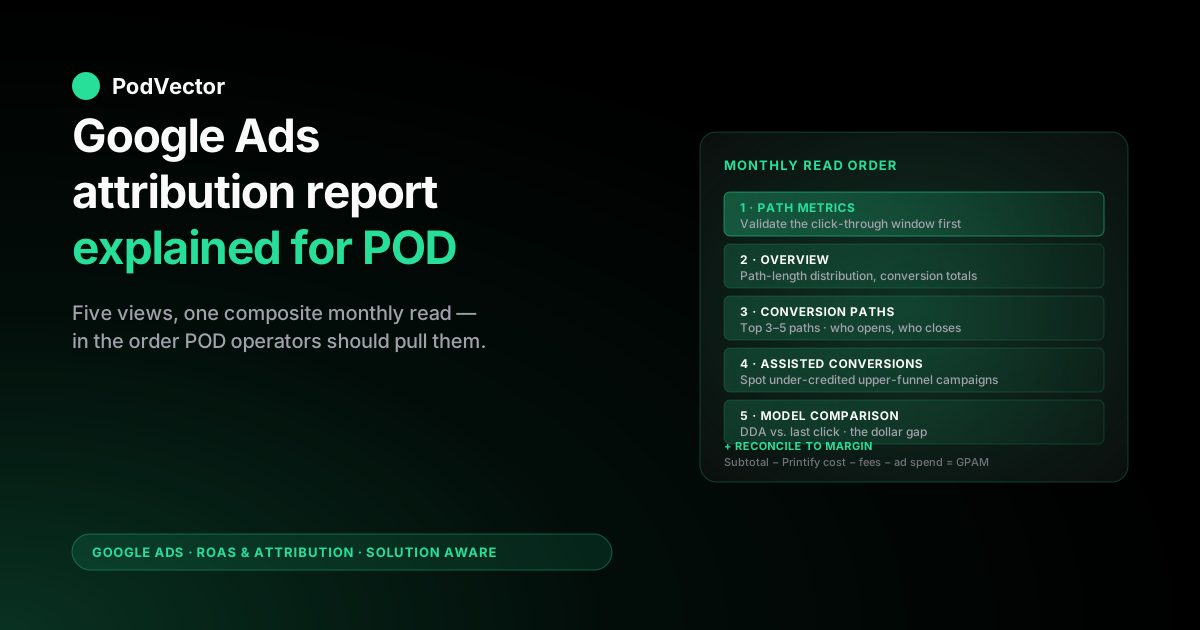
Quick Answer: "The Google Ads attribution report" is not a single screen — it's the bundle of five views Google Ads exposes under Goals → Measurement → Attribution (Overview, Conversion paths, Path metrics, Assisted conversions, and Model comparison) that together let you see the path a buyer took before converting, how long that path was, and how much credit each touchpoint earned. For most POD sellers, the report you actually pull on a recurring basis is a composite read: open Path metrics first to confirm your click-through window covers most paths, then Conversion paths to check whether multi-touch is even meaningful on your account, then Model comparison to put a dollar gap on data-driven attribution versus last click.
The report tells you which campaigns initiate, assist, and close conversions; it does not tell you whether those conversions are profitable. Profitability still requires reconciling the conversion value Google Ads received against the actual contribution margin after Printify or Printful supplier cost, payment-processing fees, and ad spend — a join Google Ads will never do natively. This guide walks through each view, what to look at first as a POD seller, the decisions each view should drive, a worked monthly read with realistic numbers, and the mistakes that turn a clean report into a wrong conclusion.
What "the Google Ads attribution report" actually means
The phrase "Google Ads attribution report" is a small misnomer that almost every POD seller types into Google at least once. There is no single report by that name inside Google Ads. What you find when you click through is a section called Attribution that contains five distinct views — Overview, Conversion paths, Path metrics, Assisted conversions, and Model comparison — each looking at the same underlying conversion-path data through a different lens.
People say "the attribution report" because in practice you read these views together. None of them on its own answers a useful business question; in combination they tell you how the buyers who converted on your store actually got there, how many ad touches it took, how long the consideration window was, and what would happen to your reported ROAS if you switched the attribution model. That bundle is what this guide treats as "the attribution report."
If you want the broader landscape of Google Ads attribution reports as a category, including a section-by-section breakdown of every view, that companion guide goes wider. This one goes narrower: the singular monthly read — what you sit down with on a Wednesday afternoon, in what order, and what you decide as a result.
Where to find the attribution report in 2026
The path inside the Google Ads UI is:
Goals → Measurement → Attribution
Older instructions on the web still reference Tools → Measurement → Attribution — that path was retired during the 2024 navigation reshuffle. If you still have an account using the legacy left-rail layout, the Tools route works; everyone else uses Goals. Google's own canonical reference is the About attribution reports help page, which is the source of truth for what each view contains; this guide is the POD operator's read on top of it.
Once you're in, the five views appear as tabs across the top: Overview, Conversion paths, Path metrics, Assisted conversions, Model comparison. You can deep-link each one — useful if you want to bookmark a specific view at a specific date range — but the tab order is the order most operators read them, except for one tweak this guide will keep recommending: read Path metrics before Overview on the first read of any new account, because Path metrics tells you whether the lookback window is even capturing the right paths in the first place.
The four controls every view shares (and why they matter first)
Before clicking into any tab, look at the four global controls at the top of the section. They apply to every view you open afterward, and getting them wrong is the single most common reason POD sellers come away from the attribution report with a wrong conclusion.
Date range
For most POD accounts, the right default is last 30 days for monthly reads, last 90 days for quarterly reviews, and last 12 months if you're trying to confirm a seasonal pattern (Q4-heavy POD niches especially). Avoid "last 7 days" — POD conversion paths are short but not that short, and a 7-day window will show you noise.
Conversion action
Pick a single conversion action — usually Purchase. Looking at all conversion actions stacked together produces a "Frankenstein report" where Add to Cart paths blend with Purchase paths and the model-comparison numbers become uninterpretable. If you have multiple Purchase actions (one per Shopify funnel, say), pick the primary one for the topline read and drill into the others separately.
Lookback window
This is the click-through window the report uses to assemble paths. The default is 30 days.
For POD accounts where the typical buyer is a low-AOV impulse purchaser of an apparel SKU, 30 days is usually fine. For higher-AOV niches (custom home goods, large-format wall art) where buyers shop around longer, bump to 60 or 90 days. Path metrics will tell you which is right — see below.
Dimension
Default is Default channel. For POD, switch to Google Ads campaign or Google Ads ad group when you want to see how individual campaigns assist or close. Stick with Default channel when the question is "is paid search getting credit Search Console or organic earned."
Set these four globally before you click any tab. If you change them mid-read, every tab reloads and you've lost your place.
The Overview view — the 30-second read
Overview gives you four things in one screen:
- Total conversions and conversion value over the date range you set
- Top conversion paths — the most common sequences of touchpoints leading to conversion
- Distribution of paths by length (1 touch, 2 touches, 3+ touches)
- Assist vs. last-click split across your campaigns at a high level
For most POD accounts, the path-length distribution is the chart that matters. If you see 70%+ of paths are single-touch, the rest of the attribution report is going to tell you a fairly boring story: data-driven attribution and last click are going to produce nearly identical numbers, multi-touch optimization isn't where the lift comes from, and your time is better spent on creative and bidding than on attribution model debates. If you see 40%+ of paths are 2 or 3 touches, attribution model choice starts mattering and Model comparison becomes the view to camp out on.
Overview is also where you'll first notice if your conversion volume is too thin to read meaningfully. If the date range shows fewer than ~50 conversions on the chosen action, every other view in the section will be statistically noisy. Either widen the date range or accept that the report can't help you yet.
The Conversion paths view — does multi-touch actually matter on your account?
The Conversion paths view is the storytelling view. It shows the most common ordered sequences of channels (or campaigns, depending on your dimension) that ended in a conversion, with frequency counts.
For a typical POD account running Performance Max + branded Search + a small Display retargeting campaign, the top three rows usually look something like:
- Performance Max → conversion (single touch)
- Performance Max → Branded Search → conversion (two touches)
- Display retargeting → Performance Max → conversion (two touches)
What this tells you is concrete:
- Performance Max is doing the heavy lifting as both initiator and closer
- Branded Search is closing paths Performance Max started — last-click attribution would over-reward branded here, which is the classic case for switching to data-driven
- Display retargeting is initiating some paths Performance Max ends — under last-click, retargeting would look like it produces zero conversions, when it's actually opening the loop
If your top three paths instead all read X → conversion (every path is single-touch), Conversion paths is telling you the multi-touch debate is theoretical for your account and you can spend less time on the rest of this section. Conversely, if you see paths of length 4+ appearing frequently, you have a longer consideration cycle than typical for POD and your lookback window may need to be longer than 30 days — go back to Path metrics and confirm.
The "View" menu (paths vs. transitions)
Inside Conversion paths, the View menu lets you toggle between full paths and channel transitions. Full paths is the default and the right view for most POD reads. Transitions becomes useful when you want to know "after a buyer touches Display, what channel do they touch next?" — relevant for figuring out whether retargeting hands off to branded search or back to Performance Max.
The "Devices" dimension
Switching the dimension to Devices instead of Channels reveals cross-device paths — typical pattern for apparel POD is mobile impression → desktop conversion. If most of your paths are single-device, last-click attribution probably isn't losing you much. If a meaningful share are mobile-then-desktop, last-click is systematically under-crediting your mobile-first campaigns and data-driven attribution will pull credit toward the discovery half of those paths.
The Path metrics view — is your click-through window long enough?
Path metrics is the view this guide keeps insisting you read first on a new account. It produces two numbers:
- Avg. days to conversion — average elapsed time between first ad interaction and the conversion event
- Avg. interactions to conversion — average number of ad touches per converting path
Why first? Because if your average days to conversion is 18 and your click-through window is set to 30 days, you're fine — most paths complete inside the window.
If average days to conversion is 22 and your window is 30 days, a large tail of legitimate paths is being truncated and the rest of your attribution report is reading a falsely shortened version of reality. The fix is to widen the window to 60 or 90 days and re-read.
For most POD apparel accounts the average is in the 1–4 day range — fast and fine. For higher-consideration POD niches (custom-print home goods, large wall art, personalized gifts with a 2–3 week event timer) the average can stretch to 7–14 days, and outliers above 18 mean the 30-day default is masking activity. Average interactions hovers around 1.2–1.6 for most POD accounts, confirming what Conversion paths usually shows: most paths are short.
Path metrics is also the data Google Ads uses to set conversion delay assumptions inside Smart Bidding. If your average days to conversion is rising over time, Smart Bidding is going to look like it's "performing worse" for a while as more conversions get pushed into the future and out of the bid optimizer's immediate feedback loop. Knowing that gap exists is useful before you panic-pause a campaign that's actually fine.
The Assisted conversions view — what's getting under-credited?
Assisted conversions ranks campaigns (or channels, depending on dimension) by how often they appeared in a converting path without being the last click. The two columns to read are:
- Click-assisted conversions — count of conversions where the campaign clicked through earlier in the path but didn't close
- Click-assist value — the conversion value (or revenue) attributable to those assists under the chosen model
The classic POD finding here is a Display or YouTube retargeting campaign with a click-assist count 5–10× its last-click count. Under a last-click view, that campaign looks marginal. Under the assisted view, it's the upper-funnel opener that makes Performance Max's closing rate look as good as it does. Cutting it on a last-click basis is one of the most common ways POD operators accidentally crater their topline two months later, after the assist pipeline has dried up.
What you do not do with Assisted conversions is double-count. The conversion value reported under "click-assist" overlaps with the conversion value reported under "last-click" — the same conversion is showing up in both columns. The assist view is for understanding contribution shape, not for adding to your reported ROAS.
The Model comparison view — the only view that produces a dollar number
Model comparison is the most actionable view in the entire attribution section. It puts two attribution models side by side and shows you, per campaign or ad group, the percentage shift in conversions and conversion value under each.
The only two models you can actually pick in 2026 are data-driven attribution (DDA) and last click. Google retired the rule-based models — first click, linear, time decay, position-based — across 2023–2024. The comparison you'll run as a POD seller is almost always DDA vs. last click.
Read it like this:
- If a campaign shows +15% to +40% conversions under DDA versus last click, DDA is reading it as a meaningful upper-funnel contributor that last click was under-rewarding. Common pattern for Display, YouTube, and broad-keyword Search.
- If a campaign shows −15% to −30% under DDA, last click was over-rewarding it. Common pattern for branded Search, where buyers were going to search for your brand whether you ran an ad or not.
- If a campaign shows −2% to +2%, model choice is irrelevant and the campaign's last-click and DDA-attributed numbers are essentially identical.
The Model comparison view is the place where the abstract "we should think about attribution" conversation becomes a concrete dollar figure. If your account spends $40K/month and Model comparison shows a +28% DDA shift on Performance Max and a −22% shift on branded Search, that's a tangible reallocation case — DDA is saying you should put more budget upstream and less on the brand keyword that was getting credit it didn't earn. Whether you act on that depends on whether you trust DDA's math, which depends on whether you have enough conversion volume for DDA to fit a stable model in the first place.
Modeled conversions — why the numbers are partly estimated in 2026
Every view in the attribution report now mixes observed conversions (Google saw the full click-to-purchase path with consented identifiers) with modeled conversions — purchases Google statistically estimates when consent banners, Safari ITP, iOS privacy controls, or ad blockers break the path it would otherwise have observed directly. This is the single biggest change to how the report reads versus a few years ago, and the competing guides that still describe it as a clean record of "what happened" are out of date.
What this means for a POD seller reading the report:
- Conversion modeling fills the gap left by lost cookies. If 25–35% of your store's traffic is on Safari or refuses consent — typical for a consumer apparel audience — a meaningful slice of the conversions in every view is modeled, not counted. The report does not flag which rows are modeled.
- Modeling makes DDA's volume floor stricter, not looser. The ~300-conversions-per-action guidance for a stable data-driven model assumes enough observed data to anchor the estimate. A thin account leaning heavily on modeled conversions gives you a Model comparison view that looks precise and isn't.
- Server-side tagging tightens the read. Sending purchase events through a server-side container (or the Shopify-to-Google native integration) recovers conversions that browser-side tags drop, which shrinks the modeled share and makes Conversion paths and Assisted conversions closer to reality. For higher-AOV POD niches this is worth the setup.
None of this changes the order you read the views in — it changes how much confidence you put on small differences. A ±5% Model comparison shift on a modeling-heavy account is noise; a ±25% shift is still signal. And it sharpens the core point of this guide: the report is an increasingly estimated credit-distribution tool, which is one more reason the only number you should make spend decisions on is margin reconciled against your own order data, where every sale is observed because you actually shipped it.
A worked monthly attribution-report read for a POD account
Concretely, here's what a 30-day attribution-report read looks like for a POD apparel store doing roughly $90K/month in revenue at $40K/month in Google Ads spend, running Performance Max + branded Search + Display retargeting:
Step 1 — Set the controls. Date range: last 30 days. Conversion action: Purchase. Lookback: 30 days (will validate in step 3). Dimension: Google Ads campaign.
Step 2 — Overview. Total conversions: 1,180. Conversion value: $94,200. Path-length distribution: 64% single-touch, 28% two-touch, 8% three-or-more-touch. Read: Multi-touch matters for roughly a third of conversions — enough to make Model comparison interesting.
Step 3 — Path metrics. Avg. days to conversion: 2.8. Avg. interactions: 1.5. Read: Click window of 30 days is comfortably wide — paths complete inside ~3 days on average. No need to widen the window.
Step 4 — Conversion paths. Top 3 paths: PMax-only (52%), PMax → Branded Search (18%), Display Retargeting → PMax (9%). Read: PMax is opening and closing the majority of conversions. Branded Search is closing PMax-initiated paths. Display Retargeting is initiating paths PMax closes.
Step 5 — Assisted conversions. Display Retargeting: 412 click-assists vs. 96 last-click conversions — assist-to-close ratio of 4.3×. Branded Search: 38 click-assists vs. 220 last-click conversions — assist-to-close ratio of 0.17. Read: Display is upper-funnel, Branded is closer. Don't kill Display on a last-click read.
Step 6 — Model comparison (DDA vs. last click). Performance Max: +24% conversion value under DDA. Branded Search: −31% under DDA.
Display Retargeting: +18% under DDA. Read: If you accept DDA's math, your branded budget is over-credited by ~31% and your retargeting + PMax budget is under-credited. Modest reallocation case for shifting ~10–15% of branded budget into PMax over the next month, then re-reading.
Step 7 — The reconciliation that Google Ads doesn't do for you. The Conversion value column shows $94,200. That number is the order subtotal, not the contribution margin.
After Printify supplier cost (~38% of subtotal), payment processing (~3%), and the $40K ad spend, the actual gross profit after marketing on this read is closer to $16K, not $54K. The attribution report told you which campaigns to weight more — it did not tell you whether the campaigns are profitable. That's the second half of the read, and it lives in your back-end data, not in Google Ads.
The decisions the attribution report can — and cannot — answer
Be explicit about the question each view does and doesn't answer:
- Can answer: Which campaigns initiate paths vs. close them? (Conversion paths, Assisted conversions)
- Can answer: Is my click-through window catching the actual consideration cycle? (Path metrics)
- Can answer: If I switch attribution models, how does reported credit shift across campaigns? (Model comparison)
- Can answer: Are most of my paths single-touch or multi-touch? (Overview, Conversion paths)
- Cannot answer: Which campaigns are profitable after Printify cost, fulfillment fees, and payment processing? (Requires order-level reconciliation outside Google Ads.)
- Cannot answer: Whether the conversion value Smart Bidding is optimizing toward is the right objective. (If the value sent is order subtotal, Smart Bidding is optimizing for revenue, not margin — independent of attribution model.)
- Cannot answer: Whether your DDA model is statistically stable. (Needs ~300 conversions per action over 30 days for a confident fit; below that, DDA is approximating.)
The attribution report is a credit-distribution tool. It is not a profitability tool.
The two are constantly conflated, including in Google's own documentation, and that conflation is the single biggest reason POD operators chase the wrong optimization. Reading Google Ads attribution as a system rather than as a single number is the framing this guide keeps coming back to.
For the broader ROAS-and-attribution context — measurement, bidding, and the full picture together — the ROAS & Attribution cluster hub indexes every article in this series, and the complete Google Ads playbook for POD sellers shows how attribution feeds into account-level decisions across campaigns. The Google Ads topic hub covers everything else.
Five mistakes POD sellers make reading the attribution report
1. Reading the report on too short a date range
"Last 7 days" feels current and is almost always wrong. POD conversion volume on a small-to-mid account is too thin over a week to support meaningful path analysis. Stick to 30 days minimum, 90 for quarterly reviews.
2. Stacking multiple conversion actions in one read
Add to Cart paths and Purchase paths look fundamentally different. Combining them produces a Frankenstein view where Model comparison numbers are uninterpretable. Pick one action per read.
3. Reading Conversion paths without first checking path-length distribution
If 70%+ of your paths are single-touch, the entire multi-touch attribution conversation is academic for your account. Don't spend an hour debating model choice on a question that doesn't move money.
4. Cutting "low last-click" campaigns without checking Assisted conversions
The classic mistake. A Display retargeting campaign with 412 assists and 96 last-click conversions looks marginal under a last-click report. Under the assist view, it's the upper-funnel opener for a quarter of your revenue. Cut it and you'll watch Performance Max's close rate sag two months later.
5. Treating conversion value as profit
The Conversion value column is whatever value you sent to Google Ads with the conversion event — for most POD stores that's order subtotal, sometimes order total including tax and shipping. Either way, it's revenue, not margin. The attribution report can tell you a campaign drove $20K in conversion value; only your back-end accounting can tell you whether the resulting $7,400 of operating profit after Printify cost, fees, and ad spend was worth it.
A 30-minute monthly attribution-report workflow
Block 30 minutes on the calendar once a month — first Wednesday afternoon is a good slot, after weekend data has settled. The read goes in this order:
- Minute 0–2 — Set controls. 30-day window, primary Purchase action, 30-day lookback (90 if your niche has longer cycles), Google Ads campaign dimension.
- Minute 2–6 — Path metrics. Confirm avg. days to conversion is meaningfully shorter than your lookback window. If it's not, widen the window and re-load.
- Minute 6–10 — Overview. Note the path-length distribution. Decide whether multi-touch optimization is worth deep analysis on this account or whether you're a single-touch shop.
- Minute 10–15 — Conversion paths. Identify your top 3–5 paths. Note which campaigns play opener, closer, or both.
- Minute 15–20 — Assisted conversions. Spot any campaigns with high assist-to-close ratios. These are protected — don't cut on a last-click read.
- Minute 20–26 — Model comparison. Pull DDA vs. last click. Note any campaigns shifting ±15% or more. Reallocation candidates if the dollar value is meaningful.
- Minute 26–30 — Reconcile to margin. Pull conversion value. Subtract supplier cost (Printify or Printful), processing fees, and ad spend. The number you act on is the GPAM, not the conversion value.
Run that monthly and the attribution report stops being a curiosity tab and becomes a decision tool. Skip the last step and you'll keep reading the report and making the wrong decisions.
FAQs
Is "Google Ads attribution report" one report or several?
Several. The Attribution section inside Google Ads contains five views — Overview, Conversion paths, Path metrics, Assisted conversions, and Model comparison — and "the attribution report" is shorthand for reading them together as a composite.
Where do I find the attribution report in Google Ads in 2026?
Goals → Measurement → Attribution. The older Tools → Measurement → Attribution path was retired during the 2024 navigation reshuffle.
Which view should I read first?
Path metrics, then Overview, then the others. Path metrics tells you whether your click-through window is even capturing the right paths — if it isn't, every other view is reading a truncated version of reality.
How long does my date range need to be?
30 days for monthly reads, 90 for quarterly. Anything shorter than 30 days is statistically thin for most POD accounts.
Why does the conversion value differ between the attribution report and the Campaigns page?
The Campaigns page reports under whatever attribution model is set on each conversion action. The attribution report can show the same data under either model side by side. If you toggle Model comparison from DDA to last click, the totals will match the Campaigns page only if the Campaigns page is also on last click for that action.
Does the attribution report show profit?
No. It shows conversion value, which is whatever value your tracking sends — typically order subtotal. Profit requires reconciling that revenue against Printify or Printful supplier cost, payment-processing fees, and ad spend, which Google Ads does not do natively.
How many conversions do I need before the attribution report is statistically useful?
For Conversion paths, Path metrics, and Assisted conversions, ~50 conversions over the date range is a soft floor. For Model comparison with DDA, you need ~300 conversions per action over 30 days for the model to fit reliably. Below that, DDA is approximating, and the comparison view is showing you a less-confident estimate.
Are the conversions in the attribution report all real, observed purchases?
No. In 2026 the report blends observed conversions with modeled ones — purchases Google statistically estimates when consent banners, Safari/iOS privacy controls, or ad blockers break the click-to-purchase path it would otherwise have tracked. The report doesn't label which rows are modeled, so treat small differences between models or campaigns as estimates. Server-side tagging (or the native Shopify-to-Google integration) recovers some dropped conversions and shrinks the modeled share.
Can I export the attribution report?
Yes — each view has a download button (usually top-right) that exports CSV or Google Sheets. For monthly reads, exporting Model comparison and Conversion paths to a sheet you can join with your back-end profitability data is the highest-leverage workflow.
What's the difference between "click-assist value" and "click-assist conversions"?
Click-assist conversions counts the number of conversions where the campaign appeared in the path without being last click. Click-assist value sums the conversion value (revenue) attributable to those assists under the chosen model. Both columns are non-additive — the same conversion appears in both assist and last-click columns.
Should I switch from last click to data-driven attribution based on the Model comparison view?
Usually yes, but only after you've confirmed (1) you have enough conversion volume for DDA to fit reliably and (2) the conversion value Smart Bidding is optimizing toward reflects margin, not just revenue. Switching the attribution model on top of a misaligned conversion value just gives you a more sophisticated way to optimize for the wrong objective.
Want the attribution report joined to actual margin?
Victor — PodVector AI's AI agent for POD sellers — reads your live Google Ads attribution data and joins it against your Printify or Printful supplier costs, Shopify payment fees, and order-level revenue. Ask "which campaign delivered the highest GPAM last month?" or "is my Display retargeting actually paying for itself after fulfillment?" and Victor answers from the live data, not last week's spreadsheet.
Try Victor free