
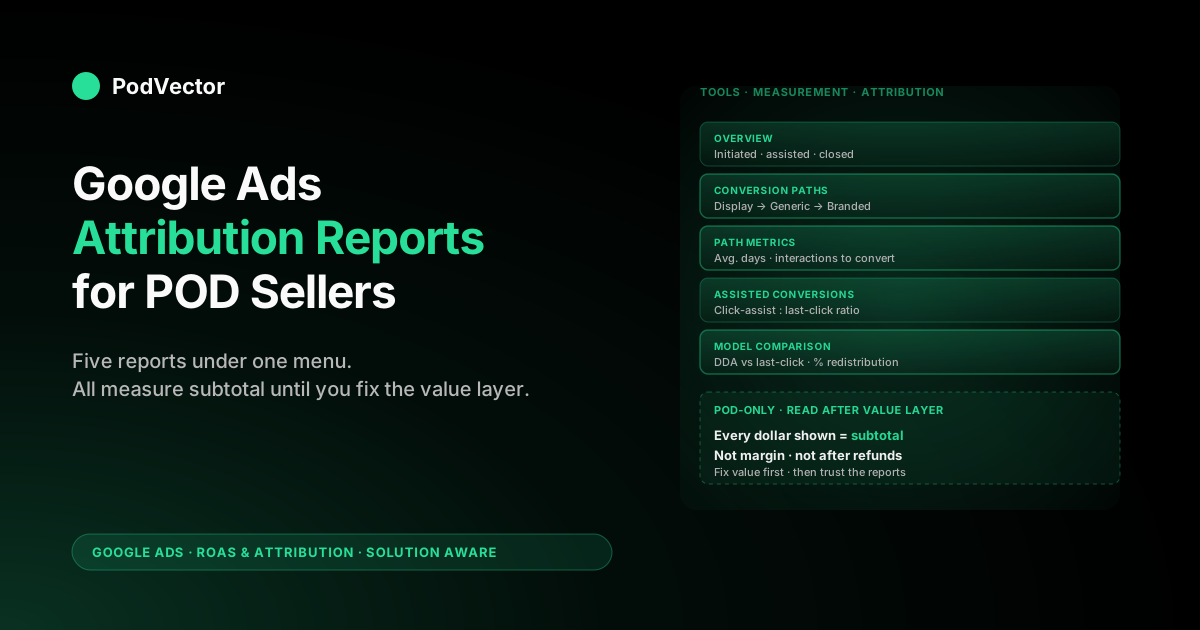
Quick Answer: Google Ads attribution reports — Overview, Conversion paths, Path metrics, Assisted conversions, and Model comparison — live under Tools → Measurement → Attribution and tell you how customers actually reach a conversion across multiple ads. They're the only place inside Google Ads that exposes multi-touch journeys; the Campaigns view summarises the credit but hides the path.
For POD sellers the reports are decision infrastructure: Conversion paths shows whether your account has enough multi-touch volume for DDA to matter, Path metrics tells you the right click-through window, and Model comparison shows the dollar gap between last-click and DDA on your real data. None of that matters until conversion value is sending margin instead of order subtotal — read the reports, but read them after the value layer is fixed.
What attribution reports actually are inside Google Ads
Google Ads attribution reports are the section of the platform that exposes the multi-touch journey behind each conversion. The Campaigns view shows you the summary number — "Search Brand drove 28 conversions last week" — but hides the sequence that produced it. Attribution reports unwind that sequence: how many touches, in what order, across which campaigns, over how many days, and what credit each touch earned under your selected attribution model.
There are five distinct reports under one umbrella, each answering a different question:
- Overview — a top-of-funnel summary of which campaigns initiated, assisted, or closed conversions over the date range.
- Conversion paths — the most common sequences of ad interactions that led to conversions, with frequency counts.
- Path metrics — distributions of how long paths take and how many touches they include.
- Assisted conversions — credit comparisons that surface upper-funnel campaigns whose contribution gets buried under last-click.
- Model comparison — side-by-side credit distribution under data-driven attribution versus last-click.
For print-on-demand operators the reports do something the Campaigns view structurally can't: they tell you whether multi-touch attribution is worth thinking about on your account at all. If the Conversion paths report shows that 85% of your converting paths are single-touch, the attribution-model decision barely moves the dollar number — last-click and DDA produce nearly identical campaign-level ROAS.
If the same report shows 40% multi-touch paths with Pinterest discovery → branded search → buy as the modal sequence, the model choice is moving meaningful budget around. You only know which world you're in by reading these reports.
For the broader picture of how attribution reports fit inside the Google Ads measurement stack for POD operators, see the complete guide to Google Ads ROAS and attribution for POD.
Where to find them and what controls every report
In the 2026 Google Ads interface, attribution reports live under the Goals icon → Measurements → Attribution (click the Goals icon, open the Measurements drop-down in the section menu, then Attribution). Google moved them out of the old Tools menu into Goals, so if a 2023-era walkthrough still says "Tools → Measurement," that path is stale — look under Goals instead. Click the page tab on the left to switch between Overview, Assisted conversions, Conversion paths, Path metrics, and Model comparison.
Every report shares four controls at the top, and every reading mistake we see in POD ad audits traces back to a misuse of one of these:
- Date range. Default is last 30 days. Multi-touch paths often span longer than 30 days on POD apparel — by capping the window at 30 days you systematically under-count converting paths that started 31+ days ago. Use 90 days as your default for path-level reports; the Overview can stay at 30 if you're tracking trend.
- Dimension. Toggles whether each "touch" in a path means a campaign, a campaign type (Search, Performance Max, Display, YouTube, Demand Gen, Shopping), an ad group, a keyword, a click type, a device, or a network. Conversion paths defaults to "Default channel grouping" which collapses everything to channel type. Switch to "Campaign" for path-level analysis when you want to see which specific campaign contributed; keep it on "Channel" for the macro picture.
- Conversion action. Reports compute one conversion action at a time. Pick Purchase for revenue analysis. Don't try to read attribution reports across "all conversion actions" — Google Ads will surface that aggregate but the model doesn't combine cleanly across primary and secondary actions, especially when their attribution windows differ.
- Lookback window. Determines how far back the report looks for ad interactions on each path. Google exposes three fixed steps — 30, 60, or 90 days — and the Model comparison report adds a "Default" option that follows each conversion action's own conversion window. The choice here interacts with the click-through window set on the underlying conversion action; the report only shows touches within both. Set lookback to 90 days for Path metrics analysis even if your conversion action's click window is shorter — you want to see whether shorter windows are clipping real paths.
The interaction between conversion-action attribution windows and the lookback window catches every POD seller eventually. If your Purchase conversion is configured with a 30-day click window and you set the report's lookback to 90 days, the report only displays paths whose touches all fell inside the conversion action's 30-day window — the broader 90-day lookback doesn't override the action-level setting. To actually see longer paths you have to widen the click window on the conversion action itself; for the focused walkthrough see Google Ads attribution window explained for POD sellers.
The Overview report
Overview is the only attribution report most operators look at — and the least useful for actually changing decisions. It surfaces three columns per campaign: Conversions (final-touch credit), Initiated conversions (paths your campaign started), and Assist conversions (paths your campaign appeared in but didn't initiate or close). The split is informative for upper-funnel campaigns; for bottom-funnel Search it's mostly noise because branded Search closes nearly all the paths it's part of.
What Overview is good for on a POD account:
- Identifying upper-funnel campaigns whose contribution is invisible in the Campaigns view. If a Performance Max campaign shows 12 closed conversions but 87 initiated conversions, it's seeding a meaningful share of your funnel even though the credit doesn't show up in last-click reporting.
- Sanity-checking that YouTube and Demand Gen campaigns are doing anything. Both campaign types tend to look terrible in the Campaigns view because last-click rarely lands there. Overview surfaces their assisted contribution.
- Spotting branded-search attribution loops. Branded Search closes almost everything, so it dominates the Conversions column and is invisible in Initiated. That asymmetry is the signature of branded search functioning correctly — capture intent that other campaigns generated. If branded Search is also a top initiator, your funnel has a structural issue: customers who search your brand cold are usually existing customers, not new acquisition.
What Overview can't tell you: how long the paths took, how many touches they involved, whether DDA would redistribute the credit differently, or what the value gap looks like. For those questions you need the other four reports. Treat Overview as the executive summary, not the audit document.
The Conversion paths report
This is the most actionable attribution report on a POD account. It shows the actual sequences of touches that led to conversions, ranked by frequency. A typical row reads Display impression → Generic Search click → Branded Search click with a count of conversions that took that exact path.
The report exposes three things that change how you allocate spend:
- The single-touch share of your account. Look for paths of length 1. On apparel POD, expect 50–70% single-touch — Pinterest or TikTok-driven impulse Search → buy. The higher the single-touch share, the less the attribution-model choice matters: most credit goes to one touch regardless of model. Below 30% single-touch, multi-touch attribution is genuinely shaping budget allocation.
- The modal multi-touch path. Among multi-touch conversions, the most-common sequence tells you what your acquisition funnel actually looks like. If
Performance Max impression → Branded Search clickappears thousands of times, Performance Max is doing top-of-funnel work that branded Search is closing. IfGeneric Search click → Generic Search clickdominates, customers are returning to research. Each pattern implies a different bidding strategy. - Cross-campaign-type sequences. Filter by "Channel" dimension and look at paths that touch two different campaign types. These are the paths where attribution model choice has real money on the line — last-click would credit the closer fully, DDA would split it.
POD-specific reads to watch for:
- Paths starting with Display or YouTube but closing on Branded Search. Classic upper-funnel-into-brand-loyalty pattern. If you see this regularly, your top-of-funnel creative is doing brand work and DDA will reward it; last-click won't.
- Long Generic Search → Generic Search → Generic Search chains. Customers researching across queries. The middle Generic Search clicks are typically being paid for under last-click but earn no credit — you're funding research that closes on the same campaign anyway. DDA distributes credit across the chain and your bidder learns to pay slightly less per click.
- Paths with multiple Performance Max impressions and no clicks before a Search-closed conversion. Performance Max view-through credit. Whether you trust this depends on how comfortable you are with Google's view-through modeling on Performance Max — most POD operators discount it heavily.
Export the top 50 paths to a spreadsheet quarterly. The shape doesn't change month-to-month but it does change seasonally and after major creative refreshes. For the focused walkthrough on which model to actually pick once you've read the paths, see Google Ads attribution models explained for POD sellers.
The Path metrics report
Path metrics answers two questions in three columns: how long do paths take (Avg. days to conversion), how many touches do they involve (Avg. interactions to conversion), and how many of your conversions are single-touch versus multi-touch (Conversions by path length).
The decision this report drives is your click-through window. Google's default 30-day click window is correct for accounts whose Avg. days to conversion sits at 4–10 days — most apparel POD accounts. It's wrong in two directions:
- If the report shows avg. days under 2 and most paths are single-day, a 30-day window is over-attributing. Customers convert quickly; longer windows credit ad touches that probably weren't causal. Tighten to 14 or even 7 days for a sharper signal — this is common on commodity-style POD products with low consideration.
- If the report shows avg. days above 14 with a long tail past 30, you're systematically clipping converting paths. Custom-product POD (personalised mugs, custom apparel) often shows 14–25 day average paths. Widen the window to 60 or 90 days; you'll surface 15–25% more attributed conversions immediately.
The interaction-count distribution matters separately. If 80% of paths are 1 interaction, your account is single-touch dominated and DDA gives you almost nothing over last-click. If 40%+ of paths are 3+ interactions, DDA's redistribution is moving meaningful credit and you should run the Model comparison report next.
One trap: Path metrics computes "interactions" as ad interactions, not pageviews. A customer who clicks an ad, browses 12 pages, leaves, and returns via direct traffic shows up as 1 interaction.
The report is telling you about your ad funnel, not your full purchase funnel. Don't try to map it to a session-based GA4 view; they're measuring different things.
The Assisted conversions report
Assisted conversions surfaces every campaign that appeared anywhere on a converting path other than the closing touch. The columns are Click-assisted conversions, Click-assisted conversion value, Impression-assisted conversions, Last-click conversions, and ratios between them.
The single most actionable column is Click-assisted / last-click conversions — the ratio of how often a campaign assists versus how often it closes. The interpretation:
- Ratio > 2.0 — the campaign is predominantly an upper-funnel assister. Bottom-funnel ROAS will look bad; full-funnel contribution is meaningful. Performance Max, Display, and YouTube campaigns should sit here on healthy POD accounts.
- Ratio between 0.5 and 2.0 — the campaign plays both roles. Branded Search often sits here.
- Ratio < 0.5 — predominantly a closer. Generic Search and shopping campaigns usually sit here.
Assisted conversions is the report you reach for when a stakeholder asks "should we kill this YouTube campaign?" The Campaigns view says the YouTube campaign drove 4 conversions for $400 last month — terrible ROAS. The Assisted conversions report says the YouTube campaign appeared on the path of 87 conversions whose ad spend was attributed elsewhere under last-click. Pull both numbers before making a kill/keep call.
The POD-specific gotcha: Assisted conversions uses the conversion action's existing attribution model to decide what counts as "assisted." If your Purchase conversion is set to last-click, the report's notion of "assist" is anything that appeared on the path but didn't get last-click credit — which is just "every non-final touch." Switch the action to DDA first; the Assisted report becomes more interesting because the credit distribution itself is non-trivial. For the dedicated walkthrough on enabling DDA, see Google Ads data-driven attribution explained for POD sellers.
The Model comparison report
Model comparison is the report that puts a dollar number on attribution choice. It runs two attribution models side-by-side over the same date range and shows the redistribution of credit between them.
As of 2026, the only two models available in Google Ads are Data-driven attribution and Last click. The four legacy models — First click, Linear, Time decay, Position-based — were deprecated in September 2023 and removed from the dropdown for new conversion actions. Older POD accounts may still have legacy actions on the dropdown, but new actions only show DDA and Last click.
The report displays three columns per campaign: Conversions under model A, Conversions under model B, and % change. Negative percentages mean the campaign loses credit when you switch from model A to model B; positive means it gains.
How to read the redistribution on a POD account:
- Set model A to Last click and model B to Data-driven. Read this as "what would change if we switched to DDA."
- Sub-5% redistribution across all campaigns — your account is single-touch dominated and the model choice barely matters. Pick DDA for forward compatibility; don't expect different bidding behaviour.
- 5–15% redistribution — DDA matters at the margin. Branded Search typically shows -10 to -20% (loses some credit it was hoarding under last-click); upper-funnel campaigns like Performance Max and YouTube show +20 to +60% (gain credit). Switching to DDA will reshape Smart Bidding's view of which campaigns to fund.
- 15%+ redistribution — multi-touch is structurally important on your account. The model decision is one of the highest-leverage settings in your Google Ads configuration.
One reading discipline: Model comparison shows the redistribution effect on credit, not on revenue. Whether that redistribution improves your true ROAS depends on whether the conversion value Google Ads is receiving reflects margin or subtotal. Beautifully redistributed credit on order subtotal is still wrong about which campaigns are profitable; the redistribution just spreads the wrongness more evenly. Fix the value layer, then read Model comparison.
For the focused breakdown of the data-driven model itself, see data driven attribution Google Ads explained for POD sellers.
How to read these reports as a POD seller
The reports are written for general advertisers. The POD-specific reading discipline is a layer on top.
- Conversion value is order subtotal by default. Every dollar number in every attribution report — Conv. value, Assisted conv. value, Initiated conv. value — is computed against whatever the Shopify pixel sends as conversion value, which by default is
checkout.subtotal_price. For POD that's pre-supplier-cost, pre-fee revenue, not contribution margin. Mentally divide the displayed values by 2.5–3 to get a rough margin number, or fix the value layer and stop having to mentally adjust. - Refunds aren't reflected. The reports show conversions as they were recorded at order placement. Apparel POD runs 2–6% return rates; the reports overstate net contribution by that share. Wire up offline conversion adjustments to feed refunds back; Path metrics and Conversion paths will redraw themselves.
- Cross-device paths are partially modeled. Pinterest-on-phone → research-on-desktop → buy-on-mobile is the modal apparel POD purchase journey. Without enhanced conversions enabled, Google can't stitch those touches; the path shows up as length 1 starting with the closing touch. The Conversion paths report systematically under-represents multi-touch share until enhanced conversions are on with a 60%+ match rate.
- Performance Max touches are opaque at the campaign level. Performance Max appears as a single bucket in the reports — you can't split its Search, Display, YouTube, and Discover touches. The report tells you Performance Max contributed to 200 conversions; it can't tell you which sub-channel did the work. Asset group-level reporting partially helps; for true sub-channel insight you need to feed enhanced conversions and read Performance Max's own insights tab in parallel.
The pragmatic POD reading order: open Path metrics first (does multi-touch matter on my account?), then Conversion paths if avg. interactions is > 1.5 (what do my paths actually look like?), then Model comparison if multi-touch is non-trivial (what's the dollar effect of DDA?), then Assisted conversions when making campaign-level kill/keep decisions. Skip Overview unless you're presenting to a stakeholder.
For the canonical Google reference on attribution reports, the official documentation is Google Ads Help: About attribution reports.
A monthly attribution-reports review workflow
This is the routine we run on POD accounts. Block 45 minutes the first business day of each month.
- Set the date range to last 90 days. Most attribution reports default to 30; ninety reveals path-length truth that 30 hides on multi-week consideration cycles.
- Open Path metrics first. Note
Avg. days to conversionand the conversions-by-path-length distribution. If avg. days has shifted 2+ days month-over-month, dig deeper — usually a creative change or a new campaign type is shifting your funnel mix. - Open Conversion paths, dimension = Channel. Export the top 30 paths. Compare to last month's export. New paths appearing or old paths disappearing usually indicate a real funnel change rather than measurement noise.
- Open Assisted conversions. Filter to upper-funnel campaign types — Performance Max, YouTube, Demand Gen, Display. Note the click-assisted-to-last-click ratio for each. Ratios shifting meaningfully month-over-month signal that the campaign's funnel role is changing.
- Open Model comparison, last click vs DDA. Note the percentage redistribution on revenue-driving campaigns. If the gap has widened, multi-touch is becoming more important on your account; if it's narrowed, you're trending toward single-touch.
- Compare to ledger truth. Pull total Google Ads-attributed revenue from the reports. Compare to your bookkeeping number for actual Google-Ads-driven sales (gross revenue from orders tagged with a gclid). The gap should be small after refund adjustments. Persistent gaps over 10% mean enhanced conversions or refund adjustments aren't fully wired.
For the focused walkthrough on the value-layer and refund-adjustment fixes that make these reports trustworthy, see Google Ads conversions attribution explained for POD sellers.
POD-specific mistakes when reading attribution reports
Six recurring patterns we see on POD account audits.
- Reading Overview only. Overview is the executive summary; it won't change a decision. Path metrics and Conversion paths are where the actionable signal lives. Operators who only look at Overview optimise based on credit summaries, not paths.
- Using a 30-day date range on the reports. Default is 30; multi-touch paths often span longer than 30 days. Switch to 90 by default for path-level reports. Trend analysis can stay at 30.
- Reading Model comparison before fixing the value layer. Beautiful redistribution on order subtotal still doesn't tell you which campaigns are profitable. Margin-based conversion value first; then run Model comparison.
- Treating Performance Max paths as a single channel. Performance Max bundles Search, Display, YouTube, and Discover. The reports show it as one bucket. Don't conclude "Performance Max is upper-funnel" or "Performance Max is bottom-funnel" from the bundled number — sub-channel mix matters.
- Killing YouTube based on Campaigns-view ROAS without checking Assisted conversions. YouTube rarely closes; it almost always assists. The Campaigns view systematically under-reports its contribution. Pull the Assisted conversions number before making kill/keep calls on upper-funnel campaigns.
- Reading the reports at the start of the month, then never again. The reports are operational tools, not retrospectives. Path shape changes after creative refreshes, seasonal cycles, and competitive shifts. Quarterly review minimum; monthly preferred.
For the broader strategic context on running Google Ads as a POD operator, see the complete Google Ads playbook for print-on-demand sellers. For deep coverage of the AI-analytics angle and how Victor compresses this monthly review into a 5-minute conversation, see the complete guide to AI agents for ecommerce analytics.
FAQs
Where do I find attribution reports in Google Ads in 2026?
Click the Goals icon, open the Measurements drop-down, then Attribution. The five report tabs are Overview, Conversion paths, Path metrics, Assisted conversions, and Model comparison. Google moved these out of the old Tools menu into Goals, so older "Tools → Measurement" walkthroughs are out of date; if your account still looks different you may be on a Google Ads UI variant or an account that hasn't migrated to the unified reporting view.
Why does the Conversions number in attribution reports differ from the Campaigns view?
Two reasons. First, attribution reports compute one conversion action at a time — the Campaigns view sums across all primary actions on the campaign's conversion goal. Second, attribution reports use the date range you set in the report, while the Campaigns view's Conversions column attributes conversions to the day of the originating ad interaction (not the day of conversion). Pick one as your operational source of truth and stick with it.
What's the right click-through window for POD attribution reports?
30 days for impulse apparel and accessories where Path metrics shows avg. days to conversion under 10. 60 or 90 days for higher-AOV custom products where the same metric sits at 14+ days. Tighten to 14 or 7 days only if your Path metrics report shows that 80%+ of paths convert within a single day — common on commodity POD with strong ad-click intent.
Are attribution reports affected by enhanced conversions?
Yes, materially. Enhanced conversions improve cross-device path stitching and conversion match rates, so the Conversion paths report sees more complete sequences and the Model comparison report has more multi-touch data to redistribute.
Without enhanced conversions enabled, paths systematically appear shorter than they actually are because cross-device touches go unstitched. POD sellers without enhanced conversions are reading degraded versions of every path-level report.
Why do Performance Max and YouTube look so different across the reports?
Both campaign types tend to operate in upper-funnel mode for POD. The Campaigns view credits last-click and shows them poorly.
Assisted conversions surfaces their assist contribution, which is usually large. Conversion paths shows them appearing early in multi-touch sequences.
Model comparison redistributes credit toward them when DDA is on. Each report tells a piece of the truth — none alone is the full picture for upper-funnel campaigns.
Should I make budget decisions directly from attribution reports?
Not yet. The reports tell you about credit and paths, not profitability.
The conversion value Google Ads receives is order subtotal by default, which for POD is 2–3x your actual contribution margin after Printify or Printful supplier cost, payment processor fees, and shipping subsidy. Fix the value layer first, then trust report-based budget decisions. Until then, attribution reports tell you which campaigns are well-credited; only margin-based reporting tells you which ones are profitable.
How often should I review attribution reports?
Monthly for active accounts; quarterly for accounts running stable creative on Search-only campaigns. The path shape doesn't shift dramatically week-to-week, but creative refreshes, new campaign types, seasonal cycles, and competitive entries all change the underlying funnel. Operators who review only annually miss the structural funnel changes that drive year-over-year ROAS shifts.
Do attribution reports include cross-account or cross-property data?
No. Each Google Ads account computes its own attribution reports against its own conversion actions. If you run multiple Google Ads accounts (one per Shopify store, for instance), each has independent reports and the credit distribution can't be combined cleanly.
For cross-property views you need GA4 or a measurement layer like Search Ads 360. Most POD operators don't need this; single-account-per-store is the right scope.
Read attribution reports in plain English
Victor pulls your Google Ads attribution reports, joins them against Shopify orders and Printify or Printful supplier invoices in a warehouse, and answers questions like "which Performance Max campaigns are net-positive after supplier cost and refunds?" in seconds — without you exporting CSVs from five different tabs. Victor explains and adjusts the bid — with your approval.
Try Victor free