
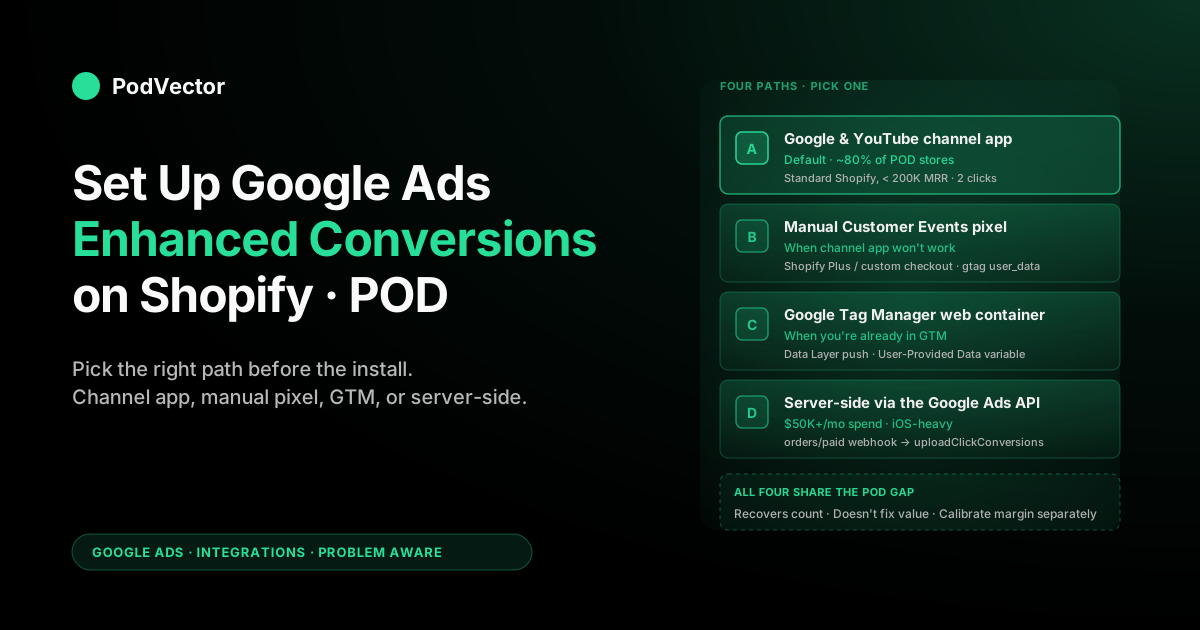
Quick Answer: Setting up enhanced conversions on Shopify is a decision before it's a procedure: pick the path that matches your stack (Google & YouTube channel app for ~80% of POD stores, manual Customer Events pixel for Shopify Plus customizations, GTM for stores already in GTM, server-side API for $50K+/month spend), accept the Customer Data Terms in Google Ads as an admin, flip the toggle on your Purchase conversion action, then wait 24–72 hours for the diagnostic to flip green and the match rate to stabilize. The setup is 10–20 minutes; the part nobody else covers is what to do when your match rate lands at 32% instead of 65%, and how to keep enhanced conversions from amplifying the wrong conversion value on a POD catalog where Shopify's order total bears no relationship to actual contribution margin after Printify or Printful supplier cost. This guide is the decision tree, the install, the verification, and the POD-specific calibration in one walk-through.
The decision tree: which path is right for your store
Most enhanced-conversions tutorials skip the decision and jump straight to "click here." That's fine if you've already chosen, but it's the wrong first move for a POD operator who wants to make the choice once and not unpick it six months later. There are four legitimate paths, and the right one depends on three variables: how your store currently fires conversions, how much you spend on Google Ads monthly, and how much engineering capacity you have on-call.
Use this rule of thumb. If your Shopify store uses the Google & YouTube channel app for conversion tracking — which is the right default for POD stores under roughly $200K MRR running standard Shopify checkout — Path A handles enhanced conversions in two clicks.
If you're on Shopify Plus with checkout customizations that broke the channel app, or you're already running a custom Customer Events pixel for other reasons, Path B is the manual equivalent. If your conversion stack already runs through a GTM web container, Path C keeps everything in one place. If you spend $50K+ per month on Google Ads, have iOS-heavy traffic with persistent low match rates, or operate in regions with consent-state ambiguity, Path D's server-side API approach is worth the engineering investment.
Don't pick a path because it sounds advanced. Path D looks impressive on an architecture diagram and adds zero accuracy versus Path A on a $15K-spend POD store. Path A looks underwhelming and quietly handles 90% of cases correctly. Pick the one that matches your real situation, not the one that signals technical sophistication.
This guide assumes you already have basic Google Ads conversion tracking working on Shopify. Enhanced conversions are an upgrade layer, not a starting point. If your Purchase conversion action isn't firing yet, start with our Shopify Google Ads conversion tracking guide first, then come back here.
Prerequisites that block the toggle
Four conditions need to be true before the enhanced-conversions toggle does anything useful. Skip them and you'll spend the next three days troubleshooting why Diagnostics says "Not receiving data."
You're an admin on the Google Ads account. Manager-level access is not enough. The Customer Data Terms acceptance — which gates the entire feature — requires Google Ads account admin permissions. If the Customer Data Terms link is greyed out or returns "you don't have permission," switch to an admin user before continuing.
Basic Google Ads Purchase conversion is firing correctly. Open Goals → Conversions → Summary in Google Ads. Your Shopify Purchase conversion action should show recent activity, not "no recent conversions." If it's not firing, enhanced conversions has nothing to enhance and the diagnostic will silently stay yellow.
Your privacy policy mentions sharing customer data with advertising partners. Most generic Shopify privacy policies cover this with a third-party-data clause; verify yours does. If your store template uses a stripped-down policy that only mentions internal data use, add a sentence noting that hashed customer identifiers may be shared with advertising platforms for conversion measurement. This is a 5-minute legal task that nobody likes doing and that nobody will sue you over if you do it sloppily, but doing it cleanly once is better than doing it again later.
You have Consent Mode v2 wired up if you sell to EU, UK, EEA, Switzerland, or California traffic. Since March 2024, enhanced conversions only fire on consenting users in those regions, and the consent signals come from a Consent Management Platform (Cookiebot, OneTrust, Iubenda, Klaviyo's banner). U.S.-only stores with no EU traffic can skip the CMP layer for now, but most POD stores have at least some EU traffic from organic and email, so a CMP is closer to required than optional. We come back to this in the Consent Mode v2 section.
Path A: Google & YouTube channel app (the default)
If you're on Shopify with the Google & YouTube channel app installed, this is genuinely a two-click setup. The channel app handles hashing, consent integration, and the gtag.js parameter mapping for you. Three steps from start to "receiving data."
Step A1: Accept the Customer Data Terms in Google Ads
Google Ads → Admin → Account access → Account settings → Customer data terms. Read once (they're short and in plain English about how Google handles the hashed data and the matching), and accept.
Until this is done, the enhanced-conversions toggle on any conversion action stays disabled. This is the single most common reason a setup gets stuck on step one — operators dive into the conversion-action diagnostics tab without going through Account settings first, see no toggle, and assume the feature isn't available on their account.
Step A2: Enable enhanced conversions on the Purchase conversion action
Goals → Conversions → Summary → click into your Shopify Purchase conversion action → Diagnostics tab. Find "Enhanced conversions for web" → toggle on → choose "Google tag" as the integration method → select "Automatic detection from the page" when Google asks how you want to provide customer data. The Shopify-managed gtag implementation that the channel app installs already exposes email and shipping address fields in a structure Google's tag can find without any code changes from you.
Step A3: Confirm the Shopify channel knows enhanced is on
Back in Shopify admin → Sales channels → Google & YouTube → Settings → Conversion tracking. The status row should now read "Enhanced conversions: enabled." The channel app polls Google Ads for this flag and adjusts the customer-events pixel payload accordingly. If it doesn't show enabled within 30 minutes, disconnect and reconnect the Google Ads link in the channel app — the OAuth token refresh forces a re-sync of the enhanced-conversions state.
What happens next
Within 24–72 hours of the next purchase that flows through, the Diagnostics tab in your Purchase conversion action shows "Enhanced conversions: receiving data" with a percentage that's the hash match rate against Google account holders. Healthy match rates for a U.S.-heavy POD Shopify store run 60–80%.
Anything 40%+ is acceptable. Below 30% is a sign something specific is wrong, and the match-rate optimization section walks through the diagnostic.
Path B: Manual Customer Events pixel
The manual path applies to stores that can't use Path A — usually Shopify Plus with checkout extensions that the channel app mishandles, or stores that already invested in a custom Customer Events pixel for other reasons. For a standard POD store on standard Shopify checkout, Path A is faster and more reliable; Path B is for cases where you have a real reason.
Step B1: Confirm your existing Google Ads pixel is firing
Settings → Customer events → your Google Ads custom pixel → status should show "Connected." Enhanced-conversions parameters are an addition to your existing gtag event call, not a replacement. If the basic Purchase conversion isn't firing through your custom pixel, fix that first.
Step B2: Add the user_data object to your gtag call
Inside your Customer Events pixel code, locate the gtag('event', 'conversion', {...}) line that fires on the checkout_completed event subscription. Add a user_data object alongside the existing fields (transaction_id, value, currency).
The user_data object's required fields, mapped from Shopify's checkout context: email_address from checkout.email, address.first_name and address.last_name from checkout.shippingAddress.firstName / lastName, address.street from shippingAddress.address1, address.city from shippingAddress.city, address.region from shippingAddress.provinceCode, address.postal_code from shippingAddress.zip, and address.country from shippingAddress.countryCode. Phone number from shippingAddress.phone is optional but lifts match rate by 2–4 points.
Critical: do not pre-hash the values yourself. Google's gtag.js applies SHA-256 hashing automatically before transmission when it detects the user_data object on a conversion event. If you pre-hash, you trigger a separate code path with stricter validation requirements, and small formatting differences (capitalization, whitespace) silently produce wrong hashes that match nothing.
Step B3: Verify in Tag Assistant
Save the pixel, run a real test order on your live store (test gateways don't reliably trigger the full Customer Events pipeline), and open the Google Tag Assistant Chrome extension on the order-confirmation page. Tag Assistant should show the conversion event firing with a green "Enhanced conversions data attached" indicator and a list of populated user-data fields. If the conversion fires but no enhanced data is attached, the most common cause is reading from init.data instead of the live checkout context — Shopify exposes both for compatibility, but only checkout has populated address fields at the moment checkout_completed fires.
Path C: Google Tag Manager
For stores where conversions already route through a GTM web container, the cleanest implementation is to keep enhanced conversions inside GTM rather than splitting state between GTM and a Customer Events pixel.
Step C1: Push customer data to the Data Layer on the thank-you page
In Shopify, edit the checkout's "Order status page additional scripts" field. Add a script that pushes email, shipping_first_name, shipping_last_name, shipping_street, shipping_city, shipping_postal_code, and shipping_country to window.dataLayer with an event name like purchase_with_user_data. Use Shopify Liquid ({{ checkout.email }}, {{ shipping_address.first_name }}, etc.) so values are populated server-side before the page renders.
Step C2: Create Data Layer Variables in GTM
In GTM, create a Data Layer Variable for each field — dlv.email, dlv.shipping_first_name, etc. — pointed at the corresponding Data Layer key.
Step C3: Configure the Google Ads Conversion Tracking tag
Edit (or create) your Google Ads Conversion Tracking tag. Enable "Include user-provided data from your website" and select "New variable" → User-Provided Data variable type. Map each Data Layer Variable to the corresponding User-Provided Data field. Set the trigger to fire on the purchase_with_user_data Data Layer event.
Step C4: Preview and publish
Run a test order in GTM Preview mode. Confirm in the Tag Assistant integration that the User-Provided Data Variable populated with real values, not undefined. Undefined fields almost always mean your Data Layer push fired before Liquid finished interpolating values — move the script lower in the order status page additional scripts.
Path D: Server-side via the Google Ads API
Path D sends enhanced conversion data server-to-server through the Google Ads API rather than client-side through gtag. Architecturally: a Shopify orders/paid webhook triggers a serverless function (Cloud Run, Lambda, Vercel function — whatever your stack supports) that reads the order, hashes the customer email and address with SHA-256, and POSTs to conversionUploadService.uploadClickConversions with the GCLID retrieved from the order's UTM parameters or a custom checkout attribute.
The advantage is that no consent banner can block a server-to-server call, no ad blocker can strip a parameter that never went through the browser, and no client-side race condition can drop the user-data payload. The cost is real engineering: a serverless function, secrets management, error retry logic, deduplication if you're running client-side conversions in parallel (Google deduplicates on order ID).
Path D is the right call for (a) $50K+ monthly Google Ads spend where the marginal accuracy compounds across thousands of conversions, (b) iOS-heavy traffic showing persistent sub-30% match rates with the client-side path, or (c) CMP architectures where the client-side path conservatively drops data that Google would have been allowed to receive. For most POD operators between $5K and $50K monthly spend on a single Shopify domain, Path A plus a properly configured CMP covers the same ground at a fraction of the cost. Path D is the right choice for a meaningful minority, not a default.
Optimizing match rate after setup
Most setup guides stop at "the toggle is on." The harder problem is what to do when the diagnostic shows 32% match rate instead of the 65–75% that's healthy. Match rate is the percentage of conversions where Google successfully matched the hashed identifiers you sent against a Google account holder, and a low match rate cuts the value of the entire feature in half.
Walk the diagnostic in this order. First, check your CMP geographic defaults. If your Consent Management Platform is geo-defaulting to "denied" outside the regions that legally require opt-in (i.e., denying U.S. traffic by default), every U.S. conversion fires without enhanced data and your match rate plummets. The fix is correct geographic defaults: denied for EU/UK/EEA/Switzerland/California, granted elsewhere. Second, check email completeness at checkout. Shopify allows guest checkout with throwaway emails, and stores that lean heavily on gift orders or one-time merch tend to have a high rate of checkout+abc123@example.com-style addresses that won't match any Google account.
There's no clean fix for this short of forcing account creation, which kills conversion rate; accept the floor it puts under your match rate and move on. Third, look at your traffic geography. India, Brazil, and other emerging-market traffic has structurally lower Google account hash match rates than U.S. and Canada. A POD store with 60% U.S. traffic should see 60–80% match; one with 60% emerging-market traffic might see 30–45% even with everything wired correctly.
Fourth, address normalization. If Tag Assistant shows email + first name + last name + address attached, but Diagnostics shows only "email" matched, the address fields are sending but not matching. Usually it's formatting differences — "Street" vs "St", "Apt 4B" vs "Apartment 4B", postal codes with vs without dashes.
Don't over-engineer this. Email-only matches are still high-quality matches and Google weights them heavily. Address normalization is worth touching only if your match rate is in the failure-mode range and email completeness is already good.
Fifth, run a test order through fresh. Once a quarter, place a real order through your live store from an unfamiliar IP and Google account, complete checkout, then check both Tag Assistant on the confirmation page and the Diagnostics tab a week later. Drift happens — Shopify checkout updates, gtag updates, channel app updates can silently change which fields populate when. A scheduled sanity check catches drift before it becomes a 30-day attribution problem.
The POD value trap nobody else covers
Here's the section that doesn't appear in any of the top-ranking enhanced-conversions guides. Enhanced conversions improves the count of conversions Google Ads can attribute to your campaigns, by recovering clicks that the GCLID cookie alone would have lost.
It does not change the value sent on each conversion. If your conversion value is misconfigured before you enable enhanced, it stays misconfigured after — and you've now told Smart Bidding to optimize against more of the wrong number.
For a POD store, "the wrong number" is almost always Shopify's order total. The order total is what the customer paid you, before Printify or Printful's variable supplier cost. A $52 hoodie order looks like a $52 conversion to Google Ads but represents an $18 contribution margin after the supplier takes $27 for blank-plus-print and you absorb $7 in shipping and processing.
A $24 mug order represents a $10 contribution margin after $9 supplier cost and shipping. Smart Bidding sees both as their respective list prices and optimizes spend toward the worst-margin SKUs systematically, because oversized hoodies and all-over-print sublimation have the highest list prices but the lowest margin ratios on a typical POD catalog.
Enhanced conversions, layered on top of this, makes the misalignment more accurate. Smart Bidding now has a more complete picture of how many of those wrong-value conversions are happening, and steers the budget more confidently in the wrong direction.
The fix is the value-correction layer covered in our Shopify Google Ads conversion tracking guide: a Google Ads value rule multiplying conversions by your blended margin ratio (the 80% solution), per-line-item value modification at fire time using actual SKU-level supplier costs (the 95% solution), or post-hoc conversion adjustments via the Ads API using reconciled supplier invoices. Pair enhanced conversions with one of those, and the recovered conversions are recovered against the right number. Skip the value layer, and enhanced conversions amplify the existing margin leak instead of fixing it.
This pattern shows up across the broader Google Ads playbook for POD sellers: tracking accuracy and optimization signal are two layers of the same system, and improving one without the other can be worse than improving neither.
Consent Mode v2 for EU, UK, and California traffic
Since March 2024, Google Consent Mode v2 is required for ads personalization and enhanced conversions to function on consenting users in the EU, UK, EEA, Switzerland, and California. The mechanics are simple in principle: your Consent Management Platform sets four signals on window.dataLayer based on the user's choices in your consent banner — ad_storage, analytics_storage, ad_user_data, ad_personalization. Google's tags read these signals before firing.
For enhanced conversions, the relevant signals are ad_user_data (controls whether Google can receive the hashed user data) and ad_personalization (controls whether the data can be used for personalization). When ad_user_data is denied, the enhanced-conversions payload is stripped from the conversion event before transmission, and Google falls back to its modeled-conversions estimate. When ad_user_data is granted, the full payload fires.
The cleanest CMP setup for a POD Shopify store: install a Consent Mode v2-certified banner (Cookiebot's free tier covers most stores under 100K monthly visitors, OneTrust for enterprise, Klaviyo's built-in banner if you're already on Klaviyo for email), configure default consent state to "denied" for EU/UK/EEA/Switzerland/California traffic and "granted" elsewhere (your CMP handles the geographic IP detection), and verify in Tag Assistant that enhanced conversions fire correctly when consent is granted and gracefully degrade when denied. Most POD operators get this 80% right out of the box and 20% wrong on the geographic defaults — the failure mode is granting consent by default in a region that requires opt-in, which is a compliance risk.
Monitoring enhanced conversions long-term
Enhanced conversions is not a set-and-forget feature. The match rate drifts. Shopify checkout updates change which fields populate when. Google's matching algorithm changes silently. Build a 5-minute monthly check into your ops cadence:
- Open the Diagnostics tab on your Purchase conversion action. Confirm "Enhanced conversions: receiving data." Note the match rate and compare to last month.
- If match rate dropped 10+ points month-over-month, run a test order through and check Tag Assistant. Drift is most often caused by a Shopify or channel-app update that silently changed a field name.
- Confirm the conversion-value layer is still firing correctly. If you implemented per-line-item value modification, look at a recent Purchase conversion's reported value in Google Ads and reconcile against the Shopify order's actual contribution margin. A 10%+ deviation means a SKU's supplier cost in your mapping is stale.
- Spot-check a campaign's reported ROAS against Shopify+supplier reconciled ROAS. The two should track within 5–10 percentage points. A wider gap means either the value layer is mis-firing or attribution windows are mis-aligned.
Monthly checks catch a 30-day attribution problem before it becomes a 90-day budget-allocation problem. The check itself is cheap; the cost of skipping it for two quarters and finding out your top-ROAS campaign was actually losing margin the whole time is high.
FAQs
How long does enhanced conversions setup take end-to-end?
Path A (channel app) is 10–15 minutes including reading the Customer Data Terms once. Path B (manual pixel) is 30–60 minutes for someone comfortable editing JavaScript.
Path C (GTM) is 20–40 minutes if you're already in GTM and have the existing conversion tag working. Path D (server-side API) is a multi-day engineering project. Add 24–72 hours of waiting for the diagnostic to flip green to any of the above.
Can I run multiple paths in parallel?
Yes — Path A plus Path D is a common belt-and-suspenders setup at higher spend levels. Google deduplicates on order ID, so a conversion that arrives client-side via Path A and server-side via Path D doesn't double-count. Most POD stores don't need this; under $50K monthly spend the marginal accuracy isn't worth the engineering hours.
Will enabling enhanced conversions backdate or fix historical data?
No. Enhanced conversions only applies to conversions that fire after the feature is enabled. Historical data in Google Ads stays as-is.
Be aware that comparison windows that cross your enable date will show an apparent lift that's partly real (recovered conversions) and partly an artifact (pre/post change). Use a 30-day-plus comparison window to assess real lift.
What's a normal match rate to expect?
For a U.S.-heavy POD Shopify store with the channel-app path correctly configured: 60–80% match rate is healthy, 40–60% is acceptable, below 30% is a sign something is wrong. Match rate varies with traffic geography — emerging-market-heavy stores see lower numbers structurally and that's not fixable on your end.
Do I need to update my privacy policy?
If your privacy policy mentions sharing data with Google, advertising platforms, or "third parties for measurement and analytics" (most generic Shopify policies do), you're covered. If your policy is narrowly scoped, add a clause stating that hashed customer identifiers may be shared with advertising partners for conversion measurement. Google's own documentation requires you to disclose the practice; most jurisdictions require it independently.
Does enhanced conversions affect Performance Max campaigns differently?
Performance Max benefits more from enhanced conversions than standard Search campaigns do, because Performance Max relies more heavily on Smart Bidding signal across multiple inventory types (Search, Shopping, YouTube, Display, Discovery). More accurate conversion data means more accurate cross-channel optimization. The setup is the same regardless of campaign type — enhanced conversions is set on the conversion action, not the campaign.
What if I have multiple Shopify stores under the same Google Ads account?
Each store has its own Purchase conversion action (or should — if you've combined multiple stores into one conversion action, separate them first for clean reporting). Enable enhanced conversions independently on each conversion action. The Customer Data Terms acceptance is per Google Ads account, so you only accept once.
Where does Google document this officially?
Google's official documentation lives at support.google.com/google-ads/answer/9888656 for the general feature and support.google.com/google-ads/answer/13494537 for the Shopify Google & YouTube channel-app specifics. They're worth bookmarking for vocabulary alignment, though they don't address the POD-specific value-tracking layer that determines whether the recovered conversions are recovered against the correct number.
What should I read after finishing this setup?
If you've enabled enhanced conversions and want to handle the value-calibration layer next, our Shopify Google Ads conversion tracking setup guide walks the three value-correction approaches. For the broader integration architecture, the complete Google Ads + Shopify integration guide for POD is the architectural pillar above this tutorial. The companion piece on enhanced conversion setup methods covers the same install paths from a methods-first angle. The Google Ads Integrations cluster hub indexes the rest of the setup-and-wiring articles, and the Google Ads topic hub covers strategy, ROAS, and ad-type selection.
Enhanced conversions fixes attribution count. It doesn't fix attribution truth.
Recovering 12% more Purchase conversions is a real win. But it's only one piece of the puzzle. The real question is whether the campaigns Smart Bidding is pushing harder are actually making you money, once you count supplier costs, refunds, and true profit by product. Victor looks at your Shopify, Printify, and Google Ads numbers together, so he can answer questions like "what's my true ROAS by campaign after Printify cost?" or "which products is Performance Max over-spending on compared to their margin?" in plain English. Victor answers your questions and can make changes in your ad accounts for you — with your approval.
Try Victor free