
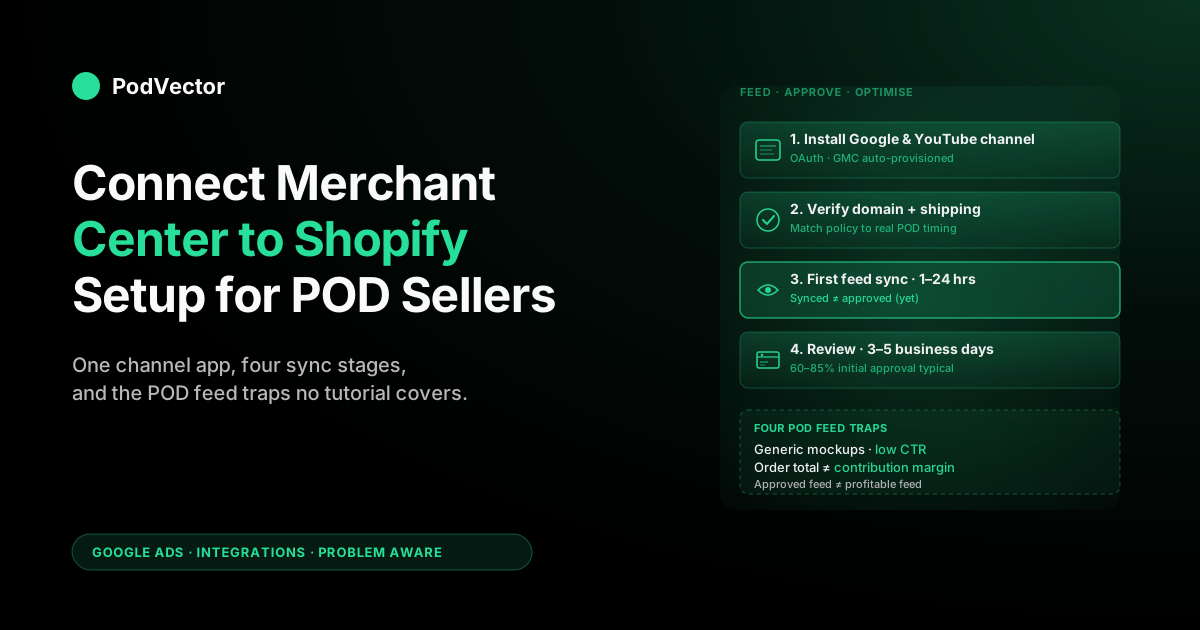
Quick Answer: Connecting Google Merchant Center (GMC) to Shopify in 2026 is a one-OAuth, one-channel-app operation: install the Google & YouTube channel from Sales channels, sign in with the Google account that owns or will own your Merchant Center, and Shopify auto-creates and links GMC to your store domain. Hands-on time is 15–25 minutes; first feed sync takes 1–24 hours; first GMC review of products takes 3–5 business days.
The POD-specific reality: the standard sync ships your Shopify product catalog to GMC at list price, with Printify- or Printful-generated mockups, and with shipping settings that don't always match the distributed fulfillment of POD. Three of those four defaults will trigger disapprovals or suspensions on a fresh POD store unless you address them up front. This guide covers the connection itself, the feed approval, and the POD-specific traps that aren't in any general Shopify-to-GMC tutorial.
Why connecting GMC matters for a POD store
Google Merchant Center is the catalog Google's commerce surfaces read from. Without a connected GMC feed, your Shopify store can run Search ads and Performance Max campaigns that bid on intent, but it can't appear in the Google Shopping tab, the carousel of product listings above organic Search results, the YouTube Shopping shelf, the Google Lens visual results, or the free product listings that have quietly become a measurable share of Shopify storefront traffic for POD operators with optimised feeds. Connection is the price of entry to all of those surfaces, not just to paid Shopping.
For POD specifically, the asymmetric reward of getting GMC right is larger than for a typical ecommerce category. POD storefronts compete in long-tail design niches (vintage cycling tee, dog breed mug, profession-specific hoodie) where free product listings can drive measurable revenue with no ad spend if the feed is approved and well-optimised, because the ranking pressure on those queries from established brands is light.
Stores that never get GMC working leave that channel entirely on the table; stores that do get it working but use defaults built for general ecommerce stay disapproved or under-served by the algorithm. The middle path — correctly connected, POD-optimised — is where the upside lives.
Prerequisites before you start
Six conditions should hold before you open Shopify admin. Skipping any of them produces errors mid-flow that look like Shopify or GMC bugs but are actually account-state issues:
- A Shopify store on a paid plan with at least one published product. The Google & YouTube channel installs on Basic and above. Trial-mode and password-protected stores can install it but the feed sync won't activate until the storefront is publicly accessible.
- Admin permissions on the Shopify store. Staff with Sales channel access can install the channel app but cannot complete the OAuth handshake that links GMC; the persisted credentials require admin to write.
- A Google account that you control and want to be the GMC owner. The first Google account you authorise becomes the GMC account owner. If you'll later need a shared @company.com or team-managed account to be the canonical owner, set that up now — switching ownership later forces a re-verification cycle.
- A privacy policy, refund policy, and contact information page published on your storefront. GMC's misrepresentation policy auto-checks for these on first review. Stores missing any of the three are routinely suspended within 72 hours of feed activation, before any product disapprovals are even processed.
- Shipping policy that matches your actual POD fulfillment timing. If your store says "2–3 day shipping" but your Printify supplier ships in 5–8 business days, GMC's automated comparison flags it. The fix is matching the policy to reality, not optimising the policy copy for conversion.
- Tax settings configured for your shipping destinations. GMC requires tax to be configured (or explicitly marked "tax included in price") for any country you'll show ads in. Stores that haven't set this in Shopify Settings → Taxes will see a blanket "tax not configured" warning blocking all delivery.
One under-discussed POD prerequisite: confirm that your Printify or Printful product templates have shipping origin set correctly per blank. POD orders fulfill from the supplier's print facility nearest the customer, not from your business address. If your Shopify shipping zones don't reflect that — for example, you've set "ships from California" but the order will print and ship from a Printify partner in Latvia — GMC's policy engine will catch the discrepancy and disapprove the affected SKUs once the feed is live.
Step 1: Install the Google & YouTube channel
From Shopify admin, click the green plus icon next to "Sales channels" in the left sidebar → search "Google & YouTube" → Add channel → Add sales channel → accept the permissions prompt. The channel app is free, owned by Google rather than a third-party developer, and is the supported integration path.
There are several third-party "Google Merchant Center sync" or "Google Shopping feed" apps in the Shopify App Store; for a first-time setup on a fresh POD store, prefer the official channel. Third-party feed apps make sense only when you've outgrown the official channel's capabilities (typically once you need supplemental feeds, multi-country variants, or feed-rule-level transformations the channel doesn't expose), which most POD stores under $200K MRR don't reach.
Installation takes about thirty seconds. When complete, the channel appears in the left sidebar under Sales channels and the channel admin page opens to a setup wizard.
The wizard walks you through Steps 2 through 4 below in a single guided flow. Complete it end-to-end on first install rather than partial-completing — the channel state machine is unforgiving about half-complete progress, and operators who close the tab mid-wizard often end up with a half-linked account that requires uninstalling the channel and reinstalling to recover. If you also plan to connect Google Ads, the same wizard handles that link; see our companion Connect Google Ads to Shopify guide for the full three-link sequence.
Step 2: Connect a Google account and authorise GMC
The wizard's first step is "Connect Google account." Click Connect → OAuth pop-up → pick the Google account that you want to own the Merchant Center, or sign in if it's not on this device. Grant the permissions Shopify requests: read profile, manage Merchant Center, manage Google Ads conversion tracking (granted even if you're not using Google Ads yet, since the same OAuth token covers both), read YouTube channel. Then return to Shopify; the wizard advances automatically once the OAuth callback completes.
In the 2026 flow, the wizard's next screen is a drop-down: if your Google identity administers more than one Merchant Center, you pick which Merchant Center account to connect, or choose "Create a new account." One hard limit to know up front: multi-client accounts (MCAs, sometimes shown as "advanced accounts") can't be connected directly to Shopify. If your feed currently lives under an MCA, the channel needs a standalone Merchant Center account to link to — create one, or connect to a non-MCA sub-account, before continuing.
If the OAuth pop-up closes without returning to the wizard, the most common cause is browser pop-up or third-party cookie blocking. Safari and Brave with default settings block the postMessage callback that completes the handshake; Chrome and Firefox with default settings allow it.
If you're on Safari or Brave, either disable the pop-up blocker for shopify.com for the duration of setup, or do this step in Chrome and switch back afterwards. The connection persists across browsers once established.
One subtle gotcha: if your connected Google account already has access to an existing GMC account (for example, you ran Google Shopping previously through a different platform like WooCommerce or BigCommerce), the channel detects it and offers to link to the existing GMC rather than create a new one. Linking to existing is usually the right call — it preserves your historical performance data, your domain verification, and any approved feed history.
Creating new is only the right call if the existing GMC has accumulated suspensions, policy violations, or disapprovals you'd rather not inherit. Once you decide, the channel completes the GMC link in the background; you'll see "Google Merchant Center: Connected" in the channel Overview within ~60 seconds.
Step 3: Verify domain ownership and shipping settings
Before the feed can go live, GMC also runs a business verification step that's separate from the domain claim: the wizard asks for your phone number and country, sends a six-digit code by text, and you enter it to confirm the business. This is quick (under a minute) but it's a hard gate — an unverified business won't serve products even with an approved feed. Do it during setup rather than discovering it as a silent block later.
The channel then auto-claims your Shopify domain in GMC by injecting a verification meta tag into your storefront's <head>. For ~95% of stores this completes in seconds with no manual action. The 5% that fail typically have one of two issues: a custom theme that strips meta tags Shopify injects (uncommon but exists), or a previously verified domain claim on a different Google account (because someone — possibly a former agency or developer — verified the domain to a different GMC at some point and never released the claim).
The fix for the second case requires reaching the Google account that holds the existing claim and removing it from Search Console → Settings → Users and permissions, or contacting Google Merchant Center support to release the claim if the account is unrecoverable. The fix for the first case is editing your theme.liquid to ensure {{ content_for_header }} is present at the top of the <head> section. Either way, until domain verification completes, the feed sync won't activate.
Once domain verification is green, the channel prompts you to confirm shipping settings. GMC requires explicit shipping configuration for every country you'll show ads in — either pulled from your Shopify shipping zones automatically (the default) or configured manually in GMC Settings → Shipping and returns.
The default Shopify-pull is correct for almost all POD stores; you'd only override it if your Shopify shipping zones don't accurately represent how POD fulfillment works for your supplier. The first time you see GMC's shipping configuration, walk through every country your store ships to and confirm both the cost and the "delivery time" range match your real Printify or Printful timing. Mismatches here are the second-most-common cause of POD store suspensions after the misrepresentation policy.
Step 4: Watch the first feed sync
With domain and shipping verified, the channel begins its initial product sync to GMC. The first sync takes 1–24 hours depending on catalog size: POD stores with 50–500 SKUs typically see initial sync complete in under two hours; stores with 5,000+ designs across multiple product templates can take a full day. Sync status shows on the channel's Overview tab, and GMC reports each product in one of four current statuses: Approved (live and eligible to serve), Under review (synced but still being checked), Limited (serving in some surfaces or countries but held back in others, usually for a fixable data gap), and Not approved (a policy or data error is blocking it entirely).
Reaching GMC's catalog ("Under review") and being eligible to serve ("Approved") are separate states — clearing review requires GMC's automated and (for some categories) manual checks to pass, which takes another 3–5 business days for the initial bulk review. So the first 1–24 hours give you a synced-and-under-review count; days 1–5 give you the approved-versus-not-approved split.
Most POD operators panic on day 1 when they see "Pending" against most of their catalog — that's expected. Wait for day 5 before troubleshooting.
While the sync runs, the channel also imports your product taxonomy into GMC's category structure. Shopify's product type and collection metadata get mapped to Google's product categories (the taxonomy at support.google.com/merchants/answer/6324436).
For most POD products this auto-mapping is roughly correct: t-shirts mapped to Apparel & Accessories > Clothing > Shirts & Tops; mugs to Home & Garden > Kitchen & Dining > Tableware > Drinkware; phone cases to Electronics > Communications > Telephony > Mobile Phone Accessories. The mapping isn't always perfect — "all-over print sweatshirt" sometimes maps to a non-clothing category if the title is unusual — but reviewing and overriding the auto-mapping is a Step 5 cleanup task, not something to fix during the sync itself.
Step 5: Resolve product disapprovals (POD-specific)
By day 5 of the sync, the channel's Overview shows the final approved-versus-disapproved split. For a fresh POD store using default Printify or Printful product templates and unedited Shopify product fields, expect 60–85% initial approval. The 15–40% in the disapproved bucket fall into a small number of POD-specific patterns:
- Image quality below GMC threshold. GMC wants 800x800 minimum; many older Printify product templates use 600x600 mockups that fail the check. The fix is to switch the affected products to a higher-resolution mockup template in your Printify product publish settings, then trigger a manual feed re-sync from the Shopify channel admin. Printful's 2026 default mockups all clear the 800x800 floor; older Printful products published before the 2024 mockup refresh may not.
- Promotional text on product images. GMC disapproves images containing prominent text overlays like "SALE 50% OFF" or "BESTSELLER" baked into the mockup. POD stores rarely do this on the print itself but sometimes do it on the cover image used for the Shopify product page. Fix by using the clean mockup as the primary product image in Shopify and saving the promotional version for marketing materials only.
- Trademark or IP violations. POD designs invoking sports teams, celebrities, movie/TV references, or trademarked phrases will be disapproved on the IP-violation rule. Disapprovals are SKU-level — the rest of your catalog is unaffected. Removing the offending designs from the Online Store sales channel (not deleting them entirely) takes them out of the next feed sync. If GMC disapproves what you believe is a fair-use or licensed design, file an appeal through GMC support with documentation; non-trivial percentage of POD appeals get reversed.
- Missing GTIN/MPN attributes. POD products usually have no UPC/EAN/ISBN because they're produced on-demand without a SKU registered in any product database. GMC's default expectation for branded products is a valid GTIN. Fix by setting the GTIN-exempt flag on every variant in Shopify (or via bulk edit), which signals to GMC that GTIN absence is intentional rather than a data-quality issue. The Shopify Google & YouTube channel app does this automatically for new installs in 2026; older installs or stores migrated from a different platform may need manual cleanup.
- Variant pricing inconsistency. If a Shopify variant's price doesn't match its Compare-at-price or what's shown elsewhere in your store (most common when manual sale-price overrides aren't propagated through all flows), GMC disapproves the entire variant set. Fix by auditing variant prices in Shopify bulk editor and ensuring Compare-at-price is either consistently filled or consistently empty.
- "Editorial issue." GMC's catch-all category for "we can't tell exactly what's wrong but something looks off." Usually resolves in 24–72 hours after a re-sync without manual intervention. Persistent editorial issues require opening a GMC support case via the Help icon in the GMC dashboard.
The connection itself is established whether or not the feed has approved products. Disapprovals don't block any other channel functionality — they only block Shopping/PMax from showing those specific SKUs and prevent free product listings for them. The 60–85% initial approval rate is enough to start running campaigns; the cleanup of the remaining 15–40% is iterative work over weeks 1–4 of the new connection.
Alternative: connecting an existing GMC account
If you already had a Google Merchant Center account before you opened a Shopify store — for example, you ran a Google Shopping feed through Etsy's API, BigCommerce, WooCommerce, or a manually maintained CSV upload — the channel-installation flow handles that case slightly differently. When you complete the OAuth in Step 2, the channel detects existing GMC accounts your Google identity has access to and offers a "Link to existing" option rather than creating a fresh GMC.
The functional difference between linking-to-existing and creating-new is mostly historical: linking preserves your performance data, domain verification, and any approved feed status; creating new starts you at zero. The practical considerations for which to pick:
- Pick "Link to existing" if your old GMC was running cleanly (no suspensions, no recent disapprovals, products you already know are approved) and you want to keep that history feeding into Google's understanding of your store's quality.
- Pick "Create new" if your old GMC has any history of policy suspension, even if currently reinstated. Google's account-level reputation system carries forward, and a previously-suspended GMC has a measurably higher rate of repeat suspension on minor policy issues. A clean slate is sometimes worth the lost history.
- Pick "Create new" if the old GMC was tied to a Google account you no longer fully control (former employee, former agency, personal account you'd rather not use anymore). Linking to a GMC owned by an account you can't reliably access creates a single point of failure if access ever lapses.
Once you decide, the channel completes the link in the background — same flow as a fresh-create, just pointing at the pre-existing GMC ID. The first feed sync after a link-to-existing replaces whatever feed the old GMC had with the Shopify-channel-managed feed; if you had supplemental feeds or feed rules in the old GMC, those persist alongside the new primary feed unless you remove them manually.
The four POD feed traps nobody else covers
This is the section that exists in no general Shopify-to-GMC tutorial because the underlying issues only show up at the intersection of POD economics and GMC's algorithmic ranking. Once your products are approved and the feed is live, the connection is "working" by every dashboard's definition; whether Google's algorithms are actually showing your products to the right buyers, at the right price points, in the right slots, is a separate question with four common POD-specific failure modes.
Trap 1: Generic Printify mockups outperform on approval but underperform on click-through
The default Printify and Printful mockups are designed for catalog upload — they show the design on a clean garment against a neutral background, optimised for spec-sheet reading rather than emotional appeal. They reliably pass GMC image-quality checks and approve quickly. But in Google Shopping's image-driven results, where a single product thumbnail competes against dozens of others in a grid, the generic mockup loses click-through to lifestyle and on-model imagery.
POD stores that win on the GMC channel typically replace the default Printify mockup with either a lifestyle photo (model wearing the garment) or a stylised flat-lay (garment laid against a textured background with props) for the primary product image, while keeping the generic mockup as a secondary additional image. The fix is in your Shopify product images, not in GMC.
Trap 2: Multi-design product templates confuse GMC's category mapping
POD operators frequently sell the same blank product (a black hoodie, say) with dozens or hundreds of different designs printed on it. In Shopify, this is often modeled as one product per design rather than one product with hundreds of design variants — which is the right model from a Shopify standpoint but creates a feed where many products share identical metadata except the design name.
GMC's deduplication and category-mapping algorithms can get confused by this pattern, sometimes flattening multiple of your products into a single listing or mis-categorising the whole cluster based on whichever product it processed first. The fix is to ensure each product has design-specific title text and a meaningfully unique description, even if the underlying garment is identical — "Vintage Cycling Hoodie — Penny Farthing Design" rather than just "Hoodie." Title differentiation gives GMC the signal to treat them as distinct products.
Trap 3: Print-on-demand timing breaks "shipping speed" rankings
Google Shopping's algorithm increasingly weights expected delivery time as a ranking factor, especially in Shopping carousels and free product listings where Google is comparing you against fulfilled-by-Amazon and other 1–2 day shippers. POD's 5–8 day total time (production plus shipping) puts you at a structural disadvantage on this dimension.
Fighting it head-on is futile — you can't print-on-demand faster than Printify's print-and-ship window. The fix is to set GMC's delivery-time field accurately (don't claim 2–3 day shipping you can't deliver, which causes suspensions), but to compete on the dimensions where POD actually wins: design uniqueness, niche specificity, and customisation options. POD stores that try to match Amazon's shipping speed in their feed always lose; POD stores that lean into "vintage typewriter mug for writers, made-to-order in 5–7 days" win because the buyer query never overlapped with Amazon's catalog in the first place.
Trap 4: Reported revenue versus contribution margin (the cross-cutting POD trap)
Once your feed is approved and you start running Performance Max or free-listing-driven traffic, GMC and Google Ads will report revenue in the standard way: order total, attributed to the source. For POD that's the same problem we cover at length in our Connect Google Ads to Shopify guide — the reported revenue includes the supplier cost you owe Printify or Printful, the shipping you absorb, and the Shopify processing fees, none of which Google subtracts.
A "high ROAS" Performance Max campaign on a POD store can be losing money in absolute contribution-margin terms once supplier costs reconcile. Solving this is a value-layer problem, not a feed-layer problem; the connection is correct either way. Mention here so you don't optimise the feed against a metric that's not telling you the truth about profitability.
What to track once products are approved
Once you're past the disapproval cleanup phase and have a stable approved-products count, the metrics that actually predict POD outcome require pulling threads from three systems — GMC's diagnostics, Shopify order data, and your Printify/Printful supplier dashboard:
- Approval rate over time. The trend matters more than the snapshot. A store moving from 70% to 90% approval over four weeks is healthy; a store at a static 95% that suddenly drops to 80% has a new policy issue (often triggered by a bulk product upload that introduced a problematic pattern).
- Click-through rate per product on free product listings. Available in GMC → Performance → free listings. POD stores typically see 1–3% CTR on free listings; products at 0.3% or below are usually losing on image, title, or category placement. Auditing low-CTR products and improving the primary image (Trap 1 above) is the highest-leverage GMC optimisation work.
- True ROAS by Performance Max asset group, after supplier cost. Reported ROAS in Google Ads is revenue divided by ad spend. True ROAS is contribution margin (revenue minus supplier cost minus shipping minus processing) divided by ad spend. The two diverge by 50–150% on a POD catalog. Tracking true ROAS requires joining Google Ads campaign attribution against Shopify order line items against Printify/Printful per-SKU costs, which doesn't happen by default in any of the three dashboards.
- Free-listing impressions versus paid impressions, by query. GMC's free product listings can drive substantial traffic that doesn't show up in your Google Ads spend at all. Stratifying impressions by paid-versus-free reveals which product categories have organic Google Shopping demand that doesn't require ad spend — usually the long-tail design niches that POD specifically excels at.
- Account-level policy health score. GMC tracks an aggregate account health metric that's a leading indicator of suspension risk. A drop from "Good" to "Needs attention" usually precedes suspension by 7–14 days, giving a window to address the underlying issue before delivery is blocked.
For solo POD operators, building the data infrastructure to answer those questions in-house is unrealistic. The next year of operating a POD store profitably on Google's commerce surfaces depends less on having "good campaign settings" than on having end-to-end profit visibility across the GMC feed, the Shopify order, and the Printify/Printful invoice.
Troubleshooting the seven common failures
Failure 1: OAuth pop-up closes without returning to the wizard
Almost always third-party-cookie blocking in Safari or Brave. Switch to Chrome or Firefox for the duration of the connect flow, complete the OAuth, then switch back. If it still fails on Chrome, your Google account has 2FA prompts on a different device that aren't completing — finish the 2FA challenge on whichever device has the prompt, then retry.
Failure 2: "Domain already claimed" during verification
A different Google account previously verified your domain in Search Console or another GMC account, and the claim wasn't released. Resolution path: locate the Google account that holds the claim (often a former agency, developer, or your own old personal account) and remove the verification in Search Console → Settings → Users and permissions. If unrecoverable, file a domain-claim-release request with Google Merchant Center support; resolution timeline is 5–10 business days.
Failure 3: Feed shows "0 products synced" 48+ hours after connection
Three causes ranked by likelihood. First, no products are published to the Online Store sales channel — check that products have the Online Store toggle on in their Shopify admin.
Second, the feed is filtered to a country or language your products aren't tagged for; check GMC → Products → All products and ensure the country/language filter matches your catalog. Third, a recent Shopify theme change broke the structured-data injection the channel relies on; revert to a known-good theme version and trigger manual re-sync.
Failure 4: Account suspended for misrepresentation
Reading the suspension reason exactly is important — "misrepresentation" covers several distinct sub-issues. Most common for fresh POD stores: missing contact information, missing or incomplete refund policy, missing or incomplete privacy policy, or shipping/delivery promises that don't match what the order page actually says.
Fix the underlying issue (don't try to optimise the policy copy — just have one), wait 24 hours, request reinstatement through GMC support. Average reinstatement timeline: 5–10 business days for first-time suspensions.
Failure 5: Bulk product disapproval after a feed update
You uploaded or bulk-edited products in Shopify and the next feed sync flagged 30%+ of the catalog. Almost always means a single field broke in the bulk operation — the most common culprits are a CSV import that reset GTIN-exempt to false, a metafield migration that wiped Google product category, or a theme change that broke the Compare-at-price binding. Diagnose by clicking into the disapproval reason in GMC and confirming whether all the disapproved items share a common attribute change.
Failure 6: Free product listings show "Not eligible" despite approved feed
Free product listings have additional eligibility criteria beyond paid Shopping approval. Most common gap: the country you're trying to show in doesn't have free listings enabled for your account yet, or your account is on a probation period (first 14 days of a new GMC are often paid-only before free listings auto-activate). The other common gap: free listings require a return policy on every product, even if you have a global one — some POD stores have variants without explicit return policy that block free listings without blocking paid Shopping.
Failure 7: Suddenly disapproved after weeks of approved status
GMC re-reviews catalogs periodically and can disapprove previously-approved products if Google's policy interpretations shift. The most common 2026 trigger: an updated trademark database catching POD designs that were previously approved, or a tightening of "promotional text on images" enforcement catching mockups that used to slip through. The fix is the same as a fresh disapproval — address the underlying issue (remove the design, switch to a clean mockup, file an appeal if you believe the disapproval is incorrect), then wait for re-review.
FAQs
Do I need to create a Google Merchant Center account before I install the Shopify channel?
No. The Google & YouTube channel auto-creates a GMC account during installation if you don't have one already. If you do have one (from running Google Shopping on a different platform), the channel offers to link to the existing account instead. Either path works; see the alt-path section above for which to pick.
How long does the full connection take, end-to-end?
Steps 1–3 take 5–15 minutes for a first-time setup. Step 4 (feed sync) takes 1–24 hours of waiting.
Step 5 (initial approval review) takes another 3–5 business days for GMC to process. Total wall-clock from "I want to do this" to "approved products are showing in Google Shopping" is usually 4–7 days, of which only 15–25 minutes is hands-on.
What's the difference between Google Merchant Center and Google Ads?
GMC is the catalog — the database of your products with prices, images, availability, and metadata that Google's commerce surfaces read from. Google Ads is the platform you use to bid on showing those products to specific audiences.
You can have a connected GMC and never run Google Ads (free product listings still benefit), but you can't run Shopping or Performance Max campaigns without a connected GMC. The two are linked but distinct — the channel app sets up both connections in the same wizard for convenience.
Will the channel app work if my POD store is multi-currency?
Yes, with caveats. The channel reads Shopify's primary currency for the feed; if your store displays multi-currency to customers via Shopify Markets or a third-party app, GMC will receive prices in the primary currency only.
For most POD stores selling in USD with optional display in EUR/GBP/CAD, this is fine. For stores that primarily transact in non-USD, ensure your Shopify primary currency matches the GMC target country, or set up multi-country feeds (a Step-7 task we don't cover in this guide; see the GMC docs for multi-feed setup).
One 2026 change worth knowing if you sell into several countries: GMC now splits products that previously sat in overlapping markets into standalone per-country data sources. The practical effect is that the per-country performance history resets when the split happens (conversion tracking itself keeps working), so a sudden "history reset" in your country-level reporting after a Merchant Center update is expected behaviour, not a broken connection.
What if my Printify or Printful products have variants Shopify doesn't?
This happens when the supplier offers more sizes/colors than you've published to Shopify. The feed only includes Shopify-published variants; supplier-side variants you haven't published don't reach GMC. If you want to expose those variants in Google Shopping, publish them to Shopify first — the feed sync picks them up on the next cycle.
Can I run free product listings without paid Google Ads at all?
Yes. Free product listings on the Google Shopping tab are available to GMC accounts with approved products in supported countries (US, UK, most of Europe, Australia, etc.) without any Google Ads spend required.
For POD stores in long-tail design niches, free listings can drive measurable revenue without ad spend. The connection setup in this guide is the same regardless of whether you'll use the connection for paid Shopping, free listings, or both.
What happens if I disconnect the channel later?
Disconnecting via Shopify admin removes the OAuth grant and stops new feed syncs. The GMC account itself isn't deleted — it persists with its current product set, which becomes stale and starts auto-deleting products after 7 days of no successful sync. Reconnecting later is straightforward (same flow as initial setup) and resumes syncing, but if the catalog has gone fully stale you'll go through a fresh approval cycle on the re-synced products.
Where does Google document this connection officially?
The Shopify-side documentation is at the Shopify Help Center's "Set up the Google & YouTube channel" page. The Google-side documentation lives across Merchant Center Help: Syncing your products and the broader Shopify blog overview of Merchant Center. Both Shopify and Google keep their docs current and are the source of truth for any UI text changes that out-date third-party guides like this one.
What's the right cluster of articles to read after this one?
Once GMC is connected, the next-most-important reads are the campaign side — start with our Connect Google Ads to Shopify guide (so the GMC feed actually has a campaign to feed into), then the Shopify Google Ads conversion tracking setup guide for the value-layer fix that turns a "working" connection into a profitable one. The architectural pillar that ties this whole cluster together is the complete guide to Google Ads + Shopify integration for POD, and the Google Ads Integrations cluster hub indexes the rest of the wiring articles.
For broader strategy beyond this cluster, the Google Ads playbook for POD sellers and the Google Shopping ads strategy for POD articles cover what to do once your feed is producing approved products. The Google Ads topic hub indexes everything across this cluster and adjacent ones.
The feed is the catalog. The campaign is the delivery vehicle. Profit is what's left after the supplier invoices.
A connected GMC means Google has your product data. Whether the products you're spending budget to advertise are actually profitable — after Printify or Printful supplier costs, after the shipping you absorb, after Shopify processing fees — is a question your GMC dashboard can't answer because it doesn't have the supplier-side numbers. Victor looks at your live Google Ads, Shopify, GMC, and Printify/Printful data together and answers questions like "what's my true ROAS by Performance Max asset group after supplier cost?" or "which approved SKUs are driving free-listing revenue I'm under-investing in?" in plain English. Victor answers your questions and acts on your behalf in the ad accounts — with your approval.
Try Victor free