
Quick Answer: Google Ads "attribution settings" aren't one screen — they're four levers spread across the conversion action and the bid strategy that reads it: the attribution model (data-driven or last-click), the click-through window, the engaged-view and view-through windows, and the counting setting (one vs every). Each one independently changes reported conversions by 5–25%.
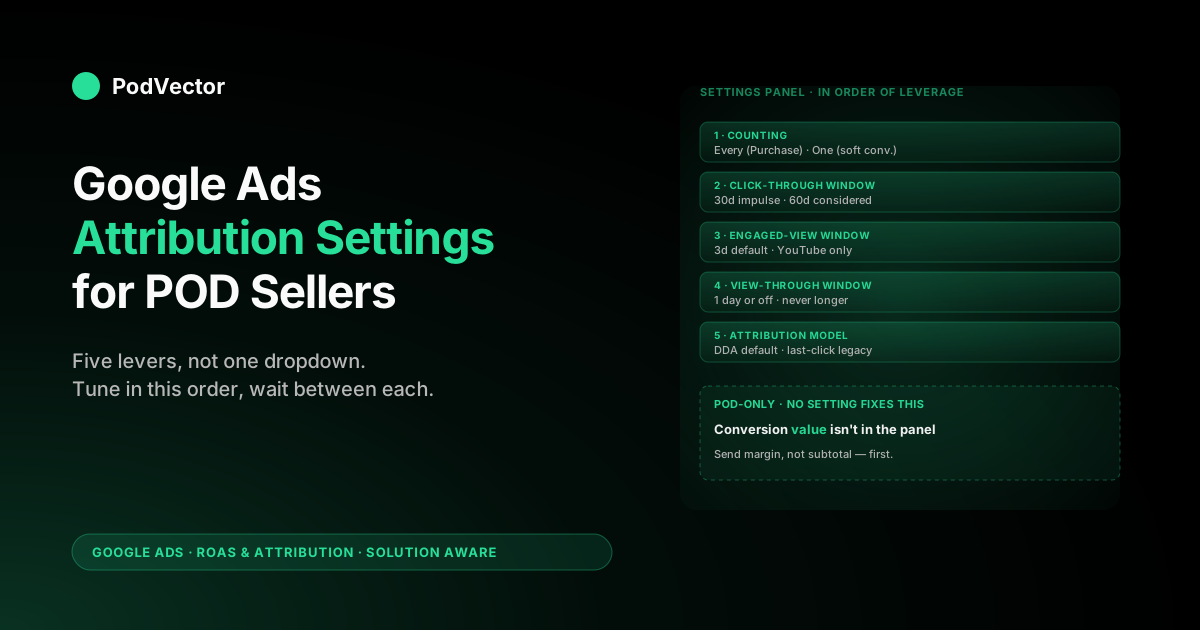
Configure them in this order: counting → click window → engaged-view window → view-through window → model. For POD specifically, the lever no setting fixes is conversion value — Google receives order subtotal by default, which masks Printify and Printful supplier cost, so even perfectly tuned attribution feeds Smart Bidding the wrong number. Fix the value layer first, then walk the settings panel.
What counts as an "attribution setting" in 2026
The phrase "attribution settings" in Google Ads is loose. Most articles treat it as shorthand for the model dropdown — data-driven attribution or last-click — and stop there.
That's incomplete. Inside a single conversion action, there are at least four configurable settings that change how conversions get counted, credited, and fed into bidding. Outside the conversion action, there are account-level and bid-strategy-level toggles that decide which conversion data flows where.
The full list, ordered roughly by how much each one changes your reported numbers when you flip it:
- Counting (One vs Every). Whether one click can drive multiple conversions or only one. Often shifts reported conversion volume by 10–25% on POD accounts because repeat buyers exist.
- Click-through attribution window. 1 to 90 days. Default 30. Lengthening typically adds 5–15% to reported conversions.
- Engaged-view window. 1 to 30 days. Default 3. Affects YouTube credit on multi-touch paths.
- View-through window. Off, 1, or up to 30 days. Default 1. Adds Display impressions that didn't get a click.
- Attribution model. DDA or last-click. Doesn't change total conversion volume; it changes which campaigns get credit for them.
- Include in "Conversions" column. Whether this action is what Smart Bidding optimises toward. The most consequential toggle in the entire panel and the easiest to misconfigure.
- Conversion value setting. Whether the value passes from the page (use different values), is fixed per action (use the same value), or doesn't pass at all. POD-critical and almost always misconfigured by default.
Six of these seven sit on the conversion action itself, in the Goals → Summary view. The seventh — the bid strategy column reference — sits on the campaign or portfolio bid strategy. Treating the model dropdown as "the attribution setting" misses where 80% of the leverage actually is.
For the broader picture of how attribution sits inside the full Google Ads measurement stack for print-on-demand, the cluster pillar at the complete guide to Google Ads ROAS and attribution for POD walks the architecture end-to-end.
Where the settings actually live in the new Google Ads UI
Google reorganised the conversion settings UI in 2024 and again in early 2026. The current navigation, as of mid-2026:
- Open Google Ads.
- Click Goals in the left navigation (the target icon, second from the top in most accounts).
- Under Goals, click Summary. This is the top-level conversion-action list.
- Click the conversion action you want to edit (typically "Purchase" for a Shopify store; if you have multiple, you'll see one per Shopify property).
- You're now on the conversion-action detail page. The settings live in two tabs: Settings (model, windows, counting, value setting) and Conversion source (where the data is coming from — Shopify pixel, GA4 import, etc.).
- Click Edit settings at the top of the Settings tab to make the fields editable.
The reason this matters: tutorials written before March 2026 describe the old "Tools and Settings → Conversions → [conversion name]" path. That path still works as a redirect but doesn't show the new conversion-source diagnostics. If you're following a 2024 walkthrough and can't find a setting it mentions, you're probably in the legacy view; the field exists in the new view but in a different tab.
For a focused walkthrough of finding and verifying which model is applied right now, see how to check attribution model in Google Ads (step-by-step).
The counting setting: the one most POD sellers ignore
Counting is the toggle nobody mentions in attribution tutorials. It has two values:
- Every. Each conversion event after an ad interaction is counted. If a customer clicks your ad, buys a hoodie, then buys a tumbler eight days later, you log two conversions against that click.
- One. Only the first conversion event after an ad interaction is counted. The hoodie counts; the tumbler doesn't.
For Purchase conversions, Google's recommended setting is "Every." Most POD sellers leave it on the default and never look again. The problem is that "Every" gives you reported conversion counts that double-count repeat buyers, while the conversion value still maps cleanly to actual orders.
So a customer who buys three times in 30 days reads as three conversions worth $34 + $42 + $28 = $104 of conversion value. That's correct for ROAS math but misleading for "how many customers did this campaign acquire?" — which in POD is the question that actually matters when comparing acquisition channels.
The POD-specific recommendation: keep Purchase on "Every" so Smart Bidding sees full lifetime-in-window value. Add a second conversion action (Initiate Checkout or Add to Cart) on "One" if you also want a clean unique-customer-acquisition metric. Don't try to make Purchase do both jobs.
Counting also interacts with refunds. Google Ads doesn't reduce reported conversions when a refund happens unless you wire up offline conversion adjustments via the API — and as of 2026, those offline uploads require the new conversion_environment parameter, so check your feed if refund adjustments silently stopped applying after a Google API update.
Apparel POD has a 4–8% refund rate; on "Every" counting, a refunded reorder still counts as both purchases. This compounds the optimisation drift — Smart Bidding learns to chase customers who buy, refund, and buy again.
Click-through window settings for POD
The click-through window is the time bound during which a click can be credited for a conversion. Configurable per conversion action: 1 day, 7 days, 14 days, 30 days (default), 60 days, or 90 days.
Lengthening the window almost always increases reported conversions, because some buyers genuinely take longer than 30 days. The question is whether the additional credited conversions are incremental — i.e., genuinely caused by the ad that's now getting credit — or whether they would have happened anyway and are just appearing in your dashboard because you widened the window.
POD-specific guidance:
- Impulse apparel and accessories. Stay at 30 days. The buying path is short; widening the window mostly adds noise from previously-engaged shoppers who would have come back regardless.
- Higher-AOV custom or personalised products. Try 60 days. Customers researching wedding gifts, custom team apparel, or commemorative items often need 4–6 weeks. The longer window genuinely captures incremental conversions.
- Print-on-demand wall art and home goods. 30 to 60 days depending on price point. Anything over $80 AOV usually justifies 60 days; anything under usually doesn't.
The 90-day window is rarely correct for POD and frequently wrong. Three months is long enough that the conversion is likely caused by retargeting, organic search, or email — not the original click — so you'd be over-crediting paid.
For more on choosing windows, see Google Ads attribution window explained for POD sellers.
Engaged-view window settings for POD
The engaged-view window applies only to YouTube. An "engaged view" is a YouTube ad watched for at least 10 seconds (or all the way through, for skippable ads under 10 seconds). The window options are 1, 3 (default), 7, 14, or 30 days.
Engaged-view credit is the trickiest setting in attribution because it's neither a click nor an impression — it's an interaction Google decided was meaningful enough to credit. For POD sellers, the right configuration depends on whether you actually run YouTube:
- If you run pure Search and Shopping with no YouTube spend. Window value is irrelevant. Leave at 3 days.
- If you run YouTube as awareness (top-funnel views, no direct response intent). 3 days is right. Lengthening over-credits YouTube on impulse apparel.
- If you run YouTube as direct response (video shopping ads, product feeds). 7 days is defensible. The path from video discovery to purchase is genuinely longer for considered POD products.
- If you run Performance Max (which uses YouTube placements automatically). 3 days. PMax already over-credits YouTube components in many accounts; longer windows compound the problem.
The reason this matters more than most setup guides admit: engaged-view conversions get fed into Smart Bidding the same as clicks. If your engaged-view window is set to 14 or 30 days, you're effectively telling Target ROAS "any sale within 30 days of someone watching 10 seconds of a YouTube ad was caused by that ad." Smart Bidding then bids more aggressively on YouTube placements that reach broad, casual viewers — because they technically generate post-view conversions even when those conversions would have happened from organic or email.
View-through window settings for POD
The view-through window credits Display impressions that didn't get a click. The defaults: 1 day on, with options for 7, 14, or 30 days. There's also an explicit "off" option.
For POD specifically, the strong recommendation is to set this to off or 1 day and not think about it again. View-through Display credits look like cheap conversions in reports — your CPA reads beautiful — but most of them are not incremental. The Display Network pixels millions of impressions; some fraction of any audience that sees a Display ad will buy something within a day regardless of whether the ad existed. View-through windows credit those purchases to the ad, inflating conversion counts without adding revenue.
The argument for keeping view-through on at 1 day is that Smart Bidding uses the data, and shutting it off entirely can cause bid-strategy reset behavior. The argument against is that you're feeding bidding a noisy signal in service of a small gain. Most POD experts who've tested it find that view-through off and view-through 1-day produce nearly identical Smart Bidding behaviour, and view-through 1-day produces friendlier dashboard numbers.
Anything over 1 day for view-through is almost never defensible for POD. If you find yourself looking at a 7-day view-through window and a CPA that suddenly halved, you're not seeing a real performance improvement — you're seeing reporting drift.
The attribution model setting (DDA vs last-click)
This is the dropdown most articles call "the" attribution setting. It has three values as of 2026: data-driven attribution (DDA, the default), last-click, and external attribution (also called imported attribution — credit calculated by a third-party model and pushed into Google Ads via the API). The four legacy models — Linear, Time Decay, Position-based, First Click — were deprecated in September 2023 and aren't selectable for new conversion actions. If a tutorial mentions them, it's outdated.
The model setting changes how credit is distributed across touches in a converting path. It does not change the total conversion count — it only changes which campaigns appear to drive them. A campaign that reads ROAS 3.2 under last-click might read ROAS 4.1 under DDA because credit shifted upstream from the last touch toward the awareness touch.
For POD, DDA is almost always the right setting. There's a 2026 change worth knowing here: Google removed the old minimum-volume threshold for DDA eligibility — the 300-conversions-and-3,000-interactions-per-30-days rule that older guides still cite. DDA is now available to every conversion action regardless of volume.
That said, removing the eligibility gate doesn't make a low-volume model as sharp as a high-volume one — a store doing 40 orders a month gets a thinner, noisier DDA than one doing 4,000, even though both can now select it. Google's own attribution models documentation spells out how credit gets distributed under each model.
Last-click is appropriate only if the account is structurally a single-channel Search account with no Display, YouTube, or Performance Max — which is rare in 2026 because PMax keeps spreading. External attribution is for the small slice of POD operators running a dedicated third-party measurement tool that computes its own credit and feeds it back in. For practical purposes, DDA is the right choice for any multi-channel POD account.
For more on the model itself, see Google Ads data-driven attribution explained for POD sellers. For walking through an actual switch, see switch to data-driven attribution Google Ads help explained for POD sellers.
The right order to change attribution settings
If you're tuning a Google Ads account that hasn't been audited recently, you'll typically change multiple settings. The order matters because Smart Bidding rebuilds its model each time the underlying conversion data changes shape, and three rebuilds in a week produces noisier learning than one rebuild followed by two weeks of stability.
The right sequence:
- Fix the conversion value first. Not technically an attribution setting, but the highest-leverage fix. Send margin-aware conversion value, not order subtotal. (See recommended settings below for how.) Wait 14 days for Smart Bidding to stabilise.
- Set counting correctly. Purchase on "Every," any unique-customer co-conversions on "One." Wait 7 days.
- Set the click-through window. 30 days for impulse, 60 days for considered. Wait 14 days.
- Set engaged-view and view-through windows. 3 days engaged-view, 1 day or off view-through. Wait 7 days.
- Switch to DDA last. If you weren't already on it. Smart Bidding takes 14–30 days to fully recalibrate after a model switch.
The total stabilisation period is roughly 60 days end-to-end. That's longer than most agencies want to wait, which is why agencies often do all five changes the same afternoon.
Don't. Each change is a Smart Bidding reset, and bunching them obscures cause and effect — when ROAS moves, you can't tell which change caused which part of the move.
Account-level vs conversion-action-level settings
One source of confusion in the new Google Ads UI: some attribution settings are configured per conversion action, others per account, and a few exist at both levels with the action-level setting overriding the account-level default.
The breakdown:
- Account-level (Goals → Summary → Settings cog). Default attribution model for new conversion actions. Account-wide enhanced conversions toggle. Default lookback window for new actions.
- Conversion-action-level (each action's Settings tab). Specific model for that action. Counting setting. Click, engaged-view, view-through windows. Conversion value setting. Inclusion in "Conversions" column for bidding.
- Bid-strategy-level (campaign or portfolio). Which "Conversions" column the bid strategy reads (default vs custom goal vs specific action set). This is what tells Smart Bidding which conversions to optimise toward.
The trap most POD sellers fall into: changing the account-level default model from DDA to last-click does not change existing conversion actions. It only affects newly-created ones. So you can confidently change the default, watch reports stay identical, and assume nothing happened — when in reality your existing Purchase action is still on whatever model it had originally.
Always edit attribution settings at the conversion-action level if you want them to take effect on existing data. The account-level setting is a starting template for new actions, not a global override.
How attribution settings feed Smart Bidding
Every Smart Bidding strategy — Maximize Conversions, Target ROAS, Maximize Conversion Value, Target CPA — reads from the "Conversions" column on each campaign. Which conversions appear in that column depends on:
- Which conversion actions have "Include in 'Conversions'" turned on.
- The attribution model on each of those actions (DDA or last-click) — this decides credit distribution across campaigns.
- The windows on each of those actions — these decide whether a conversion within X days of a click is in scope at all.
- The counting setting — this decides whether repeat conversions on the same click count once or every time.
So when you tune attribution settings, you're not just changing reports — you're changing the input to Smart Bidding's optimisation. A click window change of 30 to 60 days means Smart Bidding now sees more conversions per click and bids accordingly. A model switch from last-click to DDA means Smart Bidding redistributes credit toward upper-funnel campaigns and bids those up.
This is why the order of changes matters. Smart Bidding needs roughly two weeks to settle after each meaningful change. Two changes in the same week and you can't read the effect of either.
For the integration side — getting the conversions into Google Ads in the first place — see add Google Ads conversion tracking to Shopify (setup guide for POD sellers).
Recommended attribution settings for POD stores
Default configuration that works for most POD apparel and accessories accounts at $10K–100K monthly revenue:
- Attribution model: Data-driven attribution.
- Click-through window: 30 days for impulse apparel and mugs; 60 days for personalised or higher-AOV products.
- Engaged-view window: 3 days.
- View-through window: 1 day, or off if your reports show large view-through Display credits and you don't trust them.
- Counting: Every for Purchase, One for any add-to-cart or initiate-checkout co-conversions.
- Include in "Conversions": On for Purchase. Off for soft conversions unless you're explicitly using them for Smart Bidding training.
- Conversion value: "Use different values for each conversion" — and send contribution margin, not order subtotal. This is the POD-critical setting.
- Enhanced conversions: On. Hashed first-party data improves DDA accuracy by 15–30% on Apple-device-heavy POD audiences.
The conversion-value setting deserves more space because it's where 80% of POD ROAS distortion comes from. Three implementation paths, ordered by accuracy:
- Send true contribution margin via the Conversions API. Compute revenue minus Printify or Printful supplier cost minus processor fee minus shipping subsidy at order time, send the result as the conversion value. This is what Google Ads should be optimising toward. Implementation: Shopify Functions or a serverless webhook.
- Send a margin-adjusted constant. If you can't compute per-order margin in real time, multiply order subtotal by your account-wide gross margin (typically 35–45% for POD apparel) and send the adjusted number. Less accurate per order but eliminates the worst of the subtotal distortion.
- Send order subtotal (default). What the Shopify Google Ads channel sends out of the box. Almost always wrong for POD. Smart Bidding optimises toward the cheapest acquisitions of revenue that doesn't account for cost of goods.
Of these, option 1 is the right answer if you have the engineering capacity. Option 2 is the practical compromise. Option 3 is the default and is what most POD stores are running, which is why most POD stores have ROAS dashboards that don't match P&L reality.
Settings mistakes that quietly tank POD ROAS
Five attribution-setting mistakes we see repeatedly on POD account audits:
- Multiple Purchase conversion actions, all included in "Conversions." If you connected Shopify, then later imported GA4, you may have two Purchase actions firing simultaneously. Both feed Smart Bidding, so every order gets counted twice. Reported ROAS is roughly double reality. Fix: pick one source, exclude the other from "Conversions."
- View-through window left at 30 days. Some Display-heavy templates set this and never reset it. Reported conversions look great, P&L doesn't budge. Fix: 1 day or off.
- Counting on "One" for Purchase. Repeat buyers don't count after the first order. Smart Bidding under-bids on customers who actually have lifetime value. Fix: "Every."
- Last-click model still applied to a Performance Max + Search + YouTube account. All upper-funnel credit goes to Search clicks. Smart Bidding cuts spend from PMax and YouTube even when those channels are starting paths. Fix: switch to DDA, expect ROAS to redistribute over 3–4 weeks.
- Order subtotal sent as conversion value with no margin adjustment. The biggest one. Reported ROAS overstates real ROAS by 50–100% on POD apparel because supplier cost is invisible. Fix: send margin-adjusted value (option 1 or 2 above).
Each of these settings problems compounds. An account with multiple Purchase actions, view-through 30 days, and subtotal-only conversion value can have a reported ROAS twice or three times its real margin-aware ROAS. The CMO sees "ROAS 4.5" and approves more spend. The P&L bleeds. Fix the settings before you fix the campaigns.
For a deeper read on why standard attribution analysis breaks down on POD margins, see Google Ads attribution explained for POD sellers.
FAQs
Where do I find attribution settings in the new Google Ads UI?
Goals → Summary → click the conversion action → Settings tab → Edit settings. The path changed in early 2026; older tutorials describe Tools and Settings → Conversions, which still redirects but doesn't show the new conversion-source diagnostics.
What attribution model should POD sellers use in 2026?
Data-driven attribution (DDA) for any multi-channel account. As of 2026 Google removed the old minimum-volume threshold (300 purchases plus 3,000 interactions per 30 days), so DDA is now available to every conversion action regardless of size — though higher-volume accounts still get a sharper model than thin ones. Last-click only for pure single-channel Search accounts, which is rare for POD in 2026 because Performance Max keeps spreading.
What's the difference between the model setting and the window setting?
The model decides how credit is distributed across touches when a path has multiple ads. The window decides whether a touch is even in scope to receive credit — anything outside the window is ignored regardless of model. They're independent settings; you configure both per conversion action.
Should I change my view-through window from 1 day?
Almost never. View-through credits Display impressions that didn't get a click, and most of those conversions aren't incremental. Lengthening the view-through window inflates reported conversions without adding revenue, which feeds bad data to Smart Bidding. Keep at 1 day or set to off.
Does changing attribution settings reset Smart Bidding?
Yes — any change that alters the conversion data fed into bidding triggers a partial Smart Bidding rebuild. Allow 14–30 days for full stabilisation after a model switch, 7–14 days after a window change, and 7 days after a counting change. Don't bunch changes in the same week or you can't read what caused what.
What's the right click-through window for a POD apparel store?
30 days for impulse apparel and accessories. 60 days for higher-AOV custom or personalised products where buyers research multiple options. 90 days is rarely correct for POD because the conversion is more likely caused by retargeting or organic search than by the original click.
Why does my Google Ads ROAS look so much better than my P&L?
Because Google Ads receives order subtotal as conversion value by default, and your P&L includes Printify or Printful supplier cost, processor fees, and shipping subsidy that Google never sees. After all of those, real margin is typically 35–45% of subtotal for POD apparel. Send margin-adjusted conversion value (or true per-order contribution margin) and the dashboard ROAS starts matching reality.
Can I have different attribution settings on different conversion actions?
Yes. Settings are per conversion action. You can run Purchase on DDA with a 60-day click window and Initiate Checkout on last-click with a 7-day window. Whether you should is a different question — typically you want all actions feeding bidding to share the same model and window logic, otherwise Smart Bidding optimises toward inconsistent signals.
Does the account-level default attribution model override existing conversion actions?
No. Changing the account-level default only affects conversion actions created after the change. Existing actions keep whatever they were configured with. To change attribution settings on existing data, you have to edit each conversion action individually.
How do I know if my settings change actually took effect?
Check the Settings tab on the conversion action — the new value should be displayed and timestamped. Then check the Model Comparison report (Goals → Measurements → Attribution) after about a week to see how reported credit shifts. If credit hasn't shifted at all, you may have edited the account-level default rather than the action-level setting.
Let Victor run your ads on the right number.
Attribution settings decide who gets credit. The conversion value Google reads decides what that credit's worth. Most POD stores send order subtotal — masking Printify supplier cost, processor fees, and shipping subsidy — so Smart Bidding chases thin-margin SKUs.
Victor is an AI employee, not a dashboard. He joins your Shopify orders, supplier invoices, and Google Ads spend in a live data warehouse, computes contribution margin per order, and feeds that margin-aware value back into Google Ads. Then he reallocates spend toward the campaigns that actually clear margin and pauses the ones that don't — surfacing each move for your approval before it goes live.
Try Victor free