
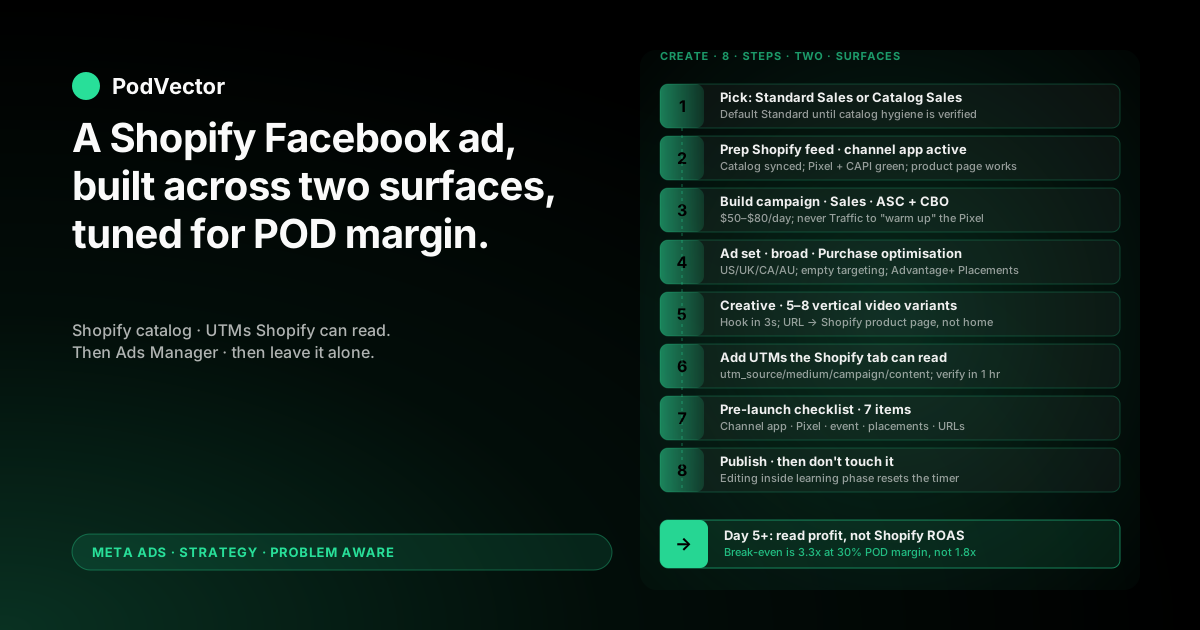
Quick Answer: Creating a Facebook ad for a Shopify store is an eight-step build that runs across two surfaces — Shopify Admin (catalog and UTM prep) and Meta Ads Manager (campaign, ad set, ad).
The Meta side of the flow is the same as any ecommerce store. The Shopify side is what most generic guides skip, and it is where print-on-demand sellers lose money: catalog feeds that surface out-of-stock Printify variants, UTM strings that the Shopify Analytics tab can't parse, and a default ROAS readout that hides the Printify or Printful supplier cost on every order.
This guide walks the full sequence — from a clean Shopify catalog through publishing the ad — with the print-on-demand answer to each click, not the generic owned-inventory one.
Why creating a Shopify Facebook ad is a two-surface job
Most "how to create Facebook ads" tutorials live entirely inside Meta Ads Manager. They show the same six screens — objective, budget, audience, placements, creative, publish — and call it done.
For a Shopify store, that's only half the job. The other half lives in Shopify Admin: the catalog the channel app pushes to Meta, the UTM strings the Shopify Analytics tab reads, the discount codes that fire (or don't) when the click lands.
The wiring that makes those two surfaces talk to each other is covered separately in how to set up Facebook ads for Shopify, step-by-step. This guide assumes that foundation is in place and walks the create-the-ad sequence on top.
Print-on-demand changes the math, not the buttons
The buttons in Ads Manager don't change for print-on-demand. The defaults Meta nudges you toward do not work.
Owned-inventory ecommerce breaks even around 1.8x ROAS. Print-on-demand breaks even closer to 3.3x ROAS at a 30% contribution margin after Printify or Printful supplier costs, payment processing, and shipping subsidy. Every choice below is the POD answer to the click in front of you.
Step 1 — Decide: Catalog Sales or Standard Sales?
Before you click Create, you need to know which campaign type you're building. Shopify gives you two viable options and the choice matters.
Standard Sales (single creative per ad)
You upload one image or video per ad and send the click to a specific Shopify product page. This is the right choice when:
- You're testing a single hero design and want maximum control over the creative
- You have fewer than 20 active SKUs in your store
- Cold traffic still doesn't know your brand and needs a strong hook before they'll consider browsing
For most POD stores under their first 1,000 orders, Standard Sales is the correct starting point.
Catalog Sales / Advantage+ Catalog Ads
Meta dynamically pulls product images, titles, and prices from your Shopify catalog and assembles ads on the fly. Each viewer sees the products Meta predicts they'll buy. This is the right choice when:
- You have 30+ active SKUs and want broad coverage
- You're running retargeting against people who viewed product pages but didn't buy
- Your catalog is clean — no broken images, no out-of-stock variants, no missing prices
That last bullet is where POD stores get hurt. Printify and Printful sync product images and titles via the Shopify Facebook channel app, and broken syncs show up as ads featuring placeholder images or sizes that aren't actually orderable. The full mechanics live in the Shopify dynamic Facebook ads product feed playbook for POD.
If you're not sure which to pick, default to Standard Sales for the first campaign. Add Catalog Sales as a separate campaign once Standard is profitable and your catalog hygiene is verified.
Step 2 — Prepare the Shopify product feed Meta will read
Whichever campaign type you picked, Meta needs your Shopify catalog to be parseable on its end. Five minutes here saves a week of debugging later.
Open Shopify Admin → Settings → Apps → Facebook & Instagram
Verify three things on the channel app status page:
- Connection status: Active. If it shows "Pending review" or "Disconnected," fix that first — no campaign will publish on a broken connection.
- Catalog: Synced. The product count in Shopify should match the count Meta reports under Catalog Manager. A 5–10% gap usually means draft products or a sync delay; a 30%+ gap means a broken sync.
- Tracking: Pixel + Conversions API enabled. Both must be green. Pixel-only loses 25–40% of Purchase events to iOS opt-outs, which inflates your apparent cost-per-purchase by the same amount.
Verify the product page the ad will land on
For Standard Sales, click through to the exact Shopify product URL you intend to use. Check:
- The hero image loads and is high-resolution (Meta will pull this for some auto-formats)
- At least one variant is in stock and orderable
- The price displayed matches what's in the Shopify catalog Meta has synced
- The Shopify Buy button works — no checkout error, no missing shipping option
Cold traffic doesn't recover from a broken product page. They bounce, and Meta reads the bounce as a signal to throttle delivery.
Shopify Markets and currency: confirm the targeting matches
If you're using Shopify Markets to serve different prices in US, UK, CA, AU, your Facebook ad's geographic targeting needs to match the markets your store actually serves at competitive pricing. Targeting the UK while your UK market shows USD with no GBP conversion will tank conversion rate even if creative is strong.
Step 3 — Open Ads Manager and build the campaign
Go to business.facebook.com, switch to your Ad Account, and open Ads Manager. Click the green Create button on the Campaigns tab.
Pick the Sales objective
For Shopify ecommerce, the answer is always Sales. Sales is the only objective that optimises toward Purchase events on your Pixel and Conversions API feed. Every other objective optimises for the metric in its name:
- Awareness — optimises for reach. Brand campaigns only, not selling Shopify products.
- Traffic — optimises for clicks. Recruits clickers, not buyers, and pollutes retargeting audiences.
- Engagement — optimises for likes. Wrong needle.
- Leads — only relevant if you're collecting emails before checkout.
The classic mistake is starting with Traffic to "warm up" the Shopify Pixel before switching to Sales. Don't. The Pixel doesn't need warming. Sales optimisation kicks in the moment a Purchase event fires.
Use Advantage+ Shopping Campaign for new accounts
Advantage+ Shopping Campaign (ASC — Meta's automated campaign type) collapses audience and placement decisions into one bidding system. For Shopify accounts under 30 purchases per week, ASC outperforms manual ad sets in the large majority of POD tests.
Once you cross 30 purchases/week and want to test specific cold audiences, layer manual campaigns alongside — never instead of — ASC. The graduation criteria sit in the scaling Facebook ads playbook for Shopify POD.
Toggle on Campaign Budget Optimisation, set $50–$80/day
Campaign Budget Optimisation (CBO) lets Meta shift spend between ad sets based on which one is winning, instead of locking equal budget into each. For ASC, CBO is the only budget control you have, which is fine — that's the whole point.
Below $50/day, Meta can't accumulate purchase signal fast enough to exit the learning phase inside its 50-conversion threshold. You're paying full CPM for half the optimisation.
Name the campaign so the Shopify reports tab can find it later
Use a structured name now. Pattern that works:
[Date] · [Shopify-Collection] · [Audience] · [Format]
Example: 2026-05 · Mom-tees · Broad-US · Video-9x16. This becomes your UTM campaign value in step 6, which is what makes the Shopify Analytics tab able to attribute back to this campaign.
Step 4 — Build the ad set (audience, placements, event)
The ad set is where most ecommerce tutorials get fancy with interest stacks. POD Shopify operators lose money there. Keep it boring.
Audience: broad first, lookalikes only after data
For ASC, audience selection is automated — let it run. For manual campaigns, start with:
- Country: US, UK, CA, AU. Match the markets your Shopify store actually serves with competitive pricing.
- Age: 25–55. POD apparel buyer skew sits in this band.
- Gender: match the design's intended audience.
- Detailed targeting: empty.
Empty detailed targeting feels wrong. It is correct. Meta's algorithm finds buyers faster than your interest stack does, and interest stacks add CPM premiums in the auction without buying you better targeting.
Layer Lookalike audiences only after the Shopify Pixel has accumulated 1,000+ Purchase events. Below that threshold, Lookalikes are statistically unstable and routinely underperform the broad audience they were built from.
Placements: Advantage+, never manual
Set Advantage+ Placements. Meta auctions your ad across Facebook Feed, Instagram Feed, Stories, Reels, Messenger, and the Audience Network in real time, picking the placement with the best cost-per-conversion.
Manual placement selection ("Facebook Feed only" or "Instagram Stories only") restricts the auction options and inflates CPM by 20–40%. The single exception: if your creative is a horizontal static image and would crop unreadable on Stories or Reels, exclude those placements only. The better answer is to recompose the creative as vertical video.
Optimisation event: Shopify Purchase, always
Set the optimisation event to Purchase. Never AddToCart, never ViewContent, never InitiateCheckout — regardless of how many older guides recommend "starting with a softer event because the Pixel is new."
That advice predates Aggregated Event Measurement (AEM — Meta's framework for handling iOS opt-outs). Today, only the optimisation event you select is allowed to influence delivery. Softer events recruit softer-intent users. Purchase recruits buyers.
Switch off Value Optimisation until your Shopify AOV is stable
Value Optimisation tells Meta to bid more aggressively on customers likely to spend more per order. With POD's mix of mugs, hoodies, and posters at very different price points, Meta misreads the value signal and over-bids on high-receipt orders that often have lower margin.
Switch it on once your average order value is consistent across SKUs — usually after the first few hundred Shopify orders.
Step 5 — Build the ad creative for a Shopify product page
Creative is where 70% of campaign performance is decided. Everything above just stops you from sabotaging it.
Lead with vertical short-form video
Vertical 9:16 video wins almost every POD ad test in 2026. It plays full-screen on Stories and Reels, stacks well in feed, and Meta's algorithm currently favours it in the auction.
Build 5–8 creative variants per concept before launch. Same Shopify product, different hooks. Meta needs creative diversity wide enough to find the variant that resonates with the broad audience — not five backup options for you to manually rotate.
The hook in the first 3 seconds is the single highest-leverage element. Test:
- Pattern interrupt — striking visual: colour flash, unexpected zoom, abrupt cut
- Direct call-out — "If you have a [specific identity] in your life…"
- Problem statement — "You can never find a [niche] gift that doesn't look generic"
- Social proof — "Over 12,000 of these shipped from our Shopify store this year"
Pull product imagery from the Shopify catalog when possible
Your Shopify catalog likely has cleaned product mockups already — Printify and Printful generate them on sync. Reusing those mockups inside your ad creative does two useful things:
- Visual continuity from the ad to the Shopify product page reduces bounce rate at landing
- If the campaign type is Catalog Sales, Meta uses these images automatically — a clean Shopify catalog becomes the ad creative
Copy structure that doesn't feel like an ad
Three short paragraphs, in this order:
- Identity hook — open with who the product is for. "For people who can't find a [niche] gift that isn't generic."
- Product specifics — material, sizing, fit. POD buyers are skeptical about quality; specifics build trust.
- Soft CTA — "See the full collection on our store" tends to beat "Buy now" for cold traffic.
Headline (the bold one-liner under the media): keep it under 40 characters and lead with the benefit, not the brand. "A mug she'll actually use" beats "MyBrand Premium Ceramic 11oz Mug."
Destination URL: specific Shopify product page, not the homepage
Send the click to the specific Shopify product page that matches the ad creative. Sending cold traffic to the homepage and asking them to navigate is the third most common reason POD ads underperform — bounce rate doubles and Meta reads the lower conversion rate as a signal to pull back delivery.
If you're running a Shopify discount code in the ad copy, link to a Shopify discount URL that auto-applies the code (yourstore.com/discount/SUMMER15?redirect=/products/your-product). Don't ask cold traffic to copy a code into a checkout field.
Step 6 — Add UTMs the Shopify Analytics tab can read
Most generic guides skip this. Don't. Without UTMs, the Shopify Analytics tab can't attribute the order back to the specific Facebook ad, and you end up with a Meta-reported ROAS and a Shopify-reported "Direct" channel that don't reconcile.
The UTM convention Shopify reads cleanly
Append this to every Facebook ad URL:
?utm_source=facebook&utm_medium=paid&utm_campaign=[campaign-name]&utm_content=[ad-name]
Use the same campaign name you set in step 3. The Shopify Analytics → Sessions by Campaign report will then group sessions and orders under that name automatically.
Verify in Shopify within the first hour after publishing
Once the ad is live, click your own ad in Facebook on a fresh browser, complete a small test purchase using a real (refundable) order, then check Shopify Analytics → Sales by Marketing Campaign. The order should appear under your campaign name within 30–60 minutes.
If it shows up as "Unknown" or "Direct," the UTM string is broken — usually a missing ampersand encoding. Catch this in the first hour, not in week three when you're trying to read results. The full debugging guide for these mismatches lives in the discrepancy between Facebook Ads and Shopify playbook for POD.
Step 7 — Run the pre-launch checklist
Before you click Publish, walk through this seven-item Shopify-specific check. Each catches a failure mode that's expensive to fix after the campaign goes live.
The pre-launch checklist
- Shopify channel app: Active. Catalog and Pixel both showing green.
- Pixel + Conversions API both green in Events Manager. Server and Browser Purchase counts within 10% of each other over the last 7 days.
- Optimisation event set to Purchase, not the default Meta nudges you toward.
- Placements set to Advantage+, not "manual placements."
- Detailed targeting empty for ASC; minimal for manual.
- 5–8 creative variants uploaded, each with a different hook in the first 3 seconds.
- Destination URLs hit live Shopify product pages with at least one in-stock variant, UTM string appended, and Shopify Buy button verified working.
Click through each ad's preview link to verify the URL loads inside Shopify. Three minutes here saves an entire day's spend driving traffic to a broken page.
Step 8 — Publish, then read profit (not Shopify ROAS)
Click Publish. Meta runs an automated review that takes anywhere from 15 minutes to a few hours.
Once the campaign goes live, the most expensive thing you can do is touch it.
Don't edit anything for 4–5 days
Meta's learning phase needs ~50 conversion events at the ad set level (or campaign level for ASC) to exit. At $50–$80/day with a $40–$60 cost-per-purchase, that's 4–5 days of stable spend before the algorithm has enough data to optimise reliably.
Editing budget, audience, or creative inside the learning phase resets the timer. So does pausing and re-enabling. So does duplicating the ad set "to test something." Hold the line.
Read the result on profit, not on Shopify ROAS
This is the operational difference between POD and owned-inventory ecommerce. After 4–5 days, open Shopify Analytics → Sales by Marketing Campaign and Ads Manager spend side by side, then calculate:
- Revenue from this Facebook campaign (Shopify-attributed via UTM)
- Minus Printify or Printful supplier cost on those Shopify orders
- Minus Shopify Payments / Stripe fees (~2.9% + $0.30/order)
- Minus ad spend
- Equals contribution profit from this Facebook campaign
If contribution profit is positive, the campaign is working — even if Ads Manager shows 2.5x ROAS that looks "average" in a generic guide. If contribution profit is negative at 3x ROAS, your supplier cost ratio is higher than you assumed and the campaign needs creative work, not budget. The full ROAS-to-profit translation framework lives in the complete guide to Meta Ads ROAS and attribution for POD.
Six Shopify-specific mistakes POD operators make at creation time
1. Picking Catalog Sales before the catalog is clean
Broken Printify variants, missing prices, and out-of-stock items become the ad. You're paying Meta to surface products the customer can't buy. Audit the catalog inside Shopify and Meta Catalog Manager before turning Catalog Sales on.
2. Skipping UTMs because "Meta tracks the conversion anyway"
Meta tracks Meta-side. Shopify tracks Shopify-side. Without UTMs, the two never reconcile, and you can't isolate which ad in which campaign actually drove which Shopify order.
3. Linking to the homepage instead of the product page
Cold buyers don't navigate. They bounce. Always link the ad to the specific Shopify product page, with UTMs and the Buy button verified working.
4. Using a Shopify discount code that requires manual entry
Cold traffic won't copy a code into a field. Use the Shopify discount URL format that auto-applies the code on landing.
5. Stacking interest targeting because Shopify's audience reports show specific interests
Shopify's customer interest data is post-hoc — it describes who already bought. Meta's auction needs forward-looking signal. Empty detailed targeting and let Meta find buyers; use the Shopify interest data only to inform creative themes.
6. Editing the campaign on day 2 because Shopify Reports shows zero attributed orders
Day 2 attribution is noise. Day 5+ rolling 7-day data is signal. Editing inside the learning phase resets the algorithm to zero. Patience is cheaper than re-tests.
FAQs
How much budget do I need to start running my first Facebook ad for a Shopify POD store?
The honest minimum is roughly $1,500 over 30 days — about $50/day on one ASC campaign. Below that, the Pixel never accumulates enough purchase signal to exit Meta's learning phase, and you're paying for tests without enough data to act on.
Can I create a Facebook ad before my Shopify store has any sales?
Yes, but ASC will spend more per purchase in the first 2–3 weeks because Meta has no Pixel data to optimise on. Plan for $200–$400 cost-per-acquisition during the cold-start period, then expect it to roughly halve as Purchase events accumulate. Generic ecommerce CPA benchmarks don't apply to POD's cold-start curve.
Should I create the ad inside the Shopify Facebook channel app or in Meta Ads Manager directly?
Always Ads Manager. The Shopify channel app's "Boost" and "Promote" shortcuts hide important controls — optimisation event, placements, learning phase status — and default to settings that don't work for POD margin reality. Use the channel app for catalog sync only; build the ad in Ads Manager.
Do I need a separate Facebook ad for each Shopify product, or can one ad cover multiple?
For Standard Sales, one ad per hero product works best — the click lands on a specific product page and the creative matches. For Catalog Sales, one ad set covers an entire collection because Meta picks the product per viewer dynamically. Don't try to cover multiple products in a single Standard Sales ad; the click destination has to match the creative.
How do I add a Shopify discount code to a Facebook ad?
Reference the code in the ad copy ("Use SUMMER15") and link to a Shopify discount URL that auto-applies it: yourstore.com/discount/SUMMER15?redirect=/products/your-product. Don't rely on cold traffic to copy the code into checkout — drop-off rates double.
How long does it take to actually create one Facebook ad for a Shopify store?
The clicks themselves take 20–30 minutes for a single ad set with 5–8 variants — the extra time over a non-Shopify build comes from verifying the catalog and product page. Prep — creative production, audience research, UTM tagging, pre-launch checks — usually takes 2–4 hours for the first ad and 30–45 minutes for each subsequent one. The bottleneck is creative variants, not the interface.
What does the top 3 in Google's results recommend differently?
The major Shopify guides — Lebesgue's how-to-run guide, OptiMonk's beginner walkthrough, and MeasureSchool's deep setup guide — all cover the same Meta surface area: account, Pixel, catalog, campaign objective, audience, creative, optimisation. They're written for owned-inventory Shopify stores. The piece they don't cover is what to do differently when your Shopify ROAS is reading on subtotal but your real margin is 30% after Printify or Printful — which is the exact gap this guide is built to fill. The full Meta strategy library for POD lives at the Meta Ads strategy hub, which sits inside the Meta Ads topic hub.
You created the Shopify ad. Now find out if it's actually making money.
Meta Ads Manager shows you ROAS on Shopify subtotal. Printify shows you the supplier invoice. Shopify Analytics shows the order list. The margin sits in the gap between three dashboards — and most POD operators never close it.
Victor is the AI employee that pulls Shopify, your suppliers, and Meta into one live data warehouse and answers the question Ads Manager can't: is this Shopify campaign making me money on profit, not on receipt size? Ask in plain English, get the number from your real data, decide on the right one.
Try Victor free