
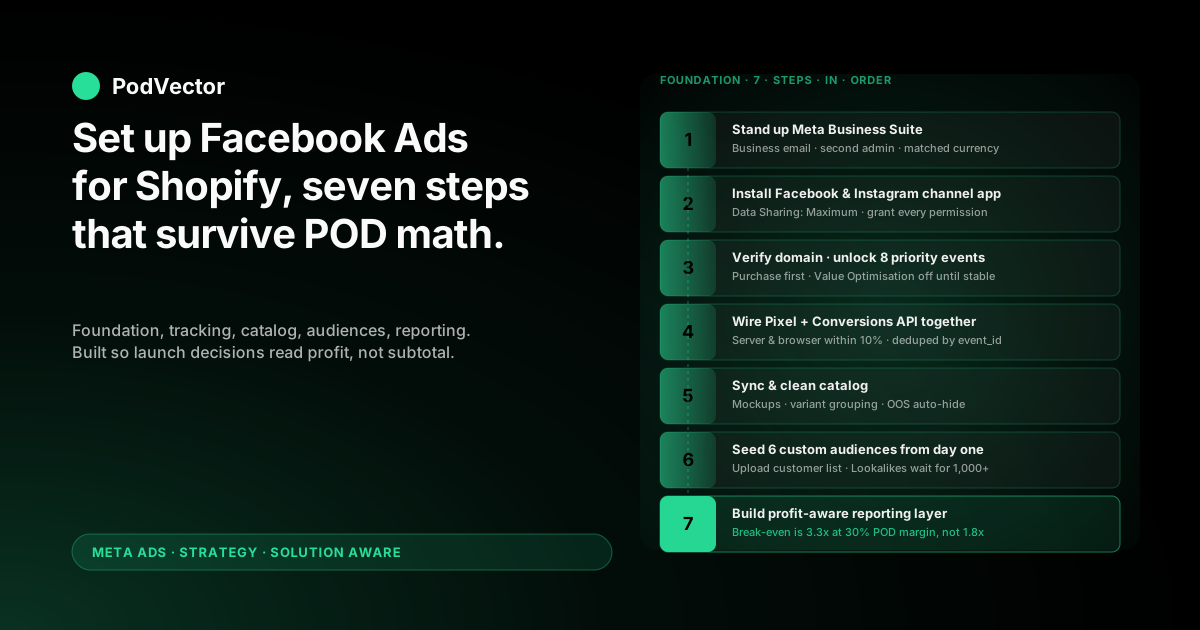
Quick Answer: Setting up Facebook ads for a Shopify print-on-demand store is a seven-step foundation job. None of the steps is glamorous; every one of them costs you margin for months if you skip it.
Stand up Meta Business Suite under the right account ownership, install the Facebook & Instagram channel app in Shopify, verify your domain, wire the Pixel and Conversions API together with deduplication, prioritise eight conversion events with Purchase first, clean the product catalog so Printify and Printful variants sync correctly, and build a profit-aware reporting layer before you launch a single ad.
The piece that breaks POD stores: the default Shopify-Meta integration measures ROAS on receipt subtotal. At 28–35% contribution margin after supplier costs, that number lies to you about which campaigns are profitable. Setup is where you either build that gap into your reporting from day one — or pay 18 months of attribution debt before you notice.
Why "setup" is different for a POD Shopify store
The standard Shopify-Meta setup guides — MeasureSchool's walkthrough, OptiMonk's beginner guide, AdNabu's full setup playbook — are technically correct. Follow any of them and the data will start flowing.
They're written assuming a store that owns its inventory at 50–60% gross margin. Print-on-demand operators don't.
After Printify or Printful supplier costs, contribution margin lives between 28% and 35%. That single fact reshapes three of the seven setup steps below — account ownership, conversion event priority, and the reporting layer you bolt on at the end.
The setup phase is where attribution debt is born
Every shortcut you take during setup compounds. Skip domain verification and you cap at three priority events instead of eight. Skip CAPI and you lose 25–40% of purchase signal after iOS 14.5. Skip the catalog cleanup and Advantage Plus Catalog Ads will surface broken or out-of-stock variants for months.
None of these failures are loud. They show up as ROAS that drifts down 10% per quarter while you blame "creative fatigue."
This guide is the foundation; the launch sequence is separate
Setup ends when you can launch a campaign and trust the numbers coming back. The actual campaign launch — picking the objective, structuring ad sets, shipping creative variants, reading results — is covered in how to run Facebook ads for Shopify, step-by-step. Treat the two as a chain: foundation here, launch there.
Step 1 — Stand up Meta Business Suite the right way
Go to business.facebook.com and create a Meta Business Suite (formerly Business Manager). This is the container that owns everything else: your Page, your Ad Account, your Pixel, your catalog.
Use a business email, not your personal Facebook
The Business Suite admin should be a business email address tied to a Facebook account that nobody else uses for personal posts. Reason: every asset created inside the Business inherits that admin. If your personal Facebook gets restricted for an unrelated reason, your ad account goes dark.
Add at least one second admin from day one. Single-admin Businesses are the most common cause of locked-out ad accounts after a personal-account ban.
Asset ownership matters more than it looks
Inside Business Settings, your Facebook Page, Ad Account, Pixel, and Domain need to all be owned by the same Business Suite — not "shared with" it. Shared assets can be revoked. Owned assets can't.
This becomes load-bearing the day you sell the store, hire an agency, or get a "this asset has been removed from your Business" email at 2am. Get it right now while the asset list is short.
Create the Ad Account in the right currency
The Ad Account currency must match your Shopify store's transaction currency. A USD store with a EUR ad account creates rolling FX errors that quietly inflate or deflate ROAS by 3–7% depending on the exchange rate that week.
Once set, currency cannot be changed. Create a fresh Ad Account if the existing one is wrong.
Step 2 — Install the Facebook & Instagram channel app in Shopify
In your Shopify admin, go to Settings → Apps and sales channels → Shopify App Store and install "Facebook & Instagram by Meta." This is the official channel app — not one of the dozens of third-party Facebook ads apps.
Walk the setup wizard end-to-end in one sitting
Open the channel app and click Start setup. The wizard walks you through Facebook Page connection, Business Suite connection, Ad Account selection, Pixel creation or attachment, Instagram account connection, and data sharing settings.
Do the whole sequence in one sitting. Half-finished wizards are the second-most-common cause of "events not firing" support tickets a week later.
Set Data Sharing to Maximum
The wizard asks how much data to share with Meta. Pick Maximum. This enables the Conversions API alongside the Pixel and sends server-side events that survive iOS 14.5 opt-outs and ad blockers.
Standard sharing leaves you on Pixel-only signal. Enhanced shares some events server-side. Maximum is the only setting that gives Meta enough data to optimise on for a thin-margin POD store.
Grant every requested permission
Meta will request permissions in batches: manage Pages, manage Ads, access Instagram, read Catalog, read Orders. Grant all of them. Half-granted permissions break event flow in ways that take days to diagnose.
If you're uncomfortable granting a specific permission, that's a sign you're using a personal Facebook account when you should be using a business one (see Step 1).
Step 3 — Verify your domain and unlock 8 priority events
iOS 14.5's Aggregated Event Measurement caps each verified domain at eight prioritised conversion events. Without domain verification, you cap at three. Three is not enough for a POD store.
Verify with the meta-tag method
Inside Business Settings, go to Brand Safety → Domains, add your Shopify domain, and pick "Add a meta tag to your home page."
In Shopify admin, open Online Store → Themes → Edit code → theme.liquid. Paste the meta tag immediately after the opening <head>. Save, then click "Verify domain" in Business Settings.
Verification usually completes in under a minute. If it stalls, the tag was pasted in the wrong template — make sure it's theme.liquid and not a section file.
Set the eight priority events in the right order
Open Events Manager → Aggregated Event Measurement → Configure web events and set this order for a POD Shopify store:
- Purchase
- InitiateCheckout
- AddToCart
- ViewContent
- AddPaymentInfo
- Search
- Lead (if you run email-capture popups)
- PageView
Purchase has to be slot one. Meta will only optimise toward an event that's on the list, and only the highest-priority event a user converts on counts for attribution.
Leave Value Optimisation off until margin is consistent
Each event has a "Value Optimisation" toggle. Leave Purchase set to Value: Off until your contribution margin is consistent across SKUs.
Value Optimisation tells Meta to spend more chasing higher-receipt orders. For a POD store with a $25 mug and a $65 hoodie at different supplier costs, the higher-value order isn't necessarily the higher-margin order. Switching this on too early skews spend toward your worst-margin SKUs.
Step 4 — Wire the Pixel and Conversions API together
Two trackers, both required, doing different jobs.
The Pixel handles browser-side events
The Shopify channel app installs the Pixel automatically when you grant permissions in Step 2. Verify it works with the free Meta Pixel Helper Chrome extension.
Load your home page, a product page, the cart, and the checkout in turn. The helper should count PageView, ViewContent, AddToCart, InitiateCheckout, and Purchase as you walk through.
CAPI handles server-side events
Conversions API (CAPI — Meta's server-to-server event channel) sends purchase events directly from Shopify's backend to Meta's servers. After iOS 14.5, somewhere between 25% and 40% of Pixel events fail because of opt-outs and ad blockers. CAPI catches those.
The channel app turns CAPI on by default in newer setups. Verify in Events Manager → Data Sources → your Pixel → Settings: look for the green "Receiving server events" status.
Confirm deduplication is working
The Pixel and CAPI both fire on the same purchase. Meta deduplicates them by event_id — but only if Shopify sends the same ID through both channels. The official channel app handles this; custom Pixel installs and third-party tracker apps frequently don't.
Spot a deduplication failure by comparing Events Manager Purchase count to Shopify Orders for the same 7-day window. If Meta shows materially more purchases than Shopify shows orders, deduplication is broken and your Ads Manager ROAS is inflated 1.5–2x.
The deeper integration mechanics live in the complete Meta Ads + Shopify integration guide for POD if you hit edge cases here.
Step 5 — Sync and clean the product catalog
Your product catalog is what powers Advantage Plus Catalog Ads, dynamic retargeting, and Shopping placements. The Shopify channel app sets up the sync automatically — but POD catalogs ship with three problems that need manual fixes.
Fix mockup image quality
Printify and Printful mockups default to white-background product shots that compress badly inside Meta's feed thumbnails. Open Commerce Manager → Catalog → Items, sort by image, and replace any image under 1024px on its longest side.
Lifestyle mockups (a person wearing the t-shirt, a mug on a desk) outperform white-background mockups by 30–50% on CTR in our category. Generate them in Printify or Printful's mockup tool, or commission them once and re-use.
Solve variant explosion
POD stores routinely ship 50+ variants per product (sizes × colours × fits). Meta's Catalog Ads feed every variant as a separate item, which means Advantage Plus Catalog Ads can show a customer six near-identical t-shirts in a single carousel.
In the channel app's catalog settings, group variants by parent product where the option exists. If your theme doesn't expose this, set the catalog to surface only the default variant per product and use dynamic creative to test colour/size in the ad itself.
Handle out-of-stock variants gracefully
Printify and Printful ship rolling out-of-stock notices for specific blanks. Meta's catalog doesn't pull stock status in real-time — so if you don't auto-pause out-of-stock items, your ads keep promoting variants the supplier can't fulfil.
Inside the channel app, switch on "Hide out-of-stock items from ads." This pulls hourly. For tighter control, add a stock-monitoring app (most cost $5–15/month) that auto-unpublishes products from Shopify when supplier inventory drops to zero.
Step 6 — Seed your custom audiences before you need them
Custom audiences need 7–28 days of accumulated data before they're usable for retargeting. Set them up now so they're ready when you launch.
Build the standard six audiences from day one
Open Ads Manager → Audiences → Create audience → Custom Audience and build these six, all sourced from your Pixel:
- All website visitors, last 180 days
- Product page viewers, last 30 days
- AddToCart, last 30 days
- InitiateCheckout (no Purchase), last 30 days
- Purchasers, last 180 days
- Engaged Page/Instagram followers, last 365 days
Each audience is an empty bucket the moment you create it. Meta starts populating it from Pixel and engagement data as soon as it exists, which is why you create them now even though you won't run retargeting for at least a month.
Upload your existing customer list as a seed
If your Shopify store has any order history, export the customer email and phone list from Shopify admin → Customers → Export and upload it as a Customer List custom audience.
This becomes the seed for Lookalike audiences once you have 1,000+ purchasers. Without it, your first Lookalike has to wait until Pixel-tracked Purchase data accumulates — which adds weeks to your scale timeline.
Don't build Lookalikes yet
Lookalike audiences need 1,000+ source records for stable performance. You almost certainly don't have that on a fresh Pixel. Note them as a Step-2-of-launch item, not a Step-6-of-setup item.
Step 7 — Build the profit-aware reporting layer
This is the step the standard guides skip — and the one that most determines whether your ad spend earns money or burns it.
The default Ads Manager ROAS lies to POD stores
Meta's purchase optimisation reads order subtotal from the Pixel and CAPI events. That subtotal includes the part you owe Printify or Printful — so a $40 order looks the same to Meta whether your supplier cost is $14 (a $26 contribution) or $28 (a $12 contribution).
At 30% contribution margin, your break-even ROAS is roughly 3.3x. The generic Shopify guides assume 50–60% margin and call 1.8x ROAS healthy. Reading Ads Manager on default settings, a campaign sitting at 2.4x ROAS looks profitable. For a POD store, it's losing 25 cents on every dollar.
What "profit-aware reporting" actually means
You need a report that shows campaign-level contribution margin after supplier costs, not just ROAS. The minimum viable version pulls four data points per campaign per day: spend, attributed revenue, attributed unit count, and attributed supplier cost. The last one is what Ads Manager doesn't have.
Three ways to get there: a manual weekly Google Sheet that joins Meta export with Printify/Printful invoice data, a Shopify analytics app that ingests POD COGS (a few exist; quality varies), or a dedicated POD analytics layer that does it natively.
Where Victor fits
Victor is the AI employee we built for POD Shopify operators. It joins your Shopify orders, Meta ad spend, and Printify/Printful supplier-cost data in a single live data layer, then answers questions like "which campaign is actually profitable after supplier cost this week?" in plain English.
The setup-time value is that you wire the data sources once during this step, then ask questions instead of building reports. Stage one of the employee roadmap is answering; stage two is acting on those answers — pausing unprofitable ad sets, flagging margin-eroding SKUs — but the answer layer alone repays the setup cost in the first month.
Whether you use Victor or a spreadsheet, build the layer before launching ads. Retrofitting profit reporting after three months of spend means three months of decisions made on the wrong number.
Six setup mistakes that cost POD stores money for months
1. Running setup on a personal Facebook account
Personal-account bans cascade to the Business Suite. Use a business email and add a second admin from day one.
2. Skipping domain verification
Caps you at three priority events instead of eight. Most POD stores discover this six weeks in when they realise they can't optimise for AddToCart audiences.
3. Trusting the "Standard" data sharing setting
Standard means Pixel-only. After iOS 14.5, that loses you a third or more of purchase signal. Maximum is the only sensible setting for a POD store.
4. Not verifying Pixel/CAPI deduplication
Inflates Ads Manager ROAS by 1.5–2x and scales bad campaigns. Check Events Manager Purchase count against Shopify Orders count weekly for the first month.
5. Switching Value Optimisation on too early
Skews spend toward higher-receipt orders that may be lower-margin orders in a POD catalog. Leave it off until contribution margin is consistent across SKUs.
6. Reading default Ads Manager ROAS as truth
The biggest one. The number Ads Manager shows you is revenue divided by spend before supplier costs. A profit-aware reporting layer is non-optional in POD; build it during setup or pay attribution debt for months.
FAQs
How long does the full setup take?
If your accounts already exist and you do all seven steps in sequence, expect 3–5 hours. Domain verification can stall up to 24 hours if you paste the meta tag in the wrong template. Customer-list audience uploads can take 24 hours to populate. Plan for two working days end-to-end before you launch a campaign.
Do I need a separate Pixel per Shopify store?
Yes. One Pixel per domain is the supported model. Sharing a Pixel across multiple stores breaks event attribution and confuses Meta's optimisation. If you run multiple POD stores from one Business Suite, create separate Ad Accounts and Pixels for each.
Can I skip the channel app and install the Pixel manually?
Technically yes, but you'll lose CAPI and automatic deduplication unless you build them yourself. The channel app handles both for free. Manual Pixel installs are only worth doing if you have very specific custom-event requirements that the channel app can't express.
What's the minimum daily budget I need to launch?
Meta's recommendation is roughly 50× your target CPA per ad set per week, which for a POD store at a $25 target CPA means about $30–50/day. Budget structure is covered in the launch sequel — see how to run Facebook ads for Shopify, step-by-step for the full ad-set sizing rationale.
How do I know my setup is "done"?
Five checks: (1) Pixel Helper shows all five standard events on a test purchase; (2) Events Manager shows green "Receiving server events" for CAPI; (3) Domain Verified status confirmed in Brand Safety; (4) eight priority events configured with Purchase first; (5) at least one custom audience populating. Pass all five and you're ready to launch.
Should I hire an agency to do the setup?
For most POD stores, no. The setup is one-time work; an agency does it once and bills monthly forever. The exception is if you have multiple stores, complex inventory feeds, or international tax/currency requirements — in which case the trade-offs covered in our Meta Ads agency guide for Shopify POD apply.
Where should I learn the launch and scale phase?
Setup ends when the data flows correctly. The launch decisions — campaign objective, ad set structure, creative variants, and reading results on profit not Meta ROAS — live in how to run Facebook ads for Shopify, step-by-step. For the broader strategic frame across the whole Meta Ads function, see the complete Meta Ads playbook for POD sellers, and the cluster index of every strategy piece sits at the Meta Ads strategy hub. Attribution-specific reading lives at the Meta Ads ROAS and attribution guide for POD, and the broader topic index is the Meta Ads topic hub.
Setup tells you the data is flowing. Victor tells you which dollar earned a dollar back.
Pixel and CAPI confirm purchases. They do not tell you which campaign was profitable after Printify or Printful supplier cost — the number that decides whether you scale or pause.
Victor is the AI employee PodVector AI built for that gap. Connect Shopify, Meta, and your supplier feed once. Ask "which Meta campaign actually made money this week, after supplier cost?" in plain English. Get a live answer pulled from the same data your Pixel and CAPI are filling.
Setup is the one-time job. Profit-aware decisions are the daily one. Wire them both at the same time.
Try Victor free