
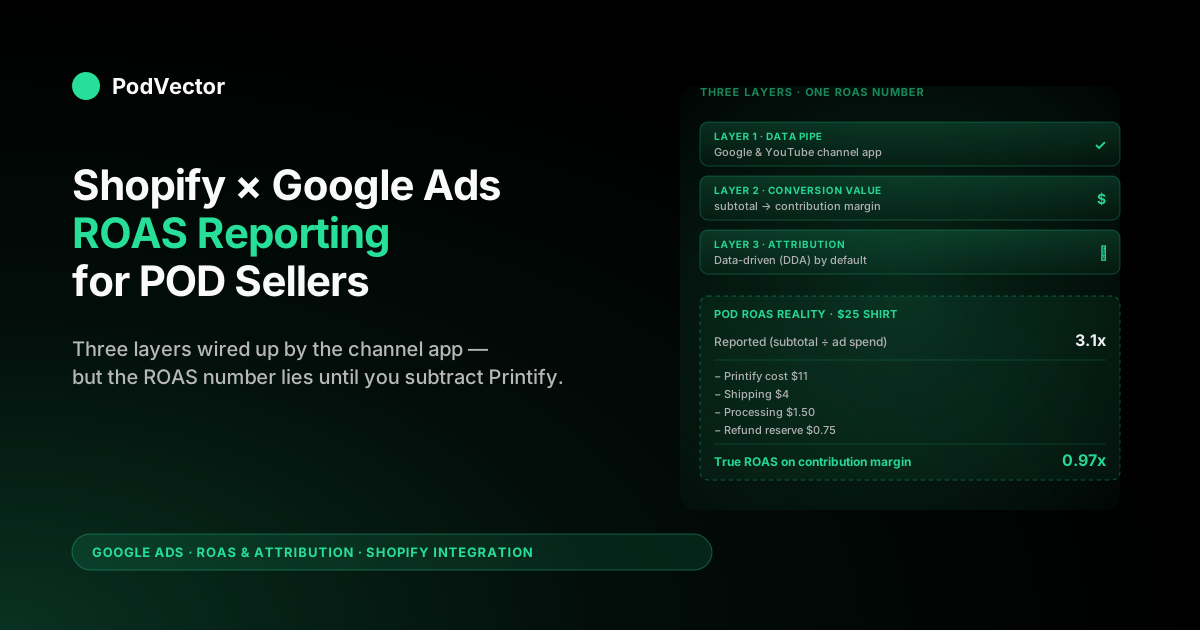
Quick Answer: The Shopify Google Ads integration runs through the official Google & YouTube channel app, which connects your store to Google Ads, fires purchase conversions with revenue values, and feeds your Merchant Center product catalog. Set up correctly, it gives Smart Bidding a clean signal to optimise toward.
The catch for print on demand: the ROAS Google reports is based on Shopify subtotal, not profit. On a $25 t-shirt with $11 of Printify cost, $4 of shipping, and $1 of processing fees, a 3.0x reported ROAS is actually a 0.9x ROAS on contribution margin. You need a second layer — offline conversion adjustments or a profit lens on top of Shopify — for the number to mean what most sellers think it means.
The rest of this guide covers the integration end-to-end: the native app setup, conversion configuration, attribution choices, and the POD-specific math that makes Google's ROAS reports trustworthy for a print on demand store.
The three layers of a Shopify–Google Ads integration
Most guides treat "Shopify Google Ads integration" as a single thing. It isn't. It's three layers that need to work together for ROAS reporting to be reliable.
Layer 1 is the data pipe. Shopify needs to tell Google Ads what happened on your store — page views, add-to-carts, checkouts, and purchases with the right product and revenue data attached. This runs through the Google & YouTube channel app today; it used to run through hand-rolled Liquid snippets and the legacy Google Channel app, both of which are deprecated.
Layer 2 is conversion configuration. Inside Google Ads, you have to tell the platform which Shopify events count as conversions, what dollar value each one is worth, and which conversion action drives bidding. Default-app settings get you most of the way there, but the conversion value choice is where most POD stores lose money.
Layer 3 is attribution. Once the data is flowing and the conversions are configured, Google has to decide how to distribute credit across the touches that led to each sale. Data-driven attribution is the default and almost always the right answer, but understanding what it does to your reports matters before you trust the numbers — see Google Ads data driven attribution explained for POD sellers for the full breakdown.
Get any one of these three wrong and ROAS reporting becomes fiction. The good news: each layer is fixable in under an hour once you know what you're looking at.
Layer 1: Install the Google & YouTube channel app
The Google & YouTube channel is Shopify's official integration with Google. As of 2026, it's the only supported way to wire Shopify into Google Ads, Google Merchant Center, and Google Analytics 4 with first-party purchase data. The legacy "Google Channel" app and any hand-rolled gtag snippets in your theme.liquid file are deprecated and should be removed if they're still there.
Install it from your Shopify admin under Sales channels → Add channel → Google & YouTube. The setup wizard walks you through four connections:
- Google Merchant Center. The product feed that powers Shopping campaigns. The app syncs your full Shopify catalog by default.
- Google Ads. Links your Ads account so conversions and audiences flow back.
- Google Analytics 4. Wires Shopify ecommerce events into your GA4 property.
- YouTube Shopping (optional). Connects your catalog to YouTube product tags.
The Google Ads connection is the one that matters for ROAS reporting. When you authorise it, the app does three things automatically: it installs the Google Ads conversion tag on your store, it creates default conversion actions in your Ads account (Purchase, Begin Checkout, Add to Cart), and it sets the Purchase action as your primary conversion goal.
Two things to verify after installation. First, the gtag is firing only once per purchase. The old method of installing the conversion snippet in checkout.liquid plus the Shopify app plus a Google Tag Manager pixel is how stores end up with 2x or 3x the real conversions reported. If you can, audit the Network tab on a test purchase — you should see one conversion request to googleadservices.com, not three.
Second, your Merchant Center feed is syncing the right product data. POD stores often run into trouble with the availability, price, and shipping attributes — see Shopify and Google Merchant Center strategy for print on demand for the catalog rules POD sellers run into.
Layer 2: Conversion tracking and conversion values
Once the native app is installed, Google Ads sees four default conversion actions, all imported from Shopify events: Purchase, Begin Checkout, Add to Cart, and Page View. Only one of these — Purchase — should be your primary conversion. The others are useful as observational data, but feeding all four into bidding teaches Smart Bidding to chase the cheapest signal (page views and add-to-carts) instead of revenue.
Check your conversion action settings in Google Ads under Goals → Conversions → Summary. For each action, the Goal type column tells you what's being optimised toward. You want:
- Purchase: Primary (account default), Category = "Purchase"
- Begin Checkout, Add to Cart, Page View: Secondary, marked as observational
The conversion value setting is the bigger decision. By default, the Google & YouTube channel app passes Shopify's order subtotal as the conversion value. That's the right starting point, but it's also where POD stores leave the most money on the table — because subtotal isn't profit.
For now, leave subtotal as the conversion value to get the integration working. Once you're hitting at least 30 conversions per month, switch to a profit-aware value through offline conversion adjustments (covered in the True ROAS section below). The conversion value is what Smart Bidding optimises toward — get it wrong and the algorithm cheerfully scales up the SKUs with the worst margins.
One more setting worth checking: the Conversion window. The default is 30 days for clicks and 1 day for engaged views, which is reasonable for POD. Some apparel niches have longer consideration cycles (custom designs, family-portrait merch) where extending to 60 or 90 days makes sense. Test it on a copy of your account before changing live — the window affects how Smart Bidding attributes revenue.
Layer 3: Pick an attribution model that matches POD reality
Attribution decides how Google Ads splits credit across the clicks, video views, and other interactions that led to each conversion. As of 2026, data-driven attribution (DDA) is the default for all new conversion actions, and the legacy rule-based models (first click, linear, time decay, position-based) were sunset in 2023.
For POD specifically, DDA is almost always the right choice. It uses your account's actual conversion paths to learn which touches matter, which means upper-funnel campaigns (YouTube, Demand Gen, generic search) get credit when they actually influence sales — something last click structurally misses. The full mechanics are in Google Ads data driven attribution default help explained for POD sellers.
The one wrinkle is data volume. Google's threshold for DDA to perform reliably is 200 conversions and 2,000 ad interactions per 30 days. Many early-scale POD stores are below that, which means DDA is running but on thin data. The credit splits are directionally correct but noisier.
What to do if you're below the threshold:
- Don't switch to last click — it makes the same problem worse by ignoring upper-funnel touches entirely.
- Consolidate. Make sure Purchase is your only primary conversion. Spread signal across multiple primaries and DDA has less data per action to learn from.
- Use Performance Max and Shopping where possible — they generate more attributable interactions per click than Search alone, which accelerates DDA training.
For deeper context on which attribution model fits which POD scenario, see Google Ads data driven attribution documentation explained for POD sellers. Both that article and this one assume DDA as the baseline.
Why out-of-the-box ROAS is misleading for POD
Here's the math that breaks most POD stores' Google Ads accounts.
You sell a $25 t-shirt. Printify charges you $11 for the base shirt and printing. Shopping fees plus payment processing eat another $1.50. Shopify shipping costs you $4 (assuming you eat it). Refunds and replacements average 3% of revenue, or about $0.75 per order amortised.
Your gross revenue is $25. Your contribution margin — what's left to pay Google Ads, your time, and profit — is $25 − $11 − $1.50 − $4 − $0.75 = $7.75.
If you spend $8 on Google Ads to acquire that customer, Google's Ads UI will tell you your ROAS is 3.1x ($25 ÷ $8). That feels like a winning campaign. The reality is you lost $0.25 on the order.
For Google's ROAS report to break even on this SKU, your reported ROAS needs to be at least 3.2x (so revenue covers ad spend plus COGS and fulfillment). Most POD operators run with break-even targets nearer 4-5x because they want to include their time and fixed costs in the calculation. Compared to a typical Shopify store running 2-3x ROAS on owned inventory, POD economics force the target ROAS up significantly.
Three things follow from this:
- A "good" reported ROAS on Google Ads is meaningless without knowing your contribution-margin breakeven for the SKU mix that drove it.
- Smart Bidding optimising toward subtotal will scale up the SKUs with the worst margins (sweatshirts and hoodies, which have $20+ Printify base costs) because they have the highest absolute conversion values.
- Two campaigns reporting the same 3x ROAS can have wildly different profit outcomes depending on the product mix.
The fix isn't to abandon Google's ROAS report — it's to feed Google a better number.
Calculating true ROAS after COGS and fulfillment
There are three ways to make Google Ads' ROAS report reflect actual POD profit. Pick one based on how much engineering bandwidth you have.
Method 1: Subtotal minus average COGS, as a flat percentage. The simplest fix. If your average Printify-plus-fulfillment cost is 55% of subtotal, configure the Google & YouTube channel app to pass 45% of subtotal as conversion value instead of full subtotal. This is rough — it averages across t-shirts and sweatshirts — but it gets Smart Bidding pointed at a more accurate signal in an afternoon.
Implementation: edit your Shopify conversion event in the Google & YouTube channel settings (or layer a Google Tag Manager rule on top) to multiply {{ subtotal }} * 0.45.
Method 2: Per-SKU contribution margin via product metafields. Add a contribution_margin metafield to each Shopify product or variant. Populate it with the SKU's actual contribution margin (subtotal minus Printify cost minus average fulfillment). When the purchase event fires, pull the metafield value per line item instead of subtotal.
This is more accurate than Method 1 because it differentiates between a $7 t-shirt margin and a $4 sweatshirt margin, so Smart Bidding can stop overbidding on the hoodie SKUs. Setup takes a day or two if you're comfortable with Shopify's metafield API and the Google Ads event payload.
Method 3: Live offline conversion adjustments. The full version. You pull Shopify orders, Printify cost data, and shipping fees together — typically in a unified data warehouse — compute actual contribution margin per order after fulfillment, refunds, and processing fees, then send the corrected value back to Google Ads via the Offline Conversion Adjustments API within the conversion window (usually 24-72 hours after the order).
This gives Smart Bidding the same signal you'd use in a profit-and-loss statement. It's the only method that accounts for refunds and replacements properly, which on POD can be 3-5% of orders. It also handles edge cases like Printify base-cost changes mid-month and rush-shipping upcharges that change per order.
The downside is engineering complexity — you need a live data layer joining Shopify orders, Printify costs, and Google Ads click IDs (GCLIDs), plus a job that runs every few hours to push adjustments. This is the model PodVector AI's operator Victor runs on top of your live warehouse, which is why True ROAS shows up natively in Victor's Google Ads reports without manual reconciliation.
Pick the method that matches your scale. Method 1 is enough for a store doing 30-100 orders a month; Method 2 once you're at 100-500; Method 3 once Google Ads spend is more than $5,000/month and the profit accuracy actually moves the bidding outcome.
Enhanced Conversions and server-side tracking
Two adjacent features worth turning on regardless of which True ROAS method you pick: Enhanced Conversions and server-side tracking.
Enhanced Conversions is Google's first-party data feature. When a customer checks out on Shopify, you pass their hashed email, phone, and address to Google Ads. Google matches the hash against signed-in Google account data and stitches the conversion to ad interactions it would otherwise have lost — particularly across browsers, devices, and after cookie expiry. The Shopify Google & YouTube app supports Enhanced Conversions natively as of 2024 — toggle it on in the channel settings.
Enhanced Conversions typically recovers 5-15% of conversions that would have been missed under cookie-only tracking. For POD stores running iOS-heavy traffic (apparel and lifestyle niches skew iOS), the recovery is often higher because Safari's tracking restrictions block more cookie-based attribution.
Server-side tracking is the next step up. Instead of firing the conversion from the customer's browser (where ad blockers, ITP, and consent banners can drop the signal), you fire it from your server after the order completes. Setup options for Shopify include the native Pixels API for first-party context, Google Tag Manager Server-Side (which requires a separate hosting environment), or third-party tools like Stape.io that proxy the tag.
For Shopify Plus stores, the Pixels API + server-side GTM is the cleanest setup. For standard Shopify, server-side adds engineering overhead that may not justify the recovery for stores under $10K/month in Google Ads spend. Start with Enhanced Conversions, measure the lift in reported conversions over two weeks, then decide whether server-side is worth the complexity.
Reading Google Ads ROAS reports without getting fooled
Once the integration is running, the reports you actually look at to make decisions are different from the defaults Google Ads shows you. Three views worth bookmarking.
The Attribution → Model Comparison report. Found under Reports → Predefined → Attribution. This shows your conversion credit side-by-side under DDA versus other models (last click, position-based, etc.) and by campaign. Useful answer to "what did DDA actually change for me?" The campaigns where DDA gives more credit than last click are your real upper-funnel drivers; the ones where DDA gives less are over-credited by last click.
The Search Terms report filtered by Purchase conversion value. Standard Search Terms shows clicks and cost, but adding conversion value columns reveals which queries are bringing in revenue at what cost. For POD, sort by conversion value per click and look for surprising entries — branded queries should dominate, but generic queries that show high revenue-per-click are your prospecting opportunities.
The Time → Day of Week and Hour of Day breakdowns. POD purchases concentrate heavily in evening and weekend hours, but most campaigns bid uniformly across the day. The Day/Hour report under any campaign's Time tab shows where conversion value actually lands by hour. Bid adjustments or scheduled campaigns can lift overall ROAS 10-20% by concentrating spend in the high-conversion windows.
What to ignore: the default "Conversions" column on the Campaigns page is helpful but misleading on its own. Smart Bidding optimises toward conversion value, not conversion count, and a campaign with 50 conversions worth $30 each is worth more than one with 200 conversions worth $5 each. Always view conversion value alongside conversion count.
For how the email and organic-channel views layer on top of these reports, see Shopify Google Ads app strategy for print on demand. The full ROAS picture spans Google Ads, Shopify analytics, and GA4 — the cluster hub at the complete guide to Google Ads ROAS and attribution for POD walks through the stitching.
Common setup mistakes that tank POD ROAS reporting
Five mistakes the Google & YouTube channel app doesn't prevent, that POD stores routinely make.
Mistake 1: Counting the same conversion twice. The most common version: the new app is installed, but the old gtag snippet in checkout.liquid or theme.liquid was never removed. Both fire on the order confirmation page. Reported conversions are double the real number, reported ROAS is inflated, and Smart Bidding chases inflated signals.
Audit your theme files for any reference to googleadservices.com or gtag('event', 'conversion'). If found, remove them — the Google & YouTube channel handles the fire.
Mistake 2: Sending shipping or tax in the conversion value. Some stores pass the order total instead of subtotal. Total includes shipping (which you usually pay Printify back on) and tax (which is not your revenue). Both inflate ROAS without inflating profit. Use subtotal (called subtotal_price in Shopify's data layer) or, better, your contribution-margin value from the True ROAS section above.
Compare this to other guides like Digital Darts' Shopify conversion tracking walkthrough, which goes deeper on the technical wiring — they recommend subtotal for the same reason but don't address contribution margin, because they're writing for general ecommerce, not POD.
Mistake 3: Bidding on all four default conversions as primary. When the app sets up Add to Cart, Begin Checkout, Page View, and Purchase as conversions, they're all imported as observational by default — but some store owners flip them all to primary, thinking "more signal is better." Smart Bidding then chases the cheapest signal (page views), and your CPM rises while revenue stays flat. Only Purchase should be primary.
Mistake 4: Treating Performance Max as a black box. Performance Max (PMax — Google's all-in-one auto-targeted campaign type) is most POD stores' main Shopping vehicle as of 2026, and it makes ROAS reporting easier because it consolidates Search, Shopping, Display, and YouTube into one campaign. But PMax also makes diagnosing bad ROAS harder because you can't see which asset group or channel is doing the work. Use the Insights tab under each PMax campaign — it surfaces which audiences, search themes, and creatives drove conversions. Without that, you're optimising blind.
Mistake 5: Comparing Google Ads' reported revenue to Shopify's reported revenue and panicking. They will never match. Google Ads attributes the full conversion value to ads when there's any ad-click touchpoint in the path; Shopify's analytics use last-click attribution to channel. The difference is real but expected — typically Google Ads reports 1.5-2x what Shopify's "Acquisition source: Google" shows.
The right reconciliation is GA4 (which sees both Google Ads click IDs and Shopify conversion events) plus your contribution-margin lens on top. Don't try to make Google Ads and Shopify match; make GA4 and your warehouse match. For broader strategy across the whole Google Ads stack, see our Google Ads guides for POD sellers.
FAQs
Do I still need the old Google Channel app or any gtag in my theme?
No. The Google & YouTube channel app replaces both. If either is still installed alongside the new app, you're double-counting conversions. Remove them and verify the conversion event fires exactly once on a test order.
Can I use the Shopify integration with Google Merchant Center alone (no Ads)?
Yes. The Google & YouTube channel can sync to Merchant Center for organic Shopping listings without you running paid Google Ads. The conversion-tracking layer only activates when you connect a Google Ads account. Most POD stores eventually do both — Merchant Center is a free distribution channel that's already wired up.
How long does the Shopify Google Ads integration take to start showing ROAS data?
Conversion data starts flowing within hours of the first purchase event after setup. Useful ROAS data — the kind you'd actually bid on — needs 14-30 days and 30+ conversions to be reliable. Smart Bidding's first-pass optimization usually settles within the first three weeks, with further refinement over six to eight weeks.
Will the integration work with subscription or membership products?
The default Google & YouTube channel handles subscription products from Shopify Plus or the Subscription APIs, but the conversion event fires on the initial signup, not recurring renewals. For full LTV reporting, you need server-side tracking that pushes lifetime value (or a multi-month proxy) as the conversion value via offline conversion adjustments.
What's the right Target ROAS to set for a POD store?
Depends entirely on your contribution margin. If your average contribution margin is 30% of subtotal, breakeven is roughly 3.3x reported ROAS, and a healthy operating target is 4-5x. If you're running with profit-adjusted conversion values (Method 2 or 3 above), you can set Target ROAS at 1.0x and it'll mean "break even on contribution margin" directly. Most POD stores running standard subtotal-based values should target 4x as a starting point.
Why does my Google Ads ROAS look better than my Shopify total profit?
Because Google Ads is measuring revenue, not profit, and is attributing the full subtotal to any order with an ad touch. Your actual store profit subtracts COGS, fulfillment, shipping, refunds, and fixed costs — none of which Google sees. The gap between Google's ROAS and your real margin is the entire reason POD stores need a contribution-margin lens. See GroPulse's Shopify retargeting guide for the retargeting layer specifically, which is where the gap usually widens.
How does Victor handle Shopify–Google Ads ROAS reporting?
Victor sits on top of your live data warehouse — Shopify orders, Printify or Printful costs, Google Ads spend and clicks — and computes contribution-margin ROAS per campaign, per SKU, per day, in plain English. Ask "what's my true ROAS on PMax this week after Printify costs?" and the answer joins the data Google Ads can't see. The same data layer also drives the offline conversion adjustments (Method 3 above) that close the loop back to Smart Bidding.
See your real Google Ads ROAS after Printify costs in five minutes
Victor reads your Shopify orders, Printify or Printful costs, and Google Ads spend from a live data layer, then computes contribution-margin ROAS per campaign and per SKU — the number Google Ads can't show you on its own. Set it up once and ask "what's my true ROAS this month?" in plain English from then on. And see your profit-adjusted ROAS before your next bid round.
Try Victor free