
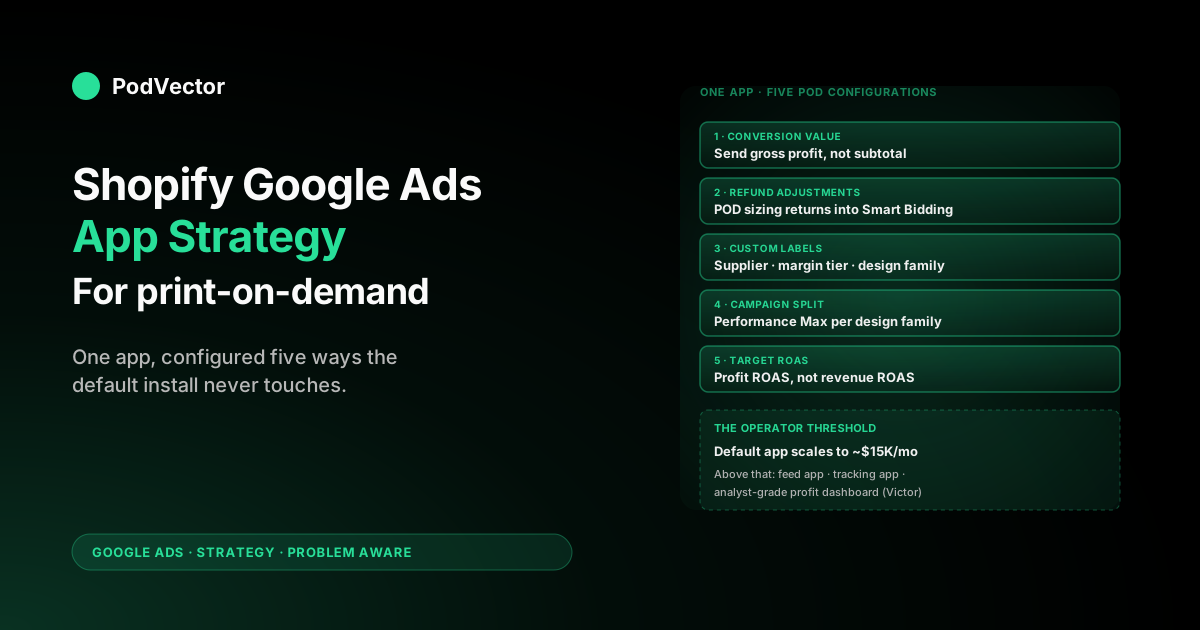
Quick Answer: When people search "Shopify Google Ads app," they almost always mean the official Google & YouTube sales channel — the free Google-built app that syncs your Shopify catalog to Google Merchant Center and runs Performance Max from inside Shopify admin. For most print-on-demand stores under $10K monthly ad spend, that single app is the entire stack you need if you configure five POD-specific things the default install ignores: profit-as-conversion-value, refund adjustments, supplier-tagged custom labels, design-family product groupings, and a refund-aware Smart Bidding target. This guide walks through what the app does, the exact POD setup, where it falls short, and the honest threshold at which you outgrow it.
What "the Shopify Google Ads app" actually refers to
There is no single product literally called "the Shopify Google Ads app." When sellers search the phrase, they are almost always referring to one of two things:
- The Google & YouTube sales channel app — Google's official free Shopify app that connects your store to Google Merchant Center and lets you create and manage Performance Max campaigns without leaving Shopify admin. It is what the Shopify App Store surfaces first when you search "Google Ads," and it is the app most stores use as their primary Google Ads connection.
- One of the third-party apps that supplement the official channel — feed apps like Simprosys, tracking apps like AdNabu, or full-management apps like AdScale and StoreYa. Those are covered in our roundup-style Shopify Google Ads apps guide.
This guide is about option one — the singular app. For most POD operators that is where Google Ads on Shopify starts and, for many, where it can stay. The strategic question is not "which third-party app should I add" but "am I getting the full value out of the one Google built?" In our experience auditing POD stores, the answer is almost always no — the default install leaves five POD-specific knobs untouched, and turning them is worth more than installing any second app.
If you want the broader frame this article sits inside, our complete Google Ads playbook for POD sellers covers the full strategy across feeds, campaigns, attribution, and profit measurement.
What the Google & YouTube channel app does (and does not)
The official Google & YouTube channel does five things from inside Shopify admin:
- Catalog sync to Google Merchant Center. Your Shopify products, with title, description, image, price, availability, and shipping, are pushed to Merchant Center on a recurring sync (typically every 15–30 minutes). This is the feed that powers Google Shopping and Performance Max.
- Conversion tracking installation. The app installs the Google Ads global site tag and the standard event pixels — page view, view content, add to cart, begin checkout, purchase — and configures conversion actions in Google Ads with order subtotal as the conversion value.
- Performance Max campaign creation. From a guided UI inside Shopify, you can create Performance Max campaigns that serve across Search, Shopping, YouTube, Gmail, Display, and Discover, using your Merchant Center feed plus uploaded creative assets. No need to log into Google Ads to launch a campaign.
- Basic reporting. Spend, clicks, conversions, and conversion value flow back into Shopify so you can see Google Ads performance alongside your store metrics.
- Free product listings. Your products are eligible for the free Google Shopping listings (the unpaid product results) automatically when the feed is approved.
It does not, by default, do five things that matter for POD margin:
- Profit-aware conversion value. The conversion value is order subtotal — not gross profit. Smart Bidding is therefore optimising for revenue, not margin, and on POD margins (where gross margin can swing from 18% to 55% by SKU) revenue-optimised bidding can lose money on every sale it brings in.
- Refund-adjusted conversions. Returns are not automatically negative-adjusted in Google Ads. Apparel POD with size-driven returns can quietly inflate Smart Bidding's perception of campaign performance by 5–12%.
- Custom labels for supplier and margin. The default feed pushes price and standard Google attributes. There is no "label this product as Printify-supplier-X" or "label this as 47%-margin tier" baked in. You add those manually via Shopify metafields and a feed configuration.
- Performance Max segmentation by design family. The default Performance Max campaign created from the app uses one asset group spanning your whole catalog. POD stores selling across very different design families (cat lovers, hiking, sports teams) get better results with one asset group per family, but the default workflow does not nudge you there.
- Multi-supplier cost reconciliation. If you fulfil through Printify and Printful in parallel — or use multiple print providers within Printify — the app sees neither. Google's view of "this campaign converted at $34.20" stays a black box until you wire supplier cost in yourself.
None of this means the app is bad. It means the default install is the floor, not the ceiling. The rest of this guide is about closing the gap.
Installing it correctly the first time
The clean path, in order:
- Pre-flight your product data. Before installing the channel, audit your products for the four things Google Merchant Center will reject or down-rank on: missing GTIN/identifier_exists status, low-resolution images (under 800×800), missing brand attribute (POD stores often leave this blank), and prices that include "Free" or other non-numeric strings. Fix these in bulk via a Shopify CSV export and re-import — fixing them post-install is slower because the feed has already pushed bad data and Merchant Center treats the items as quarantined.
- Install Google & YouTube from the Shopify App Store. The app is free. You will be prompted to connect a Google account, select or create a Merchant Center account, and select or create a Google Ads account.
- Create or claim Merchant Center. If you already had Merchant Center set up via manual feed, the app can claim the existing account — preferable to creating a fresh one, because you keep your historical feed performance and account verification status.
- Verify your domain. Merchant Center requires domain verification. The app handles this via a meta tag automatically if your store is on a Shopify-managed domain. For custom domains pointed at Shopify, the same flow works but takes one extra step.
- Configure shipping and tax. Merchant Center will down-rank or disapprove products without accurate shipping. Do not use the default "free shipping worldwide" option unless you actually ship that way; instead, set up shipping zones that reflect your real Printify or Printful supplier ship-from logic.
- Wait for feed approval. First approval typically takes 48–72 hours. Items will be flagged for missing attributes during this window — fix them in Shopify rather than in Merchant Center, so the source of truth stays consistent.
- Confirm conversion tracking is firing. Use the Google Tag Assistant browser extension to verify the global site tag and conversion event are firing on your thank-you page. Skipping this step is the most common reason "Google Ads is broken" tickets get opened — the app installs the tag, but theme customisations or other tracking apps can collide with it.
For the deeper conversion-tracking discussion — including the specific theme.liquid pitfalls and the Conversions API alternative — our Shopify Google Ads conversion strategy guide walks through the trade-offs.
The five POD-specific configurations
This is the part of the guide nobody else writes. Once the channel app is installed and the feed is approved, here are the five configurations that turn it from a generic ecommerce setup into a POD-aware one. None of them require a third-party app. All of them require an hour or two of one-time setup.
1. Send gross profit as the conversion value
The default conversion value is order subtotal. For POD, that is wrong in a way that compounds. Smart Bidding allocates more spend to whatever produces the highest conversion value relative to cost — if that value is revenue, Smart Bidding will happily push spend toward your lowest-margin SKUs (high revenue, thin profit) and starve your highest-margin ones.
The fix in concept: write Printify or Printful supplier cost into a Shopify order metafield at order creation, then send order_subtotal − supplier_cost − processing_fees as the Google Ads conversion value instead of subtotal. The mechanics are detailed in our Shopify Google Ads conversion strategy guide; the high-order point is that this single change moves Smart Bidding from optimising your top line to optimising your gross margin. Most POD stores see 8–18% improvement in absolute gross profit within 30 days of making it, with no change in ad spend.
2. Wire up refund adjustments
POD apparel returns are bimodal: high (10–15%) on new SKUs in the sizing-discovery period, lower (3–6%) on proven SKUs. If Google Ads does not see returns, Smart Bidding overweights aggressive bidding on new SKUs and the over-bid persists for weeks while the return data lags.
The Google Ads conversion adjustment API supports retroactive value adjustments — you tell Google "this conversion was actually worth $0 because the order was refunded" and Smart Bidding re-trains. The default Google & YouTube channel does not do this for you.
The two paths: a Shopify Flow workflow that triggers on order-refund and calls the Google Ads API; or a third-party tracking app like AdNabu that wraps the same logic. For most stores doing under $10K monthly spend, the Shopify Flow approach is cheaper and good enough.
3. Add custom labels for supplier and margin tier
Google Merchant Center supports up to five custom_label fields per product (custom_label_0 through custom_label_4). The default channel app does not populate them. You can populate them by adding metafields in Shopify and configuring the feed to map metafields to custom_label fields. Useful labels for POD:
custom_label_0: supplier (e.g., "printify-monster-digital", "printify-prodigi", "printful")custom_label_1: margin_tier (e.g., "high-30plus", "medium-20-30", "low-under-20")custom_label_2: design_family (e.g., "cat", "hiking", "sports-teams", "minimalist")custom_label_3: launch_date_quarter (e.g., "2026-q2") — useful for excluding new SKUs from auto-bidding until they have datacustom_label_4: lifetime_status (e.g., "winner", "test", "evergreen")
Once populated, you can build Performance Max campaigns or asset groups that target specific labels — for example, "Performance Max — high-margin winners only," with a higher target ROAS than your generic catalog campaign. This is the single highest-leverage Merchant Center configuration POD stores routinely skip.
4. Split Performance Max by design family
Performance Max optimises across whatever assets and audiences you give it. Give it your whole catalog — cat hoodies, hiking mugs, sports tees — and it averages out the audience signals. Give it one campaign per design family, each with audience signals (interest segments, affinity audiences, customer-match seed lists) tuned to that family, and Smart Bidding gets a much sharper signal to work with.
For a POD store with three to five design families, the practical split is one Performance Max per family plus one catch-all "evergreen" campaign for proven cross-family SKUs. Spend allocation is set per campaign, so you control which families get pushed.
5. Set a profit-aware target ROAS
Default target ROAS recommendations from Google are based on your historical revenue ROAS. Once you switch the conversion value to gross profit (configuration #1), revenue ROAS becomes irrelevant — your new target should be a profit ROAS calibrated to leave you with the contribution margin you want after all variable costs.
The math: if you want $1 of contribution profit per $1 of ad spend after all variable costs, your target profit ROAS is 1.0. If you want $2 of contribution profit per $1, target 2.0.
Most POD stores land between 1.2 and 1.8. The interplay between target ROAS and how Smart Bidding actually behaves is covered in more depth in our complete guide to Google Ads ROAS and attribution for POD.
Feed quality: the ceiling on everything else
You can have perfect campaigns and the right target ROAS and still lose if the feed is broken. The feed is the ceiling — Performance Max can only show what the feed contains, and Merchant Center will quietly disapprove items that fail attribute checks.
The Merchant Center diagnostics tab is where to live for the first 30 days after install. The four issues we see most often on POD stores:
- Missing GTIN with brand on a custom design. Print-on-demand items are typically GTIN-exempt because they are custom; you need to set the
identifier_existsattribute tonovia a Shopify metafield. Otherwise Google flags the items as "GTIN missing" and may down-rank them. - Image-quality flags on transparent PNGs. Some POD design exports use transparent backgrounds; Google prefers clean white or product-mockup images. Use the mockup images from Printify or Printful, not the raw design PNGs.
- Shipping cost mismatch. Shopify shipping zones must match the rates Merchant Center pulls. A common error: store has free shipping promotion temporarily, Merchant Center caches the higher rate, and the disapproval persists for hours after the price change.
- Variant explosion at SKU level. A POD t-shirt with 5 colours and 6 sizes is 30 variants. If 5 of those variants are out of stock at the supplier, Merchant Center flags the parent. Use Shopify variant availability metadata correctly to keep flagged variants from sinking the parent listing.
The deeper Merchant Center mechanics — feed rules, supplemental feeds, multi-country setup — are covered in our Shopify Google Merchant Center strategy for POD.
Setting up your first Performance Max campaign from inside Shopify
Once the feed is approved and tracking is verified, you can launch your first Performance Max from inside Shopify admin via the Google & YouTube channel. The flow is opinionated: select campaign type, set daily budget, upload creative assets (5 headlines, 5 long headlines, 5 descriptions, 1+ logo, 1+ landscape image, 1+ square image, optional video), select audience signals, and Google generates the campaign.
Three POD-specific guardrails to apply during this flow:
- Budget threshold for Smart Bidding signal. Performance Max needs roughly 50+ conversions in 30 days to learn well. If your store is doing 30 conversions/month total, the ROAS signal is too noisy. Either start with maximise-conversion-value bidding (no target) for the first 30–60 days, or run a single Standard Shopping campaign instead until volume accumulates. The trap to avoid: setting an aggressive target ROAS at $20/day budget on a store doing 20 conversions/month — Smart Bidding will under-spend and starve the campaign for data.
- Audience signals from your highest-margin SKUs only. Performance Max takes audience "signals" — interest segments, customer-match lists, in-market segments — as suggestions for who to target. Build the customer-match seed list from your top-quartile-margin SKUs' purchasers, not your full customer list. This biases Performance Max toward look-alike audiences for your profitable customers, not your average customer.
- Asset variety per design family. If you split campaigns by design family (configuration #4 above), each campaign needs creative tuned to that family. A single set of generic store-branded assets across cat, hiking, and sports tees under-performs three sets of family-specific assets by 20–40% in our audits.
For the broader integration mechanics — including the technical depth of how the channel app connects Shopify and Google Ads at the API level — see our complete guide to Google Ads Shopify integration for POD.
Daily, weekly, monthly cadence
Once the app is configured, here is the operational rhythm a POD store should run:
Daily (5 minutes): Open Shopify admin, glance at the Google & YouTube channel performance card. You are looking for two things only: a sudden spend spike (campaign budget cap not holding) or a sudden conversion drop (tracking break). Anything outside those two does not warrant a daily reaction.
Weekly (30 minutes): Pull the Merchant Center diagnostics tab and the Google Ads campaign-level performance. Action: fix any new feed disapprovals, pause the worst-performing 10% of products if Performance Max is allocating spend to them, and review whether any new winning SKUs justify a creative refresh.
Monthly (90 minutes): Reconcile Google Ads spend and reported conversion value against Shopify orders attributed to Google. Spot-check a handful of orders to validate that the conversion value reflects gross profit (configuration #1), not subtotal. Review which design families are pulling their weight and reallocate budget. If you have implemented refund adjustments, verify the adjustment volume matches your Shopify refund rate — gaps mean the adjustment workflow is broken.
The five gaps that show up around month three
Around month three of running the default Google & YouTube channel app — even with all five POD configurations applied — the same five gaps tend to appear. These are not flaws in the app; they are the structural limits of doing Google Ads from inside Shopify alone. Recognising them early is the difference between scaling smoothly and getting stuck at $10K monthly spend.
- Performance Max black-box reporting. Performance Max gives you campaign-level metrics but limited visibility into which placements (Shopping vs. YouTube vs. Display) or which audience signals are driving conversions. The Shopify-embedded reporting is even thinner. For deeper cuts you need to log into Google Ads directly and use the insights tab.
- Cross-channel reconciliation. If you also run Meta or TikTok ads, the Shopify channel app is Google-only. There is no native view that says "this customer saw a Meta ad, then a Google Search ad, then bought" — for that you need either Shopify's source-of-truth analytics or a third-party attribution layer.
- Profit-by-campaign. Even with profit-as-conversion-value sent to Google, the in-Shopify reporting still shows revenue by campaign, not profit. To see profit by campaign you have to reconcile manually in a spreadsheet — or use a profit dashboard tool that ingests Shopify, supplier costs, and Google Ads.
- Refund-aware bid adjustments only update Google. Your Shopify reports do not automatically reflect that Google Ads now has refund-adjusted conversions; the two systems have to be reconciled monthly. Drift accumulates.
- Decision support is missing. The app shows you data; it does not tell you what to do. "Spend on Campaign 3 is up 22% week-on-week and ROAS is down 0.4 — pause, scale, or wait?" is a question the app cannot answer. You answer it, or you don't, and the unanswered version is what most POD stores ship into.
When you outgrow the default app
The honest threshold: the default Google & YouTube channel app, with the five POD configurations applied, is sufficient for stores up to roughly $15K monthly Google Ads spend, under 500 active SKUs, with one to two suppliers. Above any of those numbers, you start needing one or more of:
- A third-party feed app (Simprosys, CedCommerce) for advanced custom-label automation, supplemental feeds, and multi-country.
- A dedicated tracking app or Conversions API setup when the manual conversion-value workflow becomes a maintenance burden.
- A profit dashboard that pulls Shopify, Printify or Printful, and Google Ads into one view — including Victor, our AI employee built for that exact reconciliation.
- Direct Google Ads UI for Performance Max insights, asset reporting, and audience tuning — the Shopify-embedded view stops being enough.
None of those mean you stop using the channel app — it remains the connective tissue between Shopify and Google. They mean you stop relying on it as your only window into Google Ads performance.
For the comparative survey of what to add and when, our Shopify Google Ads apps roundup walks through every category. And if you want to evaluate the channel app against the official Google version of the same tool, the Google & YouTube listing on the Shopify App Store is the canonical source.
FAQs
Is the Google & YouTube Shopify app actually free?
Yes. The app itself has no subscription cost. You pay only for the Google Ads campaigns you run through it. The free product listings (unpaid Google Shopping results) are also free of media cost — you only pay for the paid Performance Max or Standard Shopping spend you set as a campaign budget.
Do I need a separate Google Merchant Center account if I use the Shopify Google Ads app?
The app creates or claims a Merchant Center account for you during setup. You do not need to create one separately, but you do need to verify and claim your domain for Merchant Center to approve the feed. Most stores set this up once during install and never touch it again.
Can I run Performance Max for POD without using the Shopify Google Ads app?
Yes — you can run Performance Max from inside Google Ads directly, with a Merchant Center feed populated via a third-party feed app or a custom feed. The Shopify channel app is the convenience path; it is not the only path. Most POD stores use it because the install-and-forget nature is genuinely easier than the alternative.
What is the difference between the Google & YouTube app and Google Ads Pixel by Nabu?
The Google & YouTube app is the broad sales-channel integration: feed sync, campaign creation, conversion tracking, reporting. Google Ads Pixel by Nabu is a focused tracking-pixel install — it specifically replaces or supplements the conversion-tracking portion of the channel app, often with cleaner enhanced-conversion handling. They are not direct competitors; many stores run both, with Nabu handling the tracking pixel and the channel app handling everything else.
Will the Shopify Google Ads app handle international stores correctly for POD?
Partially. It supports multi-country Merchant Center, but the default workflow is single-country first.
For POD stores selling globally with different supplier ship-from logic per country, you usually end up using a third-party feed app (Simprosys, CedCommerce) on top of the channel app to manage country-specific feeds, supplier-tagged shipping, and currency conversion. The channel app remains the connection layer; the third-party app handles the cross-country complexity.
If I install the Shopify Google Ads app, do I still need to log into Google Ads directly?
For the first 60 days, probably not. The Shopify-embedded UI gives you everything you need to launch and manage basic Performance Max.
After 60 days, yes — Performance Max insights, asset reporting, audience tuning, and search-term insights are all richer in the native Google Ads UI than in the Shopify-embedded view. Most POD stores end up using both: Shopify for daily glance, Google Ads UI for weekly deep work.
What is the fastest way to know if my Shopify Google Ads app setup is leaving money on the table?
One number: divide your Google Ads conversion value (as reported in Shopify or Google Ads) by your actual gross profit on the orders attributed to Google (from a Shopify export filtered by source = Google Ads, with Printify or Printful supplier cost subtracted). If the ratio is greater than 2.0, you are sending revenue not profit as your conversion value, and Smart Bidding is optimising the wrong number. Configuration #1 in the POD-specific section above is how to fix it.
The decision the Shopify Google Ads app cannot make for you
The official Google & YouTube channel is excellent at doing things — sync the feed, install the pixel, launch the campaign. It is not built to decide things — which campaign to scale, which design family is quietly losing money, whether your last refund spike is a sizing issue or a Smart Bidding issue. Victor is the AI employee built for that decision layer: he connects Shopify, Printify or Printful, and Google Ads into one a unified live data warehouse and answers operator questions in plain English. Five-minute connect, then ask him about your last 30 days of Google Ads spend.
Try Victor free