
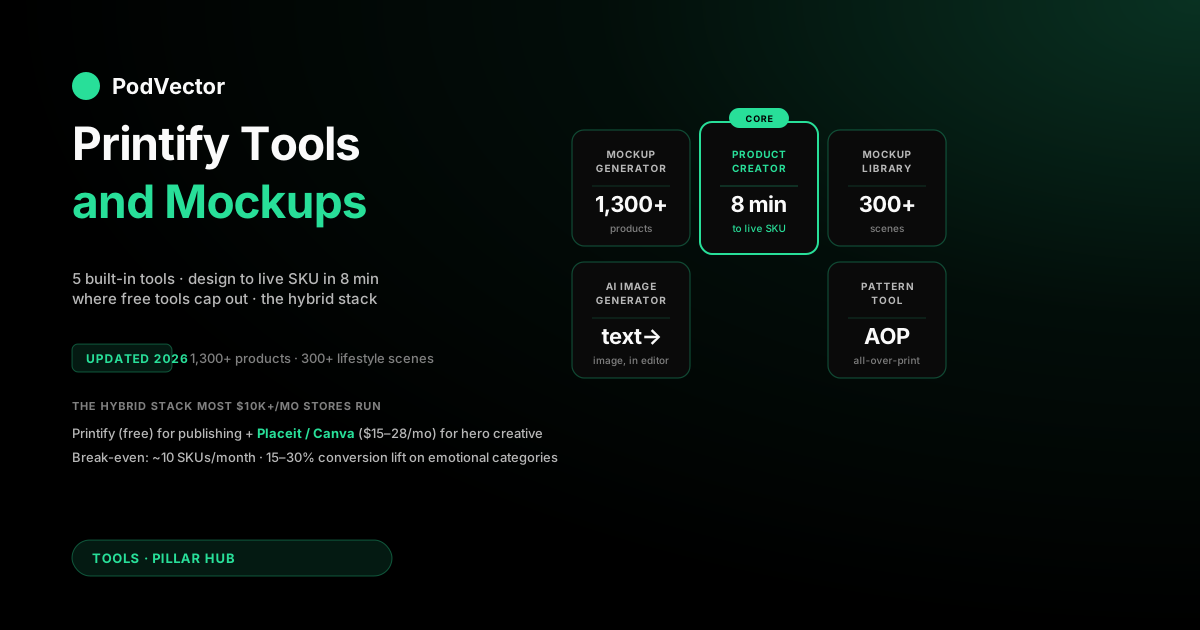
Quick Answer: Printify ships five built-in tools for POD sellers, all free with any plan: the Mockup Generator (the core design-on-product editor, 1,300+ products, drag-and-drop), the Mockup Library (pre-rendered lifestyle and studio shots you can swap into listings without re-designing), the Product Creator (the workflow that turns a design into a publishable SKU with variants, descriptions, and tags), the AI Image Generator (text-to-image inside the editor for designs and backgrounds), and the Pattern Tool (for all-over-print layouts from a single uploaded element). Together they cover the full design-to-listing path without leaving Printify, which is the actual reason most sellers pick Printify over Printful or Gelato — not the catalog size, not the base costs, the tool stack.
The trade-off: Printify's tools are fast and free but visually less polished than Placeit, Canva, or Mockuplabs, so most six-figure POD stores end up using a hybrid stack — Printify's Product Creator for SKU generation, then a paid mockup tool for hero images. This guide walks through what each tool does, where it falls short, which paid tools fill the gap, and the throughput math that decides when to upgrade.
Why the tool stack decides your Printify economics
Most "Printify vs the field" comparisons start with base cost and shipping, but the real reason a POD seller picks one supplier over another is rarely line-item economics. It's tool-stack friction.
Printful's catalog is smaller but its mockups are gorgeous. Gelato's network is global but its editor is clunky. Printify wins the high middle of the market because its tool stack lets you go from a raw PNG to a published variant in under ten minutes without opening another browser tab — and that throughput compounds across hundreds of SKUs.
Understanding the Printify tool stack matters in three directions. First, design-throughput math: if you're publishing 50 SKUs a month, every minute saved per SKU is 50 minutes of designer time per month, which compounds to real labor cost.
Second, mockup quality: the visuals on your product page are the single biggest conversion lever in POD outside of price, and Printify's stock mockups are functional but not differentiated. Third, hidden costs: the AI Image Generator has token limits, the Mockup Library is finite, and the Pattern Tool can't do everything Photoshop can — knowing where the free tools cap out tells you when to bring in a paid alternative.
If you want the structural picture of how Printify works as a marketplace and where the tools fit in the broader workflow, the complete Printify guide is the broader context. This article is the deep dive into tools specifically.
The Printify Mockup Generator: what it does and what it doesn't
The Mockup Generator is Printify's flagship tool — the in-browser editor where you drop a design onto a product and see it composited onto an apparel mockup, mug, poster, or whatever you've selected. It's free with every Printify plan (including the no-cost Free tier), it has no per-mockup limits, and it works across all 1,300+ products in the catalog. For most sellers, the Mockup Generator is "what they mean" when they say "Printify" — it's the daily-driver tool.
What it does well:
- Drag-and-drop placement. Upload a PNG, JPG, or SVG; drag it onto the product preview; resize, rotate, position. The print area is constrained automatically (you can't put art outside the printable zone), which prevents a class of customer-service tickets where buyers receive products with cropped art.
- Multi-product apply. Design a logo once, apply it across 12 product types in one click. This is the biggest single time-saver in POD design work — and Printful's equivalent (Design Maker) doesn't do it as smoothly.
- Vector format support. SVG uploads now scale cleanly in print, which matters for clean-line designs (typography, line art, logos) that pixelate when uploaded as low-res PNGs.
- Per-variant mockups. One design, every color of the shirt, every size — you get a mockup grid covering the full variant set for the listing. Critical for marketplaces (Etsy, Amazon Merch) where buyers expect to see every color.
- Watermark-free, high-res output. The mockups you generate are yours to use anywhere — Shopify product pages, Meta ads, Etsy listings, Pinterest. Printify doesn't watermark exports, doesn't gate them behind plan tiers.
Where it falls short:
- Backgrounds are generic. Studio-white or basic flat-color. No lifestyle scenes built in (those live in the Mockup Library, separately). If you want your tee on a mannequin in a coffee shop, you're either using the Mockup Library's pre-rendered options or going to Placeit.
- No model shots inside the editor. The Mockup Generator gives you the product, not the product on a person. Lifestyle imagery requires the Mockup Library or external tools.
- Limited compositing. You can place one design per print area; multi-element layouts (front + back + sleeve combos with different art) require setting up each print area separately. Not a deal-breaker, but slower than Photoshop layered files.
- No A/B mockup variant tooling. If you want to test two design variants on the same product to see which converts, you do it in your storefront's A/B tooling, not in the Mockup Generator. Some workflow.
- Quality varies by product. The Mockup Generator is excellent for tees, hoodies, mugs, posters. For products with complex curvature (ceramic figurines, certain bag styles, anything with a 3D printed element), the rendered mockup can look noticeably less realistic than the actual product.
The Mockup Generator is the right tool for 80% of mockup work — fast, free, no friction. The other 20% is hero shots and lifestyle imagery, which is where the Mockup Library and external tools come in.
The Mockup Library: pre-rendered lifestyle shots without re-designing
The Mockup Library is the second piece of the Printify mockup stack and the one most sellers under-use. It's a separate gallery of pre-rendered lifestyle and studio mockups that you can apply to a finished product without going back into the Mockup Generator.
The point: you've already designed the product, you have a flat studio shot from the Mockup Generator, and now you want a "person wearing it on a beach" shot for your Instagram. The Mockup Library has roughly 300+ pre-built scenes for popular products.
How it works mechanically: open a product in your Printify shop, navigate to the "Mockups" tab, browse the library by product type and scene category, click "Add to product" for the ones you want. Those mockups get appended to the product's image set and can be pulled into your storefront. No re-design, no re-upload — Printify composites your existing print file onto the new scene automatically.
What the Mockup Library covers well:
- Lifestyle scenes for top-volume products (T-shirts, hoodies, mugs, hats, tote bags, sweatshirts)
- Diversity of model demographics, settings (urban, beach, indoor, gym), and poses
- Per-color and per-size variants of the lifestyle scene (so the mockup matches the variant being sold)
- Seasonal scenes that update — summer beach, fall leaves, winter snow — useful for ad creative refresh
What it doesn't cover:
- Long-tail products. If you're selling shower curtains or jigsaw puzzles, the lifestyle library is thin. You'll be back in the Mockup Generator with a flat product shot or going to Placeit.
- Brand-specific scenes. Every Printify seller using the library is pulling from the same pool. If you want a mockup that looks unique to your store, you need a paid tool or your own photography.
- On-model close-ups of detailed designs. The lifestyle scenes are full-body or wide-shot; for fine-detail close-ups (small typography, embroidery), the Mockup Generator's flat shot is sharper.
The right way to think about the Mockup Library: it's a free 300-shot stock library, sufficient for 60-70% of what most stores need, and zero-friction. For the rest, you either accept the visual ceiling or upgrade to a paid mockup tool.
The Product Creator: from design to publishable SKU
The Product Creator is Printify's wraparound workflow that turns "I designed something" into "I have a publishable SKU." It bundles the Mockup Generator, the variant builder, the description editor, and the publish-to-storefront step into one linear flow. If you've used Printify and gone from upload to "Save & Publish" in one sitting, you've used the Product Creator — most sellers don't realize it's a named tool, they just think of it as "how Printify works."
The Product Creator handles four jobs:
- Variant generation. One design auto-generates SKUs across colors and sizes. A 10-color × 5-size shirt creates 50 variants in one click. You can disable individual variants (if you don't want to sell 5XL Heather Grey), and the workflow remembers your defaults across products.
- Print provider selection. Within the Product Creator, you can pick which print provider fulfills the SKU. This is also where you can configure multiple providers for the same SKU (one for US, one for EU) — Printify's nearest-provider routing then picks the cheapest at order time. For the cost implications of this choice, see the complete guide to Printify shipping.
- Listing copy. Title, description, tags, product type — all editable inside the Product Creator before publish. Most sellers leave the descriptions on the Printify defaults, which is a mistake; the defaults are generic and don't carry SEO value to your storefront. Ten extra seconds per SKU on a real description compounds.
- Per-storefront pricing. Set retail price per variant, per storefront. The same shirt can be $24.99 on your Shopify store and $29.99 on your Etsy store; the Product Creator handles the divergence. Margin is calculated live as you set prices, so you see profit per variant before you publish.
The Product Creator's biggest weakness is bulk operations. Editing 200 SKUs at once — re-pricing across the catalog, swapping providers, updating descriptions — is painful.
Printify has a bulk editor for some operations but it's limited. If you're running a 500+ SKU catalog, you'll either build CSV exports out of Printify and re-import, or use a paid catalog-management tool. For stores under 100 SKUs, the Product Creator's manual flow is fine.
The AI Image Generator: text-to-image inside the editor
Printify's AI Image Generator is a text-to-image tool built directly into the Mockup Generator. You type a prompt ("vintage retro sunset with palm trees"), select a style (illustrated, photorealistic, vector), and Printify returns 4 candidate images you can drop straight onto a product. It's powered by a third-party model (the specifics aren't disclosed) tuned for print-friendly output — meaning higher resolution and cleaner edges than what you'd get from a generic image generator.
What it's good for:
- Niche-specific design generation when you don't have a designer. Type "watercolor coffee bean illustration for a barista mug" and you get usable starter art.
- Background generation for over-art compositions. Generate a textured background, drop your typography on top.
- Quick A/B variant exploration. Generate three different "summer beach" designs, mock them all up, pick the winner.
What it's not good for:
- Original brand art. The output is generic-good, not signature-good. If you're trying to build a recognizable design style, AI-generated art works against you.
- Trademarked / copyrighted material. The model has guardrails but they're not perfect; you're responsible for what you publish. Don't try to generate "Marvel-style superheroes" and then sell tees.
- Fine typography. AI image generators are still bad at clean typography in 2026 — text comes out garbled. Generate the background in AI; layer the type yourself.
The AI Image Generator has soft limits — Printify rate-limits how many generations per day per account, with the cap higher on Premium plans. For most sellers it's enough; for design agencies or high-throughput stores, it's a top-of-funnel tool that doesn't replace a real designer.
For the broader picture of where AI fits in the POD tool stack, the complete guide to AI tools for POD sellers covers the full landscape.
The Pattern Tool: all-over-print from a single element
The Pattern Tool is a relatively recent Printify addition that lets you generate all-over-print layouts (AOP) from a single uploaded element. You upload one icon — say, a small palm tree — and the Pattern Tool tiles it across the entire print area with configurable spacing, offset, scale, and rotation. The output is an AOP design ready to apply to AOP-eligible products (sublimation tees, leggings, joggers, blankets, certain hoodies).
This used to be a Photoshop-only operation — designers would build seamless tile patterns by hand. The Pattern Tool collapses that workflow into 30 seconds of in-browser editing.
Configuration options inside the Pattern Tool:
- Pattern type: grid (regular spacing), staggered (offset rows), horizontal/vertical stripes
- Spacing: distance between elements, configurable in pixels
- Scale: per-element size as % of the original upload
- Rotation: per-element rotation, optionally randomized for organic feel
- Cropping: how the pattern wraps the print area edges (fade out, hard cut, repeat)
The limitation: it's one element. If you want a pattern that combines two motifs (palm trees + coconuts), the Pattern Tool can't do it in-app — you'd build the two-element pattern in Photoshop or Canva first and upload the combined PNG. For single-motif AOP, it's the fastest tool in the POD ecosystem.
AOP product margins are typically lower than single-print products (sublimation costs more per unit), so be deliberate about which catalog items get AOP variants. For the per-product profitability picture, the complete guide to Printify's most profitable products covers margin by product category.
The end-to-end workflow: design upload to live listing in 8 minutes
Here's what the actual end-to-end Printify tool workflow looks like for a single SKU, timed:
| Step | Tool | Time | Output |
|---|---|---|---|
| 1. Upload design | Mockup Generator | 30s | Design loaded into editor |
| 2. Pick product | Product catalog | 30s | Bella+Canvas 3001 selected |
| 3. Place + scale design | Mockup Generator | 1m | Design positioned in print area |
| 4. Pick provider | Product Creator | 30s | Monster Digital selected (US) |
| 5. Configure variants | Product Creator | 1m | 10 colors × 5 sizes enabled |
| 6. Set retail prices | Product Creator | 1m | $24.99 base, +$2 for 2XL+ |
| 7. Add lifestyle mockups | Mockup Library | 1m | 3 lifestyle scenes appended |
| 8. Write title + description | Product Creator | 2m | SEO-optimized listing copy |
| 9. Publish to storefront | Product Creator | 30s | Live on Shopify / Etsy / etc. |
| Total | ~8 minutes | 1 SKU live, fully variant-mapped |
Eight minutes per SKU is the baseline. Once you've done it 50 times, you'll cut it to 4-5 minutes per SKU through templating (saved description blocks, consistent variant defaults, repeat provider). The number you want to track is "minutes per published SKU" because it's the leading indicator of how scalable your design ops actually are.
When to bring in external tools: Placeit, Canva, Photoshop, Mockuplabs
Printify's tool stack is good enough for the publishing workflow but rarely good enough for hero images and ad creative. The four most common external tools that fill the gap:
Placeit (paid, ~$14.95/month)
Owned by Envato. The biggest mockup library in POD — 40,000+ mockup scenes spanning lifestyle, studio, model shots, and abstract product compositions.
Placeit's strength is variety and quality of model shots (real photographers, real settings) compared to Printify's library, which is generic. Most six-figure POD stores use Placeit for the hero image and Printify's tools for everything else.
Canva (free / Pro $12.99/month)
Canva isn't a mockup generator first — it's a graphics editor that includes Smart Mockups (a smaller mockup library) plus typography, illustrations, and AI tools (Magic Write, Magic Design). Most POD designers use Canva to build the design itself (layered typography, color exploration, vector elements) and then export the final PNG/SVG to upload into Printify. Canva's Smart Mockups are passable but not Placeit-quality.
Photoshop (paid, ~$22.99/month for Photography plan)
Still the gold standard for serious design work — multi-element compositions, complex masking, full control over print files. Most POD designers reserve Photoshop for the high-stakes designs (a campaign hero, a flagship SKU) and use Canva or Printify's tools for the daily volume. Photoshop's mockup workflow uses Smart Object PSDs (downloadable from Adobe Stock or third parties); it's slower but produces the highest-quality output.
Mockuplabs (paid, ~$19/month)
A newer entrant aimed specifically at POD sellers — 10,000+ mockup templates, AI mockup features, and direct compatibility with Printify exports. Mockuplabs' pitch is "Placeit but newer and PDP-optimized." It's a credible alternative but smaller library. For the SERP context where Mockuplabs appears, see their how-to guide on Printify mockups.
The hybrid stack most six-figure POD stores actually run
Here's the tool stack we see most consistently in POD stores doing $10k+/month:
- Design creation: Canva or Photoshop. Not Printify's AI generator (too generic) and not Printify's editor (which is a mockup tool, not a design tool).
- Mockup generation (utility): Printify's Mockup Generator + Mockup Library. Free, fast, covers 70% of what's needed.
- Hero / ad creative mockups: Placeit or Mockuplabs. Paid, higher visual ceiling, used for the top-of-listing image and Meta/TikTok ad creative.
- Variant + listing publishing: Printify Product Creator. The actual SKU-creation workflow stays inside Printify.
- AI / automation: Selectively. ChatGPT or Claude for SEO descriptions and product naming. Midjourney or Stable Diffusion for design ideation. Printify's AI generator gets used early-stage and abandoned once the store has a brand voice.
The split is deliberate. Printify is great at the "publishing layer" — variant config, provider routing, storefront sync. It's not great at the "creative layer" — design creation, hero photography, brand-distinctive imagery. The hybrid stack lets each tool do what it's actually best at.
Throughput math: at what catalog size do paid tools pay for themselves
The decision to add a paid mockup tool to your stack is fundamentally about throughput. If you're publishing 5 SKUs a month, the Printify free tools are entirely sufficient — paying $15/month for Placeit to make 5 hero shots is silly. If you're publishing 100 SKUs a month, Placeit pays for itself in conversion lift on the first 5 SKUs and is essentially free on the remaining 95.
The break-even math, per tool:
| Tool | Monthly cost | SKUs/month to break even | Assumption |
|---|---|---|---|
| Canva Pro | $12.99 | 3 SKUs | 10 min saved per SKU at $26/hr designer cost |
| Placeit | $14.95 | 10 SKUs | 2-5% conversion lift on hero image, $25 AOV |
| Mockuplabs | $19.00 | 15 SKUs | Same as Placeit, slightly higher cost |
| Photoshop Photography | $22.99 | 20 SKUs | Used for hero designs only, not daily |
The take: if you're at 20+ SKUs/month, the full hybrid stack (Canva + Placeit) costs ~$28/month and pays for itself many times over in time saved and conversion lifted. Below 5 SKUs/month, stay on Printify's free tools and skip the paid layer. The middle (5-15 SKUs/month) is where it gets fuzzy — depends on whether your store's bottleneck is design throughput (add Canva), hero conversion (add Placeit), or neither (stay free).
The tool-to-margin data gap nobody connects
Here's the analytics gap that compounds across hundreds of SKUs but no Printify tool surfaces. Your tool stack is silently affecting your margin in three directions, and none of them show up in any out-of-the-box dashboard:
- Mockup quality vs conversion rate. SKUs with hero images from Placeit convert at a different rate than SKUs with hero images from the Printify Mockup Library. You'd never know unless you tag SKUs by which tool generated the hero and join that against Shopify's conversion data per product. The lift is typically 15-30% for paid-tool hero images on emotional categories (apparel, gift items) and roughly zero on commodity categories (mugs, basic tees).
- Provider choice vs unit margin. The Product Creator lets you pick a provider per SKU, but it doesn't track the margin consequence over time. If you swapped from Monster Digital to SwiftPOD on 30 SKUs six months ago, did your blended margin go up or down? Printify won't tell you. The data is in the order-cost breakdown but you have to extract and join it manually.
- AI-generated design lift. Designs generated with Printify's AI tool perform measurably differently than original designer art on conversion rate, return rate, and review score. Knowing the delta tells you whether to invest more in original design or lean further into AI generation.
This is the reporting gap Victor — PodVector AI's AI employee — was built to close. Victor sees your Shopify orders, Printify order costs and product details together, so you can ask "which SKUs have the highest hero-image conversion lift" or "what's my blended margin since I swapped providers in January" and get a real answer in seconds. Victor answers the question today — soon he'll be able to suggest the provider swap or hero-image upgrade himself when a SKU's numbers start to slip.
For how POD profit tracking works in practice and why live warehouse access matters more than dashboard prettiness, see the complete guide to tracking profits in POD.
FAQs
Are Printify's tools free?
Yes. The Mockup Generator, Mockup Library, Product Creator, and Pattern Tool are free with every Printify plan, including the no-cost Free tier. The AI Image Generator has rate limits per account, with higher limits on the Premium plan. For the full breakdown of what's included by plan, see the complete guide to Printify Premium.
Can I use Printify mockups in Meta or TikTok ads?
Yes — Printify-generated mockups are watermark-free and yours to use commercially. You can run them in Meta, TikTok, Google Shopping, and any other ad platform without licensing concerns.
Practical caveat: the Mockup Library's lifestyle scenes are used by every Printify seller, so your "guy on a beach" shot looks identical to a competitor's. For ad creative differentiation, paid tools like Placeit or your own photography matter.
Does Printify have a Photoshop plugin?
No. The integration model is one-way: design in Photoshop, export PNG/JPG/SVG, upload to Printify's Mockup Generator. There's no live two-way sync between Photoshop layers and Printify mockups. For studios with serious Photoshop workflows, this means version-control discipline — name your exports clearly and re-upload when designs change.
What's the maximum design file size I can upload?
Printify accepts files up to 200 MB and 25,000 × 25,000 pixels. In practice, most POD print files are 4,500 × 5,400 pixels at 300 DPI (standard for tees), which is well under the limit. The bigger constraint is your DPI — Printify warns you if you upload a design that will print at less than 150 DPI for the chosen product, which keeps obvious quality fails off the catalog.
Can the AI Image Generator make designs I can sell commercially?
Yes — Printify's terms grant commercial rights on AI-generated designs from their tool. The risk to be aware of is trademark/copyright: the model has guardrails but you're ultimately responsible for whether the output infringes on someone else's IP. Don't generate "Marvel-style" or "Disney-style" anything and try to sell it.
Does Printify integrate with Canva?
Not natively — there's no direct Canva-to-Printify pipeline. The workflow is: design in Canva, export PNG/SVG, upload to Printify's Mockup Generator. Some third-party Chrome extensions promise Canva-to-Printify automation but none are officially sanctioned. For most workflows, the manual export-and-upload step is fast enough not to matter.
How does Printify's Mockup Generator compare to Printful's Design Maker?
Printify's is faster on multi-product apply (one design across 12 products in one click). Printful's produces slightly cleaner mockups by default (the studio backgrounds are more polished) and integrates better with Printful's premium service tiers.
For raw throughput, Printify wins; for visual polish, Printful wins. For the broader head-to-head, see Printful's equivalent of the complete guide to Printful shipping for cost context.
Can I bulk-edit mockups across my whole catalog?
Partially. Printify has a bulk-edit option for some operations (variant pricing, provider swaps) but not for design or mockup-level changes.
If you re-design a logo and want to update 50 products, you re-upload to each one — there's no "swap design across catalog" button. For high-throughput stores this is a real friction; build it into your design-versioning discipline (don't change designs frequently).
What's the single biggest mistake POD sellers make with Printify's tools?
Treating Printify's tool stack as the entire stack. The Mockup Generator and Product Creator are great at the publishing layer, but they're not enough for hero images, brand-distinctive design, or ad creative.
Stores that stay 100% inside Printify hit a visual ceiling on conversion that a $15/month paid tool would lift past. The hybrid stack — Printify for utility, Placeit/Canva for creative — is the right architecture once you're at meaningful volume.
Find out which tools are actually moving your margin
Printify's tool stack runs your publishing workflow, but it doesn't tell you which mockup tool, which provider, or which design source is making (or losing) you money per SKU. Victor sees your Shopify orders, Printify order costs, and product details together, so you can ask "which mockup source converts best" or "what's my margin since I swapped providers" and get a real answer in seconds.
Try Victor free