
Quick Answer: If you already run a Squarespace site and want to add print-on-demand merch, Printify plugs in as the production back-end in about 15 minutes. The connection is free, but it only works on a commerce-tier Squarespace plan (Core, Plus, or Advanced — or the legacy Business / Basic Commerce / Advanced Commerce plans).
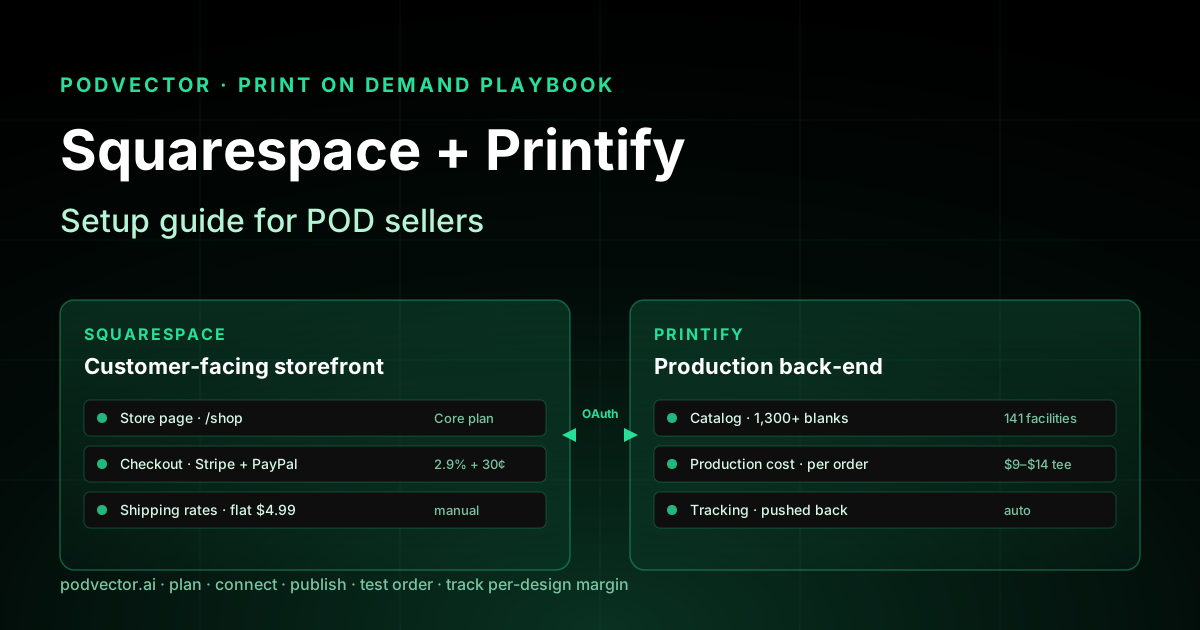
Squarespace keeps the customer-facing storefront, checkout, and email. Printify handles the design, blanks, production, and shipping. They share data through a one-click OAuth link that maps a Squarespace Store page to a Printify store.
This guide goes from a blank Squarespace site to a live test order, with the Squarespace-specific quirks no Printify-first guide covers.
Why pair Squarespace with Printify (and when not to)
Squarespace is the website builder of choice for designers, photographers, and content creators who want a polished site without touching code. Printify is the largest print-on-demand network, with 100+ supported product blanks across 140+ print facilities worldwide.
The pairing makes sense when your audience already lives on a Squarespace site — a portfolio, a blog, a creator-led brand — and merch is an add-on revenue stream rather than the main act. You get a single domain, a single design language, and one place to manage content.
It's the wrong pairing if you're starting from scratch and the merch is the business. Squarespace's commerce features are intentionally narrower than Shopify's. There's no app store, no live shipping rates from third parties, and no built-in abandoned-cart flow on the lower plans. If those features matter, see our Printify Shopify integration setup guide for the more commerce-first alternative.
Already comparing platforms more broadly? Our roundup of shops like Printify covers the production-side options.
Pick the right Squarespace plan first
The Printify integration only works on a commerce-tier Squarespace plan. The Personal plan is a hard no — Printify will appear in the connector list, but the connection won't complete.
Under Squarespace's current plan naming, the commerce tiers are Core, Plus, and Advanced. Under the legacy names you may still see them as Business, Basic Commerce, and Advanced Commerce. Both naming schemes still grant the same integration access.
Here's the practical pick:
- Core / legacy Business works for most POD shops doing under $5,000/month. There's a 3% Squarespace transaction surcharge on top of Stripe/PayPal fees, which stings but is cheaper than the $40/month price jump.
- Plus / legacy Basic Commerce drops that 3% surcharge to zero. The breakeven is roughly $1,300/month in revenue.
- Advanced / legacy Advanced Commerce adds abandoned-cart recovery and the Squarespace Commerce API. Most POD shops never need either.
You can change plans later. Start at whatever tier you can justify today and upgrade once the surcharge math flips.
Prerequisites checklist
Before clicking Connect on the Printify side, get these in place. Skipping any one of them is the most common reason the integration silently does nothing.
- A commerce-tier Squarespace plan (see above)
- A live Squarespace site, not in trial-only mode
- A Store page added to your site (Pages → Add → Store)
- Stripe or PayPal connected under Selling → Payments
- A Printify account (free) with a payment method on file for production charges
- At least one product design ready to publish — don't connect a blank account to a blank store and walk away
Squarespace charges your customers. Printify charges you per order at production cost. They're two separate billing relationships, and both need to work before the first real order goes through.
Step 1: Build the Squarespace Store page
Inside Squarespace, click Pages → Add → Store. Give the page a name — "Shop" is fine — and set the URL slug. This page is what Printify's connector will list once you authorize. If no Store page exists, the Printify dropdown shows up empty.
Spend a few minutes on the page settings before connecting. Set the page's SEO title and description, choose a product layout (grid or list), and add a header image if your brand needs one. These are easier to set up now than after 50 products are sitting on the page.
You don't need to add products manually. Printify will push them into this page once connected.
Step 2: Configure payments and shipping
Open Selling → Payments and connect Stripe, PayPal, or both. Stripe is the default and handles credit cards directly. PayPal adds PayPal-account checkout but charges its own fees on top of Stripe.
Then open Selling → Shipping and set your shipping rates manually. Squarespace cannot pull live shipping rates from Printify at checkout. You set flat rates or rate-by-weight tables yourself, and they apply regardless of which print provider actually fulfills.
The simplest approach for POD: pick a flat $4.99 domestic / $9.99 international rate and price your products to absorb any shipping cost overruns. The more accurate approach: build a rate table that mirrors what Printify charges for the blanks you'll be selling most.
Check the Printify shipping rates page (inside Printify, under your product's variants) before you set Squarespace rates. If you underprice shipping, every order erodes margin.
Step 3: Connect Printify from the Printify dashboard
The connection itself is the shortest part of setup.
- Log into Printify at printify.com.
- Click the store-name dropdown in the top-left, choose Manage my stores.
- Click Add new store. A grid of supported storefronts appears — Shopify, Etsy, eBay, WooCommerce, Squarespace, TikTok Shop, and others.
- Click Connect on the Squarespace card. A Squarespace authorization window opens.
- Sign in to Squarespace if asked, then click Allow on the permissions screen. Squarespace is granting Printify scoped access to read products and write orders to your selected store.
- Pick the Store page from the dropdown. Squarespace lists every Store page across every site on your account, so pick carefully if you run more than one.
- Click Continue. The Printify dashboard now lists your Squarespace store with a green active status.
If the Squarespace dropdown is empty, you're missing one of the prerequisites — most often a non-commerce plan or no Store page on the site. Go back and fix that before retrying.
For step-by-step screenshots of the same connection flow from the Printify side, the official Printify Squarespace integration page has a current screenshot set.
Step 4: Build and publish your first product
Inside Printify, click Catalog and pick a blank. Unisex heavyweight tees, hoodies, mugs, and posters are the highest-volume POD categories — start there.
Upload your design, position it on the blank in the mockup generator, and confirm the print area. Set the variants you want to sell (sizes, colors), set your retail price for each, and review the mockup gallery.
Click Publish. Pick your connected Squarespace store from the destination list. Within a minute or two, the product appears on your Squarespace Store page with the title, description, variants, images, and price you set in Printify.
One important behavior: editing the product in Squarespace doesn't sync back to Printify. The integration is one-way for product data. Always make changes in Printify and republish — the Squarespace copy gets overwritten.
This is the right tradeoff once you understand it. Treat Printify as the source of truth for the product catalog. Treat Squarespace as the source of truth for the customer experience around it.
Step 5: Place a live test order
Skipping this step is the most expensive mistake first-time integrators make. Place a real order on your own store before spending a dollar on ads.
Buy one of your published products through normal Squarespace checkout, with a real card. Use your own shipping address. Watch the order:
- Appear in your Squarespace Orders panel
- Show up in Printify under Orders with the buyer info populated
- Move from "Pending" to "In Production" within the print provider's standard window
- Get a tracking number that pushes back into Squarespace and triggers a normal shipping email
- Show the actual physical product printed correctly when it arrives
This catches catalog typos, mockup-vs-print misalignments, transparent-pixel issues, and the rare integration glitch where the order routes to the wrong store. Better to find them now than after a paid customer leaves a one-star review.
Squarespace-specific quirks to know about
Squarespace handles a few things differently than Shopify or Etsy in ways that affect POD specifically.
One currency per site. Squarespace doesn't support multi-currency checkout on the standard commerce plans. Pick the currency your primary audience uses. International buyers will see their card auto-convert at the bank rate.
No app store, no plugins. Anything you'd add via a Shopify app — upsells, reviews, abandoned cart, advanced analytics — either ships in the Squarespace plan you're on or you live without it. Plus and Advanced unlock more; Core doesn't.
SEO settings are per-product. When Printify pushes a product into Squarespace, the product title becomes the page title. Override that under each product's SEO tab in Squarespace if you want a different title or meta description for search. Note the change won't roundtrip back to Printify.
Discount codes work, but only at checkout. Squarespace discount codes apply correctly. Printify never sees them — they only affect what the customer pays Squarespace, not what Printify charges you in production. Build that into your margins.
The Pop-Up Store is a separate product. Printify Pop-Up Store is a hosted micro-storefront, not the same as the Squarespace integration. If you want products living on your Squarespace site, use the integration covered here, not Pop-Up. They don't interoperate.
The fee stack on every Squarespace + Printify order
The fee stack on a $35 t-shirt sale through Squarespace + Printify breaks down roughly like this:
- Stripe fee: ~2.9% + $0.30 = $1.32
- Squarespace transaction surcharge: 3% on Core, 0% on Plus / Advanced = $0 to $1.05
- Printify production cost: blank + print, typically $9–$14 for a unisex tee
- Printify shipping charged to you: $4–$6 domestic on a tee
- What you collected from the buyer for shipping: whatever you set in Squarespace, often $4.99
Plugging numbers in: $35 sale, $1.32 Stripe, $1.05 Squarespace surcharge (on Core), $12 Printify production, $5 Printify shipping, minus $4.99 shipping collected. Net before tax: $20.62 in gross margin, ~58.9%.
That number erodes fast once ad spend, refund rate, and free-shipping promotions hit it. Run the math per design, not per shop average — high-converting designs subsidize the rest of the catalog, and you only know which is which if you track per-design margin individually.
What to track once orders are coming in
The connector ends here. What separates POD shops that scale from ones that stall is what they measure after orders start flowing.
The minimum dashboard:
- Per-design net margin. Revenue minus Stripe fee, Squarespace surcharge, Printify production, Printify shipping, refunds. Per design, not per shop.
- Ad-to-sale attribution. Which design got the click, which channel, what's the actual ROAS once Printify costs land.
- Sell-through rate per blank. Some blanks convert at 1.2% and some at 4%. The 4% blanks deserve more SKUs.
- Refund and reprint rate. A design that sells well but reprints 8% of the time is a margin trap.
None of this lives in one place by default. Squarespace knows revenue and ad UTMs. Printify knows production cost and shipping. Stripe knows fees and refunds. Meta and Google know ad spend. You either piece it together in a spreadsheet every week or hand it to a system that does it for you.
FAQs
Is the Printify Squarespace integration free?
Yes. The integration itself costs nothing. You pay for the Squarespace commerce plan (starts around $23/month for Core) and Printify takes its cut at production time on each order. There's no extra subscription for the connector itself.
Can I use Printify on the Personal Squarespace plan?
No. Printify requires a commerce-tier plan: Core, Plus, or Advanced (current names) or Business, Basic Commerce, or Advanced Commerce (legacy names). The Personal plan blocks third-party commerce integrations.
Does Squarespace charge a transaction fee on top of Stripe?
On Core, yes — 3% on every order, on top of standard Stripe processing fees. Plus and Advanced both zero that surcharge out. The breakeven point is around $1,300/month in revenue.
Can I sell on a Squarespace site without a custom domain?
Technically yes, but the trial Squarespace URL won't accept payments. You need either a paid Squarespace plan with the built-in domain or a connected custom domain. Most sellers use a custom domain anyway for brand reasons.
What happens if I edit a Printify product directly in Squarespace?
Your Squarespace edit lives until the next time you republish from Printify. Republishing overwrites the Squarespace copy with whatever's in Printify. Always edit in Printify first to avoid losing changes.
Does Squarespace support live shipping rates from Printify?
No. Squarespace cannot pull live shipping quotes from Printify at checkout. You set flat or weight-based shipping rates in Squarespace manually, and they apply to every order regardless of which print provider fulfills.
Can I run multiple Squarespace sites from one Printify account?
Yes. Printify lets you connect more than one store under Manage my stores. Each Squarespace Store page connects independently, so a multi-brand setup is supported out of the box.
How long does the full setup take from scratch?
About 90 minutes if you're starting with a working Squarespace site. Roughly 15 minutes for the integration handshake, the rest for product design, mockups, and the test order. Add another few hours if you're also building the Squarespace site from a blank template.
Let Victor run the post-launch operations
You connected Squarespace to Printify. The next 90 days are about reading orders, costs, and ad spend together — and reacting fast enough that good designs scale before they cool off.
Victor is the AI employee for POD shops. He pulls Squarespace orders, Printify production costs, Stripe fees, and Meta + Google ad spend into one live view, calculates per-design net margin in real time, and proposes the next move: pause this losing campaign, scale this winning design, raise this listing's price by $2. You approve, he executes.
No more weekly margin spreadsheets. No more guessing which blank to print next. And hand off the operations layer.
Try Victor freeRelated reading: Printify Shopify app setup guide · Printify Shopify integration guide · Printify Shopify integration setup guide · shops like Printify · platforms similar to Printify · all Printify integrations · Printify hub