
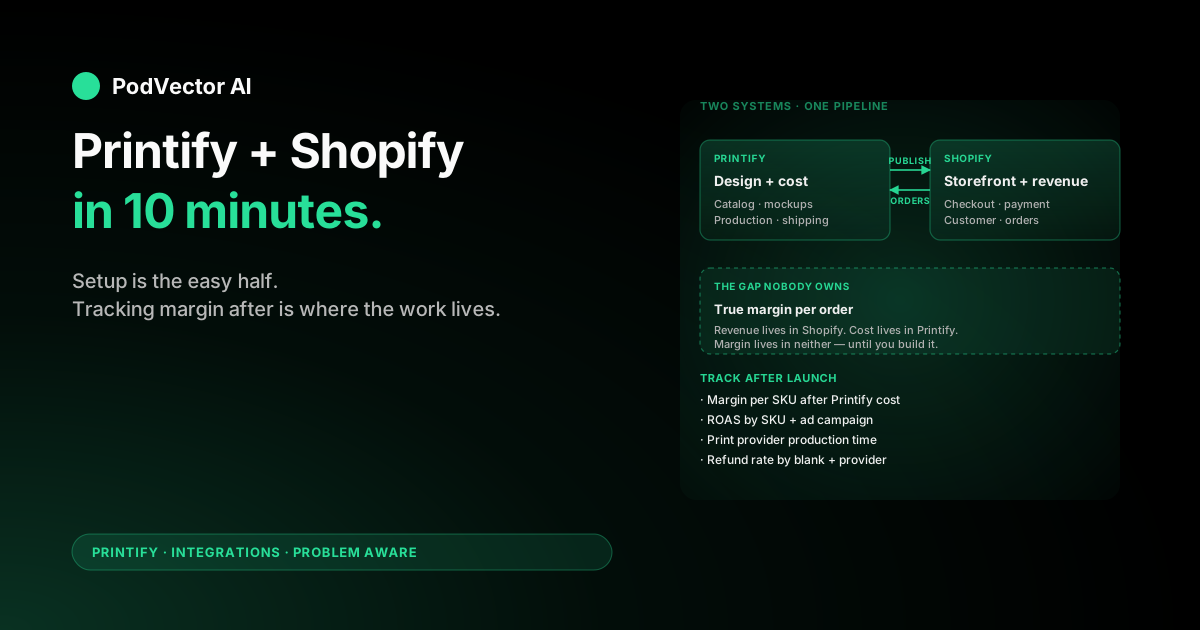
Quick Answer: Install the Printify app from the Shopify App Store, log in to your Printify account, then publish products from Printify's catalog directly into your Shopify store. Setup takes about 10 minutes.
The harder part starts after connection — you now have product, order, and cost data living in two systems that don't natively reconcile. This guide covers both: how to connect, and what to track once orders start flowing.
What the integration actually does
The Printify–Shopify connection is a one-way product sync with a two-way order flow. You design and price products in Printify. When you click publish, Printify pushes the product, variants, and images into your Shopify catalog as a regular Shopify product.
When a customer buys, Shopify takes the payment and creates the order. Printify automatically pulls the order, charges your saved card for production and shipping, and routes it to the print provider you selected. Tracking flows back into Shopify, and the customer sees a normal Shopify order status page.
One thing the SERP guides skip: Shopify is the source of truth for the storefront, but Printify is the source of truth for cost. The margin you actually earned per order doesn't live in either system without some work. More on how the two platforms divide responsibilities.
Before you start
You need two things ready before you connect:
- A live Shopify store (paid plan or trial — you can connect on the trial, but you can't publish products on the trial in some regions)
- A free Printify account with a saved payment method (Printify charges your card per order, separate from your customer's Shopify checkout)
If you're still deciding whether Shopify is the right storefront, the integration also works with Etsy, eBay, WooCommerce, Wix, and several others. Setup steps for Etsy are here.
Method 1: Install from the Shopify App Store
This is the path most sellers use. It's slightly faster because Shopify handles the OAuth handshake on your behalf.
- Log in to your Shopify admin.
- Go to Apps → Shopify App Store.
- Search for "Printify" and click the official Printify app (publisher: Printify Inc.).
- Click Install, then approve the permissions Printify requests. The permissions cover products, orders, fulfillments, and shipping — all required for the sync.
- You'll be redirected to a Printify login screen. Sign in to your existing Printify account, or create one in a single click using your Shopify email.
- The Printify dashboard now appears embedded inside your Shopify admin under Apps → Printify. The connection is done.
If the installation hangs at the permissions screen, it's usually because you're logged into Shopify as a staff account without app-install permissions. Switch to the store owner account and retry.
Method 2: Connect from Printify
Useful if you already have multiple Printify products designed and you're adding Shopify as a second sales channel.
- Log in to your Printify dashboard at printify.com.
- Open the store dropdown in the top-left and click Manage my stores.
- Click Connect and choose Shopify from the platform list.
- Click Get the app. A new tab opens with the Shopify App Store install page.
- From there, the flow is identical to Method 1: install, approve permissions, and Printify is connected.
Both methods end at the same place. The Printify–Shopify connection is now live, and your Shopify store appears in the Printify "Manage my stores" list with a green status indicator.
Publishing products to Shopify
Connection alone doesn't move any products. You still have to design each one in Printify and click publish to push it into Shopify.
Step 1: Design in Printify
From the Printify catalog, pick a blank (t-shirt, hoodie, mug, poster, etc.) and a print provider. Upload your artwork using the design tool. Printify automatically generates mockups for every color and size variant.
Print provider choice matters more than most guides admit. The same t-shirt blank can have a $3 difference in production cost between providers, and shipping speed varies from 2 to 9 business days. Pick on cost + speed for your top-selling region, not just on the highest-quality mockup.
Step 2: Set pricing
Printify shows your production cost per variant. You set the retail price, and Printify calculates margin in real time. The default markup is usually 40–60% above production cost, but POD margins are notoriously thin once you account for ad spend, so price test before committing to a default.
Step 3: Edit the listing
You can edit the title, description, tags, and which variants appear before publishing. Anything you set here will appear in Shopify on first publish. After publishing, Shopify becomes the source of truth — edits in Printify won't push to Shopify unless you re-publish.
Step 4: Click publish
The "Publish to store" button sends the product to Shopify. It usually takes 30–90 seconds to appear in your Shopify products list. The first publish creates a draft product by default. Toggle Make products visible in Printify's publish settings if you want products to go live immediately instead.
Configuring shipping
This is where most new sellers get tripped up. Printify charges you the print provider's shipping rate; Shopify charges your customer whatever shipping rate you set in Shopify. They are two different rate tables, and they don't sync automatically.
Two ways to handle it:
- Carrier-calculated shipping (CCS) — Shopify Advanced plan or higher. Printify exposes live rates to Shopify, so what your customer pays matches what you're charged. Cleanest setup, but requires the higher Shopify tier.
- Flat-rate or free shipping — most starter sellers use this. You set a flat rate in Shopify (e.g., $5 US, $12 international) and absorb the difference when your Printify shipping cost exceeds it. Build the average shipping cost into your retail price instead of charging it separately.
To configure: in Shopify go to Settings → Shipping and delivery, then add zones and rates that match Printify's coverage. Check Printify's shipping calculator under My Stores → Manage → Shipping to see the per-region rates your selected print provider charges.
How orders flow between Shopify and Printify
The order pipeline runs automatically once the connection is live:
- Customer checks out on Shopify. Shopify takes the payment.
- Shopify creates the order and fires a webhook to Printify within seconds.
- Printify imports the order, validates the SKU and shipping address, and queues it for production.
- Printify charges your saved card for production + shipping. You see this as a separate Printify charge, not a Shopify deduction.
- The print provider produces and ships the order. Tracking is pushed back to Shopify, which emails the customer.
By default, Printify holds orders for 24 hours before sending them to production. This gives you a window to catch fraud orders, fix typos in addresses, or cancel customer-requested changes. You can shorten this to 1 hour or extend it in Printify's order settings.
Run a test order
Don't skip this. The number of stores that launch with a broken shipping zone or wrong product variant is non-trivial, and the first paying customer is a brutal way to find out.
- Create a 100%-off discount code in Shopify (Discounts → Create discount → Percentage off → 100%).
- Buy one product from your own store using the code. You'll still need a real shipping address.
- Check that the order appears in Printify within 5 minutes. Verify the variant, size, and address match.
- Cancel the order in Printify before the 24-hour holding period ends to avoid paying for production.
If the order didn't reach Printify, the most common cause is missing app permissions — uninstall and reinstall the Printify app from Shopify, accepting all permissions.
What to track once it's live
Top SERP guides stop at "your store is connected." That's the easy half. The real work starts when orders are flowing and you need to know whether you're actually making money.
The Printify–Shopify split creates a data problem: Shopify shows revenue. Printify shows cost. Neither shows margin. To make real decisions, you have to reconcile them per order, per SKU, and per ad campaign.
Five things every POD seller should track from day one:
1. True margin per order
Shopify's "net sales" is gross, not net. It doesn't subtract Printify production cost, Printify shipping, Shopify transaction fees, or refunds. A $25 t-shirt with a Shopify "profit" of $18 might actually be $4 after all of the above. Pull Printify's cost per order from My Orders → CSV export and join it to Shopify's order export by order ID.
2. Ad spend recovered per SKU
If you're running Meta or Google ads, your blended ROAS hides which SKUs actually pay back. Tag each ad campaign in Shopify's order with the UTM source, then attribute the order's gross margin (from #1) against the campaign's spend. Half your catalog usually loses money on paid; the other half subsidizes it.
3. Print provider performance
Printify shows average production time per provider, but the number that matters is your production time on your SKUs. Track production-start-to-shipped duration per order, grouped by provider. A provider that's 1.2 days slower than the network average will quietly tank your repeat-purchase rate.
4. Refund and quality-issue rate by SKU
Some blanks have a 2% defect rate; some have 8%. Shopify shows refunds, but you need the rate by SKU and by print provider to know whether the blank is bad or the provider is. Filter Shopify refunds to "print quality" reasons and pivot by Printify SKU.
5. Customer LTV by acquisition source
POD customers buy once and disappear on average. The 15% who return are where the business lives. Tag every order with its first-touch UTM in a customer-level table, then look at LTV cohorts. Source channels that look unprofitable on first order often clear $25+ LTV over 90 days.
All five live across Shopify, Printify, Meta Ads, Google Ads, and (often) your email tool. None of them surface natively in either Shopify or Printify's dashboards. You either build a spreadsheet that pulls weekly CSVs, or you hand off the reconciliation to a tool that can read both systems and answer questions in plain English. More on how Printify and Shopify play together day-to-day.
Troubleshooting common issues
Products won't publish
Almost always a missing required field. Shopify requires a product title, at least one variant, and a non-empty description on first publish. Re-open the product in Printify, fill in every field, then republish. If it still fails, disconnect the store from Printify and reconnect — this refreshes the OAuth token, which expires every 12 months.
Orders not syncing to Printify
Three causes, in order of likelihood: (1) Printify app permissions weren't fully granted on install, (2) the order's product wasn't actually published from Printify (someone added it manually in Shopify), (3) the saved payment method on Printify failed and orders are queued. Check My Orders → Action required in Printify first.
Wrong shipping rate at checkout
Shopify is showing your custom rate, not Printify's. Either switch to carrier-calculated shipping (Shopify Advanced+) or align your Shopify flat rates to Printify's actual costs by region. Recheck after every print provider change — different providers ship from different countries.
Customer ordered a discontinued variant
Printify occasionally retires blanks. When a customer orders one, the order will fail in Printify with a "variant unavailable" error. Manually replace the variant in Printify with the closest equivalent, or contact the customer for size/color confirmation. Set up a weekly check on Printify's deprecation notifications if this happens more than once.
FAQs
Is the Printify Shopify integration free?
Yes. The Printify app is free to install. You pay per order for production and shipping. Printify Premium ($14.99/month) gets you a 20% discount on production costs but isn't required for the integration to work. Whether Premium pays back depends on volume.
How long does the connection take?
About 5–10 minutes if you have both accounts ready. Add another 15–30 minutes to publish your first 1–3 products. A full catalog launch is usually a half-day of work.
Can I connect multiple Shopify stores to one Printify account?
Yes. Printify supports unlimited stores per account. Each store appears in Manage my stores with its own product list and order feed. Useful for multi-brand POD operators running niche stores.
Do I need Printify Premium to publish to Shopify?
No. The integration works on the free Printify plan. Premium only changes your per-product cost, not your access to the Shopify connection. How to cancel Premium if you signed up and don't need it.
Who pays the customer's shipping?
Your customer pays whatever shipping rate you set in Shopify. Printify charges you separately for the provider's shipping cost. If your Shopify shipping rate is lower than Printify's actual cost, you absorb the difference. Build it into the product price instead.
Can I edit a Printify product in Shopify after publishing?
Yes, but be careful. Once you edit the title, description, or images in Shopify, Printify won't overwrite those fields on future publishes. Pricing and variants stay editable from either side. Most sellers manage all edits from Shopify once products are live to avoid sync confusion.
What happens if my Printify payment method fails?
Orders queue in Printify's "Action required" bucket and don't go to production until you update the payment method. The customer's Shopify order remains in "unfulfilled" status. Set up a backup payment method in Printify to avoid silent fulfillment outages.
Does Printify support Shopify B2B / wholesale?
Partially. The basic order flow works with Shopify B2B, but wholesale pricing tiers don't push from Printify to Shopify automatically — you set the wholesale price manually in Shopify after publish. For most POD operators this is fine; full B2B catalog management is still rough.
Related reading
For more on the Printify ecosystem, see our Printify integrations hub and the broader Printify topic page. Printify's official Shopify connection guide is also worth bookmarking for product-specific edge cases.
Hand off the reconciliation to Victor
You connected Printify to Shopify. Now you have product data in one system, cost data in another, and ad data in two more. Reconciling that into actual margin per SKU is a weekly spreadsheet nightmare.
Victor is an AI employee built for POD sellers. He reads your Shopify, Printify, Meta, and Google data into one live data warehouse, answers questions in plain English ("which SKUs lost money last week?"), and — with your approval — reallocates ad spend, pauses unprofitable campaigns, and updates product listings.
Stop exporting CSVs.
Try Victor free