
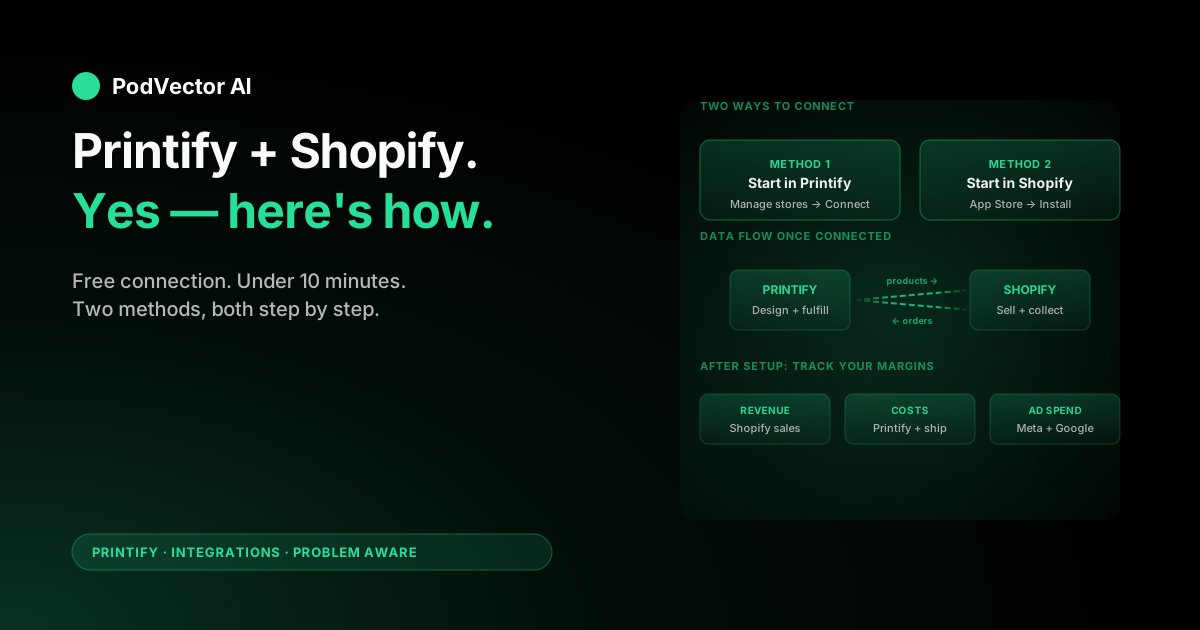
Quick Answer: Yes — Printify connects directly to Shopify through a free app integration. You can start from either platform, and the whole process takes less than 10 minutes.
Once linked, products you create in Printify sync to your Shopify storefront automatically. When a customer orders, Printify routes it to a print provider, who prints, packs, and ships the item under your brand. Your customer never sees Printify's name.
This guide covers both connection methods step by step, the prerequisites that trip people up, and — the part most articles skip — what to monitor after the integration is live so your margins don't quietly erode.
How the Printify–Shopify connection works
The integration uses Shopify's app framework. You install Printify as an app in your Shopify store, which creates a secure link between the two platforms. No code, no API keys, no developer needed.
Three data flows run through the connection. Product listings push from Printify into Shopify. Customer orders pull from Shopify into Printify. Tracking information flows back to Shopify after the print provider ships.
You design products in Printify's editor, choose a print provider based on price and location, then publish to Shopify. From the customer's perspective, they're buying from your store — Printify is invisible. For a deeper look at the full Printify ecosystem, including provider selection and cost structure, see our complete Printify hub.
What you need before connecting
Missing any of these causes the connection to fail silently or the first order to break. Check them off before you start.
- An active Shopify plan. The free trial works for connecting and testing. Basic ($39/month) is enough for most POD stores. Shopify pauses your store when the trial expires, so upgrade before going live.
- A payment provider in Shopify. Shopify Payments, PayPal, or Stripe. Without one enabled, checkout rejects every transaction.
- A Printify account. Free to create, no card required. The free tier supports up to five connected stores.
- A payment method in Printify. Credit card or PayPal. Printify charges this when production starts — separate from how customers pay you.
- Your Shopify store URL. Either
your-store.myshopify.comor your custom domain. - At least one design ready. A PNG at 300 DPI minimum. Having a design ready lets you test the full pipeline in one sitting.
If you're also selling on Etsy, check our guide on setting up Printify on Etsy. Each integration works independently — one Printify account can feed multiple storefronts.
Method 1: Connect from Printify
This path is fastest if you already have a Printify account set up.
- Log into Printify at printify.com.
- Open the store menu. Click the dropdown in the upper-left corner and select Manage my stores.
- Click "Add new store." You'll see cards for Shopify, Etsy, eBay, WooCommerce, TikTok Shop, and others.
- Select Shopify and click Connect.
- Enter your store URL. Paste your full
your-store.myshopify.comaddress. - Approve the permissions. Shopify's app-install prompt appears. Click Install app. The permissions cover read/write access to products, orders, shipping, and draft orders.
- Confirm the redirect. Shopify sends you back to Printify. Your store now shows as connected under Manage my stores.
Total time: 5–10 minutes. The most common mistake is accidentally creating a second Printify account during the OAuth redirect. If a login screen appears, sign into your existing account — don't click "Sign Up."
Method 2: Connect from Shopify
This path is better if you already have a running Shopify store but haven't set up Printify yet.
- Open your Shopify admin at your-store.myshopify.com/admin.
- Go to the App Store. Click Apps in the left sidebar, then Shopify App Store.
- Search "Printify." Click the official listing — verify the developer is "Printify, Inc." to avoid copycat apps.
- Click "Install" and approve the permissions.
- Log into Printify. If you already have an account, sign in. If not, create one — free, no card required.
- Authorize the connection. Printify confirms the link. Your Shopify store now appears in Printify's store manager.
Both methods end in the same place: a connected integration where products flow from Printify into Shopify and orders flow back. For details on both methods including screenshots, ecomxagency's walkthrough covers the same flow with annotated visuals. Browse more Printify integration guides if you're connecting other channels too.
Publish your first product
With the connection live, create a test product to verify the pipeline works end to end.
- Open Printify's product catalog. Browse by category or search for a specific item type (t-shirts, mugs, phone cases, etc.).
- Choose a print provider. Compare base price, production time, shipping zones, and review scores. Providers closer to your customers ship faster and cheaper.
- Upload your design. Use Printify's mockup editor to position your artwork. Preview it on multiple angles before saving.
- Set your title, description, and retail price. Your profit per unit is the retail price minus the provider's base cost and shipping. Aim for at least a 40% margin after all costs.
- Click "Publish." Select your connected Shopify store. Printify pushes the listing — title, description, images, variants, and pricing — into Shopify within a few minutes.
Check your Shopify product list to confirm the item appeared. If it didn't, the most likely cause is a connection timeout. Disconnect and reconnect from Manage my stores in Printify, then republish.
Set up shipping rates
Shipping is where most new POD sellers lose margin without realizing it. Printify charges you a fulfillment shipping fee, and Shopify charges the customer whatever rate you configure. If those numbers don't match, you're either subsidizing shipping or overcharging customers.
Printify provides shipping rate tables for each print provider on the product page. The rates vary by product type, destination country, and quantity. A single unisex t-shirt shipping to the US might cost $4.49 from one provider and $5.99 from another.
Three approaches to Shopify shipping rates:
- Flat rate. Set one price per region (e.g., $4.99 US, $9.99 international). Simple to manage, but you'll over- or under-charge on some orders.
- Free shipping with higher prices. Bake shipping into your retail price. Customers prefer it. Your product pages look more competitive.
- Calculated rates. Use Printify's shipping profiles to pass through near-exact costs. Most accurate, but the checkout experience can feel unpredictable to buyers.
Whichever approach you pick, review the numbers monthly. Print providers update their shipping rates without announcement, and a quiet $1.50 increase across your catalog eats margin fast.
Run a test order
Before sending real customers through the pipeline, test it yourself.
- Place an order on your Shopify store as if you were a customer. Use a real payment method — Shopify's test gateway doesn't trigger Printify fulfillment.
- Watch the order appear in Printify. It should show up within a few minutes under Orders with a "New" status.
- Let it process. The print provider picks up the order, produces the item, and uploads tracking. This takes 2–7 business days depending on the provider.
- Verify tracking in Shopify. Once Printify's provider ships, tracking info should sync back to your Shopify order automatically.
- Inspect the product when it arrives. Check print quality, color accuracy, packaging, and delivery time. This is the exact experience your customers will have.
If something breaks — order doesn't appear, tracking doesn't sync, quality is poor — fix it now. Switching print providers before launch is painless. Switching after negative reviews is damage control. Wondering whether the whole setup is worth it? Our analysis of whether Printify is profitable breaks down the real numbers.
What to track after connecting
The connection is the easy part. Keeping the integration profitable requires monitoring numbers that live in two different dashboards. Most guides stop at "test your integration." That's where the real work starts.
Margin per product. Your revenue is in Shopify. Your production cost is in Printify. Your ad spend is in Meta or Google. No single dashboard shows your true profit per unit. You have to pull the numbers together manually — or use a tool that does it for you.
Provider quality scores. Printify lets you rate providers after each order. Watch for providers whose scores drop over time. A cheap base price means nothing if 8% of orders get reprinted due to quality complaints.
Shipping time drift. Providers quote estimated production and shipping times, but actual delivery can creep up — especially during Q4 or after they take on new capacity. Track your average days-to-delivery monthly.
Return and reprint rates. Printify handles reprints for production defects, but Shopify tracks your return rate independently. A climbing return rate signals a provider or design problem that erodes margin even when individual orders look profitable. For a comprehensive look at quality, cost, and margin data across the platform, read our complete Printify review.
If you're running ads alongside your Shopify store, pulling revenue, production cost, and ad spend into one view is the only way to know whether a product is actually profitable. Spreadsheets work at low volume. At scale, most sellers either build custom dashboards or let an AI employee like Victor consolidate the data and flag margin problems before they compound.
Common connection problems and fixes
"Store not found" error during connection
Your Shopify store URL is wrong or your plan expired. Double-check you're using the .myshopify.com address, not your custom domain. If your trial ended, reactivate a paid plan first.
Products don't appear in Shopify after publishing
The sync can take up to 10 minutes. If nothing shows after that, disconnect the store in Printify's Manage my stores and reconnect. Then republish the product.
Orders don't flow to Printify
Check that the Printify app is still installed in your Shopify admin under Apps. If Shopify removed it (happens after permission changes or app updates), reinstall it and verify the connection.
Tracking numbers don't sync back to Shopify
Some providers take 24–48 hours to upload tracking after shipping. If it's been longer, check the order status in Printify. "Shipped" with no tracking usually means the provider hasn't uploaded it yet — contact Printify support.
Duplicate products in Shopify
This happens when you publish the same product twice or reconnect without removing the old listing. Delete the duplicate in Shopify — the Printify-linked version stays synced.
FAQs
Is connecting Printify to Shopify free?
Yes. The integration costs nothing. You pay Shopify's monthly plan fee and Printify's per-order production costs separately, but the connection itself is free on both platforms.
Can I connect Printify to multiple Shopify stores?
Yes. One Printify account supports up to five stores on the free plan and unlimited stores on the Premium plan ($29.99/month). Each store gets its own product catalog and order queue.
Do I need a paid Shopify plan to use Printify?
You need at least an active plan — the free trial counts. But once the trial expires, Shopify pauses your store. Upgrade to Basic ($39/month) before going live with real customers.
What happens if I disconnect Printify from Shopify?
Products already published to Shopify stay in your catalog, but they stop syncing. New orders won't route to Printify for fulfillment. You'll need to reconnect and re-link products to resume automatic fulfillment.
Can I use Printify with Shopify and Etsy at the same time?
Yes. Each integration runs independently. You can manage products and orders for both stores from one Printify dashboard. Inventory doesn't conflict because print-on-demand has no physical stock. For the Etsy setup, see our guide on Printify personalization on Etsy.
How long does the Printify–Shopify connection take?
Under 10 minutes for the connection itself. Plan an hour for the full pipeline — connecting, creating your first product, setting shipping rates, and placing a test order.
Connected Printify to Shopify? Let Victor run what comes next.
Setup takes 10 minutes. Managing margins across Shopify revenue, Printify production costs, and ad spend takes the rest of your week. Victor is an AI employee that runs your Meta and Google ads, monitors your Shopify catalog, and flags margin erosion across your print providers — asking before he acts.
Try Victor free