
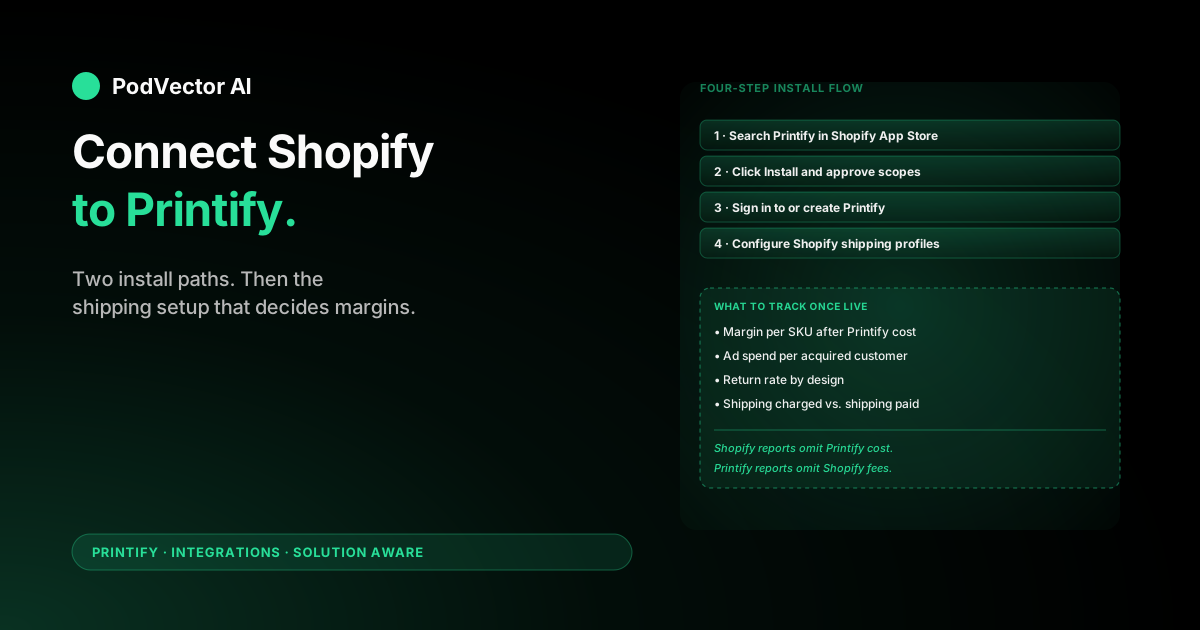
Quick Answer: Open the Shopify App Store, search Printify, click Install, then sign in to (or create) your Printify account when prompted. The handshake completes in minutes and embeds the Printify dashboard directly inside your Shopify admin.
One extra step is not optional. Before you publish a single product, configure your Shopify shipping profiles to use Printify's rates — otherwise customers overpay or you eat the difference on every order.
This guide walks both install paths click by click, covers the shipping-profile setup most tutorials skip, and lists the errors that trip up new sellers so you can fix them in seconds instead of restarting the flow.
Before You Start: What You Need
The connection fails or stalls if any of these are missing. Get them in place first so the install is fast and clean.
- A Shopify store on any paid plan. According to Printify's official site, Shopify requires a paid plan to sell online, starting at $39/month or $29/month when billed annually. The free trial works during setup, but Shopify pauses checkout when the trial ends. Basic is enough to run a full Printify integration.
- Shopify Payments or another processor configured. Without a working checkout, customers can't pay and Printify never sees an order. Confirm checkout works with a test transaction first.
- A free Printify account. Sign up at printify.com with email or Google. According to Printify, the platform is free to use with no upfront costs or monthly subscription required. Skip the Premium upsell on signup — you don't need it to start.
- A payment card on file in Printify. Shopify collects from the customer, but Printify charges you per order for production. Add the card under My Account → Payments.
- One design ready to upload. PNG with a transparent background, 4500×5400 pixels at 300 DPI is the safe target for apparel.
- A store connected to one Printify account only. Per Printify's help documentation, a Shopify store can be connected to only one Printify account at a time. If you get an "already connected" error, check your other Printify accounts and disconnect it there first.
If you don't have a Shopify store yet, set that up first. The connect flow assumes a live store with at least one published policy page — clicking Install on a half-finished store returns a vague "store not eligible" error.
Method 1: Install from the Shopify App Store
According to Printify, you can connect Printify to Shopify in two ways: install the Printify app from the Shopify App Store, or connect from the Printify dashboard. This method — installing from Shopify's side — embeds the Printify dashboard directly inside your Shopify admin, so you never bounce between two tabs. It's the path most new sellers should use.
Step 1: Open the Shopify App Store and Search for Printify
Log in to your Shopify admin at yourstore.myshopify.com/admin. In the left sidebar, click Apps → Visit Shopify App Store. In the App Store search bar, type Printify and click the first result — the official Printify listing with the green Printify logo.
Verify the developer is listed as Printify, Inc. before you install. There are apps with similar names that will not connect to a real Printify account.
Step 2: Click Install and Approve Permissions
On the Printify app page, click the green Install button. Shopify shows a permissions screen listing what Printify will access — product data, order data, fulfillment, and the scopes needed to push listings and pull orders. Click Install app.
Step 3: Sign In to (or Create) Your Printify Account
After installing the app, you'll be prompted to log in to your Printify account directly from your Shopify admin. If you already have a Printify account, sign in with that email and password. If not, click Sign up.
If you accidentally close this prompt, simply open the Printify app again from your Shopify admin to log in.
Step 4: Confirm the Connection
Make sure the connection was successful by checking that the Printify dashboard is embedded in your Shopify admin. If you still see the login screen, try signing in again. In Printify, click the store dropdown in the top-left corner — your Shopify store name should appear with a green Connected badge.
The technical handshake is done. Orders placed on your Shopify store will sync to Printify automatically. Before you publish any product, configure shipping — skip ahead to Configure Shipping Profiles.
Method 2: Connect from the Printify Dashboard
This path makes sense if you already have a Printify account with products set up and you're connecting a new Shopify store to the same Printify backend. The end result is identical to Method 1.
Step 1: Open Manage My Stores in Printify
Log in to Printify at printify.com. Click the drop-down menu in the upper-left corner and select Manage my stores. You land on a page listing every storefront you've ever connected — on a fresh account it's empty.
Step 2: Click Connect and Pick Shopify
Click Connect (or + Add new store if you already have stores). Printify shows a grid of storefront tiles — Shopify, Etsy, TikTok Shop, eBay, Wix, WooCommerce, Squarespace, BigCommerce, Walmart, PrestaShop, plus a generic Custom Integration.
Click the Shopify tile. On the next screen, click Get the app. If you don't have a Shopify account yet, click Create now to set one up, then return to continue. Paste your Shopify store URL — your store URL should be in the format yourstore.myshopify.com — and click Connect.
Step 3: Approve Printify Inside Shopify
Printify opens a new tab with a prompt to install the Printify app. Click Install. Shopify shows a permissions screen — same scopes as Method 1 — click Install app.
Shopify confirms the install and redirects you back to Printify. Your Shopify store now shows with a green Connected badge. After you've installed the Printify app and logged in to Printify through Shopify, you can return to Printify and click Continue.
Whichever method you used, the next step is the same: configure shipping before publishing a product.
Configure Shipping Profiles in Shopify
This is the step most tutorials skip. Printify ships from a network of providers in the US, EU, UK, Australia, and Asia. Each provider has its own shipping rates by region. If you leave Shopify's default shipping rates on, you charge customers based on Shopify's flat-rate logic — which usually undercharges and forces you to eat the gap on every order.
There are three ways to handle this. Pick one and stay consistent.
Option A: Let Printify Quote Shipping at Checkout (recommended for most sellers)
Inside Printify, go to My account → Connections and toggle on Use Printify-calculated shipping rates. This sends real-time quotes from Printify's providers to Shopify at checkout based on the customer's address and the cart contents.
The customer sees the exact shipping cost. You pay the exact shipping cost. No subsidy, no overcharge. The downside: it requires the Carrier-Calculated Shipping feature in Shopify, which is included on Shopify Advanced, Plus, and on Basic/Shopify plans if you're billed annually. On monthly Basic, it's an add-on.
Option B: Build Static Shipping Profiles That Match Printify's Rates
If carrier-calculated shipping isn't available on your plan, build static shipping profiles in Shopify that approximate Printify's rates for your most common provider. In Shopify admin, go to Settings → Shipping and delivery. Edit the General shipping profile to add price-based or weight-based rates.
Pull the rate matrix from Printify under My account → Shipping costs. The catch: provider rates change. Plan to re-check the matrix every quarter, or bake in a small buffer so a rate hike doesn't put you underwater.
Option C: Bake Shipping Into Product Price ("Free Shipping")
Set Shopify's shipping to free, then mark up the product retail price by the average shipping cost across your top markets. This is the cleanest customer experience and removes one decision from the checkout flow.
It works if your traffic is concentrated in one or two countries. It breaks if you sell internationally — international shipping can be multiples of the domestic cost and the buffer math gets messy. For more on how free-shipping thresholds affect average order value, see the guide to increasing AOV with AI.
For most sellers on Basic or starting out, Option C is the lowest-friction path. Move to Option A once your order volume justifies the carrier-calculated shipping line item.
Publish Your First Product
With the connection live and shipping configured, the first product takes about ten minutes. The same flow works for every future listing.
In Printify, click Catalog. For a first Shopify listing, safe defaults are Bella+Canvas 3001 tees, an 11oz ceramic mug, or a poster — all three convert well on Shopify and have reliable provider quality.
Pick a product, scroll to Print Providers, and select one. Sort by Production time if speed matters or Price if margin matters. Click Start designing.
Upload your PNG to the front (and back if applicable). Use the mockup viewer to preview the print on different colors and body types. Click Save product.
On the listing screen, write the title, description, and tags exactly as you want them to appear on Shopify. Set retail price using your own margin math — don't rely solely on Printify's suggested retail. Click Publish. Within a few minutes the listing appears in your Shopify catalog as a draft product.
Open the product in Shopify admin, double-check the title, description, images, and SEO fields, then change the status from Draft to Active. The product is now live and orderable.
Once your products sync automatically with your Shopify store and orders flow straight to Printify for production, the fulfillment side runs itself. The harder question is whether each SKU is profitable — see What to Do Once You're Connected.
Common Errors and Fixes
The install fails in a handful of specific ways. Here is what each error means and how to clear it without restarting the whole flow.
"Install button is greyed out"
Shopify won't let you install third-party apps until your store has finished basic onboarding. Add a product, set up a payment processor, and add at least one policy page (refund or shipping). Then refresh the App Store page and the Install button activates.
"It looks like you didn't install the Printify app on your Shopify store"
This error appears when the OAuth handshake completes on the Printify side but the Shopify app install didn't fully register. The most common cause is closing the install tab too early or a browser pop-up blocker interrupting the redirect. Clear your browser cache, start the flow again from Step 1 of Method 2, and let every redirect complete before closing any tab.
"Your Shopify store is already connected to Printify"
Per Printify's official documentation, a store can only be connected to one Printify account at a time. Go to My Stores in every Printify account you've used and disconnect the store there first, then reconnect it to your intended account.
"Connection successful but products aren't pushing"
The most common cause is that your Printify account has no products yet — only the connection is live. Create at least one product in Printify and click Publish. If you have products and they still aren't appearing, check Shopify admin under Products → All products for drafts. Printify pushes new listings as drafts by default so you can review before they go live.
A less obvious cause: if you assigned a product to a collection in Printify, the collection tag must also exist in Shopify. If the tags on Printify don't match tags in Shopify, the product loads but won't appear in the collection page. Add matching tags on both sides to resolve it.
"Shipping cost shows zero at checkout"
Either you forgot to configure a shipping profile or the carrier-calculated shipping toggle isn't on. Walk through the shipping section above and pick one of the three options.
"Orders aren't pulling into Printify"
Check that the order was paid (not pending). Shopify sends paid orders to Printify within a few minutes; pending or refunded orders never reach Printify. Also confirm under Settings → Connections in Printify that Auto-fulfill orders is enabled — if it's set to manual, orders sit in Awaiting approval until you click Submit.
"Duplicate listings on Shopify after sync"
Almost always caused by editing the same product in both Printify and Shopify. Treat Printify as the source of truth — make title, image, and variant changes there, and let them sync down to Shopify. Edits made directly in Shopify can create a parallel SKU that Printify doesn't recognize.
What to Do Once You're Connected
The connection itself is the easy part. The hard part is knowing whether you're making money on each order — because Shopify's reports don't include Printify costs, and Printify's reports don't include Shopify fees or ad spend.
On a t-shirt sold through Shopify with Printify production, the per-order math involves the sale price minus Shopify payment processing, minus your allocated Shopify monthly plan cost, minus Printify base production cost, minus any ad spend per acquired customer. What remains is net margin — and it can be razor-thin or negative if any one of those inputs is wrong. Every Shopify POD seller hits the same trap: the dashboard shows revenue, not margin.
Tracking real per-order profit means pulling Shopify fees, Printify production costs, and ad spend into one view — which Shopify and Printify both refuse to do for you. Understanding where you stand on margin starts with knowing your benchmarks; the net profit margin benchmark for POD sellers gives you the reference points to know whether your numbers are healthy or not.
This is the gap that Victor closes. Victor is PodVector's AI employee built for intermediate-to-advanced print-on-demand sellers on Shopify. He reads your live Shopify, Printify, Meta Ads, and Google Ads data into a unified warehouse, then proposes specific actions — repricing a SKU to a target margin, adjusting a discount, updating a collection, raising your free-shipping threshold — and executes the approved move in your Shopify store. He doesn't just show you the margin; he acts on it with your approval.
Ask Victor in plain English "which SKU is losing money on Meta this week?" and he tells you, then proposes a concrete Shopify-side move. For a full picture of how he works, see the PodVector strategy overview. For the conversion side of your store, the CRO techniques guide covers what to optimize once traffic is flowing.
Checkout completion is often the next lever after the connection is live — if visitors aren't completing purchases, the average checkout completion rate benchmarks show you where you stand and what to fix first.
For sibling integration playbooks, Printify's own official help article is the canonical reference if you hit an edge case the steps above don't cover.
FAQs
How long does it take to connect Shopify to Printify?
The integration takes just a few clicks, so you can start publishing products right away once accounts are ready. Configuring shipping profiles is a separate ten-minute task that most tutorials skip but is not optional before your first sale.
Do I need Printify Premium to connect to Shopify?
No. According to Printify, the platform is free to use with no upfront costs or monthly subscription required. The free plan connects to Shopify with no feature limits on the integration itself. Premium unlocks a discount on product base costs — it makes sense once your monthly order volume is high enough for the savings to exceed the plan cost.
Can I connect more than one Shopify store to one Printify account?
Yes. Printify supports multiple connected stores per account. Repeat the install for each store. Each connection is independent — you can run different products on each store.
Will orders from Shopify sync automatically once I'm connected?
Yes. Once your products sync with your Shopify store, every order placed on your website flows straight to Printify for production. Printify charges your card and submits the order to the provider automatically unless you have manual approval enabled under Settings → Connections, in which case orders sit in Awaiting fulfillment until you approve them.
Can one Shopify store connect to more than one Printify account?
No. Per Printify's official documentation, a store can be connected to only one Printify account at a time. If you need to move a store to a different Printify account, disconnect it from the old account first.
What happens if I uninstall Printify from Shopify?
Pending orders still process — Printify already has the data for in-flight orders. New Shopify orders will not flow to Printify. Listings remain on Shopify but become orphaned (no production behind them). Reinstalling later resumes syncing for new orders, but does not retroactively pull old ones.
Can I import existing Shopify products into Printify?
Not directly. Printify only pushes listings outward to Shopify. If you have existing Shopify listings you want to fulfill via Printify, recreate them as new Printify products and either delete or manually deactivate the old Shopify listings.
Does Printify charge a monthly fee on Shopify?
No subscription is required to use Printify with Shopify. You pay Shopify's monthly plan and Printify's per-order production cost. Printify Premium and Enterprise are optional plans that unlock discounts and higher limits.
What if I get a "store not eligible" error during install?
This usually means your Shopify store hasn't completed basic onboarding. Add at least one product, configure a payment processor, and publish at least one policy page (refund or shipping policy). Then retry the install from the App Store.
Let Victor run your Shopify + Printify ops
Connecting Shopify to Printify is the easy part. Knowing what to do next is harder. Victor is an AI employee that reads your Shopify, Printify, Meta Ads, and Google Ads data, proposes specific moves — repricing, discounts, collection updates, shipping threshold changes — and executes them in your Shopify store with your approval. He does the work. You approve the moves.
Try Victor free