
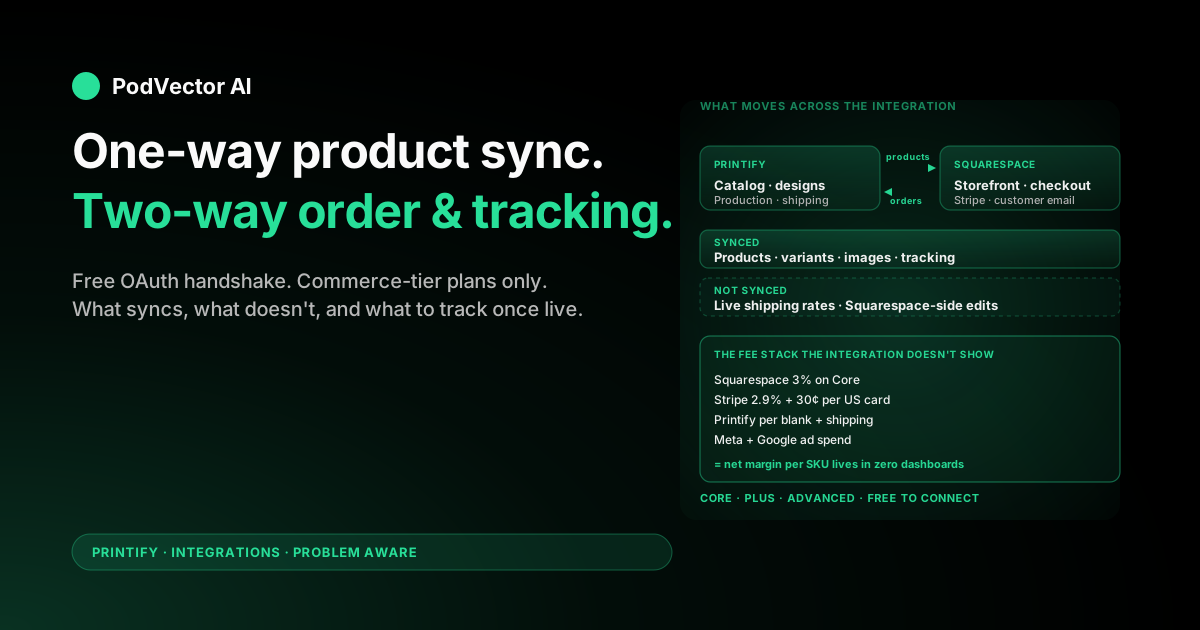
Quick Answer: The Printify Squarespace integration is a free, OAuth-based link that pushes products and tracking from Printify into a Squarespace store and pushes paid orders back. Connection takes about 10 minutes once your Squarespace store page is built.
What trips up first-time sellers isn't the connection — it's understanding what the integration doesn't do. There's no live shipping calculator, no two-way product editing, and no shared margin view across Squarespace fees, Stripe processing, and Printify production cost.
This guide covers the plan requirements, the connection itself, what data flows in which direction, the sync limits, and what to actually track after orders start coming in.
How the Printify Squarespace integration works under the hood
The Printify Squarespace integration is an OAuth-based link between your Printify account and a specific Store page inside a Squarespace site. OAuth is the same authorization pattern you've used to sign into apps with Google or Facebook — Squarespace asks you, the account owner, whether to grant Printify scoped access, and you click Allow.
Once authorized, the integration runs on a request-response model. Printify makes API calls to Squarespace to create or update products, and Squarespace webhooks call Printify when a paid order needs production. There's no shared database — both platforms hold their own copy of the relevant data, and the sync keeps them aligned.
Three flows matter day-to-day. Products you build in Printify get pushed into Squarespace as Store items with variants, images, and prices. Orders placed at Squarespace checkout get routed to Printify for production. Tracking numbers Printify receives from the print provider get pushed back to Squarespace so the buyer gets a normal Squarespace shipment email.
That's the entire integration. Squarespace owns the customer-facing experience, payments, and email. Printify owns production, shipping logistics, and the print provider relationship. The integration is the thin wire between them.
Prerequisites: plan tier, store page, payment processor
Three boxes need to be ticked before the Printify connect button does anything useful. Missing any one of these is the most common reason the integration silently fails.
- A commerce-tier Squarespace plan. Under current naming: Core, Plus, or Advanced. Under the legacy plan names you may still see: Business, Basic Commerce, or Advanced Commerce. The Personal plan does not allow third-party commerce integrations — Printify will show as "available" but the connection won't complete.
- A live Squarespace Store page. The integration connects to a specific Store page within your site, not the site itself. You build the page first (under Pages → Add → Store), then connect. The Printify dropdown that lets you pick a store stays empty if no Store page exists.
- A working payment processor. Stripe is the default; PayPal is the second option. Without one of these enabled in Selling → Payments, the integration still connects, but every checkout fails at the payment step.
- A Printify account with a card on file. Free to create. Printify charges your card per order at production time — separate from how Squarespace pays you.
- A draft product ready to publish. Don't connect a blank Printify account to an empty Squarespace store and then go to bed. Have at least one design plus a chosen blank ready, so you can test the full flow within the same hour you connect.
The Squarespace plan question is worth a second look. Core (or legacy Business) is fine while you're under $5K/month — the 3% Squarespace transaction surcharge stings less than the $40/month price gap to Plus. Once you're consistently above $5K/month, Plus pays for itself by zeroing out that 3%. Advanced makes sense for stores running abandoned-cart recovery or commerce APIs, which most POD shops don't need yet.
Connecting Printify to Squarespace (the 7-click walkthrough)
With the prerequisites in place, the actual connection is the shortest part of the whole setup.
- Log into Printify at printify.com. Sign up if you don't have an account — it's free, no card needed at signup.
- Open Manage my stores. Click the dropdown in the top-left of the Printify dashboard, select Manage my stores.
- Click "Add new store." A grid of integration options appears: Shopify, Etsy, eBay, WooCommerce, Squarespace, TikTok Shop, and others.
- Pick Squarespace. Click the Connect button on the Squarespace card. A new window pops open to Squarespace.
- Authorize on the Squarespace side. Squarespace asks whether you want to grant Printify scoped access to read products and write orders to your store. Click Allow.
- Pick the store page. Squarespace shows a dropdown of every Store page across every site on your Squarespace account. Select the one you want connected.
- Click Continue. The Printify dashboard now shows your Squarespace store under Manage my stores with a green active status indicator.
If the store dropdown comes up empty, the issue is one of the prerequisites — usually a missing Store page or a non-commerce plan. Go back and fix that before retrying.
For sellers comparing this against other Printify integration setups, our Printify on Etsy setup guide walks through the Etsy alternative, and the Printify integrations hub lists every supported storefront.
What syncs, what doesn't, and why it matters
The integration's biggest gotchas live in the gaps. Here's the full picture of what actually moves across the wire — and what stays put.
What syncs from Printify to Squarespace
- Product title and description (every republish overwrites whatever's in Squarespace)
- Product images, including mockup variants per color or per blank
- Product variants (size, color, style) as Squarespace product options
- Retail price you set in Printify
- Tracking numbers, pushed when the print provider hands off to the carrier
- Order fulfillment status updates
What syncs from Squarespace to Printify
- New paid orders, with buyer name, shipping address, and ordered variant
- Order cancellations (if cancelled before production starts)
What doesn't sync in either direction
- Live shipping rates. Squarespace cannot ask Printify "what will this shipment cost?" at checkout. You set Squarespace shipping rates manually.
- Edits made in Squarespace. If you edit a Printify-published product's title or description in Squarespace, the next Printify republish silently overwrites your edits. The integration is one-way for product data — Printify is the source of truth.
- Squarespace-side categories, tags, or page positioning. Anything you organize on the Squarespace side stays Squarespace-only. Printify doesn't know about it and doesn't touch it on republish.
- Discounts and promo codes. Squarespace discount codes apply to checkout total. Printify isn't aware of them and still charges full production cost.
- Customer information. Names and emails stay in Squarespace; Printify only receives the shipping address needed for fulfillment.
- Inventory counts. Printify is on-demand — there is no inventory. Squarespace's inventory column for Printify products effectively defaults to "always available."
The two gaps that hurt most are live shipping rates and the one-way product sync. The shipping gap means your Squarespace flat rates drift apart from Printify's real cost every time Printify updates its rate tables — costing you margin per order until you notice. The one-way sync means you can never use Squarespace's product editor as a quick fix; every product change has to round-trip through Printify.
Publishing your first product through the integration
The connection is live but your Squarespace store still shows zero products. You need to push one through to confirm the sync works end-to-end before doing anything else.
- Open the Printify catalog. From the dashboard, click Catalog. Pick a starter — a unisex T-shirt is fastest because shipping rates are predictable for most regions.
- Pick a print provider. Each provider has its own cost, lead time, and quality. Sort by the region closest to your target buyers — international shipping is where margins die quietly.
- Upload your design. Drop a PNG with a transparent background onto the mockup. Keep file size under 25 MB to avoid sync timeouts.
- Fill the product fields. Title, description, tags. Don't skip the description — both Squarespace's internal search and Google index pull from it.
- Set the retail price. Printify shows production cost; you set what the buyer pays. The default 40% margin is a placeholder, not a strategy — see the fee math below for what to actually price for.
- Click "Publish to Squarespace." The integration creates the product on the Squarespace side. Default visibility is Visible; flip to Hidden first if you want to review the listing before going live.
- Verify in Squarespace. Within a minute or two, the product appears under your Store page with all variants and images attached.
If the product doesn't appear within 5 minutes, the usual cause is a missing required field on the Printify side. Re-open the product, check that every required field is filled, and republish. The Printify activity log will show the exact API error if the push failed.
The shipping gap: no live calculator, two workable options
Squarespace does not support a live shipping calculator that asks Printify for the real cost per order. This is the single biggest difference between the Squarespace integration and the Shopify integration, and it determines how you set shipping rates.
Option 1: Rebuild Printify's flat-rate table in Squarespace
Open Printify's shipping page for the product type you're selling. Copy the regional flat rates into Squarespace under Selling → Shipping. Buyers see flat rates per region (something like $4.99 US standard, $12.99 Canada, $16.99 international). Your checkout charges the same rate Printify charges you, so the integration nets to zero on shipping cost.
Best for: stores selling one or two related product categories where Printify's rates stay stable across SKUs.
Option 2: Bake shipping into the product price, offer "free" shipping
Set Squarespace shipping to free (or a flat $2 nominal rate) and absorb the real Printify shipping cost in your retail price. "Free shipping" converts better at checkout — but you only get the conversion lift if your retail price already absorbs the real shipping cost on your worst-case destination.
Best for: stores already priced above bare cost and willing to do the per-SKU math. Risky for international, where Printify shipping on a light goods order can hit $10–15.
Whichever you pick, write the rates down somewhere you'll check quarterly. Printify updates its shipping tables a few times a year — a $1 increase quietly turns into a $1-per-order margin loss until you notice.
Place a real test order before you spend a dollar on ads
The most expensive way to find a broken integration is to find it from a refund request. Run a real test order — your own card, your own address — before any ads run.
- Add the test product to cart on your live Squarespace store. Use your real shipping address.
- Check out and pay. Use a real card. Refund yourself later from Squarespace.
- Confirm Squarespace shows the order paid. The order appears under Selling → Orders within seconds.
- Confirm Printify received it. Within a minute, the order should appear in Printify under My orders. If it's not there after 5 minutes, the sync failed — fix that before anything else.
- Wait for production and tracking. Printify pushes tracking back to Squarespace when the print provider scans the package to the carrier. Squarespace emails the buyer automatically.
- Receive the product. Verify print quality matches the mockup. The first physical sample tells you more about your print provider than any review will.
Only after the full loop closes — checkout, sync, production, tracking, delivery, refund — should ads turn on. A broken integration discovered after 200 orders is a refund-and-reputation disaster.
Running multiple Squarespace stores on one Printify account
You can connect multiple Squarespace store pages to a single Printify account. The free Printify plan supports up to 5 connected stores; Printify Premium ($14.99/month) bumps that to 10.
Each connected store gets its own entry in Manage my stores, with separate product lists and separate order feeds. Designs and mockups are shared at the Printify account level — so you can build a design once and publish it to two Squarespace stores with different pricing or different store branding.
One catch: each Squarespace store still needs its own commerce-tier subscription and its own Stripe account. The integration is multi-store; the Squarespace plan is not.
If you're weighing whether multi-store is worth the operational overhead, our guide on Printify personalization across storefronts walks through how to split product catalogs cleanly without duplicating work.
Pop-Up Store vs. the integration — pick one, not both
Printify offers two ways to sell with Squarespace involved, and confusing them is a common setup mistake.
The integration — the one this guide covers — connects Printify to a Squarespace site you already own and run. Your store, your domain, your checkout, your Stripe account. Printify is the production back-end. This is the path almost every serious POD store should pick.
The Pop-Up Store is a separate Printify product. Printify hosts a minimal storefront for you on a Printify-controlled domain, and you can optionally point a Squarespace domain at it. You don't own the storefront; you don't run the checkout; you can't customize beyond what Printify exposes. Pop-Up Store is meant for sellers who don't have any site at all and want zero-setup distribution.
If you already pay for Squarespace, the integration is the correct path. The Pop-Up Store is a different product solving a different problem, and running both at once just splits your traffic and SEO across two URLs.
If you want to compare Printify's Squarespace path against entirely different platforms, our Redbubble vs. Printify comparison covers the marketplace-only alternative, and our Shopify vs. Printify comparison covers the platform that does support a live shipping calculator if that's a deal-breaker for you.
What to track once orders are flowing
The integration is the easy part. The hard part is what happens after orders start coming in across multiple platforms.
Squarespace shows you revenue and Squarespace fees. Printify shows you production cost and shipping. Stripe shows you processing fees. Meta and Google show you ad spend. Your accountant has the Squarespace subscription. None of those systems talk to each other.
The metrics that actually matter for a POD store live across these sources, not inside any one of them:
- Net margin per SKU after every fee and ad cost. Squarespace revenue minus Squarespace 3% (if Core) minus Stripe 2.9% + 30¢ minus Printify production minus Printify shipping minus per-SKU ad spend.
- Ad payback per campaign, per SKU. Most ad platforms show ROAS (return on ad spend) on revenue. The number that actually matters is ROAS on net margin — and no ad platform calculates that natively.
- Sync failures and stalled orders. Orders stuck in "Awaiting payment" on Printify because your card declined, products that didn't sync because of a missing field, tracking that never pushed back. Each of these is a refund or a complaint if it sits long enough.
- Print provider quality drift. Refund rate by provider over time. A provider whose returns spike from 2% to 6% is a cost-of-goods problem that won't show up in either Squarespace or Printify dashboards alone.
The default answer is a Sunday-night spreadsheet that reconciles four sources. The structural answer is to dump every source into a unified data warehouse — Snowflake, Redshift, Databricks, or equivalent — and query margin and ROAS-on-net there. Even with the warehouse in place, somebody still has to ask the questions and act on the answers each week.
Troubleshooting integration failures
The Squarespace store dropdown is empty during the connect step
You skipped creating a Store page, or you're on the Personal plan. Add the Store page first under Pages → Add → Store. Confirm your plan is Core, Plus, or Advanced (or legacy Business/Basic Commerce/Advanced Commerce). Retry the Printify connect.
Products published from Printify don't appear in Squarespace
The usual cause is a missing required field on the Printify side — most often product description or at least one variant. Re-open the product, fill the missing fields, and republish. Second cause: the product was published with visibility set to Hidden. Open the listing in Squarespace and flip to Visible.
Orders sync to Printify but never enter production
Your Printify payment method failed. Check Printify → Payment settings. A declined card moves orders into "Action required" and they sit there until the card is updated. Add a backup card so a single declined transaction doesn't stall every order.
Squarespace shipping charges don't match Printify's real cost
The integration has no live shipping calculator, so your Squarespace rates and Printify's actual cost drift apart whenever Printify updates its rate table. Re-check Printify's shipping page each quarter and rebuild your Squarespace flat rates if anything changed.
Tracking numbers don't reach the customer
First check that order-fulfillment notifications are turned on in Squarespace → Selling → Customer Notifications → Order Fulfilled. Then check Printify — the order has to be in "Shipped" status, not just "Production complete." Printify only pushes tracking after the print provider hands the package to the carrier, which can lag 12–24 hours after production wraps.
Squarespace-side edits get wiped on the next Printify publish
The integration is one-way for product updates — Printify is the source of truth. Every Printify republish overwrites the matching Squarespace product. Always make product edits in Printify and republish. Squarespace-only fields (custom categories, page positioning) stay, because Printify doesn't know about them.
How to disconnect and reconnect
To disconnect: Printify → Manage my stores → click the store → Disconnect. Reconnecting later re-syncs the Printify product list. Existing Squarespace listings stay in place, so duplicate product entries are possible if you republish without first deleting the originals. If you're rebuilding from scratch, it's cleaner to delete the Squarespace store products before reconnecting.
FAQs
Is the Printify Squarespace integration free?
Yes. The integration itself is free to connect and use. You still pay the Squarespace subscription (~$23+/month on Core annual billing), the 3% Squarespace transaction fee if you're on Core, Stripe's 2.9% + 30¢ payment processing, and Printify's per-order production and shipping cost. Printify Premium ($14.99/month) is optional and gives a 20% production discount.
Which Squarespace plan do I need for the integration?
Any commerce-tier plan: Core, Plus, or Advanced under current naming, or Business, Basic Commerce, or Advanced Commerce under the legacy plan names. Personal doesn't support third-party commerce integrations.
How long does the full integration setup take?
About 30–45 minutes of active work: build the Squarespace Store page, run the OAuth connect, publish a first product, and configure flat-rate shipping. Add 5–10 business days if you're waiting on a physical sample before going live.
Is the product sync two-way?
No. Product data only flows from Printify to Squarespace. Orders and order cancellations flow back from Squarespace to Printify, and tracking flows from Printify to Squarespace. Every other piece of product data — title, description, variants, price, images — is edited in Printify and republished, not edited in Squarespace.
Can I sell in multiple currencies on Squarespace through Printify?
No. Squarespace stores are single-currency. If multi-currency is a hard requirement, Shopify is the usual alternative — see our Printify production partner setup guide for context on print provider selection across storefronts, or the Printify integrations hub for the full list of supported platforms.
Does the integration support multiple Squarespace stores on one Printify account?
Yes. Free Printify supports up to 5 connected stores; Premium supports 10. Each Squarespace store still needs its own commerce-tier subscription.
How is this different from Printify's Pop-Up Store?
Pop-Up Store is a Printify-hosted storefront — Printify owns the front-end, you can optionally point a Squarespace domain at it. The integration covered in this guide connects to an existing Squarespace site you control. Pick the integration if you already pay for Squarespace; pick Pop-Up Store only if you don't have any site at all.
What happens to my products if I cancel Squarespace?
Squarespace pauses your storefront and orders stop reaching Printify. Your Printify account stays active with all designs and order history. You can connect a new front-end — Shopify, Etsy, WooCommerce, TikTok Shop — without losing anything Printify-side.
Can I import existing Squarespace products into Printify?
No. The integration only manages products created in Printify. Hand-fulfilled or other-POD-provider listings already in Squarespace stay where they are and are untouched by the integration. Multi-fulfillment Squarespace stores are fine; just don't expect Printify to take over existing listings.
Does the integration work for non-US sellers?
Yes. The integration is global — sellers in every region Squarespace supports can connect to Printify. Print provider availability depends on your buyers' shipping region, not the seller's.
Related reading
For the wider Printify integration landscape, see our Printify integrations hub and the Printify topic page. Other Squarespace-adjacent and same-cluster setups: our Printify on Etsy guide, Printify personalization on Etsy guide, and Printify production partner guide. For Printify's official Squarespace landing page, see printify.com/squarespace.
Hand off the operations to Victor
You connected Printify to Squarespace. Products are synced. Orders are flowing. Tracking is reaching buyers. The integration works.
What it doesn't do is tell you which SKUs make money once Squarespace's 3%, Stripe's 2.9% + 30¢, Printify's production and shipping, and your Meta and Google ad spend are all accounted for. That answer lives across four dashboards none of which talk to each other.
Victor is an AI employee built for POD sellers. He reads every source into one live data warehouse, answers questions in plain English ("which Squarespace products lost money after fees and ads last week?"), and — with your approval — reallocates ad spend, pauses unprofitable variants, updates Printify listings, and adjusts Squarespace pricing. You stay in control; Victor does the busywork.
Stop reconciling four dashboards every Sunday.
Try Victor free