
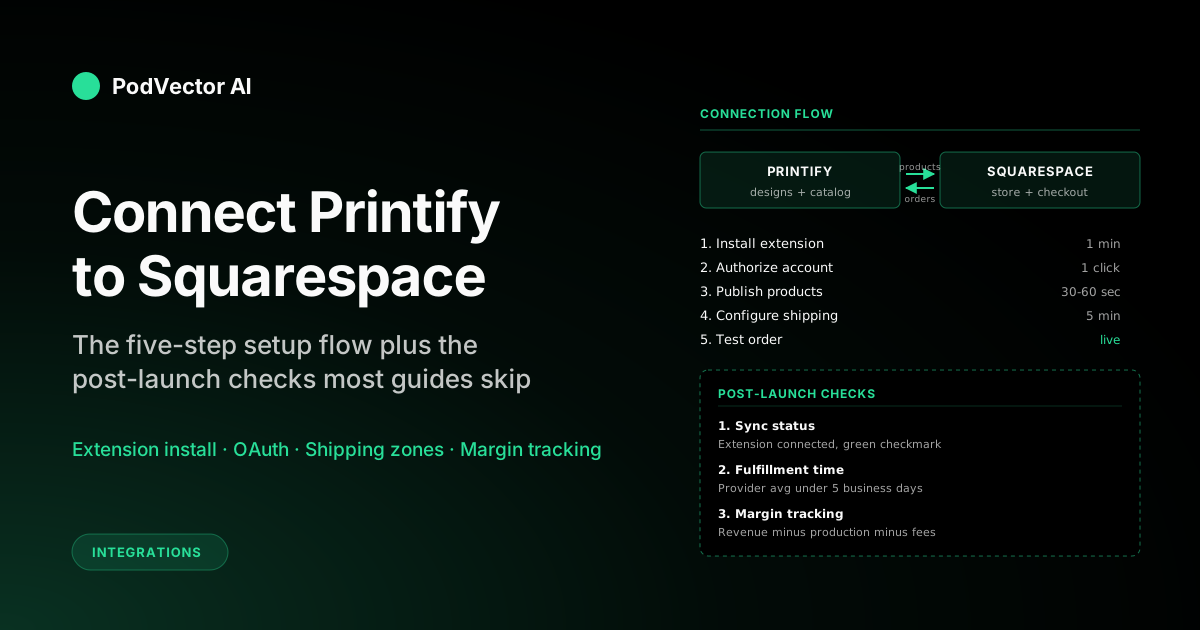
Quick Answer: Connecting Printify to Squarespace takes about ten minutes. Install the Printify extension from Squarespace's marketplace, authorize your Printify account, and publish products — they sync automatically.
You'll need a Squarespace Business, Basic Commerce, or Advanced Commerce plan. The Individual and Personal plans don't support third-party extensions.
This guide covers the full connection flow, shipping setup, and the post-launch checks most guides skip — the ones that catch broken orders before customers notice.
What You Need Before Connecting
Two accounts and the right Squarespace plan. That's the checklist. But the plan requirement trips up more people than you'd expect.
A Printify account. Free tier works fine for the connection. You don't need Printify Premium to link Squarespace, though Premium's 20% product discount matters once you're doing volume. If you're new to Printify, start with our complete Printify guide first.
A Squarespace site on Business or Commerce. Squarespace's Personal plan ($16/month) and the legacy Individual plan don't support extensions. You need Business ($33/month), Basic Commerce ($36/month), or Advanced Commerce ($65/month). If you're already selling, Basic Commerce is the sweet spot — it removes the 3% transaction fee that Business charges on top of Stripe/PayPal fees.
At least one product designed in Printify. You can connect the accounts with an empty catalog, but publishing a product immediately after connecting is the fastest way to confirm the sync works. Have a design ready on a Bella+Canvas 3001 or Gildan 18000 before you start.
Step 1: Install the Printify Extension
Log into your Squarespace dashboard. Click Extensions in the left sidebar, then search for "Printify" in the marketplace.
Click Add to Squarespace on the Printify extension tile. Squarespace will ask you to confirm the connection and which site to install it on (if you have more than one). Select your store site and confirm.
The extension installs instantly. No page refresh needed. You'll see a confirmation banner at the top of your dashboard.
Step 2: Connect Your Printify Account
After installing the extension, Squarespace redirects you to Printify's authorization page. If you're already logged into Printify, the connection happens in one click. If not, log in first.
Printify asks for permission to create and manage products on your Squarespace store. This is the standard OAuth handshake — Printify gets write access to your product catalog and read access to incoming orders. Click Authorize.
Once authorized, your Printify dashboard will show Squarespace as a connected store under Manage My Stores. The green checkmark means the API link is live and syncing.
Step 3: Create and Publish Products
In your Printify dashboard, open the product you want to sell (or create a new one). Click Publish in the top right. Select your Squarespace store from the dropdown.
Printify pushes the product title, description, all variant images, and pricing to Squarespace. This usually takes 30–60 seconds. Larger catalogs with 50+ variants can take a few minutes.
Check the product on your Squarespace site after publishing. The variants, images, and prices should match exactly what you set in Printify. If anything looks off, edit in Printify and re-publish — Printify is the source of truth for product data.
One thing the WhatSquareSpace guide gets right: always edit products in Printify, not in Squarespace's product editor. Edits made in Squarespace get overwritten the next time Printify syncs.
Step 4: Set Up Shipping Zones
This is where most new POD sellers get stuck. Printify handles fulfillment, but you set the shipping rates your customers see at checkout. Squarespace doesn't auto-import Printify's shipping costs.
Go to Commerce → Shipping in your Squarespace dashboard. Create shipping zones for the regions you sell to — typically US, Canada, EU, and Rest of World.
For each zone, set a flat rate that covers your average Printify shipping cost plus a small margin. Most US-based print providers charge $4–$6 for a single t-shirt domestically. A flat $5.99 US shipping rate covers the cost without sticker shock. For international, $9.99–$12.99 is typical.
Alternatively, offer free shipping and bake the cost into your product price. Free shipping converts better on Squarespace — there's no "surprise" at checkout. Just add $5–$6 to each product's retail price and set shipping to $0.
Step 5: Place a Test Order
Before you announce anything, buy something from your own store. Squarespace's test mode lets you place orders without charging your card on Commerce plans. Use it.
What you're checking: the order appears in both Squarespace's order dashboard and Printify's order queue within five minutes. If it shows up in Squarespace but not Printify, the API connection dropped — reconnect in Step 2.
Also check that the customer-facing order confirmation email shows a reasonable estimated delivery window. Printify POD orders typically take 2–5 business days for production plus shipping transit. If your Squarespace confirmation says "ships in 1 day," fix your fulfillment time estimate in Commerce settings.
How the Fulfillment Flow Actually Works
Understanding the data flow prevents most support headaches. Here's the actual sequence once a customer buys from your Squarespace store.
Customer places order on Squarespace. Squarespace processes payment through your connected payment processor (Stripe or PayPal). The order enters your Squarespace dashboard as "Pending Fulfillment."
Printify picks up the order automatically. The extension polls for new orders every few minutes. Once Printify sees it, the order moves to the print provider you selected during product creation. No manual forwarding needed.
The print provider produces and ships. Production takes 2–5 business days for most products. The provider uploads a tracking number to Printify, which pushes it back to Squarespace. Your customer gets a shipping notification with tracking.
The entire chain is hands-off after setup. The only time you intervene is when something breaks — a canceled order, an address correction, or a failed sync between platforms. For a full list of Printify's supported channels, see our Printify integrations hub.
Squarespace Plan Costs for POD Sellers
Squarespace's pricing looks simple until you factor in transaction fees. Here's what each plan actually costs a POD seller doing $2,000/month in revenue.
Business ($33/month): 3% transaction fee on top of Stripe's 2.9% + $0.30. At $2,000/month, that's $60 in Squarespace fees alone — plus ~$88 in payment processing. Total platform cost: ~$181/month.
Basic Commerce ($36/month): 0% transaction fee. Same $2,000/month costs ~$88 in payment processing plus the $36 plan. Total: ~$124/month. You save $57/month over Business just by upgrading $3.
Advanced Commerce ($65/month): Same 0% transaction fee, but adds abandoned cart recovery, subscription selling, and advanced shipping rules. Worth it once you're past $5,000/month and need the recovery emails pulling back lost carts.
For most POD sellers starting on Squarespace, Basic Commerce is the right plan. The $3 difference from Business pays for itself after your first $100 in monthly sales.
What to Watch After Launch
The connection is live. Products are synced. Test order went through. Now what? Most guides stop here. That's a mistake.
Check sync status weekly. Squarespace extensions can silently disconnect after platform updates. A quick check: go to Extensions in your dashboard and confirm Printify still shows "Connected." If it says "Reconnect," re-authorize immediately — any orders placed during the disconnect won't reach Printify.
Monitor production times by provider. Not all Printify print providers ship at the same speed. If your average fulfillment time creeps past five business days, switch providers for that product. Customers on Squarespace expect the same speed as Shopify or Etsy stores.
Track your real margins. Your Squarespace revenue dashboard shows gross sales. It doesn't subtract Printify's production cost, shipping cost, or payment processing fees. You need to calculate net margin per product yourself — or let an AI employee like Victor pull your Squarespace sales and Printify costs into one view and flag when a product's margin drops below your floor.
Watch for price drift. If you update a product price in Printify and re-publish, the Squarespace listing updates. But if you edited the price directly in Squarespace, the next Printify sync overwrites it. Pick one system as the price source of truth and stick with it. Printify is the safer choice.
Common Connection Issues and Fixes
Extension won't install. You're on a Personal plan. Upgrade to Business or any Commerce plan. The Extensions tab doesn't even appear on Personal.
Products stuck in "Publishing." Usually a timeout. Check that your Squarespace site is live (not in trial mode with an expired trial) and that you haven't hit Squarespace's product limit. Business plans allow unlimited products, but trial accounts cap at a handful.
Orders not reaching Printify. Re-authorize the extension. Go to Extensions → Printify → Disconnect, then reconnect. If that doesn't fix it, check Printify's status page — outages on their API side are rare but do happen 2–3 times a year.
Shipping rates showing $0. You haven't set up shipping zones in Squarespace. Printify doesn't push shipping rates — you configure them manually. See Step 4 above.
Variant images not displaying. Squarespace sometimes drops variant images during the first sync. Re-publish the product from Printify. If images still don't appear, check the image file sizes — Squarespace has a 20 MB per image limit, and some Printify mockups with multiple angles can exceed it.
FAQs
Can I connect Printify to Squarespace's Personal plan?
No. Squarespace's Personal plan doesn't support third-party extensions. You need Business ($33/month), Basic Commerce ($36/month), or Advanced Commerce ($65/month). Basic Commerce is the best value for POD sellers because it eliminates the 3% transaction fee.
Does Printify Premium work with Squarespace?
Yes. Printify Premium ($29.99/month) gives you up to 20% off production costs on every provider, regardless of which sales channel you use. It's worth it once you're consistently selling 20+ items per month — the discount pays for itself quickly at that volume.
Can I sell on Squarespace and Etsy at the same time through Printify?
Yes. Printify supports multiple connected stores simultaneously. You can publish the same product to Squarespace, Etsy, Shopify, and other channels from one Printify catalog. Each store syncs independently.
What happens if Squarespace and Printify disconnect?
Products already on your Squarespace site stay there — they don't disappear. But new orders won't route to Printify for fulfillment. You'll see orders pile up as "Pending Fulfillment" in Squarespace with nothing appearing on the Printify side. Reconnect immediately if this happens.
How long does Printify take to fulfill Squarespace orders?
Production typically takes 2–5 business days, depending on the print provider and product type. Apparel (t-shirts, hoodies) averages 3 business days. Accessories (mugs, phone cases) average 2. Add shipping transit time on top — 3–7 business days domestically, 7–21 internationally.
Let Victor Run Your POD Operations
Connecting Printify to Squarespace is step one. Managing margins, tracking fulfillment times, and catching sync failures across channels is the ongoing work. Victor is an AI employee that runs your Squarespace, Printify, and ad operations — flagging margin drops, re-routing failed orders, and reallocating ad spend — with your approval before every material action.
Try Victor free