
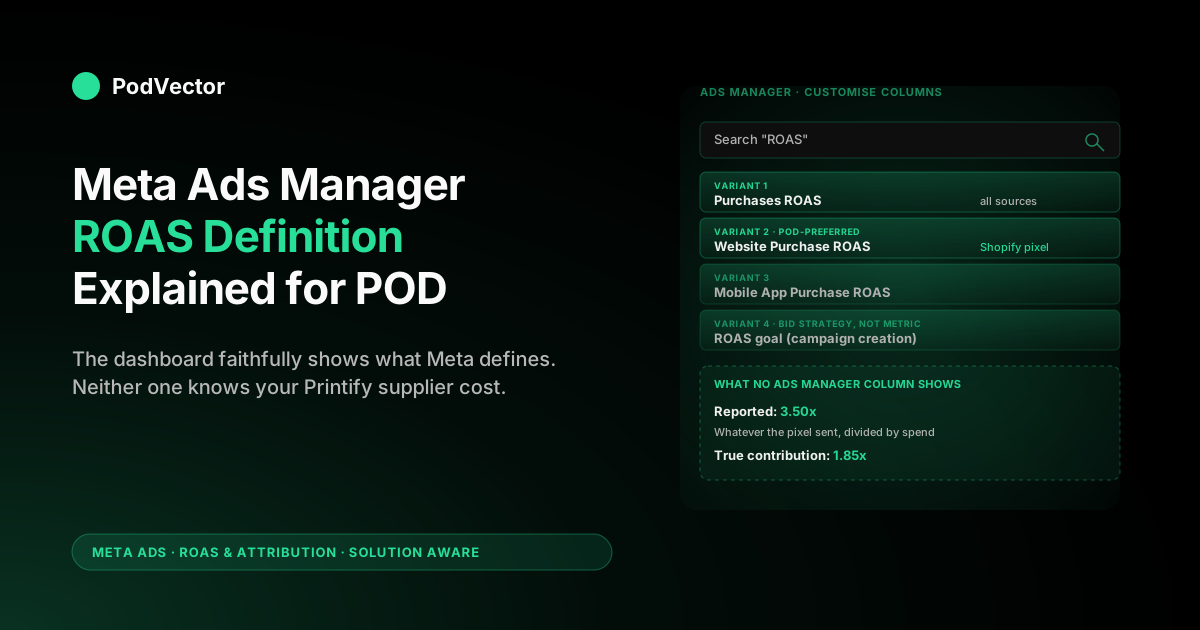
Quick Answer: Inside Ads Manager, ROAS is the column that divides attributed purchase value by ad spend. Meta's Help Center defines the metric — but the number you actually see in the column depends on three Ads Manager settings most operators never touch: the attribution window, the column variant chosen (Purchases vs Website Purchase vs Mobile App), and the value parameter your pixel sends.
For print-on-demand sellers, the bigger problem is that Ads Manager only knows about the value your store sent. It has no view of Printify or Printful supplier cost, so the ROAS shown in the dashboard runs roughly 1.7–2.0x higher than your true contribution ROAS. This guide walks the exact Ads Manager UI, what each setting does, and how to read the column honestly for a POD account.
The Help Center definition Ads Manager applies
The Meta Business Help Center page on Purchases ROAS defines the metric in one line: "The total return on ad spend (ROAS) from purchases. This is based on information received from one or more of your connected Meta Business Tools and attributed to your ads."
The arithmetic is straightforward. Total attributed conversion value divided by total ad spend. A campaign that spent $500 and drove $1,750 in attributed purchase value reads 3.50 in the ROAS column.
The phrase "attributed to your ads" is doing the heavy lifting. Only purchases falling inside the campaign's chosen attribution window get counted, and the value Meta sees is whatever your pixel or Conversions API integration sent with the Purchase event.
For the deep dive on what each Help Center page actually says — Purchases ROAS, Website Purchase ROAS, Mobile App Purchase ROAS, and ROAS goal — see the sibling guide on Meta Ads ROAS Definition Help Center Explained for POD Sellers. This article focuses on the dashboard itself: where ROAS shows up, what knobs change it, and how to read it for a POD store.
Finding ROAS in the Ads Manager column picker
A freshly created Ads Manager view does not include any ROAS column. The default column set shows Reach, Impressions, CPC, CTR, and a few others — but not ROAS. You add it manually.
The path is Columns → Customise columns from the dropdown above the campaign table. A two-pane builder opens. The left pane lists every available metric grouped by category; the right pane shows your current column set in display order.
Type "ROAS" into the search box on the left. Meta surfaces five or six entries: the four ROAS variants plus a couple of conversion-value metrics that report only the numerator without dividing by spend. Drag the variant you want into the right pane, click Apply, and the column appears.
One detail most operators miss the first time. Ads Manager remembers your column layout per ad account, not per user. If three teammates share one ad account, whoever last clicked Apply set the layout for everyone — including yourself the next time you log in.
Which ROAS column to add: the four variants compared
Meta exposes four ROAS variants in the column picker, and each one measures a slightly different slice of the same formula. Picking the wrong one is the single most common cause of ROAS confusion in a POD account.
Purchases ROAS is the umbrella metric. It rolls together every purchase event Meta receives — pixel, Conversions API, app SDK, offline conversion uploads. If any of those sources fires duplicate or test events, this column inflates accordingly.
Website Purchase ROAS is narrower. It only counts revenue from purchase events fired on a website (Pixel or CAPI from your Shopify store). For Shopify-only POD stores with no app or offline integration, this is the cleanest column to read.
Mobile App Purchase ROAS only counts purchases fired through the Facebook SDK inside a mobile app. Almost no POD seller needs this column unless you've built a branded shopping app, which is rare below seven-figure annual revenue.
ROAS goal is not a reporting column at all — it's a bid-strategy setting at the ad set level. The Help Center documents it on the same surface as the metrics, which is why it shows up in column-picker search results, but it never displays a number in your campaign view.
For most POD accounts, Website Purchase ROAS is the right anchor. It isolates Shopify-attributed revenue and excludes any noise from offline upload conversions or app SDK events you might be testing.
The attribution window dropdown changes the number
The same campaign can show two different ROAS numbers depending on which attribution window the dashboard is using. The dropdown sits at the top-right of the campaign table, just below the date range selector. Most operators ignore it for months.
Meta's current default is 7-day click plus 1-day view. Older accounts may still default to 7-day click plus 1-day engagement. The Help Center exposes additional options: 1-day click, 7-day click only, and (in the comparison view) several windows side by side.
Changing the dropdown does not re-run any campaign. It re-attributes existing data. A 7-day-click ROAS reading 4.2x can drop to 3.1x at 1-day click on the same week — the longer window catches more conversions and credits them to ads users clicked earlier.
For POD specifically, a wider window often inflates ROAS more than for tighter-conversion verticals. Apparel buyers research, abandon, and return over multi-day cycles, so 7-day click captures purchases the user might have made anyway. Operators tracking incremental performance often prefer 1-day click for honesty, even though the column reads worse.
Reading ROAS through Ads Manager breakdowns
The Breakdown menu (next to Columns) splits any metric, including ROAS, by demographic, placement, time, or delivery dimension. This is where Ads Manager becomes a useful diagnostic tool — and where most operators discover that account-level ROAS hides massive variation underneath.
The most informative breakdowns for POD ROAS analysis are By Age, By Gender, By Placement, By Country, and By Day. Each one re-aggregates ROAS across that dimension, so you can see whether your 4.0x blended ROAS is being held up by a single demographic slice or distributed evenly.
POD sellers running broad apparel offers usually find that placement breakdowns reveal the biggest spread. Facebook Reels delivers cheap impressions but mediocre purchase intent; Instagram Feed and Stories tend to convert better on apparel. A campaign reading 3.8x blended often hides a 5.5x Instagram Feed and a 2.1x Reels mix.
Time-of-day and day-of-week breakdowns matter for cash-flow planning but rarely change strategic decisions on small POD accounts. Country breakdowns matter a lot — Printify and Printful supplier costs differ by ship-to country, so a 4x ROAS in the US is a different profit profile than 4x ROAS shipping to the UK or Australia.
Using the comparing-windows view honestly
Ads Manager includes a comparison view inside the attribution dropdown labelled "Compare attribution settings." Selecting it pins multiple windows side by side — typically 1-day click, 7-day click, and the default — so you can see how the same campaign reads under different attribution rules.
This view is the closest Meta gets to admitting attribution is a choice rather than a measurement. The number that "is" your ROAS depends on which column you trust, and the comparison view lets you set that policy with eyes open.
For POD operators, the practical workflow is to anchor reporting on 1-day click for incremental decisions and use the 7-day click column as a secondary check. If a campaign performs at 4.0x on 7-day click but 1.8x on 1-day click, most of its credit is coming from purchases that probably would have happened anyway.
The comparison view also exposes a less-obvious behaviour. Total ROAS rarely equals the sum or average of its component windows because the same conversion can attribute to multiple campaigns under different rules. The math is internally consistent inside Meta's system but doesn't reconcile cleanly with what your store sees.
Custom metrics: building a POD-aware ROAS column
Ads Manager supports custom metrics — formulas you build out of existing fields. This is the in-platform mechanism for getting closer to a POD-relevant ROAS, though it has limits.
Open Columns → Customise columns → Create custom metric. The builder lets you define a numerator, a denominator, and a formula. The available numerators include all purchase value variants and any standard or custom conversion event you've defined.
The most useful POD custom metric is a contribution-margin ROAS approximation. If your pixel sends a custom contribution_value parameter alongside the standard Purchase event (most warehouse-driven setups can do this), build a custom metric of contribution_value ÷ spend and surface that column instead of Website Purchase ROAS.
The limit: Ads Manager can only build metrics from data Meta already received. If your pixel never sent contribution value, no custom metric inside Ads Manager can recover it. The fix is upstream — at the pixel or CAPI layer — and we cover that in how to increase ROAS on Meta Ads (step-by-step).
ROAS goal as a campaign-creation setting
ROAS goal lives in the campaign-creation flow, not the reporting view. When you create a sales campaign with value optimisation enabled, the ad set level exposes a "ROAS goal control" field where you enter a target.
The Help Center documents the input range as 0.001 to 1,000.00. The number you enter tells Meta the average ROAS you want the campaign to deliver. The auction algorithm then bids dynamically, pulling spend back when the running average drops below goal and pushing harder when it sits above.
The ad set must meet eligibility for value optimisation — typically 50+ purchase events in the past 7 days, plus a working pixel sending value parameters with every Purchase event. Most POD stores under $30K monthly revenue sit below the threshold, and Meta either disables ROAS goal or runs it on borrowed signal from the broader account.
One Ads Manager UX detail to note. If you set a ROAS goal too high relative to what the auction can deliver — say 8.0x on a market that delivers 3.5x — Ads Manager does not warn you at campaign creation. Delivery throttles silently in the days that follow, and the symptom looks like a budget that won't spend rather than a misconfigured goal.
What Ads Manager will never show a POD seller
The Meta Help Center definition is technically accurate. The Ads Manager UI is faithful to the definition. The combination is still operationally misleading for POD because the value Ads Manager has access to is not the value your business actually earned.
Three POD-specific blind spots that no Ads Manager column, breakdown, or custom metric can resolve:
- No supplier cost. Printify and Printful invoice you per fulfilled order, with cost varying by garment, print method, size, color, and ship-to country. Ads Manager has no field to receive that data, so 50–70% of the reported revenue is actually flowing to the supplier.
- No refund or return adjustment. Apparel return rates run 8–14% across DTC, and POD's are similar. Meta supports refund events through CAPI, but the Shopify-Meta default integration does not send them. Reported ROAS includes orders that were already refunded, for at least the 30-day return window.
- No payment-fee deduction. Shopify Payments takes roughly 2.9% + $0.30 on every order. Ads Manager has no view of that line item, so reported ROAS treats it as part of recoverable revenue when it isn't.
The cumulative effect is predictable. A POD campaign reading 3.5x in Ads Manager typically lands at 1.8–2.0x once you reconcile against the bank account. The Ads Manager number is an upper bound on profitability, not a measurement of it.
For a step-by-step on how to bridge that gap, including the math on break-even ROAS for a typical POD store, see the complete guide to Meta Ads ROAS and attribution for POD.
Common Ads Manager mistakes that distort POD ROAS
Most POD accounts read ROAS slightly wrong inside Ads Manager because of a small set of UI defaults that nobody overrode. Each one is a five-minute fix once you know it's there.
Comparing campaigns at different attribution windows. If you switched the account default from 7-day click to 1-day click partway through the year, campaigns running before the switch read at the old default and after at the new one. Anchor every cross-period comparison on the same window through the dropdown.
Reading Purchases ROAS while running offline conversion tests. Any test offline conversions you uploaded count toward Purchases ROAS but not Website Purchase ROAS. Switch to Website Purchase ROAS during testing and switch back when you've cleaned up.
Not deduplicating between Pixel and CAPI. If you've enabled both client-side Pixel and server-side CAPI without proper event ID matching, the same purchase fires twice and ROAS reads roughly 2x reality. The fix is in the CAPI integration layer, not Ads Manager itself.
Using broad date ranges across creative refreshes. A 30-day ROAS column blends old and new creative, often masking a recent crash with healthy numbers from the prior cycle. Use 7-day and 14-day ranges for active monitoring; reserve 30-day for trend lines only.
For a wider walkthrough of getting honest performance data out of Meta, see the cluster article on how to boost ROAS on Meta Ads — 2026 best practices and the topic-level complete Meta Ads playbook for print-on-demand sellers.
FAQs
What does Ads Manager mean when it shows a ROAS number?
It means total attributed purchase conversion value divided by total ad spend, where "attributed" depends on the attribution-window dropdown and "purchase value" depends on what your pixel sent. The Meta Help Center defines the metric this way across its Purchases ROAS, Website Purchase ROAS, and Mobile App Purchase ROAS pages.
Why does my Ads Manager ROAS column not match my Shopify revenue?
Two reasons. Ads Manager only counts purchases that fall inside the chosen attribution window — anything outside that window is invisible to the column. And Ads Manager only sees the value parameter your pixel or CAPI sent with each Purchase event, not your Shopify order ledger directly. Both filters are mechanical, not bugs.
How do I add the ROAS column in Meta Ads Manager?
Click Columns → Customise columns above the campaign table. Search "ROAS" in the left panel, drag Website Purchase ROAS into the right panel, and click Apply. The column will respect your account's default attribution window unless you override it per report.
What's the difference between Purchases ROAS and Website Purchase ROAS in Ads Manager?
Purchases ROAS rolls together every purchase source Meta knows about — pixel, CAPI, app SDK, offline conversion uploads. Website Purchase ROAS only counts purchase events fired on a website (Pixel or CAPI from Shopify). For Shopify-only POD stores, the two are functionally identical until you start uploading offline conversions or test events.
Can I see true contribution ROAS inside Ads Manager?
Only if you've upstream-fixed the value parameter your pixel sends. Ads Manager can build custom metrics from received data — it cannot calculate contribution from data it never received. The fix is sending contribution value (subtotal minus supplier cost minus payment fees) through a server-side CAPI integration or a unified data warehouse, then surfacing that custom field as a column.
What ROAS should a POD seller target inside Ads Manager?
Most healthy POD apparel accounts running default Shopify-pixel value send a 3.5x–5.0x reported ROAS in Ads Manager, which translates to roughly 1.8x–2.5x true contribution ROAS after supplier cost. Below 3.5x reported is usually loss-making at typical POD margins. For benchmarks see what is a good ROAS for Meta Ads.
Why does the same campaign show different ROAS at different attribution windows?
Wider attribution windows credit more conversions to ads. A 7-day-click window catches purchases the user clicked seven days ago and bought today; 1-day click only counts same-day purchases. Switching the dropdown re-attributes existing data — it doesn't re-run anything. Most POD operators anchor on 1-day click for incrementality and 7-day click as a secondary check.
Does Meta's Help Center cover Printify and Printful supplier cost?
No. The Help Center pages are written for a generic advertiser. Meta's data boundary stops at the Purchase event value parameter, and supplier cost lives outside that boundary in your Printify or Printful invoicing. Bridging the gap is operational work for the seller, not a Meta UI feature.
What happens if I set the ROAS goal too high in Ads Manager?
Delivery throttles silently. Meta's docs note: "If your ROAS goal value is set too high for Facebook to meet, delivery may sometimes stop and your budget may not be spent in full." There is no warning at campaign creation — the symptom looks like an underspending budget rather than a misconfigured goal. Setting a goal of 8.0x on a market that naturally delivers 3.5x results in starved campaigns.
Want Ads Manager to show you ROAS that matches your bank account?
Meta's Help Center defines ROAS as conversion value divided by ad spend. Ads Manager faithfully shows that number. Neither one knows your Printify or Printful supplier cost. Victor connects your Shopify orders, supplier invoices, and Meta ad spend in a unified data warehouse, so you can ask in plain English ("which Meta campaigns lost money last week after supplier cost?") and get the answer from live data — the contribution-margin ROAS Ads Manager will never show.
Try Victor free