
Quick Answer: Meta's Help Center defines ROAS as total purchase conversion value divided by ad spend, attributed to your ads through one or more connected Meta Business Tools. The same definition is repeated across four separate Help Center pages — Purchases ROAS, Website Purchase ROAS, Mobile App Purchase ROAS, and ROAS goal — each measuring a slightly different slice of the same calculation.
For print-on-demand sellers, the Help Center definition is technically accurate and operationally misleading. Meta's ROAS counts revenue at the value parameter your pixel sends — usually the order subtotal — and ignores Printify or Printful supplier cost, shipping, payment fees, and refunds. A 3.5x reported ROAS routinely lands at 1.8–2.4x once the supplier line items come out, and Meta's docs do not say so.
What the Meta Help Center actually says about ROAS
The canonical Meta Help Center definition appears on the Purchases ROAS page. It reads: "The total return on ad spend (ROAS) from purchases. This is based on information received from one or more of your connected Meta Business Tools and attributed to your ads."
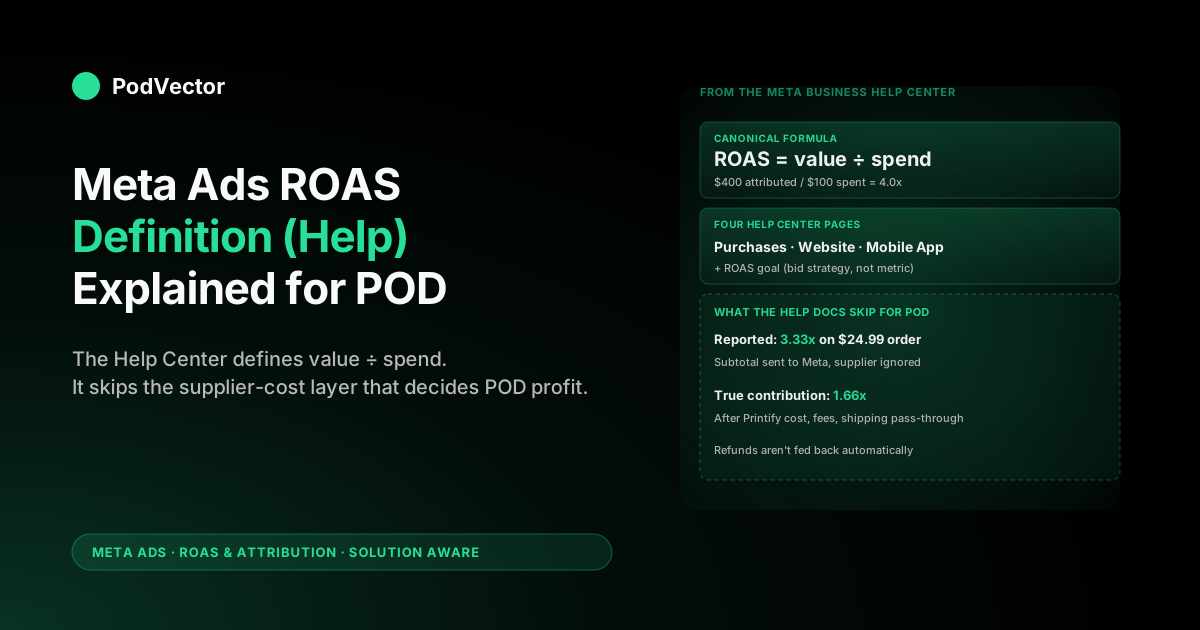
The arithmetic underneath is straightforward. ROAS equals attributed conversion value divided by ad spend. Spend $100, drive $400 in attributed purchase revenue, and the metric reads 4.0 — meaning $4 of revenue per $1 spent.
The phrase doing the heavy lifting is "attributed to your ads." Meta only counts a sale's value toward ROAS if the buyer's behaviour matches the campaign's attribution window. The current 2026 default is 7-day click plus 1-day engage-through plus 1-day view, and only purchases falling inside one of those windows show up in the column.
"Conversion value" means whatever number your pixel, CAPI, or offline conversion upload sent with the purchase event's value parameter. The Help Center does not specify what that value should be. Most Shopify stores send the order subtotal by default, which is the source of every accounting mismatch covered later in this guide.
For broader strategic context — how the definition fits with attribution windows, CAPI, and per-SKU profitability inside one POD account — see the cluster pillar at the complete guide to Meta Ads ROAS and attribution for POD. This article focuses on what Meta's docs say, what they skip, and what changes when "the advertiser" is a POD seller.
The four ROAS metrics in Meta's Help Center
Meta does not have a single ROAS page. The Help Center splits the metric across four separate articles, each describing a slightly different slice of the same formula. POD sellers using Ads Manager see all four in the column picker and need to know which one to read.
Purchases ROAS. The umbrella metric covering revenue from any purchase event Meta receives, regardless of source. It rolls together website purchases, app purchases, and offline purchases that you uploaded or sent through the Conversions API. This is the one most POD dashboards default to.
Website Purchase ROAS. Narrower. Only counts revenue from Pixel or CAPI purchase events fired on a website — your Shopify store, in practice. If your only sales channel is Shopify and you have no app or offline events, Website Purchase ROAS and Purchases ROAS are functionally identical.
Mobile App Purchase ROAS. Only counts revenue from purchase events fired through the Facebook SDK inside a mobile app. Almost no POD seller needs this column unless you've built a branded shopping app, which is rare below seven-figure annual revenue.
ROAS goal. Not a reporting metric — it's the name of a bid strategy. The Help Center page describes it as a goal you set, not a number Ads Manager reports. We cover it separately below.
For most POD accounts, Website Purchase ROAS is the right column to anchor on because it isolates Shopify-attributed revenue and excludes any noise from offline upload conversions or app SDK events you might be testing.
Where each ROAS metric lives in Ads Manager
The default Ads Manager column set does not include any ROAS variant on a freshly created campaign. You add them manually through the Columns dropdown above the campaign table.
Click Columns → Customise columns, then search for "ROAS" in the left-hand panel. Meta surfaces all four variants, plus a handful of conversion-value columns that report the numerator only (without dividing by spend). Drag Website Purchase ROAS into the right-hand pane, click Apply, and the metric appears in your campaign view.
Two practical notes most operators learn the hard way. First, the column displays an attribution-window-aware number — toggling the attribution comparison view can change the same campaign's ROAS by 20–40% in either direction without any underlying performance change.
Second, Ads Manager applies the account-level default attribution window unless you override per-report. If you've changed the default to 1-day click for cleaner signal, every ROAS column you add reflects that narrower window — and you'll see lower numbers than someone running 7-day click on the same data.
For the step-by-step on attribution windows themselves, see the upcoming cluster article on how to calculate ROAS in Meta Ads (step-by-step).
ROAS goal: Meta's bid strategy explained
The fourth Help Center page about ROAS describes ROAS goal — a bid strategy, not a metric. Meta defines it as "a goal for the average ROAS you'd like to achieve," and the system "dynamically bids to maximize results around that goal." It replaced the older Minimum ROAS bid strategy as the default for value-based bidding.
The mechanics are simple. You set a ROAS goal (Meta accepts values between 0.001 and 1,000.00). The auction algorithm bids to deliver an average ROAS hovering around that target across the campaign's lifetime, pulling spend back when the running average drops below goal and pushing harder when it sits above.
The Help Center notes one important constraint: "If your ROAS goal value is set too high for Facebook to meet, delivery may sometimes stop and your budget may not be spent in full." Setting a goal of 8.0x on a market that delivers 3.5x naturally results in starved campaigns, not magical performance.
For ROAS goal to function at all, Meta requires a working Pixel or Facebook SDK with conversion events firing, plus eligibility for value optimisation (typically 50+ purchase events in the past 7 days at the ad set level). Most POD stores under $30K monthly revenue sit below the threshold and Meta either disables the option or runs it on borrowed signal.
The honest read: ROAS goal works best when you have enough volume to teach the algorithm what "good" looks like, and when the value parameter you send approximates real profit. If your pixel sends order subtotal — which the default Shopify integration does — ROAS goal optimises toward the wrong objective, and we cover that next.
What the Help Center leaves out for POD sellers
Meta's docs are written for a generic ecommerce advertiser. The mechanic is platform-agnostic by design, and three POD-specific concerns are absent from every ROAS page.
The value parameter is whatever you send. The Help Center never specifies what should populate the purchase event's value field. Shopify's default Meta Pixel integration sends the order subtotal — gross merchandise value before any cost. ROAS calculated against that number is GMV-ROAS, not profit-ROAS, and a POD store at 25% contribution margin reads it as roughly 4x more optimistic than reality.
No supplier cost feedback. Printify and Printful invoice you per fulfilled order, and the supplier cost varies by garment, print method, size, color, and ship-to country. Meta has no mechanism to receive that data. Every sale's reported ROAS treats the entire subtotal as revenue available to the campaign, when in reality 50–70% of it goes to the supplier.
No refund or return adjustment by default. Apparel return rates run 8–14% across DTC, and POD's are similar. Meta supports refund events through CAPI, but the Shopify-Meta default integration does not send them. ROAS columns therefore include revenue from orders that were already refunded, inflating the number for at least the 30-day return window.
For most POD sellers running the default integration, all three gaps compound: subtotal-not-profit value, no supplier cost, no refund feedback. The Meta-reported ROAS is an upper bound on profitability, not a measurement of it.
Reported ROAS vs true contribution ROAS
The gap between what Meta reports and what your bank account reflects has a name in the analytics community: reported ROAS vs true contribution ROAS. The math sits on top of Meta's definition rather than replacing it.
Reported ROAS = attributed conversion value (from pixel) ÷ ad spend. This is what the Help Center defines and what Ads Manager shows.
True contribution ROAS = (revenue − supplier cost − shipping − payment fees − refunds) ÷ ad spend. This is what your business actually earned per advertising dollar.
For a typical POD apparel order at $24.99 selling price, the math looks like this. Subtotal $24.99. Printify supplier cost ≈ $11.50. Shipping charged to customer $4.99 (passed through, net zero). Shopify payment fee ≈ $1.05. Net contribution per order ≈ $12.44.
If a campaign drove 100 of those orders on $750 ad spend, Meta reports a ROAS of (100 × $24.99) / $750 = 3.33x. The true contribution ROAS is (100 × $12.44) / $750 = 1.66x — exactly half. The Help Center never describes this gap because the gap lives outside Meta's data boundary.
The gap widens for higher-cost SKUs. Hoodies often have 65–70% supplier cost as a percentage of retail; t-shirts run 45–55%. A campaign that mixes both reports a single ROAS that lands somewhere in the middle and matches neither product's actual contribution. For a deeper walkthrough of the SKU-level reconciliation, see the planned cluster article on average ROAS for Meta Ads explained for POD sellers.
Calculating break-even ROAS for a POD store
Once you know the gap exists, the next question is what ROAS number you actually need to hit. The break-even calculation is the floor below which a campaign loses money on every order.
The formula most guides cite is straightforward: Break-even ROAS = 1 ÷ contribution margin percentage. A 30% contribution margin store needs 1 / 0.30 = 3.33x ROAS to cover variable costs. A 20% margin store needs 5.0x.
That formula assumes Meta's reported ROAS equals true ROAS, which we just showed it doesn't for POD. Adjust by the gap factor. If Meta's reported ROAS runs 1.7–2.0x above true contribution ROAS in your account, your reported break-even ROAS is the contribution-margin formula multiplied by that factor.
Example: a POD store running 28% blended contribution margin with a 1.85x reported-to-true gap factor. Contribution break-even = 1 / 0.28 = 3.57x. Reported break-even = 3.57 × 1.85 = 6.6x. Meta's dashboard needs to show 6.6x for the campaign to actually break even on contribution.
Most POD accounts sit nowhere near 6.6x. The first month of running this calculation honestly is uncomfortable for almost everyone — and it's also the first time the operator has accurate data to make budget decisions on.
Benchmarks: what "good" ROAS means for POD
The benchmark guides ranking for ROAS-related queries cite numbers like "ecommerce should target 4:1" or "good ROAS is 4–10x." Those numbers come from generic ecommerce — DTC brands at 60–75% gross margin selling skincare, supplements, or owned-warehouse apparel. They don't translate to POD.
POD-specific reported ROAS bands, after we account for the supplier-cost gap:
- Below 2.0x reported: losing money on contribution for almost every margin profile. Pause the campaign or rebuild creative.
- 2.0x–3.5x reported: below break-even for most stores; possibly viable for accounts with abnormally high margin SKUs (mugs, posters, low-cost apparel).
- 3.5x–5.0x reported: the typical "working" zone for healthy POD apparel. Probably profitable at the contribution level, depending on SKU mix and refund rate.
- 5.0x+ reported: healthy. Scale-friendly territory, assuming the metric is stable across attribution windows and not driven by one viral SKU.
These bands assume the default Shopify-to-Meta integration sending order subtotal as the value parameter. If you've already switched to sending contribution margin (via a custom CAPI setup or warehouse-driven feed), shift every band down by a factor of 2 — true contribution ROAS reads at half the reported number for typical POD margin profiles.
One split the generic 2026 benchmark tables gloss over: cold prospecting and retargeting live in different ROAS worlds. Retargeting warm audiences routinely posts 5x–15x reported, because you're paying to reconvert people who already know the brand.
Cold prospecting on the same account often runs 1.5x–3x reported. Blending the two into one account-level number hides which half is actually funding the business — and for POD, the cold-prospecting half is usually the one bleeding contribution.
For the broader benchmark conversation by funnel stage, see the planned what is a good ROAS for Meta Ads article in this cluster.
Fixing the value parameter Meta optimises against
The single highest-leverage change for any POD seller serious about Meta ROAS is fixing the value parameter your pixel sends. Meta optimises bids, audience selection, and ROAS goal toward whatever number you tell it the order is worth. Tell it the truth and the algorithm gets dramatically better at finding profitable conversions.
The mechanic is the value parameter on every Purchase event sent through the Pixel or CAPI. The default Shopify-Meta integration populates it with the order subtotal. The right value is the contribution margin per order — subtotal minus supplier cost minus payment fees, calculated at the moment the order is placed.
Two implementation paths. The DIY path: build a server-side webhook that fires on Shopify's order/create event, looks up each line item's Printify or Printful cost (via the supplier API), calculates the contribution, and fires a CAPI Purchase event with the corrected value. Doable. Maintenance burden grows with every supplier you add and every SKU price change.
The warehouse path: pipe Shopify orders, supplier cost data, and ad spend into a unified data warehouse (Snowflake, Redshift, Databricks, or a managed equivalent), calculate contribution there, and stream corrected purchase events to Meta CAPI from the warehouse. Heavier setup, but the same warehouse powers ROAS reporting, refund feedback, and per-SKU profitability dashboards — none of which Meta's default integration can deliver.
Either way, the moment Meta's value parameter approximates contribution rather than subtotal, the Help Center definition of ROAS starts to match what your business actually earned.
FAQs
What does Meta's Help Center define as ROAS?
Total return on ad spend from purchases, calculated as attributed conversion value divided by ad spend. The definition appears on Meta's Purchases ROAS, Website Purchase ROAS, and Mobile App Purchase ROAS Help Center pages, with the only difference being the source of the purchase event (any source, web, or mobile app respectively).
How is Meta Ads ROAS calculated?
Conversion value divided by ad spend. If a campaign spends $100 and drives $400 in attributed purchase value, ROAS = 4.0 — Meta surfaces this as "4.00" in the column. The "conversion value" is the value parameter your pixel or CAPI sent with each Purchase event, so the calculation is only as accurate as the value you fed in.
What's the difference between Purchases ROAS and Website Purchase ROAS?
Purchases ROAS rolls together every purchase source Meta knows about — pixel, CAPI, app SDK, offline conversion uploads. Website Purchase ROAS only counts purchase events fired on a website (Pixel or CAPI from your Shopify store). For Shopify-only POD stores with no app or offline integration, the two metrics are identical.
What is ROAS goal in Meta Ads?
A bid strategy where you set a target ROAS and Meta dynamically bids to maintain that average across the campaign. Meta accepts values between 0.001 and 1,000.00. Setting it too high relative to what the auction can deliver causes delivery to throttle and your budget to underspend, per Meta's own documentation.
Why does my Meta-reported ROAS overstate POD profitability?
The default Shopify pixel sends order subtotal as the conversion value. Meta has no visibility into Printify or Printful supplier cost, shipping, payment fees, or refunds. A reported 3.5x ROAS at typical POD margins (25–30% contribution) lands at 1.6–1.9x true contribution ROAS once those costs come out.
What's a good Meta Ads ROAS for a POD store?
3.5x–5.0x reported is the typical "working" zone for POD apparel using the default subtotal-as-value setup. Below 3.5x reported is usually below break-even on contribution. Generic ecommerce benchmarks (4–10x) come from DTC brands at 60–75% gross margin and don't translate to POD without adjustment.
Where do I find the ROAS column in Ads Manager?
It's not in the default column set. Click Columns → Customise columns, search "ROAS" in the left panel, drag Website Purchase ROAS (the right one for most POD stores) into the right pane, and click Apply. The column will respect your account's default attribution window unless you override it per report.
What's the difference between purchase ROAS and blended ROAS?
Purchase ROAS is the in-platform number Meta reports — attributed conversion value divided by spend, counting only the sales Meta claims credit for. Blended ROAS is total store revenue divided by total ad spend across every channel, ignoring attribution windows entirely.
Blended ROAS is harder to fool and closer to what your bank sees, but it still counts subtotal rather than contribution. For POD, the honest metric is blended contribution ROAS: total revenue minus supplier cost, fees, and refunds, divided by total ad spend.
Does Meta's Help Center mention POD or Printify cost?
No. The Help Center pages are written for a generic advertiser. The mechanic — value divided by spend — is the same regardless of vertical, but the value layer (subtotal vs margin), supplier cost feedback, and refund handling are POD-specific concerns that Meta's docs don't address. That's the gap this article fills.
Can I send contribution margin instead of subtotal as Meta's value parameter?
Yes — and it's the highest-leverage change you can make. Either build a server-side CAPI webhook that calculates contribution per order from Shopify and supplier APIs, or pipe everything into a unified data warehouse and stream corrected purchase events from there. Once the value parameter approximates contribution, ROAS goal and Advantage+ start optimising toward profit instead of GMV.
Let Victor run your Meta ads against real contribution, not subtotal
Meta's Help Center defines ROAS as conversion value divided by spend. It never tells you the value your pixel sends is order subtotal — Printify and Printful supplier cost counted as if it were profit.
Victor runs your Meta ads on the real number. He joins Shopify orders, supplier invoices, and ad spend the moment they land, flags the campaigns losing money on contribution, and reallocates spend toward the ones that aren't — asking for your approval before anything changes.
Ask him "which Meta campaigns were unprofitable last week after supplier cost?" and he acts on the answer, not just shows it.
Try Victor free