
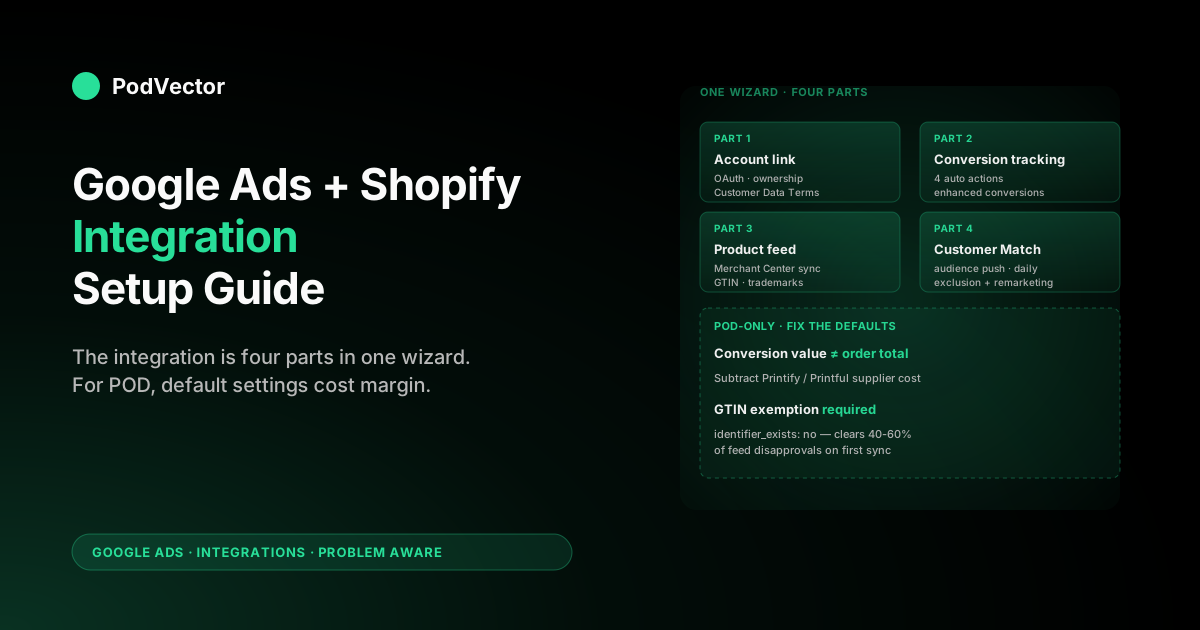
Quick Answer: The Google Ads + Shopify integration is four things bundled into one wizard inside the Google & YouTube channel app: account linking, conversion tracking, product-feed sync to Merchant Center, and customer-list audience push. Install the channel from Shopify admin, sign in with a Google account that owns your Google Ads, accept the four auto-created conversion actions, sync your product feed, and turn on enhanced conversions.
Active setup time is 30–45 minutes; product approval and conversion verification add 24–72 hours of waiting. POD-specific gotchas: order-total conversion value masks Printify and Printful supplier costs, GTIN exemptions need a metafield Shopify doesn't pass by default, and trademark misrepresentation is the single most common feed disapproval.
What the Google Ads + Shopify integration actually is
People say "Google Ads Shopify integration" to mean four different things, and the documentation rarely separates them. Before you start clicking, it's worth ten seconds to know what you're signing up for, because the four pieces have different setup steps, different failure modes, and different value once they're live.
- Account linking. Authorising Google Ads and Shopify to read and write to each other's APIs. This is the foundation; nothing else works without it.
- Conversion tracking. The Google Ads pixel firing on your Shopify checkout success page so Smart Bidding can see which clicks turned into orders. Account linking auto-installs this; the value layer needs separate attention for POD.
- Product feed. Your Shopify catalog flowing into Google Merchant Center as a structured feed so Shopping ads and Performance Max have products to advertise.
- Customer Match audiences. Shopify pushing your customer email list (and, since 2025, behavioural segments) to Google Ads as audience lists for targeting and exclusion.
Since Shopify retired the legacy "Google" app and folded everything into the Google & YouTube channel, all four connections live behind a single OAuth wizard. The trade-off is that the wizard treats them as one linear flow when in practice each piece breaks for different reasons. This guide walks all four with the POD operator's lens: where the defaults work, where they don't, and what you need to fix before scale starts costing you margin you can't see.
If you only need one of the four pieces, jump there directly. The full architectural overview is the cluster pillar: the complete guide to Google Ads + Shopify integration for POD. The conversion-tracking deep dive is at Shopify Google Ads conversion tracking setup. The Merchant Center side is at connect Google Merchant Center to Shopify.
Why POD operators have a different integration than typical Shopify stores
The default Shopify + Google Ads integration was built for retailers who buy inventory at wholesale, hold it in a warehouse, and sell it at a margin they can predict before the order arrives. POD breaks three of those assumptions, and the integration still ships with defaults that assume they're true.
- The conversion value Shopify sends Google Ads is the order subtotal, not your contribution margin. A $32 hoodie order looks identical to Smart Bidding whether it's a $12-margin black hoodie on Printify Choice or a $4-margin white hoodie on a premium supplier. Smart Bidding optimises toward the higher-volume, lower-margin SKUs because the conversion-value signal can't tell them apart. Three months in, ROAS reports look healthy, the bank account doesn't, and you spend a weekend digging through Printify exports trying to figure out where the margin went.
- Most POD products don't have GTINs. Made-on-demand products are unique by definition, so they fail the "Global Trade Item Number" requirement Google Shopping uses for product matching. The right answer is the
identifier_exists: nooverride, which Google accepts but Shopify's default feed doesn't pass through. Without it you'll watch 60–80% of your catalog get flagged as "Missing GTIN" in Merchant Center within hours of the first sync. - Trademark misrepresentation is the single largest feed disapproval reason for POD. Anything adjacent to a band, sports team, fictional character, or recognised slogan gets caught — sometimes generously, often unfairly, but always without appeal. POD operators cycling through 200 designs a month run into this constantly, while a furniture or skincare brand essentially never does.
The integration still works around all three. But it works around them with manual steps Google's docs don't cover and Shopify's wizard doesn't surface. The sections below tell you which ones, in what order, and roughly when you'll know they're wrong.
Prerequisites: five conditions that must be true first
Skipping any of these produces errors mid-flow that look like Shopify or Google Ads bugs but are account-state problems. Worth the two minutes to verify upfront:
- Shopify on a paid plan. The Google & YouTube channel installs on Basic and above. Trial stores can install but Merchant Center won't approve products until billing is active.
- An existing Google Ads account. Shopify links to your account; it doesn't create one. If you don't have one, three minutes at
ads.google.comfirst. Don't pre-create a Merchant Center account — the wizard does that for you, and pre-existing ones cause more problems than they solve. - A Google account that owns the Google Ads account. Manager (MCC) operator access alone can't complete the OAuth link. Owner or admin access on the underlying account is required.
- Customer Data Terms accepted in Google Ads. Admin → Account access → Account settings → Customer data terms. Without this, the link succeeds but enhanced conversions and Customer Match will be greyed out and you'll have to come back.
- Products published to the Online Store sales channel. Required for Merchant Center to fetch products. Publishing only to a draft or POS channel produces an empty feed and a screen full of warnings.
One scenario worth thinking through before you start: if you might run multiple Shopify stores under one brand later (a separate apparel store and a separate accessories store, say), decide upfront whether you want one Google Ads account spanning both or one Google Ads account per store. Each store gets its own channel link, and consolidating later means undoing both ends.
POD operators commonly start with one and split later, then discover that audiences and conversion data don't merge cleanly across the two accounts. Read more on the trade-offs in our Shopify Google Ads setup guide.
Part 1: Install the Google & YouTube channel and link accounts
From Shopify admin → click the green plus next to "Sales channels" in the left sidebar → search "Google & YouTube" → Add channel. Installation takes about thirty seconds. Skip the third-party "Google Ads" or "Google Shopping" apps you'll see in the search results unless you have a specific reason — most are wrappers around the same official APIs with a markup, and a few install additional pixel layers that conflict with the channel-app pixel and produce double-counted conversions.
Inside the channel admin → Connect Google account → OAuth pop-up. Pick the Google account that owns your Google Ads account.
If you have multiple Google accounts (a personal Gmail, a Workspace account for the brand, an MCC operator login), choose the Workspace account for the brand. Personal Gmail accounts can lose access if the human leaves; the brand account stays. We've seen too many POD stores running ad accounts off the founder's college Gmail to consider this an edge case.
If the OAuth pop-up closes without returning to the wizard, the cause is almost always Safari or Brave blocking the third-party-cookie callback that completes the handshake. Switch to Chrome or Firefox for setup. The connection persists across browsers once established.
Inside the wizard → "Conversion measurement" or "Set up Google Ads" (the wording has changed three times in 2025 and 2026; the function is identical) → "Your Google Ads account" → Connect → pick your Google Ads account from the dropdown. Cross-reference the 10-digit customer ID against the one shown at the top of your Google Ads UI before confirming. Picking the wrong account means uninstalling the channel and reinstalling — there's no in-channel "switch Google Ads account" button.
For a step-by-step walkthrough of just the linking phase, with screenshots of each modal, see how to connect Google Ads to Shopify step-by-step or its companion connect Shopify to Google Ads setup guide.
Part 2: Set up conversion tracking (and fix the value layer)
Once Google Ads is linked, Shopify creates four conversion actions inside Google Ads automatically:
- Purchase. Fires on the order-confirmation page. The one Smart Bidding will optimise against by default.
- Begin checkout. Fires on the first checkout step. Useful as a micro-conversion for Smart Bidding when purchase volume is too low.
- Add to cart. Fires on add-to-cart. Light signal; rarely the primary optimisation target.
- Page view. Fires on every page. Mostly used for audience building rather than bidding.
By default, only Purchase is set as a primary conversion (the one that bidding optimises toward). The others are secondary, meaning they're tracked but don't drive bids. That's the right starting configuration for most POD stores; don't change it without a reason.
The default conversion value Shopify sends is order subtotal. For a POD operator, that's almost always wrong. The fix has two layers:
- Turn on enhanced conversions. In Google Ads → Goals → Summary → click the Purchase conversion → Enhanced conversions → Turn on. Choose "Google tag" as the implementation method. This sends hashed first-party customer data alongside the conversion event, recovering an estimated 5–10% of conversions iOS and ad blockers strip out. Worth setting up before the value layer fix; takes three minutes once Customer Data Terms are accepted (which we covered in prerequisites).
- Replace order total with contribution margin. This is the harder fix and the one that actually moves the needle. The default Shopify pixel sends the order subtotal as the conversion value. What you want is subtotal minus Printify or Printful supplier cost minus payment processor fees, so Smart Bidding optimises toward the orders that pay you, not just the orders that revenue you. The cleanest way is a server-side conversion via Google Ads Data Manager that fires from your order data, with the supplier cost looked up from a Printify or Printful API call at order time. The other way is a Shopify webhook that recalculates value before the conversion event fires — fewer moving parts but harder to keep in sync with new SKUs. We walk through both in Google Ads Shopify conversion tracking setup and the more focused conversion tracking Google Ads + Shopify setup guide.
If you only do one thing on this list, do enhanced conversions. The value-layer fix is more impactful but more work, and you can ship it in week two without losing data along the way. For the enhanced conversions specifics, see enhanced conversions Google Ads Shopify setup guide.
Part 3: Sync the product feed to Merchant Center
Same wizard, next step. Shopify either creates a new Merchant Center account or links to an existing one. The default is "create new", which is the right answer for most stores. Pre-existing Merchant Center accounts created outside Shopify often have broken claims or unverified websites that block the link, and starting fresh is faster than untangling them.
Once linked, Shopify pushes your published products into Merchant Center as a feed. The first sync takes 1–24 hours depending on catalog size; products then enter Google's product-approval review, which takes another 24–72 hours. Don't panic if 100 products go in and 30–40 come back "Disapproved" — POD catalogs typically have systematic feed issues that need a single-pass cleanup, not 30 individual fixes.
The five most common POD-specific feed issues, ranked by how often we see them:
- "Missing GTIN." POD products don't have GTINs. Add an
identifier_exists: nofield via a Shopify metafield or a feed-management app like Feed for Google Shopping (Simprosys) or DataFeedWatch. Google accepts the override; Shopify's default feed doesn't pass it. This single fix usually clears 40–60% of disapprovals. - "Misrepresentation: trademark concerns." The single largest POD-killer. Any phrase even adjacent to a trademark gets caught. There's effectively no override; rename the SKU or pull it. We've seen designs disapproved for using common English words ("blue ribbon", "champion", "patriot") because they happen to match registered marks. The only sustainable answer is a pre-launch trademark check before publishing the design.
- "Image quality too low." Mockups straight from Printify or Printful are usually fine, but lifestyle photos repurposed from blog posts or Instagram tend not to be. Minimum 800×800 px on white-or-neutral background for apparel. Lifestyle images can be added as additional images, but the primary image needs to be a clean product mockup.
- "Variant images same across SKUs." Black, navy, and grey hoodies all using the same photo trip this. Either generate distinct mockups per colour (Printify and Printful both support this) or de-list the duplicate variants.
- "Inaccurate pricing." Currency mismatches between the feed and the live page, usually after a Shopify Markets price-rule change. The fix is to set the feed currency explicitly per market in the channel admin rather than relying on the storefront default.
For Merchant Center–side troubleshooting and the full step-by-step, see Google Merchant Center Shopify integration setup or how to connect Shopify to Google Merchant Center step-by-step.
Part 4: Push customer-list audiences for Customer Match
The fourth part of the integration — and the one most POD operators skip — is sending Shopify customer lists to Google Ads as Customer Match audiences. Once enabled, Shopify pushes hashed customer emails to Google Ads on a daily sync. You can then use those lists for targeting (lookalike-style "similar audiences" off your buyer list) or, more importantly, for exclusion (don't show acquisition ads to people who already bought).
To enable: inside the channel admin → Audience syncing → Connect → grant the additional permission. The first sync runs within 24 hours. Inside Google Ads → Tools → Audience manager → Your data segments, you should see the Shopify-sourced lists appearing as "Customer list" segments.
The four lists we recommend POD operators create immediately:
- All buyers (90 days). Exclusion list for cold prospecting campaigns so you stop wasting impressions on people who just bought.
- Repeat buyers. The most valuable list. Use as a similar-audiences seed and as a remarketing list for new collection launches.
- High-AOV buyers. Customers above your median AOV. The seed for prospecting that biases toward higher-value first orders.
- Cart abandoners (7 days). Tight remarketing window. Conversion rates on this list typically 4–8x cold prospecting, but it dies fast — past 7 days the intent's gone.
For Customer Match to actually drive bids (not just track), you need at least 1,000 matched customers per list. Below that, Google won't activate the segment. POD operators with under 100 orders/month should focus on the All-buyers exclusion list (which doesn't have a minimum) and revisit Customer Match after the buyer base grows.
What to track once the integration is live
The dashboards Google Ads and Shopify show you out of the box are designed for someone running campaigns at scale, not someone running a POD store with seven SKUs and an $80/day budget. Here's what we'd actually watch in the first 30 days post-integration, in priority order:
- Conversion verification (week 1). Place a test order using a Google Ads click. Within 24 hours, the conversion should appear in Google Ads → Tools → Conversions. If it doesn't, the integration is broken — escalate to debugging before doing anything else. Common cause: ad blocker on the testing browser stripping the pixel.
- Conversion-action mismatch (week 1–2). Compare Shopify orders against Google Ads conversion count for the same period. Expect 70–90% match (the rest is direct/organic traffic, plus iOS/ad-blocker drop-off). Below 50% and you have a tracking problem; above 100% and you have a double-counting problem.
- Feed disapproval rate (week 1–4). Check Merchant Center → Products → Issues weekly. Plan one cleanup pass at week one (the GTIN fix should land most of them) and a second at week three for the long tail.
- ROAS by SKU vs. margin by SKU (week 4 onward). The integration ships with order-total ROAS in Google Ads. Build the parallel margin-ROAS view in your warehouse (or read it from Victor) and compare. The SKUs where the two diverge are the ones eating margin you can't see in the default reports.
- Audience match rate (week 2 onward). Inside Audience manager, each customer list shows a match rate (the percentage of uploaded emails Google could match to a logged-in user). Below 40% means most of your customers don't have Google accounts — which is unusual but happens with younger demographic POD niches. Below 30% means the export is broken.
Troubleshooting: where the integration breaks first
The six failure modes we see most often in the first 90 days, with the fix:
- Conversions tracked in Shopify but not Google Ads. Almost always a Customer Data Terms acceptance issue, not a pixel issue. Re-verify Customer Data Terms in Google Ads → Admin → Account settings.
- Double-counted conversions (Google Ads shows 2x Shopify). A leftover legacy pixel from before you installed the channel app. Search the theme.liquid for
googleAdsPixelorconversion_idand remove the manual install. - Feed empty in Merchant Center. Products not published to the Online Store sales channel. Bulk re-publish via Shopify admin → Products → All products → select all → Bulk edit → Available channels.
- "Account suspended" in Merchant Center. Almost always a single trademark-misrepresentation flag escalated to account level. Pull the offending SKU, file an appeal with evidence the SKU's been removed, wait 7–14 days. Don't relink — that resets the appeal.
- Performance Max showing zero impressions for 72+ hours. Either the budget is too low (Performance Max needs roughly $50/day minimum to spend) or feed approval hasn't completed. Check feed status before increasing budget.
- Customer Match list stuck at 0 matched. Match takes 24–72 hours after the first sync. If still zero after 72 hours, the Customer Data Terms haven't been accepted (yes, even though you accepted them earlier — sometimes Google Ads requires a second acceptance specifically for Customer Match).
Beyond setup: turning the integration into decisions
The hard part of running Google Ads on Shopify isn't the setup — by week two, the wizard is finished, the pixel fires, and the feed approves. The hard part is everything after, when you have three campaigns, eleven ad groups, fifty SKUs, and you're trying to decide which ones to scale, kill, or leave alone.
The defaults Google gives you (impressions, clicks, conversions, CPA, ROAS on order total) tell you what happened. They don't tell you what to do.
This is the part of the workflow PodVector AI's agent Victor was built for. Victor reads your live Shopify orders, Google Ads spend, and Printify and Printful supplier costs — and answers operator questions in plain English. "Which SKUs lost money in Performance Max last week?" "What's our Google Ads ROAS by collection on contribution margin, not order total?" "Which audience exclusion is silently throttling our Black Friday campaign?" The integration above is what makes those questions answerable: without the conversion data and feed sync flowing into Google Ads, there's nothing for Victor to read against.
Victor answers your questions and acts on those answers — with your approval — pausing the SKUs that lose money on margin, rebuilding the audience exclusions when buyer lists shift, flagging trademark-risk SKUs before they get the brand suspended. The integration setup is the precondition. Wire it correctly once and the decisions on top of it get progressively easier.
FAQs
How long does the full Google Ads + Shopify integration take to set up?
30–45 minutes of active clicking, plus 24–72 hours of waiting for product feed approval and conversion verification. The conversion-value fix for POD margin is a separate project that takes 2–6 hours of engineering depending on whether you're using Printify or Printful and whether you go server-side or webhook-based.
Do I need a developer to set up the integration?
No, for the four steps above. The Google & YouTube channel does the heavy lifting; the wizard handles pixel installation, feed creation, and audience pushes. You'll want a developer for the contribution-margin conversion-value fix and for any custom audience segments beyond the four we recommended.
Does the Google & YouTube channel work with Shopify Plus?
Yes, identically. Shopify Plus customers occasionally hit a permissions issue if the staff account doing the install doesn't have the "Google & YouTube" channel permission explicitly granted, but this is one click in the Plus admin to fix.
Can I run Google Ads for Shopify without Merchant Center?
You can run Search and Display campaigns without Merchant Center. You can't run Shopping campaigns or Performance Max retail campaigns — both require a product feed. For POD operators, Performance Max is usually the highest-leverage campaign type, so most stores want Merchant Center connected even if they're not running Shopping.
What's the difference between this integration and the older Shopify "Google" app?
The legacy "Google" app was retired in 2023 and replaced by the Google & YouTube channel. The new channel covers everything the old app did plus Performance Max integration, Customer Match audience push, and the YouTube channel. If you still see the legacy app in your Shopify admin, uninstall it before completing the new channel setup or the OAuth callback can associate with the wrong destination.
Why is my Google Ads ROAS so different from my Shopify ROAS?
Three reasons. First, attribution model: Google Ads defaults to data-driven attribution and counts orders within a 30-day click window; Shopify shows last-click within the same session.
Second, conversion value: Google Ads counts the order subtotal at conversion time; Shopify reports your actual revenue post-discounts and refunds. Third, returns: Google Ads doesn't subtract refunded orders unless you push refund events back to it (which the default integration doesn't do). The two systems will never match exactly; if they're within 15% of each other, you're fine.
Should I use Performance Max or Standard Shopping campaigns?
Performance Max for most POD operators most of the time. It uses your Merchant Center feed, audience signals from Customer Match, and conversion data from the integration to bid across Search, Shopping, Display, YouTube, Gmail, and Discover in a single campaign.
The trade-off is reporting opacity — you don't see which placement drove which sale. For sub-$100/day budgets, Standard Shopping with manual bidding can produce a tighter feedback loop, but you'll cap out faster.
Most stores graduate to Performance Max by month three. Read more in the complete Google Ads + Shopify integration guide or the broader Google Ads for POD topic hub.
Where can I see external documentation for this integration?
The Google Ads side of the integration is documented at Google Ads Help — Shopify. The Shopify side lives in the help center under "Google & YouTube channel". For the cluster overview tying conversion tracking, Merchant Center, and Performance Max into a single picture, see our Google Ads + Shopify integrations cluster hub or the broader Google Ads topic hub.
Wire the integration correctly, then turn data into decisions
Setting up Google Ads + Shopify is a 45-minute job. Operating it well — knowing which SKUs make margin, which audiences are silently throttled, which feeds are about to break — is a daily one. Victor reads your Shopify, Google Ads, Printify, and Printful data in real time and answers operator questions in plain English so you stop building dashboards nobody opens.
Try Victor free