
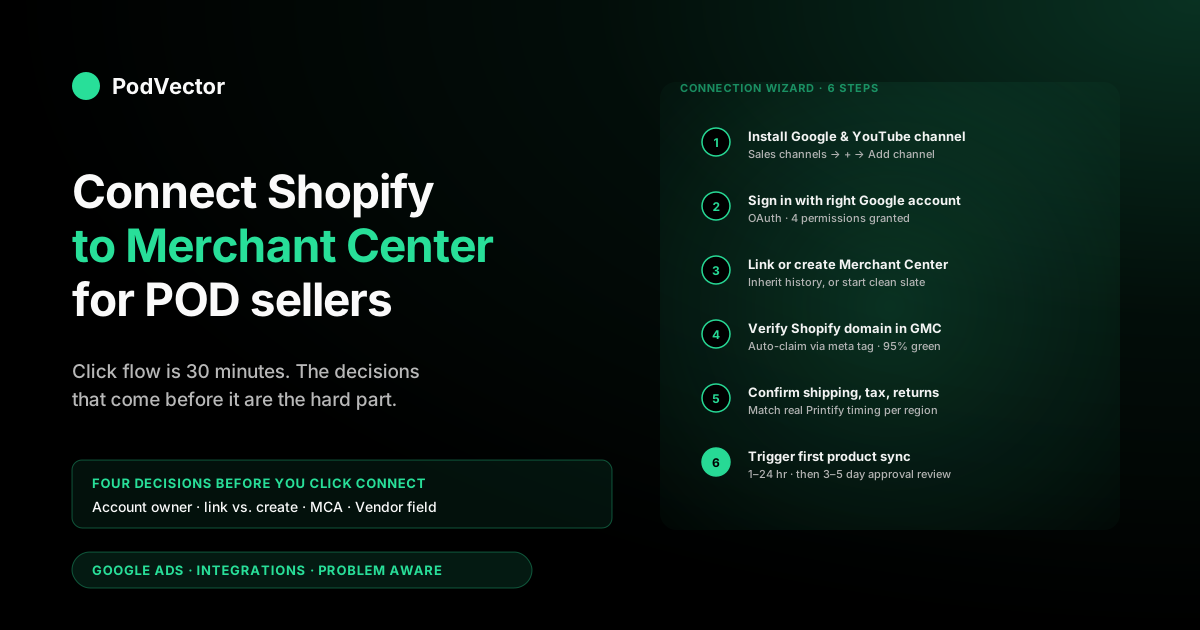
Quick Answer: Connecting Shopify to Google Merchant Center (GMC) in 2026 is a single OAuth handshake through the official Google & YouTube sales channel: install the channel from Shopify admin, sign in with the Google account that should own (or already owns) the Merchant Center, link or create a GMC account, complete the "verify it's you" phone check, confirm your target countries and languages, verify your domain, and confirm shipping and tax. The connection takes 20–30 minutes of click-time; the first product sync runs in 1–24 hours; product approvals land 3–5 business days later.
For print-on-demand stores the connection itself is the easy part — the hard part is making four upstream decisions before you click Connect: which Google account becomes the long-term GMC owner, whether to link to an existing GMC or create a new one, how to handle the GTIN exemption for custom designs, and which storefront brand value lives on the products before the first feed sync. This guide walks the connection flow click-by-click and flags the POD-specific decisions that the generic Shopify and Google tutorials skip over.
Four decisions to make before you click Connect
Most Shopify-to-GMC connection tutorials open with "click the Add channel button." That advice works fine for a single-store, single-operator general-merchandise shop. For a print-on-demand store it skips four upstream decisions that determine whether the connection scales cleanly or has to be rebuilt 18 months later. Make these four calls deliberately before you start clicking, and the click-flow takes 30 minutes; make them by accident and you'll spend a week unwinding mistakes after your first GMC suspension.
Decision 1: Which Google account becomes the GMC owner. The first Google account you authorise during the connection becomes the owner of the Merchant Center account if no GMC exists yet. That ownership is sticky — transferring it later is possible but resets some performance history and triggers a verification cycle.
POD operators frequently start by signing in with a personal Gmail because that's what's already logged into Chrome, then realise three months later that the GMC, the Google Ads account, and the verified domain all sit on a personal Gmail that isn't shared with the business email. Decide now whether the canonical owner is your personal Gmail (fine for solo operators with no plans to bring on a partner or contractor), a brand-specific Gmail you'll create for the store, or a Google Workspace user on your business domain. If you're not sure, create a Google Workspace user on your business domain; that's the only option that survives every future scenario (selling the business, hiring an agency, adding a co-founder).
Decision 2: Link to an existing Merchant Center or create a new one. If you've previously run Google Shopping through WooCommerce, BigCommerce, a manual CSV upload, or a different Shopify store, you may already have a GMC account on the Google account you're authorising. The channel will detect it and offer "Link to existing Merchant Center" as the default.
Link if that GMC has clean history (no active suspensions, no policy violations on file, domain verification preserved). Create a new one if the existing GMC has accumulated suspensions or disapprovals you'd rather not inherit, or if you want a clean separation between two stores. Linking preserves performance history that improves auction signals; creating fresh sacrifices that history but starts you on a clean policy slate.
Decision 3: Single-store or multi-store account structure. Multi-store POD operators (a flagship niche store plus three product-line spinoffs, for example) often default to "one GMC per Shopify store" because the channel auto-creates that structure. That's fine for ad operations — each store gets its own feed, its own approvals, its own performance reports — but it makes consolidated reporting painful because impressions, clicks, and conversions live in separate accounts that don't roll up natively in the GMC UI.
The alternative is a Multi-Client Account (MCA) at the GMC level with each store as a sub-account. MCA is worth the setup overhead once you have three or more active stores; below that threshold the per-store simplicity wins.
Decision 4: Brand value on every Shopify product. Shopify's Vendor field carries through the connection as the GMC brand attribute. Most POD product templates default Vendor to blank, "Printify," or "Printful" — none of which is the brand value GMC expects.
Set Vendor on every product to your storefront brand before you click Connect. Doing it after the connection is fine but triggers a re-sync cycle and a fresh review wait; doing it before means your first sync ships with the right brand value and your initial approval rate runs higher.
Pre-flight checklist on the Shopify side
Beyond the four decisions, six conditions need to be true on your Shopify store before the connection wizard will complete cleanly. Each of these is a frequent first-week support ticket from operators who installed the channel without checking first:
- Paid Shopify plan, not trial. Trial-mode stores can install the channel but the feed sync stays inert until the storefront is publicly accessible. If you're still on trial and intend to launch, complete the upgrade first.
- Storefront not password-protected. Pre-launch stores commonly have a password gate up to keep the public out. Googlebot can't crawl past the gate, the feed sync sees no products, and the channel admin reports "0 products synced" with no obvious cause. Remove the password before connecting (or accept that the connection is in a paused state until you do).
- Privacy policy, refund/return policy, and contact page published. GMC's misrepresentation policy auto-checks for these the moment the feed activates. Stores missing any of them get a blanket account suspension within 72 hours, which takes 5–10 business days to appeal even when fully resolved. Use Shopify's Settings → Policies generators to publish defensible versions before connecting.
- Shipping policy that matches actual POD fulfillment timing. If your store says "ships in 2–3 days" but your Printify blank ships in 5–8 days, GMC's automated comparison flags the mismatch. Edit the policy to match reality before connecting; "fix the policy, not the SLA" is the right answer for POD because the supplier timing is largely outside your control.
- Tax configuration per shipping country. Shopify Settings → Taxes needs to be configured for every country you intend to sell in. Stores that haven't touched the tax page see a "tax not configured" warning blocking deliveries during the first sync.
- Product images at 800x800 minimum resolution. GMC's image-quality threshold is 800x800. Older Printify mockup templates output 600x600. Switch any affected products to high-resolution mockups in Printify's product publish settings before connecting; otherwise those SKUs disapprove on day 1 with an image-quality reason.
One under-covered prerequisite specific to POD: your Shopify shipping zones should reflect the geographic distribution of your supplier's print partners, not your business address. Printify orders fulfill from the partner facility nearest the customer; if your zones say "ships from California" but a UK customer's order will print and ship from Latvia, GMC's policy engine catches the discrepancy and disapproves the affected SKUs once the feed activates. Configure shipping zones in Shopify with the actual fulfilment regions enabled and per-region delivery times that match supplier reality.
Step 1: Install the Google & YouTube channel
From Shopify admin, click the green plus icon next to "Sales channels" in the left sidebar → search "Google & YouTube" → Add channel → Add sales channel → accept the permissions prompt. The channel is free, owned by Google rather than a third-party developer, and is the supported integration path between Shopify and GMC.
You'll see several third-party "Google Shopping feed" or "Merchant Center sync" apps in the Shopify App Store at install time. For a first connection on a POD store, prefer the official channel.
Third-party apps add value once you outgrow the channel's capabilities — supplemental feeds, multi-country variants with currency conversion, custom feed-rule transformations, attribute remapping that the channel doesn't expose — but most POD stores under $200K in monthly revenue don't reach those limits. Install the official channel first; switch to a third-party feed app later if you actually hit a wall.
Installation completes in about 30 seconds. The channel admin page opens to a guided setup wizard that runs Steps 2 through 5 below in a single flow. Complete the wizard end-to-end on first install rather than partial-completing — the channel state machine is unforgiving about half-complete progress, and operators who close the tab mid-wizard often end up with a half-linked account that needs uninstalling and reinstalling to recover.
Step 2: Sign in with the right Google account
The wizard's first step is "Connect Google account." Click Connect → an OAuth pop-up opens → pick the Google account from Decision 1 above. Granting access requires four permissions: read profile, manage Merchant Center, manage Google Ads conversion tracking (granted even if you're not running Google Ads yet, because the same OAuth token covers both products), and read YouTube channel. The wizard advances automatically once the OAuth callback completes.
If the OAuth pop-up closes without returning to the wizard, the most common cause is browser pop-up or third-party cookie blocking. Safari and Brave with default settings block the postMessage callback that completes the handshake.
Either disable the pop-up blocker for shopify.com for the duration of setup, or do this step in Chrome and switch back afterwards. The connection persists across browsers once established, so it doesn't matter which browser you use day-to-day.
If you're connecting through a Google account that has access to multiple Google Ads accounts (because you manage ads for several stores or a client roster), the wizard prompts you to pick which Google Ads account to associate with this Shopify connection. Pick the account that owns this specific store's ads; the channel uses that selection to scope conversion-tracking activation later. If you don't have a Google Ads account yet, the wizard offers to create one as part of the connection — accept that even if you don't intend to run paid ads soon, because the same pipe carries enhanced conversion data and you'll want it ready when you do start.
Step 3: Link or create a Merchant Center account
With the Google account authorised, the wizard checks whether the account already has access to a Merchant Center. Three branches follow:
- Existing GMC, clean history. The wizard offers "Link to existing Merchant Center" with the account ID and store name listed. Pick Link. The connection inherits the existing GMC's domain verification, performance history, and feed structure.
- Existing GMC, dirty history. If the existing GMC has an active suspension, recent policy violations, or accumulated disapprovals that would prejudice the new feed, you can choose Create new instead. The wizard creates a fresh GMC, generates a new Merchant ID, and starts your Shopify connection on a clean policy slate. The trade-off is loss of historical performance signals.
- No existing GMC. The wizard auto-creates a Merchant Center on your behalf, named after your Shopify store and located in your store's primary country. No manual decision needed in this branch.
Right after you link or create the account, the wizard runs a "Verify it's you" check for the Merchant Center: enter a phone number, pick your country, and type in the 6-digit code Google texts you. This is a separate verification from the domain claim in Step 4 — it confirms a real person controls the GMC account and is a recent addition to the flow that the older tutorials skip. Use a phone number you'll keep access to; the verified number becomes a recovery and contact point on the account.
Once linked, created, and verified, the channel records the Merchant ID against your Shopify store. You'll see this Merchant ID in the channel admin under Settings → Account; keep it noted because you'll reference it when configuring Google Ads conversion tracking, third-party feed apps, and Looker Studio reports later. The Merchant ID is the durable identifier for the GMC account and survives every other config change.
One account-type constraint to know before you reach this step: a Multi-Client Account (MCA) cannot be connected to Shopify directly. The channel binds to a standard Merchant Center account — if you run an MCA, you connect each store to its own regular sub-account under the MCA, not to the MCA parent itself (see Decision 3 above).
If the wizard reports "cannot create Merchant Center" with no obvious cause, the usual culprit is a country/currency mismatch between Shopify (store country = United States, currency = USD, for example) and the Google account's locale (set to UK English, for example). The fix is signing into Google's account settings, confirming country and language match the Shopify store's primary country, and re-running the wizard step.
Step 4: Verify your Shopify domain in GMC
The connection auto-claims your Shopify domain in GMC by injecting a verification meta tag into your storefront's <head>. For roughly 95% of stores this completes in seconds with no manual action; you'll see a green checkmark in the wizard and the next step unlocks. The 5% that fail typically have one of two issues:
- Custom theme strips the meta tag. Some bespoke themes or aggressive theme-edits remove or relocate the
{{ content_for_header }}Liquid tag that injects Shopify's meta-tag block. The fix is editing yourtheme.liquidto ensure that tag is present at the top of the<head>section. After re-saving the theme, return to the wizard and click "Re-verify" — the verification check usually succeeds within 30 seconds. - Domain previously verified to a different Google account. If your domain was claimed by a former agency, developer, or previous owner against a different Google account, GMC won't let you re-verify until that prior claim is released. Reach the Google account that holds the existing claim and remove it from Search Console → Settings → Users and permissions, or contact Google Merchant Center support to release the claim if the account is unrecoverable. This case is rare for fresh stores but common when buying a domain or migrating from another agency.
Until domain verification completes, the feed sync won't activate. The channel admin will show "Feed paused: domain unverified" and any product sync attempts will queue rather than execute. Don't try to work around the verification — it gates every downstream step.
Step 5: Confirm shipping, tax, and return policies
Before the shipping intake, the wizard surfaces a Countries and Languages (target market) step. By default the channel auto-syncs to the countries and languages it infers from your Shopify markets; click Manage to turn that off and hand-pick the exact countries and languages you want products to show in. For most single-market POD stores the automatic default is correct — but if you sell US-only and the channel auto-adds Canada or the UK, your feed will throw shipping and tax errors for countries you never intended to target. Trim the target market to match where you actually fulfill before moving on.
Once the target market and domain verification are both green, the wizard prompts you to confirm shipping, tax, and return settings. GMC requires explicit shipping configuration for every country you'll show ads in — either pulled from your Shopify shipping zones automatically (the default), or configured manually in GMC Settings → Shipping and returns. The default Shopify-pull is correct for almost all POD stores.
The first time you see GMC's shipping configuration, walk through every country your store ships to and confirm both the cost and the delivery-time range match your real Printify or Printful timing. Mismatches here are the second-most-common cause of POD store suspensions after the misrepresentation policy. If your Shopify shipping zones say "ships in 3–5 days" but your Printify supplier's printed-and-shipped time is more like 7–12 days, the GMC policy engine will eventually catch that and disapprove the affected SKUs.
Tax configuration follows the same pattern: the wizard pulls from Shopify Settings → Taxes by default. Confirm that every country you'll show ads in has either configured rates or is marked "tax included in price." A blanket "tax not configured" warning blocks deliveries until resolved.
Returns policy is a newer requirement that became enforced in late 2025. Every product that displays in Shopping ads needs a return policy on file in GMC.
The wizard pulls from Shopify Settings → Policies → Refund policy by default. If your refund policy is missing or vague, GMC will show a warning at this step; either edit the Shopify policy and re-pull, or configure a return policy directly in GMC Settings → Returns.
Step 6: Trigger and monitor the first product sync
With shipping, tax, and returns confirmed, the wizard's last step is "Sync products." Click it and the channel begins its initial product sync to GMC. The first sync takes 1–24 hours depending on catalog size:
- 50–500 SKUs (typical POD store with focused niche): initial sync completes in under two hours.
- 500–2,000 SKUs (broader catalog, multiple product templates): 4–8 hours.
- 2,000–10,000+ SKUs (large general POD catalog or DTG-on-everything store): full day, occasionally more.
Sync status shows on the channel's Overview tab as "X products synced, Y errors, Z disapproved." Refresh that page periodically during the first 24 hours; the count climbs as products move through the sync queue.
Important framing: "Synced" means the product reached GMC's catalog. "Approved" is a separate state that requires GMC's automated and (for some categories) manual review to pass, which takes another 3–5 business days for the initial bulk review. Day 1 typically shows "Pending" against most of your catalog — that's expected. Wait until day 5–7 before troubleshooting at the SKU level; many disapprovals self-resolve as the review queue catches up.
While the sync runs, monitor the channel admin's "Errors" tab for feed-level issues that block whole categories of products from even reaching the catalog. Common day-0 errors that need immediate attention:
- Missing GTIN exemption flag. Despite the prerequisite, some legacy products show up with this flag missing.
- Invalid shipping configuration for a country. Usually a country you forgot to configure during Step 5.
- Tax not configured for a country. Same root cause.
- Brand attribute empty. Catches any products whose Vendor field you didn't update during prep.
- Image URL returning 4xx. Usually a Shopify-CDN cache issue that resolves on the next sync; rare but worth investigating if it persists.
Each of these blocks a slice of the feed. Fix them in Shopify, return to the channel admin, and trigger a re-sync from the Overview tab to unblock the next layer of products.
POD-specific fixes the connection wizard won't make for you
The connection wizard handles the OAuth, the domain verification, the shipping/tax/returns intake, and the initial sync. It does not fix the four product-data issues that systematically tank POD store approval rates. Address these manually after the wizard completes:
- identifier_exists = no on every variant. For custom POD designs without UPC/EAN/ISBN, this attribute tells GMC that GTIN absence is intentional rather than a data-quality issue. The Google & YouTube channel handles this automatically for fresh installs in 2026; older installs or stores migrated from other platforms may need bulk edit via the channel's CSV export/import flow.
- brand attribute = your storefront brand. Covered in Decision 4 above. If you didn't fix Vendor on every product before connecting, do it now and trigger a re-sync.
- google_product_category = correct mapping. The connection auto-maps Shopify product type to Google's product taxonomy. For most POD products this auto-mapping is roughly right (t-shirts get Apparel & Accessories > Clothing > Shirts & Tops; mugs get Home & Garden > Kitchen & Dining > Tableware > Drinkware), but some unusual product types ("all-over print sweatshirt," "premium organic tote") map to wrong categories that hurt visibility. Review the Catalog → Products view in the channel admin, sort by Google product category, and override any obvious mismaps.
- color, size, material, age_group, gender metafields mapped to GMC attributes. The channel exposes a Field Mapping view that lets you point any Shopify metafield at a GMC attribute. The metafields most worth mapping for POD:
color(so Google's color filter works on your products),size(same for size filter),material(especially for apparel where Google's "100% cotton" filter drives meaningful organic Shopping traffic),age_group(adult/kid/baby/toddler — required if your blanks include kids' or baby sizes), andgender(male/female/unisex). Mapping these unlocks filter-based discovery on Google Shopping that you don't get from defaults.
For the integration architecture (which fields flow which direction, sync cadence, what GMC does and doesn't push back into Shopify), see the Google Merchant Center Shopify integration architecture guide. For an alternative phrasing of the same connection flow framed around the Shopify-side path, see how to connect Shopify to Google Merchant Center step by step.
Troubleshooting the connection itself
The connection flow itself fails in five recognisable patterns. Most are recoverable in under 30 minutes once you know what you're looking at:
- OAuth callback never returns. Browser pop-up or third-party cookie blocking. Disable for shopify.com or switch to Chrome.
- "Cannot link Merchant Center: insufficient permissions." The Google account you authorised doesn't have admin rights on the existing GMC. Either log into GMC directly with an admin account and add your authorising account as an admin, or authorise with the existing admin account from the start.
- Domain verification stuck on "Pending" for more than 10 minutes. Either the meta-tag injection failed (custom theme issue, see Step 4) or there's a pre-existing claim on the domain. Check Search Console under your authorising Google account; if you don't see the domain there, the prior claim is on a different account and needs releasing.
- "0 products synced" after 4 hours despite green status. Your storefront is password-protected or in trial mode. Googlebot can't crawl it. Lift the password or upgrade the plan; the next sync cycle picks up the catalog automatically.
- Account suspension within 72 hours of first sync. Almost always misrepresentation policy: missing privacy/refund/contact pages, or shipping policy that materially understates POD fulfillment time. Fix the underlying policy issue, then submit an appeal via Merchant Center → Diagnostics → Account issues.
For the broader set of "feed connected but products not approved" failures (which is a different problem from "connection itself failed"), the diagnostics surface in the channel admin under Catalog → Errors and in the GMC web UI under Products → Diagnostics → Item issues. The Shopify-side channel admin and the GMC web UI sometimes show different counts during the first 24 hours because they refresh on different cadences; wait for both to converge before treating a discrepancy as a real bug.
What to do once the connection is live
The connection itself is infrastructure — useful only insofar as you do something with it. Once products are syncing and approving, four immediate next steps unlock value:
- Enable free Shopping listings. Free listings are opt-in within GMC and surface approved products in Google's Shopping tab and image search at no cost. Enable them under GMC → Growth → Manage programs. Free listings won't drive a flood of traffic on their own but they turn the GMC connection from a paid-ads-only pipe into a discovery surface.
- Set up Google Ads conversion tracking. Even if you're not running ads yet, having conversion tracking live from day 1 means the data is there when you do start. The same OAuth token from the GMC connection covers Google Ads, so it's a 5-minute add. See the dedicated Shopify Google Ads conversion tracking setup guide for the full flow, including the Performance Max nuances that matter for POD catalogs.
- Connect Shopify to Google Ads itself. The GMC connection is necessary but not sufficient for running Shopping ads — you still need a Google Ads account linked to the same GMC. The connect Shopify to Google Ads setup guide covers the linkage and Performance Max setup. If you want a single comprehensive walkthrough of the full Google Ads + Shopify pipeline, the complete Google Ads + Shopify integration guide ties everything together.
- Stand up cross-channel reporting. Once GMC, Google Ads, and Shopify are all connected, you've got three data sources answering parts of the same question. Looker Studio can stitch them together if you're comfortable with manual joins; a more direct path is having an AI agent like Victor sit on top of your Google Ads and Shopify data and answer questions like "what's my true Google Ads ROAS after Printify supplier costs" in plain English without you building dashboards. PodVector AI's roadmap leans into this: Victor answers the cross-channel profitability questions you'd otherwise need a SQL specialist to answer and flags which campaigns to pause when supplier costs spike on a specific SKU.
For broader context on how all the Google Ads building blocks fit together for POD specifically, browse the Google Ads integrations cluster hub or the full Google Ads topic hub. For setup background and reference on the Shopify side, the official Shopify Help Center documentation covers the channel install in step-by-step detail.
FAQs
Is the Google & YouTube channel free?
Yes. The Google & YouTube channel is owned by Google, free to install, and free to use for syncing products to Merchant Center. The only costs are anything you spend on paid Google Ads campaigns; the connection itself, the feed sync, and free product listings carry no fees.
How long does the full connection take from click to live products?
Click time is 20–30 minutes. Initial product sync completes in 1–24 hours.
Product approvals land 3–5 business days after sync. Total wall-clock from "I'm starting now" to "my products are live in Google Shopping" is typically 5–7 days for a fresh store, faster if you've previously had products in GMC.
Can I connect a single Shopify store to multiple Merchant Center accounts?
Not through the official channel. The channel binds your Shopify store to exactly one GMC account. If you need parallel feeds (for example, a primary GMC for your home country and a separate GMC for an EU-specific multi-country campaign), use a third-party feed app for the secondary feed; the official channel handles the primary.
Can one Merchant Center account serve multiple Shopify stores?
Yes, via Multi-Client Account (MCA) structure at the GMC level — but note that an MCA can't be connected to Shopify directly. Each Shopify store connects to its own standard GMC sub-account under the MCA, and the parent MCA aggregates reporting and policy management. MCA is worth the setup overhead at three or more active stores; below that threshold separate per-store GMC accounts are simpler.
Do I need a Google Ads account to use Google Merchant Center?
No, but the wizard will offer to create one as part of the connection because the same OAuth token covers both. Accept even if you don't intend to run paid ads soon — the same connection carries enhanced conversion data, free product listings link to Google Ads for some surfaces, and you'll want both ready when you do start running paid campaigns.
What's the difference between connecting Shopify to GMC versus connecting Shopify to Google Ads?
GMC is the product feed pipe (catalog data, prices, images, availability). Google Ads is the campaign and bidding pipe (which products to show, how much to bid, where to show them).
For Shopping ads you need both: GMC to host the feed, Google Ads to run the campaigns against that feed. The Google & YouTube channel sets both up in one wizard, but they remain two separate Google products under the hood.
How do I handle products without GTINs in Google Merchant Center?
For POD products with no UPC/EAN/ISBN, set the variant's Barcode field to empty in Shopify and ensure the channel's "GTIN exempt" auto-setting is on. The integration will pass identifier_exists = no to GMC, telling Google's policy engine that the GTIN absence is intentional. Without this flag, custom POD products get disapproved with an "identifier issue" reason that looks confusing because the products don't actually need an identifier.
Why are my products showing as "Pending" days after the sync completed?
"Pending" status means GMC has received the product into its catalog but hasn't completed its initial review yet. Initial review takes 3–5 business days for a fresh feed, sometimes longer for very large catalogs or apparel categories that route to manual review. Wait through day 5–7 before treating Pending as a problem; many products self-approve as the review queue catches up.
Do I need to repeat any of these steps if I change my Shopify theme?
If your new theme is a Shopify-published or well-maintained third-party theme, no — the meta-tag injection that supports domain verification carries through automatically. If your new theme is custom or aggressively edited, double-check that {{ content_for_header }} is present at the top of theme.liquid's <head> section, otherwise GMC may unverify your domain after the next crawl.
The connection is the easy part. Then what?
Once Shopify, GMC, and Google Ads are all connected, you've got three sources answering different parts of the same question: which campaigns are actually profitable for your POD catalog after Printify's per-SKU supplier costs. Building dashboards to answer that takes weeks. Letting Victor sit on top of your live data warehouse and answer in plain English takes 10 minutes to set up.
Try Victor free