
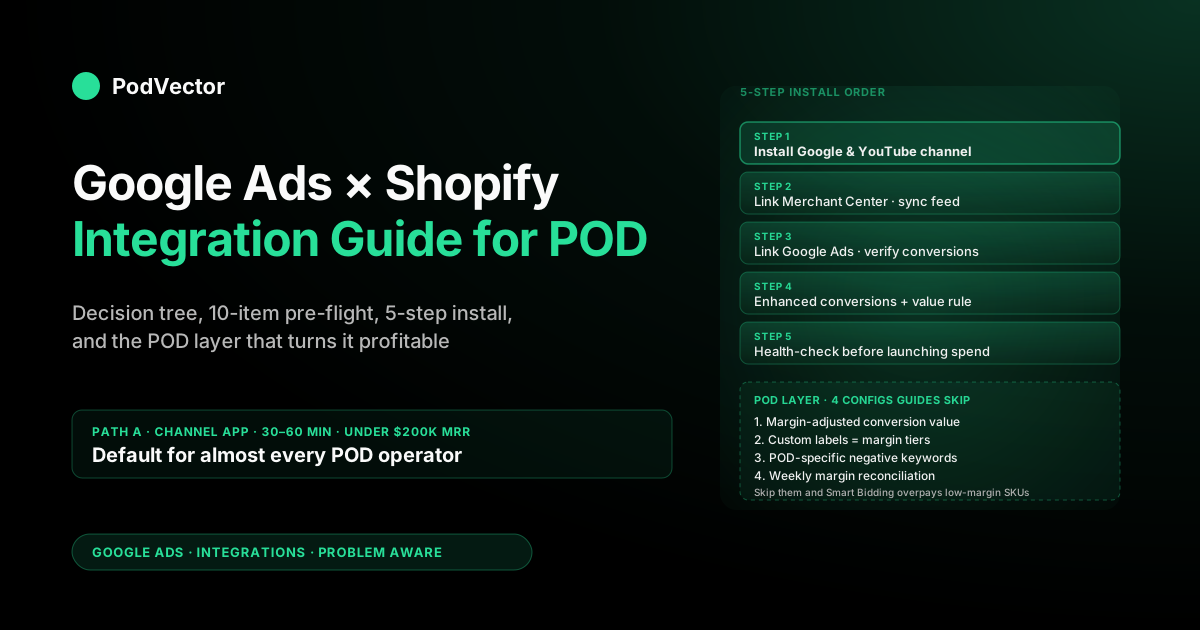
Quick Answer: Connecting Google Ads to Shopify in 2026 is a four-decision sequence, not a click-through. First decide which integration path fits your scale (the first-party Google & YouTube channel for almost everyone, GTM for special cases, server-side tagging once you're past roughly $200K MRR).
Second, complete a 10-item pre-flight checklist so the OAuth handshake doesn't fail two steps in. Third, install in this order: channel install → Merchant Center link → Google Ads link → enhanced conversions on the Purchase action — reverse the order and you'll re-do work.
Fourth, layer the POD-specific configurations that turn a connected integration into a profitable one: margin-adjusted conversion value, feed-segmented custom labels for margin tiers, and a weekly reconciliation between Google Ads reported value and your actual contribution margin after Printify or Printful supplier costs. Total time: 60–90 minutes for the install plus the pre-flight, then about an hour per week for the first month to confirm signal quality before scaling spend.
What this integration actually connects
If you search "Google Ads Shopify integration" you'll get screenshots of the Google & YouTube channel install flow. Useful, but it skips the most important framing: the integration isn't one connection — it's a graph of three live edges between four systems, plus a fifth surface where the pixel actually fires. Knowing the topology before you wire it saves the hour you'd otherwise burn debugging a half-installed integration.
The four systems are Shopify (catalog, checkout, customer events), Google Merchant Center (the product feed Shopping ads serve from), Google Ads (campaigns, bidding, conversion goals), and Shopify Customer Events (the pixel surface where the Google tag actually runs in the browser). The three live edges are Shopify ↔ Merchant Center on the feed, Shopify ↔ Google Ads on the conversion pixel, and Merchant Center ↔ Google Ads on product linking. If any one edge is misconfigured the integration looks installed but fails in distinctive ways: a broken feed edge means zero Shopping ad eligibility, a broken pixel edge means zero recorded conversions, a broken product link means Search-only campaigns and no Performance Max access.
For print on demand, the topology carries one extra concern. Every dollar of Google Ads spend is being optimized against the conversion value Shopify reports back.
That value, by default, is the order's gross sale price — which on POD includes the 35–55% supplier cut Printify or Printful takes. Send revenue and Smart Bidding rewards your worst-margin SKUs (oversized hoodies, sublimation all-overs, premium substrates) because their order totals are highest.
Send margin-adjusted value and the algorithm pushes spend toward products you actually keep money from. The mechanical install is identical either way; the value-configuration step is what separates "the integration works" from "the integration is profitable." That step is part of the POD layer below, not the install — and it's the one most operators skip.
Choose your integration path (decision tree)
There are three meaningful ways to integrate Google Ads with Shopify in 2026, plus a fourth that's worth flagging only because some agencies still recommend it. They are not interchangeable. Picking the wrong one for your scale is the most common avoidable mistake.
Path A: The Google & YouTube channel (recommended default)
A first-party Shopify app, free, jointly maintained by Shopify and Google. Installs as a sales channel, handles Merchant Center claim and verification automatically, syncs your product catalog as a managed feed, fires conversion events through Shopify Customer Events, and creates Purchase / Begin Checkout / Add to Cart conversion actions in Google Ads on its own.
Total install time: 30–60 minutes. The right default for almost every POD store under roughly $200K monthly recurring revenue. You will not feel the ceiling until you're trying to do per-line-item value reporting or recover ad-blocked conversions, and by then you'll know it.
Path B: Manual Google Tag Manager via theme.liquid
You install GTM by editing theme.liquid (or via the Customer Events sandbox), configure the Google tag and conversion-tracking tags by hand, and submit a feed to Merchant Center either manually or through a third-party feed app like Feedonomics or DataFeedWatch. More work, more failure modes, more flexibility.
Useful if you have non-Shopify-checkout flows the channel can't reach (Recharge subscriptions, custom post-purchase upsell apps, app-based checkout extensions). Estimated setup time: 4–8 hours including QA. Most POD stores will never have a reason to need it.
Path C: Server-side tagging (Stape, GTM Server, custom)
You run a tagging server — on Stape, on Google Cloud, or self-hosted — that receives raw events from your store and forwards them to Google Ads server-side. Adds resilience to ad-blockers and iOS tracking restrictions, recovers more conversions, and gives you control over the pixel logic, at the cost of monthly hosting fees, configuration complexity, and a maintenance loop.
Worth the work above $200K MRR or where a data team can own it. Below that, the recovered-conversion uplift (typically 10–25%) doesn't pay back the engineering overhead. We cover Path C in depth in our server-side tagging for Google Ads on Shopify guide.
Path D: Legacy Google Channel app (avoid)
Older Shopify Google Channel installs that predate the Google & YouTube unified channel still exist on some stores. If you have one, uninstall it and reinstall the current Google & YouTube channel before you do anything else.
The legacy app fires deprecated tag versions and silently drops enhanced-conversion data. Five minutes of cleanup that saves a month of bad data.
The decision rule: Path A by default. Evaluate Path C only after you've maxed out value rules and feed segmentation in the POD layer below. Path B only if you have a specific tracking need the channel can't reach.
Pre-flight checklist: 10 items before you click install
The Google & YouTube channel install will fail or partially complete if any of the following ten items is missing. None of them take more than five minutes individually, but discovering them mid-install means re-running the OAuth flow and sometimes re-claiming the domain.
- Shopify store owner or full-permission collaborator access. Staff accounts with limited permissions can install apps but the channel needs broader access to set up Customer Events and edit checkout settings.
- Paid Shopify plan with checkout enabled. Trial and dev plans don't fire production-grade Customer Events; the channel will silently fail health checks.
- A single Google account that owns or admins both Google Ads and Google Merchant Center. Using the same identity for both prevents most cross-property permission errors that surface two weeks in.
- Payment method on the Google Ads account. Google requires one before the OAuth handshake completes the link.
- Google Ads account is not in suspended state. Suspended accounts will accept the OAuth link but won't record conversions. Resolve the suspension before you start.
- Domain verified or ready to verify on Google. The channel auto-claims your store domain; this fails if another Merchant Center account already claims it. Check at Merchant Center → Tools → Business information → Website.
- Custom checkout extensions audited. If you've installed any post-purchase or checkout-extension apps, confirm they don't override the Customer Events pixel surface. The most common culprit is older Shopify Plus checkout.liquid customizations that need migrating.
- Product feed audit done. Open Shopify → Products → Diagnostics if available, or just scroll the catalog. Confirm titles are descriptive, descriptions are at least 150 characters, and you have at least one image per product at 800×800 minimum. The channel will sync whatever you give it; bad inputs become disapprovals downstream.
- Supplier cost per variant documented. POD-specific. You'll need Printify or Printful base price plus print fees plus shipping for the value-rules step in the POD layer below. Reconstructing these after launch is the most common reason POD operators default to revenue-based bidding and never come back.
- Account-level budget cap set in Google Ads. Tools → Budgets → Add account-level cap at a number you would not be horrified to lose. We've seen POD stores burn $4,000 in a week on a campaign whose conversion tracking misreported Add-to-Cart as Purchase. An account cap is the only thing that stops it before you notice.
Install in this order (the order matters)
The integration has five mechanical steps. They're not strictly serial — you can install the channel and then go back to verify Merchant Center later — but each step assumes the previous one's data is in place, and reversing the order means re-running OAuth flows.
Install order: channel install → Merchant Center link → Google Ads link → enhanced conversions and value rules → health check. The next five sections walk each one in order.
Step 1: Install the Google & YouTube channel
From Shopify admin, navigate to Sales channels → add channel → search "Google & YouTube" → install. The app installs as a sales channel and appears in your left sidebar alongside Online Store, POS, and Shop. Total time: under a minute. You're not configuring anything yet — the install just adds the channel surface that the next steps configure.
The install also registers the Google & YouTube source inside Shopify Customer Events (Settings → Customer Events → Google & YouTube). You don't need to touch this yet, but it's worth knowing that's where the conversion pixel actually lives. If conversions go missing in week three, that's the first place to look — not Google Ads.
Step 2: Link Google Merchant Center
Open the channel from the Shopify left sidebar. Click "Get started" → "Connect" under Google Merchant Center.
You'll redirect through Google's OAuth consent flow — sign in, grant the requested permissions (read access to your product feed, write access to the linked Merchant Center account), and either create a new Merchant Center account if you don't have one or select an existing one. The channel auto-claims and verifies your store domain. The manual claim flow used to take 30 minutes and require uploading an HTML file; the channel collapses it to a single click.
Once linked, the channel begins syncing your Shopify catalog as a managed feed. First sync takes 2–24 hours depending on catalog size — for a typical POD store with 50–500 SKUs it's done within a couple of hours. While you wait, three configuration jobs are worth doing inside the channel:
Set the target country and language. Defaults to your Shopify primary country; verify it matches where you actually want to advertise. POD stores selling internationally should add target countries here at the feed level — feed-level targeting determines product eligibility, campaign-level targeting is downstream. Adding a country to a campaign that the feed doesn't target produces "no eligible products" warnings and zero impressions.
Map missing product attributes. The most commonly missing for POD are GTIN (most POD products don't have one — under feed configuration, set "I do not have GTINs" globally to prevent disapprovals), brand (Shopify stores it; the channel maps it automatically when set), and age_group / gender (apparel-heavy POD catalogs need these for Shopping ad eligibility — set them as Shopify metafields or in the channel's bulk attribute editor).
Pre-stage the custom labels. Custom labels 0–4 are how you'll segment the feed by margin tier later. You don't have to populate them now — but if you can set custom_label_0 to a margin tier value (high, mid, low) per product before launch, the POD layer's margin-tier campaigns can launch with the integration instead of waiting a month.
Once the first sync finishes, go to Merchant Center → Products → Diagnostics. Confirm "Active" product count is at least 80% of your published Shopify catalog. Disapprovals at this stage are normal and not yet a problem; you'll address them in Step 5.
Step 3: Link Google Ads and verify conversion actions
Back in the Shopify channel, click "Connect" under Google Ads. OAuth as before — sign in with the Google account that admins the target Google Ads account, grant permissions, select the Ads account if you have multiple. The channel then shows "Connected" with the Ads customer ID displayed.
Within 30 minutes of the link, Shopify automatically requests creation of three conversion actions in your Google Ads account: Shopify Purchase (set as the account's primary conversion), Shopify Begin Checkout, and Shopify Add to Cart. Verify in Google Ads → Goals → Conversions → Summary. All three should appear with categories Purchase, Begin Checkout, and Add to Cart respectively, source "Shopify," and Tracking status "Recording conversions" (or "No recent conversions" if no orders yet — also fine).
One default to leave alone: only the Purchase conversion is set as a primary action. Primary conversions are what Smart Bidding optimizes against; secondary conversions are imported for visibility only.
Promoting Add to Cart to primary is one of the most common rookie mistakes in POD Google Ads accounts — it trains the algorithm to optimize for cart adds that may never convert, which on POD with its higher cart-abandonment rates becomes an expensive trap. Leave Purchase as the only primary.
If you want a deeper look at conversion-action configuration including click-through-window choices, attribution model, and the per-line-item value override, our Google Ads Shopify conversion tracking setup guide covers it in detail.
Step 4: Turn on enhanced conversions and value rules
Two configurations the channel doesn't enable for you that you should enable in the same sitting.
Enhanced conversions for web on the Purchase action. Click the conversion → Diagnostics tab → Turn on enhanced conversions for web → choose "Google tag" as the integration method. The channel handles customer-data hashing and forwarding once enabled.
Typical recovered conversions for a POD store after enabling enhanced is 8–18% inside 30 days. Two minutes of work, and roughly half the POD operators we audit never get around to it. Our enhanced conversions for Google Ads on Shopify walkthrough covers the verification steps in detail.
A first value rule for margin adjustment. Tools → Conversions → Value rules → New rule → applies to "All conversions" → adjust value by your average margin ratio (e.g., if supplier cost averages 42% of revenue, set the rule to 58% of recorded value). Performance Max then optimizes against the corrected number.
This is the 80% solution and it's the single highest-ROI configuration step in the entire integration. We'll cover the per-line-item override in the POD layer below.
Step 5: Health-check the integration before launching spend
Most "the integration is broken" tickets come from skipping this step. The integration installs cleanly but isn't actually exchanging the data you assume it is. Run three checks before you launch any campaign.
Check 1: feed health. Merchant Center → Products → Diagnostics. The "Active" count should be at least 80% of your Shopify catalog (excluding draft and unpublished products).
If lower, work the diagnostics list in order of issue count. Five most common POD-specific causes: missing GTINs (fix at feed level, "I do not have GTINs"), image quality below 800×800 (re-export Shopify images at higher resolution — Shopify default resize settings are usually the culprit), missing age_group / gender on apparel SKUs (set as metafields), description too short (Shopify's auto-generated short descriptions are often too brief for Merchant Center), and trademark / copyright matches on POD designs (these you can't fight — disapprove the SKU and move on).
Check 2: pixel health. Place a real test order on your store using a test discount code or buy a $1 product yourself. Within 24 hours, look at Google Ads → Goals → Conversions → Summary for the Shopify Purchase action.
Recorded conversions should increment by 1 and the conversion value should match the order total (or the value rule's adjusted number, if you set one in Step 4). If the count is 0, debug Tag Assistant on a checkout flow before anything else. The most common cause is the Customer Events permission setting under Settings → Customer Events → Google & YouTube being set to "Permission required" with a consent banner that never grants permission.
Check 3: product link. Google Ads → Tools → Linked accounts → Google Merchant Center should show your Merchant Center account as Linked. This link is what makes Performance Max and Standard Shopping campaigns able to reference your product feed.
Without it, you can run Search-only campaigns but not anything with product visuals — a serious limitation on POD where the design is the whole pitch. The link is created automatically by the channel install but occasionally fails silently if the same Google account isn't admin on both properties.
Only after all three checks pass should you launch a paid campaign. Campaigns launched on a partially-broken integration burn budget on traffic that doesn't track back, and the data is lost forever — Google won't retroactively attribute orders to clicks once the click-attribution window has closed.
The POD-specific configuration layer
Steps 1–5 above are what every Shopify Google Ads guide on the internet documents. The POD layer is what they miss, and it's the difference between an integration that loses money quietly and one that compounds. Four configurations in order of impact.
1. Send margin instead of revenue as conversion value
By default, the channel sends Shopify's order total as the conversion value on the Purchase event. For a POD store, that includes the supplier cut you'll pay to Printify or Printful — not the number Smart Bidding should optimize against.
Step 4 above set the global value rule (the 80% solution). The 100% solution is the per-line-item override: each line item's actual supplier cost from a Shopify metafield or a warehouse lookup is subtracted from its line total before the value is sent. The metafield pattern and gtag override snippet is documented in our Google Ads Shopify conversion tracking guide.
2. Segment the feed by margin tier with custom labels
Custom labels in the Merchant Center feed are arbitrary text fields you can set to anything. Use custom_label_0 for margin tier (high, mid, low based on supplier-cost ratio), custom_label_1 for product type (apparel, drinkware, accessories), custom_label_2 for substrate or print method if it materially affects margin (DTG vs sublimation vs embroidery).
Once labels are populated, you can split Performance Max or Standard Shopping campaigns by margin tier and bid each tier independently. High-margin SKUs sustain higher CPCs; low-margin SKUs need conservative ROAS targets or shouldn't run on Shopping at all. Without segmentation, the algorithm averages across the catalog and overpays for low-margin clicks while underpaying for high-margin ones.
3. Build a POD-specific negative keyword list
POD stores attract a predictable set of unprofitable searches: "free t-shirt design," "Printify cheap blanks," "wholesale custom hoodies," and brand searches for substrate manufacturers (Bella+Canvas, Gildan, Comfort Colors). Add these as a shared negative keyword list at the account level. The list grows with experience; start with 30–50 obvious ones and add 5–10 per week from your Search Terms report for the first month.
4. Reconcile Google Ads value vs. actual margin weekly
The integration reports conversion value to Google Ads, which Smart Bidding uses to optimize. But the actual margin you keep is determined by Shopify orders minus Printify or Printful supplier costs minus payment processing minus shipping to customer.
A weekly reconciliation between Google-reported conversion value and actual contribution margin catches drift early. Three numbers to compare: Google Ads conversion value (what the integration reports), Shopify net revenue (what your store records), Shopify net revenue minus supplier costs (what you actually keep, your contribution margin).
When these drift apart by more than 5 percentage points, something's misconfigured — value rule out of date, supplier cost ratio shifted, or feed missing supplier-cost line-items. Catch it in week two, fix it in week three.
For an idea of what cross-channel reconciliation looks like in practice once the data is wired, our Google Ads ROAS for Shopify POD: realistic margin targets walks through the math operators actually run, week by week. And the cluster hub at Google Ads integrations indexes every other connection (Merchant Center, Customer Match, server-side, conversion tracking) you might wire next.
What to track in the first 30 days
Once the integration is live and a campaign is running, the operating loop for the first month is simpler than most POD operators think. Five numbers, weekly:
- Conversion value vs. actual margin gap. The reconciliation from POD Configuration 4 above. Should stay under 5 percentage points of drift.
- Recorded conversions vs. Shopify orders. Should be within 5–10% of each other. Larger gaps mean the pixel is dropping events — usually a consent-banner issue or a custom checkout extension overriding Customer Events.
- Feed disapproval count. Should trend down each week as you fix issues. Rising disapproval count usually means a Shopify product import added bad data; check the most recent imports.
- Search Terms report scan. Add 5–10 negatives per week from clearly unprofitable terms.
- Per-margin-tier ROAS (if you set custom labels). High-tier should support a different target than low-tier; if both campaigns are hitting the same target, the segmentation isn't doing its job and you should re-tier.
This is also where Victor — the AI agent we build for POD operators — earns its keep. Victor reads your Google Ads + Shopify + Printify or Printful data live from your warehouse and answers questions like "what's my contribution margin on Google Ads spend this week vs. last week?" and "which margin tier is leaking ROAS?" in plain English without you opening four tabs. The integration's job is wiring the data; Victor's job is making the data answerable.
Common failure modes and fixes
"Recording conversions" but conversion count is zero after a week of orders. Almost always a Customer Events consent issue. Check Settings → Customer Events → Google & YouTube → Permission.
If set to "Permission required" without a consent banner that ever grants permission, the pixel never fires. Switch to "Not required" if your jurisdiction allows, or wire up a real consent management platform.
Feed says "Active" but Performance Max says "no eligible products." The product link is broken. Google Ads → Tools → Linked accounts → Google Merchant Center. Re-link manually with the correct admin account. The auto-link sometimes fails when admin permissions don't align between the two properties.
Conversion value way higher than expected. Almost always Add to Cart firing as Purchase by mistake. Check the conversion action's category in Google Ads → Goals → Conversions → Settings. If the category for the Shopify Purchase action shows anything other than Purchase, delete and let the channel recreate it.
Disapproval rate is high and Diagnostics says "missing GTIN." Set "I do not have GTINs" globally in Merchant Center → Tools → Feeds → Settings. POD products almost never have GTINs and forcing them creates more disapprovals than fixing them.
Cross-channel reporting in Google Ads doesn't match Shopify reports. They never will, exactly, because attribution windows and definitions differ. Aim for within 10% of each other. If they're off by more than 20%, look at the Customer Events pixel timing (are Purchase events firing on the thank-you page or after a redirect?) and the click-attribution model (data-driven attribution will show different numbers than last-click).
FAQs
Do I need both the Google & YouTube channel and a separate GTM container?
No. The channel is sufficient on its own and uses the Google tag under the hood. Running both creates duplicate conversion firing and double-counts events. If you already have GTM installed for non-Google purposes (Meta pixel, TikTok pixel, custom analytics), keep it for those — but the Google tag conversion logic should live in the channel, not GTM.
How long until the integration starts driving results after install?
The mechanical integration is live within a few hours of install. Smart Bidding learning typically takes 14–21 days at $20–$40 daily budget on a single Performance Max campaign before performance stabilizes. Don't tweak budgets, target ROAS, or asset groups during the learning phase — every change resets the learning clock.
Will this work for a Shopify store on a Plus plan with custom checkout?
Yes, but audit your checkout.liquid customizations before installing. The Google & YouTube channel fires events through Customer Events, and aggressive checkout customizations on legacy Plus stores can override the pixel surface. The fix is migrating those customizations to the new checkout extensions framework — not a quick task, but it's needed regardless of Google Ads for the new checkout system.
What about iOS and ad-blocker conversion loss — should I install server-side tagging from day one?
Not at install. The recovered-conversion uplift from server-side tagging (10–25%) is real but doesn't pay back the engineering and hosting overhead under roughly $200K MRR.
Install Path A first, configure value rules and feed segmentation, run for 60–90 days at scale, then evaluate Path C with real data on what you're losing. Most POD stores discover the answer is "less than we thought" once enhanced conversions are turned on.
Can I install this on a Shopify trial or development store to test?
Partially. The channel installs and Merchant Center can sync (in test mode) but Google Ads conversion actions won't record real conversions until the store is on a paid plan with checkout enabled. For a real test, use a small staging store on the cheapest paid plan and run $5/day on a single Search campaign.
How does this integration relate to Google Analytics 4?
GA4 is a separate connection — useful for analytics but not required for Google Ads conversion tracking. The channel can connect GA4 as well during setup; if you have an existing GA4 property, link it.
If not, install can wait. Conversions and bidding don't depend on GA4 being wired; they depend on the Google Ads conversion actions covered in Step 3.
Where do I find a comprehensive reference for the underlying API?
Stape's Google Ads conversion tracking guide for Shopify covers the GTM and server-side angles in more depth than the official docs and is the most current third-party reference we've seen. Use it as a reference once you're past Path A and into Path C territory.
The integration is wired. Now make it answerable.
Once Google Ads, Merchant Center, and Shopify are talking, the next problem is reading what they say without opening four tabs. Victor is the AI agent we build for POD sellers — it reads your Google Ads, Shopify, and Printify or Printful data live from your warehouse and answers margin and attribution questions in plain English. Try Victor free at app.podvector.ai.