
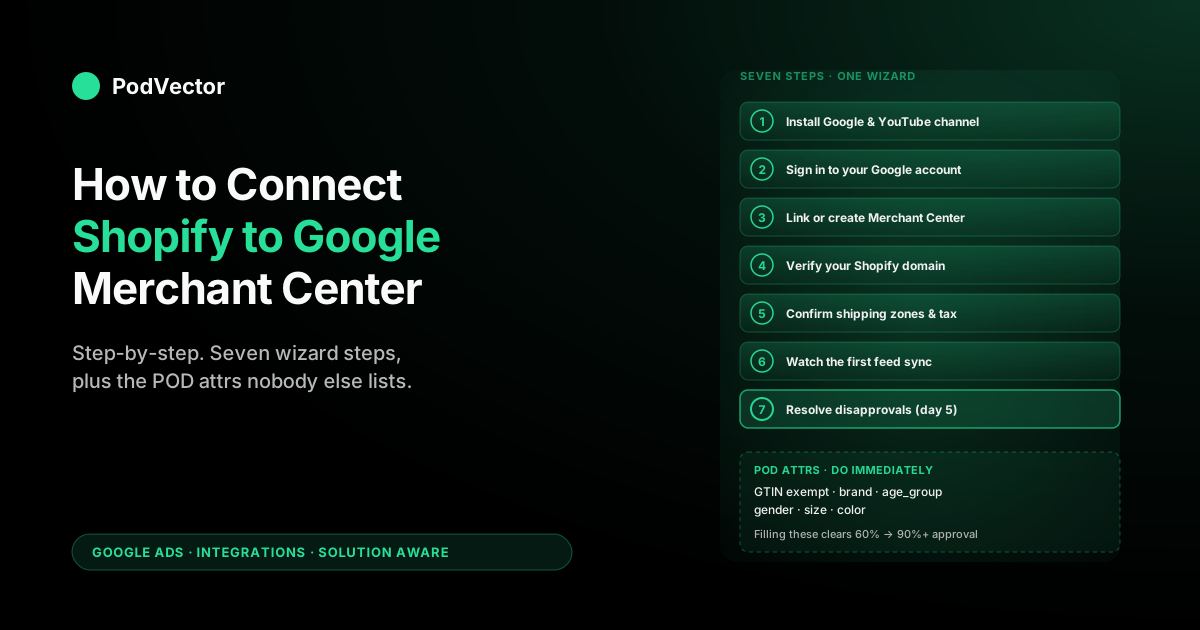
Quick Answer: Connecting Shopify to Google Merchant Center is a seven-step procedure inside the official Google & YouTube channel: install the channel, sign in to a Google account, accept the GMC link, verify your domain, confirm shipping zones, watch the first feed sync (1–24 hours), then resolve disapprovals (3–5 business day review). According to easyappsecom.com's 2026 setup guide, hands-on time is 20–30 minutes; the review wait is what takes a week.
The print-on-demand wrinkle nobody warns about: apparel feeds need age_group, gender, size, color, GTIN-exempt, and a real brand value to clear initial review at scale — the channel auto-populates a few but leaves the rest empty by default. This guide walks the seven steps, then lists the POD-specific attributes you fill in immediately after to skip the most common second-week disapproval cycle. One interface note: as of 2026, Google has rebranded the classic Merchant Center to Merchant Center Next, and has renamed the "Feeds" section to "Sources" — older screenshots in other tutorials may look different, but the Shopify channel flow is unchanged.
Before you start: six prerequisites
The Shopify-to-Merchant-Center connection itself is short. What lengthens the process for most stores is account state — missing pieces in either Shopify or Google that throw mid-flow errors which look like integration bugs but are actually configuration. According to brainz.digital's 2026 guide, missing policy pages, a password-protected storefront, or the wrong Merchant Center account type can block the process or generate product disapprovals days after setup appears complete. Confirming six conditions before you open the wizard prevents almost all of them:
- A paid Shopify plan with at least one published product. The Google & YouTube channel installs on Basic and above, but the feed sync only activates once the storefront is publicly accessible. Trial-mode and password-protected stores can install the channel but products won't sync. According to brainz.digital, Google crawls your pages to confirm policies and ownership, so remove any store password before starting.
- A valid payment provider active in Shopify. According to brainz.digital, Google verifies your store can process transactions — stores without a payment provider configured will fail GMC's business verification check.
- Shopify admin permissions. Staff with sales-channel access can start the install but cannot complete the OAuth handshake that persists the GMC link — only Owner or Admin roles can write the credentials Shopify stores.
- A dedicated business Google account. The first Google account you authorise becomes the GMC account owner. Use a dedicated business Google account rather than a personal Gmail — switching ownership later forces a re-verification cycle. As aiadvantageagency.com's 2026 guide notes, a dedicated account avoids entangling personal and business data.
- Privacy policy, refund policy, and contact-information page published on your storefront. GMC's misrepresentation policy auto-checks for these on first review. According to brainz.digital, your Refund Policy and Terms of Service must be published as standalone pages linked from the store footer — embedding them in a blog post or making them reachable only through checkout will not satisfy Google's crawl. A Privacy Policy is also mandatory in most regions if you plan to run paid ads.
- Tax settings configured for your shipping destinations. GMC requires tax to be configured (or explicitly marked "tax included in price") for any country you'll show ads in. Stores that haven't set this in Shopify Settings → Taxes will see a blanket "tax not configured" warning blocking all delivery. According to brainz.digital, mismatches between Shopify and Merchant Center on shipping and tax are a persistent source of post-approval disapprovals.
One under-discussed POD-specific prerequisite: confirm the Printify or Printful product templates have shipping origin set correctly per blank. POD orders fulfill from the supplier's print facility nearest the customer, not from your business address.
If your Shopify shipping zones don't reflect that — for example, you've set "ships from California" but the order will print and ship from a Printify partner in Latvia — GMC's policy engine catches the discrepancy and disapproves the affected SKUs once the feed is live. Reviewing the supplier-side shipping config now is faster than appealing it later. For the profit math behind knowing which SKUs are worth promoting once the feed is live, see our breakdown of POD t-shirt base costs across Printful and Printify.
Step 1: Install the Google & YouTube channel
From Shopify admin, click the green plus icon next to "Sales channels" in the left sidebar → search "Google & YouTube" in the channel directory → click Add channel → click Add sales channel on the confirmation modal → accept the permissions prompt. The channel app is free, owned by Google rather than a third-party developer, and is the only first-party path Shopify supports for this integration.
As of January 2026, according to the Google & YouTube app changelog, the app requires product metafield access to sync structured data like GTINs, material composition, and care instructions. When the app requests additional permissions after an update, approve them — denying metafield access causes sync failures for products that use metafields for variant data.
You will see several third-party apps in the Shopify App Store with names like "Google Shopping feed" or "Merchant Center sync." According to mygoogle.fr's 2026 guide, the official app is ideal for stores with fewer than 500 products and merchants new to Google Shopping; third-party feed apps like Simprosys Google Shopping Feed, DataFeedWatch, or GoDataFeed add value only when you need supplemental feeds, country-specific variants, or feed-rule transformations that the official channel doesn't expose.
Installation takes about thirty seconds. When complete, the channel appears in the left sidebar under Sales channels, and the channel admin page opens to a setup wizard that walks you through Steps 2 through 5 below as a single guided flow. Complete the wizard end-to-end on first install rather than partially — the channel state machine is unforgiving about half-complete progress, and operators who close the tab mid-wizard often end up with a half-linked account that requires uninstalling and reinstalling to recover.
Step 2: Sign in to your Google account
The wizard's first action is "Connect Google account." Click Connect → an OAuth pop-up appears → pick the Google account that you want to own the Merchant Center, or sign in if it's not on this device. Grant the permissions Shopify requests: read profile, manage Merchant Center, manage Google Ads conversion tracking (granted even if you're not using Google Ads yet, since the same OAuth token covers both), and read YouTube channel. Then return to the Shopify tab; the wizard advances automatically once the OAuth callback completes.
Per brainz.digital's 2026 guide, use the same account your Google Ads account sits under if you run or plan paid campaigns, as this avoids cross-account linking complications further down the line. According to charleagency.com's 2026 guide, skipping the Ads link means you cannot run Shopping ads or Performance Max later — so do this early even if you only plan to run free listings initially.
If the OAuth pop-up closes without returning to the wizard, the cause is almost always browser pop-up or third-party cookie blocking. Safari and Brave with default settings block the postMessage callback that completes the handshake; Chrome and Firefox with default settings allow it.
If you're on Safari or Brave, either disable the pop-up blocker for shopify.com for the duration of setup, or do this step in Chrome and switch back afterwards. The connection persists across browsers once established.
Step 3: Link or create the Merchant Center account
If your authorised Google account already has access to a Merchant Center account, the channel detects it and offers to link to the existing GMC rather than create a new one. Linking-to-existing is usually the right call — it preserves your historical performance data, your domain verification, and any approved feed history. Creating new is the right call only if the existing GMC has accumulated suspensions, policy violations, or disapprovals you'd rather not inherit.
If your Google account has no Merchant Center yet, the channel creates one for you in the background using your Shopify store name and primary domain. You'll see "Google Merchant Center: Connected" in the channel Overview within roughly 60 seconds.
There is no need to visit merchants.google.com manually for first-time setup — the channel handles account creation, business-information import, and the initial domain claim all from the wizard. According to charleagency.com's 2026 guide, inaccurate business information causes account suspensions, so confirm your business name, address, and website match your Shopify store exactly. Direct Merchant Center visits become useful later when you're managing feeds, diagnostics, or appeals, but not during the first connection.
Important account-type note per brainz.digital: your Merchant Center account must be a standard account — multi-client accounts cannot connect through this channel directly. If you need to manage multiple stores under one parent account, set up the first store as a standard account, then convert it to a Multi-Client Account after setup completes (see the FAQ below).
Merchant Center Next interface note: As noted in storegrowers.com's 2026 feed guide, Google has renamed "Feeds" to "Sources" inside Merchant Center Next. If you navigate directly to merchants.google.com after setup, look for "Sources" rather than "Feeds" when managing your product data — the functionality is identical, just renamed.
Step 4: Verify your Shopify domain in GMC
The channel auto-claims your Shopify domain in GMC by injecting a verification meta tag into your storefront's <head>. For most stores this completes in seconds with no manual action. Stores that fail verification typically have one of two issues: a custom theme that strips meta tags Shopify injects (uncommon but exists), or a previously verified domain claim on a different Google account (because someone — possibly a former agency or developer — verified the domain to a different GMC at some point and never released the claim).
According to brainz.digital, domain verification failures after setup can also indicate the store is on a myshopify.com subdomain rather than a custom domain, or that the custom domain has not yet propagated through DNS.
The fix for a conflicting claim requires reaching the Google account that holds the existing claim and removing it from Search Console → Settings → Users and permissions, or contacting Google Merchant Center support to release the claim if the account is unrecoverable. The fix for a theme stripping the tag is editing your theme.liquid to ensure {{ content_for_header }} is present at the top of the <head> section. Either way, until domain verification turns green in the channel Overview, the feed sync won't activate.
Step 5: Confirm shipping zones and tax
Once domain verification is green, the wizard prompts you to confirm shipping settings. According to easyappsecom.com's 2026 Merchant Center Next guide, Merchant Center Next requires accurate shipping rates and tax information to display your products — configure these in both Shopify and the Google channel settings. The default Shopify-pull is correct for almost all POD stores; you'd override it only if your Shopify shipping zones don't accurately represent how POD fulfillment works for your supplier.
The first time you see the GMC shipping configuration, walk through every country your store ships to and confirm both the cost and the "delivery time" range match real Printify or Printful timing. According to brainz.digital, shipping mismatches generate warnings rather than hard disapprovals, making them easy to miss — but they accumulate into account-health issues over time.
The most reliable POD shipping settings for a US-domestic Printify store are: production time of several business days, a delivery range that accounts for both print and transit time, and either flat-rate or free shipping at the storefront level. For international destinations, configure pricing and delivery windows conservatively — under-promising delivery time is far cheaper than the suspension that follows over-promising.
Tax verification is the last sub-step inside Step 5. The channel reads your Shopify Settings → Taxes and duties configuration and propagates it to GMC. If you sell into the EU, the UK, Australia, or US states with marketplace facilitator laws, ensure the tax behaviour is "Included in price" or "Added at checkout" consistently — mixed states across regions trigger a "tax configuration mismatch" warning that holds up feed activation.
Step 6: Watch the first feed sync
With domain, shipping, and tax all green, the channel begins its initial product sync to GMC. According to Shopify's own blog, Google syncs information and applies updates to your product feed every 24 to 48 hours after connecting accounts. The first full sync takes 1–24 hours depending on catalog size: POD stores with 50–500 SKUs typically see initial sync complete in under two hours; stores with 5,000+ designs across multiple product templates can take a full day. Sync status shows on the channel Overview tab as "X products synced, Y errors, Z disapproved."
"Synced" means the product reached GMC's catalog. "Approved" is a separate state — it requires GMC's automated and (for some categories) manual review to pass, which takes another 3–5 business days for the initial bulk review. So the first 1–24 hours give you a "products synced" count; days 1–5 give you the "approved versus disapproved" split.
Most POD operators panic on day 1 when they see "Pending" against most of their catalog — that's expected. Wait for day 5 before troubleshooting.
While the sync runs, the channel imports your product taxonomy into GMC's category structure. Shopify's product type and collection metadata get mapped to Google's product categories. For most POD products this auto-mapping is roughly correct: t-shirts to Apparel & Accessories > Clothing > Shirts & Tops; mugs to Home & Garden > Kitchen & Dining > Tableware > Drinkware; phone cases to Electronics > Communications > Telephony > Mobile Phone Accessories. Reviewing and overriding the auto-mapping is a Step 7 cleanup task, not something to fix during the sync itself.
According to aiadvantageagency.com's 2026 guide, after connecting you should navigate directly to your Google Merchant Center account and confirm products appear under the Products tab, then check the Diagnostics section immediately — most new feeds surface errors on the first sync that require attention before products become eligible for Shopping placements.
Step 7: Resolve disapprovals after the 3–5 day review
By day 5 of the sync, the channel Overview shows the final approved-versus-disapproved split. For a fresh POD store using default Printify or Printful product templates and unedited Shopify product fields, expect a meaningful portion of your catalog to land in the disapproved bucket. The disapproved products typically fall into a small number of POD-specific patterns:
- Image quality below GMC threshold. According to mbadv.agency's 2026 feed optimization guide, Google's current minimum is 500×500 px with a universal enforcement date of January 31, 2027, and the recommended internal threshold Google uses is 1,500×1,500 px. Some older Printify mockup templates use lower-resolution mockups that may not meet the upcoming enforcement floor. Switch affected products to higher-resolution mockups in Printify product publish settings, then trigger a manual feed re-sync from the Shopify channel admin. According to aiadvantageagency.com, after fixing disapprovals you can request a manual review in Merchant Center rather than waiting for the next scheduled crawl — manual reviews process faster.
- Promotional text on product images. GMC disapproves images containing prominent text overlays like "SALE 50% OFF" or "BESTSELLER" baked into the mockup. POD stores rarely do this on the print itself but sometimes do it on the cover image used for the Shopify product page. Use the clean mockup as the primary product image in Shopify and save the promotional version for marketing materials only.
- Trademark or IP violations. POD designs invoking sports teams, celebrities, movie or TV references, or trademarked phrases get disapproved on the IP-violation rule. Disapprovals are SKU-level — the rest of your catalog is unaffected. Removing the offending designs from the Online Store sales channel (not deleting them entirely) takes them out of the next feed sync. If GMC disapproves what you believe is a fair-use or licensed design, file an appeal through GMC support with documentation.
- Missing GTIN. POD products usually have no UPC, EAN, or ISBN because they're produced on-demand without a SKU registered in any product database. GMC's default expectation for branded products is a valid GTIN. The fix is the GTIN-exempt flag covered in the next section. According to mention.network's 2026 guide,
gtinlets Google match your product to the same item across the web, which improves ranking and eligibility — but for genuinely GTIN-exempt POD products, setting the exempt flag is the correct path. - Variant pricing inconsistency. According to easyappsecom.com's 2026 guide, the most frequent Shopify-specific error is price discrepancies caused by currency conversion or sales prices. Audit variant prices in the Shopify bulk editor and ensure compare-at price is either consistently filled or consistently empty. According to aiadvantageagency.com, also check whether your Shopify theme displays prices differently for logged-in versus logged-out users — Google crawls as a logged-out visitor, which can create mismatches.
- "Editorial issue." GMC's catch-all category for "we can't tell exactly what's wrong but something looks off." Usually resolves in 24–72 hours after a re-sync without manual intervention. Persistent editorial issues require opening a GMC support case via the Help icon in the GMC dashboard.
- Preemptive Item Disapproval. According to mbadv.agency's 2026 feed guide, Google uses a "Preemptive Item Disapproval" mechanic to remove products before they go live if certain signals indicate likely policy violations. This is distinct from a post-review disapproval. If you see products disapproved immediately on first sync (before the review window), this mechanic is likely the cause — review the affected products for policy signals (pricing, imagery, content) and re-submit after correcting them.
The connection is established whether or not the feed has approved products. Disapprovals don't block any other channel functionality — they only block Shopping and Performance Max from showing those specific SKUs and prevent free product listings for them. The initial approval rate is enough to start running campaigns; cleanup of the remaining disapprovals is iterative work over weeks 1–4 of the new connection.
According to aiadvantageagency.com's 2026 guide, check the Diagnostics tab in Merchant Center weekly — disapprovals silently remove products from Shopping eligibility, and most Shopify stores accumulate them without realizing it. Address item-level errors first and resolve account-level issues immediately if they appear.
POD-specific feed attributes to fill in immediately
This is the section the general Shopify-to-GMC tutorials skip, and it's the single highest-leverage step for a POD store. Once the feed is active, fill in the attributes Google's apparel taxonomy treats as required-or-strongly-recommended. According to mention.network's 2026 guide, the always-required attributes are id, title, description, link, image_link, price, and availability — and for apparel, brand, gtin (or exempt flag), color, size, gender, and age_group are also required. Filling them is the difference between a low initial approval rate and a much higher rate by week two.
gtin: mark exempt. POD products have no UPC/EAN/ISBN because they're produced on demand. In the Google & YouTube channel, navigate to Products → bulk-select → Edit attributes → set "GTIN exempt" to True. Or in Shopify product admin, leave the Barcode field empty and the channel marks it exempt automatically for new installs — older installs may need the manual exempt flag.brand: your store name, not "Printify" or "Printful." The brand attribute should be the storefront brand the customer transacts with, not the supplier. Set this in Shopify product admin under Vendor (which the channel maps tobrand) or in the bulk edit modal. A missing or supplier-named brand value is a common silent disapproval cause.age_group: adult, kids, infant, newborn, or toddler. Required for the apparel category. Adult is the safe default for most POD stores; if you sell baby onesies or toddler tees, set them to the right value — mismatch between the apparent product image and the declared age group is its own disapproval rule.gender: male, female, or unisex. Required for apparel. POD stores typically use unisex for tees and hoodies; gendered cuts ("women's racerback tank") need the matching gender value or GMC flags the listing as miscategorised.size: per-variant. For apparel, GMC reads the variant's size option (S, M, L, XL, etc.) directly from Shopify's variant structure if the option is named "Size." If your supplier uses non-standard option names like "Tee size" or "Shirt option," rename the option to "Size" in Shopify's product editor; the channel's auto-mapping is case-sensitive and exact-match.color: per-variant, with single-word values. Same auto-mapping rule as size. Multi-word color names like "Heather Forest Green" sometimes fail the validator; "Heather Green" or "Forest Green" passes. If your Printify product has many color variants with marketing-flavoured names, run a bulk rename in Shopify before the second feed sync.product_typeand Google product category. According to mention.network's 2026 guide,product_typeand Google's product category place your products in the right shopping surface. Review the auto-mapped categories after the first sync and correct any mis-categorised products, particularly unusual product types the channel may have mapped to a non-clothing category.product_highlight(recommended): three to five short bullet points. Not required, but Google's free-listings algorithm gives a ranking boost to products with this filled. Set in the channel's bulk-edit attributes, three to five lines of fewer than 150 characters each describing the product (material, fit, print method, care instructions). Most POD competitors leave this blank.- Product titles: front-load key attributes. According to mbadv.agency's 2026 feed optimization guide, the visible window in Shopping results is approximately 70 characters, within the 150-character spec limit. For POD apparel, the recommended attribute order in the title is: Brand + Gender + Product Type + Key Feature + Color/Size. Example: "ArtHaven Unisex Graphic Tee — Mountain Print — Forest Green."
You can fill most of these in a single bulk-edit pass through the Google & YouTube channel admin; the channel's bulk editor accepts CSV uploads if you'd rather edit in Sheets. Triggering a manual feed re-sync after the bulk edit pushes the changes to GMC within an hour, and the next review cycle (24–72 hours after re-sync) typically clears most of the remaining disapprovals from Step 7.
For the profit math behind knowing which approved SKUs to actually promote once your feed is live, see our guide to net profit margin benchmarks for ecommerce and our guide to increasing AOV — a higher average order value changes which Google campaigns pencil out at your POD margins.
What changed in 2026: Merchant Center Next, stricter data quality, and AI surfaces
Several significant shifts happened between early 2025 and mid-2026 that affect every POD store connecting to GMC.
Merchant Center Next is now the default
Google has completed the migration to Merchant Center Next as the default interface. According to storegrowers.com's 2026 feed guide, Google renamed "Feeds" to "Sources" in Merchant Center Next — so older tutorials showing a "Feeds" tab will look different from what you see today. The Shopify channel-side flow is unchanged; the difference is only in the GMC dashboard UI when you visit merchants.google.com directly.
Tighter enforcement
According to brainz.digital's 2026 guide, Google tightened enforcement throughout 2025, and the Google & YouTube channel app now demands stricter data quality, verified business information, and complete policy pages before your first product gets approved. Stores that skip these steps get suspended within days. The practical change for POD sellers: the prerequisites in this guide are no longer advisory — they are gates.
AI shopping surfaces now read your feed
According to aiadvantageagency.com's 2026 guide, the same product feed that powers your Google Shopping campaigns also feeds Gemini product recommendations and Google AI Overview product cards. According to mention.network's 2026 guide, Google Merchant Center is now "the structured product feed that powers Google Shopping, free product listings, and Google's agentic shopping, where an AI answers a shopping question and can act on it." For POD stores, this means feed quality directly influences whether your products surface in AI-powered search results — not just paid Shopping placements. Structured data and complete attributes are no longer just an ad-quality concern; they are an organic-discovery concern.
Image quality enforcement timeline
According to mbadv.agency's 2026 feed optimization guide, Google has announced a universal 500×500 px minimum enforcement date of January 31, 2027, with an internally recommended threshold of 1,500×1,500 px for optimal placement. POD sellers should audit all mockup images now and upgrade any that fall below the upcoming floor — waiting until enforcement starts means a sudden wave of disapprovals mid-campaign.
Metafield access is now required
As of early 2026, the Google & YouTube app requires product metafield access. Always approve the updated permissions when the app prompts for them. Denying metafield access causes silent sync failures for variant-heavy POD catalogs.
Troubleshooting: the five failures that look like Shopify bugs
Five failure modes account for the vast majority of "the channel won't work" support threads in the Shopify community forums. None of them are Shopify bugs — they're configuration states with non-obvious fixes:
- "Account suspended for misrepresentation" within 72 hours of activation. Almost always missing storefront pages: privacy policy, refund policy, contact information, or about page. Reinstating requires publishing all four pages, then filing an appeal in GMC with links to each. Reinstatement timeline is 24–72 hours after appeal submission if the policy pages are present and accurate.
- "Domain claimed by another account." A previous owner of the Shopify storefront, a former agency, or a separate test GMC account holds an active domain claim. Resolution is removing the claim from the holding account or contacting GMC support with proof of current domain ownership.
- OAuth pop-up never returns to Shopify. Browser pop-up blocker, third-party cookie blocking, or an extension intercepting postMessage. Try Chrome with extensions disabled.
- "Products synced: 0" after 24 hours. Either the storefront is still password-protected, the products are tagged "draft" rather than "active," or the product type field is empty. Check Shopify Settings → Preferences for password protection, then bulk-confirm Active status in Products. According to brainz.digital, a valid payment provider must also be active in Shopify — a missing payment provider can silently block feed activation.
- Persistent "Pending" status past day 7. Open the GMC Diagnostics panel directly at merchants.google.com to see the underlying message; the Shopify channel's surface-level summary doesn't always reveal it. In Merchant Center Next, look under the "Products" section and the "Needs attention" view. Common pending causes: account verification still in progress, manual review for first-time apparel categories, or shipping configuration incomplete in GMC even though the channel shows green.
If you've worked through all five and the channel still won't activate, the next step is a GMC support case, not a Shopify support case. The Shopify side of the integration is functionally simple — almost all persistent failure modes resolve on the GMC side. Open the support form via the Help icon in your Merchant Center dashboard, attach screenshots of the error, and expect a 1–3 business day response.
What to do once the feed is approved
Connection is the foundation; what runs on top of it is the real work. With an approved feed in GMC, three immediate next steps unlock the channels Google's commerce surface offers:
- Enable free product listings. In GMC Settings → Tools → Programs and services, opt into the "Free listings" program. According to easyappsecom.com's 2026 Merchant Center Next guide, this is a no-cost surface where approved products appear in the Google Shopping tab and Google Search results without ad spend — and free listings drive meaningful traffic for long-tail POD niches from day one.
- Run a Google Ads Performance Max campaign. According to charleagency.com's 2026 guide, the same product feed powers free listings, Performance Max ads, and the Shopping tab — connect Google Ads via the same Shopify channel, set a daily budget, and let Smart Bidding optimise across all placements. Initial campaigns take 1–2 weeks of conversion data before Smart Bidding is reliable.
- Track which SKUs perform at the margin level. The default GMC and Google Ads dashboards show product-level revenue, conversions, and click-through rate. For a POD store with 200+ SKUs, the analysis question that matters — which designs drive the most contribution margin after Printify or Printful supplier cost? — isn't answerable from the dashboards directly because Google reports gross revenue, not margin. You need a layer that joins Google Ads revenue with supplier costs at the SKU level. See our guide to CRO techniques for POD stores for a framework on improving the conversion side once traffic is flowing, and our PodVector AI overview for how Victor reads your Google Ads, Shopify, Printify, and Printful data together to surface which SKUs are actually profitable.
For context on managing the financial side of a Shopify store running Google ads, see average checkout completion rate benchmarks to understand how your checkout performance compares to industry norms. For an external reference on the Shopify side of the connection, the Shopify Help Center connection guide is the canonical first-party documentation.
FAQs
How long does it take to connect Shopify to Google Merchant Center?
According to easyappsecom.com's 2026 setup guide, the entire setup takes 20–30 minutes, but product feed optimization is ongoing. Add 1–24 hours for the first feed sync to populate the GMC catalog, and another 3–5 business days for Google's initial review of products before approval status finalises. End-to-end from "open the channel" to "products live in Google Shopping" is about a week for most POD stores.
Do I need a Google Merchant Center account before I start?
No. The Google & YouTube channel creates one for you in the background using your Shopify store name and primary domain when you sign in with a Google account that has no existing GMC. If your Google account does have an existing GMC, the channel detects it and offers to link to it instead of creating a new one.
What is Merchant Center Next and does it change the Shopify setup?
Merchant Center Next is Google's updated interface for the standard Google Merchant Center platform — it does not change the product feed spec, approval logic, or Shopping eligibility rules. According to storegrowers.com's 2026 feed guide, the main visible change is that "Feeds" has been renamed to "Sources." The Shopify Google & YouTube channel flow is identical; the difference only appears when you visit merchants.google.com directly to manage your data sources or diagnostics.
Why are my Shopify products "Pending" in Google Merchant Center?
Pending is the default state during Google's initial review of your feed. Expect 3–5 business days for first-time stores. Most products move to Approved or Disapproved by day 5. If products remain Pending past day 7, check the GMC Diagnostics panel directly at merchants.google.com for the underlying cause — in Merchant Center Next look under "Products" → "Needs attention." Common causes: account verification still in progress, missing shipping configuration, or first-time apparel category manual review.
Why do my POD products keep getting disapproved?
The most common POD-specific disapprovals are: image resolution below the GMC threshold (with 1,500×1,500 px recommended per mbadv.agency's 2026 guide), promotional text baked into mockups, trademark or IP violations in the design, missing GTIN without the GTIN-exempt flag set, and missing apparel attributes (age_group, gender, size, color, brand). Filling the attributes in the POD-specific section above clears most of these on the next feed re-sync. According to aiadvantageagency.com, after fixing disapprovals you can request a manual review in Merchant Center rather than waiting for the next scheduled crawl.
Should I use the official Google & YouTube channel or a third-party app?
Use the official channel for first-time setup. According to mygoogle.fr's 2026 guide, the official app is ideal for stores with fewer than 500 products and merchants new to Google Shopping. Third-party feed apps add value only when you've outgrown the official channel's capabilities — supplemental feeds, country-specific variants, or custom feed-rule transformations. Switching to a third-party app later is straightforward; starting with one before you have a working baseline isn't.
Can I connect multiple Shopify stores to the same Merchant Center?
One GMC account supports multiple sub-accounts, each linked to a different Shopify domain. Set up the first store, then in GMC convert the standalone account to a Multi-Client Account (MCA) under Settings → Account access, and add additional sub-accounts for each subsequent store. Each Shopify store still installs the Google & YouTube channel separately and authorises a Google account that has access to the parent MCA. Note that per brainz.digital, multi-client accounts cannot connect directly through the Google & YouTube channel — the MCA conversion happens after your first standard account is set up and connected.
What's the difference between connecting Shopify to GMC and connecting Shopify to Google Ads?
According to charleagency.com's 2026 guide, GMC stores your product catalog while Google Ads runs the campaigns — they are connected but distinct. Shopping ads and Performance Max read the GMC feed as inventory but spend through the Google Ads account. According to charleagency.com, skipping the Ads link means you cannot run Shopping ads or Performance Max later, so link the accounts through the same OAuth flow even if you plan to start with free listings only.
Does Shopify charge anything for the Google & YouTube channel?
No. The channel itself is free, owned by Google rather than a third-party developer. You pay only for ad spend on Google Ads campaigns you choose to run, and Shopify's standard transaction fees on resulting orders. Free product listings in Google Shopping are included at no extra cost once your feed is approved.
How does my GMC feed affect AI shopping results in 2026?
According to aiadvantageagency.com's 2026 guide, the same product feed that powers your Google Shopping campaigns also feeds Gemini product recommendations and Google AI Overview product cards. According to mention.network's 2026 guide, Google Merchant Center is now the structured feed that powers Google's agentic shopping — "where an AI answers a shopping question and can act on it." For POD sellers, filling apparel attributes like age_group, gender, size, color, and product_highlight is now an AI-discoverability task as much as a Shopping-ads task.
How do I optimize my product titles for Google Shopping?
According to mbadv.agency's 2026 feed optimization guide, the visible window in Shopping results is approximately 70 characters within the 150-character title spec. For apparel, the recommended attribute order is Brand + Gender + Product Type + Key Feature + Color/Size. Keep the most important keywords in the first 70 characters, as that's what shoppers see in Shopping placements before truncation.
Once your feed is live, the question becomes: which designs are actually profitable?
GMC and Google Ads dashboards show gross revenue at the SKU level, but for a POD store the question that matters is profit after supplier cost — which designs drive the most contribution margin once Printify or Printful fulfillment is subtracted. Victor is the AI employee that answers cross-channel POD profit questions in plain English. He looks at your Shopify orders, Google Ads spend, and your Printify and Printful costs together, so you can see the real profit behind each design. Victor suggests the moves to make; you approve before anything changes.
Try Victor free