
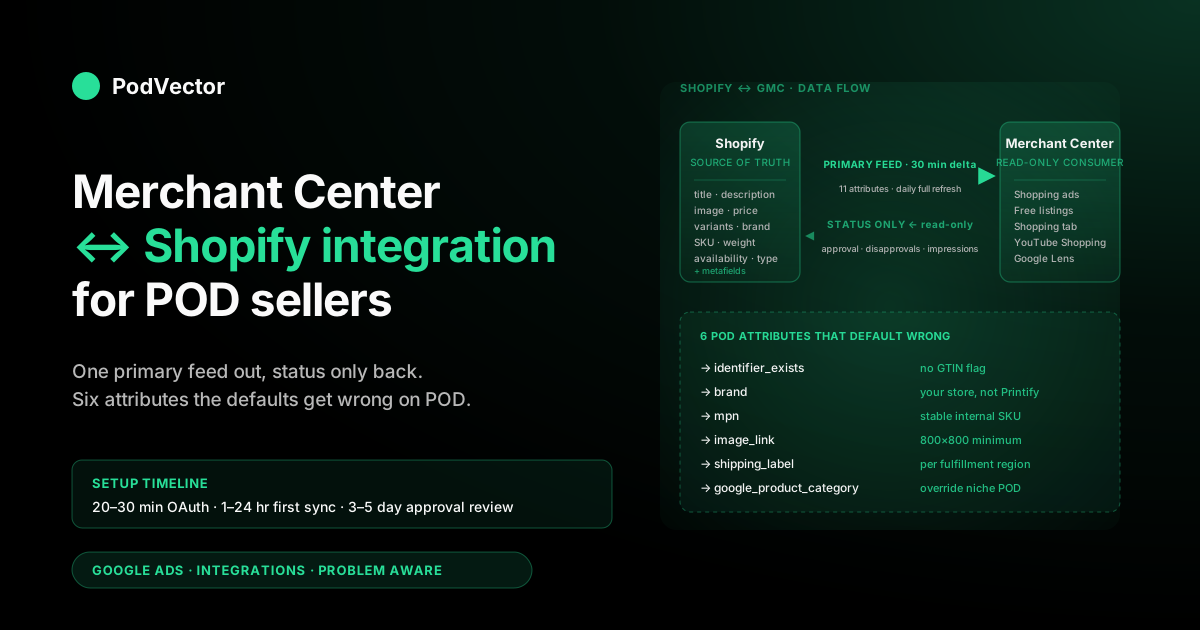
Quick Answer: The Google Merchant Center (GMC) ↔ Shopify integration is the data pipeline that lets your Shopify catalog appear on Google's commerce surfaces — Shopping ads, free product listings, the Shopping tab, Performance Max, YouTube Shopping, and Google Lens. In 2026 it's a single OAuth handshake through the official Google & YouTube sales channel: install the channel, sign into Google, link or create a Merchant Center account, and Shopify becomes the primary feed source for your products. Note: as of July 9, 2026, Google quietly dropped the "Next" suffix — the platform is now simply called Google Merchant Center again.
The hands-on setup is 20–30 minutes; the first sync runs in 1–24 hours; product approvals take 3–5 business days. For POD sellers the integration carries six product attributes that the defaults handle wrong (GTIN exemption, MPN/brand for custom designs, image resolution, shipping-origin variance, identifier_exists, and Google product category). A critical 2026 change: new standard Shopping campaigns can no longer be created — Performance Max is now the only format available to new advertisers, which makes feed quality more important than ever. This guide explains what flows through the integration, how to set it up correctly the first time, and the POD-specific configuration the generic Shopify-to-GMC tutorials don't cover.
What flows through the GMC ↔ Shopify integration
The Google Merchant Center Shopify integration is fundamentally a one-way primary feed with a thin reverse channel for status data. Understanding the directionality up front saves a lot of misdiagnosis later when you're trying to figure out why a change isn't reflecting where you expect it to.
Outbound from Shopify to GMC: every product's title, description, primary image (and up to 10 additional images), price, sale price, availability, variant attributes (color, size, material), shipping weight, product type, vendor (which becomes the brand attribute), Shopify product ID (which becomes the offer ID), and any metafields the channel has been configured to map. The sync runs every 30 minutes for delta updates and once daily for full feed refresh. Bulk price changes propagate within an hour; image changes propagate within 30 minutes; new product publication takes 30 minutes to enter the feed and another 3–5 days to clear approval review.
Inbound from GMC to Shopify: product approval status, disapproval reasons, policy warnings, and impressions/clicks (when surfaced in the Shopify channel admin's reporting view). Critically, GMC does not push price corrections, title rewrites, or category overrides back into Shopify. As of 2026, the native Shopify channel admin also surfaces competitor pricing data from GMC's price-benchmarking feed directly in the dashboard — a useful addition for POD sellers evaluating whether their retail prices are competitive.
If you optimise a product title in GMC's bulk editor for better keyword coverage, that change lives only in GMC and is overwritten on the next Shopify sync. The Shopify side stays the source of truth for everything outbound; GMC is a read-only consumer of that feed.
For POD sellers this asymmetry matters because the standard advice for general ecommerce stores ("just optimise titles in GMC") doesn't work; you have to optimise in Shopify and let the integration carry the change. We cover the practical implications in the complete Google Ads + Shopify integration guide alongside the conversion-tracking pipe that runs in parallel to the feed pipe.
Prerequisites: 8 things to fix before you start
Eight conditions should hold on your Shopify store before you install the channel. Skipping any of them produces errors that look like channel bugs but are actually upstream data issues:
- Paid Shopify plan with at least one published product. Trial-mode and password-protected stores can install the channel but the feed sync won't activate until the storefront is publicly accessible to Googlebot.
- Privacy policy, refund/return policy, and contact information page published. GMC's misrepresentation policy auto-checks for these. Stores missing any of them get suspended within 72 hours of feed activation, before product disapprovals are even processed.
- Shipping policy that matches actual POD fulfillment timing. If your store says "ships in 2–3 days" but Printify's blank ships in 5–8 days, GMC's automated comparison flags it. Fix the policy to reality, not the other way around.
- Flat-rate shipping fallback configured. Most POD stores set Shopify shipping to "Calculated at checkout" because Printify or Printful invoice the actual rate. According to a PodVector strategy guide, Merchant Center treats "Calculated at checkout" as missing shipping data and either disapproves or suppresses the SKU from competitive auctions. Set a flat-rate fallback in Shopify (or in Merchant Center directly under Shipping & returns) that approximates your supplier's domestic shipping rate.
- Tax settings configured per shipping country. Each country you'll show ads in needs Shopify Settings → Taxes either configured with rates or marked "tax included in price." Stores that haven't set this see a blanket "tax not configured" warning blocking all delivery.
- Brand attribute on every product. Most POD designs ship with vendor blank or set to "Printify" or "Printful," neither of which is the right value. Set the Shopify Vendor field on every product to your store/brand name; the integration carries Vendor as the GMC brand attribute, and a missing or wrong brand triggers identifier-issue disapprovals.
- GTIN exemption flagged on variants. Custom POD products have no UPC/EAN/ISBN. In Shopify variants, leave the Barcode field empty and ensure the channel's "GTIN exempt" auto-setting is on. New 2026 channel installs handle this automatically; stores upgraded from older installs or migrated from other platforms may need manual cleanup.
- Product images at 800x800 minimum and served over HTTPS. GMC's image-quality threshold is 800x800. Older Printify mockup templates output 600x600 — switch any affected products to high-resolution mockups in Printify's product publish settings before installing the channel. Also ensure all image URLs serve over HTTPS: Shopify handles this by default, but products imported with hardcoded HTTP image URLs can be silently disapproved.
One under-covered POD prerequisite: confirm that your Shopify shipping zones reflect the geographic distribution of your POD supplier's print partners, not your business address. Printify orders fulfill from the partner facility nearest the customer; if your zones say "ships from California" but a UK customer's order will print and ship from Latvia, GMC's policy engine catches the discrepancy and disapproves the affected SKUs once the feed activates. Configure shipping zones in Shopify with the actual fulfilment regions enabled and accurate per-region delivery times.
Step 1: Install the Google & YouTube channel
From Shopify admin, click the green plus icon next to "Sales channels" in the left sidebar → search "Google & YouTube" → Add channel → Add sales channel → accept the permissions prompt. The channel app is free, owned by Google rather than a third-party developer, and is the supported integration path for the GMC connection.
You'll see several third-party "Google Shopping feed" or "Google Merchant Center sync" apps in the Shopify App Store. For a first integration on a fresh POD store, prefer the official Google & YouTube channel.
Third-party feed apps make sense only when you've outgrown the official channel's capabilities — supplemental feeds, multi-country variants with currency conversion, or feed-rule transformations the channel doesn't expose. Tools like DataFeedWatch, Channable, and Simprosys offer that advanced layer at added cost; the official channel covers the vast majority of POD store needs.
Installation completes in about 30 seconds. The channel admin page opens to a guided setup wizard that handles Steps 2 through 5 below in a single flow. Complete the wizard end-to-end on first install rather than partial-completing — the channel state machine is unforgiving about half-complete progress, and operators who close the tab mid-wizard often end up with a half-linked account that needs uninstalling and reinstalling to recover.
Step 2: OAuth and link Merchant Center
The wizard's first step is "Connect Google account." Click Connect → an OAuth pop-up opens → pick the Google account that you want to own (or already owns) the Merchant Center account. The first Google account you authorise becomes the GMC owner if no GMC exists yet; if you'll later need a shared @yourbrand.com address as the canonical owner, set that up now — switching ownership later forces a re-verification cycle and resets some performance history.
Grant the permissions Shopify requests: read profile, manage Merchant Center, manage Google Ads conversion tracking (granted even if you're not using Google Ads yet, because the same OAuth token covers both), read YouTube channel. The wizard advances automatically once the OAuth callback completes.
If the OAuth pop-up closes without returning to the wizard, the most common cause is browser pop-up or third-party cookie blocking. Safari and Brave with default settings block the postMessage callback that completes the handshake. Either disable the pop-up blocker for shopify.com for the duration of setup, or do this step in Chrome and switch back afterwards. The connection persists across browsers once established.
If your authorised Google account already has access to an existing GMC (because you ran Google Shopping previously through WooCommerce, BigCommerce, or a manual CSV feed), the channel offers a "Link to existing Merchant Center" option rather than creating a new one. Linking is usually the right call — it preserves your historical performance data, domain verification, and any approved feed history. Create new only if the existing GMC has accumulated suspensions, policy violations, or disapprovals you'd rather not inherit.
Also link your Google Ads account during this step even if you only plan to run free listings initially. According to Shopify's own GMC documentation, skipping the Ads link means you cannot run Shopping ads or Performance Max later without repeating the OAuth flow.
Step 3: Verify domain and configure shipping
The channel auto-claims your Shopify domain in GMC by injecting a verification meta tag into your storefront's <head>. For most stores this completes in seconds with no manual action. The cases that fail typically have one of two issues: a custom theme that strips the meta tag Shopify injects, or a previously verified domain claim sitting on a different Google account (because someone — possibly a former agency or developer — verified the domain to a different GMC at some point and never released the claim).
The fix for the second case requires reaching the Google account that holds the existing claim and removing it from Search Console → Settings → Users and permissions, or contacting Google Merchant Center support to release the claim if the account is unrecoverable. The fix for the first case is editing your theme.liquid to ensure {{ content_for_header }} is present at the top of the <head> section. Until domain verification completes, the feed sync won't activate.
Once domain verification is green, the channel prompts you to confirm shipping settings. GMC requires explicit shipping configuration for every country you'll show ads in — either pulled from your Shopify shipping zones automatically (the default), or configured manually in GMC Settings → Shipping and returns.
The default Shopify-pull is correct for almost all POD stores as long as you've already set up flat-rate fallbacks (see Prerequisites). The first time you see GMC's shipping configuration, walk through every country your store ships to and confirm both the cost and the delivery-time range match your real Printify or Printful timing. Mismatches here are the second-most-common cause of POD store suspensions after the misrepresentation policy.
Step 4: Map product taxonomy and feed attributes
The integration auto-maps Shopify product type and collection metadata to Google's product category taxonomy. For most POD products this auto-mapping is roughly correct: t-shirts get Apparel & Accessories > Clothing > Shirts & Tops; mugs get Home & Garden > Kitchen & Dining > Tableware > Drinkware; phone cases get Electronics > Communications > Telephony > Mobile Phone Accessories; tote bags get Apparel & Accessories > Handbags, Wallets & Cases > Tote Bags. The mapping isn't always perfect — "all-over print sweatshirt" sometimes maps to a non-clothing category if the Shopify product type field is unusual.
Review the auto-mapped categories in the Google & YouTube channel admin under Catalog → Products, sorting by "Google product category" to spot anomalies. For any product where the auto-mapping is wrong, override it via the channel's product detail view rather than editing in GMC directly — per the integration's directionality, GMC-side overrides get wiped on the next sync.
The channel also lets you map specific Shopify metafields to GMC attributes that aren't covered by the default product fields. The metafields most worth mapping for POD: color (so Google's color filter works on your products), size (same for size filter), material (especially for apparel where Google's "100% cotton" filter drives meaningful organic Shopping traffic), age_group (adult/kid/baby/toddler — required if your blanks include kids' or baby sizes), and gender (male/female/unisex — mostly unisex for typical POD but flagged required for some apparel categories). The channel admin's "Field mapping" view shows every available GMC attribute with a dropdown for which Shopify field or metafield to source it from.
With Performance Max now the only campaign type available to new advertisers in 2026, getting these attributes right from the start matters more than ever: PMax uses your titles, descriptions, images, and category data to automatically generate ads across all Google surfaces, and an attribute gap directly degrades campaign eligibility and reach.
Step 5: Confirm the first feed sync
With domain, shipping, and taxonomy configured, the channel begins its initial product sync to GMC. The first sync takes 1–24 hours depending on catalog size: POD stores with 50–500 SKUs typically see initial sync complete in under two hours; stores with 5,000+ designs across multiple product templates can take a full day. Sync status shows on the channel's Overview tab as "X products synced, Y errors, Z disapproved."
"Synced" means the product reached GMC's catalog. "Approved" is a separate state — it requires GMC's automated and (for some categories) manual review to pass, which takes another 3–5 business days for the initial bulk review. So the first 1–24 hours give you a "products synced" count; days 1–5 give you the "approved versus disapproved" split.
Most POD operators panic on day 1 when they see "Pending" against most of their catalog — that's expected. Wait for day 5 before troubleshooting at the SKU level.
While the sync runs, monitor the channel admin's "Errors" tab for feed-level issues that block whole categories of products from even reaching the catalog. Common day-0 errors: missing GTIN exemption flag (despite the prerequisite), invalid shipping configuration, missing tax for a country, brand attribute empty, image URL returning 4xx, or image URLs served over HTTP instead of HTTPS. Each of these blocks a slice of the feed; fixing them and triggering a re-sync from the channel's Overview tab unblocks the next layer of products to enter review.
Also check the GMC Diagnostics tab (at merchants.google.com) weekly once products are live — resolving errors there promptly protects your account health score, which Google now factors into how broadly your free listings are distributed.
The 6 POD-specific feed attributes that need fixing
The generic Shopify-to-GMC tutorials cover the connection itself but leave six product attributes at defaults that are wrong specifically for print-on-demand catalogs. Getting these right is the difference between a low initial approval rate and a high one:
- identifier_exists = no. For custom POD designs without UPC/EAN/ISBN, this attribute tells GMC that GTIN absence is intentional rather than a data-quality issue. Set on every variant. The Google & YouTube channel handles this automatically for fresh installs in 2026; older installs may need bulk edit via the channel's CSV export/import flow.
- brand = your store name, not the supplier. Shopify Vendor field carries through as GMC brand. Most POD product templates default Vendor to blank, "Printify," or "Printful" — none of which are right. Set Vendor on every product to your storefront brand. The fix is a one-time bulk edit in Shopify's product list view.
- mpn = your store-internal SKU. GMC needs an MPN (manufacturer part number) when GTIN is absent. The Shopify variant SKU field carries through automatically if populated. Set it to a stable internal identifier per variant —
brandcode-design-color-sizeworks well — rather than letting Printify's auto-generated SKU flow through, because Printify SKUs can change when you republish a product. - image_link at 800x800+ resolution, served over HTTPS. Older Printify product mockup templates output 600x600. Switch affected products to high-res mockup templates in Printify product publish settings, then trigger feed re-sync. Printful's 2026 default mockups all clear 800x800; older Printful products published before the 2024 mockup refresh may not. Ensure no image URL uses a hardcoded HTTP scheme, as GMC will silently disapprove those listings.
- shipping_label per fulfillment region. Set distinct shipping_label values for products fulfilled by different POD partners. Printify partners in US/EU/AU have different shipping costs and timing. The channel's shipping configuration lets you assign different shipping rules per shipping_label, which is the only way to express "this t-shirt ships from Latvia in 5–8 days for EU customers but from California in 2–4 days for US customers" without disapproval risk.
- google_product_category override for niche products. "All-over print" apparel, holographic decals, custom puzzles, and similar non-mainstream POD products often auto-map to wrong Google categories. Manually override via the channel's product detail view. Wrong category is rarely a hard disapproval but consistently underperforms in Shopping ads ranking and PMax asset group eligibility.
For sellers running Performance Max alongside Shopping, the same six attributes also directly affect PMax asset group eligibility and how broadly Google's AI can serve your ads across its inventory. We walk through the conversion-tracking side of the equation in Google Ads Shopify Conversion Tracking, which uses the same OAuth scope as the feed pipe and benefits from being set up in the same session.
Performance Max in 2026: what changes for POD feeds
The most significant platform shift affecting this integration in 2026 is the end of new standard Shopping campaign creation. According to mygoogle.fr's 2026 GMC overview, Google stopped allowing creation of new standard Shopping campaigns in 2026, making Performance Max the only available format for new advertisers. If you're setting up GMC for the first time, you will run PMax — not a classic Shopping campaign.
This changes the stakes for feed quality. According to that same source, a poorly optimised feed can degrade PMax performance significantly depending on category. The feed attributes described above aren't just for approval hygiene; they're the signal inputs PMax uses to decide which Google surfaces to serve your products on and which audiences to target.
Three POD-specific PMax feed adjustments that matter most:
- Custom labels for profit tiers. PMax has no native mechanism to bid differently on high-margin vs. low-margin SKUs without custom labels. Set custom_label_0 to "high-margin," "mid-margin," or "low-margin" based on your actual contribution margin per design. This lets you create separate PMax asset groups with different ROAS targets per tier.
- Lifestyle images as additional_image_link. PMax auto-generates ad creatives across YouTube, Discover, and Display using your product images. A flat blank-on-white mockup — the Printify default — produces weak Display and YouTube creatives. Add model-on-lifestyle images as additional_image_link entries (up to 10 per product) so PMax has richer creative inputs to work with.
- Conversion value = net contribution margin, not gross revenue. PMax's Smart Bidding learns from the conversion values you send. If you send gross order value, PMax scales spend toward high-revenue SKUs regardless of margin. Sending net-of-fulfillment-cost conversion value teaches the algorithm to optimize for actual profit. This requires conversion tracking that subtracts Printify/Printful fulfillment cost from order value at conversion time — a non-trivial setup covered in the conversion tracking guide.
For sellers running both Google Shopping/PMax and Meta ads, keeping cross-channel attribution coherent is essential. See why Google Ads ROAS doesn't match Shopify and why Google Ads ROAS doesn't match GA4 for the reconciliation framework.
Which fields the integration syncs back from GMC
A common misconception is that the GMC ↔ Shopify integration is fully bidirectional. It isn't. The channel admin in Shopify shows a curated subset of GMC data, but most operational decisions still require logging into the GMC dashboard at merchants.google.com. Here's what surfaces back in the Shopify channel admin and what doesn't.
Visible inside Shopify channel admin: per-product approval status (Approved / Pending / Disapproved), the primary disapproval reason (one reason at a time, even when multiple are present), 7-day and 28-day impressions/clicks per product, account-level policy warnings, feed sync status (last sync timestamp, errors, products processed), and as of 2026, competitor pricing benchmarks pulled from GMC's price-competitiveness data. This is enough for day-to-day catalog hygiene but not enough for serious feed optimisation.
Available only in the GMC dashboard: full historical disapproval history per SKU, multiple simultaneous disapproval reasons (when there's both a policy issue and a data-quality issue), free product listings performance broken out from paid Shopping, price competitiveness benchmarking against other GMC-listed merchants for the same product, market insights / brand benchmarks, supplemental feed configuration, feed rules / attribute transformations, and full Shopping ads performance (which lives in the Google Ads UI rather than GMC, but is reachable via the same OAuth identity).
The practical workflow that emerges: do most catalog hygiene from inside Shopify channel admin (review disapproved, fix attributes in Shopify product editor, trigger re-sync), but log into merchants.google.com weekly for the deeper diagnostics — price benchmarking, free vs. paid listing breakouts, and competitive insights you can't get any other way. For sellers who want Shopify-native versions of those views, the official channel hasn't shipped all of them as of mid-2026; third-party apps like DataFeedWatch and Channable surface some of them at significant added cost.
What to track once products are approved
Once a meaningful share of the catalog is approved and Shopping/PMax ads are eligible to serve, the success metrics for the integration shift from "is the feed working" to "is the feed driving profit." Four numbers tell that story for a POD store:
1. Approved-product rate. Total approved / total synced. Healthy POD stores should stabilise well above the majority of their catalog after the first 4–6 weeks of cleanup. A stable rate well below that means there's a feed-attribute problem you haven't diagnosed yet (most often: brand, GTIN exemption, or image quality). The Shopify channel admin shows this on the Overview tab.
2. Free product listings traffic / revenue. Free listings sit beside paid Shopping ads in the Google Shopping tab and on Search results carousels. For long-tail POD design niches, free listings can quietly drive meaningful Shopify storefront traffic with zero ad spend. Visible in GMC dashboard > Performance > Free product listings, with a metric called "non-paid impressions/clicks." If this number is zero after the first 30 days, your products technically passed approval but aren't reaching free-listing eligibility — usually a brand-attribute or category issue. Optimising product titles in Shopify to match the niche query exactly ("Funny accountant CPA shirt graphic tee" vs. "Funny Shirt #4127") significantly improves free-listing reach on long-tail queries.
3. Per-product profit, not per-product revenue. Shopping and PMax campaigns optimise toward conversion value, but if you're sending gross revenue as conversion value, the algorithm is learning to scale the wrong mix. A POD design with a lower retail price but the same fulfillment cost has substantially less contribution margin — if your campaigns bid equally on both, you're spending CPA budget chasing weaker margin on the cheaper SKU. Sending net-of-fulfillment conversion value (see the PMax section above) and using custom labels to segment by margin tier closes this gap.
4. Cross-channel attribution coherence. Once GMC + Shopping/PMax is live alongside any Meta ads or organic search traffic, the question of which channel actually drove a conversion gets murky fast. Shopify's first-click attribution, Google Ads' last-click attribution, GA4's data-driven attribution, and Meta's view-through attribution can all credit themselves for the same order. POD operators tracking ROAS per channel from each platform's own dashboard end up with inflated totals that don't reflect store-level reality.
The standard solution for #3 and #4 is a warehouse that ingests Shopify orders, Google Ads cost, GMC product status, and Meta cost data into a single store-level model. Setting that up is non-trivial; querying it requires SQL fluency. Victor — PodVector's AI employee for POD sellers — takes the warehouse-and-SQL layer off your plate.
Connect Shopify and Google Ads (and Printify/Printful, and Meta if you run it), and Victor reads your live business data and answers questions like "what's my contribution margin on Google Shopping orders this month versus organic?" or "which of my Printify blanks have the worst Google Ads ROAS after fulfillment cost?" in plain English. Victor doesn't just surface the answer — he proposes a concrete action (repricing a SKU, creating a discount, adjusting a collection) with rationale and expected effect, and executes it on Shopify once you approve. The integration explained in this article is what makes the GMC side of your stack queryable. See also: why Google Ads sessions don't match Shopify and why Google Ads revenue doesn't match GA4 for the data-reconciliation groundwork.
Troubleshooting integration failures
Eight failure modes account for the vast majority of GMC + Shopify integration issues. Diagnosing them quickly:
"Channel installed but feed never syncs." Check the channel Overview tab for feed-level errors (missing tax config, missing shipping, missing privacy policy URL). Resolve and click Resync. If errors are clean but products still show "Pending sync," sign out of the Google account in the channel and re-OAuth — the token sometimes desyncs after Google Workspace password changes.
"Domain verification stuck." Either a stale verification claim sits on a different Google account (release via Search Console of the holding account) or your custom theme strips the meta tag (ensure {{ content_for_header }} is present in theme.liquid <head>).
"All products disapproved with 'misrepresentation' policy." Almost always a missing privacy/refund/contact page. GMC checks for these on first review; missing any one suspends the entire account, not just specific SKUs. Add the pages to your Shopify navigation, then file a reinstatement request from GMC dashboard.
"Shipping cost mismatch" disapprovals across most products. Shopify shipping zones don't match GMC's auto-pulled values for the country in question, or "Calculated at checkout" has no flat-rate fallback. Re-confirm zone configuration in Shopify Settings → Shipping and delivery and add flat-rate fallbacks, then re-sync.
"Image too small" disapprovals on a subset of SKUs. Old Printify mockup templates output 600x600. Republish the affected products with high-res mockup templates in Printify, then re-sync.
"Generic image" disapprovals. GMC sometimes flags Printful-generated lifestyle mockups as "stock photo, not actual product" when many merchants use the same template. Switch the affected products' primary image to a flat product mockup and keep lifestyle mockups as additional images.
"Price mismatch" disapprovals. Shopify variant price doesn't match Compare-at-price or what's shown elsewhere in the storefront. Audit variant prices in Shopify bulk editor; ensure Compare-at-price is consistently filled or consistently empty across the variant set.
"Editorial issue." GMC's catch-all for "we can't tell exactly what's wrong but something looks off." Usually resolves in 24–72 hours after re-sync without manual intervention. Persistent editorial issues require opening a GMC support case via the Help icon in the GMC dashboard.
For a deeper walkthrough of disapproval-handling at scale, see our Connect Google Merchant Center to Shopify guide, which goes into more detail on the recovery sequence for already-suspended accounts. And to understand where the GMC pipe sits in the broader stack, the Google Ads topic hub indexes every related article in this cluster.
If Google Ads data downstream of the feed doesn't reconcile with what you see in Shopify or GA4, the data-reconciliation guides cover each gap: Google Ads ROAS vs. Shopify, Google Ads ROAS vs. GA4, and Google Ads default view-through conversion window.
FAQs
Is the Google & YouTube channel the same as the older Google Shopping channel?
The Google & YouTube channel replaced the older Google Shopping channel in 2021 and is the only Shopify-supported integration as of 2026. If you have an old "Google Shopping" channel still installed, uninstall it and install the current Google & YouTube channel; old-channel installs no longer receive feature updates and may break unpredictably.
What happened to "Google Merchant Center Next"?
On July 9, 2026, Google renamed "Merchant Center Next" to simply Google Merchant Center. According to Digital Applied, the rebrand is cosmetic — "your account, product data, and campaigns remain completely unaffected." Feeds continue flowing to Shopping and Performance Max exactly as before. If you see references to "Merchant Center Next" in older tutorials, treat them as referring to the current platform.
Do I need a Google Ads account to use the GMC + Shopify integration?
No. The integration's free-product-listings function works without any Google Ads account. You only need Google Ads if you want to run paid Shopping or Performance Max campaigns. However, it's worth linking your Google Ads account during the initial OAuth step even if you plan to run free listings only at first — skipping it means repeating the OAuth flow later when you're ready to run campaigns.
How long does it take products to start appearing in Google Shopping after the integration is connected?
1–24 hours for sync to GMC, then 3–5 business days for initial bulk review and approval. Once approved, products are eligible to appear immediately in free product listings. Paid Shopping/PMax ads require a Google Ads campaign targeting your GMC account, which is a separate setup. Plan for a one-week lag between channel install and meaningful Google Shopping presence.
Why does the integration set GTIN-exempt automatically for some products and not others?
The Google & YouTube channel's 2026 default behaviour is to set GTIN-exempt on any variant where the Shopify Barcode field is empty. If you have legacy products with stale or test data in the Barcode field, those variants won't get the exemption and will be disapproved with an "identifier issue." Bulk-edit the Barcode field to empty, then re-sync.
Can I run multiple Shopify stores into one Merchant Center account?
Yes, by linking each Shopify store's Google & YouTube channel to the same parent GMC account (via Multi-Client Account / MCA structure). This is uncommon for early-stage POD operators but useful if you operate distinct brands on separate Shopify domains and want unified Shopping/PMax campaign management. Set up the MCA in GMC first, then link each Shopify store to it as a sub-account during the channel OAuth step.
What's the difference between this integration and a third-party Google Shopping feed app?
The official channel runs the canonical primary feed via Shopify's Content API. Third-party apps (DataFeedWatch, Channable, Simprosys) layer on top with feed rules, supplemental feeds, multi-country variants, and feed-attribute transformations the official channel doesn't expose. For most POD stores the official channel covers the use case; once you're optimising at the level where supplemental feeds and fine-grained feed-rule transformations matter, the third-party apps earn their cost.
Why do my Shopify product changes take 30 minutes to reach Google Shopping?
The integration runs delta syncs every 30 minutes for incremental updates and a full feed refresh once per day. Price and image changes propagate within the next delta-sync window; new product publications enter the next delta and then need 3–5 days for approval review. To force an immediate sync, click "Re-sync products" in the channel admin's Overview tab. Don't do this more than a few times per day — excessive re-syncs are throttled at the GMC side.
Does the GMC Shopify integration support multi-currency or only one currency?
Multi-currency is supported on Shopify Markets-enabled stores. The channel detects which markets you've enabled and pushes per-currency price feeds to GMC for each. International Shopping ads and free listings then serve the correct currency to each customer's region. Stores not on Shopify Markets are limited to their single store currency in GMC.
How do Meta Ads ROAS and Google Ads ROAS both look better than my actual store results?
Each platform's own reporting credits itself using its own attribution model — GA4 data-driven, Google last-click, Meta view-through — which means both can claim the same order. The result is that summing each platform's reported ROAS overstates actual store performance. See why Facebook Ads ROAS doesn't match Shopify and why Meta Ads ROAS doesn't match Shopify for the reconciliation approach.
Connecting Shopify and GMC is the start, not the finish
The integration sends your Shopify catalog to Google. It doesn't tell you which products are actually profitable once Google Ads cost and Printify fulfillment cost come out the other side. Victor — PodVector's AI employee for POD sellers — reads your live Shopify, Google Ads, Printify, Printful, and Meta Ads data and answers questions like "what's my contribution margin on Google Shopping orders this month?" or "which Printify blanks have the worst Google Ads ROAS after fulfillment?" in plain English. And when the answer calls for action — repricing a product, creating a discount, updating a collection — Victor proposes the move with rationale and executes it on Shopify once you approve. No SQL, no dashboards, no spreadsheet stitching.
Try Victor free