
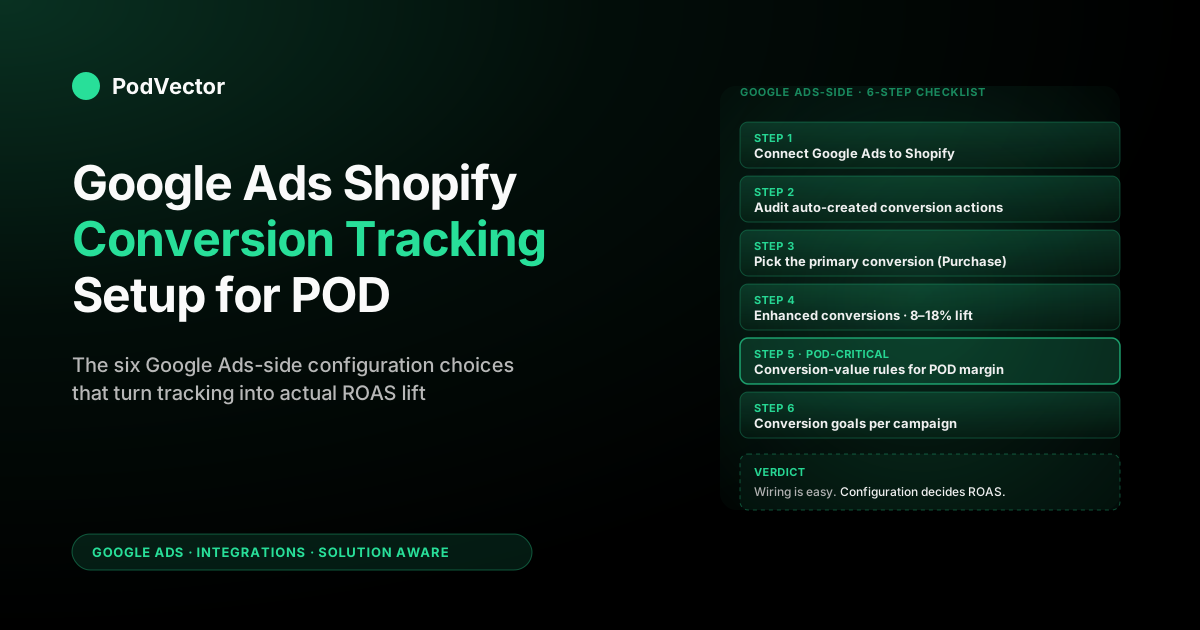
Quick Answer: To set up Google Ads conversion tracking on Shopify: install the Google & YouTube channel from Shopify's Sales channels, connect it to your Google Ads account, and let it auto-create the Purchase, Begin Checkout, and Add to Cart conversion actions. Then set Purchase as your primary conversion, turn on enhanced conversions, and verify it's firing in the Diagnostics tab. That's the whole client-side path — no code paste required.
But the choices you make inside Google Ads after that — which conversion is primary, what value each order reports, whether enhanced conversions and value rules are on, and how Performance Max ingests the signal — are what decide whether tracking actually moves your ROAS. This guide walks the full Google-Ads-side setup, the four POD-specific decisions Shopify's default install gets wrong, and when to go server-side with Consent Mode for privacy-durable tracking.
How Google Ads conversion tracking on Shopify is wired
From Google Ads' perspective, a Shopify conversion is a third-party event that arrives via the Google tag, gets matched to an ad click through the GCLID parameter (or a hashed customer identifier when enhanced conversions are on), and is then attributed to a campaign, ad group, keyword, and audience using your account's attribution model. The Shopify side owns the firing of the event; the Google Ads side owns the attribution, the optimization, and the bidding decisions that follow. Most POD operators spend all their setup time on the Shopify side and miss that the Google-Ads-side configuration is where the actual money lives.
The wiring has three layers. The data layer — Shopify Customer Events fires lifecycle events (product viewed, added to cart, checkout started, checkout completed) inside a Shopify-managed sandbox.
The transport layer — the Google & YouTube channel app installs a Google tag pixel inside that sandbox, listens for those events, and forwards them to Google Ads with a conversion ID and conversion label. The configuration layer — Google Ads receives the conversion, looks up the conversion action by ID/label, applies whatever rules you've configured (count-once vs. count-every, value rules, attribution model, lookback window), and feeds the resulting signal to Smart Bidding. This guide spends most of its time in that third layer, because it's the one the channel app cannot make decisions about for you.
If you want a deeper look at the broader architecture and how the tag, the Merchant Center feed, and the conversion actions all sit together, the complete guide to Google Ads + Shopify integration for POD is the longer-form companion, and the Google Ads topic hub indexes every related article for POD operators. Shopify's official documentation on setting up Google Ads conversion tracking is the platform-agnostic version of the channel-app path; it covers the generic mechanics without the POD-margin layer.
What to confirm in your Google Ads account first
Before you connect anything, do a five-minute audit of your Google Ads account. The point is to make sure the channel app's auto-created conversion actions don't collide with anything you've configured manually in the past, and to confirm you have the access level needed to complete the setup.
Confirm four things. First, you have admin (not standard or read-only) access on the Google Ads account — the OAuth flow during channel install requires admin scope to create conversion actions.
Second, navigate to Goals → Conversions → Summary and screenshot whatever conversion actions already exist; if you have legacy "Shopify Purchase" actions left over from a previous install, you'll want to pause those before the channel re-creates duplicates. Third, your account has a Goals tab at all — accounts running on the legacy Smart campaigns interface won't, and you'll need to migrate to standard campaigns first. Fourth, check Tools → Linked accounts → Google Merchant Center; for POD stores running Shopping or Performance Max, the Merchant Center link should already be live before conversion tracking is set up, because Performance Max uses Merchant Center's product feed and the conversion data together to allocate budget across products.
One under-discussed audit step for POD operators specifically: pull a list of your supplier costs per SKU before you touch the conversion-action setup. Printify or Printful base price + print-method fee + shipping for each variant. You'll need this list for the value-rules step later, and reconstructing it mid-setup is what causes most operators to silently default to revenue-based tracking and never come back to fix it.
Step 1: Connect Google Ads to Shopify (the channel app path)
The Google & YouTube channel app is the right default for any POD store under roughly $200K MRR. It's free, maintained jointly by Shopify and Google, and the install is a sales-channel install rather than an embedded app — which means it lives alongside your Online Store and Shop channels in the Shopify sidebar and gets first-class lifecycle events from Shopify Customer Events.
From Shopify admin, go to Sales channels → add channel, search "Google & YouTube," and install. Inside the channel, click Get started, then Connect under the Google Ads section.
You'll be redirected through Google's OAuth consent flow — sign in with the Google account that has admin rights on your target Ads account, grant the requested scopes (the request is broad on purpose; Shopify needs to create conversion actions, link Merchant Center, and write product data), and pick the right Ads account if you have multiple. The channel will then show "Connected" with the account ID displayed.
Behind the scenes, three things just happened. The channel app added a Google tag pixel to your Shopify Customer Events sandbox.
Shopify requested the creation of Purchase, Begin Checkout, and Add to Cart conversion actions in your Google Ads account through the Google Ads API. And your Merchant Center account (if linked) was associated with your Ads account so Performance Max can read the product feed.
None of those three steps require any code paste from you. If you're configuring manually instead — typically because of a custom checkout or a strict GTM setup — see the when to bypass the channel app section below; the rest of the guide applies equally to both paths once the conversion actions exist in Google Ads.
Step 2: Audit the conversion actions Shopify created
Within roughly 30 minutes of completing the channel install, three conversion actions will appear in Google Ads under Goals → Conversions → Summary: Shopify Purchase, Shopify Begin Checkout, and Shopify Add to Cart. Click into each one and audit the configuration before you trust it.
For Shopify Purchase, confirm the Goal is set to "Purchase" (not "Other" — if it shows "Other," Performance Max won't be able to use it as a Shopping signal), the Value setting is "Use different values for each conversion" (this is what allows the order total to flow through; if it's set to "Use the same value," every conversion will report the same dollar amount regardless of cart size), Count is "One per click" (critical for POD because counting every line item as a separate conversion will inflate your conversion volume by 1.5–3x and break Smart Bidding), Click-through conversion window is 30 days (the default; you can extend to 90 for higher AOV products), and the attribution model is data-driven (the default for accounts with enough data; otherwise it falls back to last click).
For Shopify Begin Checkout and Shopify Add to Cart, confirm both are set as secondary actions. Secondary actions show up in your reporting but are not used by Smart Bidding for optimization.
This is the correct configuration for almost every POD store. If they show up as primary, your bidding algorithm will start optimizing for cheap add-to-carts that never convert — a classic failure mode that wastes 20–40% of POD ad spend in the first month before anyone notices.
Two configurations the channel app gets right that are worth understanding so you don't break them. The transaction ID parameter is set to the Shopify checkout token — this is what de-duplicates conversions when a customer reloads the thank-you page or clicks the same ad twice in different sessions; without it your conversion count inflates by 5–15%.
And the include-in-conversions toggle is on for Purchase and off for the secondary actions — this is what tells Google whether the action counts toward your reported ROAS column. Leave both alone.
Step 3: Pick the right primary conversion action
The default — Purchase as primary, everything else as secondary — is right for the vast majority of POD stores. The two cases where you might deviate are worth covering because they both come up regularly.
First, if you're running a brand-new store with under 30 conversions per month, Smart Bidding doesn't have enough data to optimize on Purchase alone, and you may need to promote Begin Checkout to primary temporarily to give Maximize Conversions or Target CPA enough volume to learn from. The trick is to demote it back to secondary the moment Purchase volume crosses 30/month, otherwise you'll permanently bias toward checkout-starters who never finish.
Second, if you're running a subscription POD product (recurring t-shirt drops, monthly mug clubs, etc.), the right primary action is the first subscription-purchase event, not the per-shipment purchase event. The default install will treat every monthly shipment as a fresh Purchase, which over-credits your acquisition campaigns and double-counts margin. Configure the subscription-creation event as primary and the recurring-charge events as secondary, or build a custom Customer Events pixel that fires only on the first charge — the Shopify-side conversion tracking guide covers the custom-pixel pattern in detail.
For everything else — single-purchase POD, mixed catalog, drop-style stores — Purchase as the only primary action is the right default and you should resist the temptation to add more. Each additional primary conversion dilutes the signal Smart Bidding optimizes against, and the reason most agency-managed POD accounts underperform self-managed accounts is that they've added five primaries to "give the algorithm more to work with." It's the opposite of helpful.
Step 4: Turn on enhanced conversions in Google Ads
Enhanced conversions improve attribution by sending hashed customer identifiers (email, phone, address) along with each conversion. Google matches the hashes against its own logged-in user base and recovers conversions that the standard pixel loses to cookie blocking, cross-device journeys, and iOS Mail privacy. For Shopify stores using the channel app, the integration is bundled — you turn it on in Google Ads and Shopify forwards the hashed data automatically.
The configuration is two clicks. Open the Shopify Purchase conversion action, go to the Diagnostics tab, click Turn on enhanced conversions for web, and choose "Google tag" as the integration method. Google will run a verification that confirms the tag is sending the customer-data parameters and report status as "Recording" once it sees data flow (typically within 24 hours).
Typical lift from enabling enhanced conversions on a POD store: 8–18% recovered Purchase conversions inside 30 days, with a corresponding ROAS correction. This is the highest-ROI configuration change in this entire guide and roughly half of POD operators we've talked to never enable it.
Skip the rest of this guide before skipping this step. If you're on a manual setup rather than the channel app, the gtag.js call needs email, phone_number, and address object parameters added to the conversion event payload — Google's documentation has the exact field names, and the hashing happens client-side before the data leaves the browser.
Step 5: Configure conversion-value rules for POD margin
Here is where POD diverges hardest from generic ecommerce, and where the channel app's defaults cost you money. By default, the Shopify Purchase conversion sends Shopify's checkout.totalPrice as the conversion value — i.e., what the customer paid you, before Printify or Printful's variable supplier cost is taken out.
Google Ads then optimizes Smart Bidding against that revenue figure, which on POD is systematically biased toward your worst-margin products: oversized hoodies, all-over-print sublimation, premium substrates. Send revenue and you'll spend more on the products you make least money on.
The clean fix lives in Shopify's Customer Events pixel and is covered in the Shopify-side guide: edit the conversion-value calculation to send order revenue minus per-line-item supplier cost. The Google-Ads-side fix is conversion-value rules, and it's the right tool when you don't want to (or can't) edit the Shopify pixel.
Conversion-value rules live under Goals → Conversions → Value rules. They let you adjust the conversion value Google receives based on conditions you set on the conversion event.
For POD, the most useful rules are: location-based (US/CA/UK orders are worth more than international because shipping eats less margin), audience-based (returning customers' lifetime value is roughly 2.4x first-time, so the conversion is worth more), and device-based (mobile-first checkouts have lower AOV but you don't want to bid down on mobile clicks because of it). Rules apply multiplicatively to whatever value the pixel sent, so you can layer them — e.g., a 1.15x location rule and a 1.2x audience rule compound to 1.38x on a returning US customer.
The blunt instrument that solves the supplier-cost problem without editing the pixel is a global value rule: "All conversions: multiply by 0.62" (assuming your blended POD margin is 62%). It's a hack — it pretends every order has the same margin, which isn't true for a mixed catalog — but it's strictly better than sending raw revenue and takes 90 seconds to configure. The right answer remains editing the pixel to send true contribution margin per order, and if you operate at any meaningful spend level you should commit to doing that within 30 days of getting the rest of the tracking live.
Step 6: Set up conversion goals so each campaign optimizes against the right signal
Conversion goals are the layer above conversion actions: they're the named bundles ("Purchase," "Lead," "Engagement") that campaigns optimize against. By default, Google Ads creates an account-level Purchase goal that contains every primary conversion action categorized as Purchase, and every campaign in your account inherits that goal unless you override it.
For a single-product POD store, the default behavior is fine. For multi-brand or multi-store POD operators, you'll want to override.
The override pattern is: at the campaign level, go to Settings → Conversion goals → "Use account-default goal" toggle off → pick the specific conversion actions this campaign should optimize for. The use case is usually that you've got two brands sharing a Google Ads account (because one MCC manages both), and you want Brand A's campaigns to optimize for Brand A's Shopify Purchase action only, not the combined account goal. Without this override, the algorithm will spend Brand A's budget chasing Brand B conversions when Brand B happens to have higher reported ROAS.
For a single-brand POD store with one Shopify domain, leave the account default in place and don't touch this. Configuration that doesn't solve a problem is configuration that creates problems later.
When you should bypass the channel app and configure manually
The honest test for whether to skip the channel app: do you have a non-standard checkout? Examples are Shopify Plus accounts using checkout extensibility with custom code that breaks the channel pixel, Shopify Hydrogen storefronts where Customer Events doesn't run the same way, or stores migrating from a legacy Shopify Plus checkout.liquid setup. If none of those apply, use the channel app.
If they do, the manual path is: create the conversion actions in Google Ads yourself (Goals → Conversions → New conversion action → Website → Add manually, with the same settings the channel app would have used — Goal Purchase, Value "Use different values," Count "One per click"), then install the Google tag and conversion event snippets into your Shopify theme via Customer Events custom pixel or your GTM container. The Shopify-side wiring is covered end-to-end in the Shopify-side conversion tracking guide; the Google-Ads-side configuration in this article applies identically once the conversion actions exist.
One trap to avoid on the manual path: don't paste the Google tag inside the Shopify theme.liquid file directly. It will fire on every page load including pages where Customer Events also fires, and you'll double-count conversions. Use Customer Events as the single source of truth for the tag — that's the architectural decision Shopify has been steering everyone toward since 2023.
Server-side tracking and Consent Mode: when client-side isn't enough
Everything above is client-side tracking — the conversion fires from the shopper's browser. That's the right default, but browser-based tracking loses conversions to ad blockers, iOS privacy limits, and the steady decline of third-party cookies. On a POD store running real paid volume, that leak is typically 10–25% of conversions the algorithm never sees.
Two upgrades close most of the gap. The first is Consent Mode v2 — Google's framework for adjusting tag behavior based on whether a shopper accepted cookies. When someone declines, Consent Mode still sends anonymized, cookieless "conversion pings," and Google models the missing conversions statistically instead of dropping them entirely. If you sell to EU/UK customers it's not optional: Google Ads won't use your audience or remarketing data for European traffic without it, and most Shopify consent-banner apps (Pandectes, Consentmo) wire it in with a toggle.
The second is server-side tracking, where conversion events route through a server container you control (Stape, Google's server-side GTM, or an equivalent) before reaching Google Ads. Because the event leaves your server rather than the browser, ad blockers can't strip it and the payload carries a longer-lived first-party identifier. The trade-off is setup cost and a small monthly hosting bill, so it earns its keep once you're past roughly $30–50K/month in ad spend — below that, the channel app plus enhanced conversions plus Consent Mode recovers most of the same signal for free.
For POD specifically, server-side matters most if your margins are thin enough that a 15% under-count flips a campaign from "scale it" to "kill it." When Smart Bidding is optimizing against contribution margin — not revenue — every recovered conversion is a signal that keeps it from starving your best products. The Shopify-side conversion tracking guide covers the server-container wiring, and Shopify's own Google Ads conversion tracking walkthrough is the platform-agnostic baseline for the client-side path.
How to verify it's working from inside Google Ads
Three checks, each takes under five minutes, and you should run all three before you trust the data.
The first is the Diagnostics tab on each conversion action. Open Shopify Purchase → Diagnostics.
Within 24 hours of a real test purchase the status should read "Recording" with a green checkmark; "Receiving" without the checkmark means the tag is firing but Google hasn't validated the structure yet (wait); "No recent conversions" 48 hours after a real purchase means something is broken (usually the channel pixel got disabled in Shopify Customer Events). For enhanced conversions, the same Diagnostics tab will show a separate "Enhanced conversions" status that needs to read "Recording" with the matching-rate percentage displayed — a healthy POD store sees 60–85% match rates.
The second is the Tag Assistant browser extension. Install it, open your Shopify store in an incognito window, complete a real or test purchase end-to-end, and watch the extension panel.
You should see the Google tag fire on every page, the conversion event fire exactly once on the order-confirmation page, and the conversion ID and label match what Google Ads shows for the Shopify Purchase action. If the conversion event fires twice, you've got a duplicate tag installation (usually leftover GTM container plus the channel pixel both firing); if it doesn't fire at all, Customer Events isn't subscribing the channel pixel correctly.
The third is the Conversions report after seven days of real traffic. Open Reports → Predefined reports → Conversions. The metrics that should look right: Purchase volume should match Shopify's order count for paid traffic within 5–10% (the gap is iOS attribution loss and ad-blocker drop-off), the Conversion value column should match Shopify's revenue for paid traffic to the same tolerance (or, if you're sending margin instead of revenue, should match your manually computed margin), and the Conversion source column should read "Website (Google tag)" not "Imported" or "Phone calls."
What to actually do with the data once it's flowing
Tracking is infrastructure; the leverage is in the bidding and reporting decisions you make once the data is live. Three changes are worth making in the first 30 days after setup is verified.
Switch your campaigns to Smart Bidding. If you've been running Manual CPC or Enhanced CPC because conversion data was unreliable, the unblock is now.
Maximize Conversion Value with a Target ROAS is the right default for POD purchase campaigns; Maximize Conversions with a Target CPA is the right default for new accounts that haven't accumulated enough conversion-value history yet. Wait at least 14 days after enabling enhanced conversions before changing bid strategy, so the lifted conversion data is in the algorithm's training window.
Set up the conversions-by-product-segment view inside Google Ads, then cross-reference with your actual margin per SKU. Reports → Predefined reports → Shopping → Performance by item ID.
The column you care about is Conversion value / cost (i.e., ROAS) per SKU. Sort descending.
The products at the top by ROAS — not the products at the top by conversion volume — are where to push budget. For a typical POD account this exposes that the highest-volume SKU and the highest-margin SKU are usually different products by a factor of 2–4x, and rebalancing budget toward the margin leader produces a 12–25% ROAS lift inside 60 days.
Connect the Google Ads conversion data to your operational profit data. Google Ads tracks revenue and reported ROAS; your Shopify orders database tracks fulfillment cost; your Printify or Printful invoicing tracks per-order supplier cost.
The picture is incomplete until those three are joined. Most POD operators do this in a monthly spreadsheet — pull the Google Ads conversion report, pull Shopify orders, pull supplier invoices, VLOOKUP on transaction ID, calculate true contribution margin per campaign.
Victor is an AI employee who keeps watching your orders, ad spend and Printify costs together, all the time, then acts on what he sees. When a campaign's true ROAS after Printify costs drops below your floor, he proposes pausing it or shifting its budget to the margin-leader SKU, and makes the change once you approve. You're not reading a dashboard at 11pm; you're approving the reallocation Victor already drafted. For the manual approach, the complete Google Ads playbook for POD sellers walks the reconciliation in detail.
Two reports beyond ROAS that pay back the time to set up: search-term-level conversion view (filters which queries actually convert vs. which just consume budget; you'll find queries with 50+ clicks and zero conversions that your match types are letting through), and audience-segment conversion view (Reports → Predefined reports → Audiences; tells you which interest, in-market, and remarketing segments produce conversions vs. which only produce clicks). Both reports get more useful the longer the data accumulates, so set them up early.
FAQs
How long does Google Ads take to start receiving Shopify conversions after setup?
The first conversion appears in Google Ads within 30–90 minutes of a real purchase if the channel pixel is firing correctly. Status moves from "Receiving" to "Recording" inside 24 hours of consistent traffic. If you don't see conversions within 48 hours of confirmed real purchases, the channel pixel has been disabled in Shopify Customer Events or your account has a duplicate conversion action with the wrong ID.
Can I run Google Ads without conversion tracking on Shopify?
Technically yes; effectively no. Without conversion tracking, you can't use Smart Bidding (Maximize Conversions, Target ROAS, Target CPA), can't use Performance Max, can't use enhanced conversions, and can't get any meaningful ROAS reporting in Google Ads itself — you'd be flying on Manual CPC against blind metrics like CTR and CPC, which is a 2018-era setup. Conversion tracking is the prerequisite for everything else; install it first.
Does the Google & YouTube channel app conflict with Google Tag Manager if I already have GTM running?
It can. The channel app installs a Google tag inside Shopify Customer Events; if you also have a Google tag firing through your GTM container on the same pages, you'll get duplicate conversion events and your reported conversion count will roughly double. The fix is to pick one source of truth — either disable the GTM Google tag and let Customer Events handle conversions (recommended; this is Shopify's intended architecture), or disable the channel app's conversion firing and route everything through GTM (advanced; only do this if you have a specific reason like server-side GTM hosting).
Should I track Add to Cart and Begin Checkout, or just Purchase?
Track all three, but only optimize against Purchase. The secondary actions (Add to Cart, Begin Checkout) give you reporting visibility into where your funnel leaks — useful for spotting checkout abandonment patterns and audience-segment funnel-completion differences — but Smart Bidding should optimize against Purchase only, otherwise it'll chase cheap add-to-carts that don't convert. Leave Add to Cart and Begin Checkout as secondary in Google Ads; they're for reporting, not bidding.
What's the right conversion-value definition for a POD store: revenue, margin, or LTV?
For most POD stores: contribution margin (Shopify revenue minus Printify/Printful supplier cost minus shipping cost paid by the merchant). Revenue over-credits low-margin SKUs and biases bidding toward your worst products; LTV requires a customer-history dataset most POD stores don't have yet.
Margin is the right answer the moment you have your supplier-cost-per-SKU spreadsheet ready, which is also the prerequisite for the value-rule or pixel-edit setup. Some stores layer LTV on top via conversion-value rules (returning customer multiplier of 2–3x), which is a reasonable next step after margin-based tracking is stable.
Does enhanced conversions work with Shopify's checkout extensibility?
Yes — the Google & YouTube channel handles enhanced conversions correctly on both legacy checkout.liquid and new checkout extensibility, including Shopify Plus stores. For manual setups bypassing the channel, you'll need to add the user-data parameters (email, phone_number, address) to the gtag conversion call inside your Customer Events custom pixel; the gtag library handles SHA-256 hashing client-side before the data leaves the browser, so this is privacy-compliant by construction. Verification status appears in the Diagnostics tab of the Purchase conversion action 24–48 hours after first real traffic.
Can I use Performance Max without conversion tracking set up?
You can launch a Performance Max campaign without it, but the campaign won't actually optimize — Performance Max requires both a Merchant Center product feed and a primary purchase conversion action with valid conversion values to allocate budget intelligently. Running PMax without conversion tracking burns budget on whatever signal Google can find (typically clicks and impressions), which on POD products is reliably the wrong signal. Set conversion tracking up first; launch PMax second. The other Google Ads + Shopify integration articles in our integrations cluster cover the Merchant Center feed setup as the matching prerequisite.
How does this compare to setting up Meta or TikTok conversion tracking on the same Shopify store?
The architecture is identical (Shopify Customer Events fires events, an ad-platform pixel forwards them, the platform attributes against ad clicks), but Meta and TikTok use their own pixel apps in the Customer Events sandbox rather than the Google & YouTube channel. They can all coexist on the same store without conflict because each pixel listens for its own subset of events and forwards to its own platform. The configuration decisions (primary action, value definition, conversion goals, enhanced/CAPI) are conceptually the same on each platform; the UI surfaces are different.
Do I need Consent Mode or server-side tracking, or is the channel app enough?
For a US-only POD store under roughly $30–50K/month in ad spend, the Google & YouTube channel app plus enhanced conversions recovers most lost conversions on its own — start there. Add Consent Mode v2 the moment you sell to EU or UK customers, because Google Ads won't use European audience or remarketing data without it; most Shopify consent-banner apps enable it with a toggle. Go server-side once your spend is high enough that a 10–25% conversion under-count from ad blockers changes your scaling decisions.
Once tracking is live, let an operator act on it
Setting up conversion tracking is the easy part. The hard part is what happens after: catching the Performance Max segment that's quietly losing money on true margin and reallocating its budget before the week is gone.
Victor is an AI employee that joins Shopify orders, Printify/Printful invoices, and Google Ads conversions live — then runs your ads on that signal. He drafts the budget shifts, pauses the campaigns bleeding margin, and updates listings, asking for your approval before each move. And hand off your first campaign decision in the next two minutes.
Try Victor free