
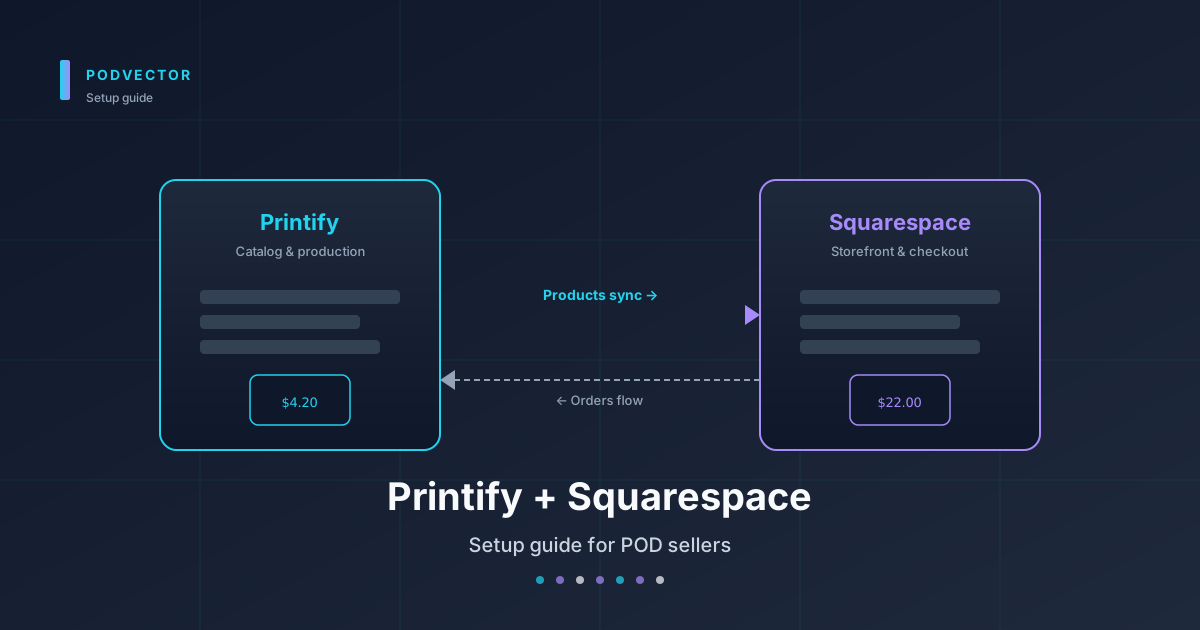
Quick Answer: Connect Printify to Squarespace by creating a Squarespace store page on a commerce-tier plan, adding Squarespace as a sales channel inside Printify, and approving the OAuth handshake. The integration syncs products one-way from Printify to Squarespace — design, price, and edit in Printify, and Squarespace handles the storefront and checkout.
The 15-minute wiring is the easy part. The hard part starts after launch: tracking profit per SKU once Printify production costs, Squarespace fees, and ad spend all hit different reports.
Before You Start: Plans and Prerequisites
Squarespace gates the Printify integration behind its commerce plans. You need Business, Basic Commerce, Advanced Commerce, Core, Plus, or Advanced. The Personal plan does not support third-party commerce extensions.
You also need an active Printify account — free is fine to start. Printify Premium ($20/month) unlocks lower production costs, but you don't need it to wire up the integration.
One more thing before you click anything: decide which Printify provider you'll use for your first product. Provider selection drives production cost, shipping speed, and which Squarespace markets you can serve. Switching providers after launch means relisting every SKU.
If you're still comparing platforms before committing, see our roundup of sites like Printify and our comparison of sites similar to Printify — both cover the trade-offs the Squarespace integration locks you into.
Step 1: Create Your Squarespace Store Page
Log into Squarespace and open the site you want to sell on. From the main editor, add a new page and select Store as the page type.
Name it something obvious — "Shop," "Products," "Store." This name becomes part of the navigation, so keep it readable.
The store page is a container, not a layout. You'll choose product grid layout and styling later. For now, just create it and save.
Why this step has to come first
Printify's connector looks for an existing storefront on the Squarespace side during the OAuth handshake. If no store page exists, the connection will succeed but products will publish to an invisible page, and you'll spend an hour wondering why nothing appears on your site.
Step 2: Configure Currency, Shipping, and Tax
Open Settings → Selling → Payments in Squarespace and set your store currency. Once you publish your first product, currency becomes very expensive to change — it cascades into every order record.
Then go to Settings → Selling → Shipping. Add at least one shipping option. Flat Rate is the simplest starting point. If you want to absorb shipping into product price, set it to $0 — but make sure your Printify product price covers the actual shipping cost from your chosen provider.
Finally, configure tax under Settings → Selling → Taxes. Squarespace doesn't auto-calculate sales tax by default. Add the states or countries where you have nexus.
Shipping strategy decisions
POD shipping is the silent margin killer. A $22 t-shirt with a $4 production cost looks profitable until you add $5.50 of Printify shipping and the customer abandons the cart over the line item.
Two viable patterns:
- Free shipping at $X threshold — push average order value up by encouraging multi-item purchases.
- Flat shipping built into product price — show "free shipping" everywhere, but bake the cost in. Cleaner conversion, but you lose flexibility on multi-item orders.
Whichever you pick, be consistent across all SKUs. Mixing strategies confuses customers and inflates your cart abandonment rate.
Step 3: Set Up Your Printify Account
If you don't already have a Printify account, sign up at printify.com. Free is fine.
Once you're in, you don't need to create products yet. The integration step works without any existing products on either side. We'll add the connection first, then create your first SKU and publish it through the connection.
If you're juggling multiple stores (e.g., a separate Shopify store), Printify lets you manage them all under one account. Each store is a separate sales channel. The same product can be published to multiple stores, but production cost and provider selection remain per-product.
Step 4: Connect Printify to Squarespace
In Printify, click My new store in the top-left dropdown, then Manage my stores. Click Add new store and select Squarespace from the list of platforms.
Printify will redirect you to a Squarespace login page. Log in with the Squarespace account that owns the site you set up in Step 1.
Squarespace will show an authorization screen asking you to allow Printify access to your store. Click Allow. You'll be redirected back to Printify with a "Squarespace store connected" confirmation.
Pick the Squarespace site you want to connect from the dropdown if you have more than one. Click Continue.
What the connection actually does
The OAuth handshake gives Printify permission to read your Squarespace store structure and push product data into it. It's a one-way sync: Printify is the source of truth, Squarespace is the display layer.
Orders flow the other direction. When a customer buys on Squarespace, the order is forwarded to Printify, production starts, and the customer pays Squarespace's checkout while you pay Printify's production cost. The price difference is your margin.
Worth comparing to other Printify connections you might run in parallel — our Printify Shopify setup guide, Printify Square setup guide, and Printify Squarespace integration guide cover the same OAuth pattern with different storefront quirks.
Step 5: Create and Publish Your First Product
Back in Printify, click Catalog. Pick a product type — t-shirts and hoodies are the highest-volume POD categories and the safest test for a new integration.
Choose a print provider. Each provider shows production cost, shipping time, and review scores. For a US-targeted Squarespace store, prioritize US-based providers to cut shipping time.
Click Start designing. Upload your artwork, place it on the mockup, and adjust placement. Printify generates the product mockups automatically once you save.
On the pricing screen, set your retail price. Printify shows you the per-unit profit at each price point — production cost is fixed, you pick the markup.
Click Save product, then Publish. Choose your connected Squarespace store as the destination. Printify pushes the listing — title, description, variants, mockups, price — directly into Squarespace.
What gets synced and what doesn't
Synced from Printify to Squarespace:
- Product title and description
- Variants (size, color)
- Mockup images
- Retail price
- SKU codes
Not synced (manage in Squarespace):
- Store page layout and styling
- Category/collection grouping
- SEO meta tags
- Reviews and customer-facing content
Step 6: Verify the Product on Your Squarespace Store
Open your Squarespace site in a new tab. Navigate to the store page you created in Step 1. The published product should appear within a minute or two.
Click the product. Confirm:
- Mockup images load (not broken thumbnails)
- All variants are listed and selectable
- Retail price matches what you set in Printify
- Description renders without markdown leaks or HTML escapes
Run a test order through your own checkout. Use a real card and let it go through to Printify production, then cancel from the Printify dashboard before fulfillment. Test orders are the cheapest insurance against finding out at scale that something in the order pipe is misrouting.
Editing Rules: Where Changes Must Happen
Once a product is connected, edit it only in Printify. Don't edit it in Squarespace.
If you change the title, price, or description directly in Squarespace, the change holds locally — until Printify pushes any update, at which point your Squarespace edits get overwritten. The sync is one-way and authoritative from the Printify side.
The one exception: SEO meta tags and category placement. Squarespace owns those because Printify doesn't have a field for them. Edit SEO on the Squarespace side, knowing it survives Printify pushes because it's data Printify doesn't touch.
Discontinuing a product
To pull a product from sale, unpublish it from Printify — don't delete it from Squarespace. Deleting in Squarespace orphans the Printify record and can break the order routing if a stale link gets clicked from a search result or old email.
What to Track Once You're Live
Most setup guides stop at "you've published your first product." That's the easy part. The hard part is figuring out, three weeks in, whether the integration is actually making you money.
Here's what the integration doesn't show you in one place:
- True profit per SKU. Squarespace shows revenue. Printify shows production cost. Neither shows shipping subsidies, payment processing fees, or refund losses against each SKU.
- Customer acquisition cost. If you're running Meta or Google ads to drive traffic to your Squarespace store, ad spend lives in another tool entirely. ROAS by product category requires manual joining.
- Lifetime value by acquisition channel. Squarespace tracks orders; it doesn't tag them by where the customer came from in a way that survives multi-session attribution.
- Inventory-driven decisions. POD doesn't carry inventory, but you still need to know which designs to keep promoting and which to retire based on margin, not vanity revenue.
POD operators usually end up gluing this together in a spreadsheet for the first few months, then either burning out or hiring an analyst. Neither is great.
The alternative is a live data warehouse — your Squarespace orders, Printify production costs, Meta/Google ad spend, and Shopify fees all unified in one place — that an AI employee can query and act on. PodVector's Victor is built for this: he sits on top of that unified warehouse, runs your Meta and Google ads, reallocates spend when a SKU's contribution margin dips, and asks for your approval before each material change. Pick whichever warehouse vendor you prefer (Snowflake, Redshift, Databricks, etc.) — the point is the AI-employee layer on top.
You don't need this on day one. You will need something like it by month three, when you're juggling 40 SKUs across three providers and an ad budget that's eating your margin one creative at a time.
Common Setup Issues
"Connect store" button does nothing
Usually a browser-level issue. Disable ad blockers and tracker-prevention extensions on the Printify and Squarespace tabs, then retry. Safari's intelligent tracking prevention also blocks the OAuth handshake sometimes — try Chrome or Firefox if Safari hangs.
Products publish to Printify but don't appear on Squarespace
Three causes, in order of likelihood:
- No store page exists on Squarespace. Re-check Step 1 — products need a store page container to render in.
- Squarespace plan is below commerce tier. Personal plans don't accept third-party product pushes.
- Connection authorization expired. Disconnect from Printify, reconnect, republish.
Currency mismatch on product price
Printify uses the currency you set when you created the Printify account. Squarespace uses the currency on your selling settings. If they don't match, Squarespace shows the Printify-side number in its own currency without conversion. Set both to the same currency before publishing live SKUs.
Shipping cost doubled at checkout
Means you've set shipping in both Printify (built into product price) and Squarespace (as a separate shipping rule). Pick one. Usually cleanest: zero shipping in Squarespace, full shipping cost baked into Printify retail price.
FAQs
Is the Printify Squarespace integration free?
Yes. Printify charges nothing for the integration. You pay Squarespace's commerce plan ($23+/month), Printify's production costs (only when an order ships), and standard payment processing on Squarespace checkout.
How long does setup take?
15–25 minutes if your Squarespace store page already exists. Add another 10–15 minutes for currency, shipping, and tax configuration. The OAuth handshake itself is under two minutes.
Can I sell on Squarespace and Shopify with the same Printify catalog?
Yes. Each store is a separate sales channel in Printify. You publish the same source product to multiple channels. Inventory isn't an issue because POD doesn't carry inventory — each order triggers its own production.
Can I edit a published product's price in Squarespace?
You can, but it won't stick. Printify is the source of truth. Any push from Printify (image update, variant change, description edit) overwrites Squarespace-side price edits. Always change price in Printify.
What happens to orders during a Printify outage?
Squarespace still accepts the order and charges the customer. The order queues in Printify's system and starts production once Printify recovers. You'll see a delay in the "production started" status but the customer experience on Squarespace is unaffected.
Do I need to use Squarespace's domain or can I use my own?
Custom domain works fine. The Printify integration ties to the Squarespace site, not the domain. You can connect a Squarespace site with a custom domain, a default Squarespace subdomain, or even a Pop-Up Store domain.
Can I import existing Squarespace products into Printify?
No. The sync is one-way from Printify to Squarespace. Products that originated in Squarespace stay there as Squarespace-managed items. To turn them into POD products, recreate them in Printify and publish.
Does Printify handle returns and refunds on Squarespace orders?
Printify handles production-defect refunds (misprint, damage in transit). Customer-side returns — wrong size, change of mind — are your responsibility. Most POD operators don't accept those because the inventory can't be resold. Set return policy expectations on your Squarespace checkout page.
For deeper coverage of the broader Printify ecosystem and how integrations stack up, browse the Printify topic hub or the Printify integrations cluster.
Let Victor run your Printify + Squarespace ops
Once the integration is live, the real work starts: ads, margin, restocks, refund triage. Victor is an AI employee built for POD sellers. He runs your Meta and Google ads, updates your Squarespace catalog, and reallocates spend across Printify SKUs based on live margin data — asking for your approval before each material action.
Stop gluing Squarespace, Printify, and ad-platform reports together in a spreadsheet. And hand the operations off.
Try Victor free