
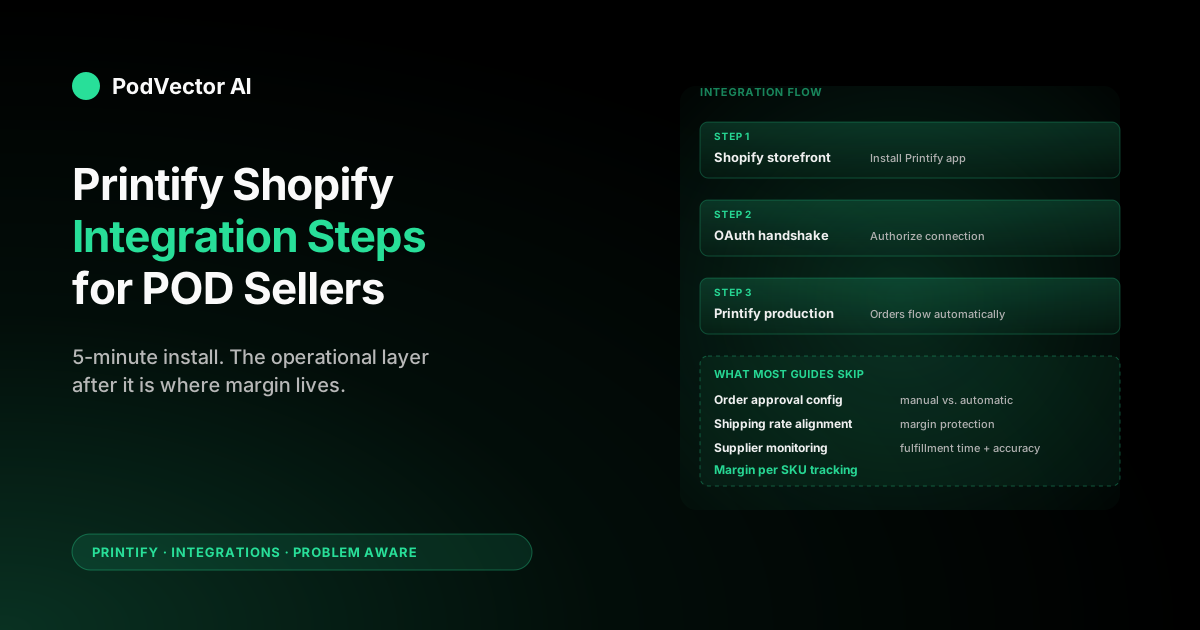
Quick Answer: Connecting Printify to Shopify takes under five minutes. Install the Printify app from the Shopify App Store, authorize the connection, and your product catalog syncs automatically.
The real work starts after the link is live: configuring order approval rules, shipping profiles, and tracking fulfillment accuracy across suppliers. Most guides stop at the install — this one covers what to monitor once orders start flowing.
Why Printify + Shopify is the default POD stack
Printify handles production and shipping. Shopify handles storefront, checkout, and payments. When they're connected, a customer order on Shopify automatically triggers production inside Printify with no copy-pasting, no CSV uploads, and no manual hand-off.
That automation is why roughly 80% of new POD sellers start with this pair. Printify's free tier removes supplier-side cost until you scale, and Shopify's app ecosystem lets you bolt on marketing, analytics, and fulfillment tools as you grow. For a broader look at everything Printify offers POD sellers, see the Printify topic hub.
The integration also unlocks Printify's full supplier network — over 100 print providers across 15+ countries. Each supplier sets its own base price and production time, so the same t-shirt design can ship from a US facility in three days or a European facility in five at a different cost. For more on the integration options available in the Printify ecosystem, see the Printify integrations cluster.
Before you start: three prerequisites
Missing any of these produces errors mid-flow that look like bugs but are account-state problems. Two minutes of verification saves an hour of confused debugging.
- A Printify account. Free to create at printify.com. You don't need to be on a paid plan — the free tier supports up to five stores and unlimited product designs. If you already have a Printify account, make sure you're logged in before starting.
- A Shopify store with an active plan. Shopify's free trial works for connecting apps, but you can't accept real orders until you pick a paid plan. If you're testing the integration before committing, the trial is fine — just know that orders won't process until you activate billing.
- No existing Printify connection on this Shopify store. Each Shopify store can only connect to one Printify account. If a previous owner or collaborator already linked a different Printify account, you'll need to disconnect it first from Printify → My stores → Disconnect, then reconnect with your account.
Method 1: Connect from the Shopify App Store
This is the fastest path. Four steps, under three minutes.
Step 1: Find the Printify app. From your Shopify admin, go to Settings → Apps and sales channels → Shopify App Store. Search "Printify" and select the official app (look for the green Printify logo and "Printify: Print on Demand" title). Ignore third-party wrappers — the official app is maintained by Printify's team and gets updates first.
Step 2: Install the app. Click "Add app" then "Install app" on the confirmation screen. Shopify will show the permissions Printify needs: product access, order access, and fulfillment access. All three are required for the integration to work end-to-end.
Step 3: Log in to Printify. After installation, Shopify redirects you to a Printify login screen. Sign in with your existing Printify account or create a new one. The OAuth handshake happens automatically once you authenticate.
Step 4: Confirm the connection. Printify shows a confirmation screen with your Shopify store name. Click "Connect" and the link is live. Any products you create in Printify from this point forward can be published directly to this Shopify store.
Method 2: Connect from the Printify dashboard
Same result, different starting point. Use this if you're already inside Printify designing products and want to add a sales channel. For a detailed walkthrough of how Printify connects to other platforms like Square, see Printify Square integration setup guide.
Step 1: Open the store manager. Log in to Printify and click "My stores" in the left sidebar. Click "Add new store" (the green button) and select "Shopify" from the list of platforms.
Step 2: Enter your Shopify URL. Type your Shopify store URL — the yourstore.myshopify.com format, not a custom domain. Printify redirects to Shopify's OAuth screen where you authorize the connection.
Step 3: Authorize and confirm. Shopify asks you to approve the same three permissions (products, orders, fulfillment). Click "Install app" and the connection completes. You'll see your Shopify store listed under "My stores" in Printify within a few seconds.
Publishing your first product after connecting
The connection is live, but your Shopify store is still empty. Here's how to push your first product through the pipe.
- Create a product in Printify. Go to the Printify catalog, pick a product (t-shirt, mug, poster — whatever fits your niche), upload your design, and position it using the mockup editor.
- Set variants and pricing. Choose which sizes and colors to offer. Printify shows the base cost per variant — add your markup on top. A common starting point is 2–2.5× the base cost, which gives you 50–60% gross margin before ad spend.
- Choose a print provider. Printify shows multiple suppliers for most products, each with different base prices, production times, and shipping rates. For first orders, pick a supplier in your primary market (US-based if you sell mostly to US customers) to minimize shipping time.
- Publish to Shopify. Click "Publish" and select your connected Shopify store. Printify pushes the product listing — title, description, images, variants, and prices — directly into your Shopify catalog. The product appears in your store within a minute.
Review the listing in Shopify after publishing. Printify's auto-generated descriptions are functional but generic. Rewrite them with your brand voice and add SEO keywords before driving traffic to the page.
For a comparison of how this publishing flow differs across POD platforms, see alternatives to Printify for print-on-demand sellers.
Set up order approval: manual vs. automatic
When a customer places an order on Shopify, Printify receives it. What happens next depends on your order approval setting — and getting this wrong early costs real money.
Manual approval means every order waits in a queue until you review and confirm it. You check the shipping address, verify the design, and click "Submit to production." This adds 5–30 minutes of delay per order (depending on how often you check), but catches mistakes before they become chargebacks.
Automatic approval sends orders to production immediately after a configurable delay (default: 2 hours). No manual intervention required. This is the setting for scale — but it means address typos, duplicate orders, and test-purchase accidents go straight to production.
Recommendation for new sellers: Start on manual for your first 20–30 orders. You'll learn what errors look like (wrong-size orders, P.O. box addresses that suppliers can't ship to, suspiciously large quantities that might be fraud). Switch to automatic once you trust the flow and have a clear refund policy posted. LitCommerce's integration guide walks through the approval settings with screenshots if you want a visual reference.
To configure: Printify → My stores → click your Shopify store → Order settings → Order approval. The delay timer for automatic approval can be set anywhere from 30 minutes to 24 hours.
Configure shipping rates for POD margins
Shipping configuration is where most new POD sellers leave money on the table. Printify's shipping costs vary by supplier, product weight, and destination — but Shopify shows one price to your customer at checkout. If those two numbers don't align, you're either overcharging (losing sales) or undercharging (losing margin).
There are three approaches, each with a trade-off.
If you're also considering Squarespace as a storefront, the shipping setup works differently — see Printify Squarespace integration setup guide and Printify Squarespace setup guide for comparison.
Flat-rate shipping. Set a single price per order (e.g., $4.99 US, $9.99 international). Simple for the customer, easy to promote ("flat-rate shipping!"), but you'll lose money on heavy items and multi-item orders if your rate doesn't cover the supplier's actual cost. Best for stores with a narrow product range where shipping cost is predictable.
Printify Shipping Calculator. Printify offers a Shopify app that auto-calculates shipping at checkout based on the actual supplier rates. The customer sees the real cost; your margin stays intact. The downside: rates can be surprisingly high for international orders, and seeing "$14.99 shipping" at checkout kills conversion for low-AOV stores.
Free shipping with margin baked in. Raise product prices by your average shipping cost and offer "free shipping." Converts better than showing a separate shipping line, especially for stores with AOV above $30. The risk: if your average shipping cost estimate is wrong, you quietly bleed margin on every order.
Whichever method you pick, re-check it quarterly. Suppliers update their shipping rates without notice, and a rate that was profitable in January can be underwater by April.
What to track after the integration is live
Every other guide on this topic stops at "you're connected!" That's like saying your car is built because the engine is bolted in. The integration is plumbing — what flows through it determines whether you're profitable.
Here's what to monitor weekly once orders start coming in.
Fulfillment time by supplier. Printify's listed production time is an estimate, not a guarantee. Track actual order-to-ship time across your suppliers. If a supplier consistently takes 7+ business days when they promise 3–5, your review scores drop and repeat purchase rates fall. Switch suppliers before the damage compounds.
Order accuracy rate. Misprints, wrong sizes, and damaged items should run below 2% of total orders. If you're above that with a specific supplier, it's a supplier problem, not a Printify problem. File quality complaints through Printify's support and move volume to a more reliable provider.
Margin per SKU, not just per order. A $35 hoodie with a $16 base cost and $5 shipping yields $14 gross margin. A $22 t-shirt with a $7 base cost and $4 shipping yields $11. The hoodie looks better by unit economics, but the t-shirt converts 3× more often. Knowing margin per SKU — not just average order margin — tells you where to focus ad spend.
Refund and reprint rate. Printify handles reprints for production defects at no cost to you, but customer-initiated returns (wrong size, changed mind) come out of your margin. Track this rate by product category. Apparel runs 4–8% returns; mugs and posters run under 2%.
Pulling these numbers manually from Printify's dashboard and Shopify's reports takes 30–60 minutes per week. An AI employee like Victor can unify this data automatically, flag supplier performance issues, and surface margin drift before it hits your bottom line.
Troubleshooting common connection issues
"Store already connected" error
This means another Printify account is already linked to your Shopify store. If you own that other account, log in and disconnect the store from Printify → My stores → Disconnect. If a previous store owner linked it, you'll need to contact Printify support to release the connection.
Products not syncing to Shopify
Check three things. First, did you click "Publish" after creating the product in Printify? Products are saved as drafts by default. Second, is your Shopify plan active? Products won't push to stores on expired trials. Third, check Printify's sync status page — occasional API delays mean products can take up to 10 minutes to appear.
Orders not appearing in Printify
Verify the connection is still active in Printify → My stores. If the status shows "Disconnected," the OAuth token expired — reconnect using either method above. Also check that the product was originally published through Printify; products created directly in Shopify (not via Printify) won't trigger Printify fulfillment.
Shipping rates showing $0 or incorrect amounts
This usually means the Printify Shipping Calculator app isn't installed or is misconfigured. If you're using flat-rate shipping, double-check your Shopify shipping zones — a missing zone defaults to $0 for that region, which means you eat the full shipping cost on those orders.
FAQs
Is Printify free to use with Shopify?
Yes. Printify's free plan lets you connect up to five stores and create unlimited product designs. You only pay Printify when a customer places an order — the base cost plus shipping is charged per item. Shopify has its own monthly subscription fee ($39/month for Basic as of 2026), but the Printify app itself is free to install.
Can I connect Printify to more than one Shopify store?
Yes, but each Shopify store needs its own connection. In Printify, go to My stores → Add new store for each additional Shopify store. Products are managed per-store, so you can offer different catalogs on different storefronts if needed.
What happens to existing Shopify products when I connect Printify?
Nothing. Existing products stay exactly as they are. Printify only manages products that were created and published through its platform. Your manually-created Shopify products won't be affected, modified, or deleted by the integration.
How long does Printify take to fulfill an order?
Production time depends on the supplier and product type. Most apparel suppliers ship within 2–5 business days; accessories and home goods run 3–7 business days. Add transit time on top. US-to-US standard shipping typically takes 3–8 additional business days. International orders can take 7–21 business days for delivery.
Can I switch Printify suppliers after connecting to Shopify?
Yes. In Printify, open the product, go to the print provider tab, and select a different supplier. Prices, production times, and available variants may change — update your Shopify listing accordingly. Existing orders already in production with the old supplier aren't affected.
Does Printify handle returns and refunds?
Printify handles reprints and refunds for production defects — misprints, wrong items, damaged goods. Customer-initiated returns (wrong size, buyer's remorse) are your responsibility as the store owner. Set a clear return policy on your Shopify store before you start selling. For more on how Printify compares to other POD platforms on returns and support, see apps like Printify: which is best for POD sellers.
Connected Printify to Shopify? Let Victor run what comes next.
The integration is live — now orders, fulfillment, and supplier performance need daily attention. Victor monitors your Printify suppliers, flags margin drift across SKUs, and manages your ad spend on Meta and Google — all with your approval before any action.
Try Victor free