
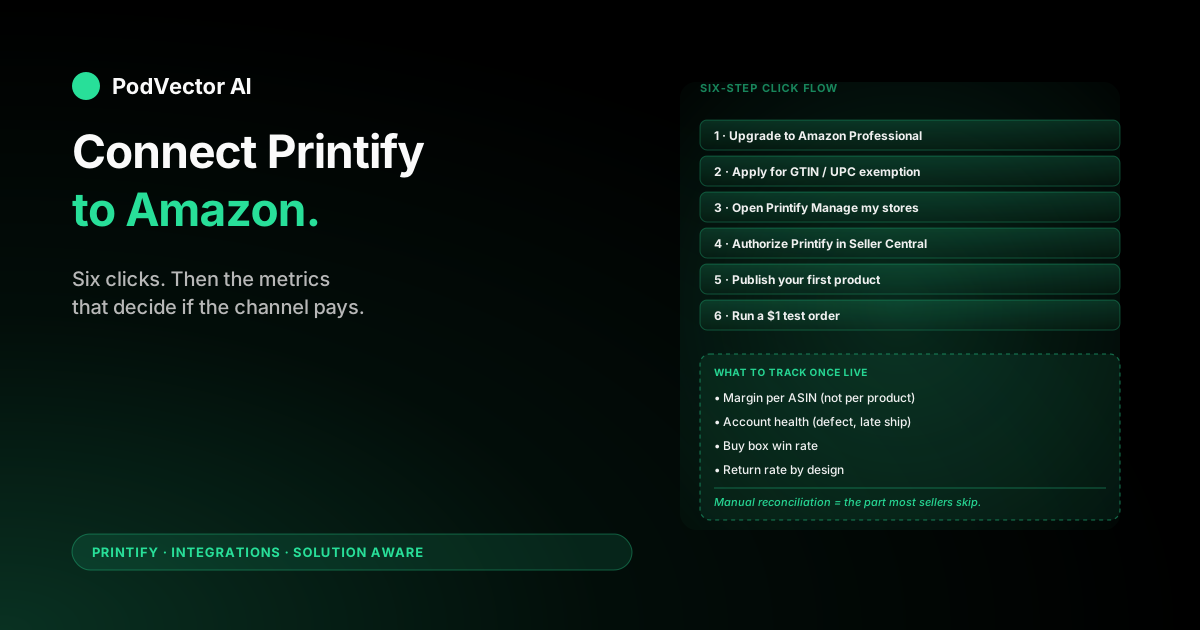
Quick Answer: To connect Printify to Amazon, upgrade your Amazon account to Professional, get a GTIN/UPC exemption for your category, then in Printify go to Manage my stores → Add new store → Amazon and authorize Printify in Seller Central.
The clicks take about ten minutes. The wait for Amazon to approve the account and exemption is what stretches setup to a few days or more.
This guide walks the exact clicks in order, then covers what to track once your first orders land.
What you need before you start
The connection itself is a few clicks. The blockers are upstream — Amazon won't let Printify connect to an account that isn't ready.
Have these ready before you open Printify:
- A US-based Amazon Seller Central account. Printify's Amazon channel is US-only right now. Sellers outside the US can list, but the account must be on Amazon US.
- An Amazon Professional plan at $39.99/month. The Individual plan can't list in apparel or other gated categories that POD relies on.
- A government ID, a US bank account, and a credit card on file with Amazon. New sellers will also be scheduled for a video verification call — you can't skip it.
- A free Printify account with a payment method saved. Printify bills your card per order for production and shipping, separate from what Amazon collects from the buyer.
If you're starting from zero on Amazon, give yourself two weeks of buffer. Account verification and the GTIN exemption can both stall on Amazon's side with no warning.
For a longer breakdown of the trade-offs (FBM vs FBA, referral-fee math, why Amazon is harder than Etsy), the full Printify-and-Amazon setup guide covers the strategy side. This article stays on the clicks.
Step 1: Upgrade to Amazon Professional
If you already sell on Amazon Individual, upgrade first — Printify won't connect otherwise.
- Sign in to Seller Central at sellercentral.amazon.com.
- Click the gear icon and go to Account Info.
- Under Your Services, click Manage next to Selling on Amazon.
- Click Upgrade and confirm the $39.99/month plan.
If you're brand new to Amazon, register at sellercentral.amazon.com and pick Professional during signup. Skip Individual even if Amazon nudges you toward it — you'll just have to upgrade later.
While you're in account settings, check whether you qualify for Amazon Brand Registry. If you own a registered trademark, enrolling in Brand Registry now will save hours of friction in Step 2. If you don't have a trademark yet, skip it and come back later.
Step 2: Apply for a GTIN/UPC exemption
Every Amazon listing needs a Global Trade Item Number (GTIN) — usually a UPC barcode. Print-on-demand items don't have one because they're produced when ordered, so Amazon needs to grant you an exemption.
You apply per category, not per product. One Clothing exemption covers all your shirts.
- In Seller Central, go to Catalog → Add Products.
- Click Apply for a GTIN exemption.
- Pick your category. Clothing, Shoes & Jewelry is the most common for POD sellers.
- Enter your brand name. Use the same brand name you'll use on Printify listings — Amazon cross-checks the two.
- Upload two product images per design with your brand applied to the item. Printify mockups work for this.
- Upload a letter from the brand owner (you) stating you don't have UPCs. Amazon provides a template inside the form.
- Submit.
Approvals usually come back inside 48 hours. Sometimes faster, sometimes a week or two. You'll get an email when it lands.
Until that approval arrives, the rest of this guide is read-only — you can connect Printify, but you can't publish.
Step 3: Open the Printify integration screen
With the exemption approved, the actual connection is fast.
- Log in to your Printify account.
- Click your account icon in the top-right corner.
- Click Manage my stores in the dropdown.
- Click Add new store.
- Find Amazon in the list of integrations and click Connect.
Printify will redirect you to Amazon Seller Central to authorize the integration. If you're not logged in to Seller Central in the same browser, you'll be prompted to sign in first.
Step 4: Authorize Printify in Seller Central
Amazon will show you a permissions screen listing what Printify is requesting access to — orders, listings, inventory, and shipping data.
- Read the permissions list. Printify needs read/write access to listings, orders, and inventory to function. If you're not comfortable granting that, the integration won't work.
- Check the box agreeing to Amazon's Marketplace Developer terms.
- Click Confirm.
Amazon will redirect you back to Printify with a success message. Your store now appears under Manage my stores with status "Connected."
If the redirect fails or you see a generic error, the most common cause is signing in to a different Amazon account than the one with the Professional plan. Sign out everywhere and start Step 3 again.
Step 5: Publish your first product
The connection is live, but you don't have anything on Amazon yet. Publishing pushes Printify listings into Seller Central as draft ASINs that go live once Amazon processes them.
- In Printify, open My Products and pick a product you've already designed.
- Click Publish.
- Choose your Amazon store from the destination dropdown.
- Fill in the Amazon-specific fields: title, bullet points (five of them), search terms, and the product category. Use keywords buyers actually search.
- Confirm the price. Amazon's referral fee is 15% on most apparel — don't forget to bake that into your price so margin survives.
- Click Publish.
Printify pushes the listing to Amazon. Expect a few minutes to a few hours for the ASIN to show as live in Seller Central. Amazon's listing-quality checks run asynchronously.
If you're new to Amazon listing copy, the bullets and search terms matter more than the title — they're what Amazon's search algorithm reads. Don't keyword-stuff, but don't be cute either.
Step 6: Run a $1 test order
Before announcing your launch anywhere, place an order yourself. This is the cheapest insurance you can buy.
- Find your new listing on Amazon (search the title; or use the ASIN from Seller Central).
- Buy one with your personal account, not your seller account. Use your home address.
- Watch the order flow:
- Amazon shows it in Seller Central as a new order.
- Printify imports it within a few minutes and starts production.
- Printify ships it directly to your home address with tracking.
- The tracking number flows back to Amazon automatically.
- When the package arrives, check print quality, packaging, and the return label. Amazon buyers expect Amazon-grade unboxing.
If any step in that chain fails — order doesn't import, tracking doesn't sync, package shows up in a generic mailer with no return slip — fix it before you scale. Issues compound fast at volume.
What to track once you're live
This is the part most "how to connect" guides skip, and it's the part that determines whether the channel actually makes money.
The metrics that matter for a Printify-to-Amazon listing are different from a Printify-to-Etsy listing because Amazon's economics are different.
Margin per ASIN, not per product. Amazon's 15% referral fee, Printify's per-order production cost, and your shipping price all interact. The same shirt design in three sizes can have three different real margins once Printify size-based pricing kicks in. Track it per ASIN.
Account health metrics. Amazon grades you on order defect rate, late shipment rate, valid tracking rate, and cancellation rate. Printify's tracking sync is usually clean, but if it ever lags, your valid tracking rate drops and Amazon can suspend listings.
Buy box win rate. If anyone else is selling a similar design (which happens often with generic POD products), buy box loss kills your conversion. Watch which ASINs lose the buy box and why.
Return rate by design. Print quality is consistent across Printify's network, so high returns usually point at design or sizing issues, not production. A return-rate-by-design pivot tells you which designs to retire.
Tracking this manually means stitching together Seller Central, Printify, and your accounting tool every Monday. Most POD sellers either skip it or do it badly.
Let Victor run your Shopify-Printify ops
Victor is an AI employee built for POD sellers on Shopify. If your POD business runs on Shopify, Victor joins your Shopify orders, Meta and Google ad spend, and itemized Printify costs into one live view, then runs the day-to-day analysis: flagging products that lose money, showing which channels actually pay, and proposing repricing — each with your approval before anything changes on your store.
You ship designs. Victor runs the business.
Try Victor freeCommon connection errors
"You must have a Professional selling plan." Your Amazon account is still on Individual. Go back to Step 1 and upgrade. The change is instant on Amazon's side, but Printify caches the status — wait a minute and retry.
"GTIN required." Your exemption hasn't been granted yet, or it was granted for a different category than the one you're publishing in. Check the email confirmation from Amazon for the exact category your exemption covers.
"Listing rejected: brand name mismatch." The brand name on your Printify product doesn't match the brand name on your GTIN exemption. Amazon is strict about this. Update the Printify listing to match exactly, then republish.
Authorization loop — keeps redirecting back to login. You have multiple Amazon accounts and you're signed into the wrong one. Sign out of all Amazon properties, close the browser, and start Step 3 fresh in a private window.
Orders not importing. Check that the Printify store status is still "Connected" under Manage my stores. Amazon's API tokens expire periodically and need re-authorization. If status is "Disconnected," click Reconnect and repeat Step 4.
FAQs
Does Printify work with Amazon FBA?
No. Printify ships orders directly to the buyer (FBM, fulfilled by merchant). FBA requires you to send inventory to Amazon's warehouses upfront, which defeats the on-demand model. Printify orders are always FBM.
How long does the full setup take?
The Printify-Amazon connection itself takes about ten minutes once everything else is ready. The Amazon account upgrade is instant. The GTIN exemption takes 48 hours to two weeks. Brand-new sellers waiting on Amazon account verification can add another few days.
Can I connect Printify to Amazon in countries other than the US?
Not yet. As of this writing, Printify's Amazon integration only supports Amazon US. Sellers based outside the US can still use it, but the underlying Amazon Seller Central account has to be a US account.
What products can I sell on Amazon through Printify?
Most Printify catalog items work, but apparel (T-shirts, hoodies, sweatshirts) sells best on Amazon. Mugs, posters, and accessories also do well. Items with longer production times or unusual sizing can run into Amazon's late-shipment rate limits, so start with apparel and expand once your metrics are clean.
Why does Amazon charge a 15% referral fee on top of the Printify cost?
The referral fee is Amazon's commission for putting your product in front of their buyers. It comes off the sale price, separate from what you pay Printify for production and shipping. Bake the referral fee into your retail price during Step 5 or you'll lose money on every order.
Do I need Brand Registry to sell on Amazon with Printify?
No, but it helps. Without Brand Registry you'll go through the GTIN exemption process. With Brand Registry, much of that friction goes away and you get listing-hijack protection. If you don't have a registered trademark yet, start without it and add Brand Registry later.
How do I track profit across Printify and Amazon together?
Manually, you'd export both monthly and reconcile in a spreadsheet — Amazon's referral fees and FBM shipping credits on one side, Printify's per-order production cost on the other. Most sellers either skip this or do it badly. The Printify cost breakdown and the cost-of-Printify guide cover the Printify side; Amazon's referral-fee table covers theirs.
For the strategic side of running Printify on Amazon — FBM vs FBA reasoning, shipping templates, referral-fee math — see the longer Printify and Amazon setup guide. If you're still deciding which channels to add, the integrations cluster compares Amazon against Shopify, Etsy, TikTok Shop, and Squarespace side by side.
For sibling how-tos in this cluster:
- How to connect Printify to Etsy (step-by-step)
- How to connect Printify to Squarespace (step-by-step)
- How to connect Printify to WooCommerce (step-by-step)
External reference: Printify's own Amazon integration overview covers the feature list and current country support.