
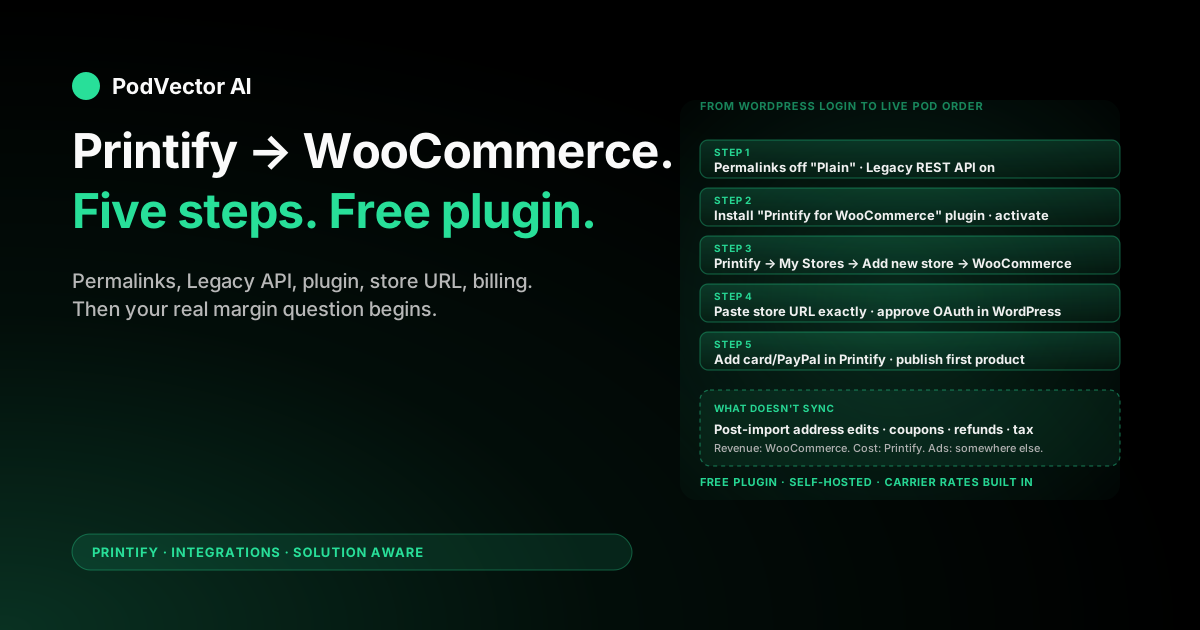
Quick Answer: Connecting Printify to WooCommerce takes about 15–25 minutes end to end. The short version: in WordPress, flip your permalinks off "Plain" and enable the Legacy REST API, then install the official "Printify for WooCommerce" plugin from the WordPress plugin directory.
From Printify, go to My Account → My Stores → Add new store → WooCommerce, paste your store URL exactly as it appears in WordPress Settings, and approve the connection prompt. The plugin handles authentication and shipping rates automatically.
The integration is free. Costs come from your WooCommerce hosting (typically $5–30/month), payment processing (2.9% + $0.30 via Stripe or PayPal), and Printify's per-order base cost + shipping.
Before You Connect: Prerequisites
WooCommerce is a self-hosted setup, not a hosted SaaS like Shopify, so the prerequisite list is longer. Five things have to be in place before the Printify connect flow will actually work.
1. A working WordPress site with WooCommerce installed. If you don't have WordPress yet, you need hosting (Bluehost, SiteGround, Kinsta, or any LAMP/LEMP stack), a domain, and the WooCommerce plugin activated. The base WooCommerce plugin is free.
2. SSL on your store. Printify's OAuth handshake and most modern payment processors refuse to connect over plain HTTP. If your URL still loads as http://, install a free Let's Encrypt cert through your host's control panel before you start.
3. Payments configured in WooCommerce. WooCommerce → Settings → Payments → enable Stripe, PayPal, or whatever processor you use. Without a payment method, customers can't actually check out and Printify never sees a paid order.
4. A Printify account. Free is fine. Printify Premium ($29.99/month) cuts base product costs by roughly 20% and tends to pay for itself once you cross 30–40 orders/month, but you don't need it on day one.
5. A billing method ready for Printify. Your customer pays WooCommerce. Printify charges you the base cost + shipping when an order is sent to print. No card on file in Printify = orders stuck on hold forever.
If you've connected Printify to other channels before, the model is similar but the specifics differ — WooCommerce uses a plugin + OAuth handshake rather than the pure OAuth flow Shopify uses. For comparison, see our guides on selling on Etsy with Printify, how to sell Printify on Etsy, and using Printify with Shopify. WooCommerce is the most flexible of the three and the most setup-heavy.
Step 1: Configure WordPress and WooCommerce
Two settings have to be right before the plugin can authenticate. Both take 30 seconds, both are the most common reason connections fail.
1. Fix your permalinks. In WordPress Admin go to Settings → Permalinks. Select anything other than "Plain" — "Post name" is the safe default. Click Save Changes.
Why this matters: WooCommerce's REST API endpoints don't work under "Plain" permalinks because they rely on the rewrite engine. Printify will throw a generic "could not connect" error if this isn't fixed, and the error message won't tell you permalinks are the cause.
2. Enable the Legacy REST API. Go to WooCommerce → Settings → Advanced → Legacy API and tick "Enable the legacy REST API." Save changes.
WooCommerce technically supports newer API versions, but the Printify plugin still uses the legacy endpoints for shipping rate calculations. Without this toggled on, products sync but shipping rates won't push correctly at checkout.
Verify your store URL before you move on. In Settings → General, copy the exact WordPress Address (URL) and Site Address (URL). Note whether each has www or not, and whether it ends with a trailing slash. You'll paste this exact string into Printify, and a mismatch — https://yourstore.com versus https://www.yourstore.com — breaks the OAuth callback.
Step 2: Install the Printify for WooCommerce Plugin
The plugin handles the authenticated bridge between WooCommerce and Printify, plus it pushes Printify's shipping table into WooCommerce automatically.
Step 1. In WordPress Admin, click Plugins → Add New.
Step 2. In the search box, type "Printify for WooCommerce" and press Enter.
Step 3. Find the official plugin published by Printify (it shows Printify as the author and has tens of thousands of installs). Click Install Now.
Step 4. Once installed, click Activate.
That's it on the WordPress side. The plugin doesn't have its own configuration screen — it activates a set of API endpoints that Printify will call after you complete the next step from the Printify dashboard.
If your hosting is on a tightly locked-down stack (some managed WordPress hosts), check that the host hasn't blocked the WooCommerce REST API at the server level. WP Engine and Kinsta sometimes need a support ticket to whitelist /wp-json/wc/ endpoints for outside services.
Step 3: Connect Your Store in Printify
The actual handshake happens from the Printify side, not WordPress.
Step 1. Log in to your Printify account at printify.com.
Step 2. Click your profile icon in the top right and choose My Account.
Step 3. In the left sidebar, click My Stores.
Step 4. Click Add new store.
Step 5. Find WooCommerce in the sales-channel list and click Connect.
Step 6. Paste your WordPress store URL exactly as it appears in WordPress Settings → General. If WordPress shows https://yourstore.com, paste that. Don't add www. if it isn't there. Don't strip the https://.
Step 7. Click Connect. Printify redirects you to your WordPress admin login.
Step 8. Log in to WordPress if you aren't already, then click Approve on the permissions screen. Printify is asking to read your products, orders, and customer shipping info, and write back fulfillment status.
Step 9. WordPress redirects you back to Printify. The WooCommerce store now shows under My Stores.
You're connected. Any product you push from Printify lands in WooCommerce as a draft product. Any paid WooCommerce order automatically pushes to Printify for fulfillment.
Step 4: Add a Billing Method in Printify
WooCommerce takes payment from your customer. Printify takes payment from you the moment an order is sent to print. If Printify has no card or PayPal on file, every paid WooCommerce order sits stuck in "Action required: payment" status in Printify and never fulfills.
Step 1. In Printify, go to My Account → Payments.
Step 2. Add a credit card or link a PayPal account.
Step 3. Decide whether to enable automatic order approval. With it on, paid WooCommerce orders push straight to production. With it off, you review each order in Printify before it ships.
For the first 20–30 orders, leave auto-approval off. The five minutes you spend reviewing each order is cheap insurance against design errors, address typos, and the occasional fraudulent order that sneaks past WooCommerce's default checkout.
One detail that bites new sellers: Printify charges per order, not per shipment. A WooCommerce order with three items pulls three base costs + combined shipping at production time. Your card needs available credit for the full amount, not just the individual items.
Step 5: Publish Your First Product
Flow: design in Printify → push to WooCommerce → WooCommerce imports as a draft → you review and publish.
Step 1. In Printify, click Catalog and pick a product to test with. T-shirts and mugs are the lowest-risk starts — short production time, broad fit, easy reprints.
Step 2. Click Start designing. Upload your artwork or use Printify's built-in design tool.
Step 3. Pick your print provider. This is the single biggest cost-and-quality decision in the Printify catalog. Providers vary on base price, ship time, color and size availability, and print quality. Order a sample from any provider before you commit volume — the same product can be 20–40% cheaper at a different provider.
Step 4. Set the retail price. Printify shows base cost on the same screen. Aim for at least 2.5x base for sustainable margin after payment processing, shipping subsidy, and ad costs.
Step 5. Click Save product, then Publish to WooCommerce.
Step 6. Open WordPress Admin → Products. The new product appears as a draft. Review the description, add lifestyle photos if you have them (raw Printify mockups underperform), set the product category, and click Publish to push it live.
That's the full loop: design → publish → live on WooCommerce → orderable.
Setting Up Shipping the Right Way
Shipping is where Printify–WooCommerce sellers most often lose money. WooCommerce charges your customer at checkout; Printify charges you at production. If those two numbers aren't aligned, every order eats your margin.
The Printify for WooCommerce plugin handles this for you if you let it. By default, when a Printify product is in the cart, the plugin queries Printify's live shipping table for the customer's destination and presents that exact rate at checkout. The customer pays approximately what you'll pay Printify.
That's the easiest setup. The trade-off: rates can look "high" to customers used to flat $5 shipping from big retailers, which softens conversion.
Two alternatives if you want to manage shipping manually:
Option A: Zone-based flat rates. Go to WooCommerce → Settings → Shipping → Shipping Zones. Add zones (US domestic, Canada, EU, UK, Rest of World) and set a flat per-order or per-item rate using Printify's published table as your floor. More work, but you control what the customer sees.
Option B: "Free shipping" priced into the product. Raise list prices by your average shipping cost and offer free shipping site-wide. Conversion usually goes up. The discipline this demands: don't run free shipping on heavy items (hoodies, blankets, multi-item bundles) — Printify's per-pound math will eat you alive on those.
For the underlying cost math, see our breakdown of Printify coupon codes for samples and Printify coupon codes generally. Sample orders are how you validate provider quality and shipping costs before committing real ad spend behind a SKU.
What the Integration Syncs (and What It Doesn't)
The integration is two-way for some things and one-way for others. Knowing the difference prevents most "why didn't this update?" support tickets.
Synced Printify → WooCommerce:
- Product title, description, images, variants, and pricing — when you push or update from Printify
- Inventory status (in stock / out of stock) when Printify or the print provider discontinues a variant
- Order status updates (in production, shipped) and tracking numbers
Synced WooCommerce → Printify:
- New paid orders, automatically pushed to Printify for fulfillment
- Order cancellations made before Printify sends the order to print
Not synced (where sellers get burned):
- Edits to a WooCommerce order after it's been imported to Printify. Change the shipping address in WooCommerce after import, and Printify won't see it — edit directly in Printify.
- Discount codes and coupons. If a customer gets free shipping or 20% off in WooCommerce, that doesn't change what Printify charges you.
- Sales tax. WooCommerce collects tax from the customer; Printify does not handle that line item.
- Refunds. A refund issued in WooCommerce does not automatically cancel the Printify order. If production has started, you're paying for it regardless of the refund.
- Product description edits made directly in WooCommerce. The next push from Printify will overwrite them. If you want a custom description, edit in Printify before publishing.
Costs to Expect Once You're Live
There's no integration fee. The full cost stack of running Printify + WooCommerce has five recurring layers:
1. Hosting. Shared hosting starts at $5–15/month (Bluehost, SiteGround); managed WordPress hosting runs $30–100/month (Kinsta, WP Engine, Flywheel). For a brand-new store, shared hosting is fine until you cross roughly 5,000 monthly visitors.
2. Domain. $10–15/year. Negligible at scale.
3. Payment processing. Stripe and PayPal both charge 2.9% + $0.30 per transaction in the US. International cards cost more. WooCommerce itself takes no cut.
4. Printify per-order cost. Base product cost + shipping, charged at production time. Varies widely — a basic Bella+Canvas 3001 t-shirt is roughly $9–11 base, an all-over-print hoodie can be $30+ before shipping.
5. Optional Printify Premium. $29.99/month for ~20% off base prices on most products. Break-even tends to land around 30–40 orders/month.
Quick example: a small Printify–WooCommerce store doing 30 orders/month at $30 average is grossing $900. Stripe takes roughly $36 in processing fees + $15 in hosting. Printify takes roughly $450 in combined base + shipping. That leaves about $399 net before any ad spend — and ad spend is where the margin actually disappears at this scale.
Note how this compares to Shopify: a Printify + WooCommerce stack saves you the $39/month Shopify Basic plan fee, but adds hosting and your own SSL/security overhead. At low volume the savings are real; at higher volume, Shopify's plan fee becomes a rounding error and WooCommerce's flexibility advantage shrinks.
Troubleshooting Common Issues
The problems that account for most Printify–WooCommerce support tickets:
"Could not connect to your store." Almost always one of three things. (1) Permalinks are still set to "Plain" — change to Post name and save. (2) Legacy REST API isn't enabled in WooCommerce → Settings → Advanced. (3) The store URL you pasted into Printify doesn't exactly match WordPress's stored URL — check for missing or extra www and trailing slashes.
"Product won't publish to WooCommerce." Usually a missing required field in Printify (price, variant, or product image), or your hosting has blocked outbound POST requests to /wp-json/wc/. Check with your host's support if the first two aren't the cause.
"WooCommerce order didn't sync to Printify." Confirm the order is actually paid in WooCommerce, not just "Pending payment" or "On hold." Unpaid orders don't push. If it's paid and missing after 10 minutes, check that the Printify plugin is still active in WordPress — security plugins sometimes auto-deactivate plugins after a WordPress core update.
"Shipping rates aren't showing at checkout." Two causes: Legacy REST API wasn't enabled when you connected (re-enable it and disconnect/reconnect Printify), or you have a caching plugin (WP Rocket, W3 Total Cache) caching the cart page. Exclude the cart and checkout URLs from caching.
"Tracking numbers aren't showing in WooCommerce." Tracking syncs only after the print provider marks the order shipped, usually 3–7 business days after import. If 10+ days have passed with no tracking, open the order in Printify — there may be a production hold (out-of-stock variant, art-quality flag) that needs resolving.
"Connection drops after a WordPress or WooCommerce update." Major version updates occasionally invalidate the auth tokens. In Printify, disconnect the store under My Stores, then reconnect using the same flow. Your product catalog and order history are not affected.
"International shipping is killing my margin." The plugin's default carrier-rate sync should prevent this. If you've manually configured WooCommerce zones, re-check them — many sellers set up "US" and "International" as two flat zones, but Printify's international rates can be 3–4x domestic. Either use carrier rates or split international into at least 3 zones (Canada, EU/UK, Rest of World).
What to Track After You Go Live
Most Printify–WooCommerce sellers track gross revenue and call it a day. That's enough to confirm the business exists. It isn't enough to know what to do next.
Five numbers actually drive decisions:
True per-order margin. Revenue minus Stripe/PayPal fee minus Printify base cost minus Printify shipping minus the ad spend allocated to that order. WooCommerce shows you revenue. Printify shows you cost. Nothing puts them in the same view by default — you have to reconcile manually.
Margin by product, not just average. A 30% blended margin can hide three products earning 50% and two earning 10%. The 10% products eat ad budget; the 50% products are where you should double down on creative.
Margin by print provider. Printify routes the same design to different providers based on availability and your default routing rule. The cheapest provider isn't always the best net margin once defect and reprint rate are factored in.
Lead time by product. If a hoodie averages 9 days from order to ship and a t-shirt averages 4, your November ad strategy should weight the t-shirt heavier — gift-season cutoffs are unforgiving.
Repeat-customer rate by first product purchased. WooCommerce has basic customer reports, but few sellers segment by "what did this person buy first?" The gateway product that drives repeat purchases is rarely your top-grossing SKU — it's usually the one with the best print quality at the lowest price point.
For a wider view of how Printify integration fits into a full POD ops stack, see the cluster hub at Printify integrations and the topic hub at Printify for POD sellers. For the canonical connect-flow reference, Printify's own WooCommerce landing page covers the official sign-up plus latest plugin version.
FAQs
Is the Printify–WooCommerce integration free?
Yes. Neither side charges for the connection or the plugin. You'll pay for WordPress hosting, your payment processor's fees, and Printify's per-order base + shipping, but the integration itself has no extra cost.
Do I need any paid plugins to make this work?
No. The "Printify for WooCommerce" plugin is free. The base WooCommerce plugin is free. Premium SEO and design plugins are optional, not required for the Printify connection.
How long does setup take?
The connection itself takes 5–10 minutes. Add another 15–25 minutes for permalinks, Legacy API, plugin install, billing setup, and publishing your first product. Plan on about 30–45 minutes total for a clean setup, assuming WordPress and WooCommerce are already installed and running.
Can I connect more than one WooCommerce store to one Printify account?
Yes. Under Printify → My Account → My Stores you can add multiple stores, including multiple WooCommerce stores on different domains. Each WooCommerce store maps to its own Printify store profile so brand catalogs don't mix.
Can I sell on WooCommerce and Etsy with the same Printify catalog?
Yes, but each sales channel is a separate Printify store profile, and product changes don't automatically replicate. If you update a design for WooCommerce, push the same update to Etsy separately.
What if WooCommerce and Printify show different inventory?
WooCommerce is the source of truth for what's visible to customers. Printify is the source of truth for what can actually be produced. When a variant goes out of stock at the print provider, Printify marks it unavailable and the integration updates the WooCommerce listing — but there can be a 1–2 hour lag where a customer might still order an unavailable variant.
Does Printify handle taxes on WooCommerce orders?
No. Tax collection from the customer is handled by WooCommerce (or a tax plugin like TaxJar or Avalara). Printify charges you sales tax on the base cost in some US states where Printify has nexus, separately from anything you've collected from the customer.
What if a customer changes their shipping address after ordering?
If Printify hasn't sent the order to production yet, edit the address inside Printify directly. Once production starts, the address is locked. Changes made in WooCommerce after the order imported do not sync to Printify.
Can I cancel a WooCommerce order and have it cancel automatically in Printify?
Only if the cancellation happens before Printify accepts the order for production — usually within a few hours of import. After that, you've already paid Printify for the production run.
Does the Printify plugin slow down my WooCommerce site?
Minimally. The plugin only fires API calls when a Printify product is in the cart or an order is placed. It doesn't add render-blocking scripts to the rest of the site. If you see general WooCommerce slowness, the cause is usually hosting or other plugins, not Printify.
Stop reconciling Printify, WooCommerce, and ad spend by hand every Sunday
Once you're connected, your revenue lives in WooCommerce, your production cost lives in Printify, and your ad spend lives in Meta and Google. Stitching all four together every week to find true per-order margin gets old fast.
Victor is an AI employee for POD sellers. He pulls WooCommerce, Printify, Meta, and Google into a single live data warehouse, then runs your ads and surfaces decisions in plain English — "the ‘Mountain Sunset’ hoodie is netting $4.20 after Printify and Meta, propose pausing" — and waits for your approval before acting. And put your POD ops on autopilot with approval gates.
Try Victor free