
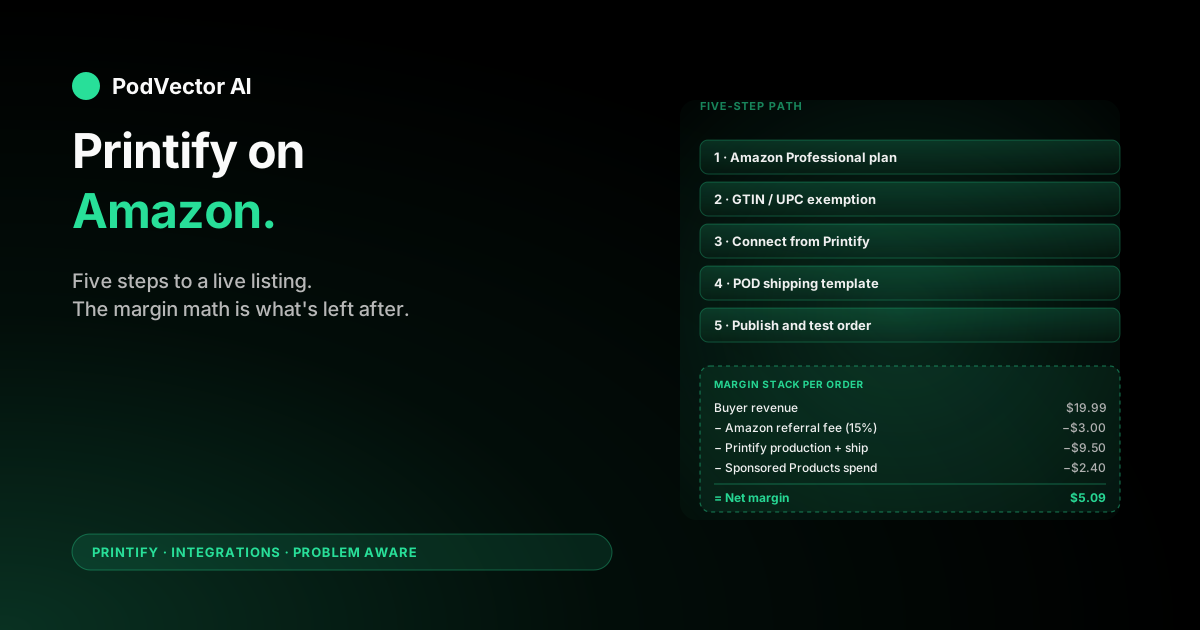
Quick Answer: Connect Printify to Amazon by upgrading to an Amazon Professional seller account, getting a GTIN/UPC exemption, then linking Amazon from Printify's Manage my stores screen. End-to-end setup takes a few days because Amazon's account and exemption approvals run on Amazon's clock, not yours.
The install itself is the easy part. The harder part — and what most setup posts skip — is configuring a POD-specific shipping template, choosing between FBM and FBA for print-on-demand, and reconciling Amazon's referral fees against Printify's per-order cost once orders start landing.
Why sellers add Amazon as a Printify channel
Amazon is the largest product search engine on the internet. For a Printify seller already running a Shopify or Etsy storefront, Amazon is an additional acquisition channel that doesn't require building a separate audience — buyers are already there searching for products.
The trade-off is operational complexity. Amazon's catalog rules, listing requirements, and seller-performance metrics are stricter than any other channel Printify connects to. You also pay a 15% referral fee on most categories, which compresses margin in ways most setup guides skip.
If you're still deciding which channels to add to your Printify stack, the integrations cluster walks through the trade-offs across Shopify, Etsy, TikTok Shop, Squarespace, and Amazon side by side.
Before you start
Four things need to be in place before the connection itself will work:
- A US-based Amazon seller account (Printify's Amazon integration is US-only at time of writing — sellers outside the US can list, but the account itself must be a US Amazon Seller Central account).
- An Amazon Professional plan ($39.99/month). Printify will not connect to an Individual plan because Individual sellers can't create new ASINs in clothing and accessory categories.
- An approved GTIN/UPC exemption for the categories you plan to sell in. Print-on-demand products don't ship with manufacturer barcodes, so you need Amazon's explicit exemption to list them. We cover this in Step 2.
- A free Printify account with a saved payment method. Printify charges your card per order for production and shipping, separately from what Amazon collects from your buyer.
If you haven't sold on Amazon before, expect the account and exemption approvals to take anywhere from a few hours to two weeks. Amazon's verification timing is opaque and category-dependent. Don't promise launch dates to anyone until Step 2 is done.
Step 1: Upgrade to an Amazon Professional seller account
If you already sell on Amazon as an Individual, upgrade before you connect Printify.
- Log in to Amazon Seller Central.
- Go to Settings → Account Info → Your Services.
- Click Manage next to Selling on Amazon, then Upgrade to Professional.
- Confirm the $39.99/month charge. The change applies on your next billing cycle.
If you're brand new, register at sellercentral.amazon.com and select Professional during signup. You'll need a credit card, a US bank account, a government-issued ID, and tax information. Amazon also runs a video verification call with new sellers — schedule it as soon as the option appears in your dashboard, because available slots fill up fast.
One thing worth doing here even though it isn't strictly required: enroll in Amazon Brand Registry if you have a registered trademark. Brand Registry skips a lot of the GTIN exemption friction in Step 2 and gives you control over your listings if a competitor tries to hijack them later.
Step 2: Get a GTIN/UPC exemption
Every product on Amazon needs a Global Trade Item Number (GTIN) — usually a UPC barcode. Print-on-demand products don't have one because they're produced on demand, so you need Amazon's permission to list without one.
The exemption is requested per product category, not per product.
- In Seller Central, go to Catalog → Add Products → Apply for a GTIN exemption.
- Pick the product category you want to sell in (Clothing, Shoes & Jewelry is the most common starting point for POD).
- Enter your brand name. Use the same brand name you'll use on your Printify listings — Amazon checks consistency.
- Upload supporting documentation. Amazon wants two product images per design showing the brand applied to the product, plus a letter from the brand owner (you) confirming you don't have UPCs. Printify mockups are acceptable here.
- Submit and wait. Approvals usually come back within 48 hours, occasionally faster, sometimes up to two weeks.
If you're enrolled in Brand Registry, the exemption is essentially automatic — Amazon already knows the brand belongs to you. If you're not, the manual exemption above works for most sellers but gets rejected more often when the brand name is generic or hasn't been used elsewhere online yet.
Don't skip ahead and try to connect Printify before the exemption is approved. The connection will succeed, but any product you try to publish will fail at the Amazon catalog step.
Step 3: Connect Printify to Amazon
With the Professional account and GTIN exemption in place, the actual connection takes about two minutes.
- Log in at printify.com.
- Open the store dropdown in the top-left corner and click Manage my stores.
- Click Connect and pick Amazon from the platform list.
- Click Connect to Amazon. You're redirected to Amazon's authorization screen.
- Sign in with your Amazon Seller Central credentials and review the permissions Printify is requesting (catalog, orders, inventory, shipping). Approve them all — every one is required.
- Amazon redirects you back to Printify with the connection live. Your Amazon storefront now shows up in Printify's Manage my stores list with a green status.
The connection is one-way in a useful sense: Printify pushes products and pulls orders, but it can't change your Amazon shipping templates, your Amazon ad campaigns, or your Amazon account settings. Those still live in Seller Central.
This is also the pattern the other Printify connections follow. If you've already set up Shopify with Printify, Squarespace with Printify, or TikTok Shop with Printify, the OAuth handshake feels familiar.
Step 4: Build a POD shipping template
This is the step that separates POD sellers who survive their first month on Amazon from the ones who get suspended.
Amazon's default shipping templates assume you're shipping a real product from a warehouse within 1–2 business days. Print-on-demand doesn't work that way — your print provider takes 2–4 business days to produce the item before it ships. If you leave the default template active, you'll miss Amazon's ship-by date on most orders, and Amazon will hit your account with late-shipment metrics that can suspend you.
Build a new template specifically for Printify products:
- In Seller Central, go to Settings → Shipping Settings → Shipping Templates.
- Click Create New Shipping Template and name it "POD Shipping" or similar.
- Set the handling time to 5 business days. This buys Printify enough room to produce and hand the item to the carrier without triggering Amazon's late-shipment alarm.
- Set transit times conservatively. Standard shipping should be 5–8 business days; expedited can be 3–5. Don't enable one-day or two-day options — Printify can't reliably hit them.
- Decide whether to charge flat-rate shipping or absorb it into product price. Most POD sellers absorb the shipping cost so the listing shows "Free shipping" — buyers convert at a higher rate, and Amazon's algorithm favors free-shipping listings.
- Save the template and assign it to every Printify-published product.
You can adjust handling time downward later if your chosen print provider consistently ships faster than estimated. Start conservative — late-shipment metrics are far more expensive to recover from than a slightly wider quoted ship window.
Step 5: Publish products and run a test order
Now you can actually push products live.
- In Printify, click Catalog, pick a blank (t-shirts and hoodies are the highest-margin starters on Amazon), and open the mockup editor.
- Pick a print provider. Amazon buyers expect fast shipping — sort by ship time to the contiguous US and pick one that consistently ships in 3 days or less.
- Upload your design, set the variants you want to sell, and price the product. Amazon takes a 15% referral fee on most apparel categories, so your retail price needs to absorb that on top of Printify's base cost and shipping.
- Click Publish to Amazon. Printify pushes the product, variants, and mockup images to Amazon. The first publish for a new brand can take 30–60 minutes as Amazon's catalog system creates the ASINs.
- Once the product shows as live in Seller Central, place a test order from a second Amazon account using a real shipping address. Confirm the order appears in Printify within 60 seconds, your card was charged for production, and tracking flows back into Amazon within a few days of shipment.
The test order is the only reliable way to catch shipping-template misconfigurations, GTIN exemption gaps, and address-formatting issues before a real customer experiences them. Don't skip it.
FBM vs FBA for Printify products
Amazon offers two fulfillment paths: FBM (Fulfilled by Merchant — you or your supplier ship the order) and FBA (Fulfilled by Amazon — Amazon stores and ships from a warehouse).
FBM is the default for Printify. Printify produces the item, ships it directly to the buyer, and you keep the full Amazon listing fee structure (15% referral, no per-unit FBA fee). This is what 95% of Printify-on-Amazon sellers run.
FBA is possible but adds friction. You'd order a bulk run of one design from Printify, ship the boxes to an Amazon warehouse, and let Amazon fulfill from there. You get the Prime badge and faster shipping, but you lose the no-inventory advantage that's the whole point of POD. Only worth considering for a single design that's already proven to sell at high volume.
If a specific design starts moving 50+ units a month, an FBA test on that one SKU can lift conversion via Prime eligibility. Everything else stays FBM.
How an order moves through both systems
This is the part most sellers don't think about until something breaks. Understand it before you launch.
- An Amazon buyer places an order. Amazon captures payment and creates the order in Seller Central.
- Printify polls Amazon every few minutes for new orders and creates a matching production order on the Printify side, usually within 60 seconds.
- Printify charges your saved card for production and shipping, then routes the production instructions to your chosen print provider.
- The print provider produces the item (2–4 days) and hands it to the carrier. Tracking is uploaded into Printify, then pushed to Amazon.
- Amazon marks the order shipped and emails the buyer the tracking link.
- Amazon pays out your portion (revenue minus the 15% referral fee, minus any FBA fees if applicable) on Amazon's standard 14-day disbursement cycle.
Auto-fulfillment is essentially required on Amazon. Manual approval delays the production hand-off, and any delay over 24 hours starts eating into Amazon's expected ship date. Turn it on from day one.
Track profit once orders start landing
This is where the integration stops being "set it and forget it." Amazon shows you gross revenue and fees. Printify shows you per-order production cost. Neither shows you net margin per product, per ad campaign, or per print provider — and that's the number you actually need to make decisions.
For a single Amazon Printify order, the cost stack you need to reconcile is:
- Amazon side: buyer-paid revenue, 15% referral fee, FBA fees (if any), shipping label cost (if you sold ship-paid), Amazon Pay processing.
- Printify side: base cost per variant, shipping cost to buyer's address, print provider, any Printify Premium discount applied. Whether the cost stack itself is fair is covered separately in our breakdown of Printify's charge model.
- Advertising side: Amazon Sponsored Products spend mapped to the order via Amazon's attribution report. If you're driving external traffic to your Amazon listing from Meta or Google, that's a third source to fold in.
- Promotions side: any Printify coupon or storewide discount you absorbed on the sale. We walk through how those interact with the rest of the stack in our coupon-code breakdown.
Most sellers run this reconciliation manually in a spreadsheet weekly, or skip it and use Amazon's gross-revenue dashboard as a proxy for whether the business is healthy. Both approaches leak money. A 15% referral fee combined with a $4 production cost on a $19.99 listing can quietly turn a margin-positive SKU into a loss-maker the moment Printify raises base costs or your ad CPC ticks up.
Tools that pull orders, Printify production costs, and ad spend into a single warehouse close the loop. Victor is built around this for POD specifically — on the Shopify side rather than Amazon: every Shopify order is joined to the itemized Printify line-item cost and the Meta or Google ad spend that drove it, and Victor can answer any cross-source business question about that data in plain English instead of you stitching reports together by hand.
Whatever you use, the principle holds: don't run a Printify-on-Amazon store on Amazon's revenue dashboard alone. More on the broader Printify operator stack here.
Troubleshooting common issues
"Cannot create ASIN" error when publishing. Your GTIN exemption hasn't been approved for that category yet, or you're trying to publish in a category you didn't apply for. Check the exemption status in Seller Central under Add Products.
Products publish but show "Inactive" on Amazon. Usually a price or compliance issue. Amazon will flag prices it considers unreasonable (too low for the category baseline) or listings missing required attributes. Open the listing in Seller Central and Amazon will tell you exactly what's blocking it.
Late shipment metric is rising. Your shipping template handling time is set too aggressively for your print provider. Bump handling time to 5 days and consider switching to a faster provider in the Printify catalog.
Orders show in Amazon but not Printify. Printify polls Amazon for new orders every few minutes — if an order isn't there after 15 minutes, the connection has expired. Reconnect from Manage my stores in Printify.
Customer requests a return. Amazon handles the buyer-facing return, but Printify won't reimburse you for a printed item unless it arrived damaged or defective. Build the return rate into your pricing — POD return rates on Amazon run 3–7% depending on category and design.
FAQs
Is it free to connect Printify to Amazon?
The Printify side is free. The Amazon side requires a Professional seller plan ($39.99/month). You also pay Printify per order for production and shipping, and Amazon takes a 15% referral fee on most categories. The integration itself has no additional charge.
Do I need Amazon Brand Registry to sell Printify products on Amazon?
No, but it makes the GTIN exemption process much easier and protects you from listing hijacking. If you have a registered trademark, enroll in Brand Registry before applying for the exemption. If you don't, the manual GTIN exemption still works for most categories.
Can I use FBA with Printify products?
Yes, but you'd order a bulk run of finished products from Printify and ship them to Amazon's warehouse. This loses the no-inventory advantage of POD and is only worth doing on individual SKUs that already sell 50+ units a month at predictable rates.
How long does Printify take to ship an Amazon order?
Production averages 2–4 business days depending on the print provider, then shipping is whatever the carrier quotes — usually 3–7 business days for standard ground in the US. Set your Amazon handling time to 5 days to leave Printify enough room without triggering late-shipment metrics.
What categories can I sell in with the Printify-Amazon integration?
Apparel (t-shirts, hoodies, sweatshirts), accessories (mugs, tote bags, hats), and home goods (posters, wall art, blankets) are the standard categories. Some require category approval ("gating") from Amazon in addition to the GTIN exemption — Seller Central will tell you if a category is gated when you try to publish.
Does Printify Premium pay back faster on Amazon than on Shopify?
Usually yes, because Amazon's 15% referral fee compresses margin on every sale. The 20% Printify Premium discount on base costs lands harder when your post-Amazon-fee margin is already thin. If you're doing 30+ Amazon orders a month, Premium typically pays back within the first month.
Can I sell the same Printify products on Amazon and another channel?
Yes. Printify publishes per-store, so you can push the same designs to Amazon, Shopify, Etsy, and TikTok Shop simultaneously. Each channel pulls orders independently and Printify routes each one to the print provider you configured. Just keep pricing consistent — Amazon's algorithm penalizes listings priced higher than the same item on your direct store.
What happens if I cancel my Amazon Professional plan?
Existing listings stay live for a grace period but can't be edited, and new ASIN creation stops. Printify will keep pulling existing orders until the connection breaks. Disconnect cleanly from Printify's Manage my stores before downgrading or closing the Amazon account, otherwise you'll end up with orphaned orders.
Where do I see the actual margin I made on each Amazon order?
Not in Amazon, not in Printify. You need to subtract the Printify production cost and Amazon's 15% referral fee from the buyer-paid revenue, then subtract any Sponsored Products spend attributed to the order. Most sellers build a weekly spreadsheet or use a tool that pulls both sources into one view.
For a step-by-step walkthrough of the connection itself from Amazon's perspective, see Printify's own POD-on-Amazon guide — it covers some of the Amazon Seller Central UI in more depth.
Let Victor run your Shopify + Printify ops
Once Amazon is wired into Printify, the next problem is keeping track of what's actually profitable across Amazon fees, Printify costs, and Sponsored Products spend — on Amazon, that reconciliation is still yours to run. But if your POD business also runs on Shopify, Victor joins your Shopify orders, itemized Printify costs, and Meta/Google ad spend into one live view, proposes profit moves with your approval before each material action — and answers any cross-source business question in plain English.
Try Victor free